Table of contents
✨ What's new?
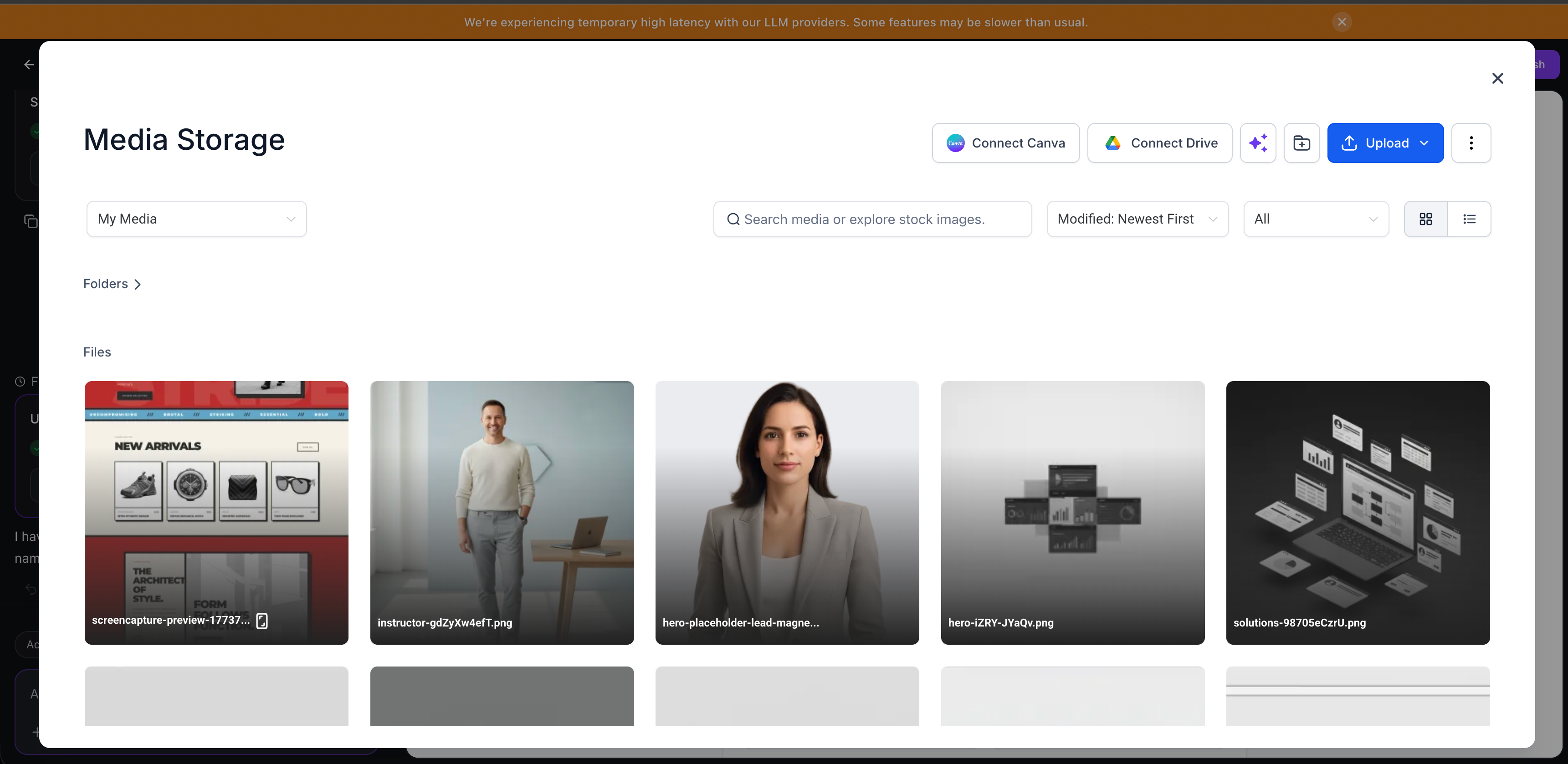
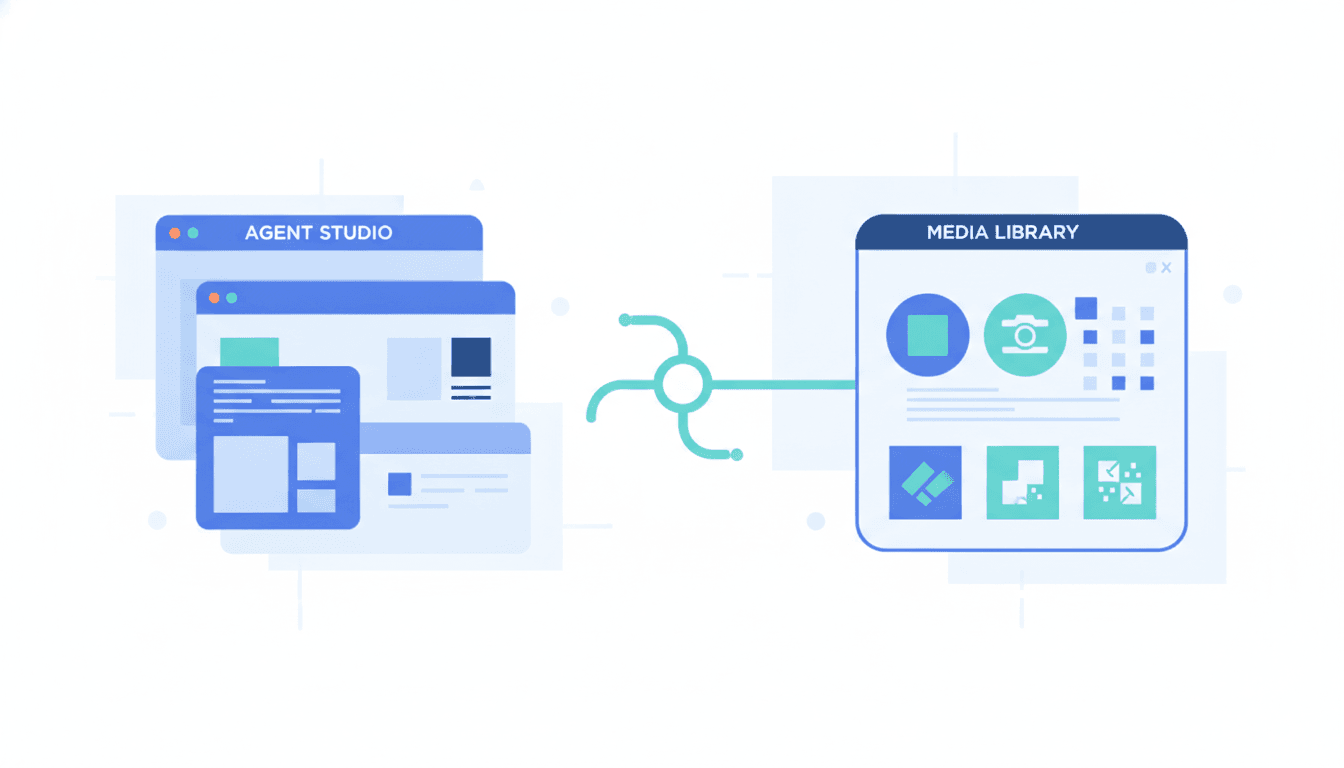
Agent Studio now integrates with your media library. Across every section, from the chat to visual edits and publishing, you can browse and reuse the images and assets you have already uploaded.
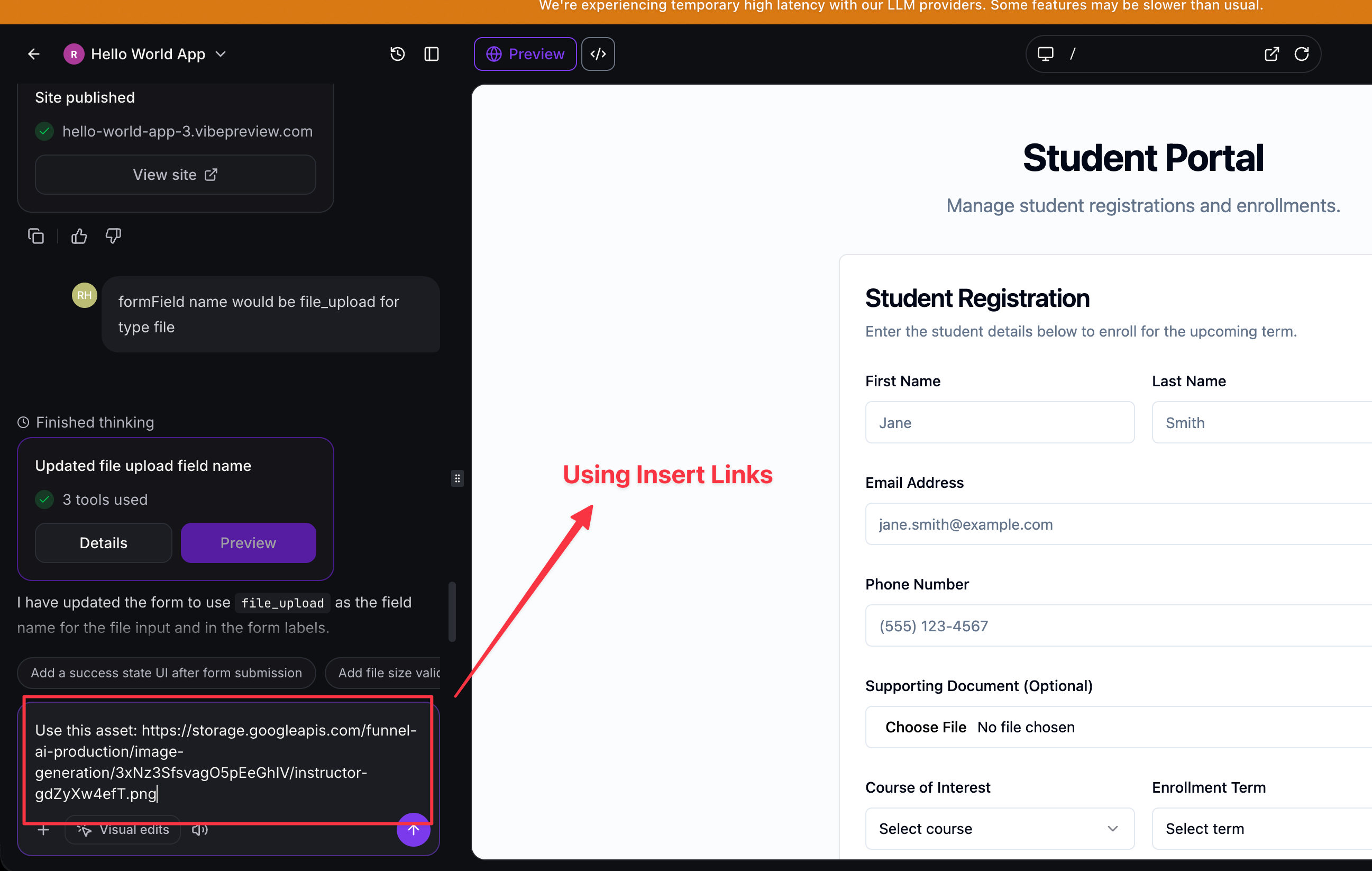
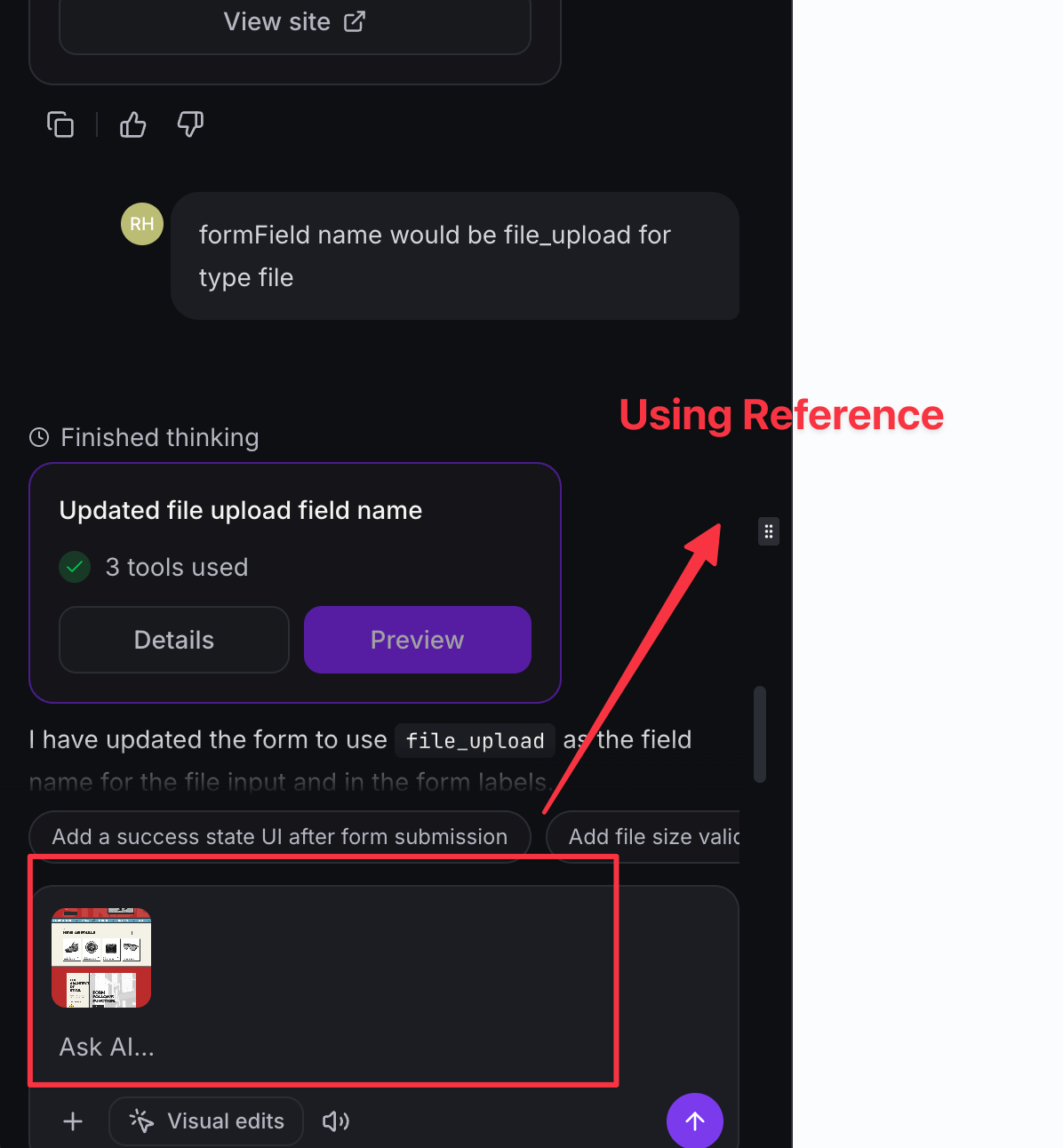
You can now choose reference images to guide the AI, add links to your files inside prompts, replace the image of an element while editing a page, and set the favicon and social images for your site. You can still carry on uploading files straight from your device.
The assets you use stay linked to the project, so when you duplicate it or load it from a saved project template, your media are kept.
🎯 Why does this feature matter?
We wanted users to be able to use the assets already in their media library and keep their branding consistent, without having to leave Agent Studio or re-upload the files.
Bringing the media library into the chat, visual edits and publishing makes the assets you already manage available everywhere. This ensures images stay consistent even when projects are duplicated.
🌟 Key features
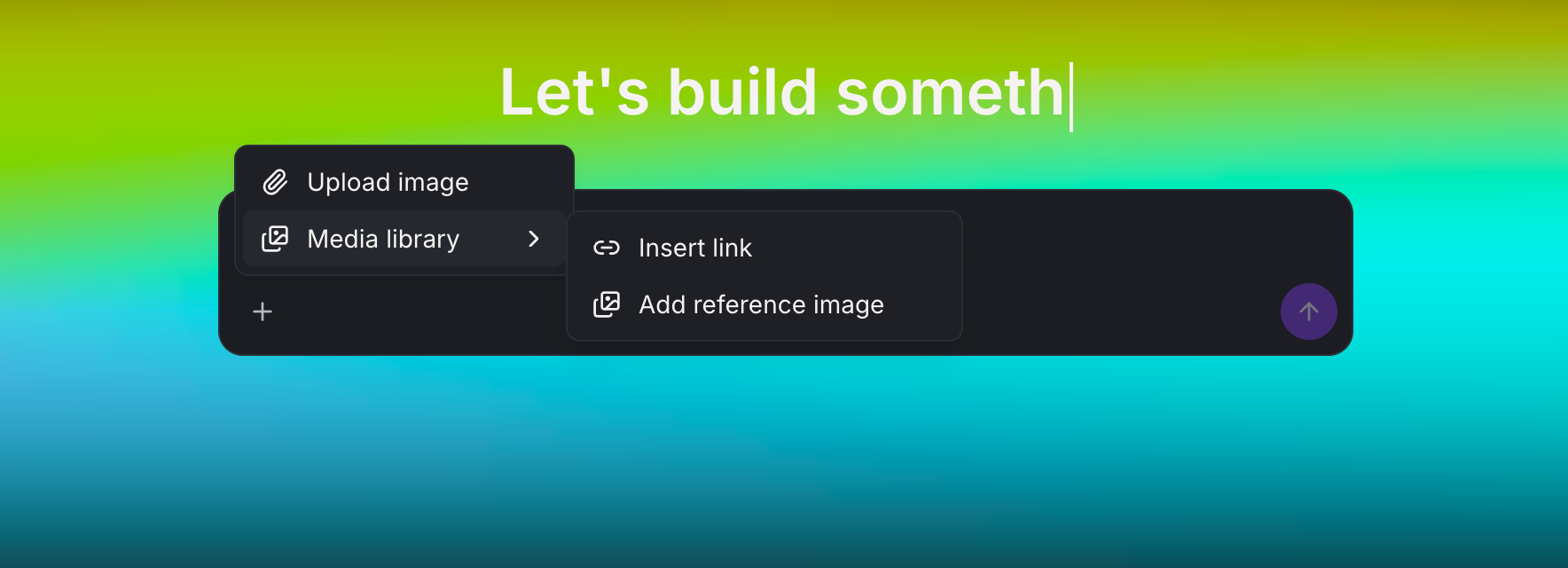
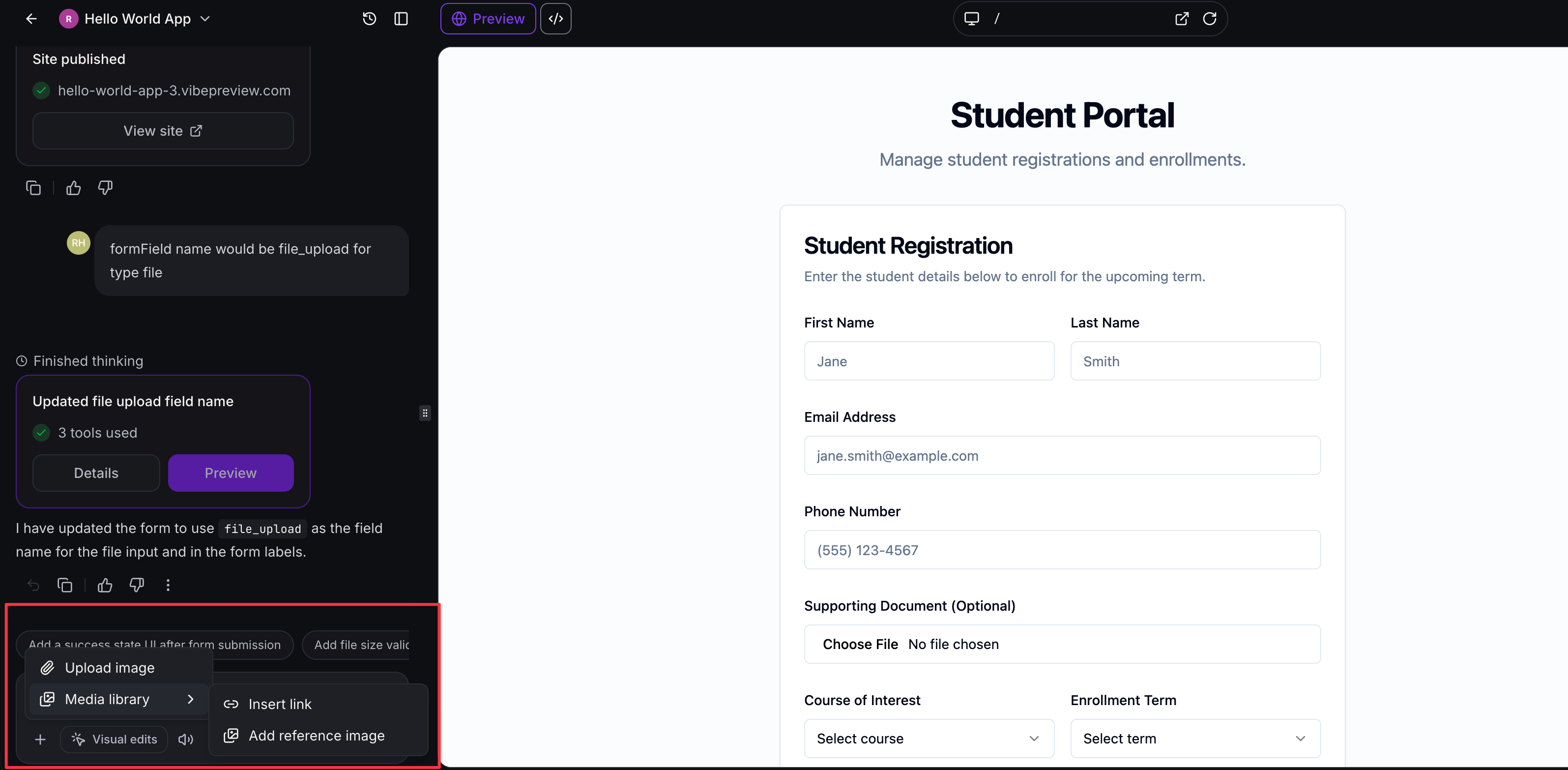
- Reference images from the media library in the chat: Browse and attach existing images from the media library as a reference, so the AI can align better with your visual identity without you having to re-upload the files.
- Inserting links to media library assets: Paste image, document, video or audio URLs from the media library straight into your prompt so the AI can use them.
- Replacing images in visual edits: While editing a page, select an image element and replace it using an asset from your media library.
- Publishing images from the media library: Set your favicon and social image (OG image) by choosing files from the media library in the publishing window.
- Uploading from your device: Upload, paste or drag images straight into the chat when an asset is not yet in your media library.
- Media that follow your project: The assets you use stay linked to the project when you duplicate it.
🛠️ How to use it
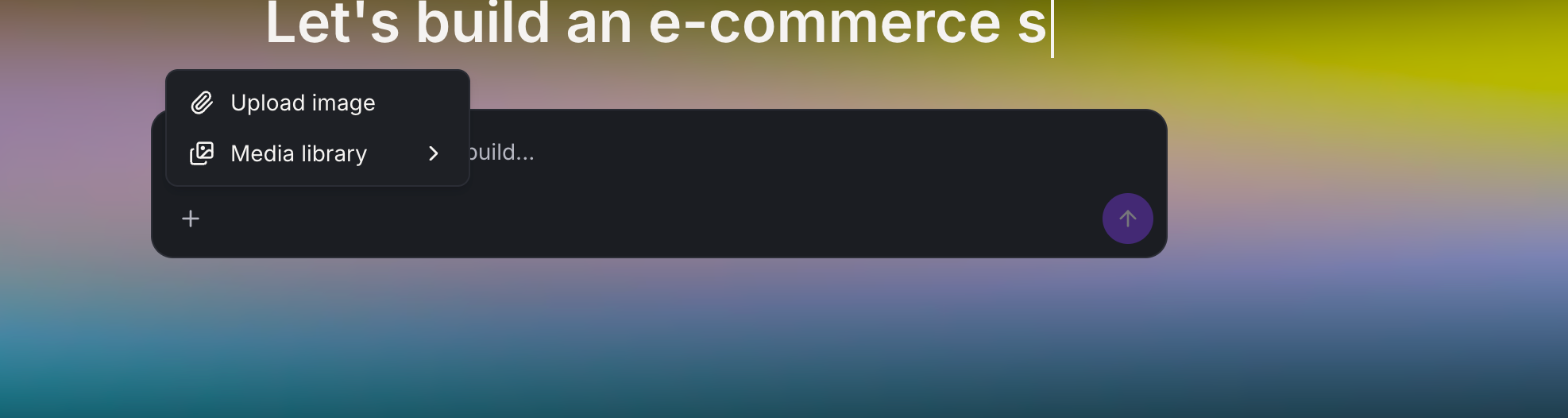
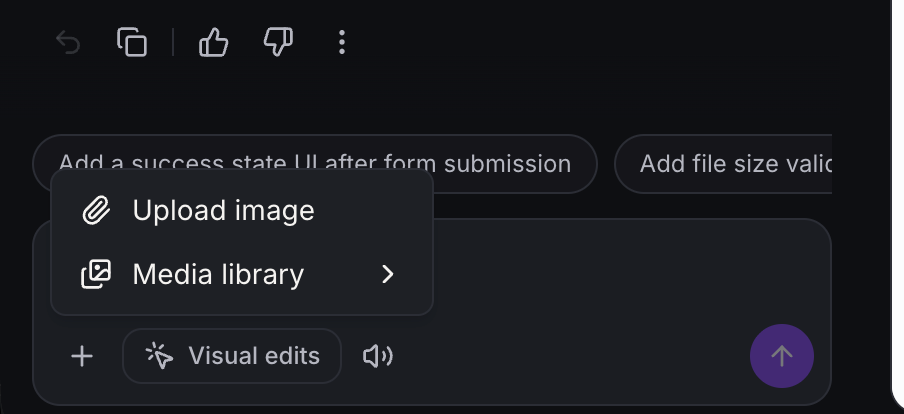
- Chat: Open the "+ attach" menu, choose "Media library", then add a reference image or insert a link. You can also upload from your device, or paste or drag files into the text field.
- Visual edits: Select an image element on the page, then use the "Media library" button next to the image URL field to choose a replacement.
- Publishing: In the publishing settings, use the "Media library" option in the favicon and social image fields, or upload a file from your device.
ℹ️ Good to know
- You can always upload files straight from your device when you need to.
- The media used in Agent Studio stay associated with the project when it is duplicated.
- This helps keep your branding and assets consistent across different projects.