Table of contents
What's new?
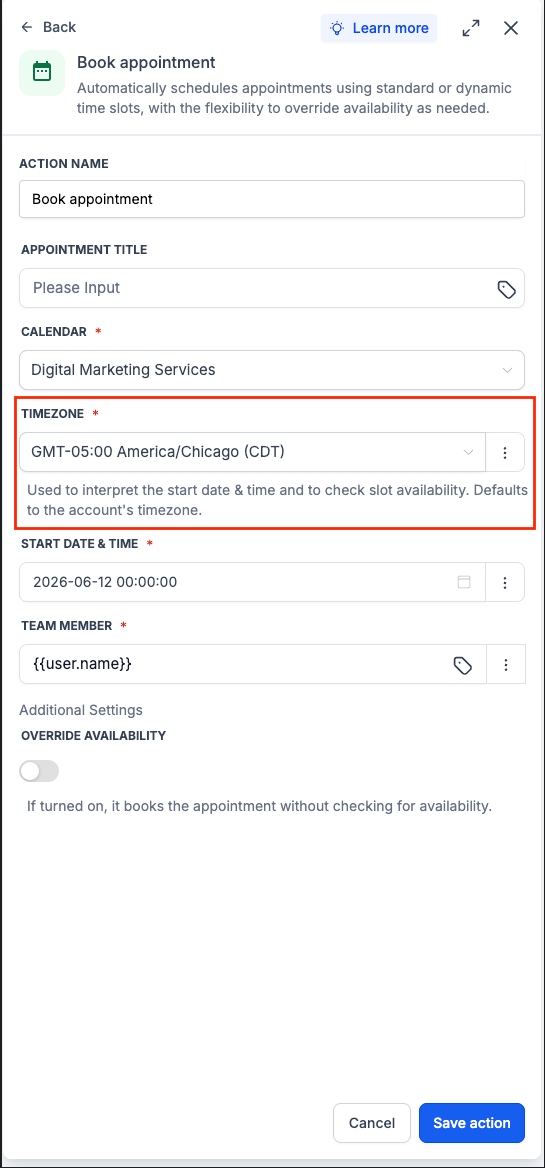
The "Book Appointment" action inside automations now supports a time zone field. You can choose a fixed time zone or use a dynamic value, such as the one specific to the contact.
How it works
When the action is triggered, the start date and time are interpreted using the selected time zone. That way, the appointment is booked at exactly the intended moment.
If you do not select a time zone, the system defaults to the one set in your account.
How to use it
- Open the "Book Appointment" action in an automation.
- Set the start date and time and choose either a fixed time zone or the contact's time zone.
- Save the action.
Why it matters
Previously, dynamic appointment times could be interpreted in the wrong time zone, leaving bookings hours out of step for contacts in other geographical areas.
This update gives you direct control to schedule appointments at exactly the right time, every time.
Notes and limitations
- The action uses the account time zone by default, but users can change it to set a specific one.
- The time zone is used to interpret the start date and time and to check slot availability.
- If the "Ignore availability" option is active, the appointment is booked without checking availability on the calendar.
- This update applies only to the "Book Appointment" action.
Preview