Table of contents
What's new?
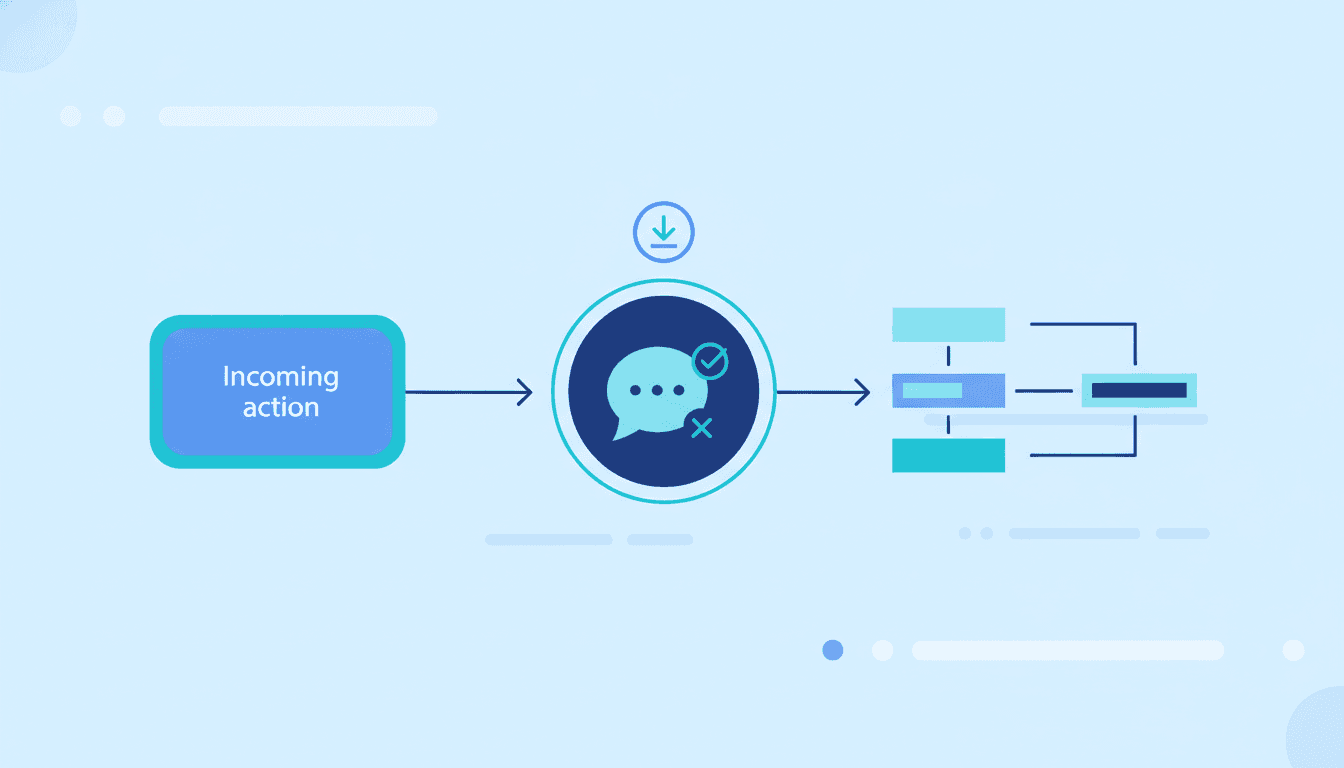
From today you can start workflows when a user on your team replies to a conversation. This trigger fires every time a team member sends a reply to a contact, making it easier to automate internal processes after an agent's reply, instead of waiting for the customer to answer.
How it works
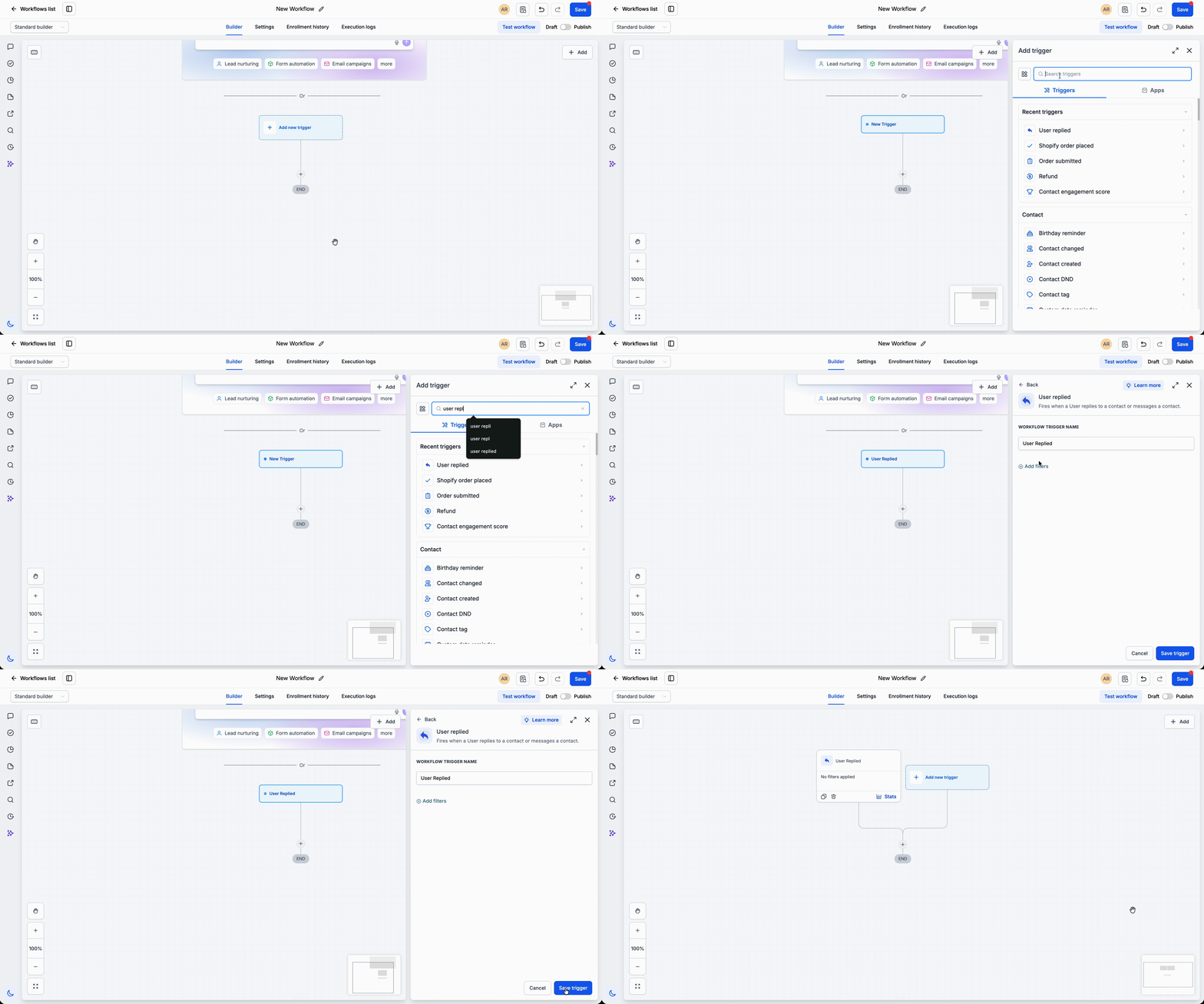
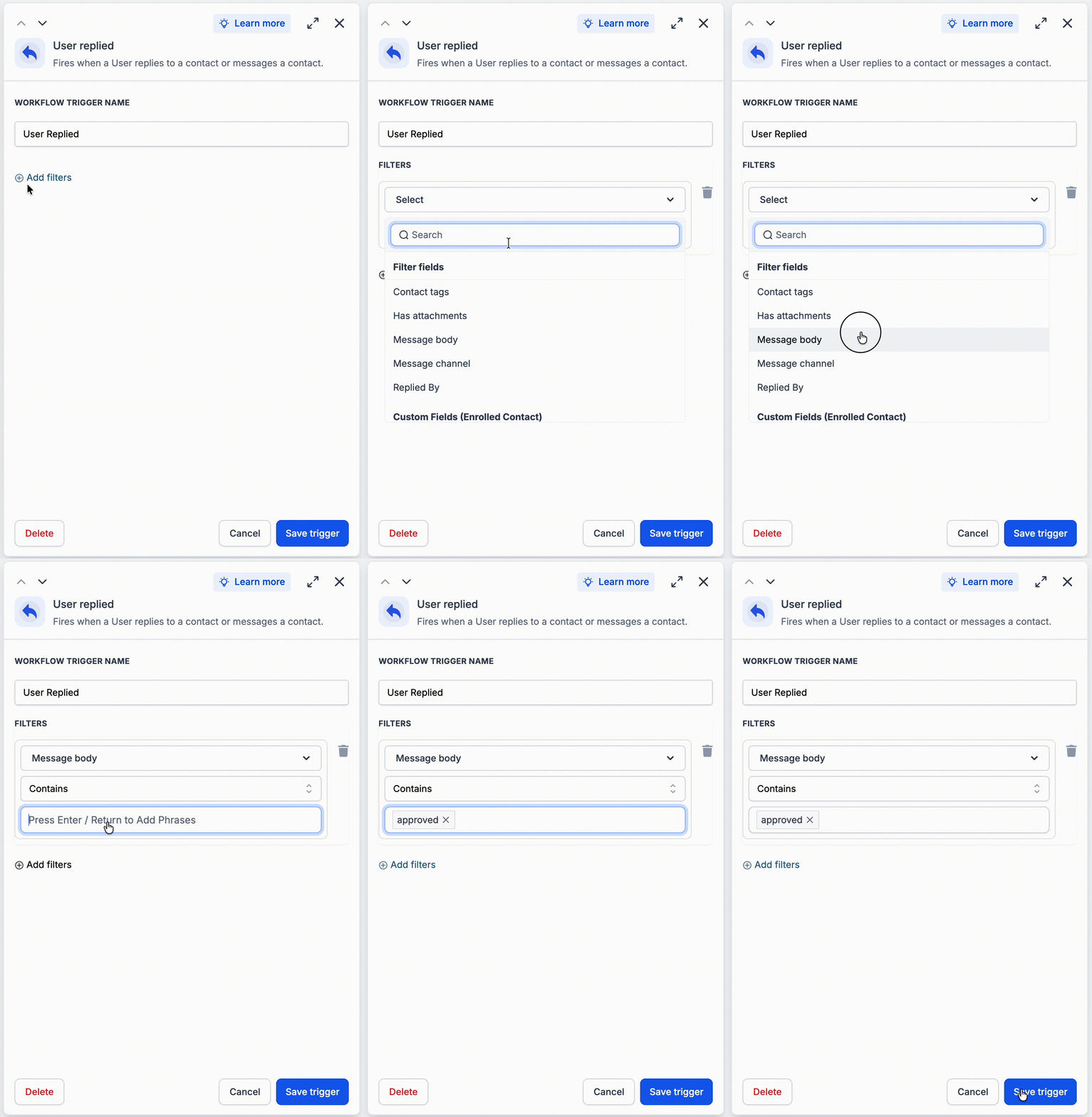
Add the "User Reply" trigger to any workflow and choose the conditions that should start it. Once a user replies to a contact through a supported conversation channel, the workflow starts automatically and can continue with actions such as notifications, tag assignment, allocations or follow-up automations.
How to use it
- Go to Automations > Workflows and add the "User Reply" trigger.
- Configure the trigger filters your workflow needs.
- Publish the workflow to automate actions every time a user replies to a contact.
Why we built it
Many automations need to react to your team's actions, not just to customer activity. The "User Reply" trigger helps you build workflows that track agent engagement, fire internal notifications, update records or start the next step as soon as a team member replies.
Practical examples
- A salesperson replies to a new lead's SMS. The "User Reply" trigger automatically moves the opportunity to the "Contacted" stage and sends a notification to the sales manager.
- A support agent replies to a customer's email. The "User Reply" trigger adds the "Support replied" tag and creates a follow-up task for a check-in after 48 hours.
Additional notes
- The trigger fires only when a user sends a reply, not when a customer replies.
- Use this trigger for internal workflow automation based on team activity.