Table of contents
Client Portal: notifications for file uploads
Administrators and account users can now receive in-app notifications every time a contact uploads a file through the Client Portal.
This update gives teams instant visibility of new files sent by clients, helping them review documents, complete approvals, manage onboarding and move document-based workflows forward without having to check uploads manually.
What's new?
Get notified about files uploaded by clients
When a contact uploads one or more files to the Shared Documents section of the Client Portal, the relevant administrators and account users will automatically receive an in-app notification.
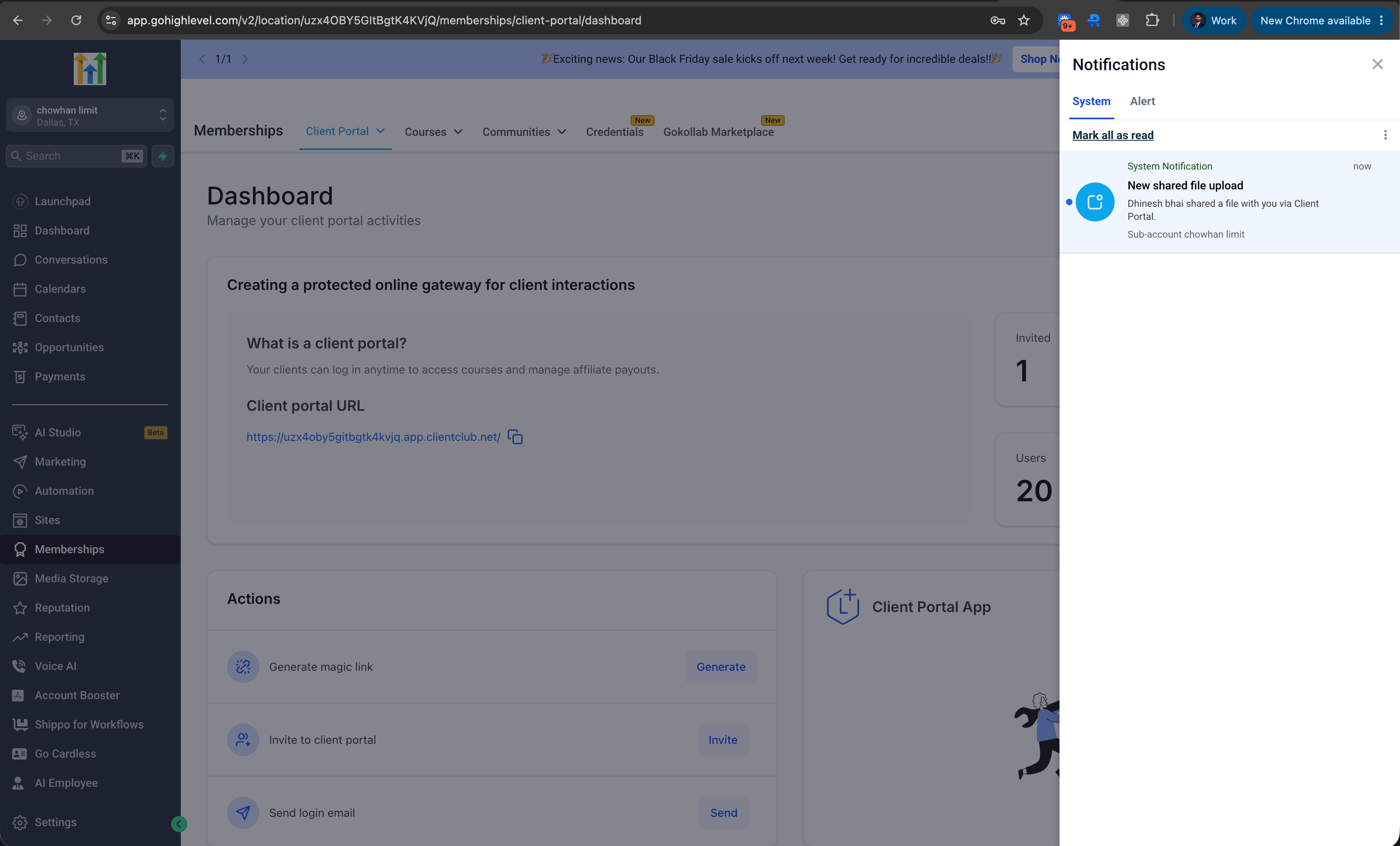
Clients can upload up to 10 files at a time.
Manage notification preferences
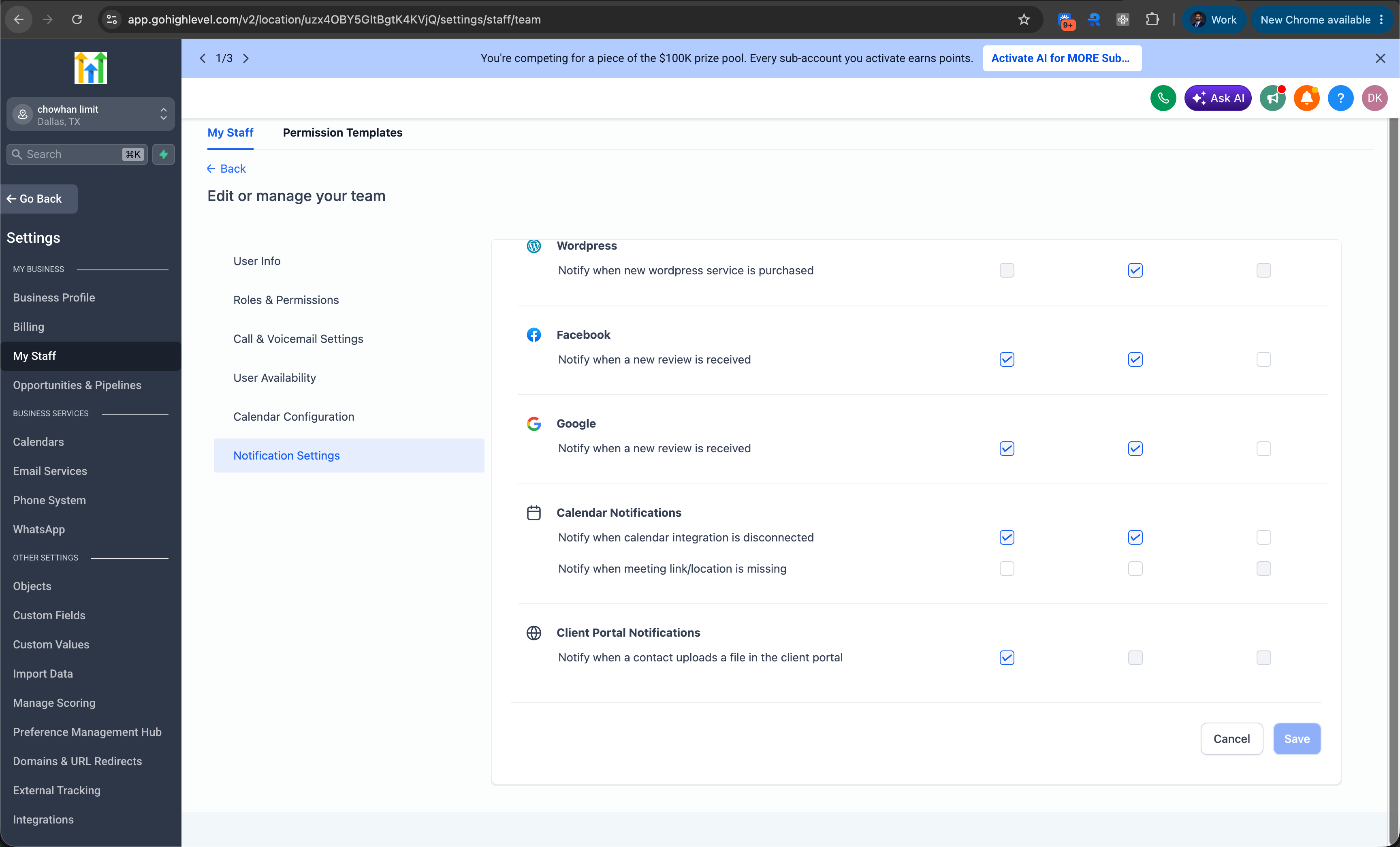
Account administrators can control which staff members receive file upload notifications. To manage these preferences:
- Go to Settings → My Staff.
- Select the staff member.
- Open the Notification settings.
- In the Client Portal Notifications section, switch the Notify me when a contact uploads a file to the Client Portal option on or off.
- Save your changes.
How it works
When a client uploads a file:
- The client logs in to the Client Portal.
- They go to the Shared Documents section.
- They click Share File.
- They upload one or more files.
- Once the upload is complete, the relevant administrators and account users receive an in-app notification.
Why it matters
Documents uploaded by clients often call for prompt action, such as reviewing contracts, verifying identity documents, processing onboarding paperwork or approving project materials.
Previously, teams had to monitor the Client Portal manually for new uploads, risking delays or missed deliveries. With file upload notifications, the right team members can respond faster, collaborate more effectively and keep important workflows moving.
Important notes
- Notifications are only triggered when a contact uploads files through the Shared Documents section of the Client Portal.
- Notification preferences are managed individually for each staff member.
- Preferences are configured at account level under Settings → My Staff → Notification settings.
- The notification channel currently supported is in-app notifications.