


Table of contents
- Conditional logic in surveys
- ⚠️ IMPORTANT
- What conditional logic in surveys is
- What is new in the latest release
- Available actions
- How to set up conditional logic in surveys
- 1. Open conditional logic
- 2. Add a new condition
- 3. Build the rule
- 4. Choose the action outcome
- 5. Save the rule
- Supported fields
- Supported operators by field type
- Survey-specific features
- "Jump To" logic
- Rule filter
- Behaviour and evaluation
- Tips
- FAQ
Conditional logic in surveys
Conditional logic helps you build smarter, more dynamic surveys in Futuria CRM. It lets you show or hide slides, display messages, redirect users, disqualify responses or jump between slides, all based on how a user answers.
This guide explains how to use conditional logic in surveys, what is new in the latest release and which fields are supported.
⚠️ IMPORTANT
Conditional logic is available only for recently created or cloned surveys.
What conditional logic in surveys is
Conditional logic automates actions inside your survey based on user input. You can define conditions such as:
- If the answer is "No", show a custom message.
- If the score is below 5, disqualify the contact.
- If the date falls within a certain range, redirect to another page.
- Make users jump to a specific slide instead of showing every slide.
This makes your surveys more interactive, more relevant and more efficient.
What is new in the latest release
- Simplified 3-step builder: Select Field → Select Condition → Provide Value
- "Between" operator: For number, score, monetary and date fields
- Jump To logic: Create jumps from one slide to another within surveys
- Support for more fields: Checkboxes, multiple drop-downs, Terms and Conditions, file upload, signatures
- New elements to show/hide: Text, HTML, Image, T&C elements
- Rule list filter: Filter rules by field or by slide
- Loop protection: Prevents infinite loops (Slide A → Slide B → Slide A)
- Localised and accessible: Keyboard navigation and translated labels
Available actions
When you open Conditional Logic, you will see the available action types:
| Action | Description |
|---|---|
| Show/Hide Fields | Dynamically show or hide questions or slides. |
| Show Custom Message | Display custom instructions or messages. |
| Redirect to URL | Send respondents to a custom web page after submission. |
| Disqualify Contact | Automatically flag unqualified responses. |
| Jump To (Slide) | Skip or move to another slide based on the answers. (Surveys only) |
Rules run from top to bottom.
Later matches overwrite earlier ones, where applicable.
How to set up conditional logic in surveys
You can add and manage rules directly inside the survey builder.
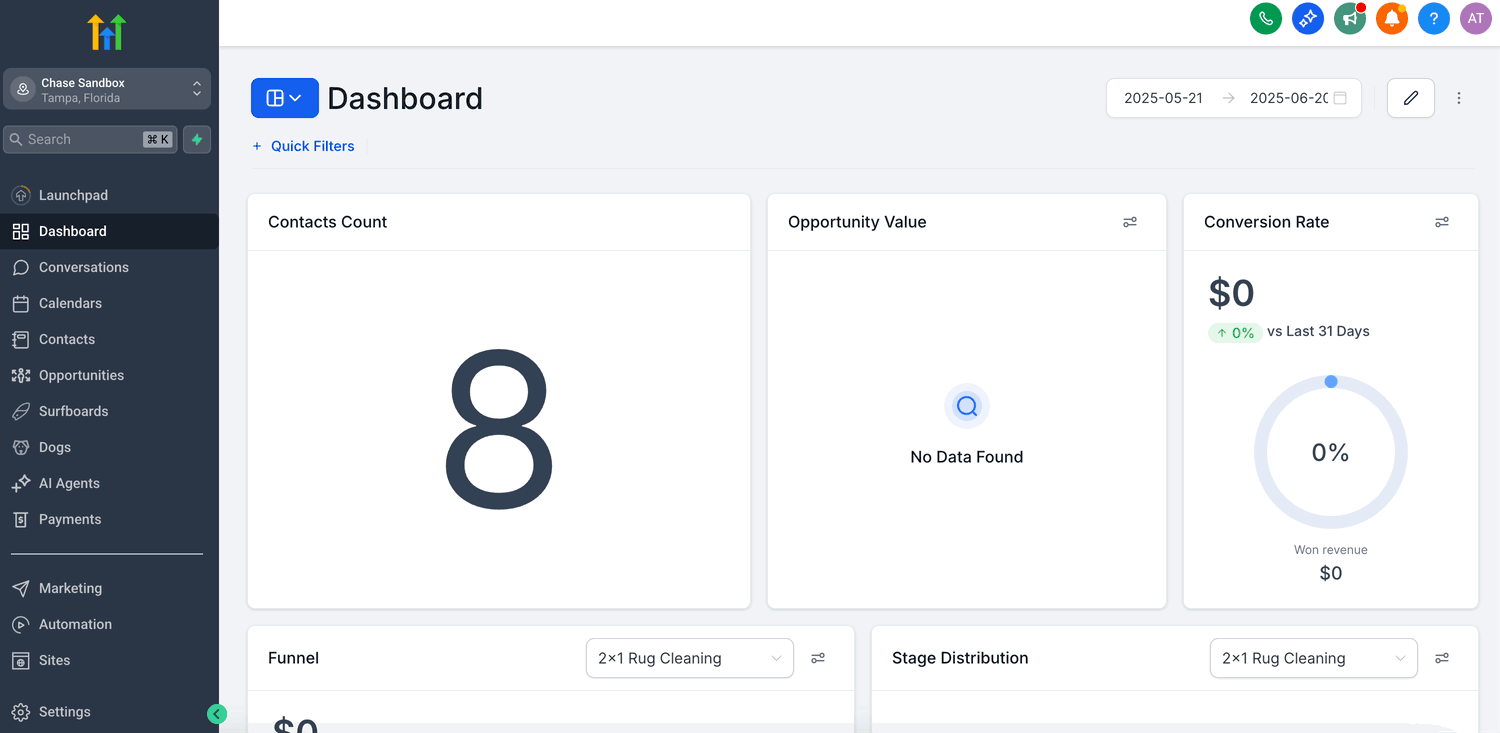
1. Open conditional logic
- In the survey builder, click Conditional Logic in the top bar.
- Or open it from the Conditional Logic link in the right-hand sidebar.
2. Add a new condition
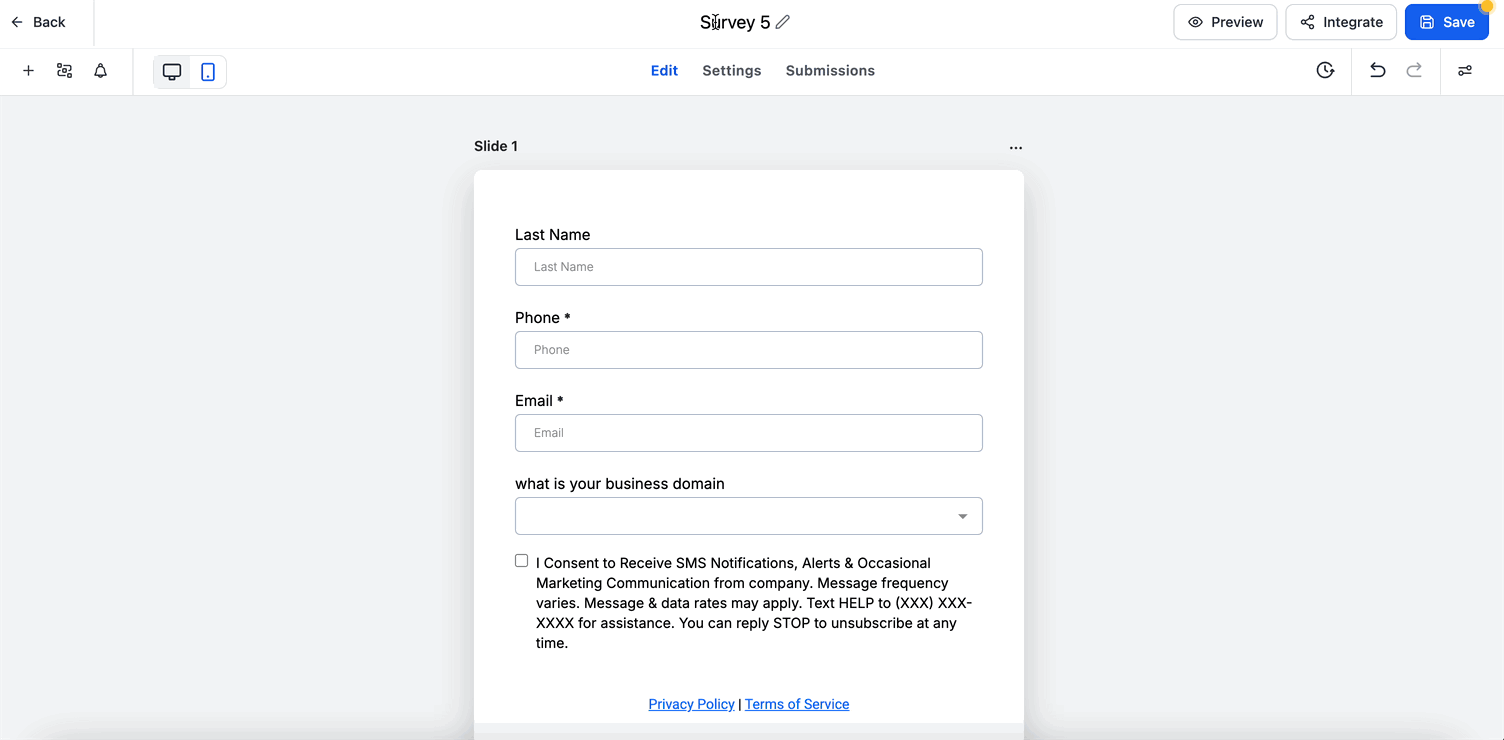
- Click Add New Condition.
- Choose an action (Show/Hide, Message, Redirect, Disqualify or Jump To).
- The 3-step logic builder will open.
3. Build the rule
Follow the guided flow:
- Select Field – Choose the survey field or slide the rule is based on.
- Select Condition – Choose the operator (e.g. is equal to, is empty).
- Provide Value – Enter the value (text, number, date, option).
You can add several conditions to the same rule using the AND or OR connectors.
- AND = all conditions must be true.
- OR = any one of the conditions can be true.
Switching from AND to OR updates every condition in the block.
Some operators do not require values (e.g. is empty, is ticked).
4. Choose the action outcome
Depending on your selection:
- Redirect to URL: Enter a valid link (e.g.
https://example.com) - Show Message: Add the text of your custom message
- Show/Hide Fields: Select the fields to display or hide
- Disqualify Contact: Automatically stops the submission
- Jump To (surveys only): Select the destination slide or question
5. Save the rule
- The Save button becomes active only once you have completed all the required fields.
- The system checks for missing values and prevents looping logic.
- Rules run from top to bottom in the list.
Supported fields
Conditional logic supports a wide range of survey fields.
Survey fields
- Single line
- Multiple line
- Number
- Monetary
- Score
- Date picker
- Drop-down (single)
- Drop-down (multiple)
- Radio selection
- Checkbox
- Terms and Conditions (T&C1 / T&C2)
- File upload
- Signature
Static elements
- Text
- HTML
- Image
Note: Calendar fields are not supported in conditional logic.
Supported operators by field type
| Field type | Operators |
|---|---|
| Text (single/multiple line) | is equal to, is not equal to, contains, does not contain, starts with, ends with, is empty, is filled in |
| Number / Score / Monetary | is equal to, is not equal to, greater than, less than, between, is empty, is filled in |
| Date | is equal to, before, after, between, is empty, is filled in |
| Drop-down (single) / Radio | is equal to, is not equal to, is empty, is filled in |
| Multiple drop-down / Checkbox | is equal to {Option}, is not equal to {Option}, is empty, is filled in |
| T&C1 / T&C2 | is ticked, is not ticked |
| File upload / Signature | is empty, is filled in |
Survey-specific features
"Jump To" logic
- IF condition: Field or Slide
- THEN action: Jump to a slide or a question
- When it triggers: On clicking Next
- Conflict handling: If several "Jump To" rules match, the first one runs
- Protection: Prevents loops (Slide A ↔ Slide B)
Rule filter
In surveys, you can filter the rules for easier editing:
- By Field: Shows the rules linked to a specific field
- By Slide: Shows the rules that affect or target a selected slide
Behaviour and evaluation
- Rules run in order from top to bottom.
- Redirect / Message / Disqualify: Only the first matching rule runs.
- Show/Hide: Later rules overwrite earlier ones.
- Jump To: Evaluated when the slide changes (Next button).
- Text matching is not case sensitive and ignores extra spaces.
- Date logic uses the account's time zone.
Tips
- Use Between for number or date ranges (inclusive).
- Try the quick date presets such as Today or This Week.
- The "Other" option for radio fields appears only if custom input is enabled.
- Always preview your survey to check the logic and the jump flow.
FAQ
1. Can I mix AND and OR in the same rule?
No. Each rule must use a single type of connector.
2. Can I have several rules in the same survey?
Yes. Each rule runs independently.
3. What happens if more than one condition matches?
For Redirect, Message or Disqualify actions, the first match wins. For Show/Hide, later rules overwrite earlier ones.
4. Can I create loops in the "Jump To" logic?
No. The builder blocks loops and shows a warning if it detects one.
5. Why can I not select fields in the IF condition drop-down?
Check that every survey field has a unique Query Key, then refresh the panel.