


Table of contents
- What is the media picker and media storage integration?
- Main benefits of the integration
- Media picker and media storage
- Image-based elements
- Rich text editors (RTE)
- Quiz results editor
- QR codes
- How to use the media picker and media storage integration
- Step 1: Organise your media storage
- Step 2: Open a supported editor
- Step 3: Insert or change an image
- Step 4: Keep your media library up to date
- Frequently asked questions
What is the media picker and media storage integration?
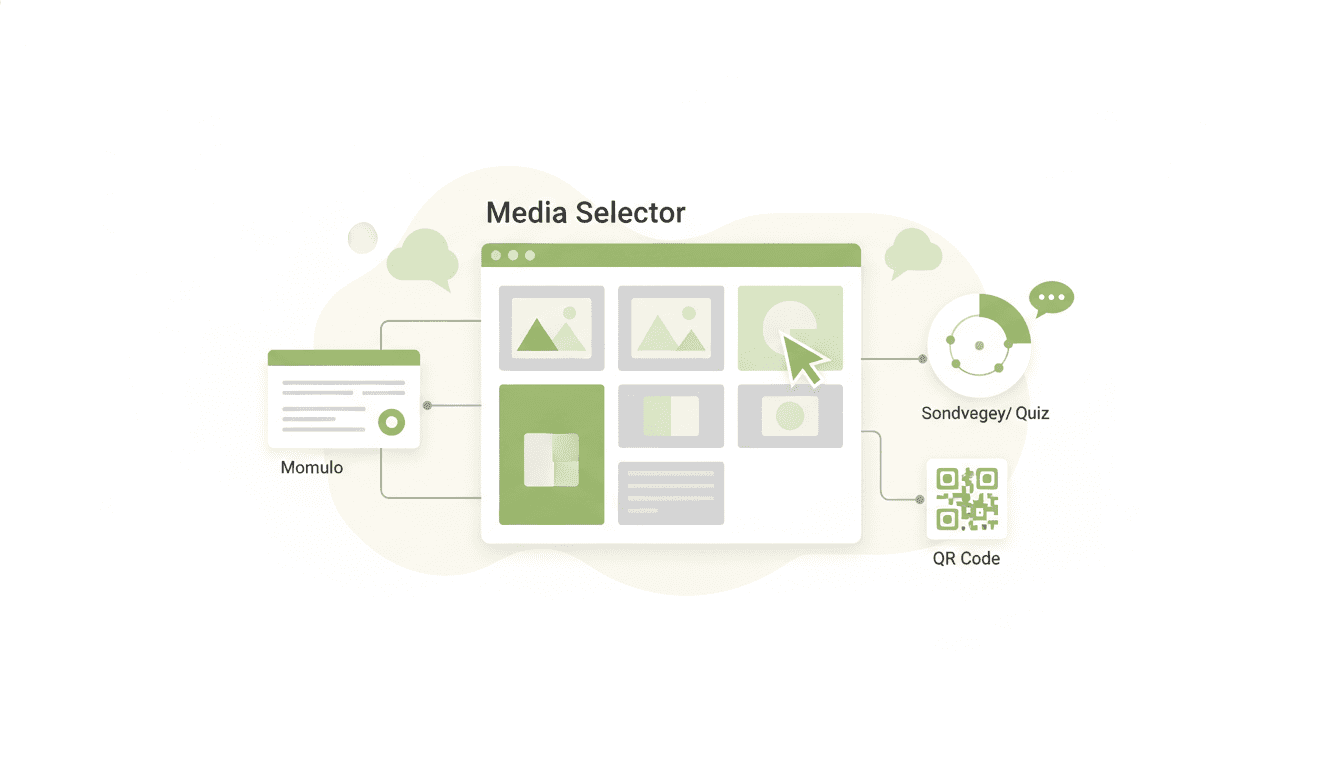
The media picker and media storage integration connects image selection in forms, surveys, quizzes and QR codes to the centralised Futuria CRM media storage.
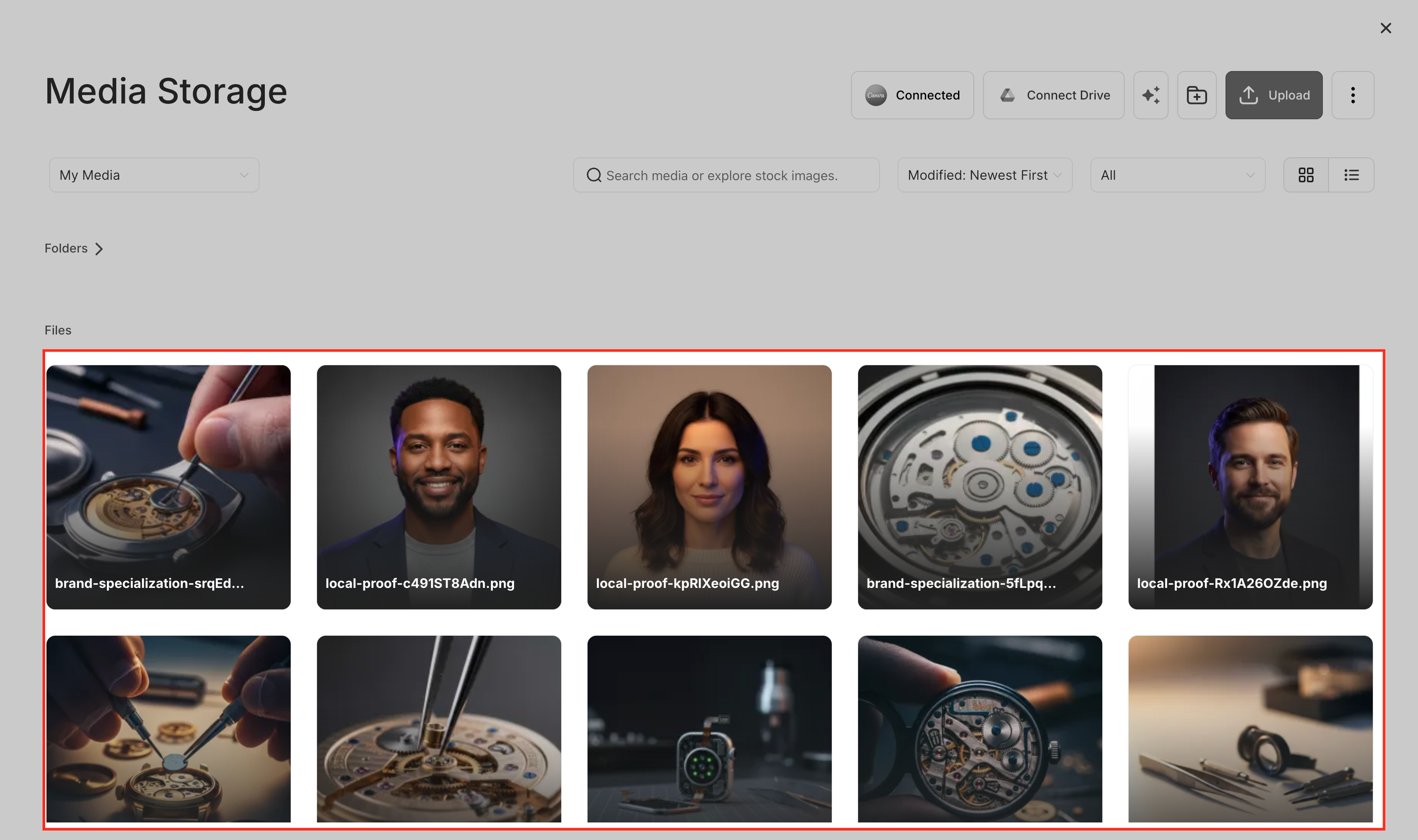
The media picker is a pop-up window that opens when you click options such as "Change image" or the image icon in the various editors, letting you select or upload media files from media storage.
Every time you add or change an image, the global media picker opens, giving you access to your complete media library, including folders, uploaded files and external sources (where supported). This ensures a consistent, organised experience when working with images across the different tools.
Main benefits of the integration
- A consistent image experience across Futuria CRM: forms, surveys, quizzes, QR codes, funnels and websites all use the same global media picker, creating a familiar and predictable workflow.
- Faster, more intuitive image selection: browse folders, search for files, preview images and select assets without having to switch between upload interfaces.
- Reuse existing assets instead of re-uploading them: access logos, backgrounds and graphics uploaded previously from media storage, reducing duplication and saving time.
- Centralised media management: all images are stored in one place, where you can organise files using folders, rename assets and manage unused media.
- Better brand consistency: you can reuse your approved brand assets across multiple tools, helping you maintain a consistent visual identity.
- Compatibility with media storage features: images selected through the picker can benefit from features such as file filtering, image editing and the external integrations available in media storage.
Media picker and media storage
The global media picker acts as the interface for accessing media storage when you insert images.
When you open the media picker, you can:
Browse media storage
Navigate through folders, switch between grid and list views and check image details such as dimensions.
Search for and filter assets
Find files quickly using the available search and filters.
Upload new images
Drag and drop files straight into the picker to add them to your library in media storage.
Preview before inserting
Open images to check them before adding them to your creation tool.
Edit images (where supported)
Use the editing tools built into media storage to retouch images before inserting them.
Image-based elements
Image-based elements in forms, surveys and quizzes use the global media picker for image selection.
When you work with these elements, clicking Change image opens the media picker. Selected or uploaded images are saved to media storage, and the same image can be reused across multiple tools.
Example workflow:
- Open your editor (e.g. the form editor)
- Select an image element
- Click Change image
- Choose or upload an image from the media picker
- Insert the image and save
Rich text editors (RTE)
Rich text editors (RTE) support inserting images directly into text fields.
You can click the image icon in the editor toolbar, open the media picker, select or upload an image and insert it straight into the text. This is useful for adding logos, instructions or visual context inside descriptions and messages.
Quiz results editor
The quiz results editor supports the use of images for the different outcomes, letting you enhance the results visually. For each result, image selection opens the global media picker.
You can reuse existing assets or upload new ones. The same image can be applied to multiple results or quizzes, helping to keep the user experience consistent.
QR codes
QR code configuration supports adding logos or overlay images using the media picker.
When you add a logo, click the image or logo option, open the media picker, select or upload a logo from media storage, then insert it and adjust it as needed. Using shared assets ensures consistent branding across all your campaigns.
How to use the media picker and media storage integration
Step 1: Organise your media storage
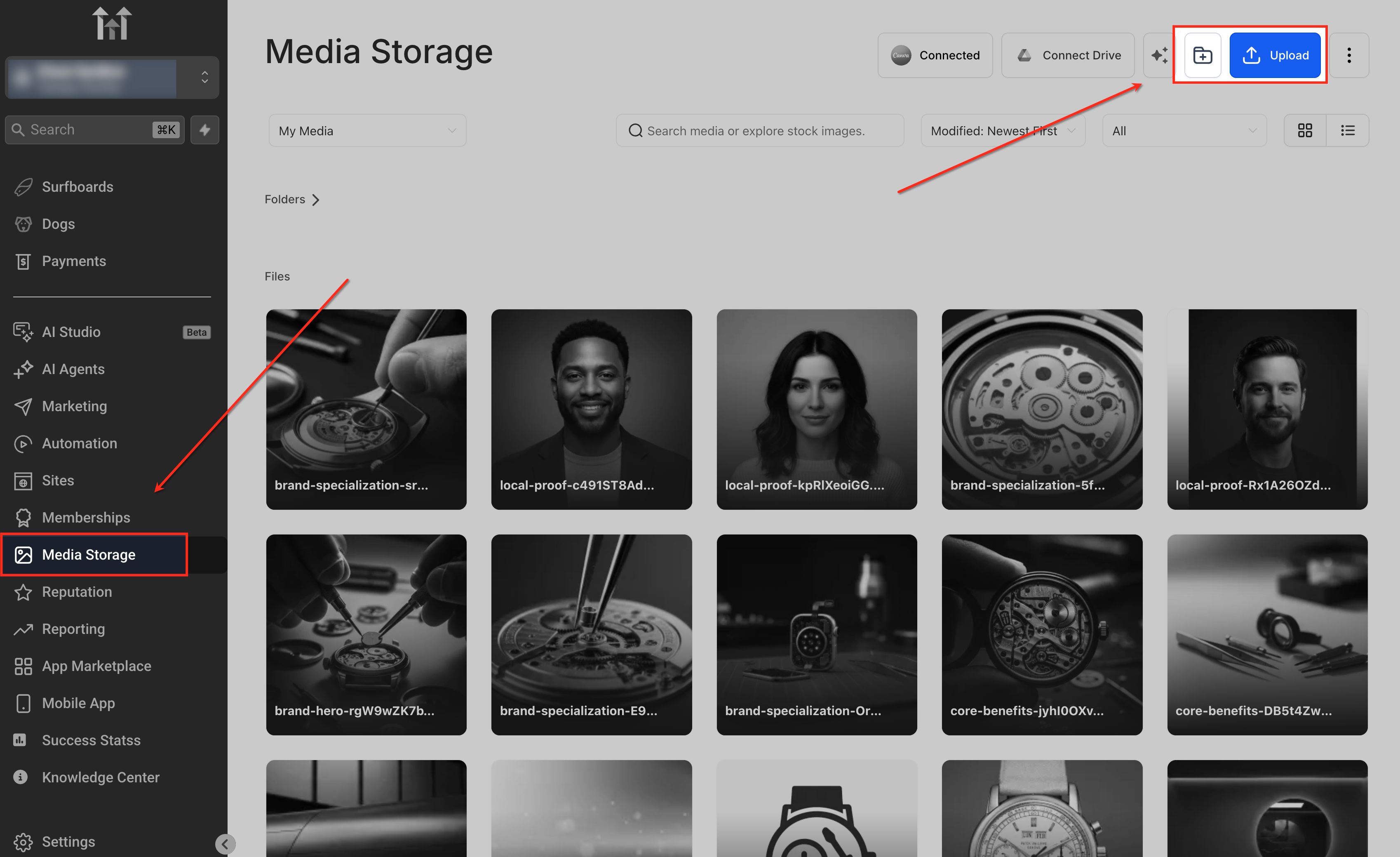
Open media storage from the sidebar, create folders (for example, Logos, Forms, Quizzes, QR codes) and upload the assets you use most often.
Step 2: Open a supported editor
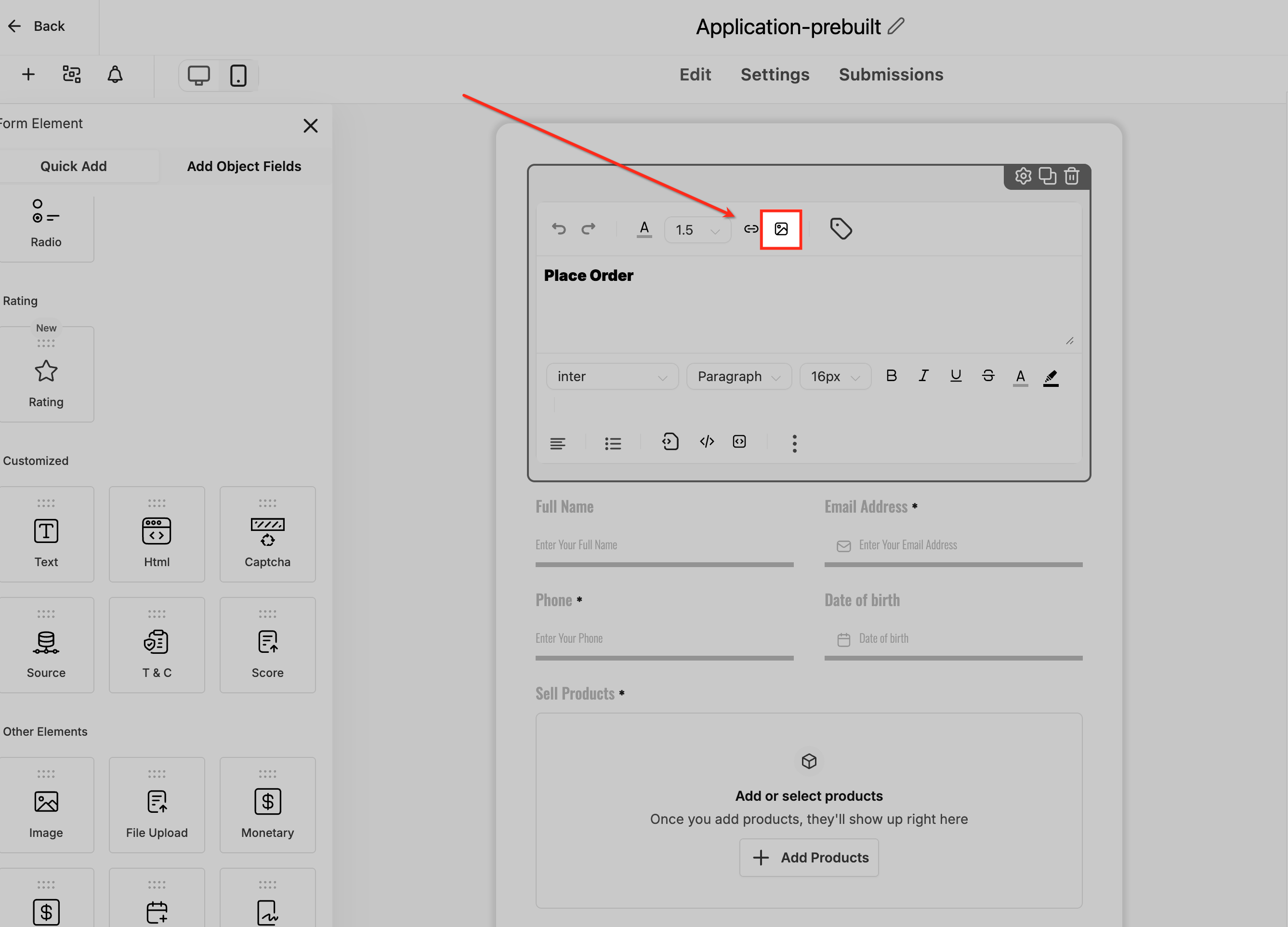
Go to the form, survey, quiz or QR code editor. Create a new element or edit an existing one.
The screenshot below shows how to access the media picker in the form editor, using the image icon in a rich text editor.
Step 3: Insert or change an image
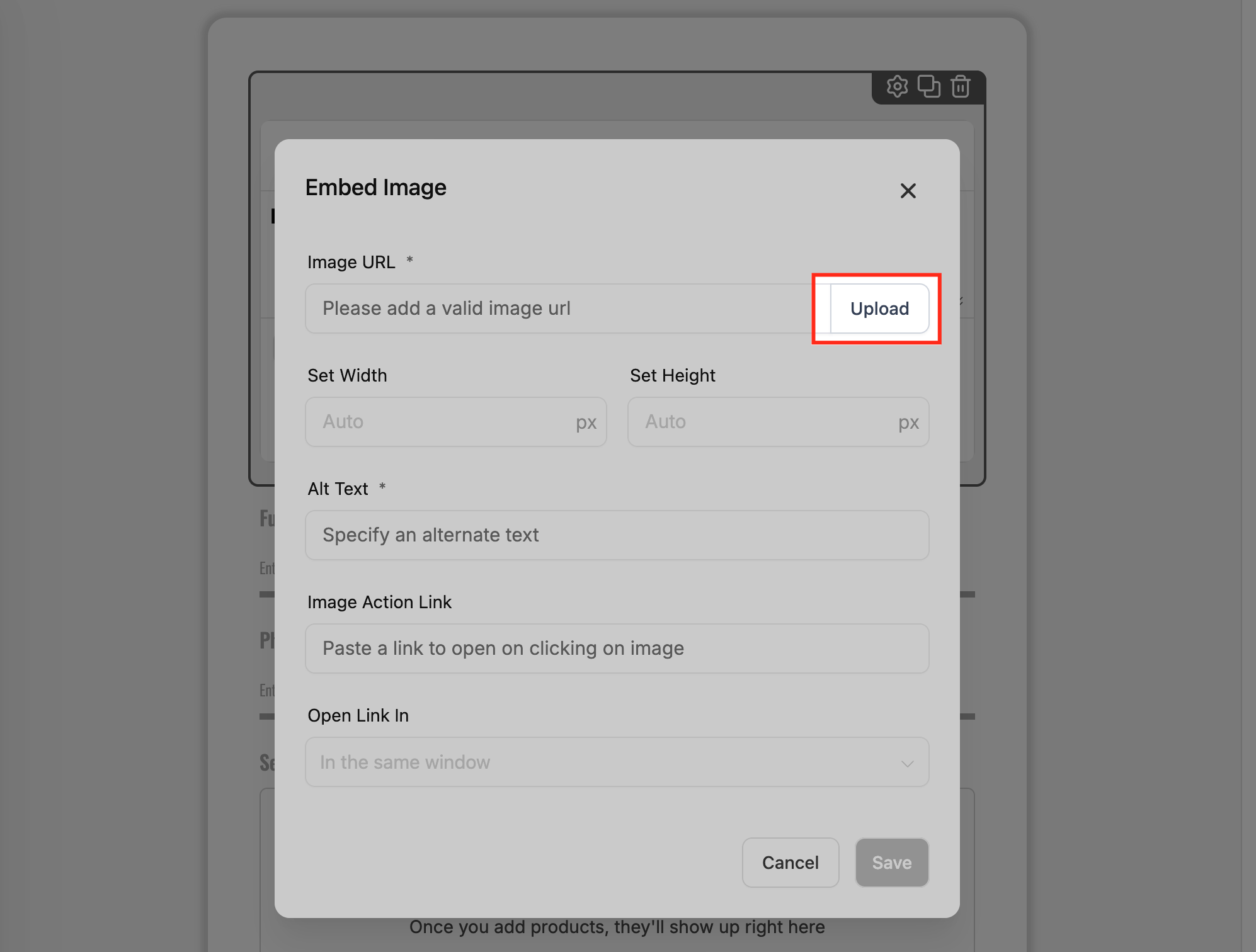
After clicking the image icon or Upload, the media picker opens as a pop-up inside the editor. From here, you can browse your existing media, search for specific files or upload a new image.
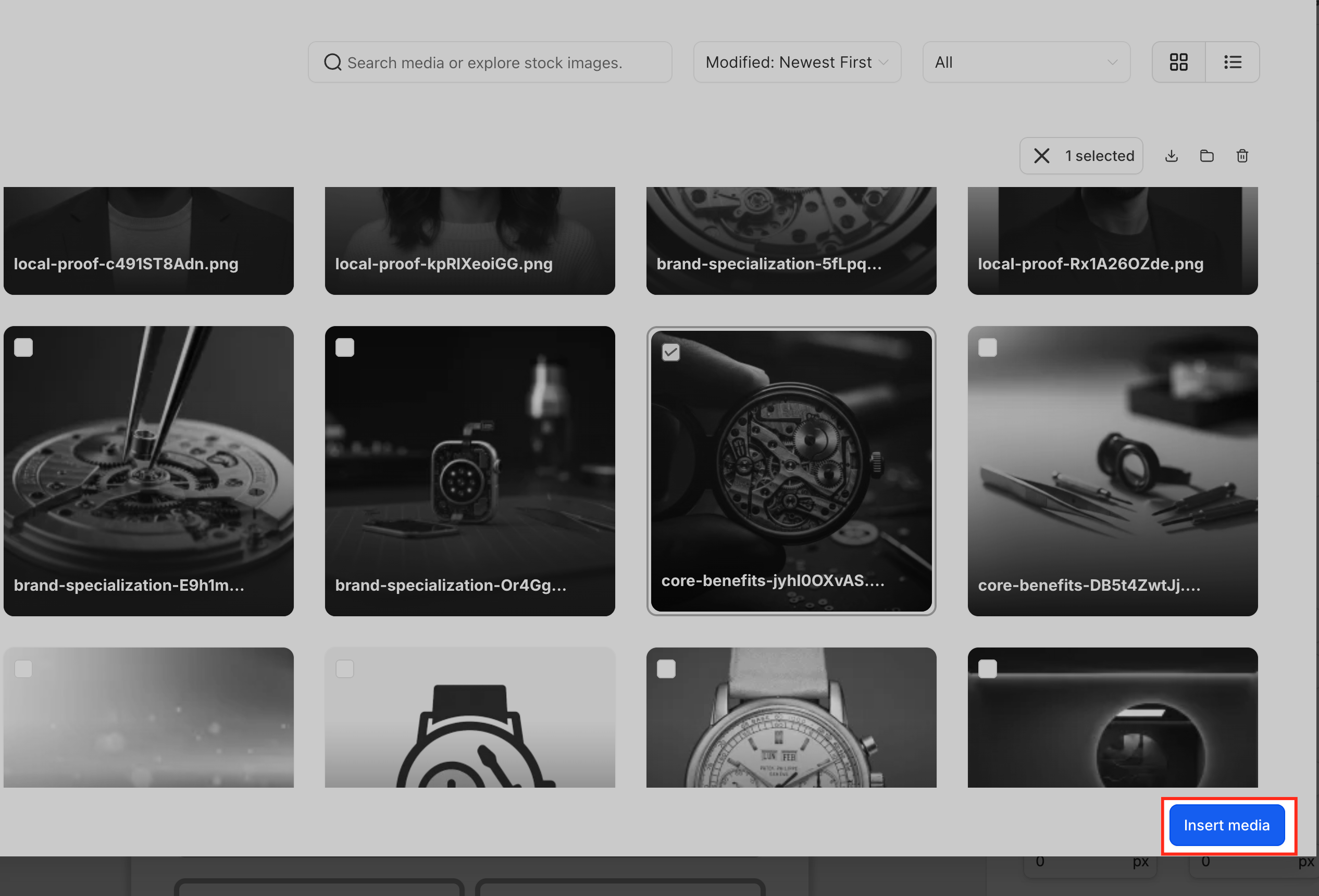
Select the image you want to use, then click Insert media to add it to your form, survey, quiz or QR code.
Step 4: Keep your media library up to date
Rename or move files in media storage, remove unused assets and edit images when needed so you can reuse the updated versions.
Frequently asked questions
Q: Do I need to enable the media picker?
No. The global media picker is available by default in the supported areas.
Q: Where are uploaded images stored?
All images are stored in your account's media storage and can be reused across different modules.
Q: Does this feature also cover files uploaded by contacts?
No. Files submitted by contacts follow separate storage processes. This integration applies to images used in the editors.
Q: Can I use external sources such as Google Drive?
Yes. Supported external sources can be accessed through the media picker.
Q: What happens to existing images?
Existing images remain unchanged and continue to work as expected.
Q: Can I rename or organise images that are already in use?
Yes. Changes made in media storage are reflected everywhere the image is used.
Q: Are there any size or file type limits?
Yes. The limits depend on media storage and on the specific editor used.
Q: Can I edit images inside the media picker?
Image selection happens in the picker. Editing is available through the editor built into media storage.
Q: What is the difference between the media picker and media storage?
Media storage is the library where files are kept, while the media picker is the interface you use to access and select those files.