


Table of contents
- What is address autocomplete?
- Intelligent search suggestions
- Automatic completion of the address fields
- Key benefits of address autocomplete
- How to enable address autocomplete
- Add the Address field
- Open the Address field settings
- Enable address autocomplete
- Make address selection mandatory
- Preview the form
- Test the address suggestions in real time
- Save and publish
- Frequently asked questions
What is address autocomplete?
Address autocomplete turns the standard "Address" field in Futuria CRM forms and surveys into an intelligent, predictive search bar. It draws on a built-in global database to show relevant address suggestions as users type, making forms quicker to complete and free of errors.
Accurate address data is essential for workflows, segmentation, reporting and any delivery-based action. Autocomplete removes typing mistakes, guarantees consistent formatting and speeds up form completion, improving both the user experience and the reliability of your data.
Intelligent search suggestions
As a user types into the Address field, Futuria CRM provides real-time predictive suggestions based on real address data.
Automatic completion of the address fields
When the user selects an address from the drop-down menu, all the relevant fields (Street, City, State, Country and Postcode) are filled in automatically. This guarantees consistent formatting and removes manual data-entry errors.
Key benefits of address autocomplete
Address autocomplete improves every form submission by making sure contact details are validated, consistent and correctly formatted. That means fewer corrections later on and happier users.
- Free and unlimited: included in every Futuria CRM account with no usage limits.
- Greater data accuracy: ensures consistent, validated address entries.
- Faster submissions: less typing effort for leads and customers.
- Higher conversion rates: a smooth user experience leads to more completed forms.
- Better data for reporting: standardised address formats improve the accuracy of your automations.
How to enable address autocomplete
Add the Address field
Go to Sites → Forms (or Surveys) and open the builder for the form where you want to use address autocomplete.
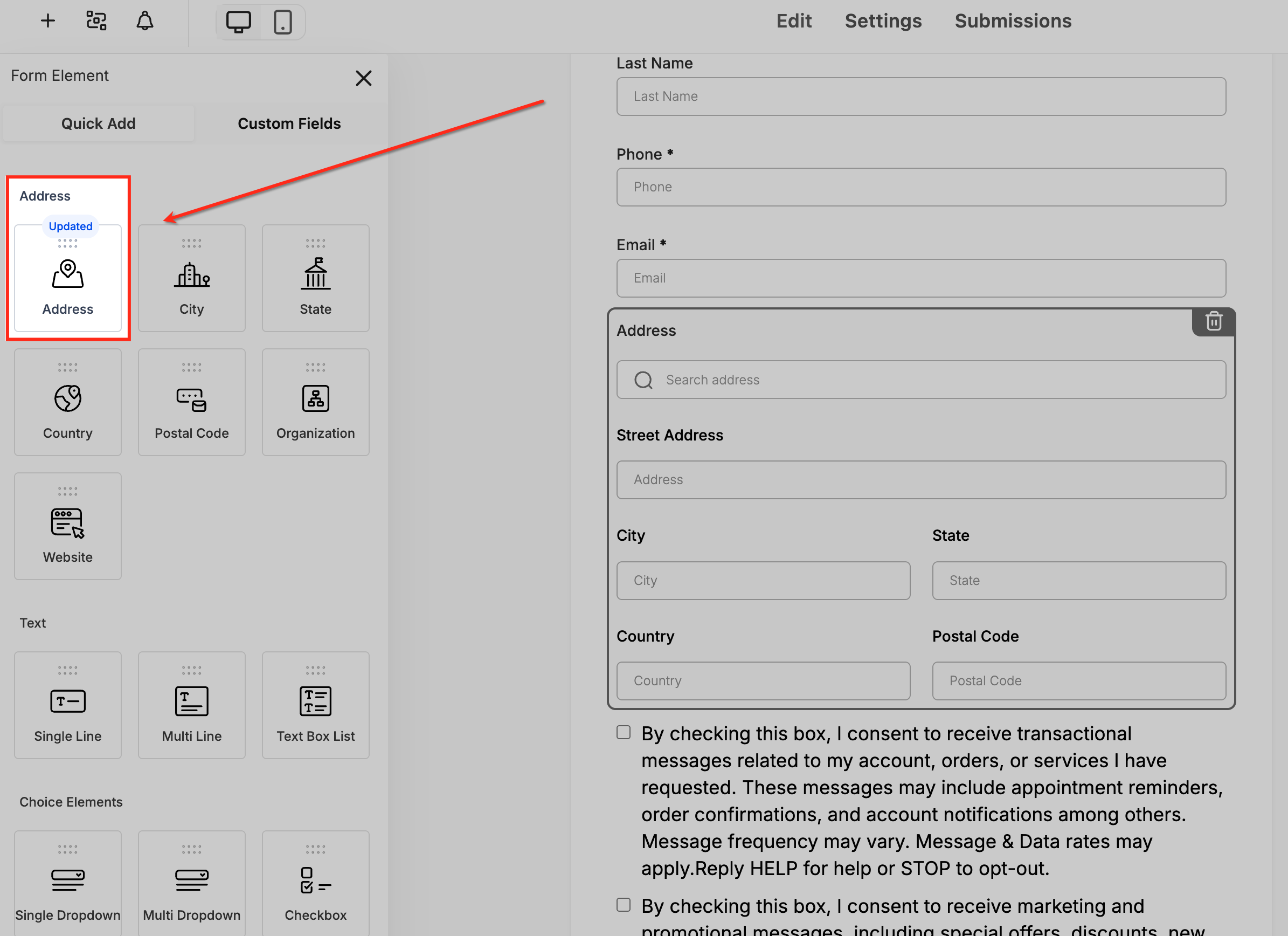
In the Form elements panel, drag the Address field into your form layout. The Address element is marked as Updated, which means it supports the autocomplete feature.
Open the Address field settings
Once you have added the Address field, click on it to open the settings panel on the right-hand side of the screen.
This panel lets you customise the behaviour of the address, enable autocomplete and control whether users have to select a verified address.
Enable address autocomplete
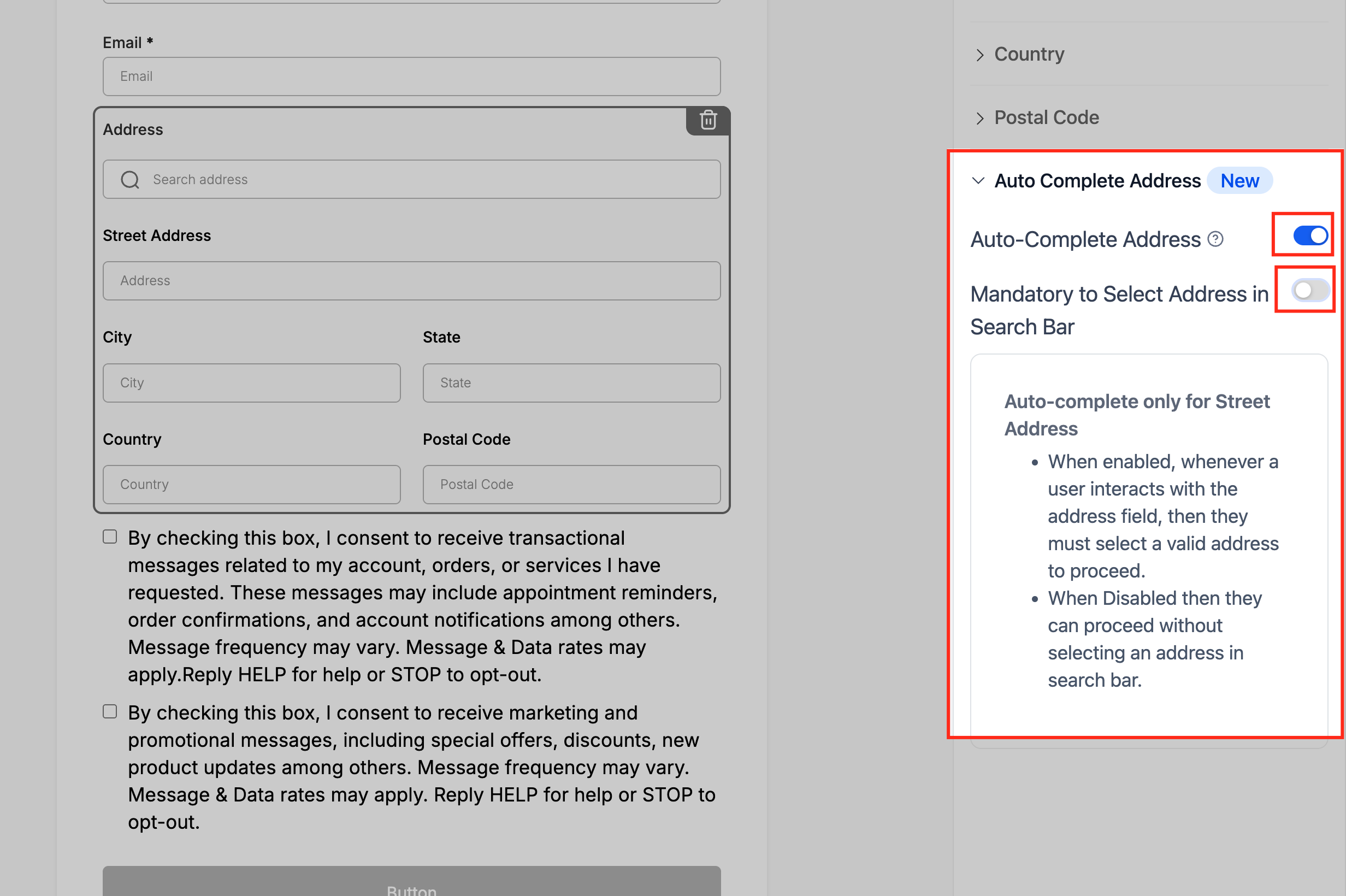
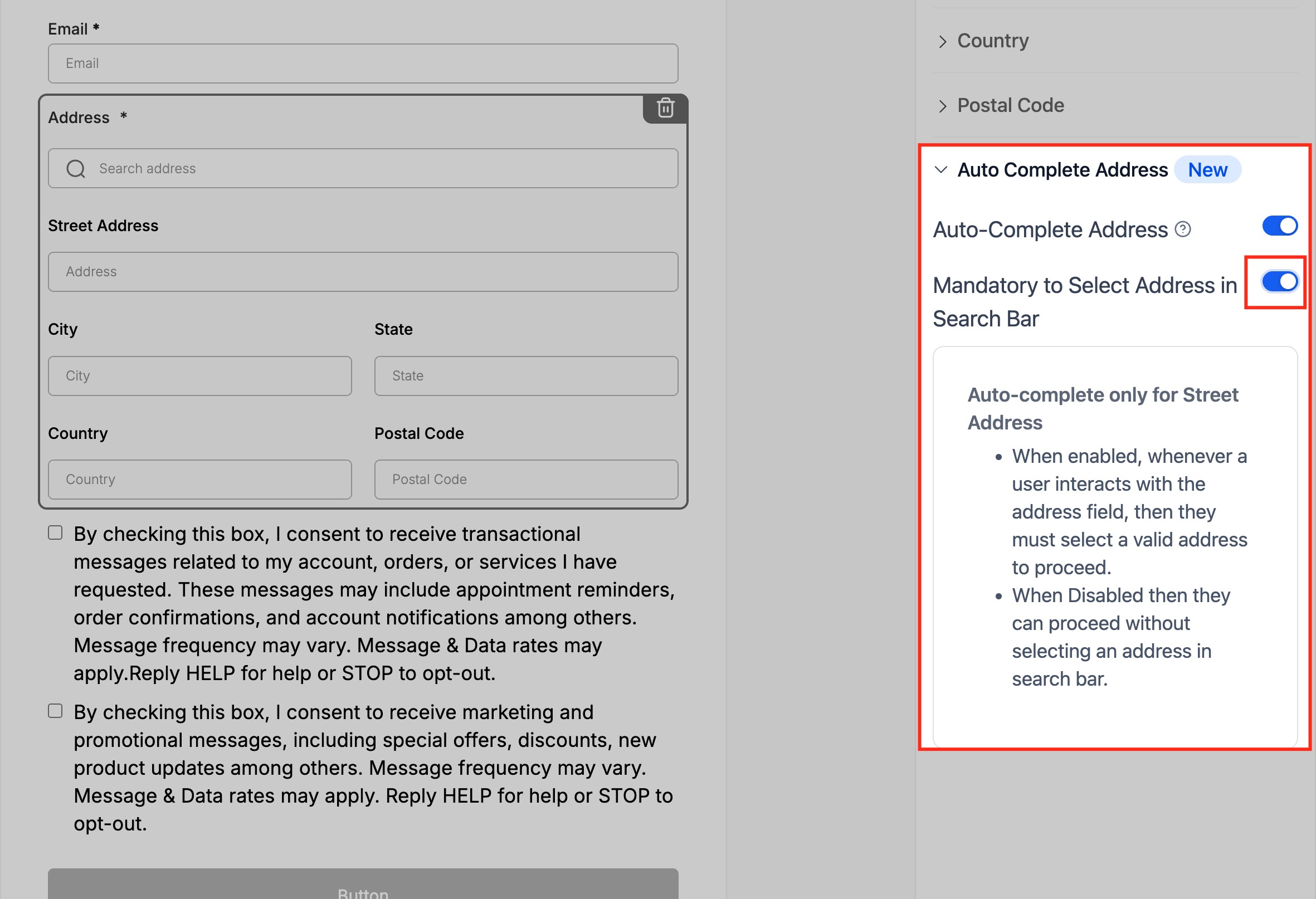
In the settings panel, find the Address autocomplete toggle and switch it on (ON).
Once active, this setting turns the standard address input into an intelligent search bar that suggests accurate addresses as the user types.
Make address selection mandatory
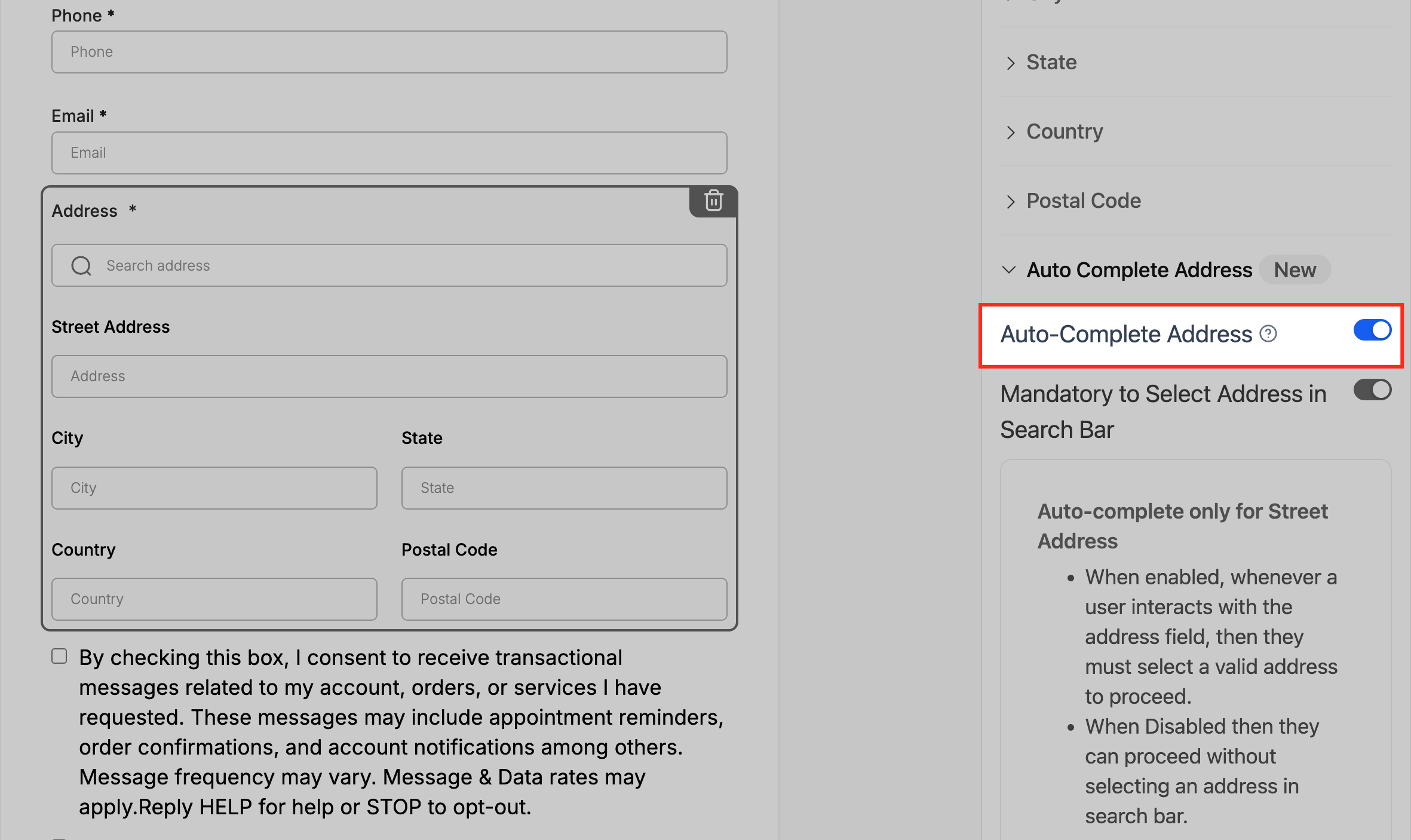
If you want to be sure that users only submit validated addresses, switch the Address must be selected from the search bar toggle to ON.
When this is enabled, users have to choose one of the suggested addresses before they can submit the form. If it is left OFF, they can enter an address manually.
Preview the form
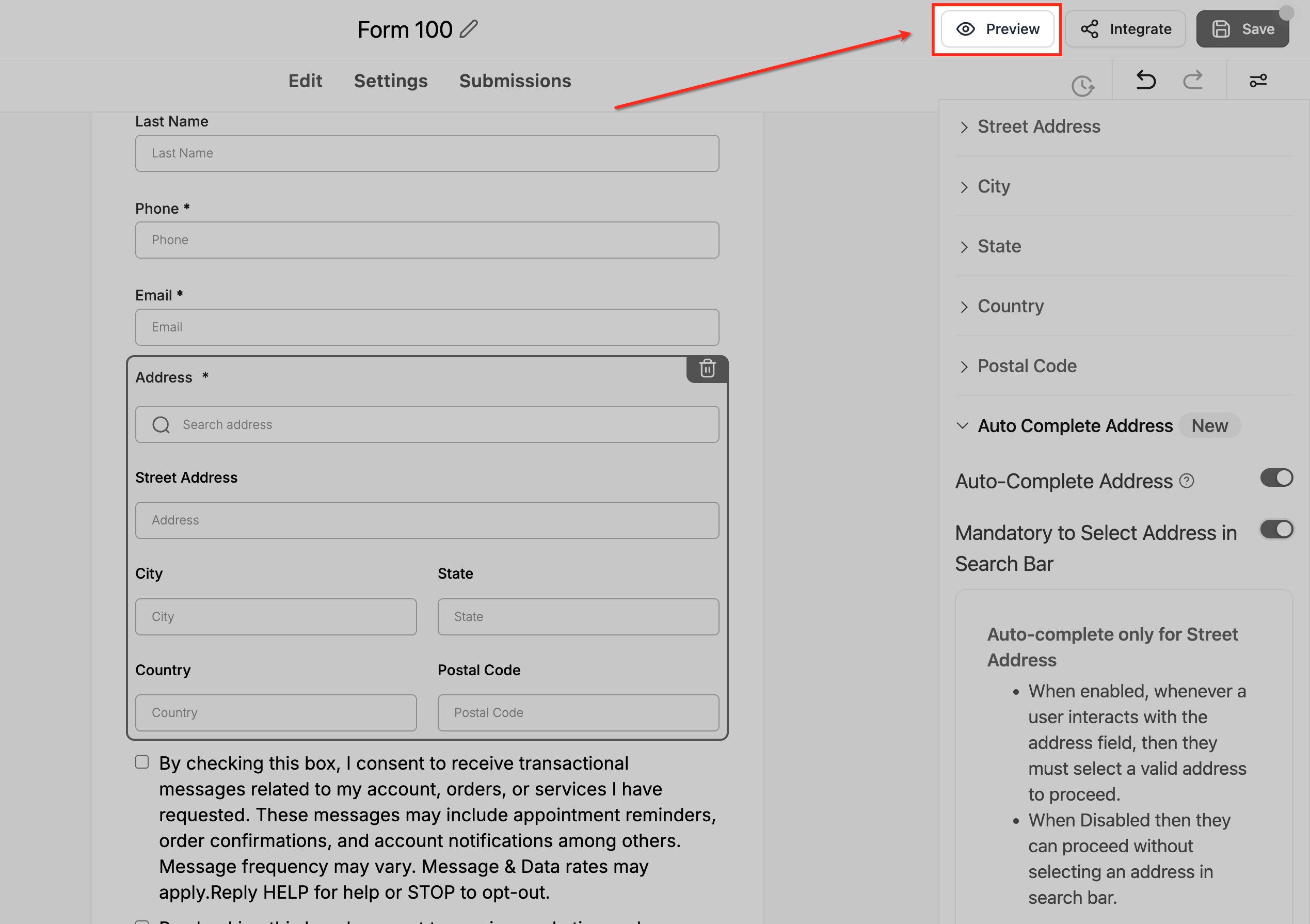
Click Preview at the top right of the form builder to see how the Address field looks in the live form.
The Address field will now show a search bar, letting users start typing and see address suggestions instantly.
Test the address suggestions in real time
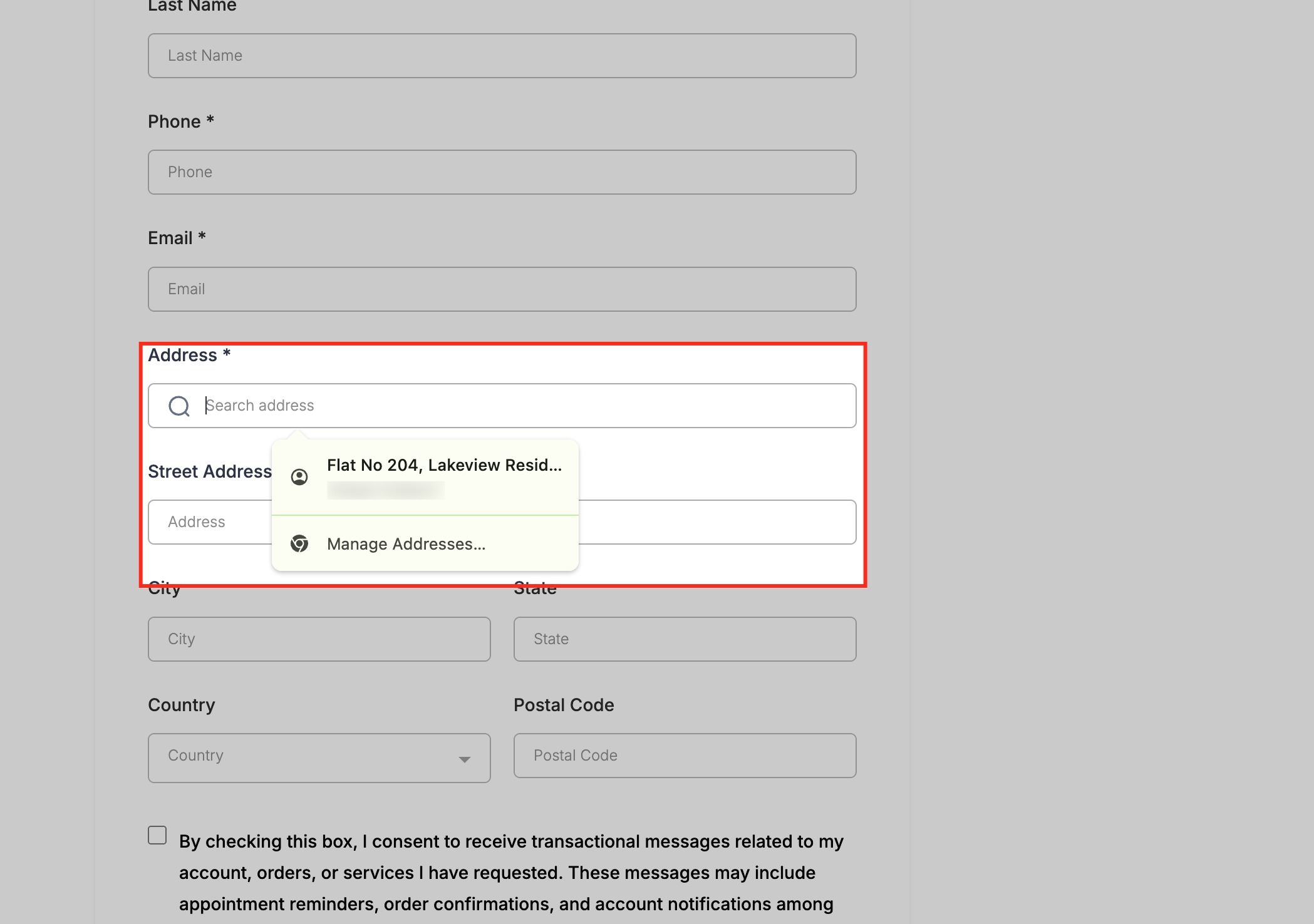
In the preview, type a few characters (such as part of a street name) into the Address field.
You will see predictive suggestions appear underneath the search bar. Select one and the Street, City, State, Country and Postcode fields will be filled in automatically.
Save and publish
Once you have confirmed that autocomplete works as expected, click Save to apply your changes.
After publishing, every visitor who fills in the form will benefit from fast, accurate address entry thanks to the built-in autocomplete.
Frequently asked questions
Is address autocomplete a paid feature?
No. It is now completely free and unlimited for all Futuria CRM accounts.
Can I still let users type their address manually?
Yes. You can switch the autocomplete toggle off if you prefer manual entry.
Does address autocomplete work globally?
Yes. It supports most countries and postal formats worldwide.
Will my older forms have autocomplete enabled automatically?
No. You will need to open each form or survey and switch the toggle on manually.
What happens if a user does not select a suggested address?
If the "Address must be selected from the search bar" option is active, users have to choose a suggestion in order to submit the form. If it is switched off, they can type freely.
Does autocomplete overwrite existing contact details?
No. Submissions follow your usual contact update rules and mapping preferences.