


Table of contents
- What is the "Customer booked appointment" workflow trigger?
- Key benefits of the "Customer booked appointment" trigger
- Setting up the "Customer booked appointment" trigger
- Open the workflow builder
- Add a new trigger
- Give your trigger a name
- Choose who to include in the workflow
- Set the filters
- Save the trigger
- Use cases
- Use case 1: Appointment reminder
- Use case 2: Follow-up after the appointment is booked
- Use case 3: Internal notification for high-priority clients
- Use case 4: Managing group appointments
- Use case 5: Notifications for appointments with several attendees
- Frequently asked questions
What is the "Customer booked appointment" workflow trigger?
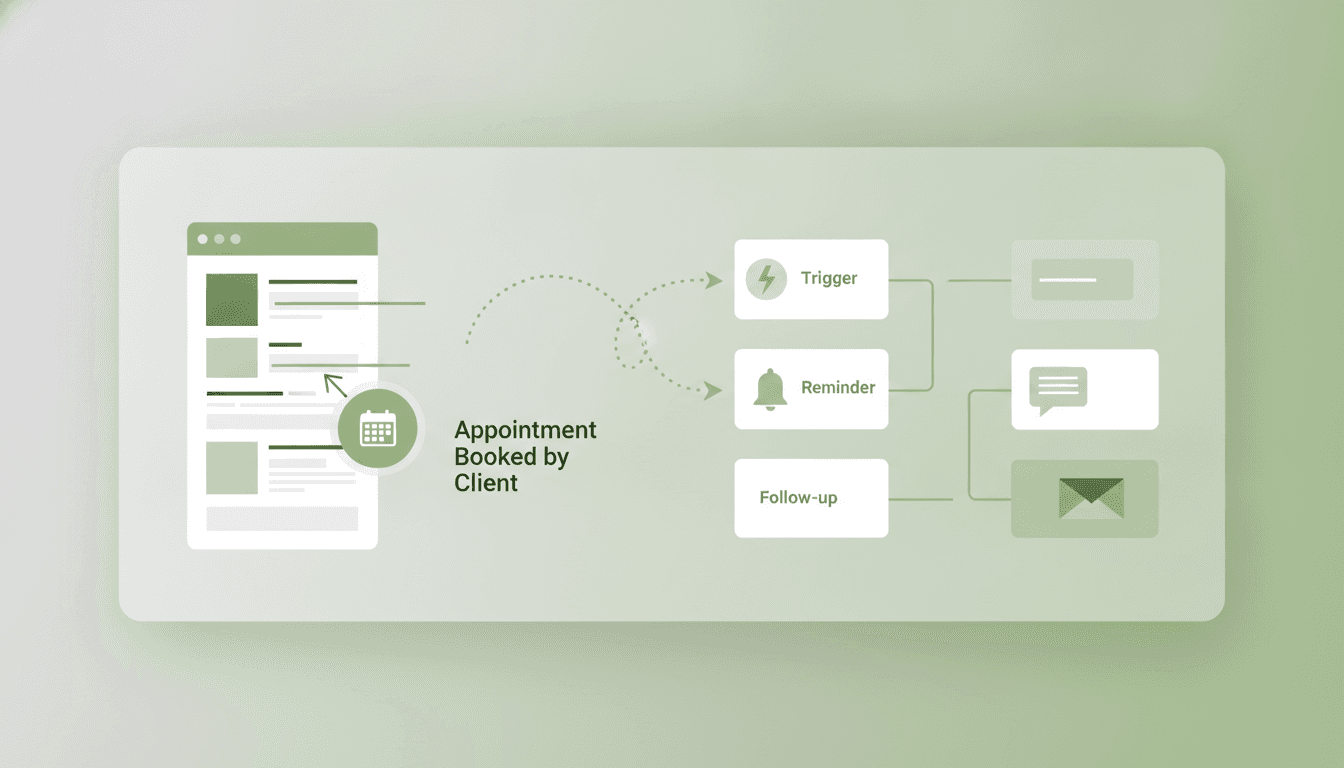
This article is an in-depth guide to using the "Customer booked appointment" workflow trigger, a powerful tool for automating actions when a customer books an appointment on their own. By the end of this read, you will understand how this trigger works, its key benefits, the setup process and some real-world use cases.
The "Customer booked appointment" workflow trigger fires every time a customer books an appointment using a booking link or an online scheduling system, with no involvement from your team. This trigger is essential for businesses that want to automate follow-up actions, reminders and notifications based on scheduled appointments. It only works for single appointments and does not support recurring appointments.
Key benefits of the "Customer booked appointment" trigger
Automating appointment-based workflows can significantly improve operational efficiency and the customer experience. Here are some of the key benefits:
- Automatic reminders: Reduce your no-show rate by sending timely appointment reminders by email or SMS.
- Better customer experience: Keep customers informed and engaged with automatic confirmation and follow-up messages.
- Support for including guests: Automate workflows not only for the primary contact, but for the appointment guests too. Send reminders, confirmations and follow-ups to every attendee of a multi-person appointment.
- Efficient team notifications: Make sure the relevant team members are notified automatically every time an appointment is booked.
- Flexible customisation: Use filters to fire workflows for specific calendars, calendar groups or customers with particular tags.
- Better resource management: By automating reminders and follow-ups, your team can focus on delivering services instead of managing diaries manually.
Setting up the "Customer booked appointment" trigger
Follow these steps to set up the "Customer booked appointment" trigger in your workflow.
Open the workflow builder
Go to the "Automations" section. Create a new workflow from scratch or select an existing workflow where you want to use the "Customer booked appointment" trigger.
Add a new trigger
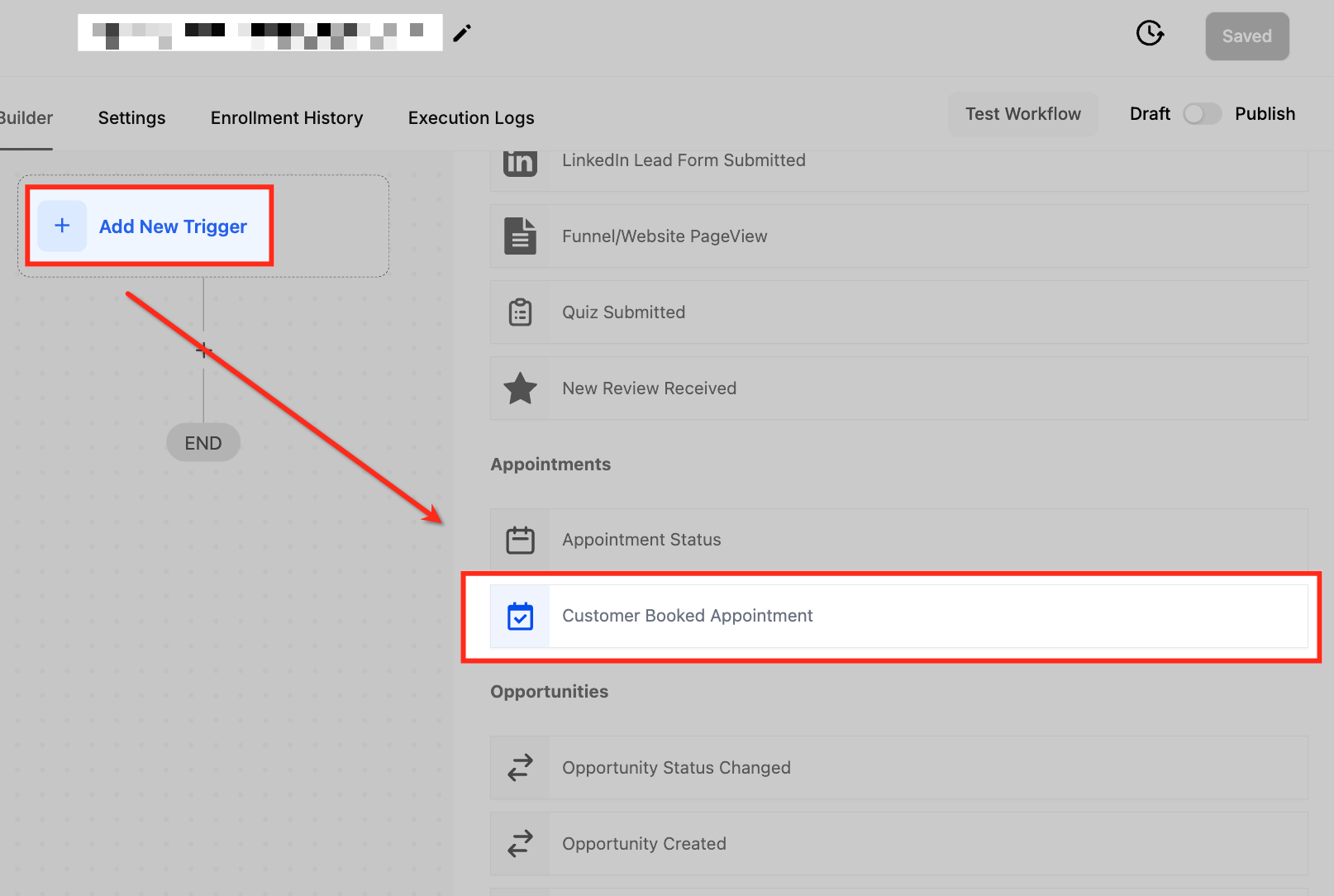
Click "Add new trigger" and type "Customer booked appointment". Select it from the list.
Give your trigger a name
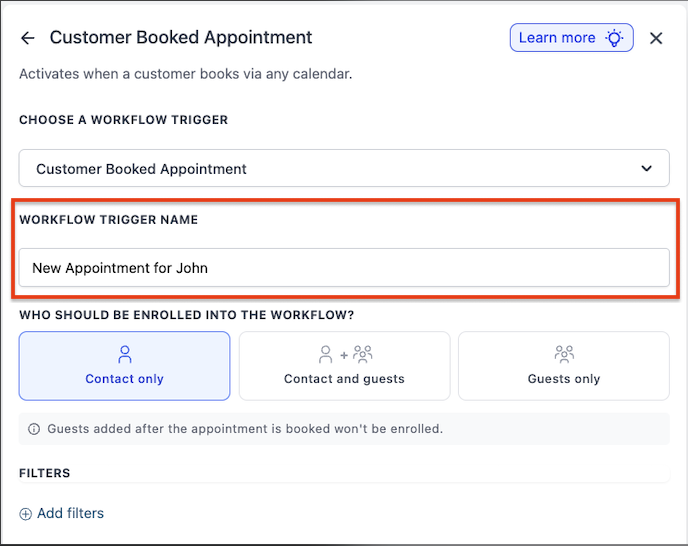
Enter a descriptive name that helps you identify the trigger, such as "New appointment booking trigger".
Choose who to include in the workflow
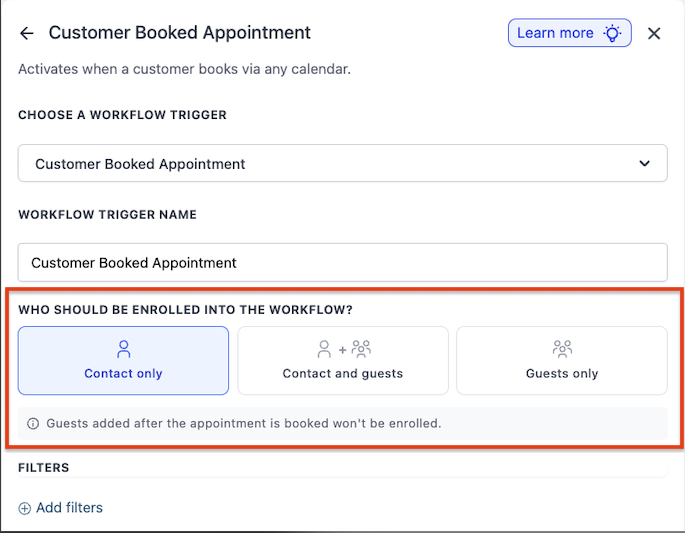
Once you have named the trigger, select who should be included in the workflow when the trigger fires. This setting sits under "Who should be included in the workflow?" and offers three options:
- Contact only: The workflow runs only for the appointment's primary contact. This is the default behaviour.
- Contact and guests: The workflow runs once for the primary contact and once for each guest contact associated with the appointment. This is useful for appointments with several attendees where everyone needs to receive reminders or follow-ups.
- Guests only: The workflow runs only for the guest contacts; the primary contact is skipped. Use this option when the primary contact already has a separate workflow and you only want to address the guests.
Important: for the "Customer booked appointment" trigger, guests added to the appointment after the booking will not be included by this event. Only the guests present at the moment of booking are included.
Set the filters
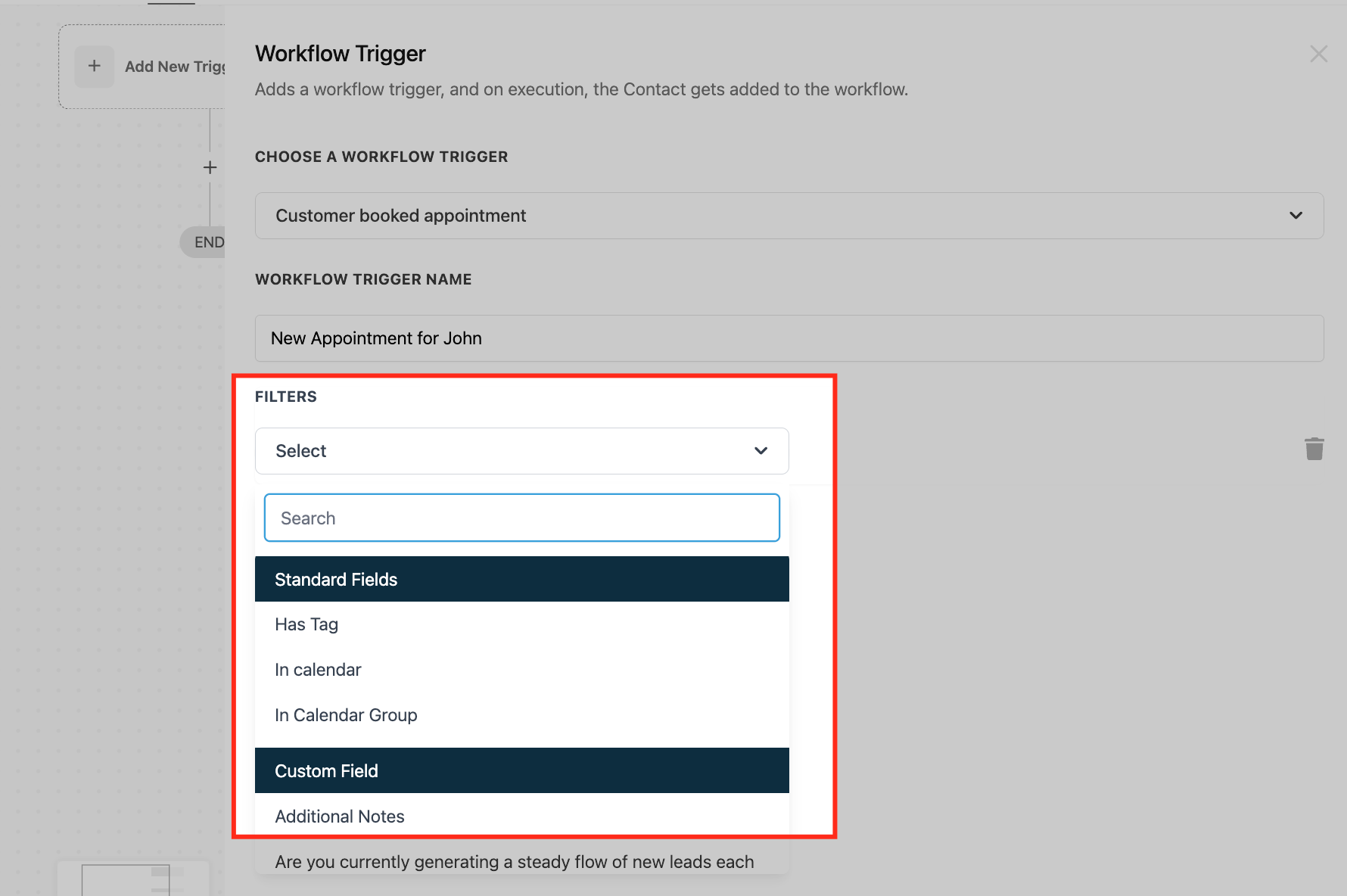
You can refine the trigger using the following filters:
- Has tag: Select this filter if you want the trigger to fire only when a customer with a specific tag books an appointment.
- In calendar: Use this filter to target specific calendars. The workflow will only fire when an appointment is booked in the selected calendar.
- In calendar group: Choose this filter to target calendar groups. The workflow will fire when an appointment is booked in any calendar within the selected group.
Save the trigger
Once the filters are set, click the "Save" button. Make sure you save the whole workflow by clicking the blue save button in the top right-hand corner.
Use cases
Let's look at some examples where you can use this trigger.
Use case 1: Appointment reminder
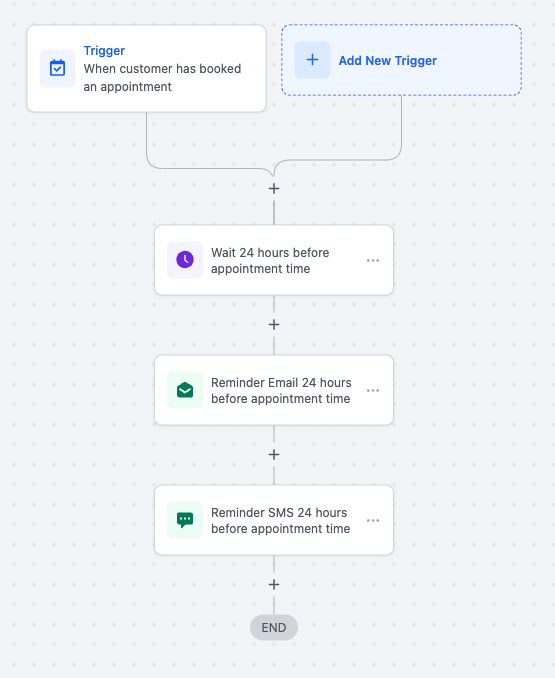
Scenario: A dental practice wants to send automatic reminders to patients 24 hours before their appointment to reduce no-shows.
Result: The workflow sends a reminder email and SMS to the patient 24 hours before the appointment, improving attendance rates.
Use case 2: Follow-up after the appointment is booked
Scenario: An estate agency wants to send follow-up emails to clients who book property viewings, to confirm the details and provide the necessary instructions.
Result: The workflow sends a confirmation email with the appointment details, directions to the property and a checklist of the required documents.
Use case 3: Internal notification for high-priority clients
Scenario: A financial advisory firm wants to alert senior advisers every time a VIP client books an appointment.
Result: The workflow sends an internal email notification to the senior adviser, making sure they are prepared for the upcoming appointment.
Use case 4: Managing group appointments
Scenario: A fitness centre wants to manage group training sessions by automating notifications every time a client books a session in a group calendar.
Result: The workflow sends a confirmation email to the client and an internal notification to the assigned instructor.
Use case 5: Notifications for appointments with several attendees
Scenario: A consultancy firm schedules strategy sessions that include both the main client and other stakeholders as guests. The firm wants every attendee to receive a confirmation email and a preparation list.
Result: By selecting "Contact and guests" in the inclusion setting, the workflow sends a personalised confirmation email and a preparation list to both the primary contact and each guest, making sure everyone arrives prepared.
Frequently asked questions
Can this trigger be used for recurring appointments?
No, the "Customer booked appointment" trigger only works for normal (single) appointments. Recurring appointments are not supported.
How can I fire different workflows for different appointment types?
You can use filters such as "In calendar" or "In calendar group" to target specific appointment types and set up separate workflows for each one.
What happens if a team member books the appointment manually on the customer's behalf?
This trigger only fires when the customer books an appointment themselves through a booking link. Appointments booked manually will not fire the workflow.
Can I send reminders at multiple intervals, such as 48 and 24 hours before the appointment?
Yes, you can add several reminder actions inside the same workflow and set different wait times for each one (for example, wait 48 hours, then send the first reminder; wait another 24 hours, then send the second).
How can I track appointments booked by high-priority clients?
You can use the "Has tag" filter to create a workflow that only fires when clients with a specific tag (e.g. "VIP client") book an appointment. This way, you can guarantee prompt follow-ups and special treatment for important clients.
Can I send workflow notifications to the appointment guests?
Yes. While setting up the trigger, use the "Who should be included in the workflow?" setting and select "Contact and guests" or "Guests only". This allows the workflow to run for the guest contacts associated with the appointment.
What happens if a guest is added to the appointment after it has been booked?
Guests added after the appointment has been booked are not included by the original trigger event. Only the guests present at the moment of booking are included.
Will updating the inclusion setting affect my existing workflows?
No. All existing trigger configurations remain unchanged with the default "Contact only" behaviour. You need to update the inclusion setting manually if you want to include guests.