


Table of contents
- What's new
- What the change sync tick box does
- What happens when syncing is on or off
- Benefits
- How to use it
- The "Sync changes" window
- Frequently asked questions (FAQ)
What's new
The new change sync feature lets you control whether edits to an email action in your workflow should also update the linked template. You can switch syncing on or off with a simple tick box when you select templates for email actions.
What the change sync tick box does
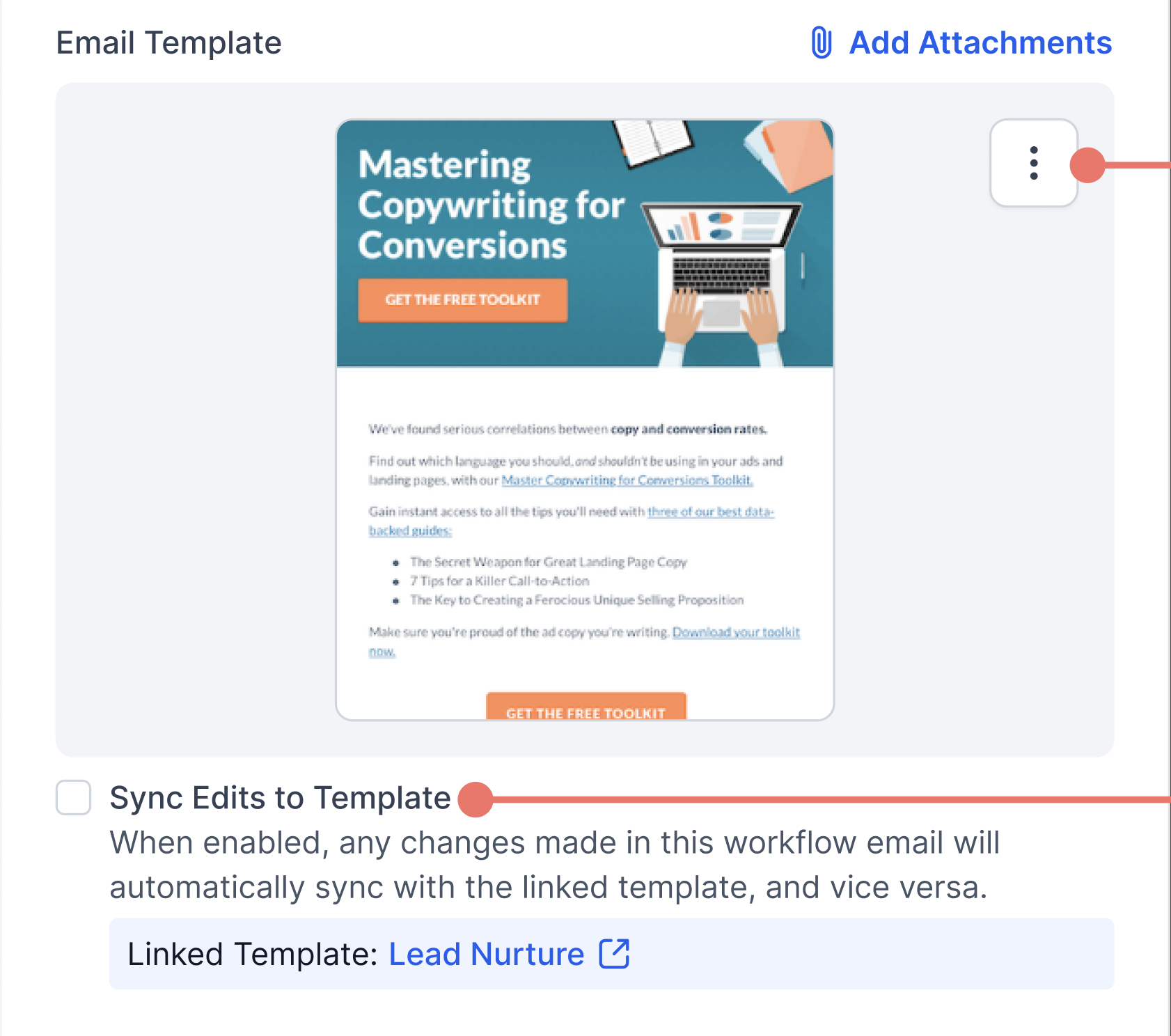
When you create an email action and choose an existing template, a "Sync changes with template" tick box now appears.
This box lets you decide whether edits to the email inside the workflow and to the linked template should update each other automatically. Tick it to keep them in sync, or untick it to make them independent and edit them separately.
What happens when syncing is on or off
When syncing is ON:
- Any edit made to the email inside the workflow will automatically update the original template, and vice versa.
- This is a two-way sync: the workflow action and the template will always match.
When syncing is OFF:
- Edits made to the email inside the workflow will not affect the original template, and future changes to the template will have no impact on the workflow.
- The workflow email and the template will have independent content and updates.
Benefits
With syncing ON:
- Edits to the workflow email or to the original template will always update each other.
- Keeps content perfectly aligned between templates and workflows.
- Saves time by managing updates from a single place.
With syncing OFF:
- Email actions in workflows and their original templates are completely independent.
- Customise emails for specific workflows without changing other templates or actions.
- It is the ideal solution when you want to "break away" from a template for a specific use case.
How to use it
When you add or edit an email action in a workflow, select a template. The "Sync changes with template" tick box will appear.
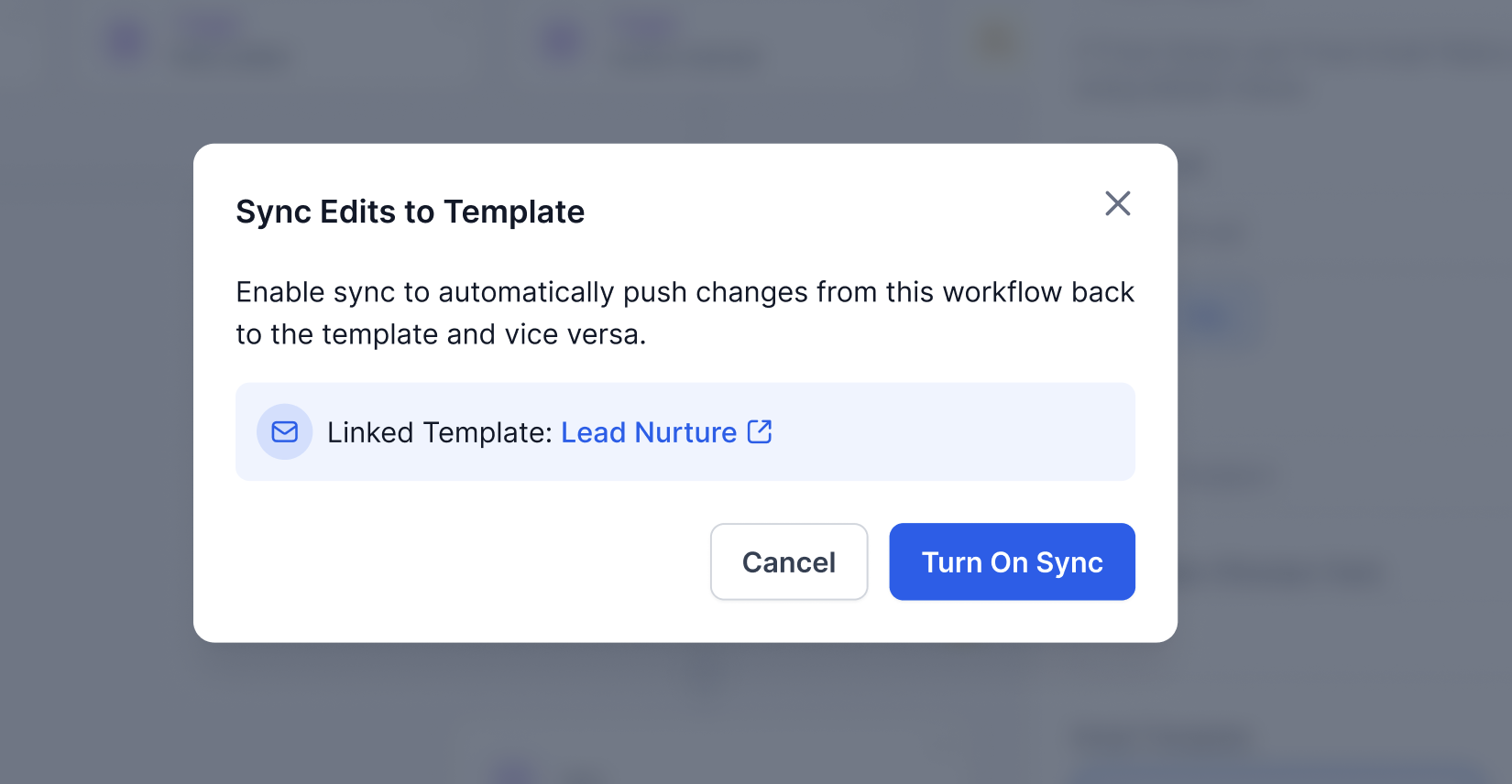
If you tick it (syncing ON):
- A confirmation window will warn you that edits to the workflow or to the template will update each other.
- Click "Enable sync" to confirm. From this moment on, every change will stay in sync.
- For example, if you edit the email inside the workflow, the template will update too; if you edit the template, the workflow email will update as well.
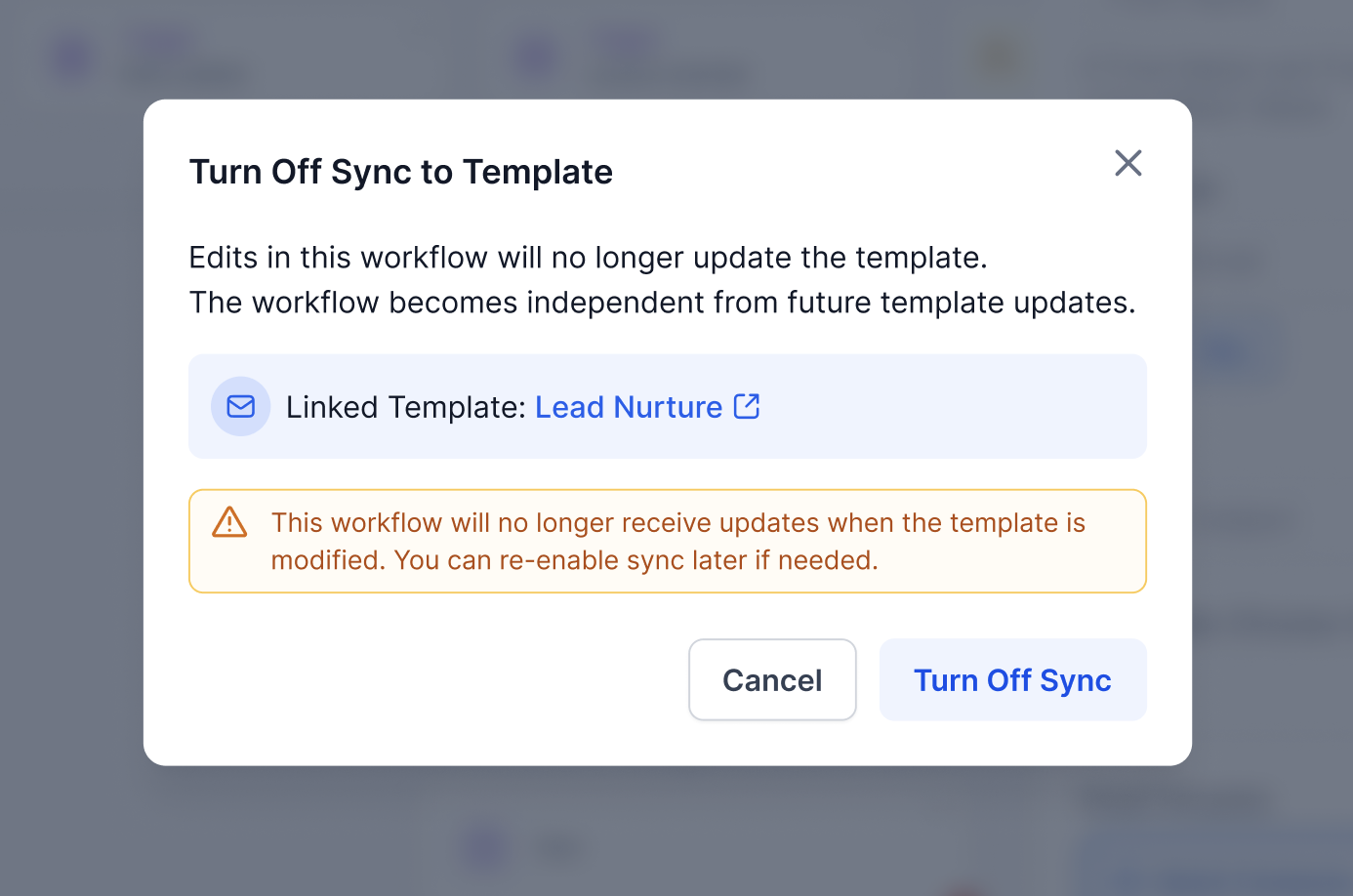
If you leave it unticked (syncing OFF):
- A confirmation window will explain that the workflow email and the template will not affect each other.
- Click "Disable sync" to confirm. Changes are now independent.
- For example, edits to the workflow email will not update the template, and edits to the template will not update this specific workflow email.
The "Sync changes" window
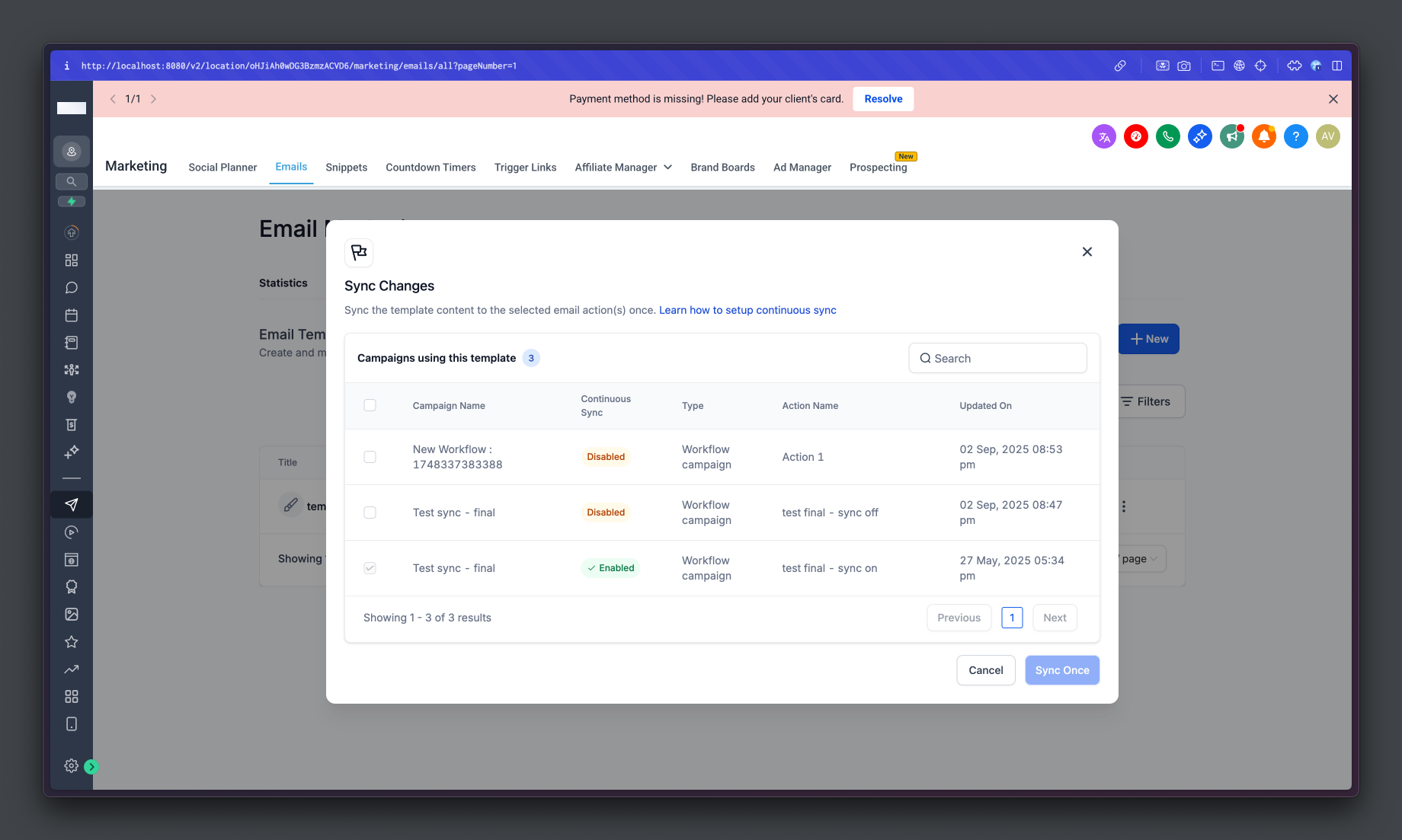
This window sits in the templates section and lets you see which workflow email actions are linked to the template and whether they are syncing changes. You can open it from the menu (the three dots) in the email editor, under "Sync changes".
Inside the window you will see a list of every email action linked to the template and the Continuous sync status (on/off) for each action. The tick box will be ticked for email actions with syncing on and unticked for those with syncing off.
You can select an email action and run a one-off sync of the template content to that email action, for those actions where continuous sync is off. After clicking 'Sync once', a success notification will appear.
From this window you cannot untick the box for an email action where continuous sync is already on.
Frequently asked questions (FAQ)
What is the "Sync changes with template" feature?
It allows edits made to an email action in a workflow to update the linked template automatically, and vice versa. When enabled, the two elements always stay in sync.
When does the change sync option appear?
You will see the "Sync changes with template" tick box when you add or edit an email action and select an existing template.
What happens if I enable syncing?
Every edit made to the workflow email or to the original template will be reflected in both: everything stays perfectly aligned.
What happens if I disable syncing?
The workflow email and the template become independent. Edits made to one will not affect the other.
How can I see which workflows are synced with a template?
Go to the menu (the three dots) in the email editor and select "Sync changes".
Can I change the sync setting after I have configured it?
Yes, you can switch syncing on or off for any email action at a later stage. Changes are confirmed through a dialogue window.
What is the default behaviour of the "Sync changes with template" box?
The default behaviour is as follows:
- Existing email action with edits made to the template: the default is OFF.
- Existing email action with no edits made to the template: the default is ON.
- New email action using a template: the default is OFF.
What happens to the sync box when you copy a configuration to another account or duplicate a workflow?
The status of the sync box is retained. It is carried over to the destination Futuria CRM account when the configuration is copied across, and it stays unchanged in duplicated workflows too.