



Table of contents
- How to set up Google Analytics 4 tracking in workflows
- Create a workflow or use an existing one
- Get a measurement ID from your Google Analytics data stream
- Create a Google Analytics event to track
- Get an API secret value from your data stream
How to set up Google Analytics 4 tracking in workflows
Google Analytics 4 (GA4) is the latest version of the Google Analytics platform, offering a more advanced and complete view of user behaviour across different platforms and devices. It includes cross-device tracking, machine-learning insights and advanced event monitoring features.
The integration in Futuria CRM lets you track GA4 events using the measurement ID and the API secret. This allows users to monitor and analyse user behaviour and engagement across various channels, including websites, mobile apps and social platforms.
Please note: after the workflow runs, it can take 24 to 48 hours for the data to appear on the Google Analytics platform.
The Google Analytics workflow action in Futuria CRM supports both Google Analytics 4 and Universal Analytics. This means users can choose to use either platform, or both, to track their marketing campaigns and website traffic. This integrated, flexible approach helps you make data-driven decisions to improve your marketing strategies and the user experience.
Create a workflow or use an existing one
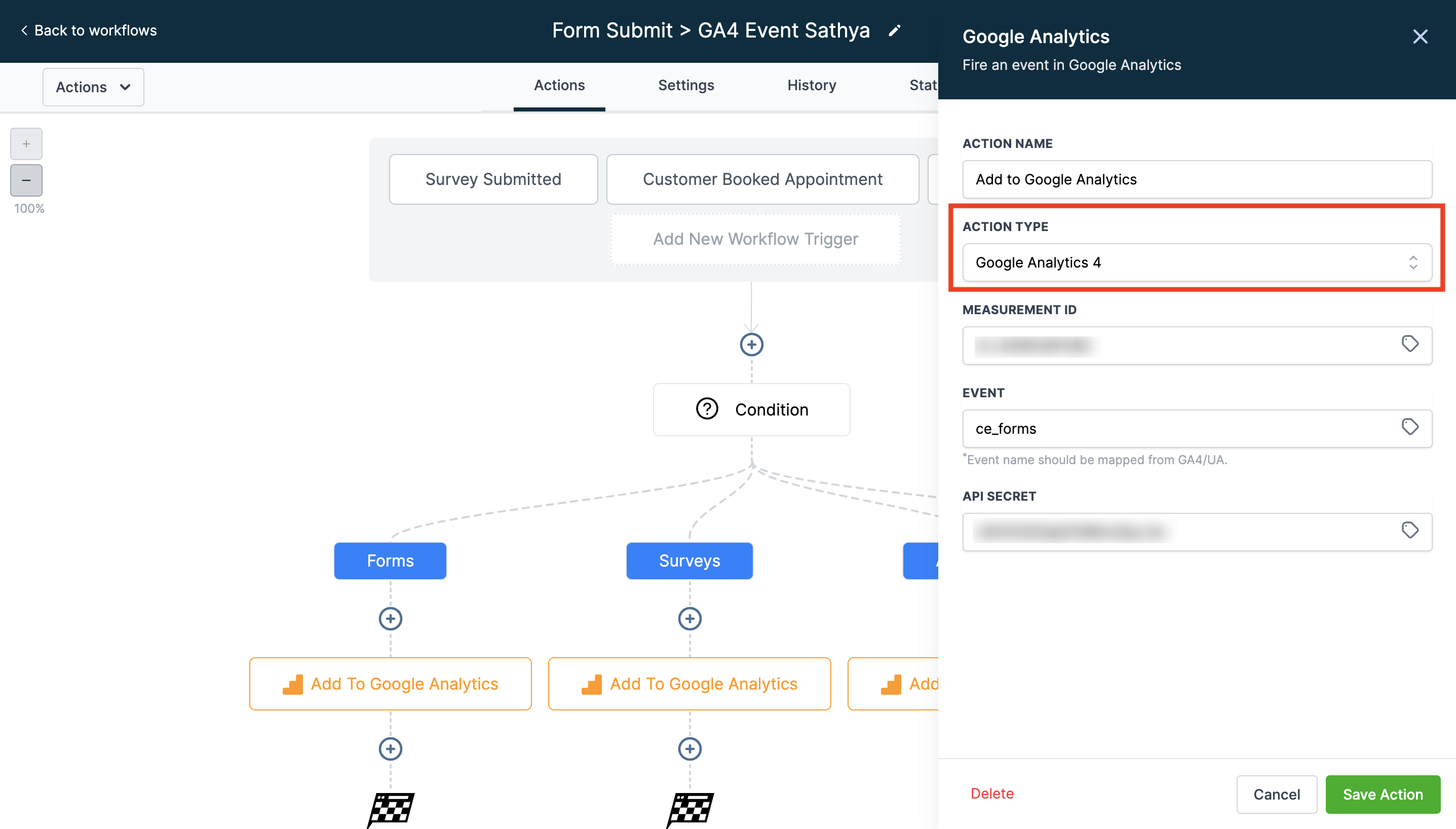
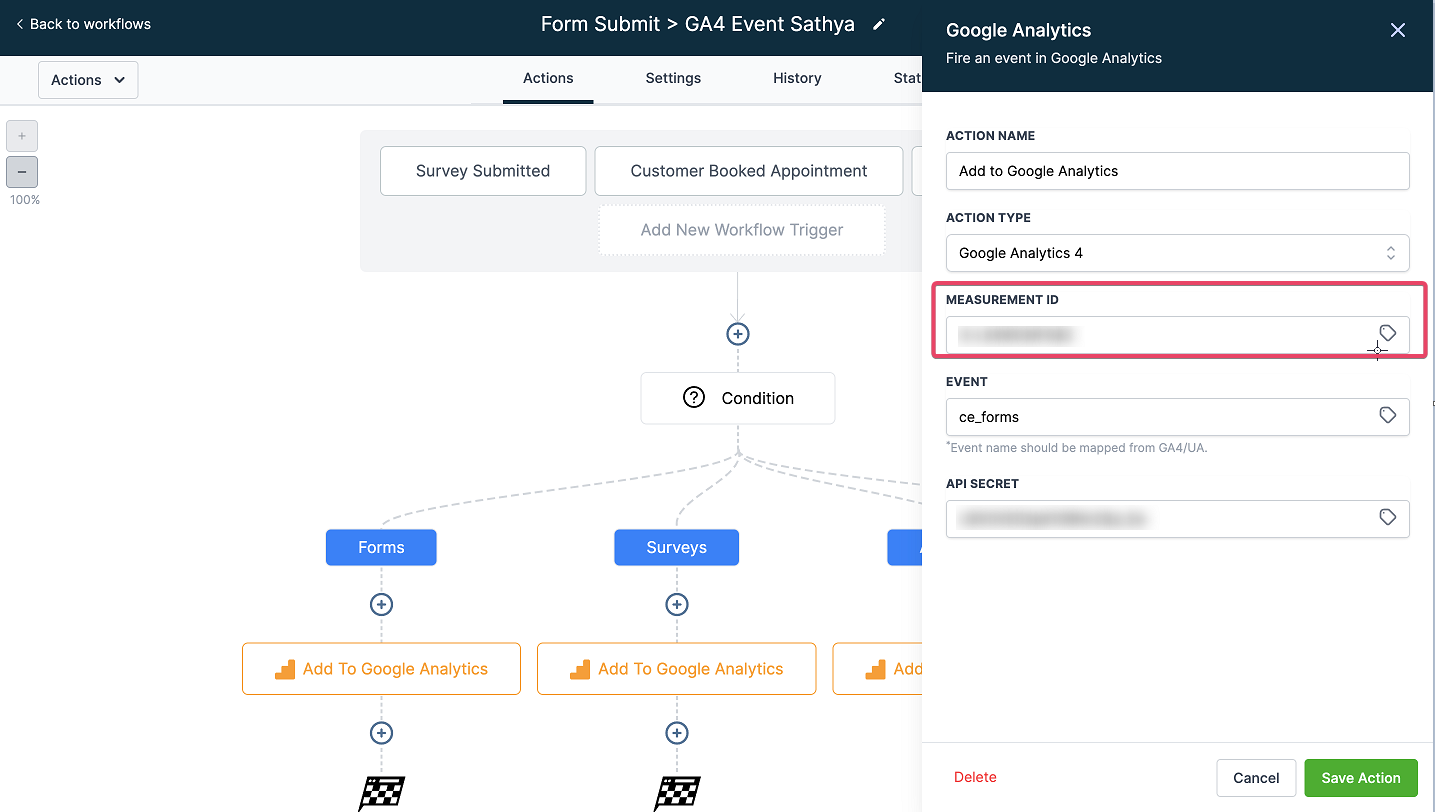
In your workflow, select the "Add to Google Analytics" action. In the "Action type" drop-down menu, choose the new Google Analytics 4 option.
Get a measurement ID from your Google Analytics data stream
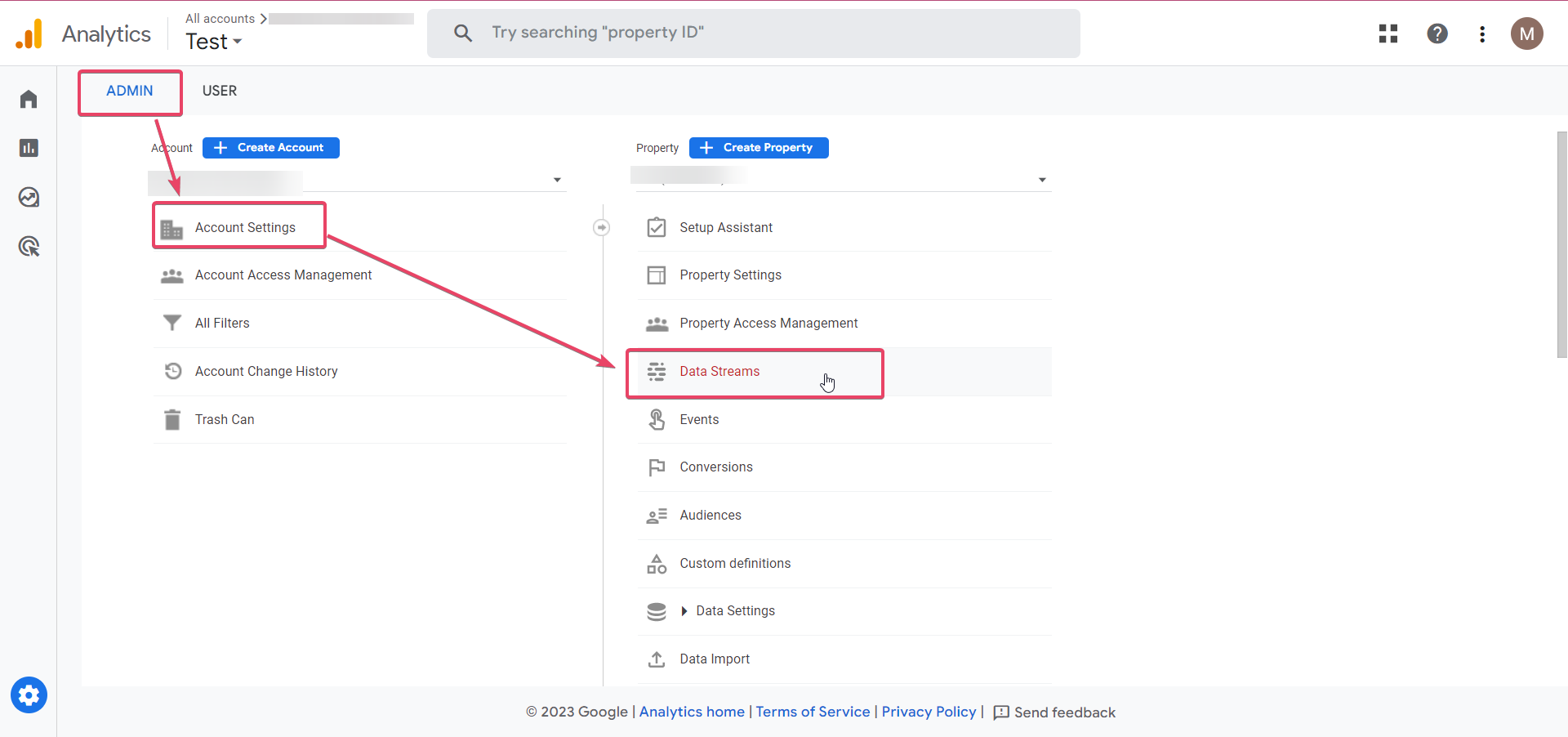
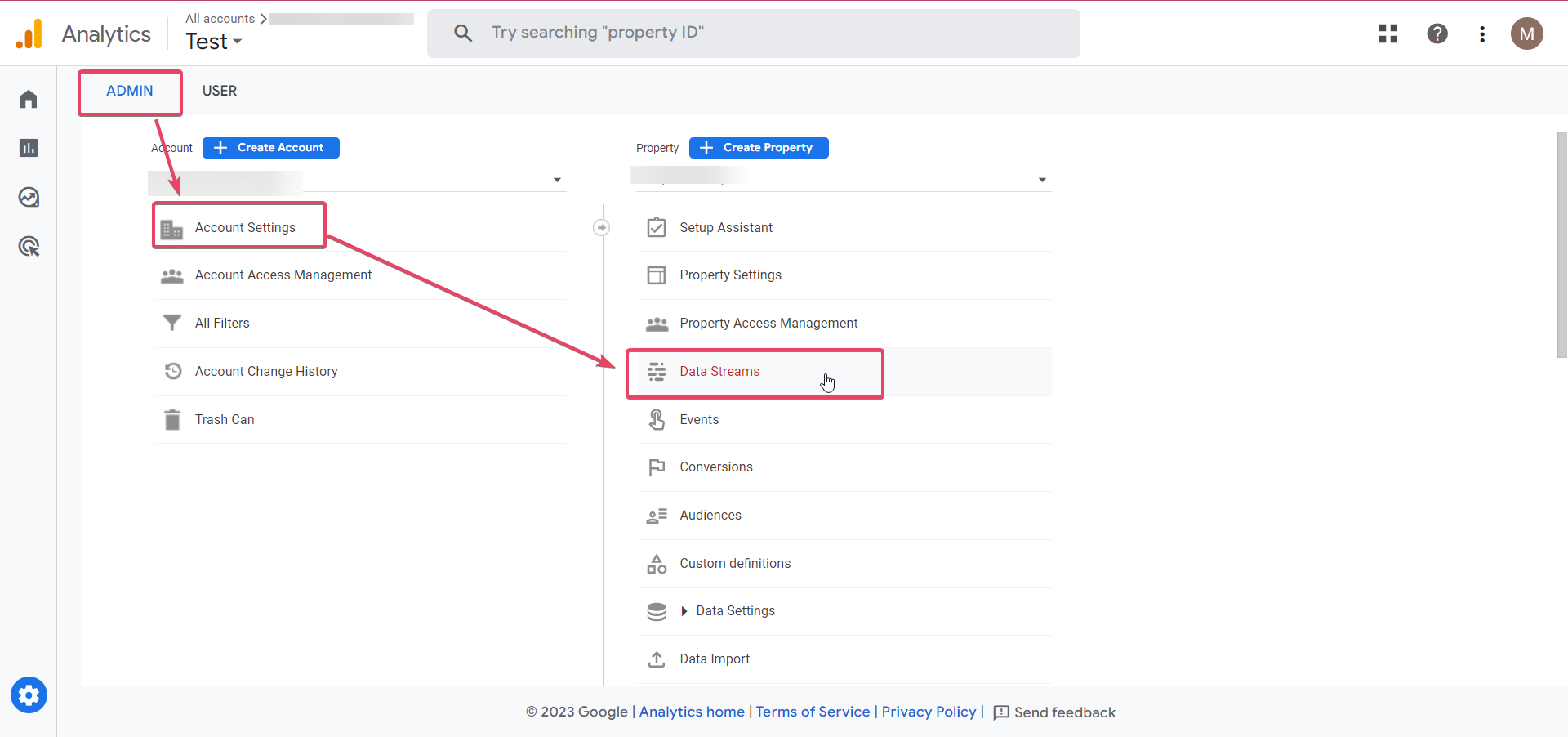
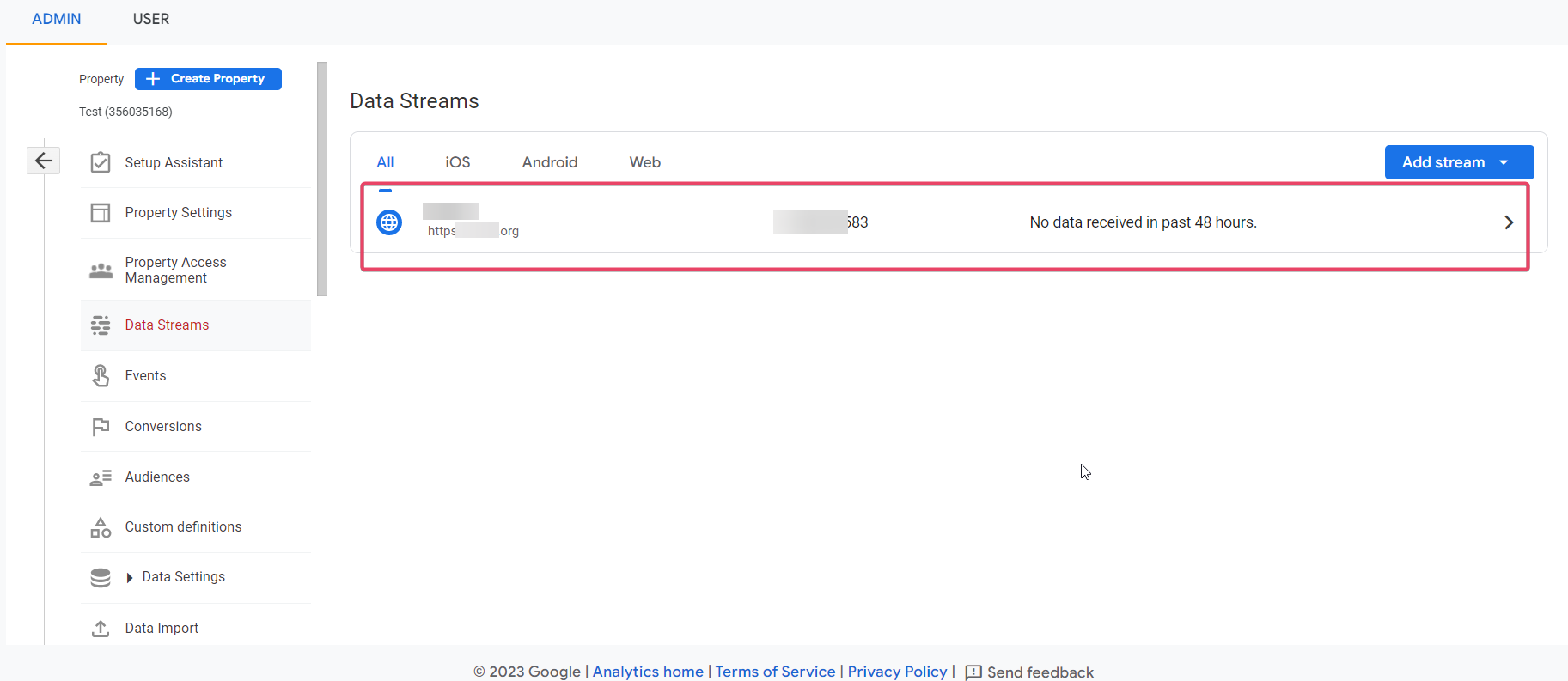
Go to your Google Analytics account and retrieve the measurement ID from Admin ➝ Account settings ➝ Data stream ➝ Select the data stream. If you have not set up Analytics yet, you can consult Google's guide.
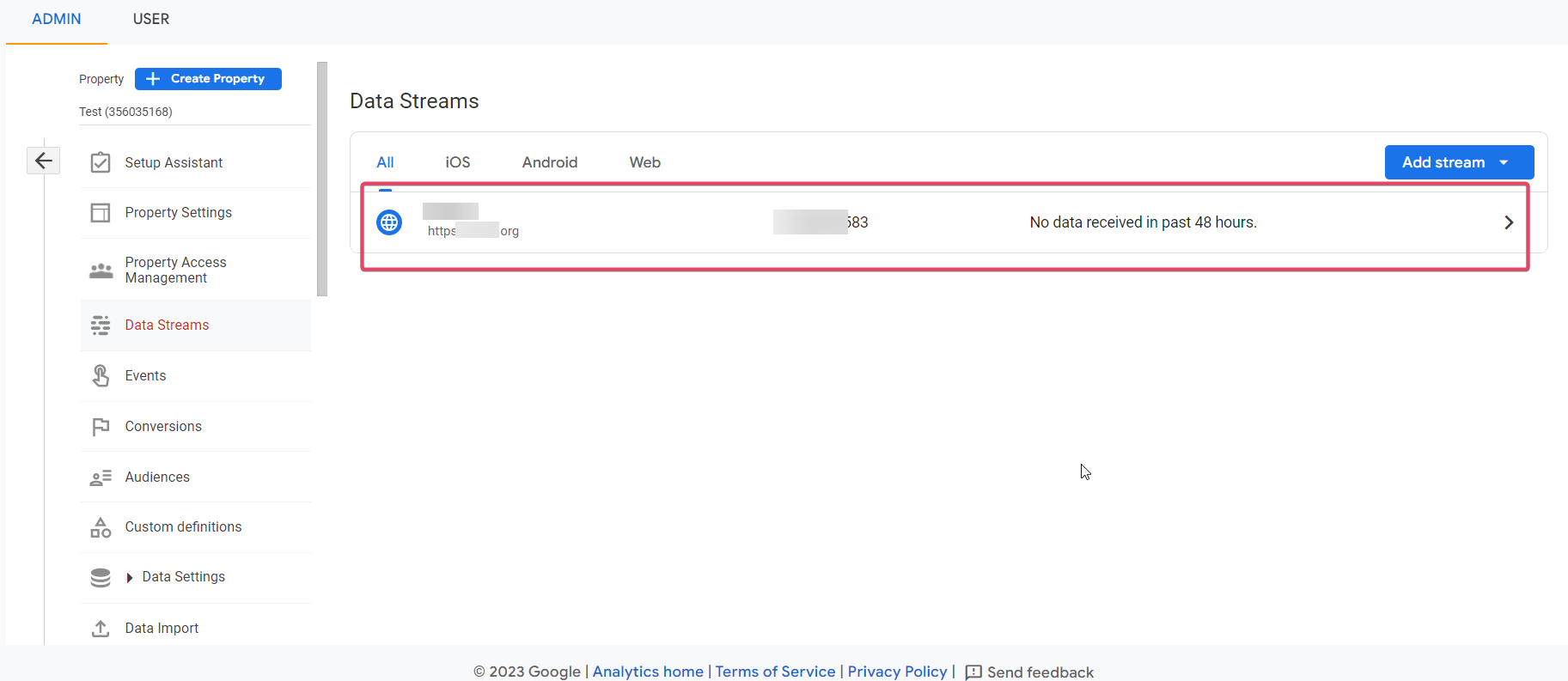
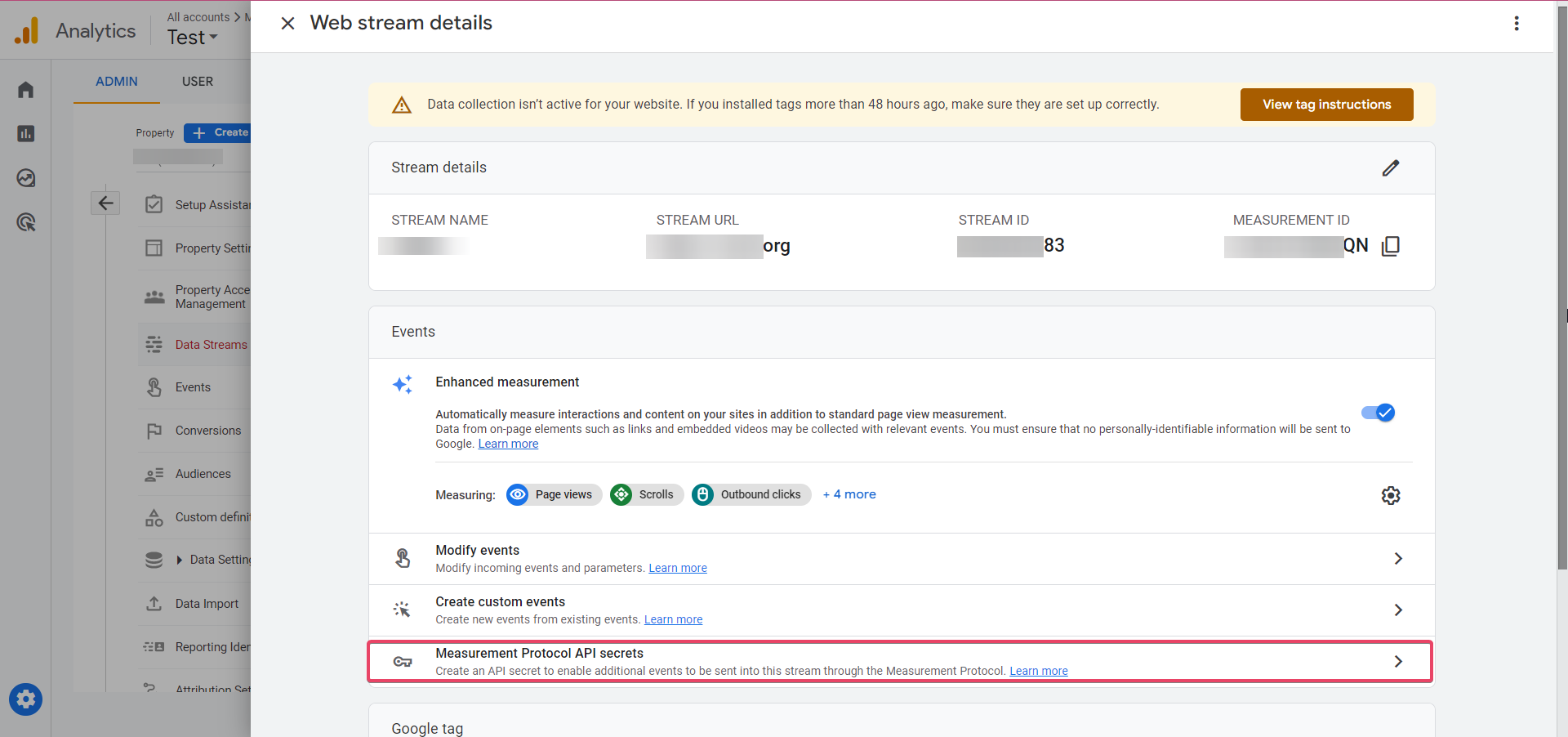
Copy the measurement ID for the data stream you want.
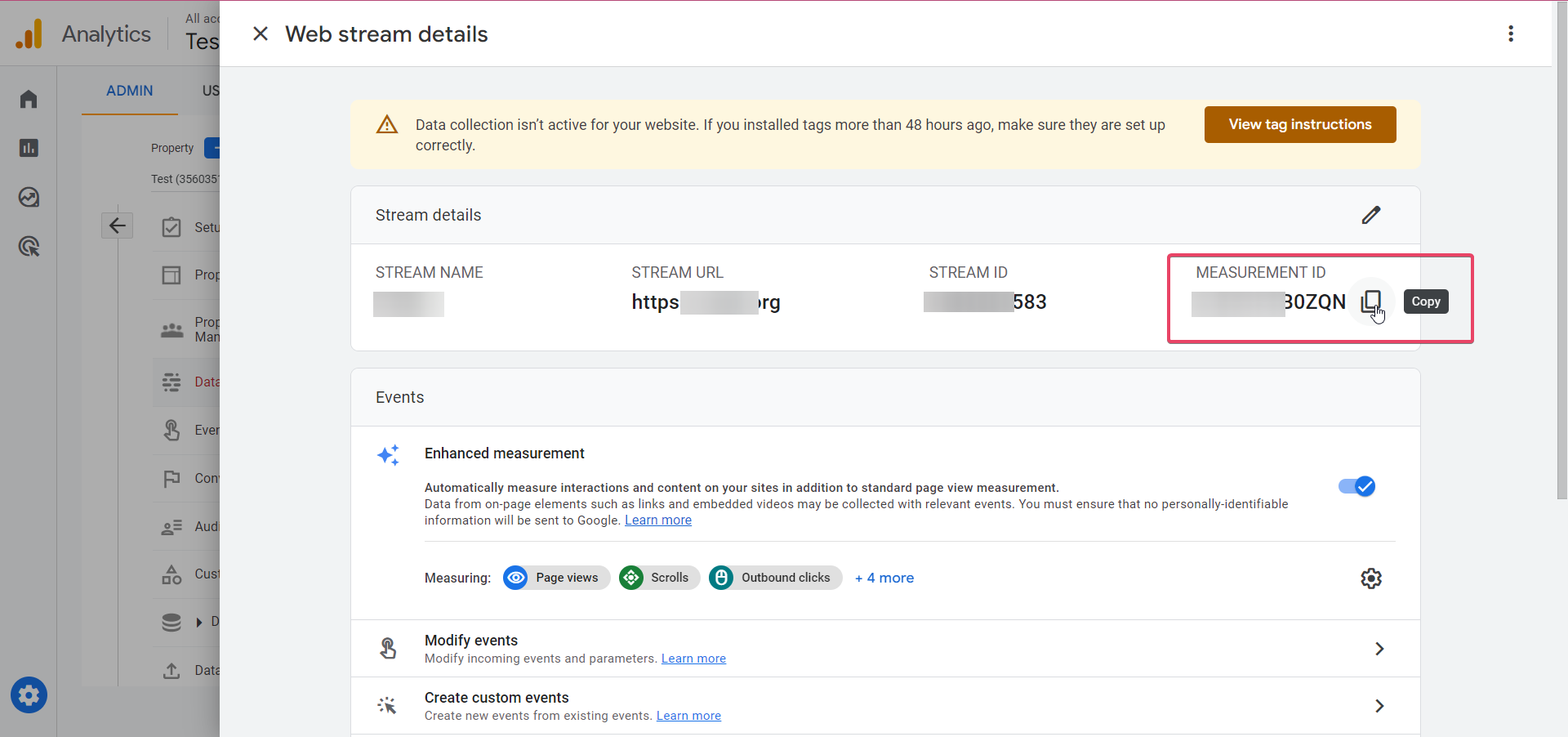
Paste the measurement ID into the matching field inside the Google Analytics action in your workflow.
Create a Google Analytics event to track
You can add the name of the event you want to monitor. This name will appear in the Google Analytics dashboard alongside the other standard events you have configured. For naming conventions, you can refer to Google's event rules.
- The "Add to Google Analytics" workflow action supports an optional Event value field.
- Use the Event value field to send a numeric value with the event (for example, an amount, an order total or a score).
- In the action interface, this field may appear as
event.value. You can populate it with a static number or a dynamic value coming from the workflow.
Note: the Event value field is optional. If you do not need to send a numeric value, you can leave it empty.
Get an API secret value from your data stream
Add the API secret by navigating in your Google Analytics account to Admin ➝ Account settings ➝ Data stream ➝ Select the data stream ➝ Measurement Protocol API secrets.
Please note: before you can create an API secret, you must confirm that you have read and understood Google's privacy notices on the collection of user data.
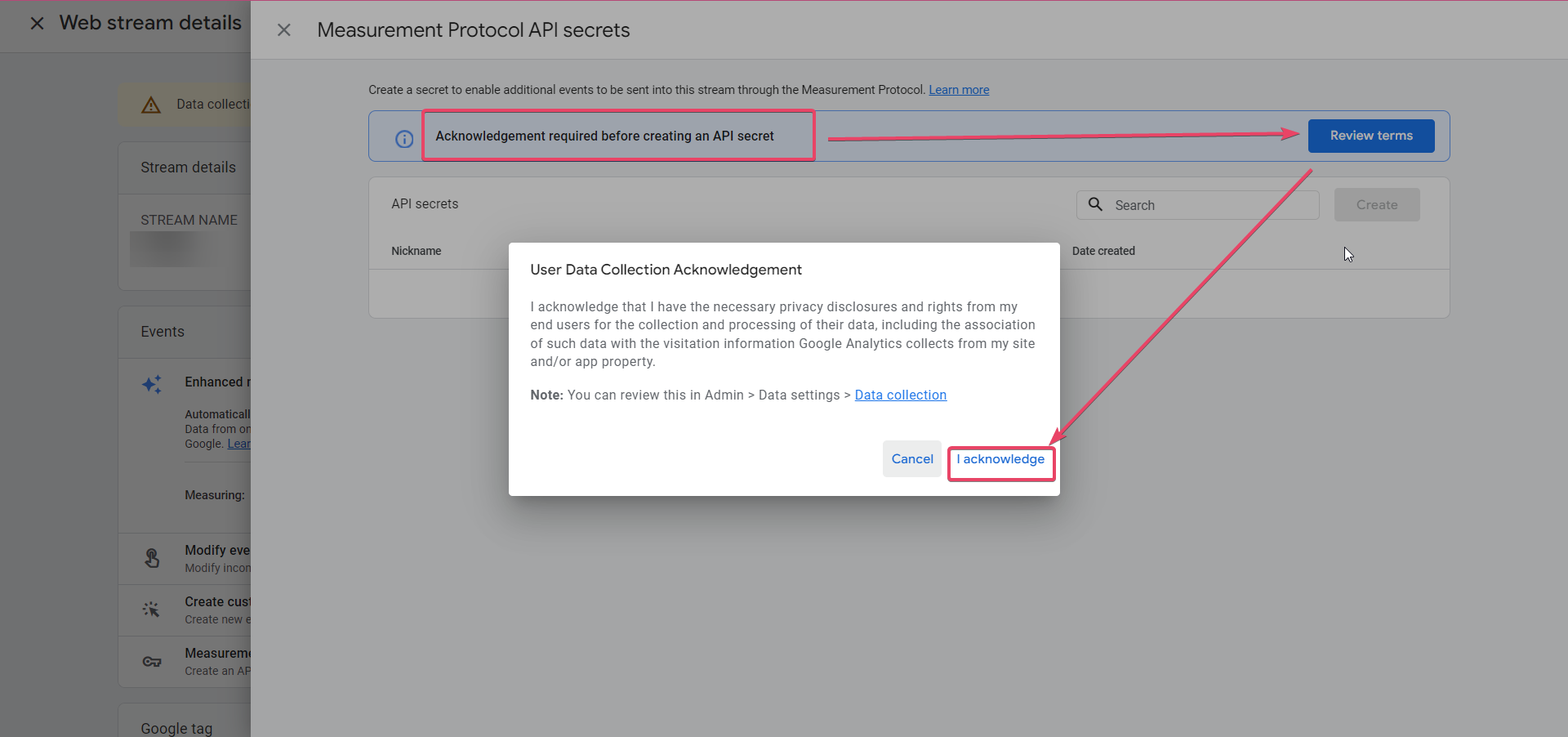
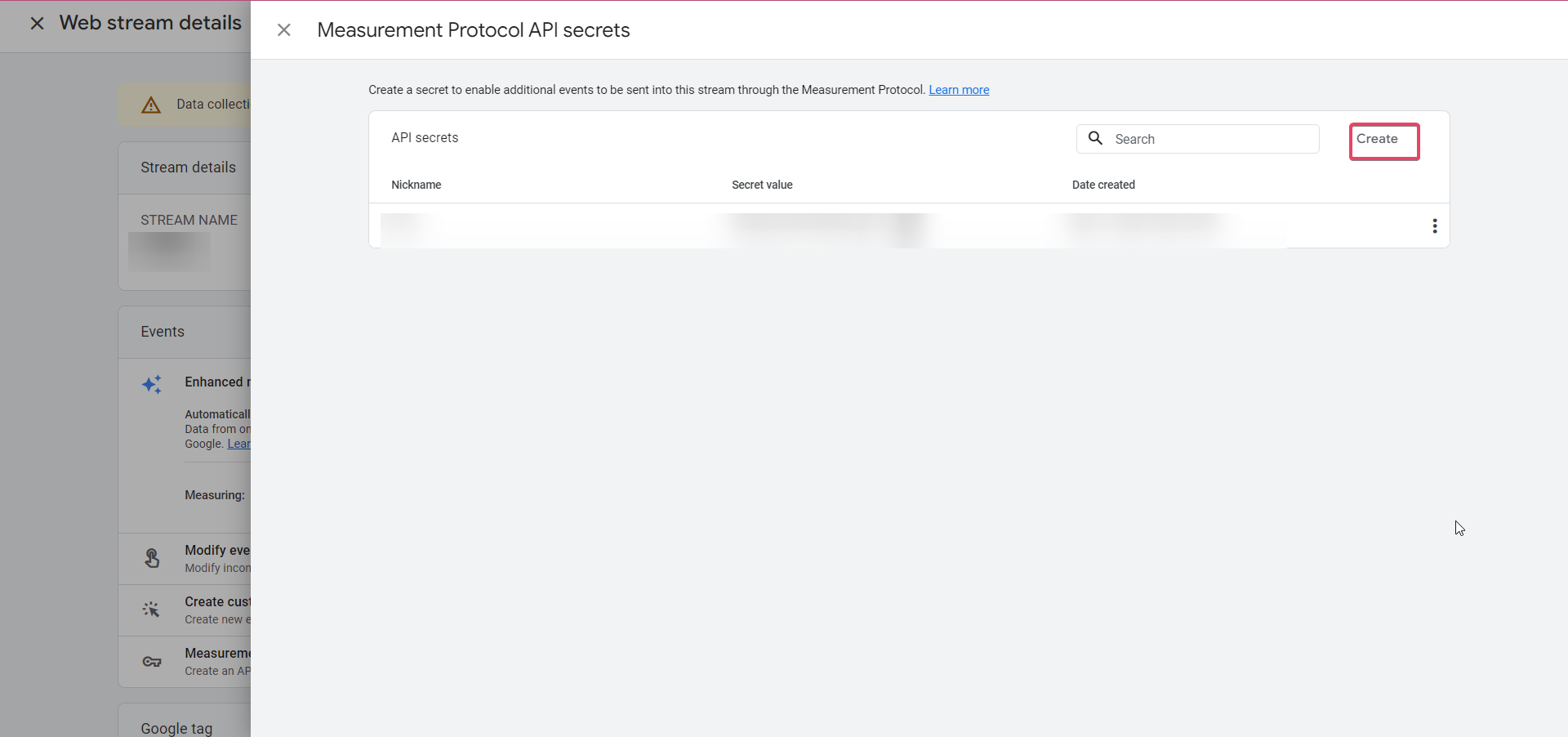
If you have not created an API secret yet, click "Create".
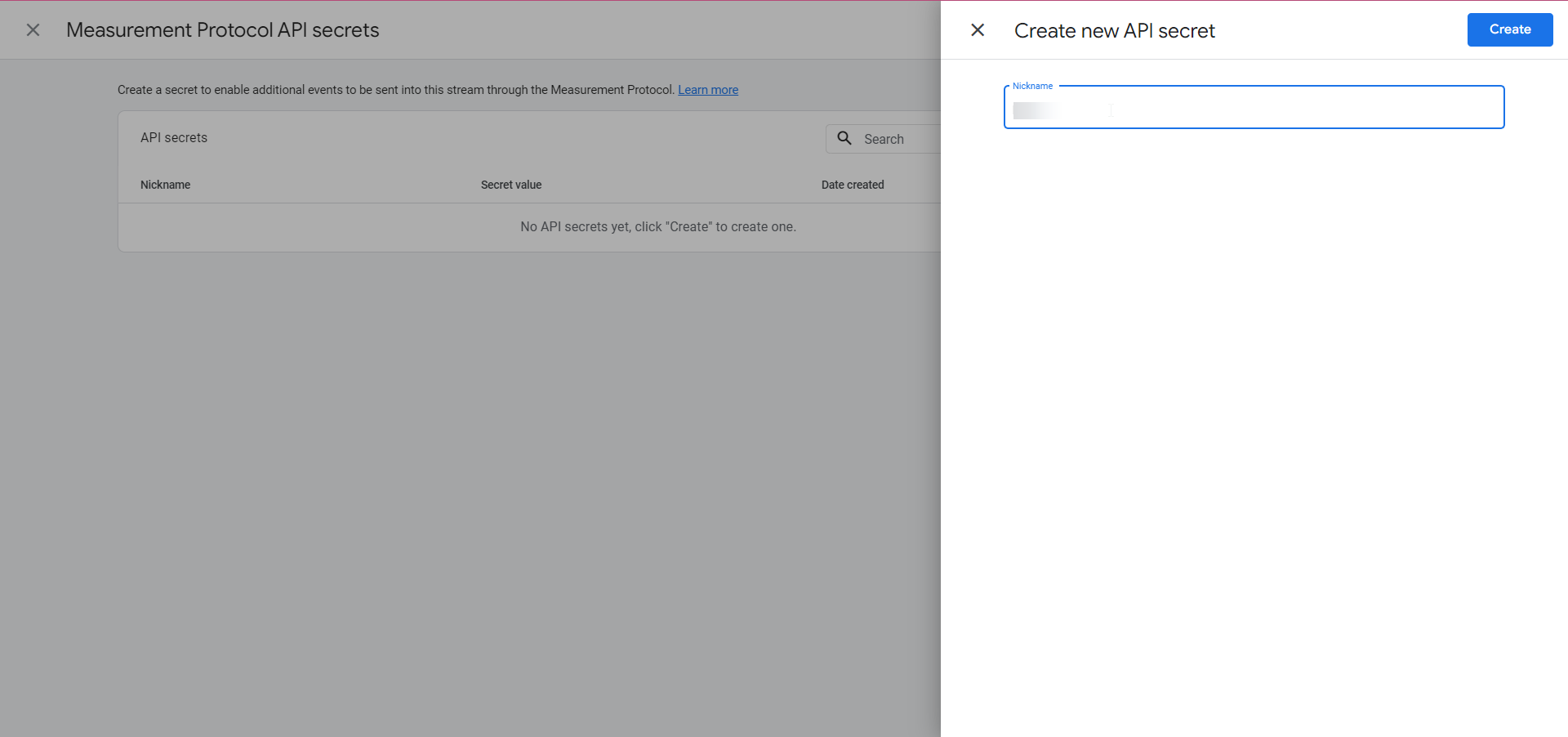
Give your API secret a name and click Create. A secret value will be generated automatically.
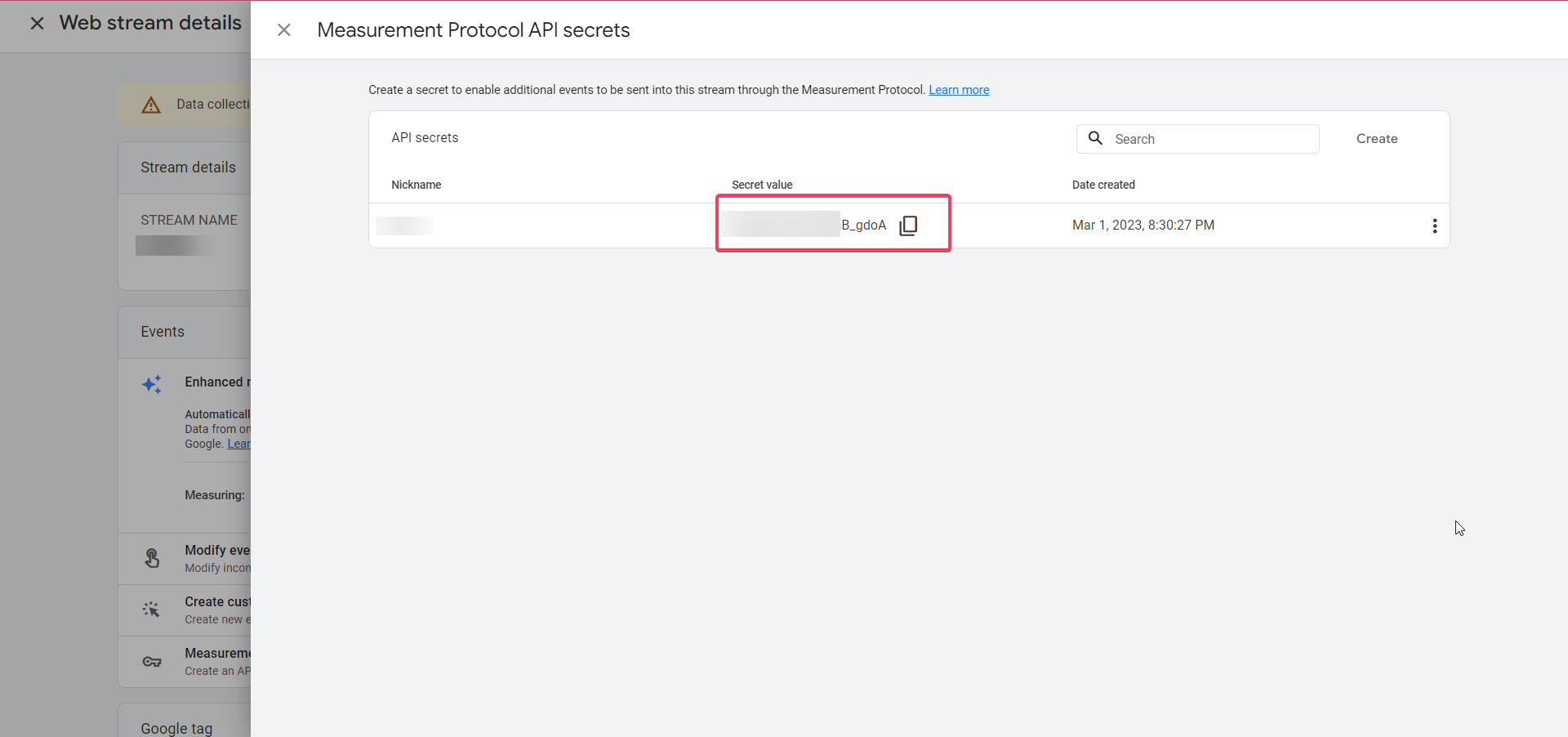
Copy the secret value and paste it into the "API secret" field in the Google Analytics action of your workflow.
Please note: make sure there are no spaces before or after when you paste the API secret value into the workflow field, otherwise the Google Analytics action will fail.
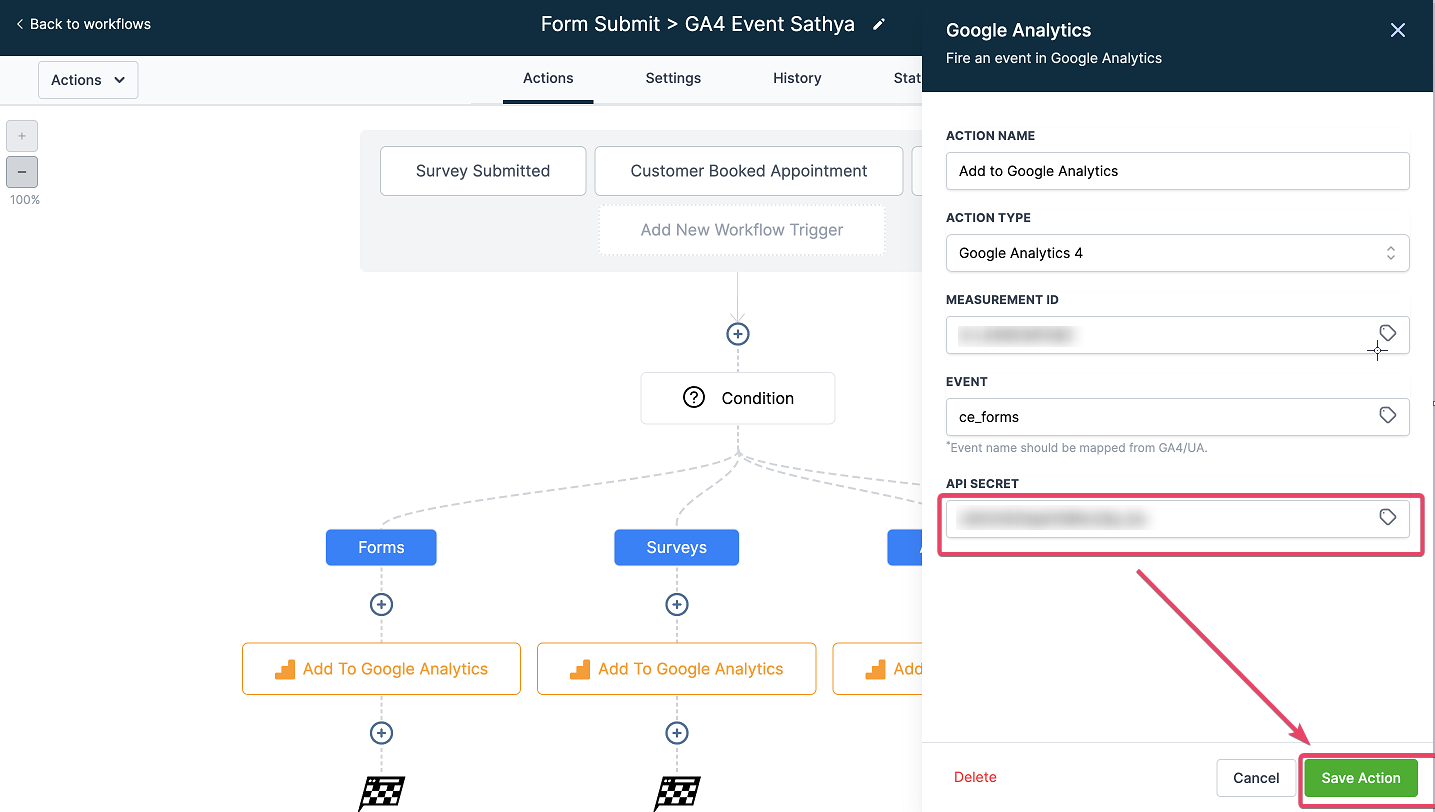
Save the action and then save the workflow. Publish it when you are ready to use it.