


Table of contents
- What are review widgets?
- The main benefits of review widgets
- How to access and use the widget builder
- Step 1: go to the Widgets tab
- Step 2: select or create a new widget
- Step 3: configure the widget settings
- Step 4: save and embed the widget
- Customising review widgets
- Layout tab: configuring the widget structure
- Content tab: editing the widget header and description
- Appearance tab: choosing themes and colours
- Settings tab: fine-tuning the widget behaviour
- Saving, naming and managing your widgets
- Templates
- Frequently Asked Questions
What are review widgets?
The review widget lets you show real customer feedback directly on your website, helping you build immediate trust and social proof. It supports reviews from platforms such as Google and Facebook, letting you combine them into a single display customised with your brand.
You can easily customise the widget's layout, style and content to suit your site's design. Once it has been added, it updates automatically with new reviews, giving your visitors fresh, credible testimonials with no manual work.
The main benefits of review widgets
Adding a review widget to your site is more than a simple design choice: it is a strategic move. Showing reviews builds social credibility and helps prospective customers make buying decisions with greater confidence.
- Social proof: showing real customer reviews increases trust and conversion rates.
- Aggregation and filters: easily combine reviews from platforms such as Google and Facebook. Apply filters by platform or rating to show only your best reviews.
- Brand consistency: customise the widget's layout, fonts and colours so that it aligns perfectly with your brand image.
- Automatic updates: new reviews are imported into the widget automatically, keeping content up to date with no maintenance.
- Ready-made templates: use predefined, no-code templates for quick set-up and a consistent, professional design.
- Simple embedding: easily embed widgets on any page of your site, with no programming knowledge required.
- AI summary: instantly highlight the overall sentiment of your reviews with automatically generated summaries that build trust at a glance.
How to access and use the widget builder
Follow these steps to create and customise a review widget.
Step 1: go to the Widgets tab
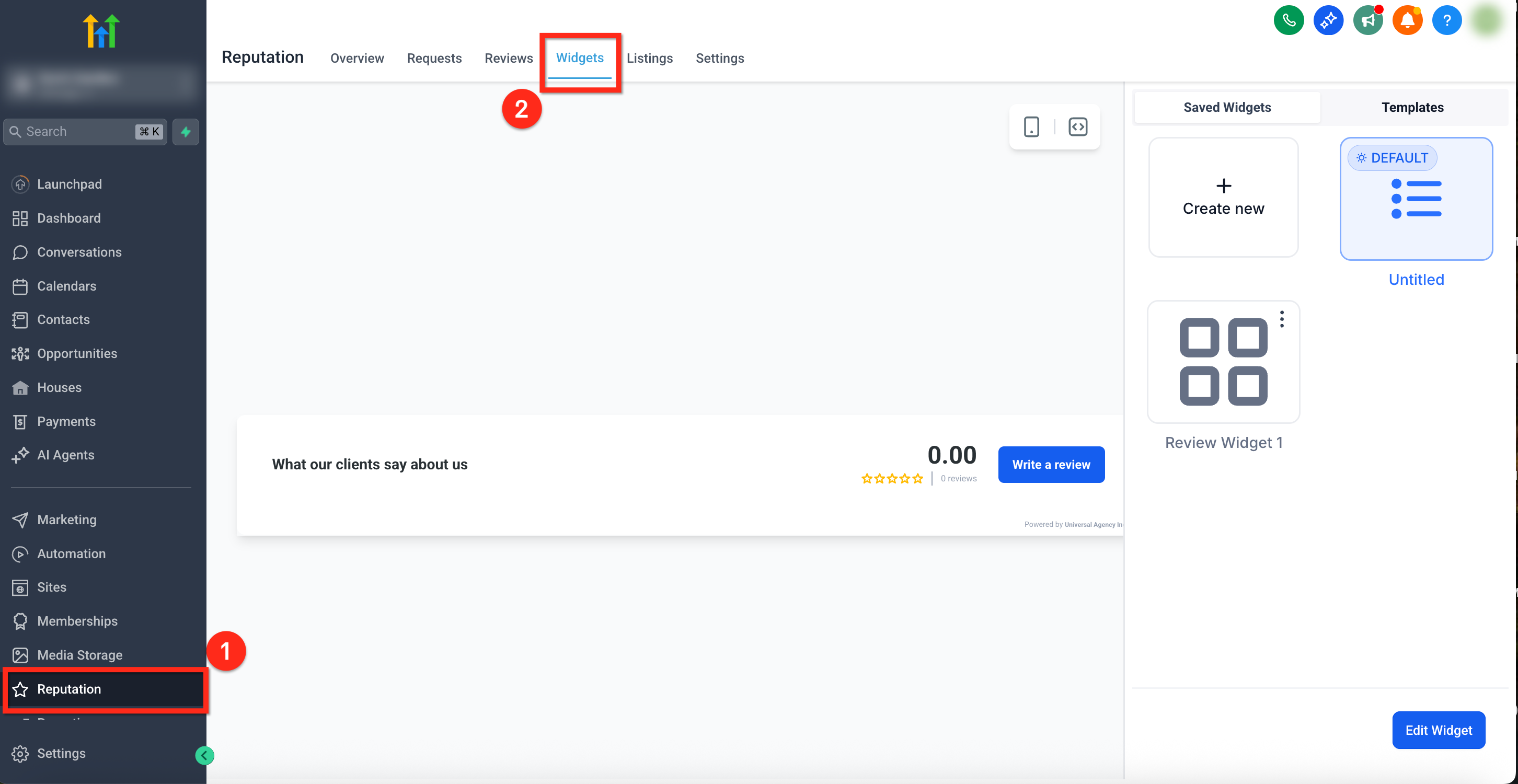
- From your account dashboard, go to Reputation in the left-hand menu.
- Click the Widgets tab in the top navigation bar.
Step 2: select or create a new widget
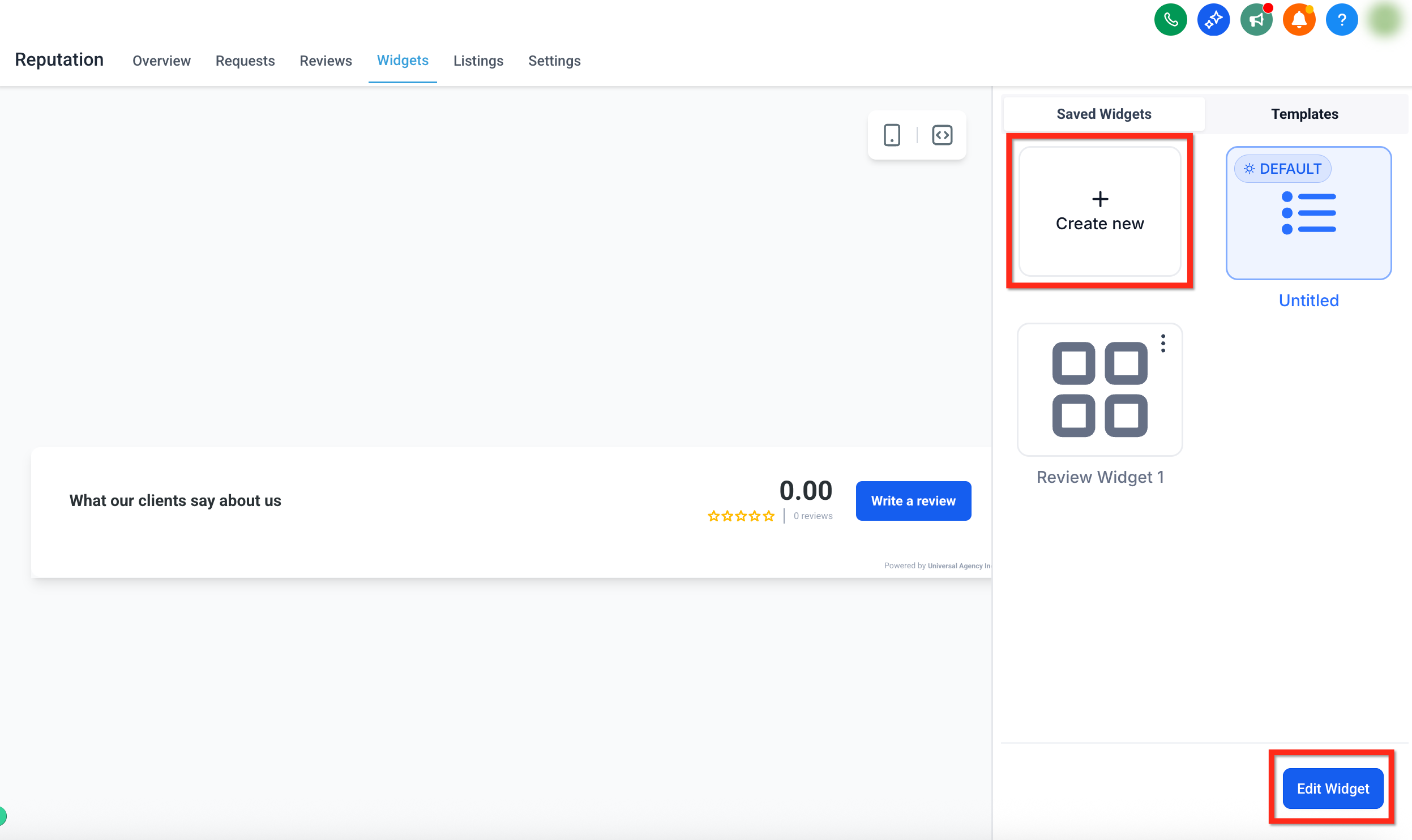
- To create a new widget, click the + Create Widget button.
- To edit an existing widget, click the widget you want and then the blue button at the bottom right labelled Edit Widget.
- If you are starting from scratch, you can also select a predefined template to apply a professional layout and style instantly.
Step 3: configure the widget settings
The widget builder includes several tabs that let you fully customise the structure, content and appearance of your review widget. You can control every detail, from the layout to the sources and the visual theme.
Each tab focuses on a different part of the widget experience:
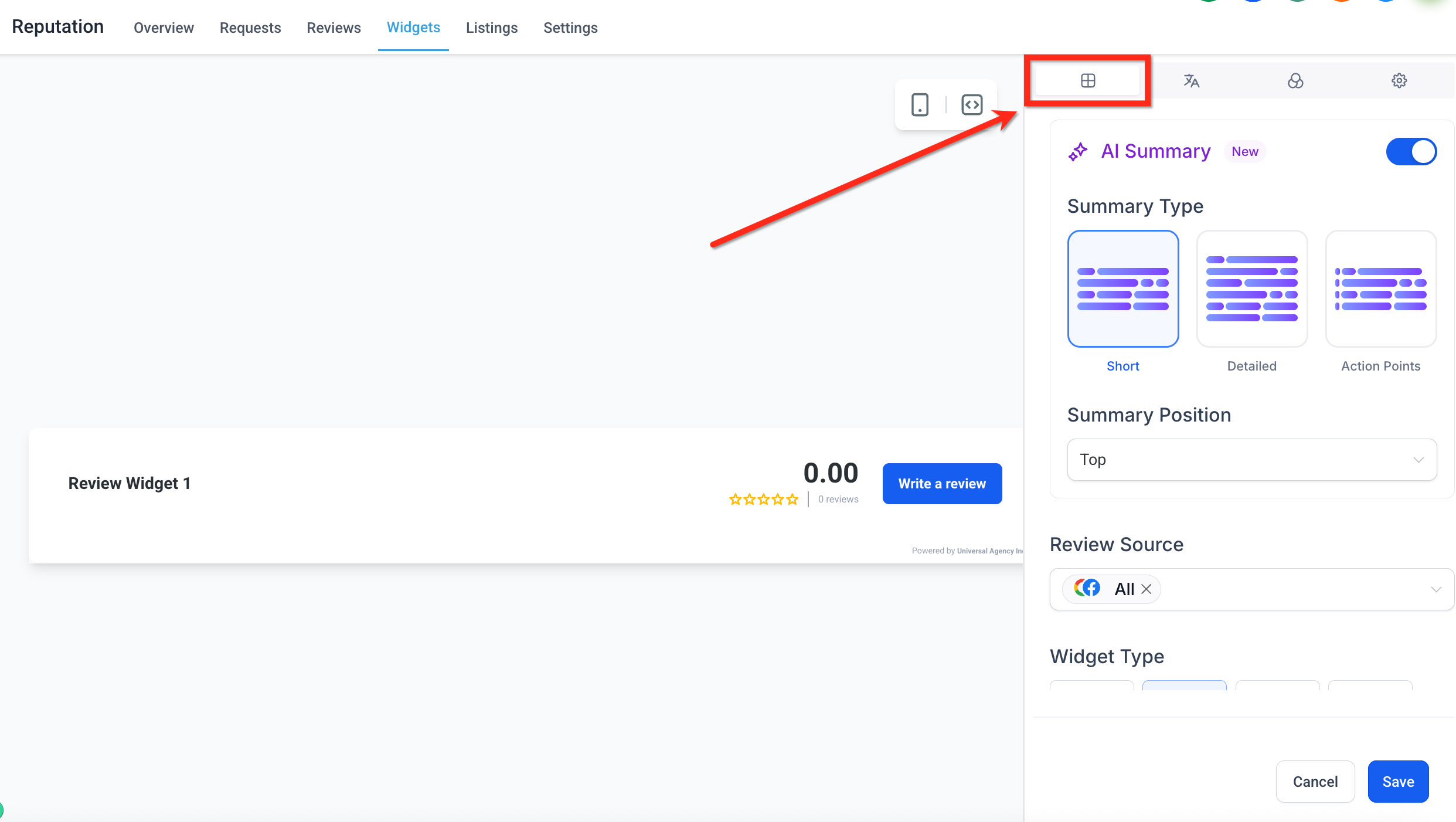
- Layout tab: set the widget type, the review sources, the summary options, the rating filters and the visibility of the "Powered by" message.
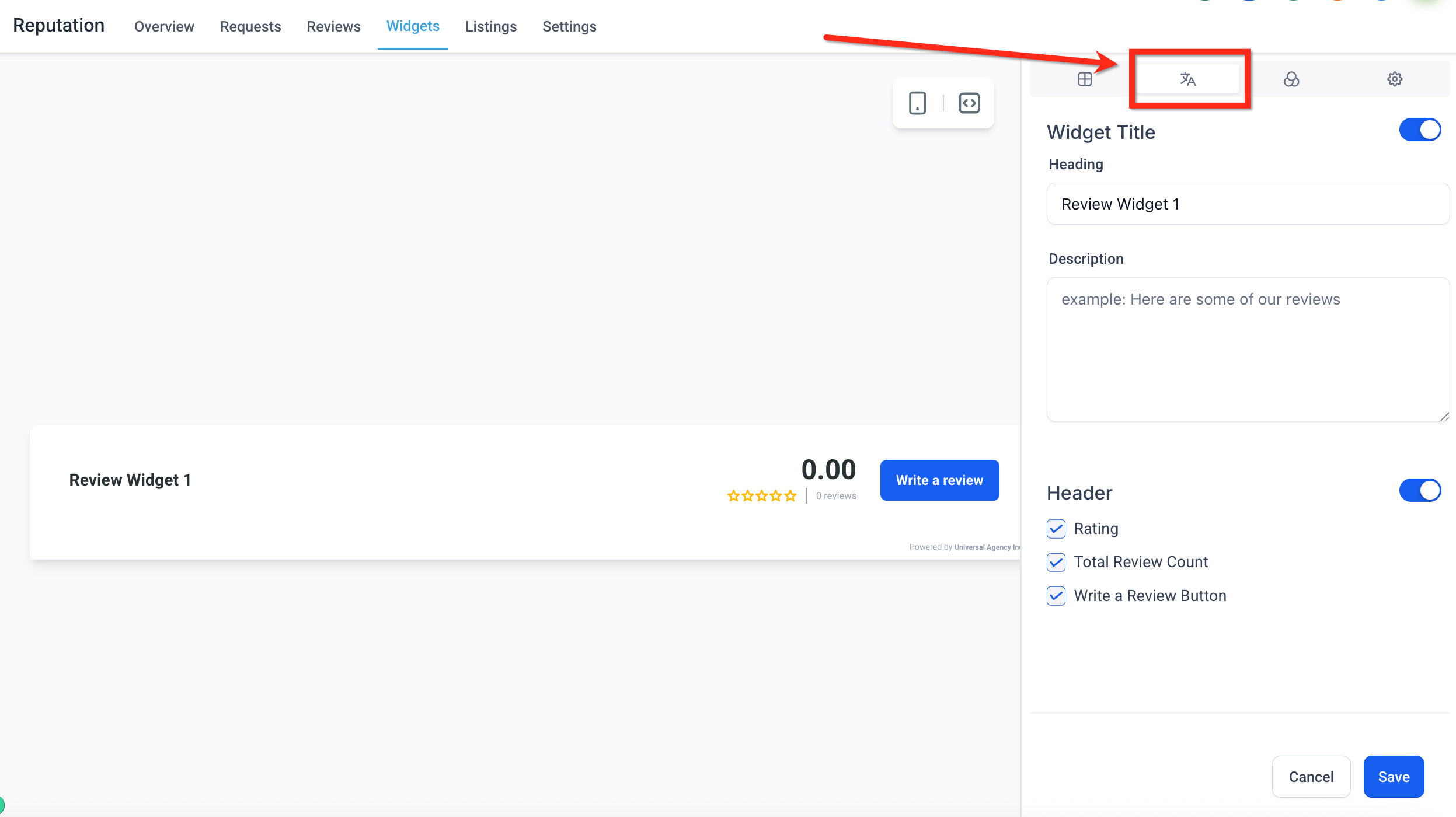
- Content tab: manage the widget's heading, description, position and header elements.
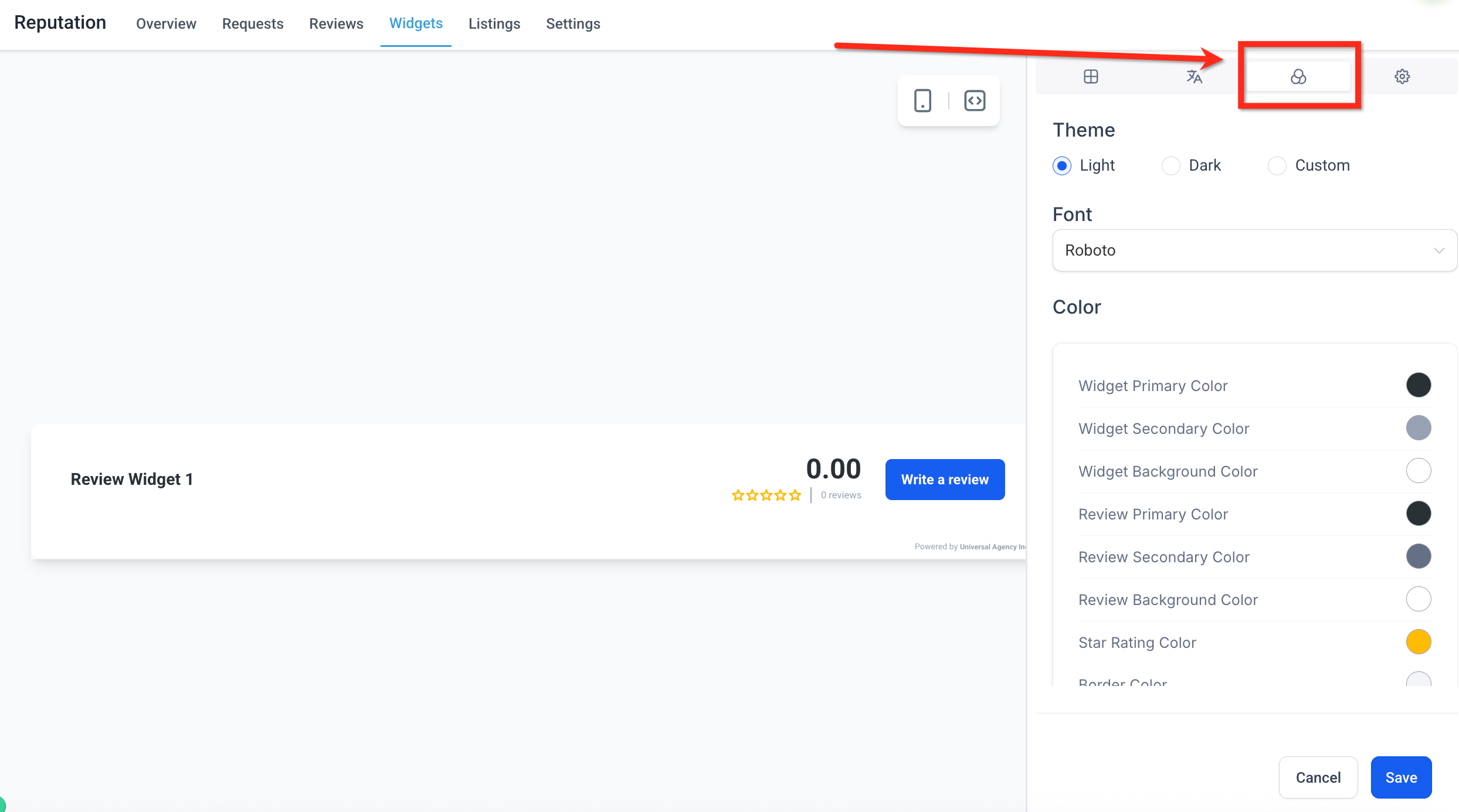
- Appearance tab: choose a theme, apply your brand fonts and configure individual colours if you use the custom option.
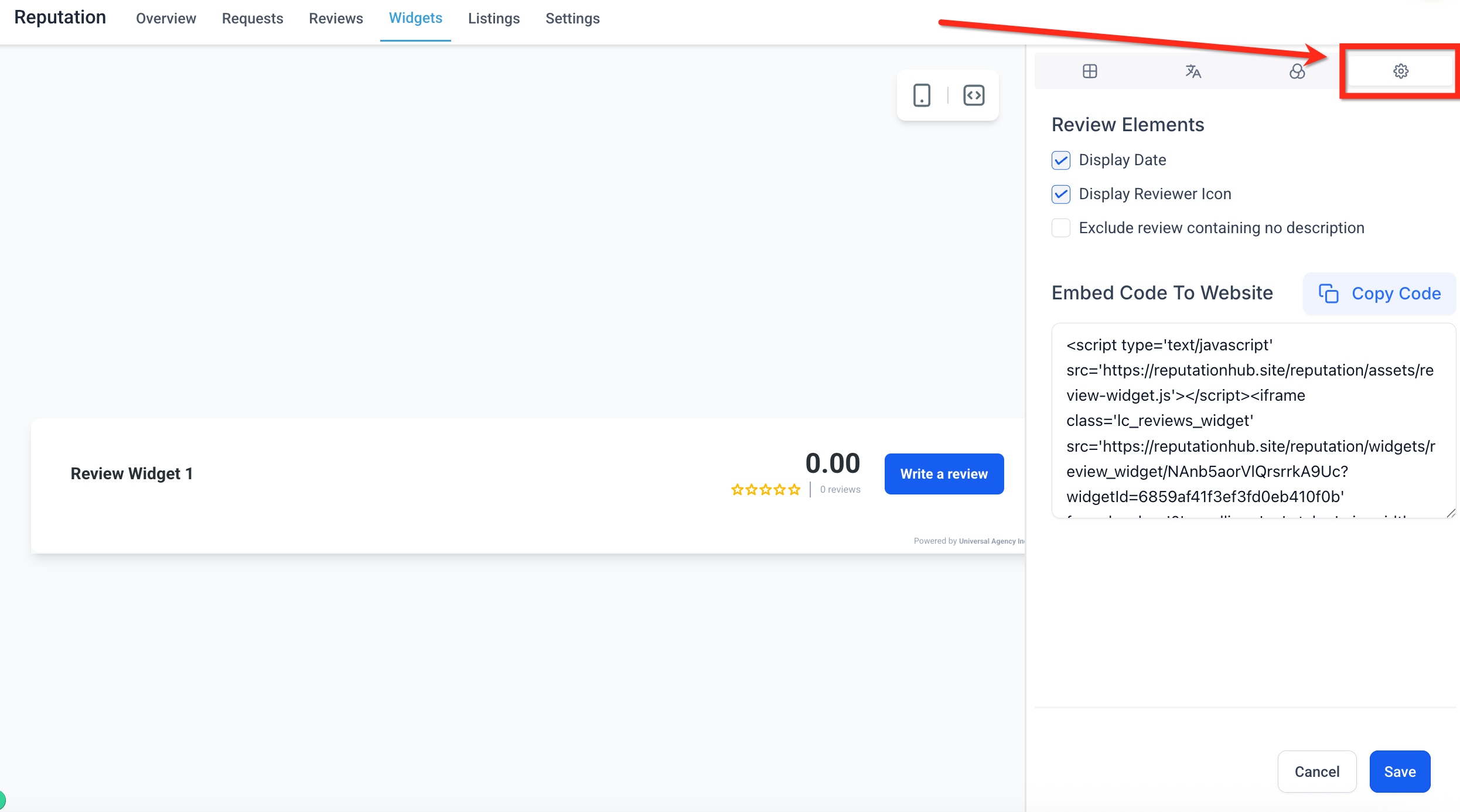
- Settings tab: turn the review display elements on or off and generate the embed code for your site.
Note: for detailed configuration options, scroll down for the full breakdown of each tab.
Step 4: save and embed the widget
- Once you have made all the changes you need, click the blue Save button in the bottom right corner.
- To add the widget to a Futuria CRM site or funnel, drag the Reviews element onto the site page.
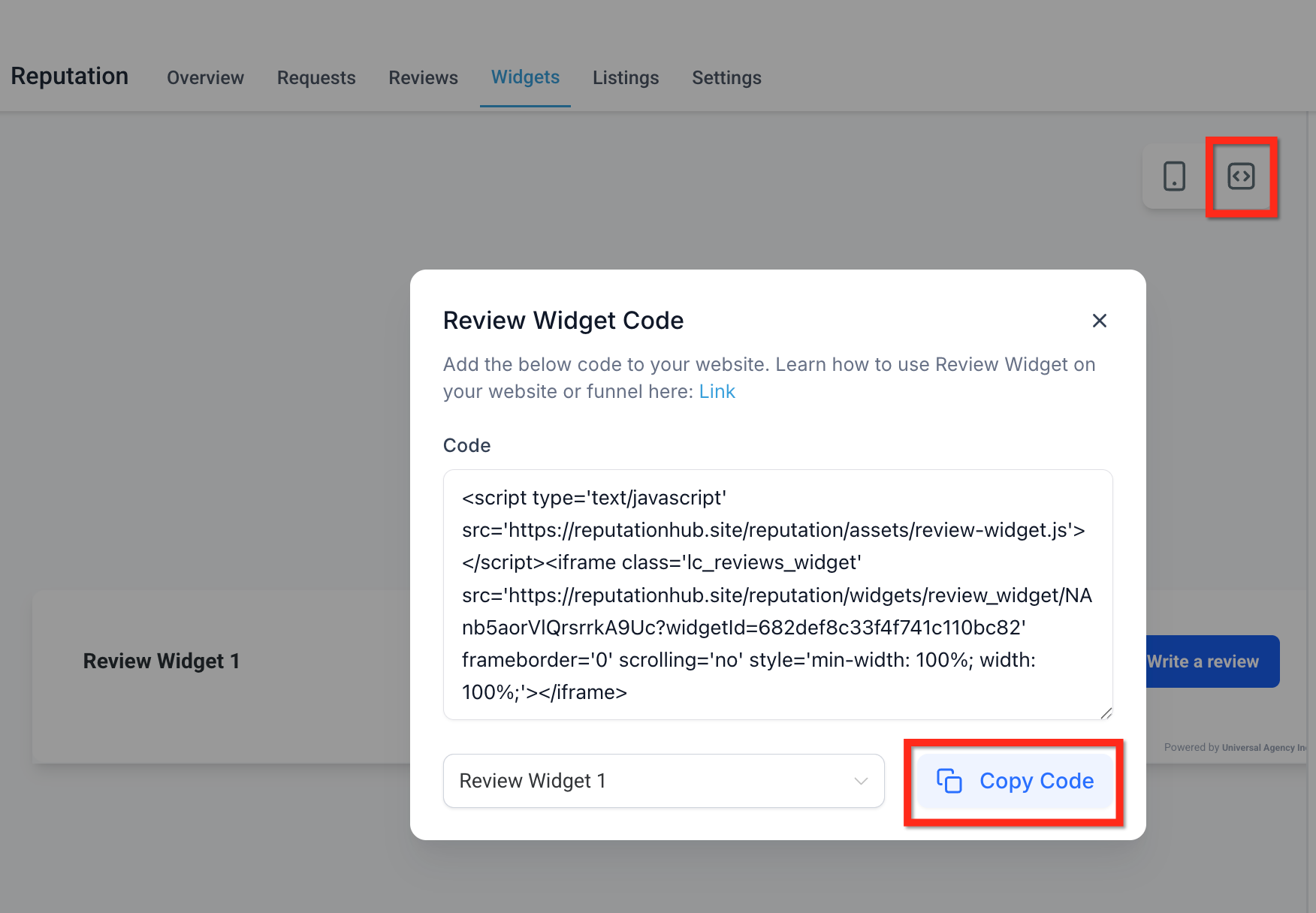
- To embed the widget via code, click the Code icon and then Copy Code. Paste this code into a custom HTML block on your website or funnel.
Customising review widgets
Each tab of the widget builder gives you control over a different aspect of your review widget, from structure and layout to content, design and behaviour.
Note: the customisations available vary according to the widget type you select.
Layout tab: configuring the widget structure
Define the basic structure and sources of your review display.
- Summary type: an AI-generated sentiment overview based on your reviews. You can choose the summary type (Short, Detailed or Action-oriented) and turn it on or off as needed.
- Summary position: choose where the AI summary appears, either at the top of the widget or in line with the reviews. By default, placement follows the layout of the widget you selected. If you want the summary always to appear at the top, set the position to "Top".
- Review source: select which platforms to import reviews from.
- Widget type: choose the display format for your reviews. The options include List, Grid, Masonry, Carousel, Slider, Flash and Legacy.
- Maximum number of reviews: set the total number of reviews to display in the widget.
- Minimum rating: choose to show only reviews that meet a specific rating threshold (for example, only 4 and 5 stars).
- Powered by: show or hide the "Powered by" message at the bottom of the widget.
Content tab: editing the widget header and description
Customise the way the widget presents and frames your reviews.
- Title (On/Off): turn on or off to display a custom title at the top of the widget.
- Heading: define the text that appears as the widget's heading. It can reflect your brand tone or the focus of the content (for example, "What our customers say").
- Description: add a short supporting text under the heading to provide context or encouragement.
- Header (On/Off): control the visibility of the header summary section, which includes the rating data, the number of reviews and the "Write a review" button.
- Rating: shows the average star rating across all reviews.
- Total review count: displays how many reviews have been left in total.
- Write a review button: adds a clickable button that directs users to leave a review.
- Widget position: defines where on the screen the widget is displayed.
- Slider interval: sets how many seconds each review stays visible before rotating. Available when you use a carousel or slider layout.
Appearance tab: choosing themes and colours
Control the overall visual style of your widget so that it aligns with your website's branding.
- Theme: choose between Light, Dark or a fully customisable option. Each theme offers a different default visual experience.
- Font: adjust the font family used in the widget to match your brand typography.
- Colour: if you use the Custom theme, you can individually edit a wide range of colour elements, such as background, borders, star rating, review text, buttons and more.
Settings tab: fine-tuning the widget behaviour
Further refine your widget's behaviour and the information displayed for each review.
- Show date: turn on to show the publication date of each review.
- Show reviewer icon: turn on to display the reviewer's avatar or initials next to each review.
- Exclude reviews with no description: filters out reviews that include only a rating but no written feedback.
- Embed code for your website: click "Copy Code" to get the automatically generated embed script. Paste this code into any HTML block on your site or funnel to display the widget.
Saving, naming and managing your widgets
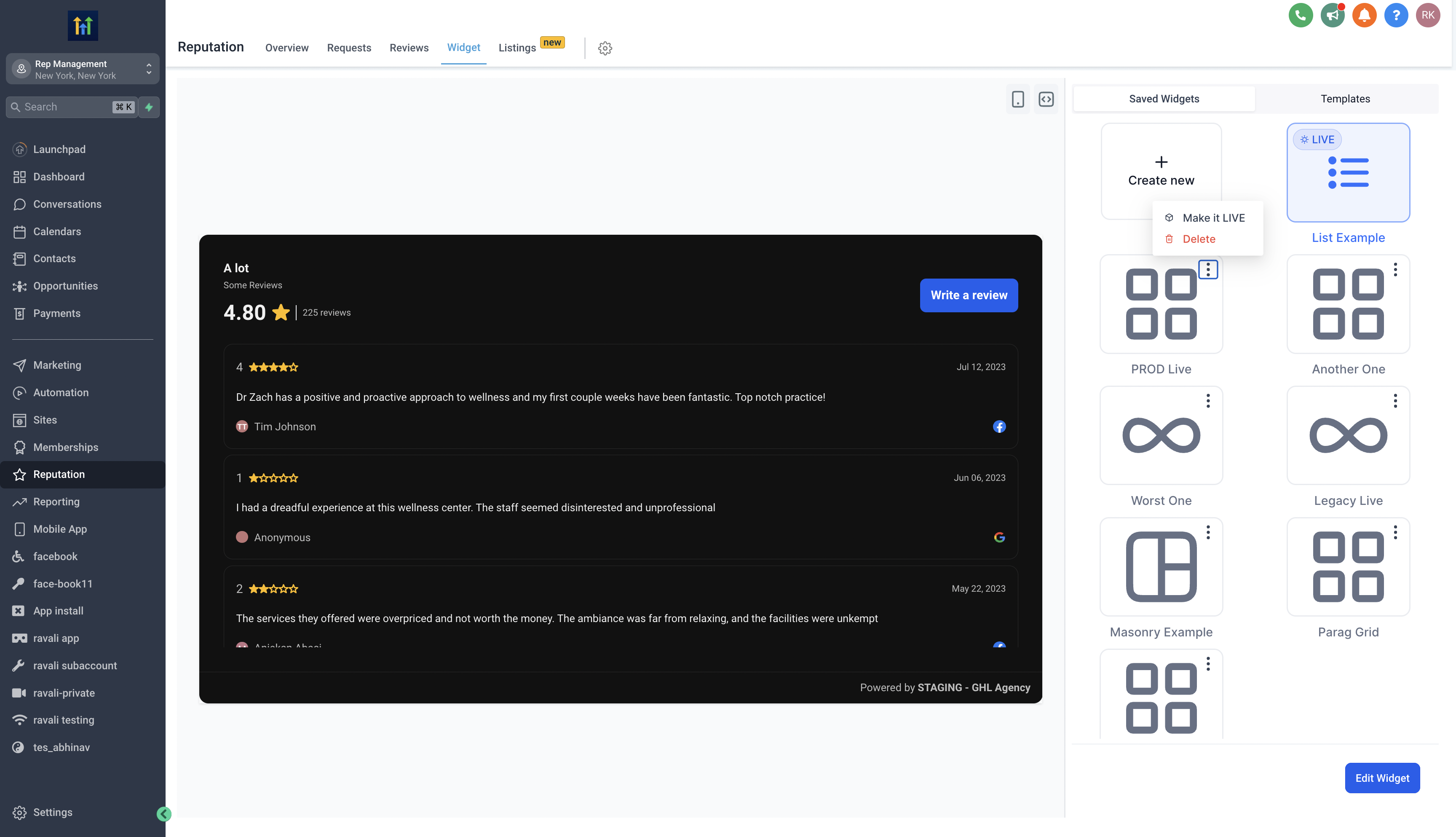
Give your widget a meaningful name for easy reference. You can view all your saved widgets in the saved widgets tab. Choose whether to save the widget for future use or make it live straight away.
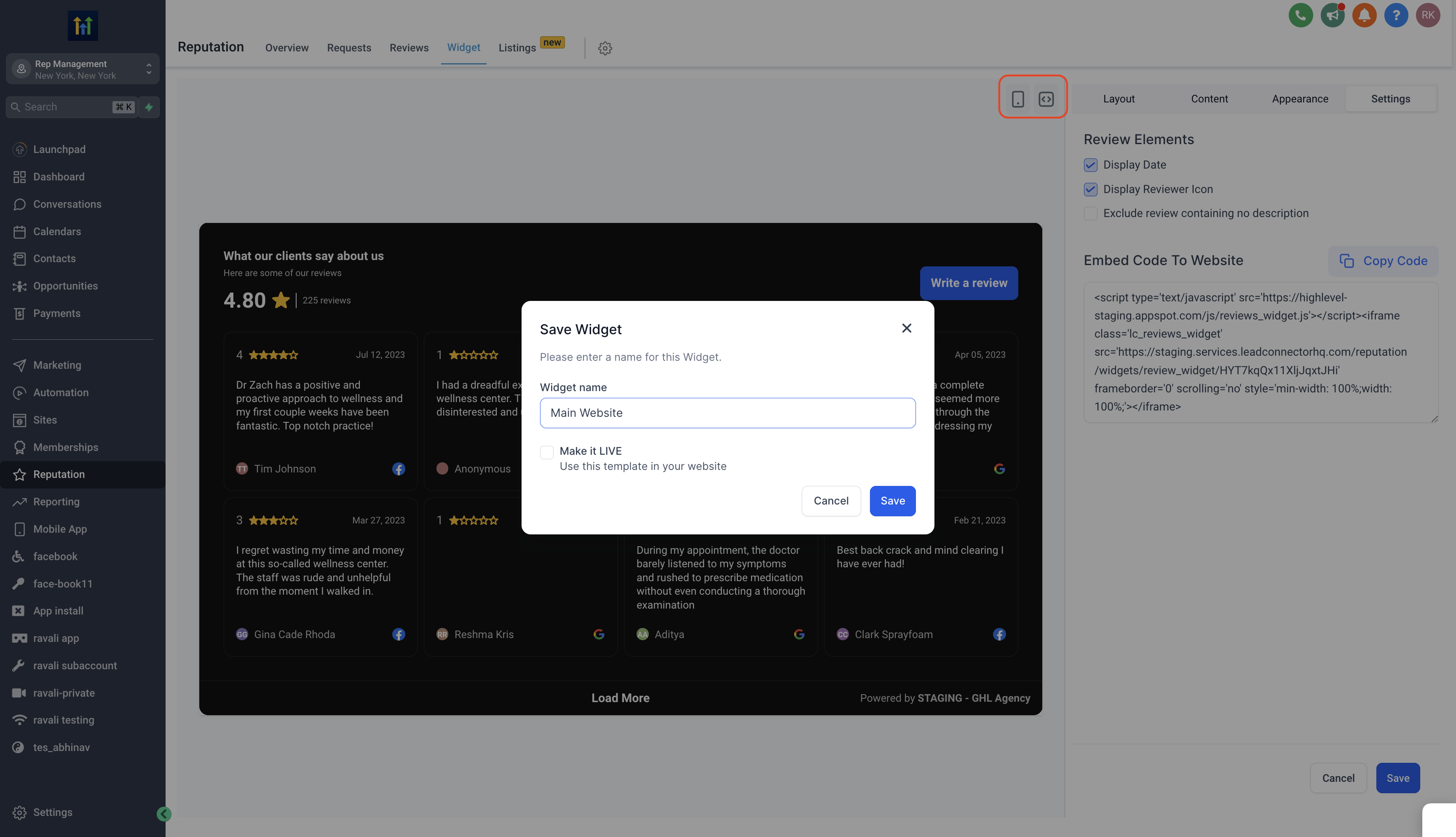
You can also delete widgets you no longer need by clicking the three-dot menu in the top corner of the widget and then Delete.
Templates
Templates let you launch a striking review widget in seconds. These predefined designs are particularly useful if you want a professional layout without having to customise every element by hand.
Applying a template is quick and easy.
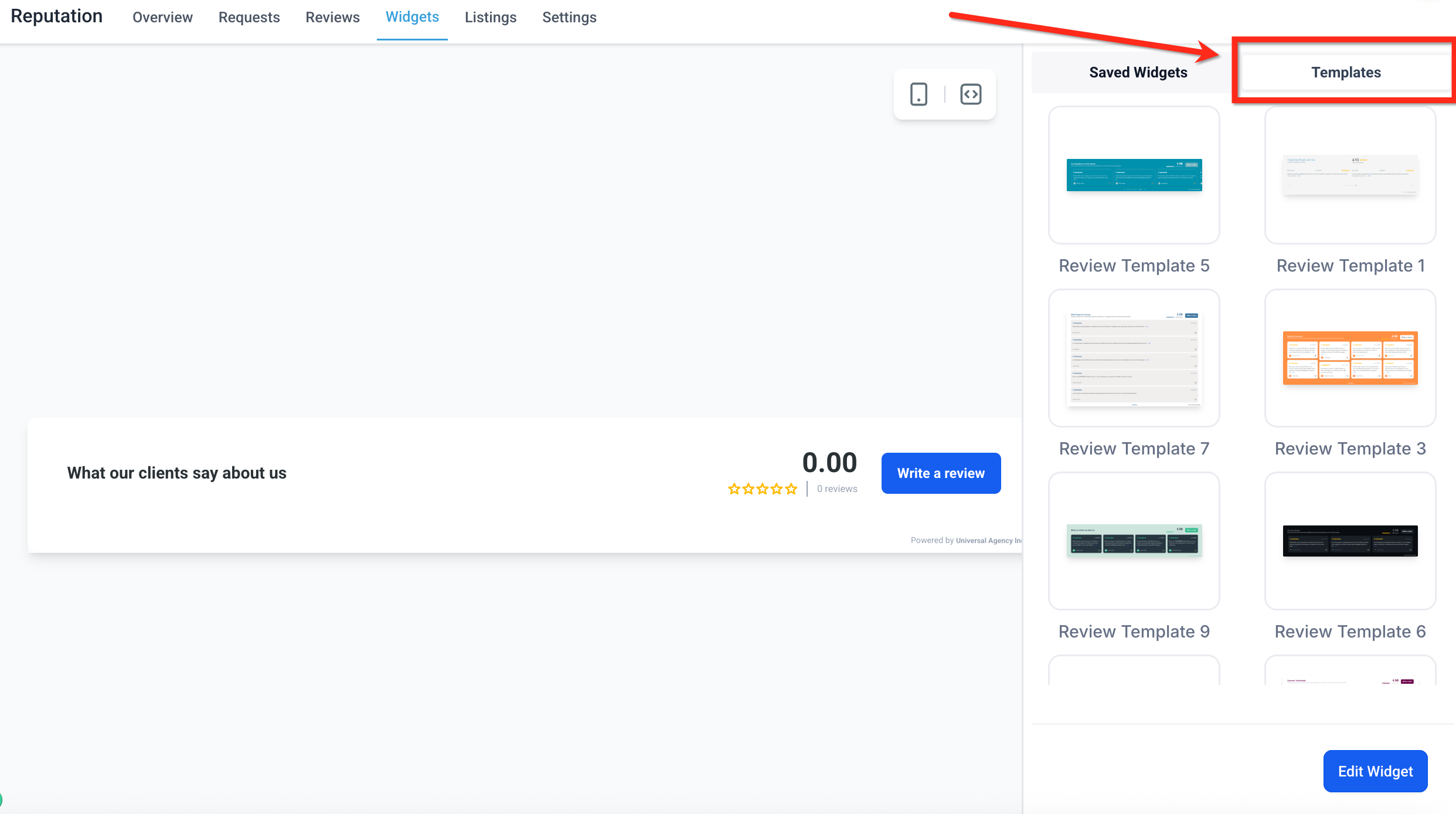
- Click the Templates tab at the top right of the widget panel.
- Browse the list of available designs and click a template to apply it instantly to your review widget.
Once it has been applied, you can carry on customising the widget like any other: change the layout, colours, fonts or content to make it your own. Just click the blue Edit Widget button.
Frequently Asked Questions
Can I embed several different review widgets on a single website?
Yes, but not by using the "Reviews" block in the site builder, which always shows your default widget. To embed several widgets on the same site, use the "Embed code" option to copy the code of the widget you want.
Then add the widget code to your website using a "Code" block. Make sure you use the dropdown menu to select the correct widget when you copy the code.
Repeat this process for each widget you want to add.
Will my widget update automatically when I receive new reviews?
Yes. The widget syncs with connected platforms such as Google and Facebook. New reviews will appear in the widget automatically, according to the filters and display settings you have configured.
Do review widgets work on websites not built with Futuria CRM?
Yes. Review widgets can be embedded on almost any website platform. Simply copy the embed code from the widget and paste it into a custom code block on your external site.
Can I keep editing a widget after adding it to a site?
Yes. You can edit the widget at any time, even after it has been embedded. Changes made in the widget builder (such as layout, content or style) will update automatically on your site once you save the widget.
Are review widgets optimised for mobile devices?
Absolutely. All review widget templates and layouts are fully responsive and optimised automatically for viewing on mobile devices, tablets and desktop.