


Table of contents
- Setting up a new WhatsApp Business number
- Step 1: Buy a Futuria CRM phone number
- Step 2: Start the registration process
- Step 3: Continue with Facebook
- Step 4: Begin the set-up
- Step 5: Enter your business details
- Step 6: Create a WhatsApp Business account
- Step 7: Confirm your selection
- Step 8: Save and complete the set-up
- Step 9: Finish the set-up
- Phone number verification
- Step 10: Add and verify your phone number
- Step 11: Choose a verification method
- Step 12: Enter the 6-digit one-time passcode
- Step 13: Verification complete!
- Choose the right method: new number or existing WhatsApp Business number
- FAQ
Setting up a new WhatsApp Business number
Note: if you are already using a number on the WhatsApp Business app and want to keep using it, do not start from the new-number flow. Use the Coexistence route, which allows the same number to stay active both in the WhatsApp Business app and in Futuria CRM.
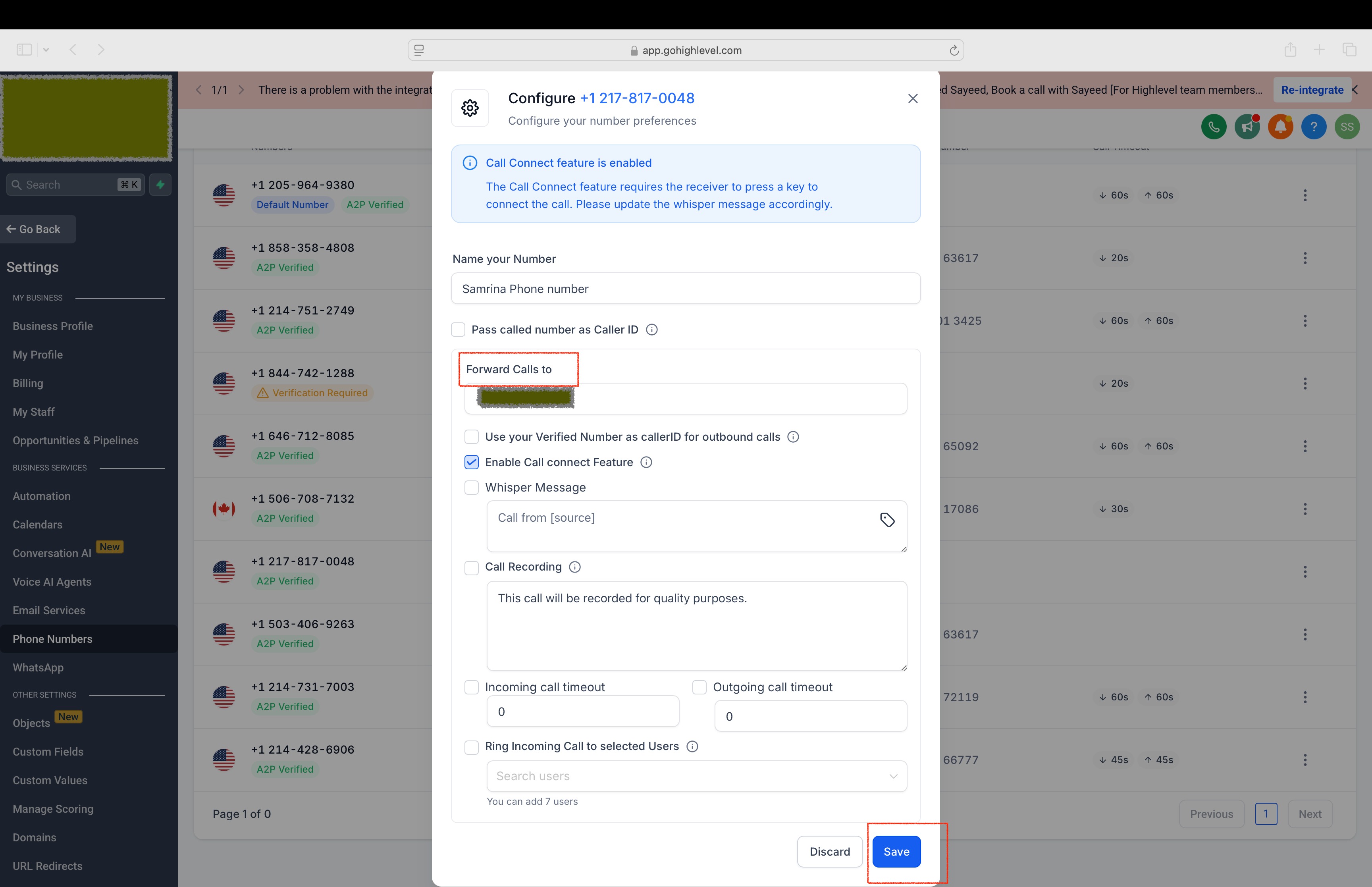
Step 1: Buy a Futuria CRM phone number
Buy a Futuria CRM phone number and forward calls to your main contact number.
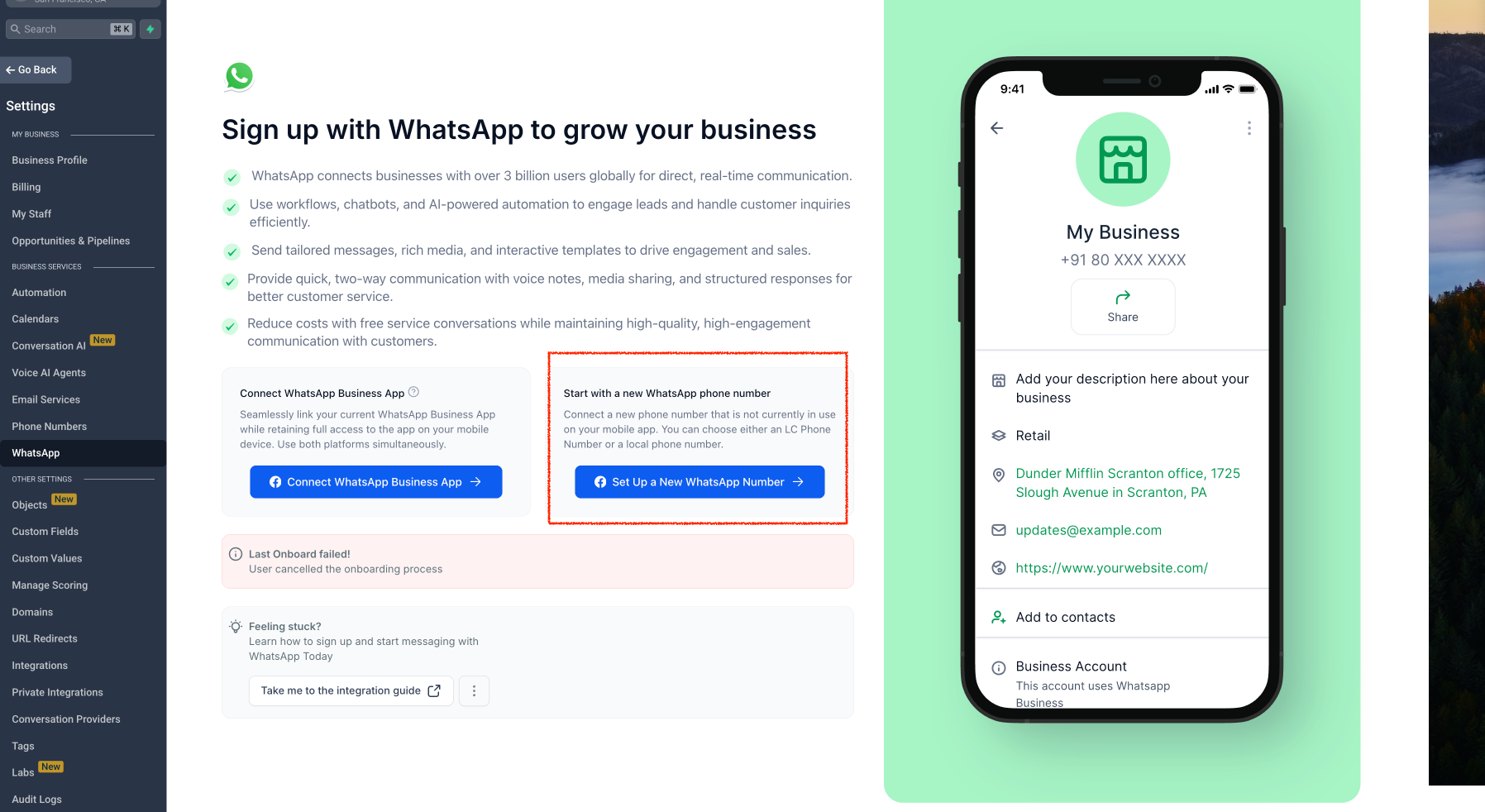
Step 2: Start the registration process
Go to Settings > WhatsApp > Set up a new WhatsApp number.
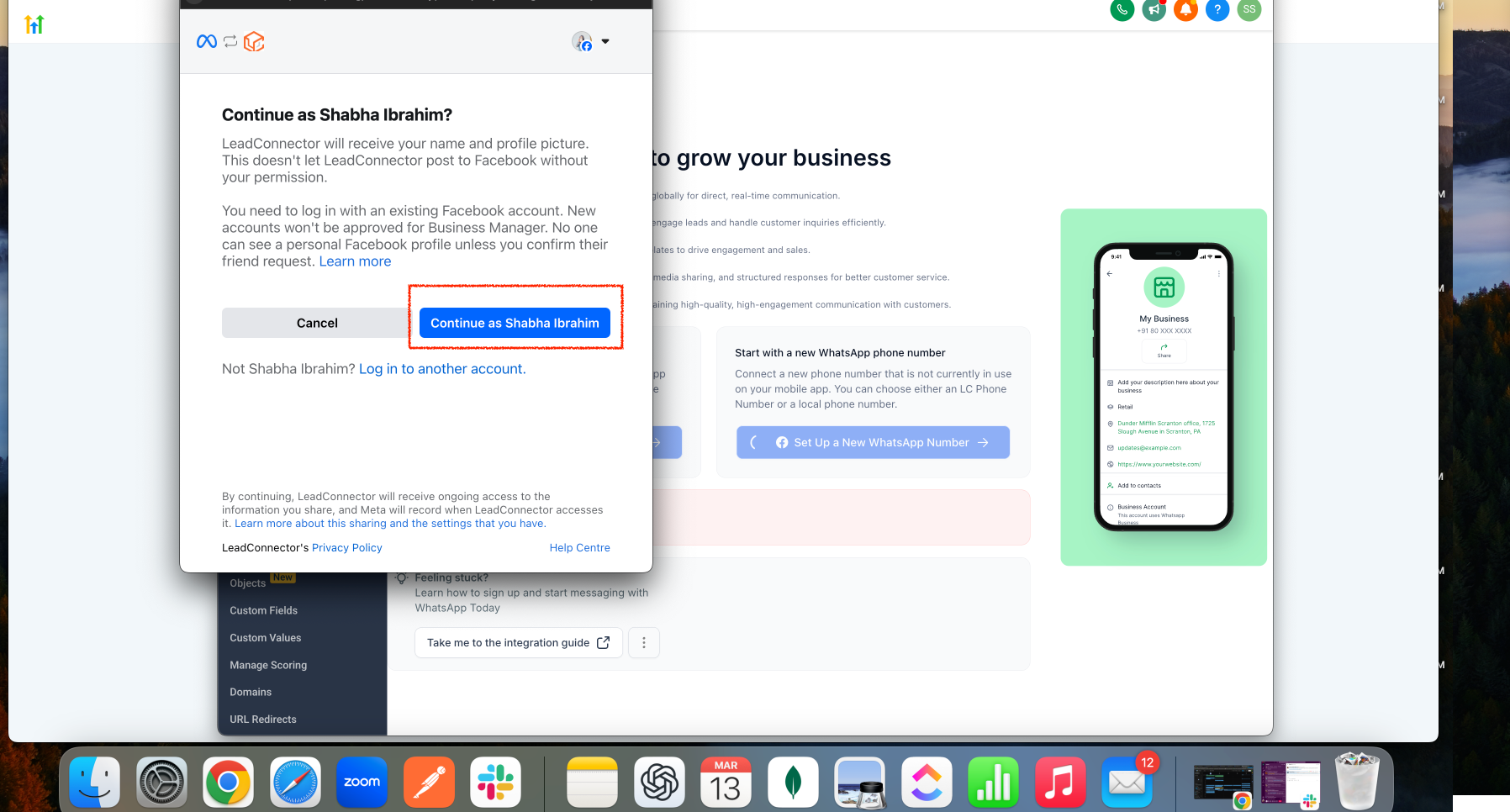
Step 3: Continue with Facebook
Click “Continue with your Facebook account” to proceed.
Step 4: Begin the set-up
Tap “Start” to begin the integration process.
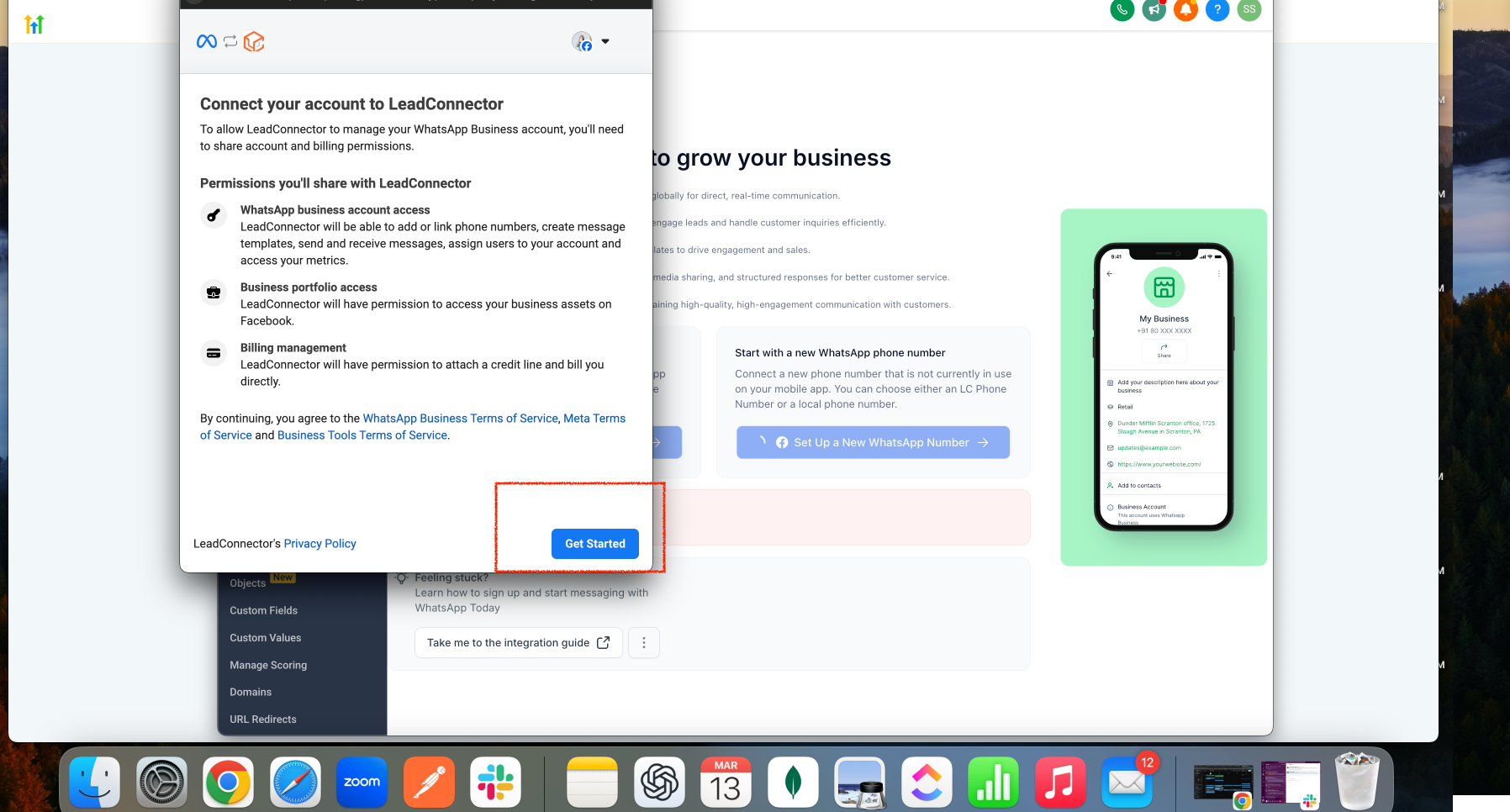
Step 5: Enter your business details
Fill in the required business information and click “Next”.
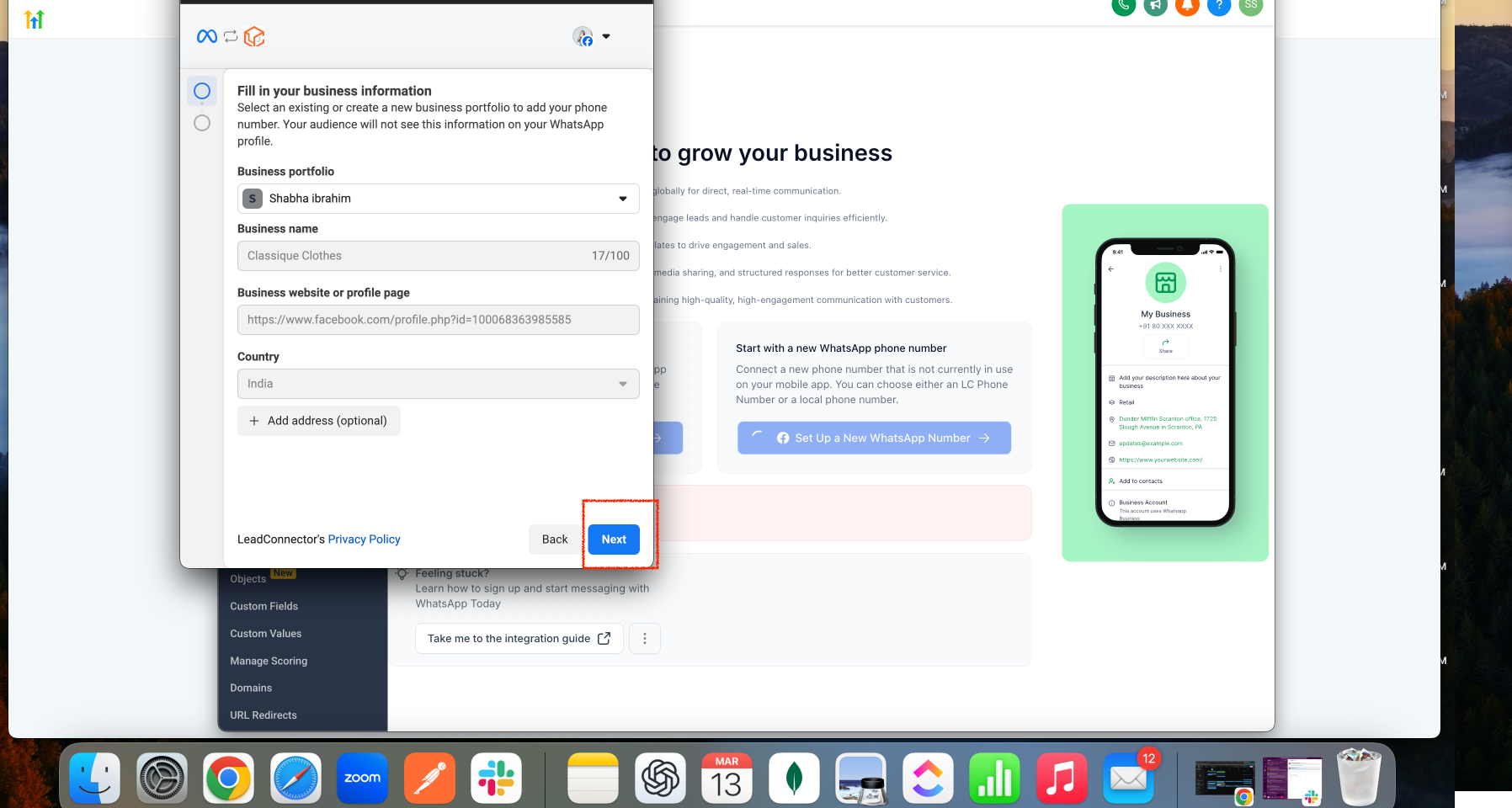
Step 6: Create a WhatsApp Business account
Select “Create a WhatsApp Business account”.
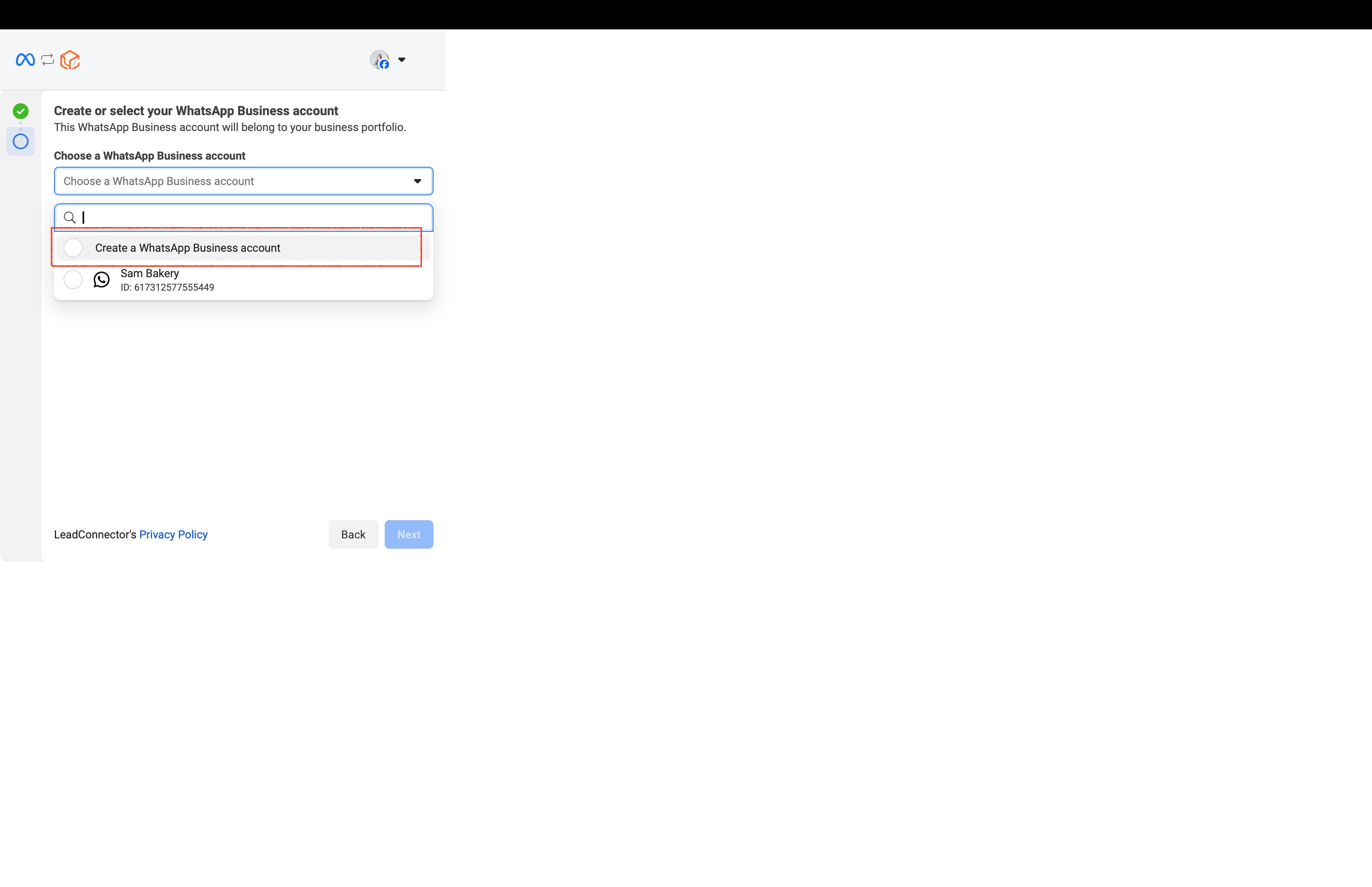
Step 7: Confirm your selection
Click “Next” to proceed.
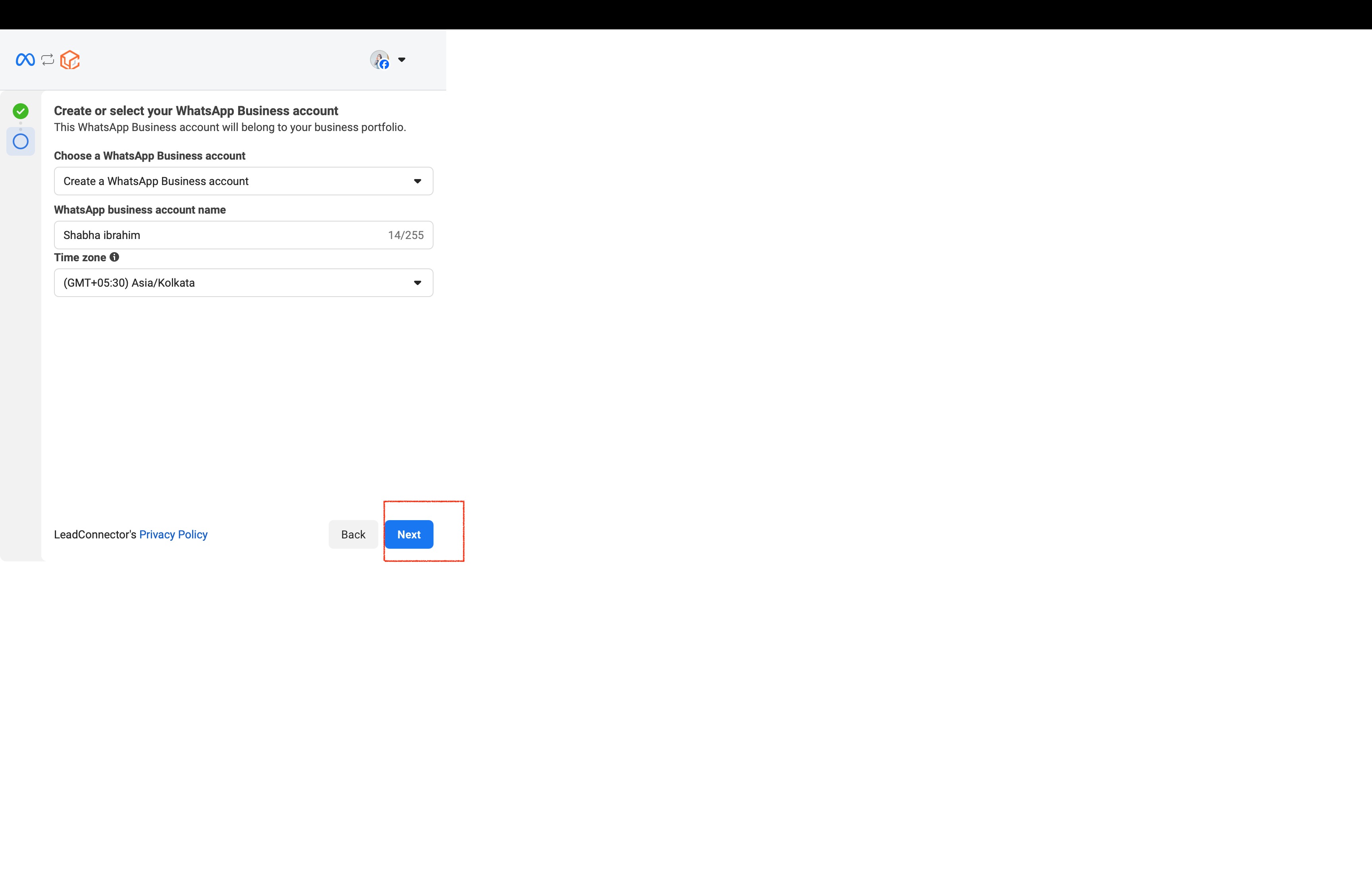
Step 8: Save and complete the set-up
Click “Save” to apply your settings.
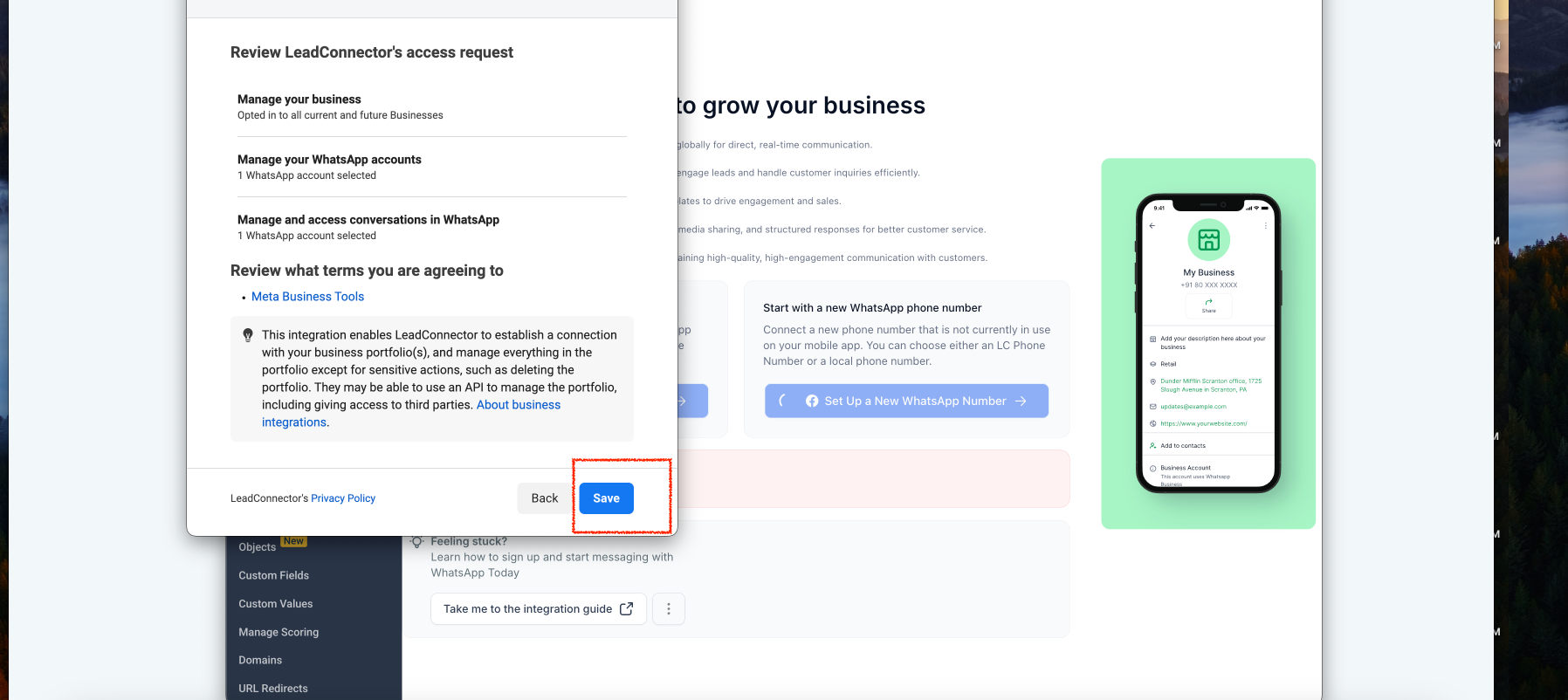
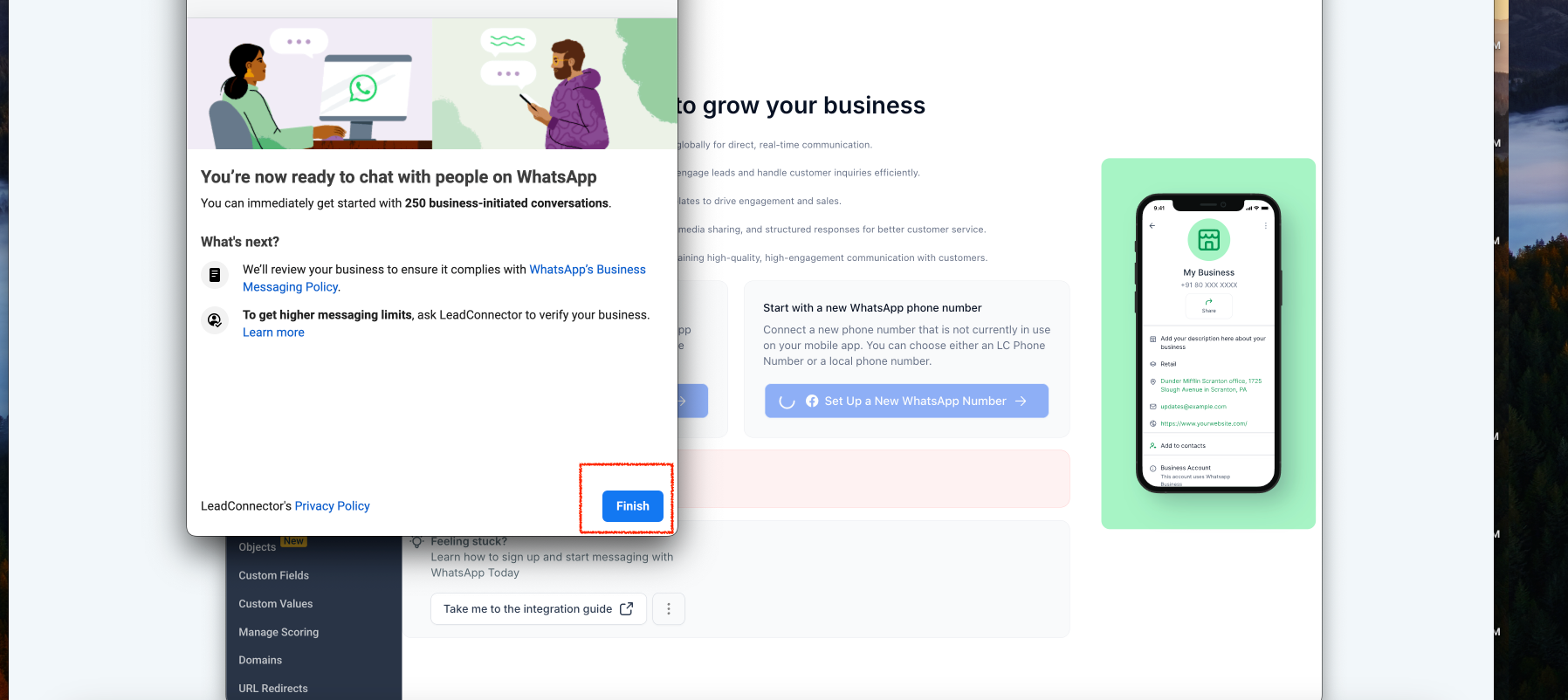
Step 9: Finish the set-up
Tap “Done”: your WhatsApp Business account is now successfully integrated!
Phone number verification
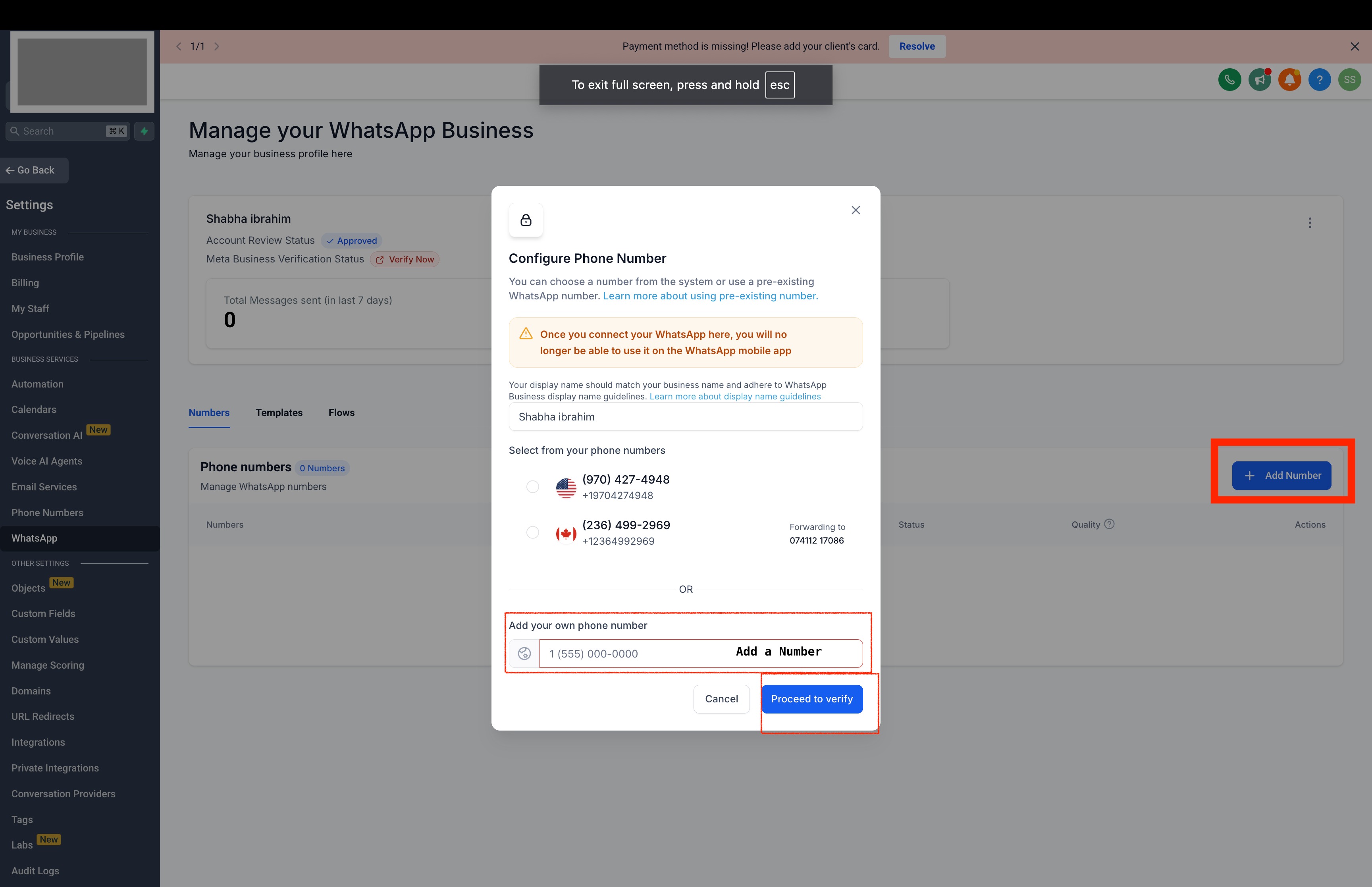
Step 10: Add and verify your phone number
Click “Add phone number” and proceed with verification.
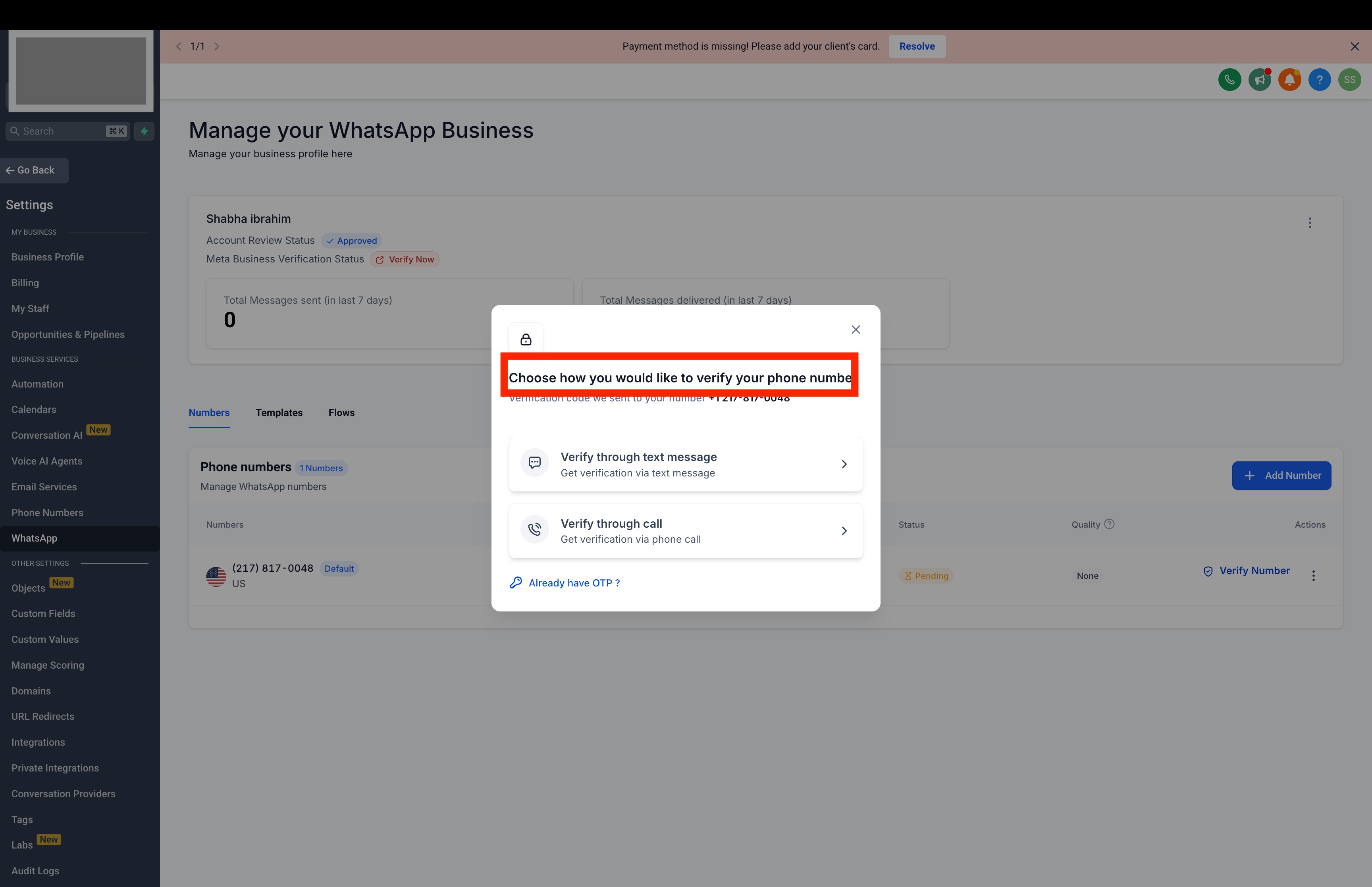
Step 11: Choose a verification method
Text message (SMS): select this option to receive a one-time passcode by SMS. Go to the Conversations tab to retrieve the code.
Phone call: if you select this option, you will receive a verification call on your forwarded number.
Step 12: Enter the 6-digit one-time passcode
Enter the 6-digit one-time passcode received by SMS or call to verify your number.
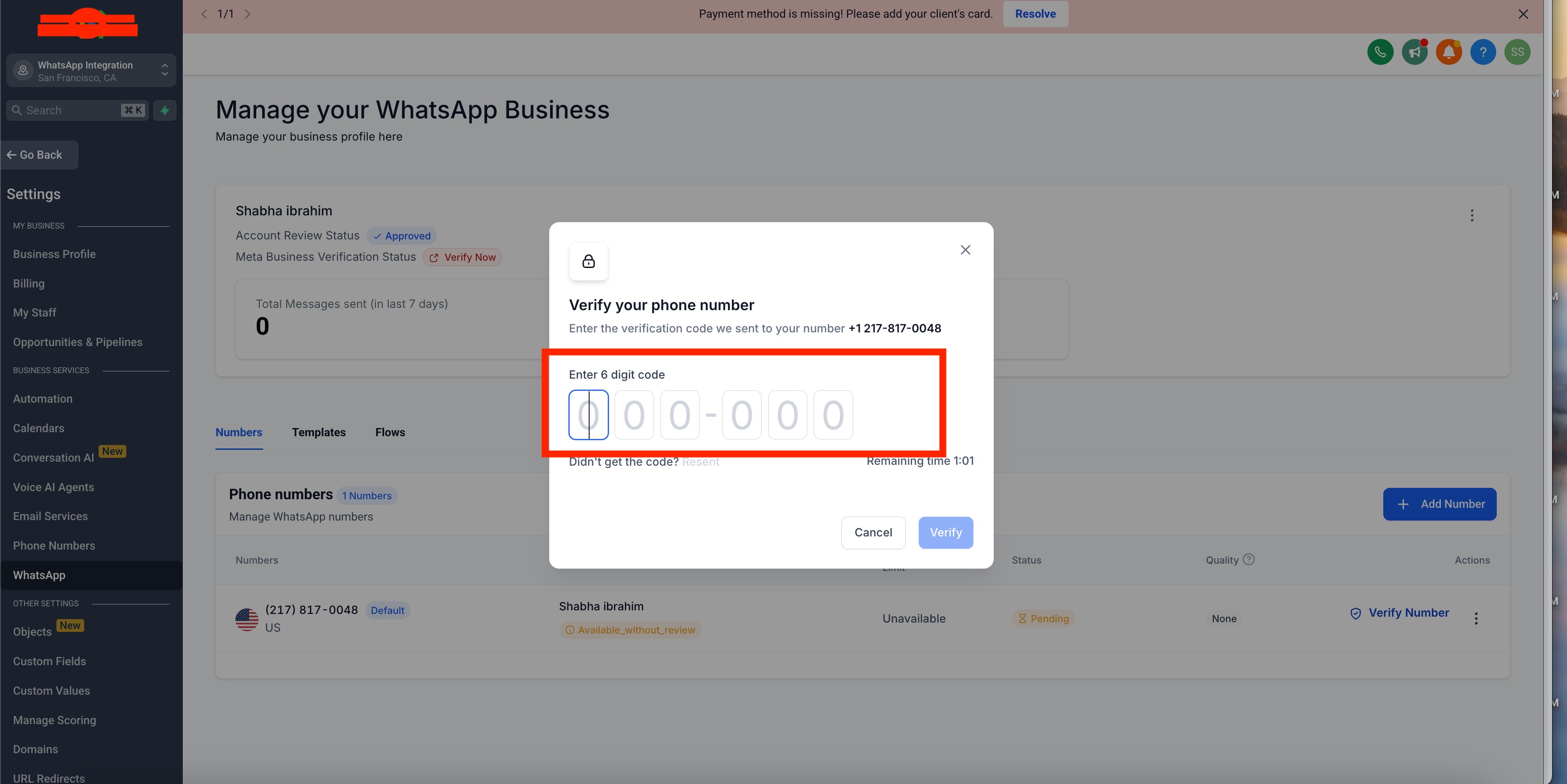
Step 13: Verification complete!
Your WhatsApp Business number is now successfully verified and ready to use.
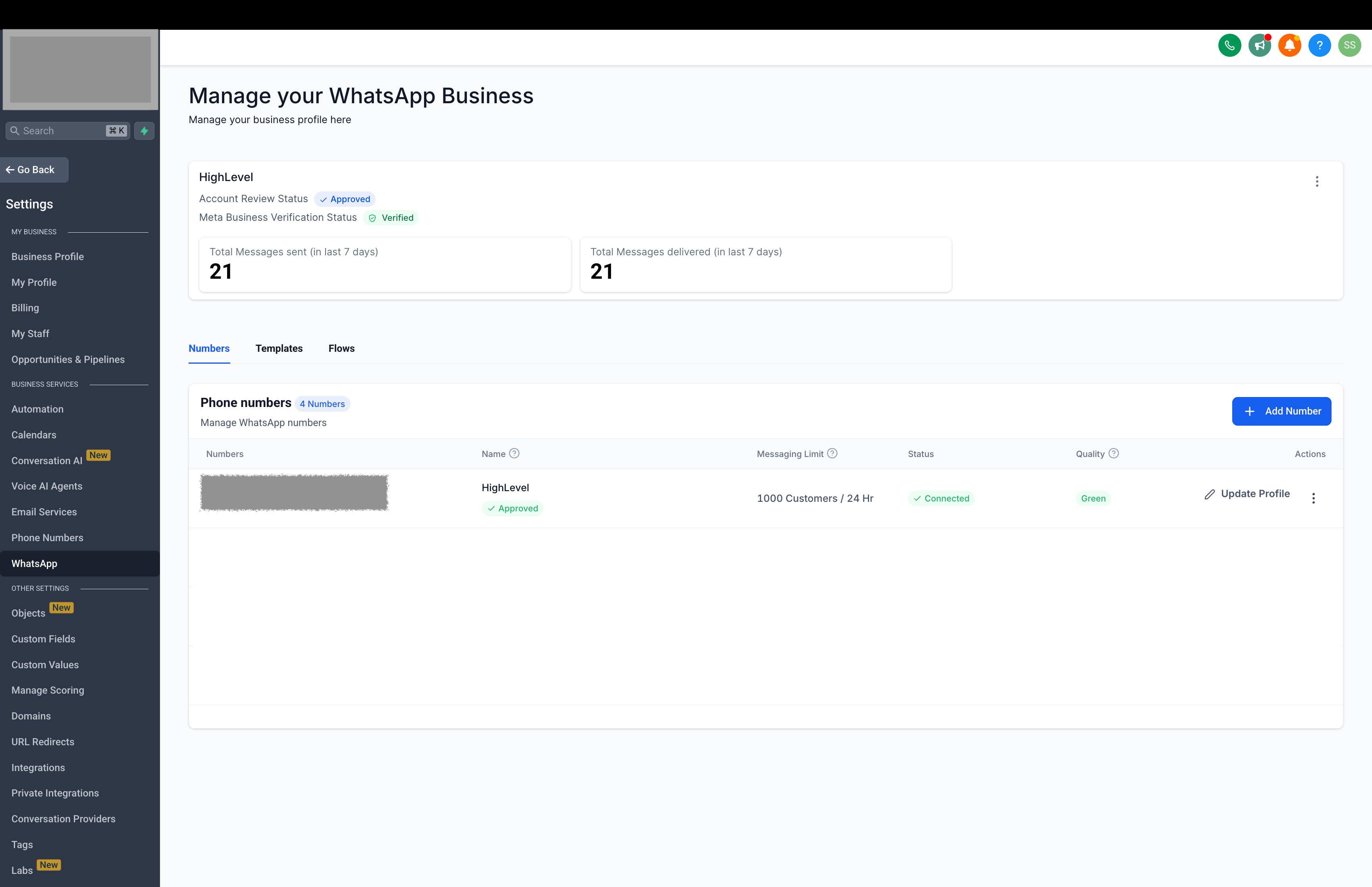
With Coexistence you can carry on using the same number from the WhatsApp Business app and also manage it from Futuria CRM. Manual messages sent from the app remain free; automations, templates and messages sent from the CRM go through the WhatsApp Business Platform instead and follow its rules and rates.
Choose the right method: new number or existing WhatsApp Business number
Before connecting WhatsApp to Futuria CRM, choose the right route based on the status of the number.
If you already have an active number on the WhatsApp Business app
Use the Coexistence flow. This lets the number stay active in the WhatsApp Business app and, at the same time, be connected to Futuria CRM through the WhatsApp Business Platform. Do not delete the app during this route: keep it updated and complete the verification, one-time passcode or QR code steps when prompted.
If you are activating a new number
Follow the flow shown in this guide. In this case the number must be new, or at least not already active on WhatsApp or on the WhatsApp Business app.
If the number is connected to another BSP or provider
Do not use the new-number route and do not treat it as a simple Coexistence case. You need a BSP migration to the new WhatsApp Business account, keeping the Business Manager, WABA and number ownership correct.
Coexistence limitations you should know about
- Template messages and automations are sent from the CRM or the WhatsApp Business Platform, not from the app.
- The WhatsApp Business profile stays managed from the WhatsApp Business app, not from the CRM.
- A maximum of one number in Coexistence per account is supported.
- Group chats are not synced into the WhatsApp Business Platform.
- According to the platform documentation, numbers from Nigeria and South Africa are not supported for Coexistence.
FAQ
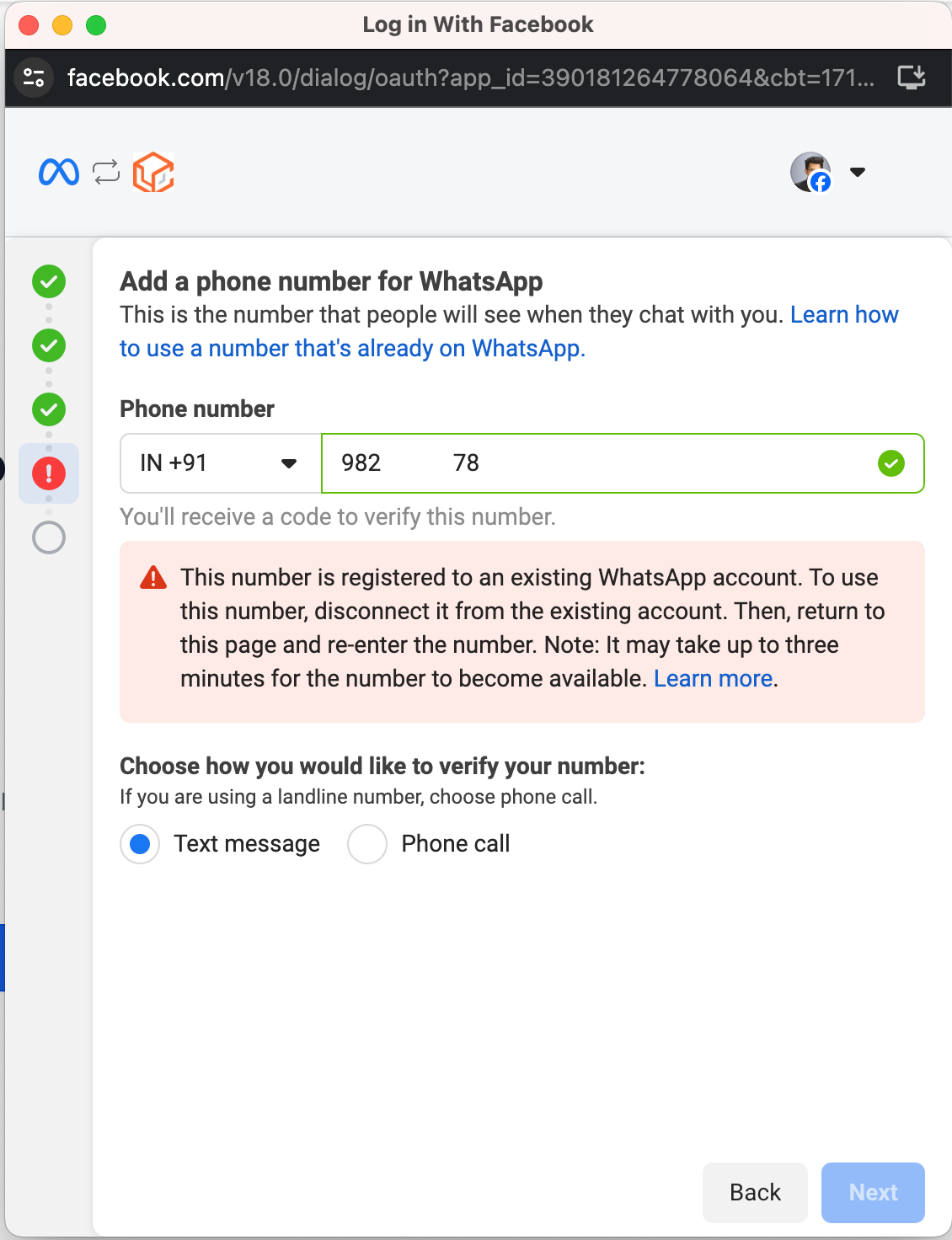
I received an error message saying the number is registered on an existing WhatsApp account. What should I do?
Answer:
This error does not automatically mean you have to delete WhatsApp. It depends on the route you are using:
- Number already active on the WhatsApp Business app: if you want to carry on using it from the app as well, choose the Coexistence flow. Keep the app installed and updated, then complete the verification, one-time passcode or QR code when prompted.
- New number: if you are setting up a brand-new number without Coexistence, that number must not already be active on WhatsApp or on the WhatsApp Business app.
- Number connected to another provider: if the number already sits with another BSP, you need to follow the BSP migration flow to the new WABA account.
When in doubt, stop before deleting the app: removing it when you actually want Coexistence is the fastest way to turn an ordinary set-up into a small masterpiece of digital bureaucracy.
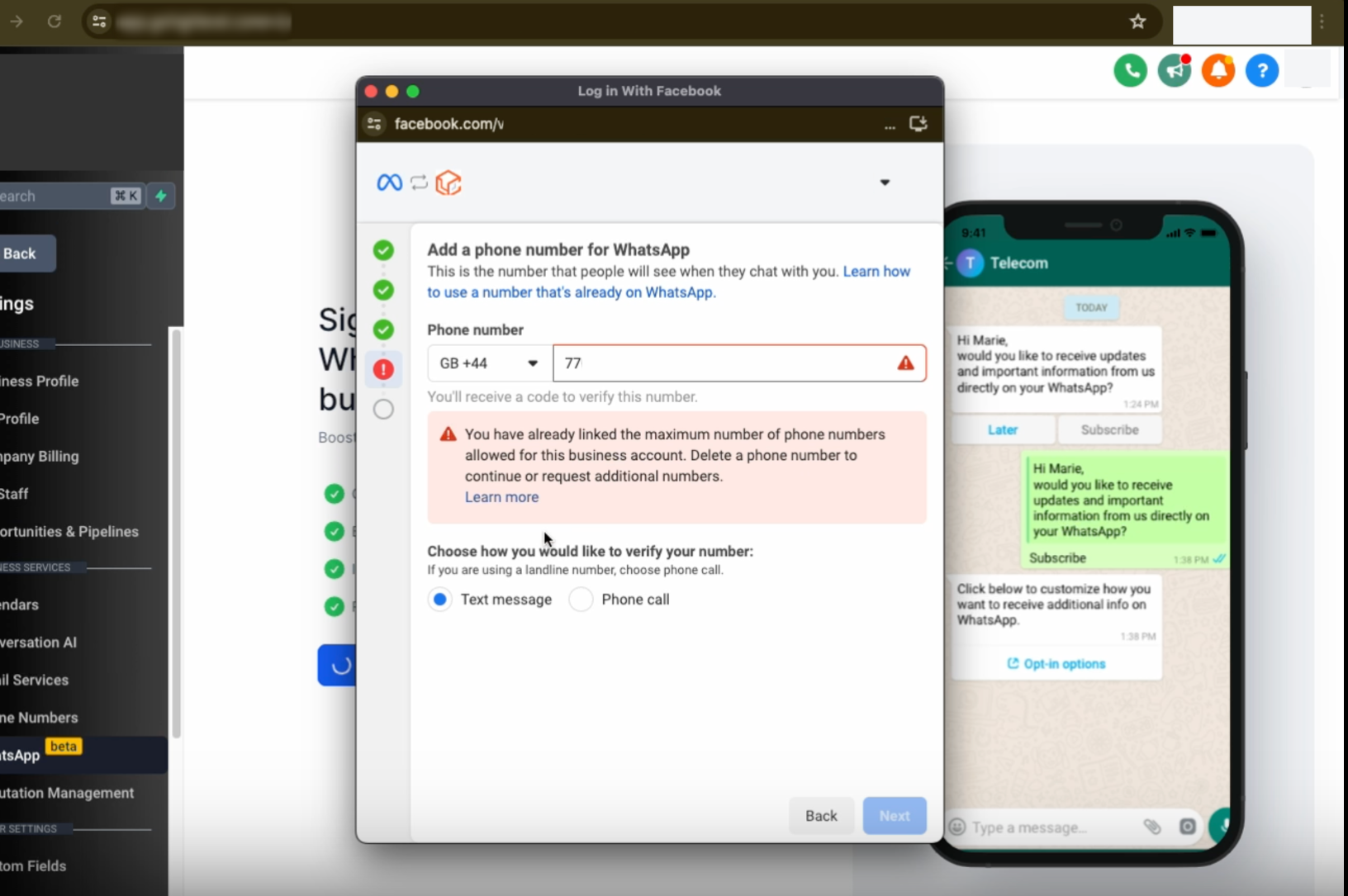
You have already connected the maximum number of phone numbers allowed for this business account. Delete a phone number to continue, or request additional numbers.
Meta allows only two phone numbers per WABA account.
Can I use my existing WhatsApp Business app number for the WhatsApp Business Platform?
Yes, if the number is eligible and is connected through Coexistence. In that case the same number can stay active on the WhatsApp Business app and also work in Futuria CRM through the WhatsApp Business Platform.
The important distinction is this: manual conversations can continue from the app, while automations, template messages and sends from the CRM go through the WhatsApp Business Platform and follow its rules.
How do I verify my WhatsApp Business phone number?
Once you have added your phone number, you can verify it using one of these methods:
- SMS verification: receive a one-time passcode by SMS and enter it in the Conversations tab.
- Call verification: receive a verification call on your forwarded number and enter the passcode provided.
Can I change the WhatsApp Business phone number after verification?
You cannot freely swap an already verified number for another one within the same set-up. If you need to use a different number, you must disconnect or reconfigure the integration and repeat the correct route: new number, Coexistence or BSP migration.
What should I do if I do not receive the one-time passcode during verification?
- Make sure your phone number is correct and correctly formatted.
- Check whether your network operator is blocking verification messages.
- Try again after a few minutes, or select call verification as an alternative.
What happens if my WhatsApp Business account set-up fails?
If you run into problems during set-up, check the following:
- Make sure your business information is correct.
- Check that you have chosen the right route: Coexistence for a number already active on the WhatsApp Business app, new number for a number not active on WhatsApp, BSP migration for a number connected to another provider.
- If you are using Coexistence, update the WhatsApp Business app and complete the QR code or one-time passcode when prompted.
- If you are setting up a new number, retry the verification process with a different method, SMS or call.
Can I manage my WhatsApp profile from the CRM?
No. Under Coexistence the WhatsApp Business profile, including the name, image and business information, stays managed from the WhatsApp Business app. From the CRM you manage conversations, automations, templates and the history linked to your contacts.
What are the benefits of the WhatsApp Business Platform compared with the app alone?
- Automations and workflows: send automated messages using the CRM's workflows.
- Team management: centralise WhatsApp conversations alongside the CRM's other channels.
- Template messages: send pre-approved templates for business communications and automations.
- History and context: link conversations to the contact record, to opportunities and to operational activity.
With Coexistence you no longer have to make an all-or-nothing choice: you can use the app for manual conversations and Futuria CRM for centralised management and automation.
Can I transfer my WhatsApp Business number back to the WhatsApp Business app?
If the number is connected through Coexistence, you do not need to transfer it back: the WhatsApp Business app stays active.
If, on the other hand, the number was registered or migrated to the WhatsApp Business Platform without Coexistence, going back to the app requires disconnecting or reconfiguring the number under Meta's and the provider's rules. Before doing so, check the impact on automations, templates and conversation history.
What is the difference between the WhatsApp Business app and the WhatsApp Business Platform?
| Feature | WhatsApp Business app | WhatsApp Business Platform / Futuria CRM | With Coexistence |
|---|---|---|---|
| Manual 1:1 messages | ✅ Yes | ✅ Yes, from the CRM | ✅ You can use both |
| Automations and workflows | ❌ No | ✅ Yes | ✅ From the CRM |
| Approved template messages | ❌ No | ✅ Yes | ✅ From the CRM/API |
| WhatsApp business profile | ✅ Managed from the app | ❌ Not from the CRM | ✅ Managed from the app |
| Group chats | ✅ In the app | ❌ Not synced | ✅ They stay in the app |
| CRM integration | ❌ No | ✅ Yes | ✅ Yes, for supported conversations |
| Message costs | Manual messages free | API messages subject to Meta's rates | App free for manual, CRM/API pay-as-you-go |