


Table of contents
- How to integrate multiple review platforms to manage and monitor them
- The main benefits of integrating review platforms
- Multi-page connections per platform
- How to integrate review platforms
- Step 1: go to the integrations
- Step 2: configure the integrations
- Example: platform integration window
- Page-level visibility and review filtering
- Supported review platforms
- Troubleshooting
- In summary
- Frequently asked questions
How to integrate multiple review platforms to manage and monitor them
Managing reviews across several platforms is essential to protecting your online reputation. Futuria CRM makes it simple to integrate multiple review platforms, so you can monitor, manage and respond to feedback from a single centralised place.
This guide shows you how to connect the supported review platforms to your account.
The main benefits of integrating review platforms
Multi-page integrations are particularly useful for businesses with several sites that manage reviews across different listings. By connecting several pages per platform, teams can reduce manual tracking and monitor reputation activity at scale.
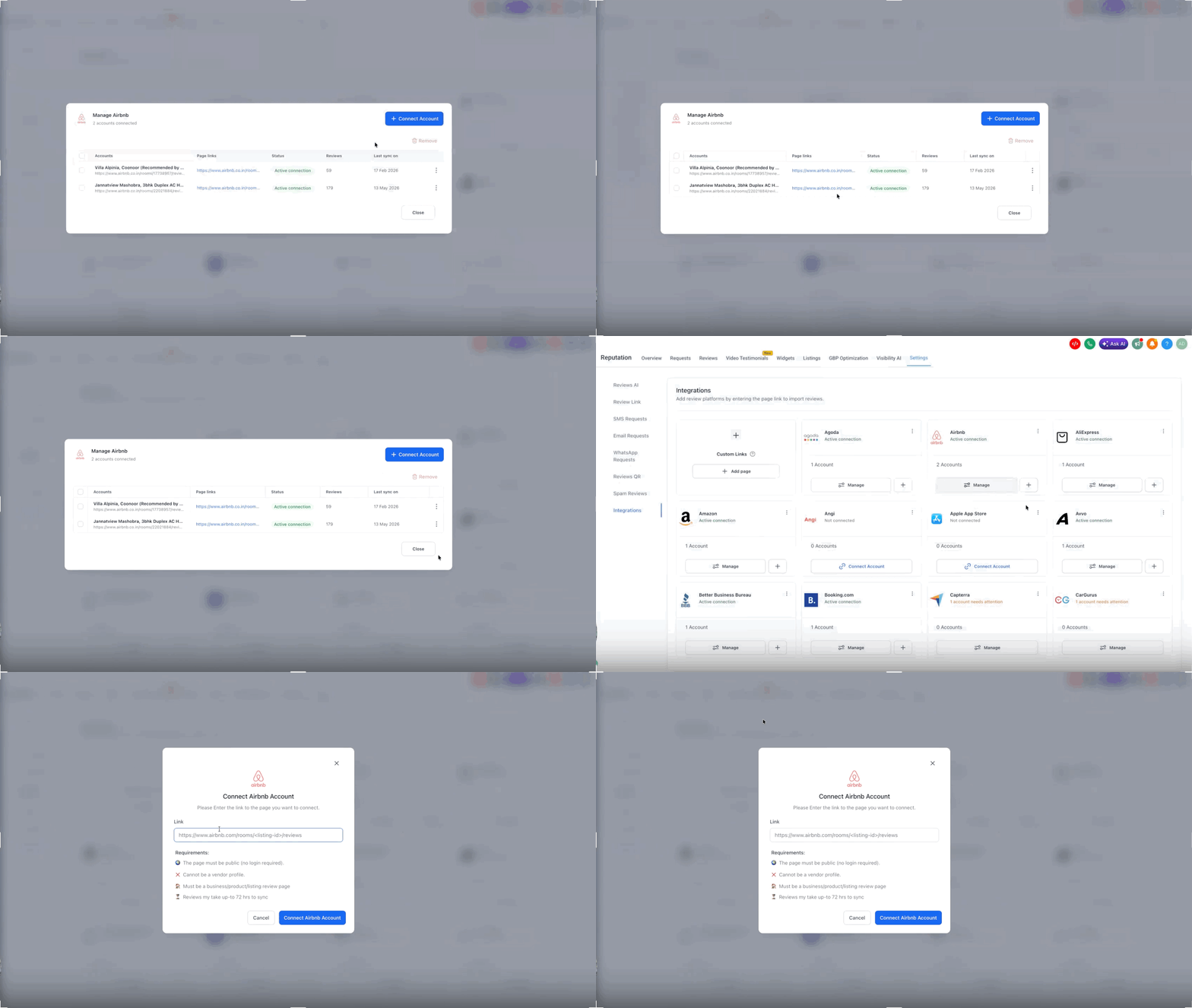
- Several pages per platform: connect more than one business page, listing or profile under the same supported review platform.
- No connection limit: add as many pages as you need for each platform as your business or number of sites grows.
- Centralised review management: manage connected pages from a single reputation integrations area, instead of tracking each listing separately.
- Page-level visibility: check details such as the page reference, connection status, number of reviews and last sync information.
- Broad platform coverage: connect pages from more than 50 supported review platforms, including the main general and industry-specific ones.
Multi-page connections per platform
Multi-page connections give you the flexibility to manage more than one listing under a single review platform. This is useful when a business has several sites.
You can use multi-page integrations to:
- Connect several business pages under a single supported platform.
- Add review listings for different sites within a single account.
- Manage review pages for franchises, branches, properties or service areas.
- Expand your page connections as new sites are added.
- Keep review platform management centralised, avoiding unnecessary duplicate set-ups.
How to integrate review platforms
Step 1: go to the integrations
- Go to Reputation in the side menu
- Click Settings in the top navigation bar
- Select the Integrations tab
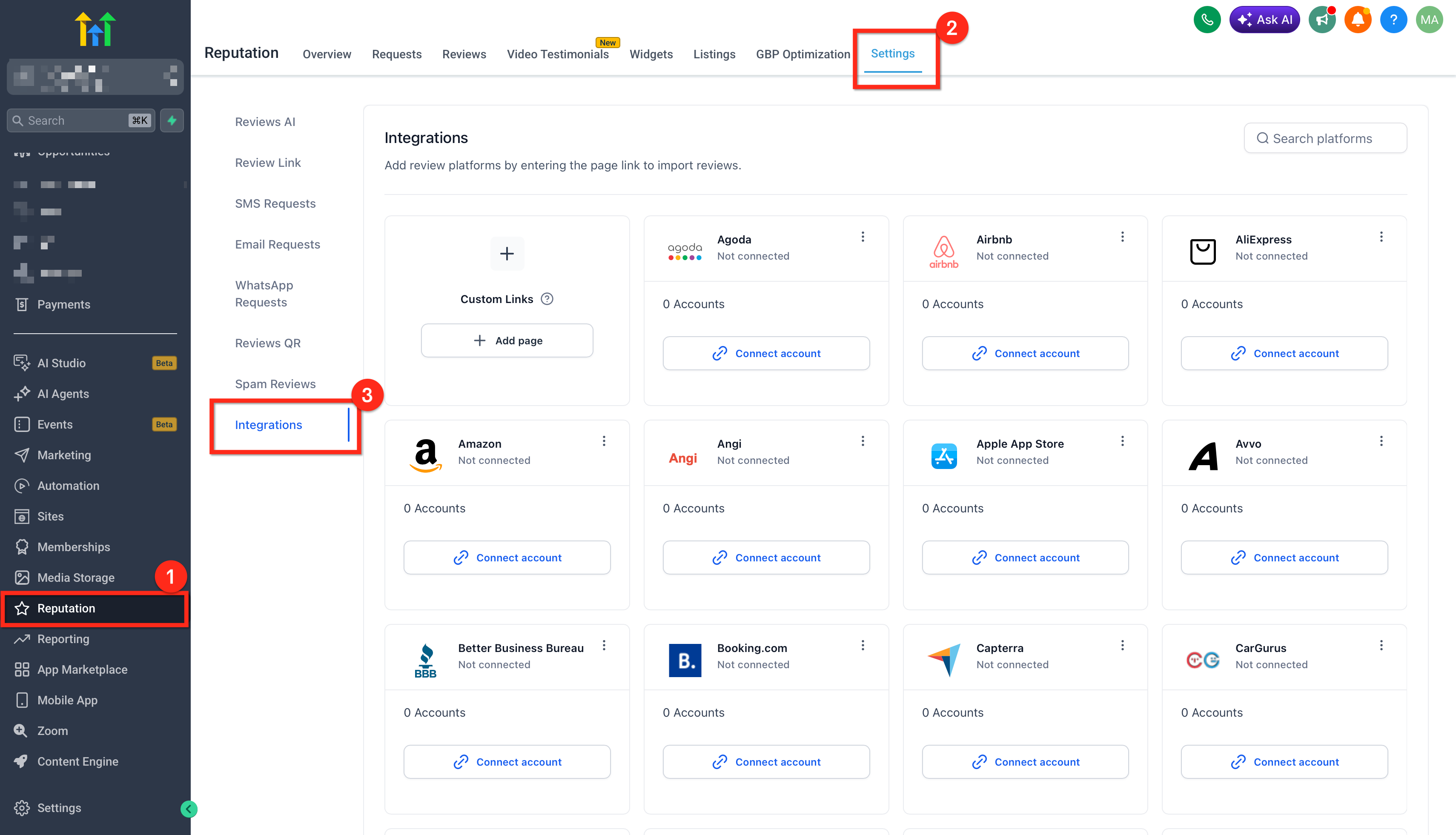
This page shows all the available review platforms you can integrate.
Step 2: configure the integrations
- Click Connect account on the platform you want to connect
- Enter the URL of your business review page
- Click Connect
Example: platform integration window
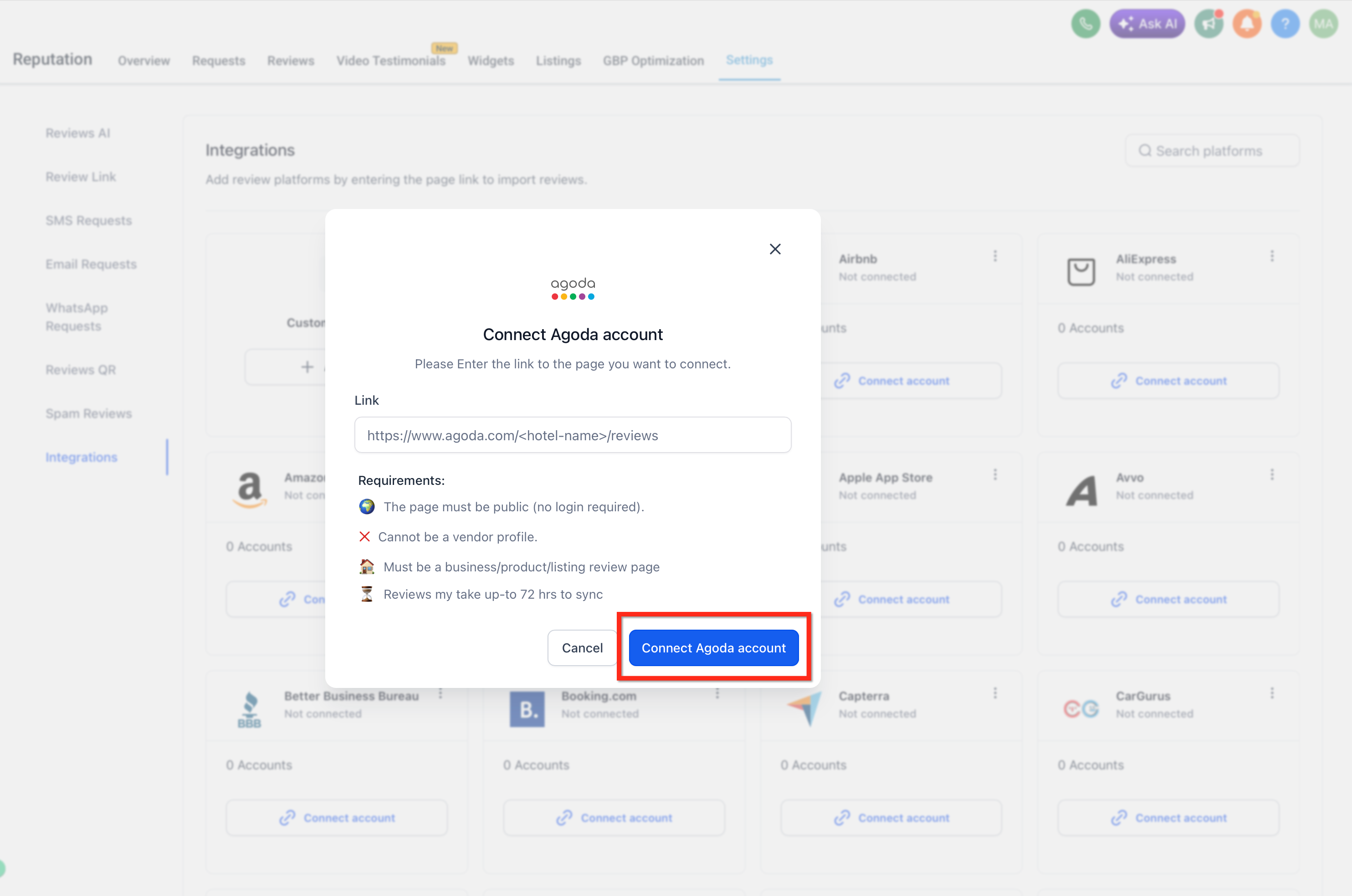
Make sure the URL points directly to your public review page (for example, Yelp, Google Business Profile and so on).
Once it is connected, reviews will sync automatically into your dashboard.
Page-level visibility and review filtering
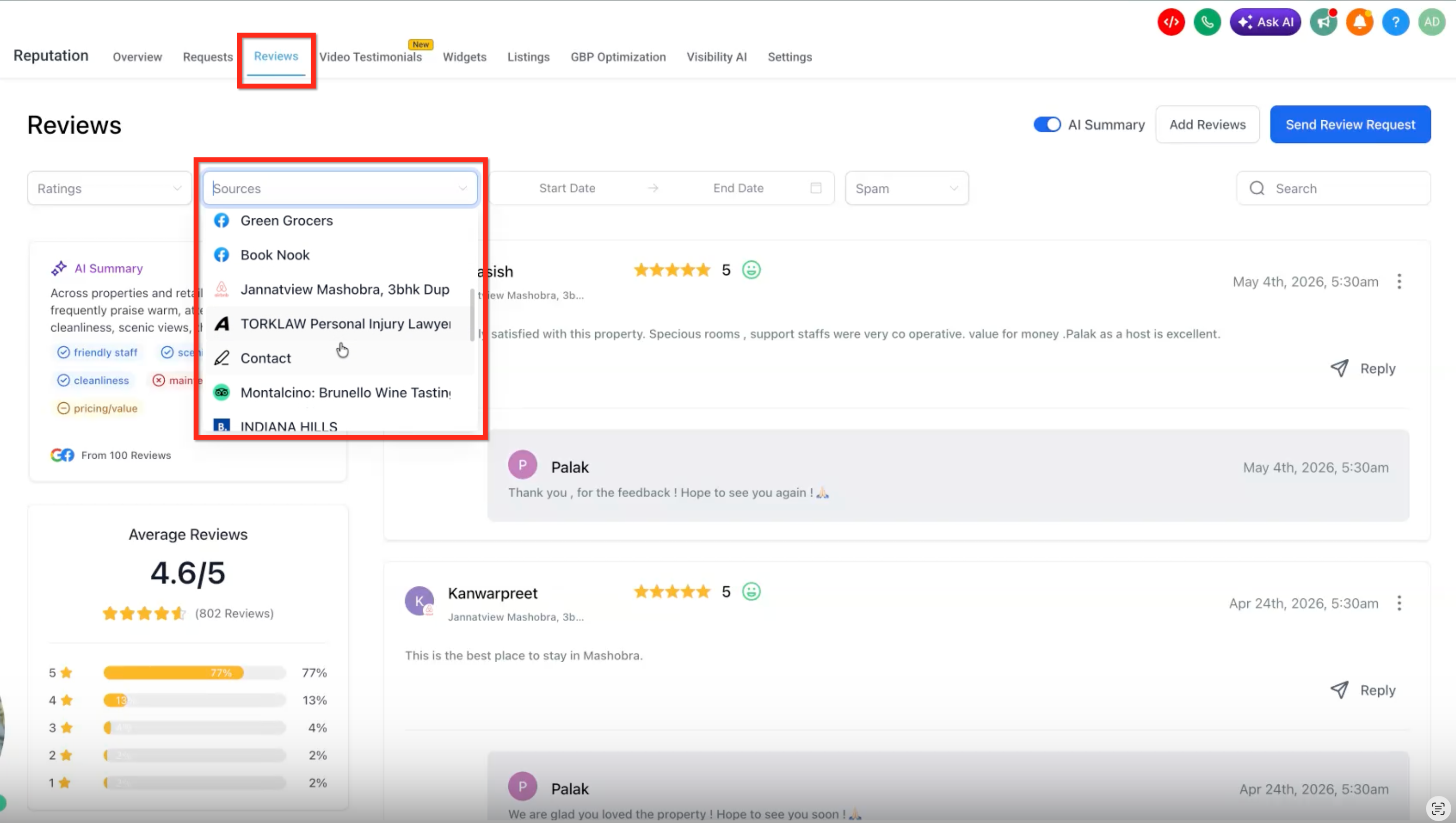
Page-level visibility helps confirm that reviews come from the correct pages. When several pages are connected, you can filter the Reviews tab by individual source or select several sources to analyse feedback from different pages at the same time.
From the Reviews tab, you can:
- Open the Sources dropdown menu to view the connected review pages.
- Select a connected page to analyse the feedback from that specific listing.
- Select two or more connected pages to view reviews from several listings in the same view.
- Use the source filters to compare review activity across sites, properties, brands or pages.
The selected pages appear as filter labels above the review list, making it easy to see which pages you are currently analysing. This is particularly useful for businesses with several sites that need to monitor feedback for specific listings without leaving the main reviews tab.
Supported review platforms
You can integrate the following platforms:
- Agoda
- Airbnb
- AliExpress
- AlternativeTo
- Amazon
- Angi (formerly Angie’s List)
- ApartmentRatings
- App Store
- Avvo
- Better Business Bureau (BBB)
- Booking.com
- Capterra
- CarGurus
- Caring.com
- Cars.com
- Citysearch
- ConsumerAffairs
- DealerRater
- DoorDash
- eBay
- Etsy
- Expedia
- FindLaw
- Foursquare
- Glassdoor
- Goodreads
- Google Play
- Google Shopping
- Healthgrades
- HomeAdvisor
- Hotels.com
- Houzz
- Indeed
- Lawyers.com
- OpenTable
- Product Hunt
- ProductReview
- RateMDs
- The Knot
- Thumbtack
- TripAdvisor
- Trustpilot
- TrustRadius
- Uber Eats
- Vitals
- VRBO
- WebMD
- WeddingWire
- Yell
- Yellow Pages
- Yelp
- Zillow
- Zocdoc
Note: every platform requires a valid public review page URL. If you are unsure, check that platform's support documentation.
Troubleshooting
If you run into problems while integrating a review platform:
- Check the URL: make sure it points to your public review page.
- Check your access: confirm that your account has permission to access the page.
- Clear the cache: try clearing your browser cache.
- Contact support: if the problem persists, get in touch with us.
In summary
By integrating multiple review platforms, you can centralise management, improve response times and maintain a solid online reputation across all channels.
Frequently asked questions
Do I have to connect several pages for each platform?
No. You can keep a single page connected if your business uses only one listing for that platform. Multi-page integrations are useful when you need to manage several pages, sites or listings under the same platform.
Is there a limit to the number of pages I can connect for a single platform?
No. You can add several pages per platform with no limit.
Can I connect several platforms and several pages for each platform?
Yes. You can connect several supported review platforms and add several pages for each of them, where applicable.
Where can I see the pages connected to a platform?
Go to Reputation → Settings → Integrations, select the platform and open the Manage option to view the connected pages and the page-level details.
Can I view reviews from several connected pages at the same time?
Yes. In the Reviews tab, open the Sources dropdown menu and select two or more connected pages. The view will show feedback from the selected sources, letting you monitor several listings together.
Why do reviews not appear immediately after adding a new page?
Newly connected pages may take some time to sync their review data. Check the page status, the number of reviews and the last sync details in the Manage view to confirm when the data was updated.
Will multi-page integrations change my review request messages?
No. Multi-page integrations mainly affect which review pages are connected for monitoring and management. Review request messages, review links and balancing settings must be checked separately to make sure they direct customers correctly.