


Table of contents
- What is Gmail two-way sync?
- Steps to set up Gmail two-way sync
- Step 1: Go to the two-way email sync section
- Step 2: Connect the Gmail account
- How does two-way sync work between Futuria CRM and your email account?
- Other features
- Update Email
- Disconnect Email
- BCC address
- Does two-way sync only work with individual emails, or with bulk and workflow emails too?
- FAQ
What is Gmail two-way sync?
Gmail two-way sync is a feature that keeps emails synchronised between Gmail and Futuria CRM. It lets users integrate their Gmail account with the CRM, establishing a connection that keeps emails in sync across both systems.
Any email sent, received or updated in Gmail is automatically reflected in Futuria CRM, and vice versa. Two-way sync makes sure users have a unified, up-to-date view of their emails, whichever platform they are using. This feature optimises email campaigns, improves productivity and makes sure important communications are accessible both in Gmail and in the CRM.
Steps to set up Gmail two-way sync
Note: Gmail two-way sync must be set up from inside your Futuria CRM account. Make sure you are signed in to your account so that the Gmail connection applies to the conversations in the right account.
Step 1: Go to the two-way email sync section
- Click Settings in your account.

- Click the My profile tab.

- Scroll down to the Email (two-way sync) section.
- Select Gmail and click the Connect button.

Step 2: Connect the Gmail account
- When prompted, select an existing Gmail account from your browser or connect a new one.

- Review the authorisation request from Futuria CRM and click Continue.

- Review the access request and click Allow.

- Once you have completed the steps, the Gmail account you selected will appear in the Email (two-way sync) tab.

How does two-way sync work between Futuria CRM and your email account?
The sync can be established in two ways.
You can send an email to a contact from Futuria CRM to start the sync between the two platforms. Alternatively, Gmail sync also works when a contact already saved in Futuria CRM sends an email to the user (who has set up Gmail two-way sync) at their Gmail address. The email will be synced into the conversations tab.
Note: emails coming from contacts who are also users of the account are not synced. Users of an account are often added as contacts for various purposes. Those emails are not synced because they may contain confidential information.
If a user is added to several accounts and has connected the same Gmail account for two-way sync in all of them, the contact’s email will go into the conversations tab of all those accounts. However, we will keep only the instance of that contact in the account the user replies from, stopping the sync for all the other instances.
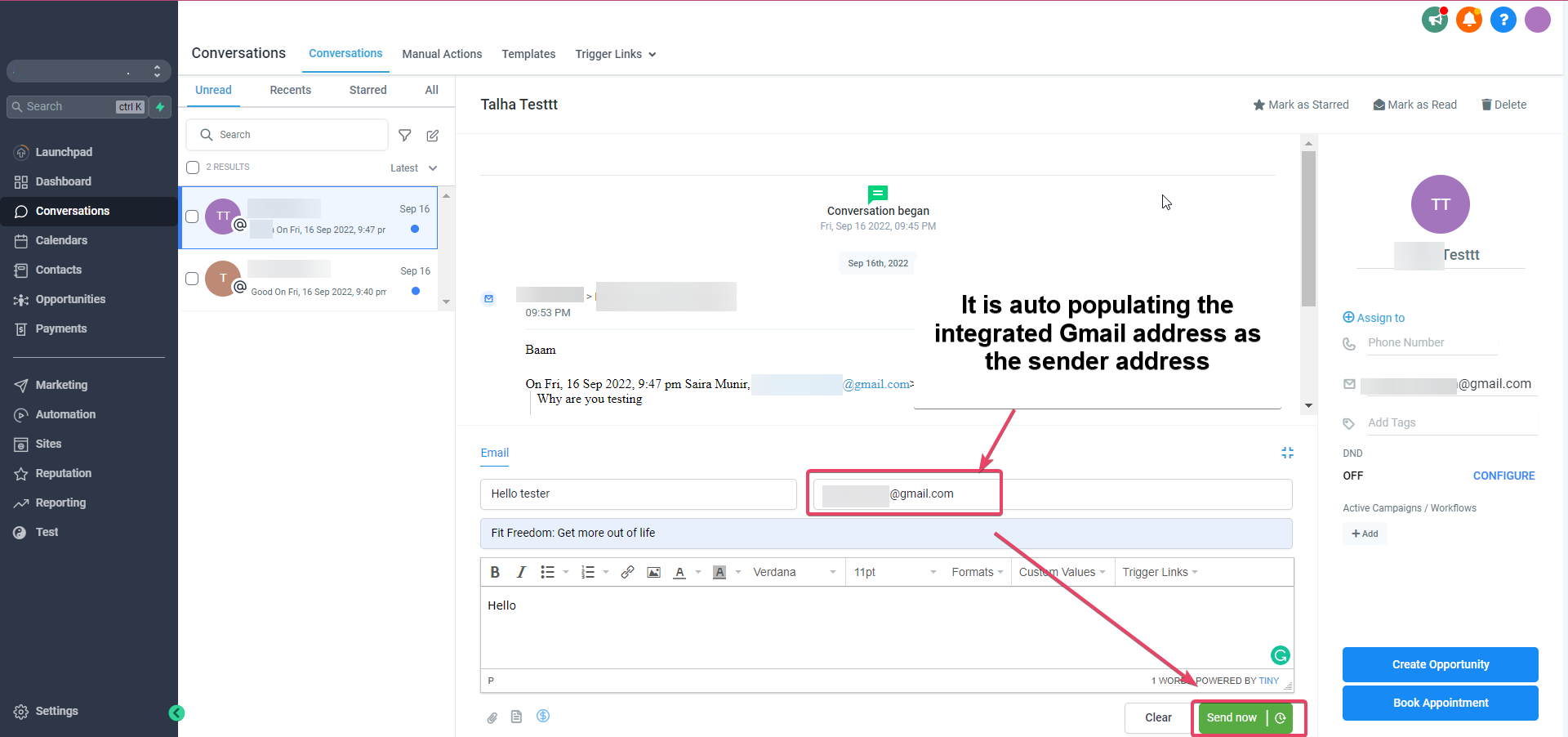
The email you send will appear in the sent folder of the connected Gmail account:
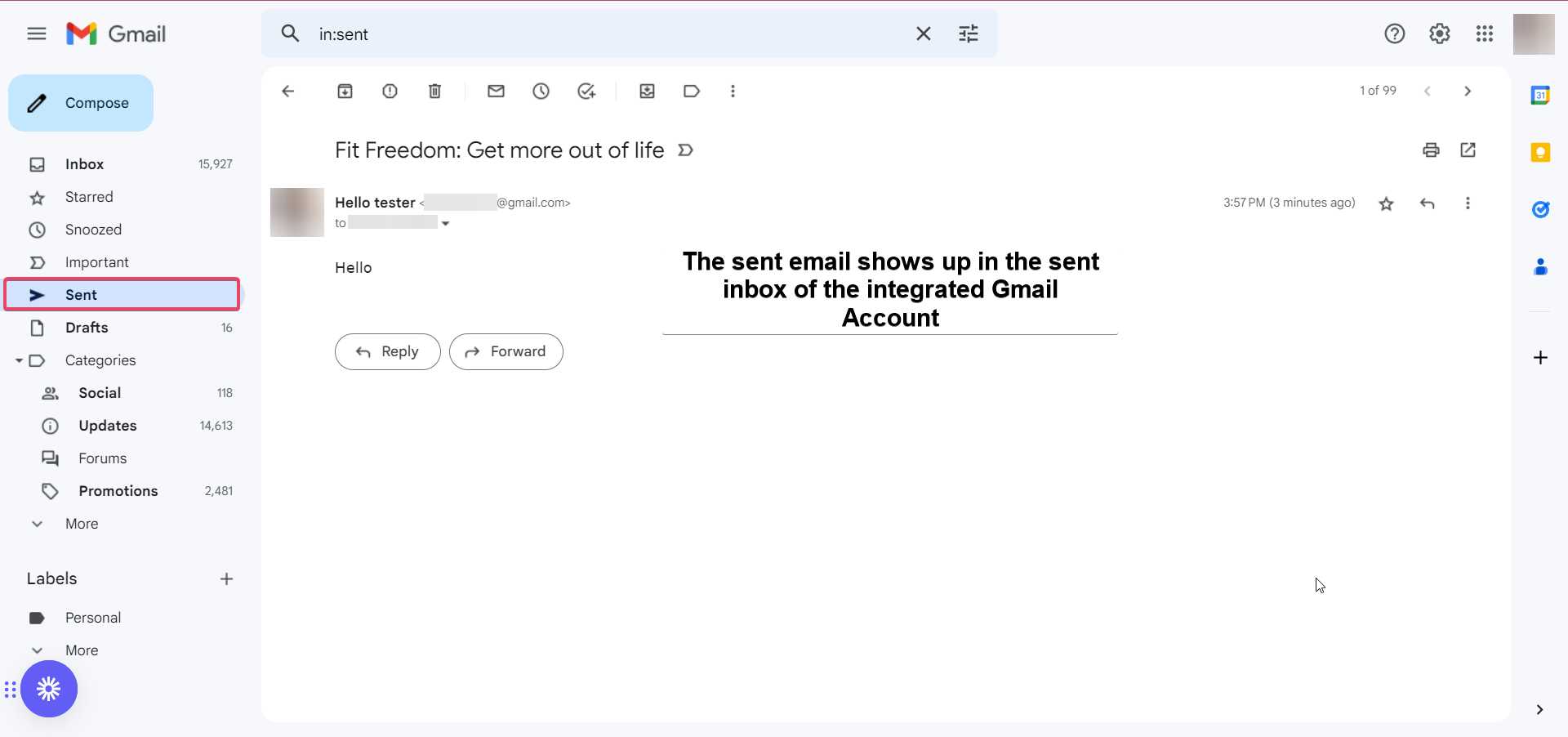
Please note: Gmail supports only around 500 emails per day, and emails beyond this limit will not be sent successfully.
All the following messages in the email thread will be synced. Outgoing emails from your inbox will be reflected in Futuria CRM, and vice versa.
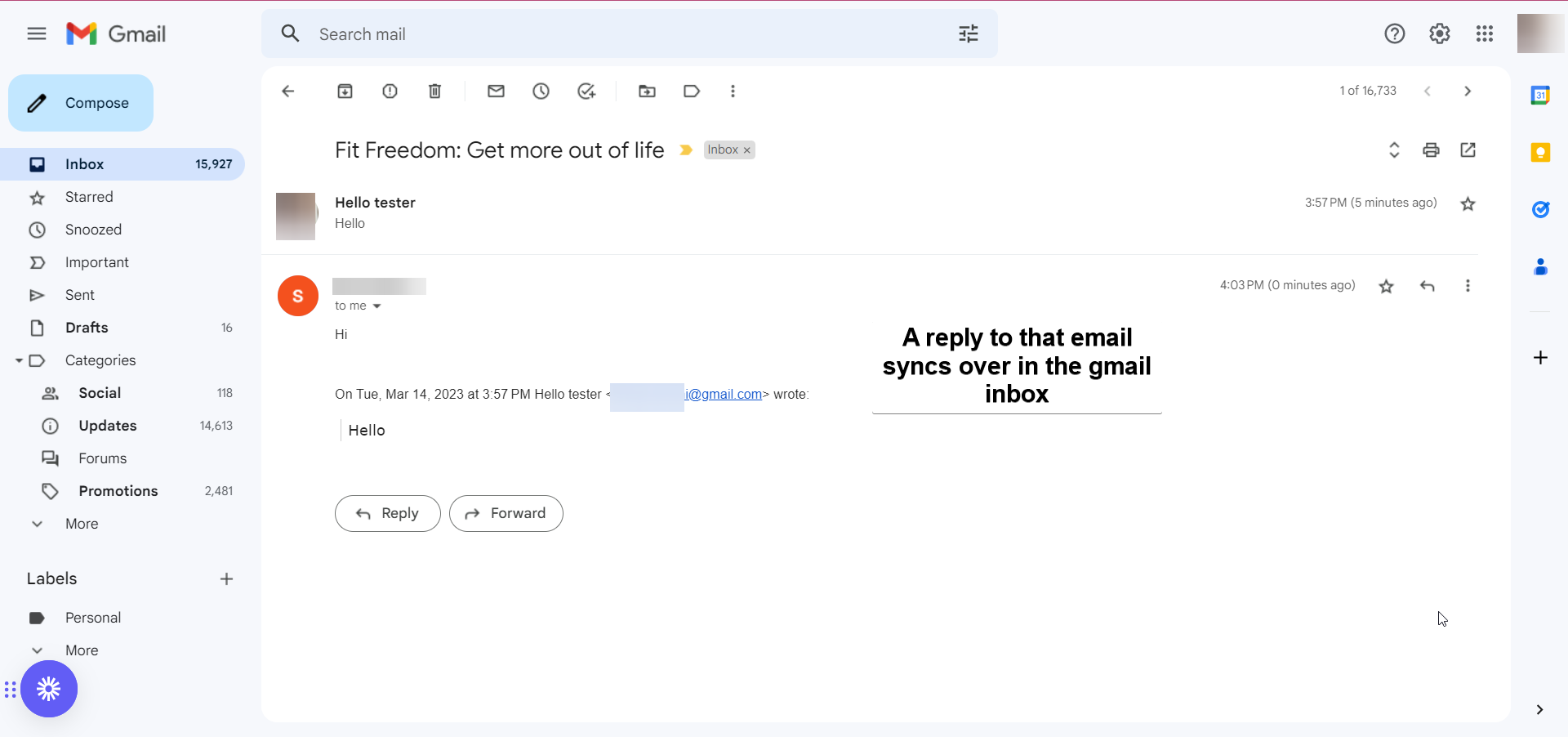
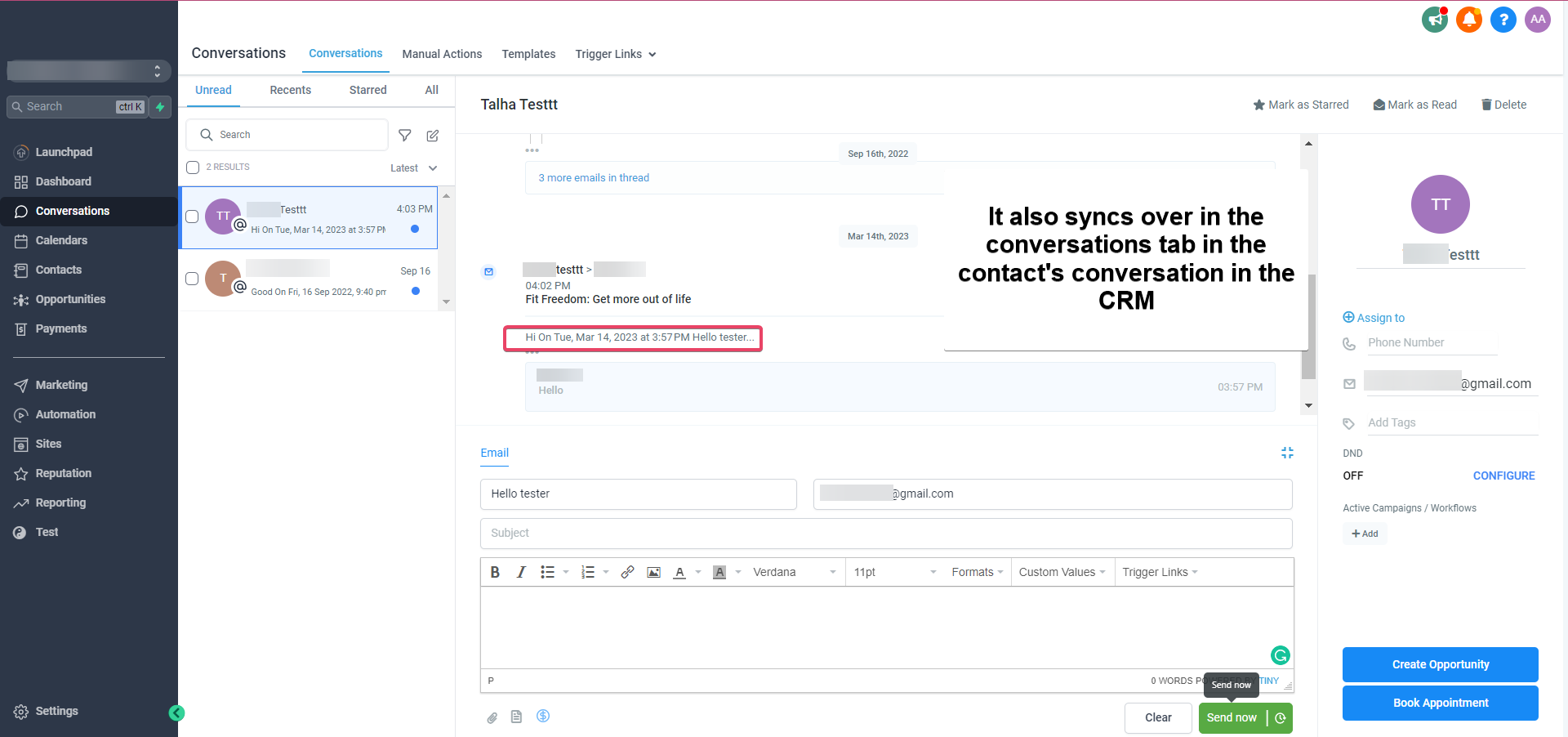
Please note: the attachment size limit supported for Gmail two-way sync is 25 MB.
Other features
Update Email
This feature helps users change their connected email ID for another one without having to disconnect the previous connection.
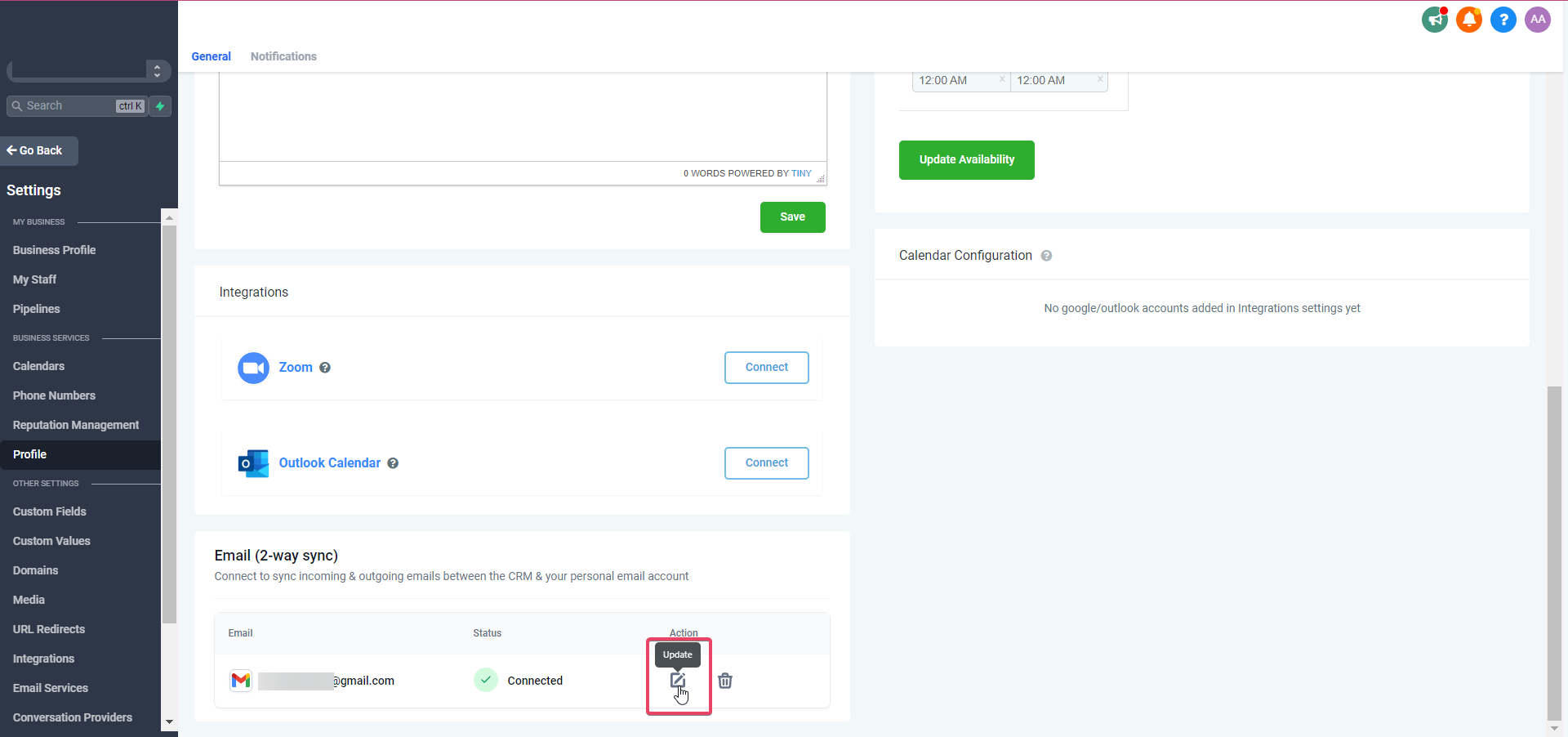
New outgoing emails from Futuria CRM will start syncing with the new email address you added. Future messages on the previously connected email ID (in the same thread) will stop syncing between Futuria CRM and the personal mailbox.
Disconnect Email
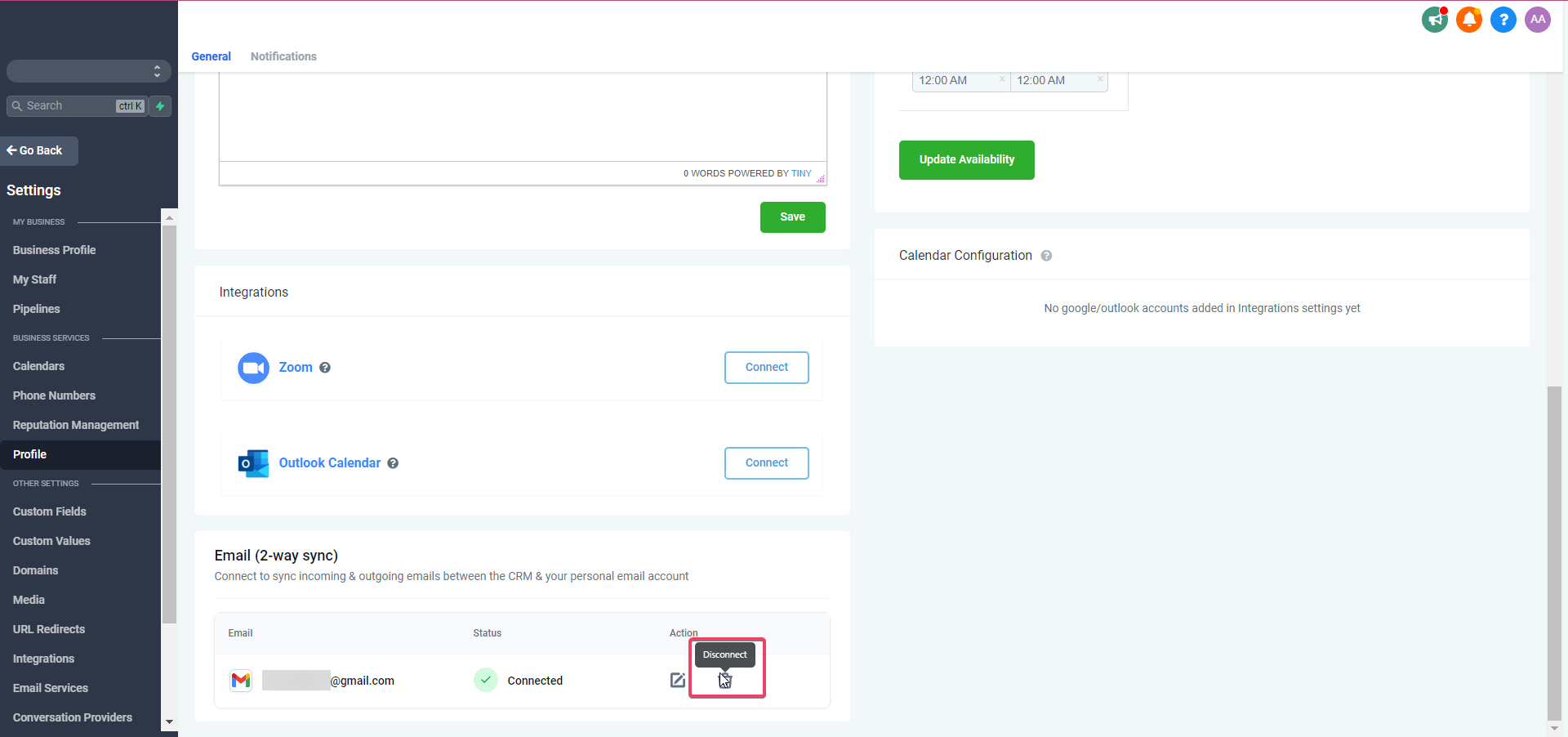
This feature helps users disconnect their connection and stop the sync with Futuria CRM. After disconnecting, emails and messages will no longer sync between the two platforms.
BCC address
You can include the BCC address in the Cc or Bcc field when you send an email from Gmail/Outlook. This way, the contact and the conversation are added automatically to your CRM, streamlining communication and making sure all the relevant data is centralised. From that moment on, any email you receive from this contact in the Gmail/Outlook inbox will sync automatically with the CRM.
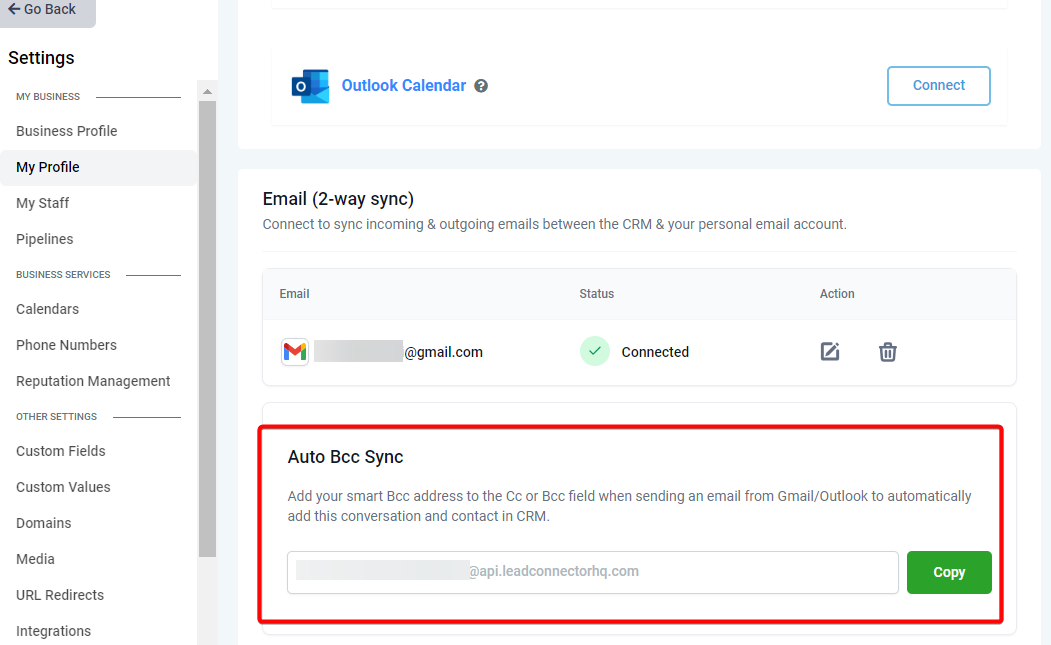
Please note: you may get an "Incomplete delivery" error from Gmail when you use BCC addresses. This happens because we use the BCC for logging purposes and Gmail does not receive a delivery receipt for BCC addresses. Despite the error, your message may still have been posted successfully into the CRM.
Does two-way sync only work with individual emails, or with bulk and workflow emails too?
Here is how the sender domain mapping works for different types of email:
Individual email: when you connect a personal email account (Gmail), the Gmail email ID will be treated as the sender domain for the emails the user sends individually. Individual emails are sent directly from Gmail when two-way sync is enabled. Bear in mind that Google enforces a limit of 500 emails per day, which applies to this feature.
Bulk email: these will continue to be sent by the email provider set at account level. Two-way sync will not affect this process.
Workflows and automations: automated emails are not sent through two-way sync, but by the providers defined at account level. This setup integrates your automated CRM workflows seamlessly with the email sending system.
Please note: with this setup, users can take advantage of two-way sync for their one-to-one emails and still send bulk emails successfully. The 500 emails per day limit enforced by Gmail applies only to individual emails, so users can send bulk emails through Futuria CRM or an SMTP service without worrying about hitting this limit.
FAQ
What happens to emails received from existing contacts?
All incoming emails from existing contacts will be reflected in your Futuria CRM inbox and in Gmail/Outlook. This two-way sync makes sure you have a complete record of all your communications on both platforms.
Does removing a synced account delete existing emails?
No, removing a synced account will not delete any existing emails. Your previously synced emails will remain intact, and the sync will only affect new emails sent or received after the account is removed.
Are new emails synced after an account is removed?
New emails sent or received after the account is removed will not be synced between Futuria CRM and Gmail/Outlook. The sync between the two platforms will continue for existing emails, but new emails will not be included.
Will all my existing Gmail contacts be synced with Futuria CRM?
Yes, two-way sync identifies and syncs existing contacts from Gmail to Futuria CRM. Incoming emails from these contacts are populated automatically under the relevant contact, but past emails (from before the integration was connected) cannot be synced.
What happens when a new email is received from a contact?
New incoming emails from existing contacts will be reflected as new emails in Futuria CRM and in Gmail. If the email belongs to an existing conversation thread, it will be shown as a new email within that same thread.
What happens to emails sent from Futuria CRM or from Gmail?
Outgoing emails sent from Futuria CRM will be logged automatically in the Sent folder of the synced mailbox. Conversely, emails sent from the synced email provider will appear automatically in the conversations of the matching contact in Futuria CRM.
How are cc/bcc recipients handled in the sync?
If a user is in cc or bcc, or included among several recipients in Gmail, that information is reflected under the relevant contact in Futuria CRM, giving full visibility of all communications. No new contacts are created for the CC and BCC email addresses.
What happens if a contact emails someone else but includes the Futuria CRM user?
In this case, the email will be reflected in Futuria CRM, associated with the relevant contact and keeping the full conversation history.
How is the conversation thread handled when several recipients are involved?
When there are several recipients (in the "To" field) on an email, the first contact becomes the conversation card in Futuria CRM. All following emails will appear in this thread.
What happens if the same contact exists in several accounts for the same synced email address?
An email sent from Futuria CRM will only be reflected in the account it was sent from. Replies and subsequent communications should be specific to that account. However, emails sent by a contact to the Futuria CRM user should be reflected in all the accounts where the contact exists.
What is the BCC address and how does it work?
You can include the BCC address in the Cc or Bcc field when you send an email from Gmail/Outlook. This automatically adds the conversation and the contact in Futuria CRM, streamlining communication and data management. From that moment on, any email you receive from this contact in the Gmail/Outlook inbox will sync automatically with the CRM.
How is the secure connection handled if the Gmail sign-in credentials change?
If the sign-in credentials change, Futuria CRM will ask you to authenticate again and re-sync the mailbox to maintain a secure connection.
What happens when an email is forwarded from Gmail?
Any email forwarded to an existing contact will be treated as a sent email and synced under that contact in Futuria CRM.
What happens if there are duplicate emails with several contacts?
Duplicate emails sent to several contacts will be associated with the first contact created in Futuria CRM.