


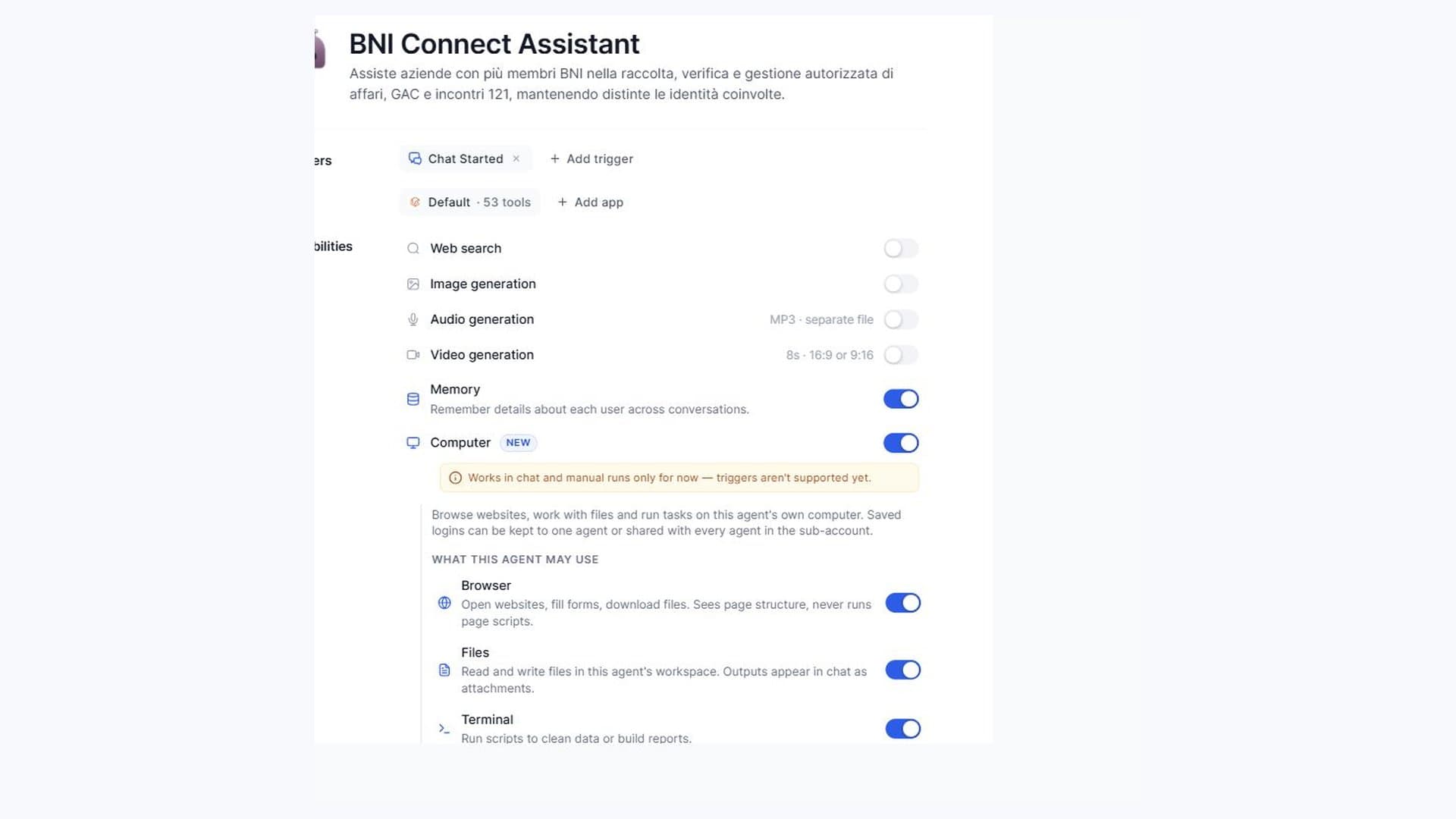
The first form explains what you want to do. You do not need technical codes or every setting in advance: details are completed later in the BNI Connect Assistant chat inside your CRM account.
Table of contents
- 1. Answer six simple questions
- 2. Complete setup in your CRM chat
- 3. What happens if you enter “Business software XXX”?
- 4. Keep access separate from operational data
- Understand the status of the work
- Is AI usage included?
1. Answer six simple questions
Sign in from the BNI Connect Assistant page and open the request. The form asks:
- Which CRM account do you want to use? Choose it by name from the verified list of accounts you can administer.
- Will you use it on your own or with a team? You do not need every member’s details yet.
- What is your BNI chapter called? Leave this blank if you do not know.
- What would you like help with? Referral business, one-to-ones or both.
- Where do you keep track of payments received? Business software, files, chat or “Not sure”. If you choose software, enter its name.
- Anything else to add? Notes are optional: leave out credentials and financial data.
The first form does not ask for IDs, VAT calculations, accounting dates, time zones, approvals or routines. These settings remain to be agreed; submitting a request does not activate hidden defaults.
2. Complete setup in your CRM chat
Agente Futuria creates and configures the core components from the versioned package and installation procedure, reusing compatible components. You do not need to import a template or snapshot first.
After initial setup, the assistant in your account guides you through small groups of questions: member identities and chapters, membership periods, available sources, amounts and operating preferences. Technical references available through APIs are resolved internally.
For each member, agree batch approval or authorised automatic operations. Collection and registration have separate preferences. When useful, the assistant suggests a weekly frequency on the day before the meeting. An agreed time does not guarantee an active routine: the required native capabilities must actually be available. Otherwise start from chat with an agreed reminder.
3. What happens if you enter “Business software XXX”?
The software name is a declared source to assess, not an active connection. It does not authorise an automatic login or guarantee that the software can provide the required payment information.
Agente Futuria checks the exact software edition, which data it exposes and under which permissions, and whether a connection is actually available in your account. It may use a native connector or a specific read-only call to the software’s official API when configuration and persistent protected authentication can be qualified. Entering a software name does not create a universal connection.
If that route is not ready or stable access is missing, use a supported CSV or PDF export of payments received, or updates in your CRM chat that identify the data source. The assistant’s core can work with files and chat while the automatic source remains inactive. A new service or bespoke connector requires a separate assignment and approved costs.
Invoices issued and payments received are different. Before deriving a referral-business entry, clarify actual payments, instalments, dates, cancellations, VAT treatment and the relevant net amount. Dividing by 1.22 is not an automatic rule.
4. Keep access separate from operational data
Keep passwords, one-time codes and access keys out of the form, comments and chat. Access follows the protected process and may require human login or security checks. If the PIT required for installation is missing, Agente Futuria flags Fabrizio in the same internal ClickUp task and waits for protected intake; it does not ask the customer for a token in chat.
The ClickUp task is for internal activation. Handle documents, financial transactions and source clarification in the assistant chat inside your CRM account, not in the internal task.
Understand the status of the work
A received request does not mean setup is complete; a named source does not mean a connection is active. The CRM workflow distinguishes business given and received, both BNI and non-BNI. Only verified BNI information and completed one-to-ones belong in BNI Connect. A calendar event is only a candidate to verify; the assistant does not organise new one-to-ones.
An entry prepared in the CRM does not prove registration in BNI Connect: the actual outcome matters. Connect registration, concurrent execution and automatic routines have not yet been declared proven in complete operational use with a BNI customer.
Is AI usage included?
It is not implied. Availability, AI usage and external services depend on the applicable plan and offer.
Request activation from the product page or read the announcement.
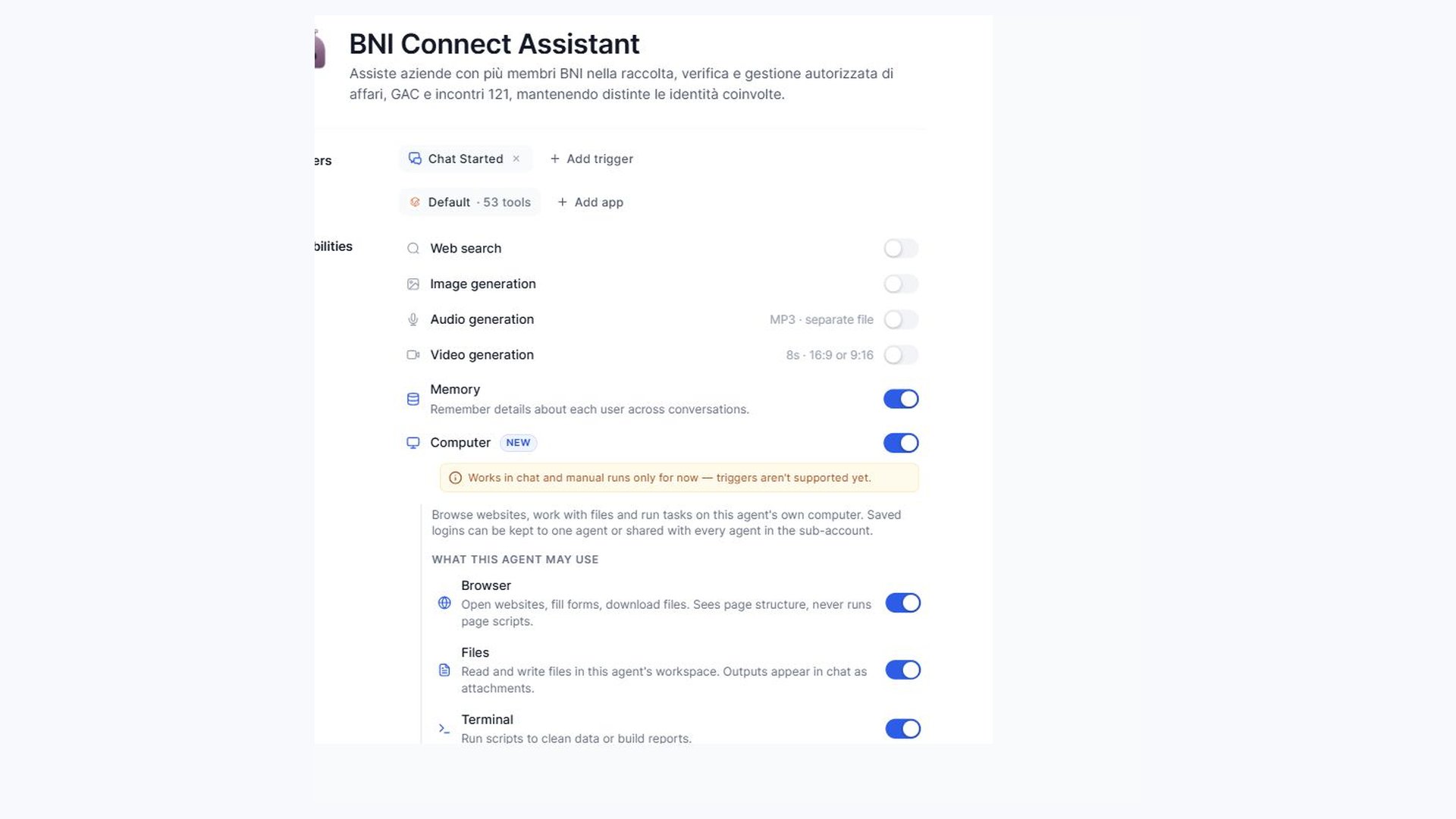
Actual screen of a draft source agent used as a package reference. It does not document a registration completed on BNI Connect.