


Table of contents
- What are WhatsApp calls?
- With this integration, you can:
- How to enable WhatsApp calls
- Availability by country
- Inbound WhatsApp calls (customer-initiated)
- How it works in Futuria CRM:
- Setting up WhatsApp calls
- Setting up WhatsApp call permissions
- Making and receiving WhatsApp calls
- Configuring call settings for team users
- Frequently asked questions
What are WhatsApp calls?
The WhatsApp Calls feature lets you speak to your customers in real time, offering a more personal and immediate connection than text messages alone. It is especially useful for resolving complex issues, closing deals faster or providing high-level support.
When WhatsApp calls are available directly in your CRM, there is no longer any need to switch between apps or devices. All voice and chat interactions are handled in one place.
With this integration, you can:
- Make and receive WhatsApp calls directly from Futuria CRM
- View call history alongside chat messages for full conversation context
- Manage call permissions and activity from a single platform
- Reduce response times and improve the overall customer experience
How to enable WhatsApp calls
To activate WhatsApp calls for your account, click the activation link provided and complete the request form with the required details. Once submitted, access to WhatsApp calls will be enabled for your account within 24 hours.
Requirements — before using WhatsApp calls, make sure of the following:
- The WhatsApp number must be supported by Meta's WhatsApp Business API.
- WhatsApp calls are NOT supported in Coexistence mode (WhatsApp app + API on the same number).
- The business must have a messaging limit of at least 2,000 business-initiated conversations in a 24-hour period. More details on how to scale your account capacity.
Availability by country
WhatsApp calls are available in most places. However, outbound WhatsApp calls are not currently supported in the following countries:
- United States
- Canada
- Turkey
- Egypt
- Vietnam
- Nigeria
If your business or your customer is based in one of these countries, outbound WhatsApp calls will not be available for the time being.
Inbound WhatsApp calls (customer-initiated)
Inbound calls happen when a customer calls your business via WhatsApp. These calls will appear in your CRM like any other notification. You can answer, decline or let the call go to voicemail, if configured.
How it works in Futuria CRM:
- When a customer calls, you will see an alert in your CRM's messaging or calling interface.
- You can accept the call directly inside the CRM, without needing to open WhatsApp separately.
- When the call ends, the details (time, duration, outcome) are stored and linked to the customer's conversation for future reference.
Setting up WhatsApp calls
Step 1: Open WhatsApp and go to Settings.
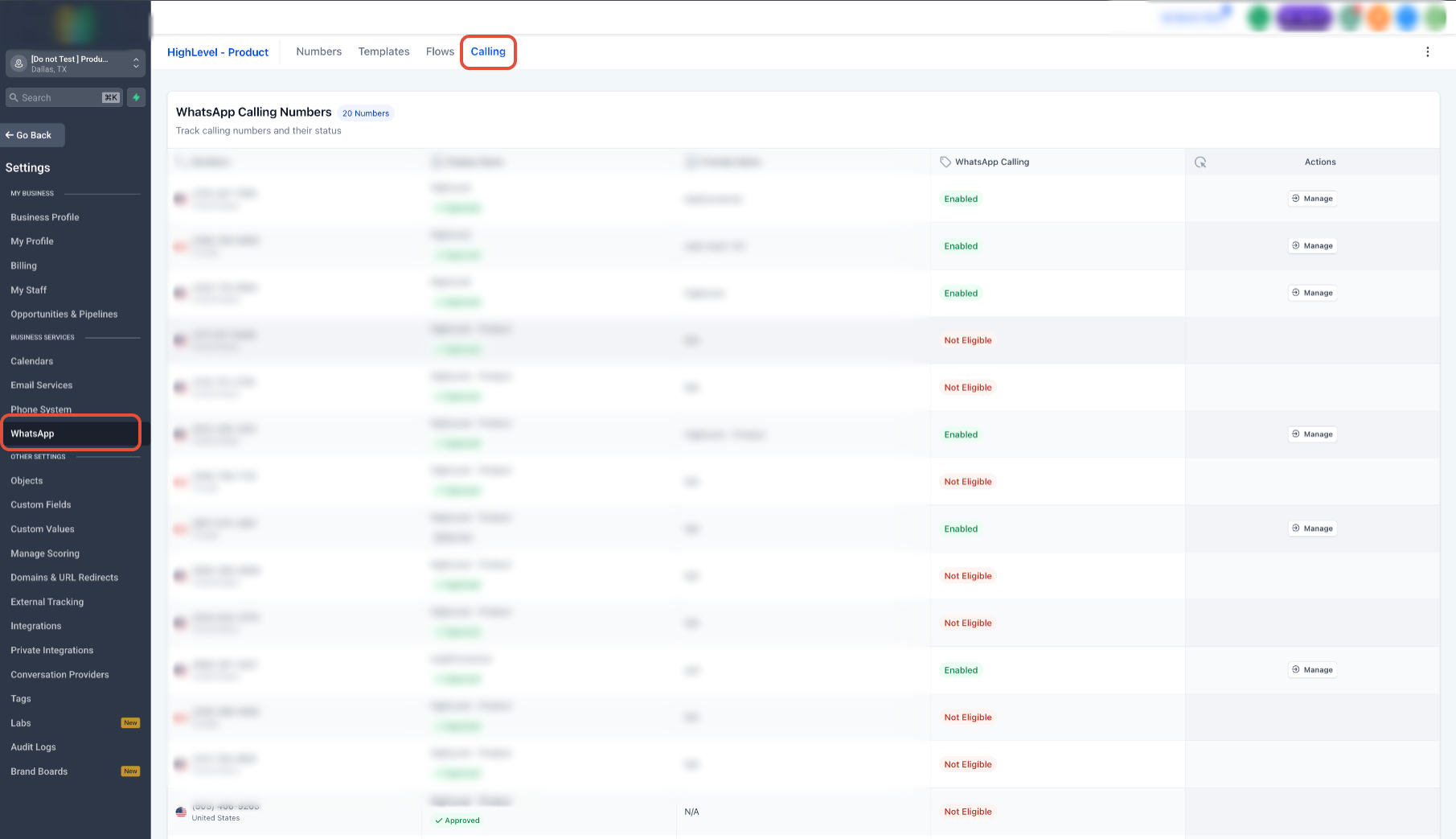
Step 2: Select Calls from the menu.
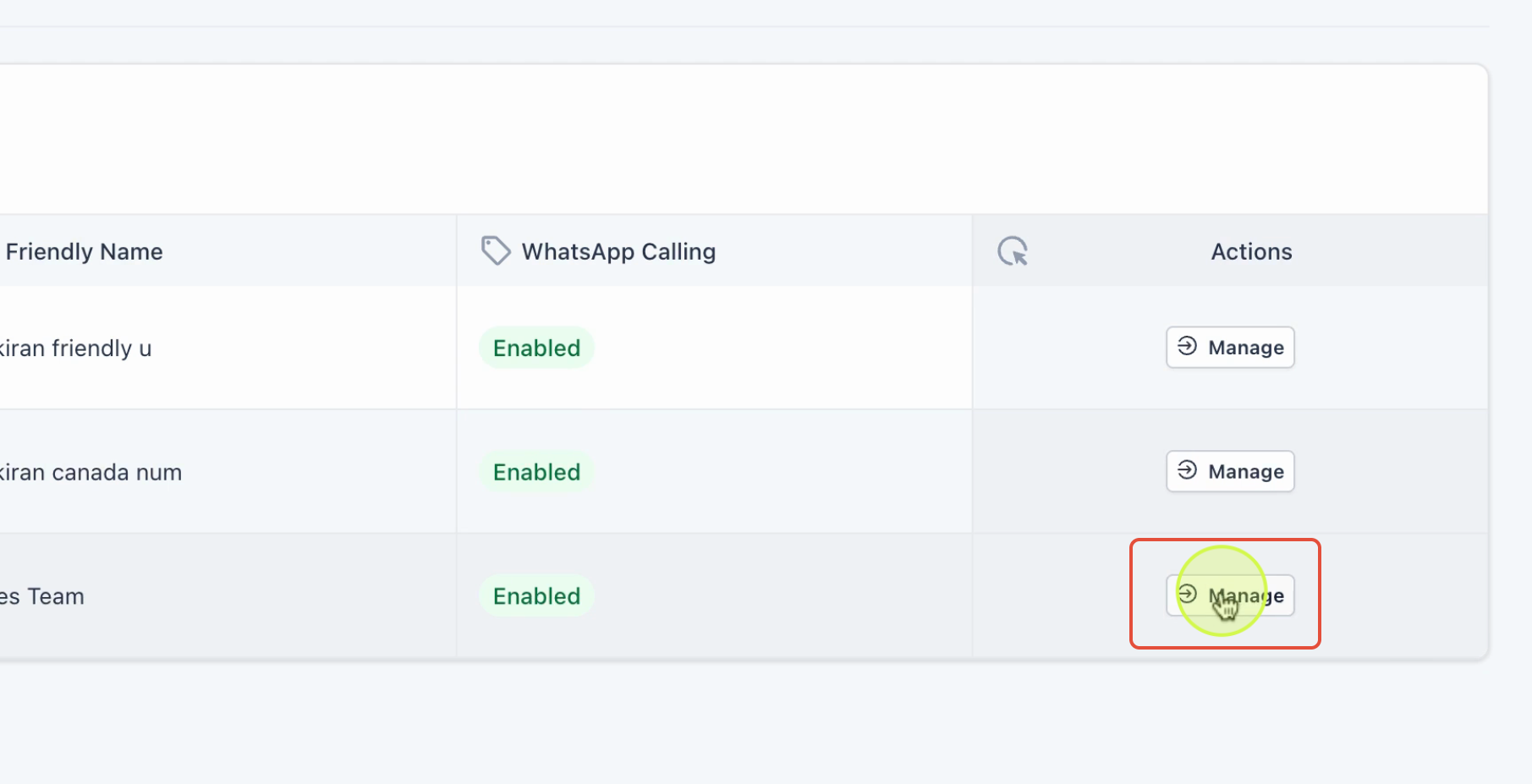
Step 3: You will see a list of phone numbers currently shown as connected. Identify the number you want to set up for calling.
Step 4: Find the number you want to configure and click Manage.
Step 5: Assign a descriptive name (for example, Sales Team) so it is easy to identify in your workspace.
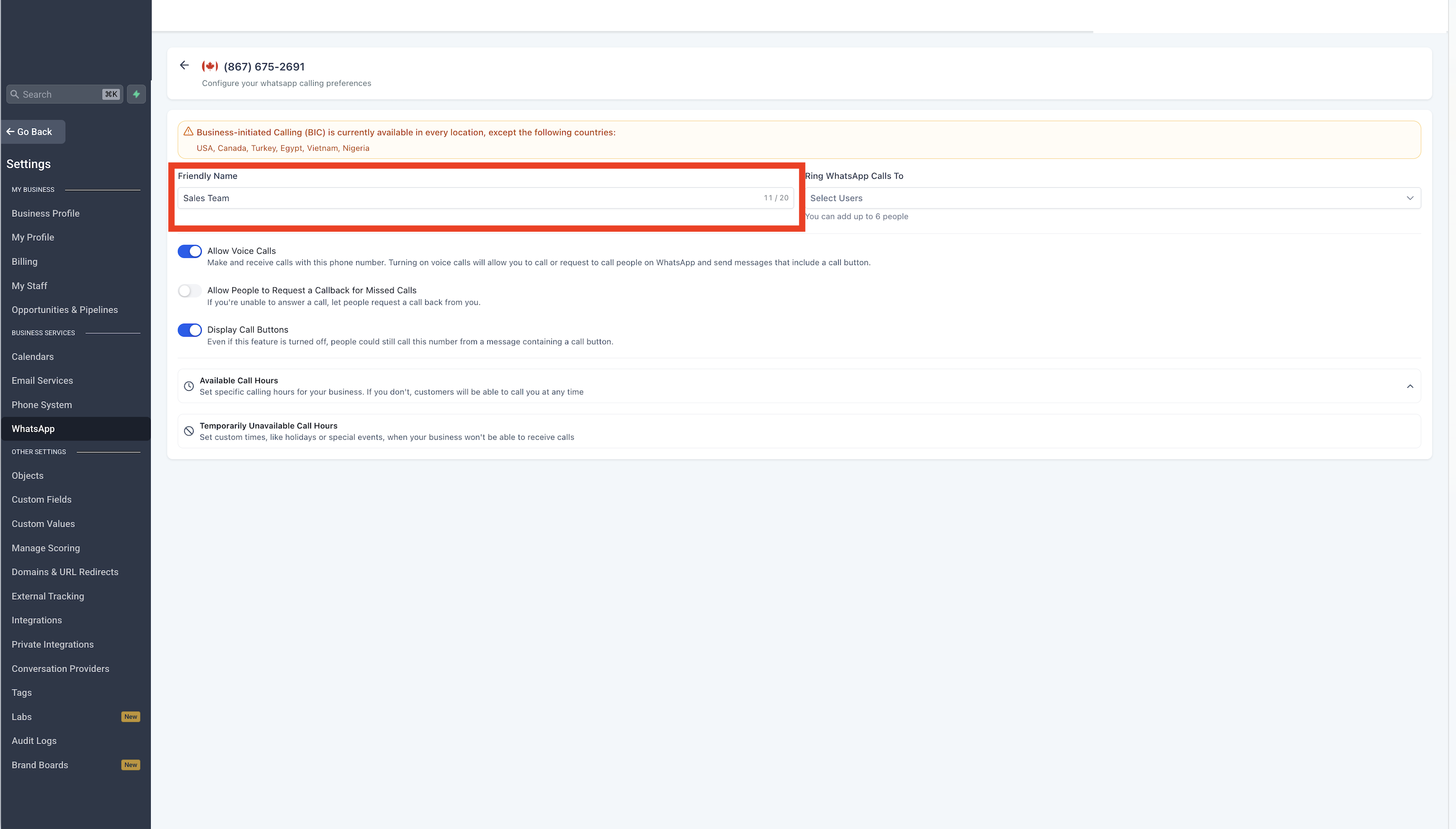
Step 6: Under Route WhatsApp calls to, add the users who should receive inbound calls. Set a primary user who rings first and add other users as backup if needed.
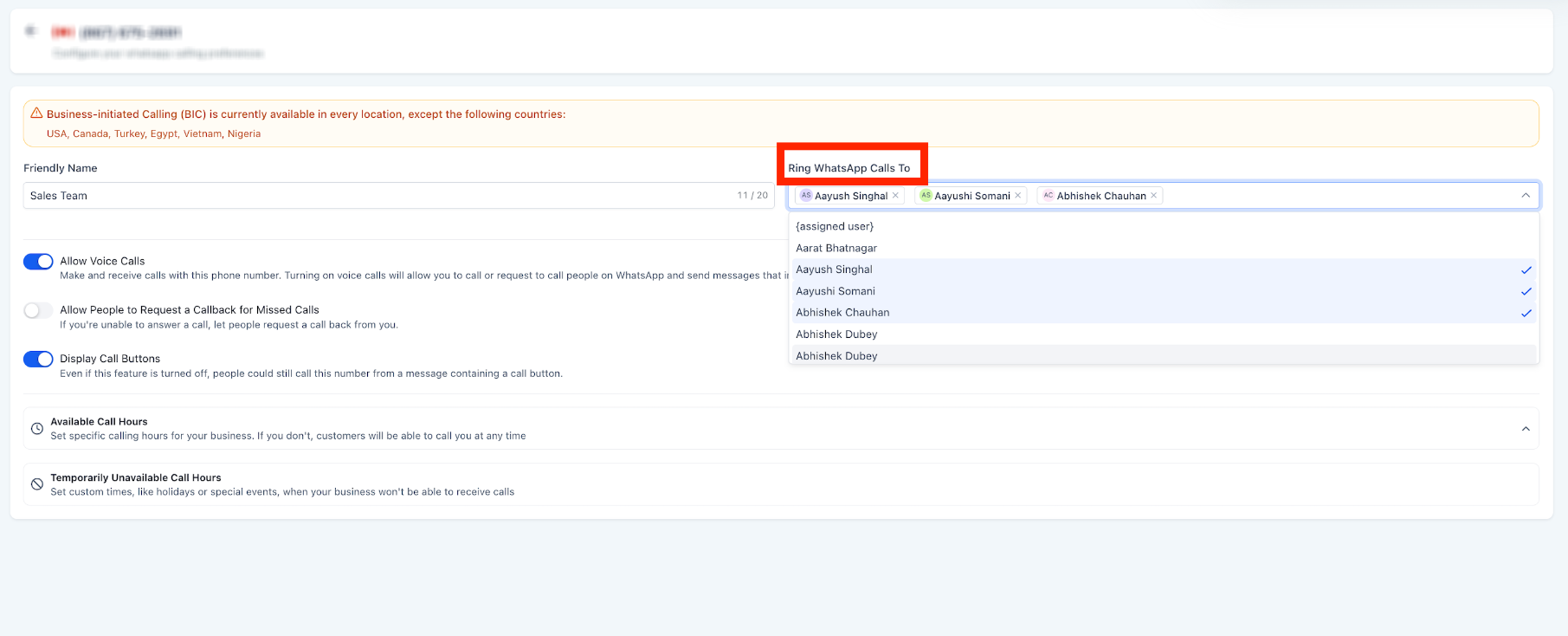
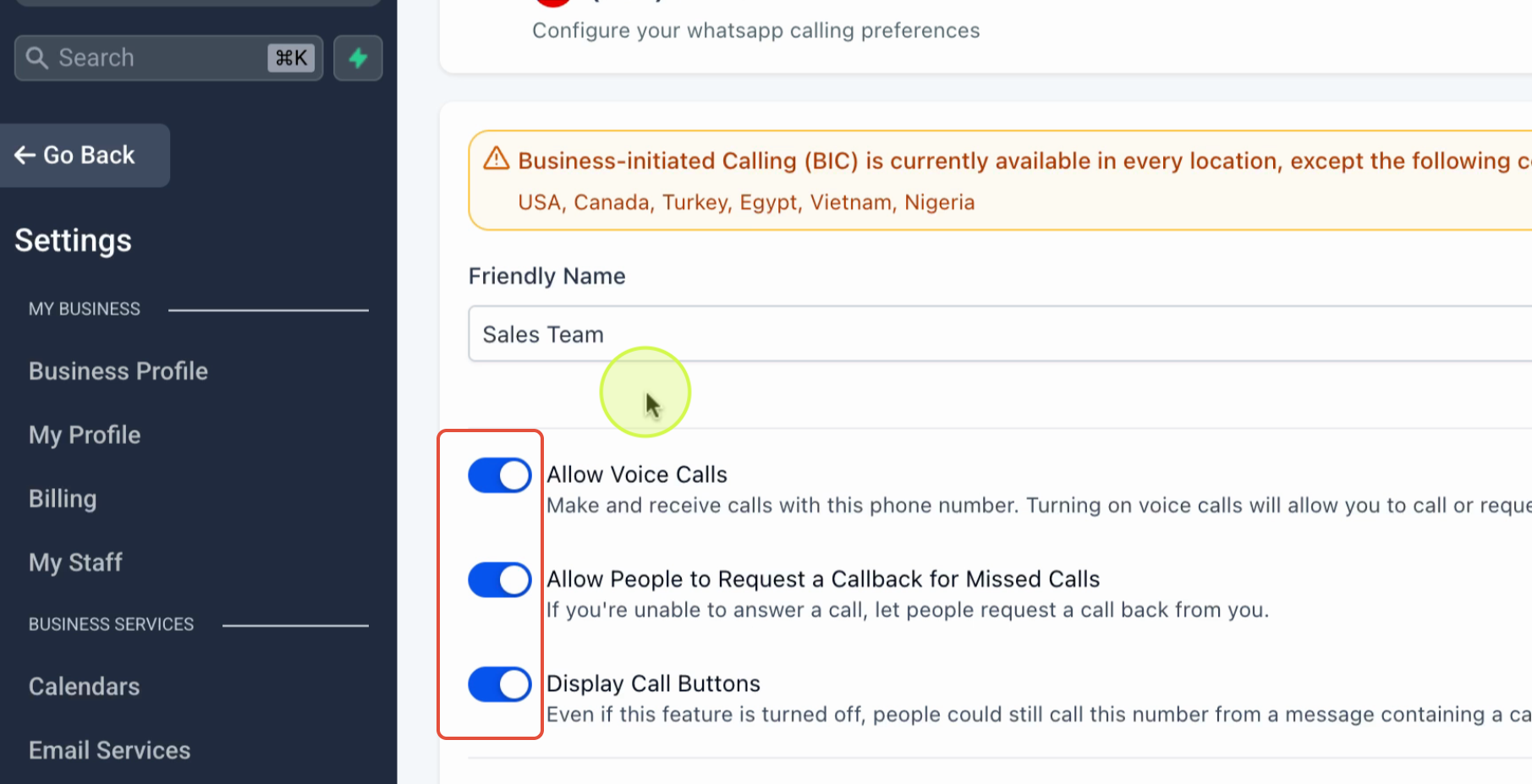
Step 7: Enable Allow voice calls to activate WhatsApp calling for this number. Turn on Allow customers to request a callback for missed calls so that customers can ask to be called back if their call goes unanswered.
Step 8: Turn on Show call button so that customers see a calling option directly on your WhatsApp business profile.
Step 9: Set the Users available for calls and the Temporarily unavailable users according to your team's hours and availability.
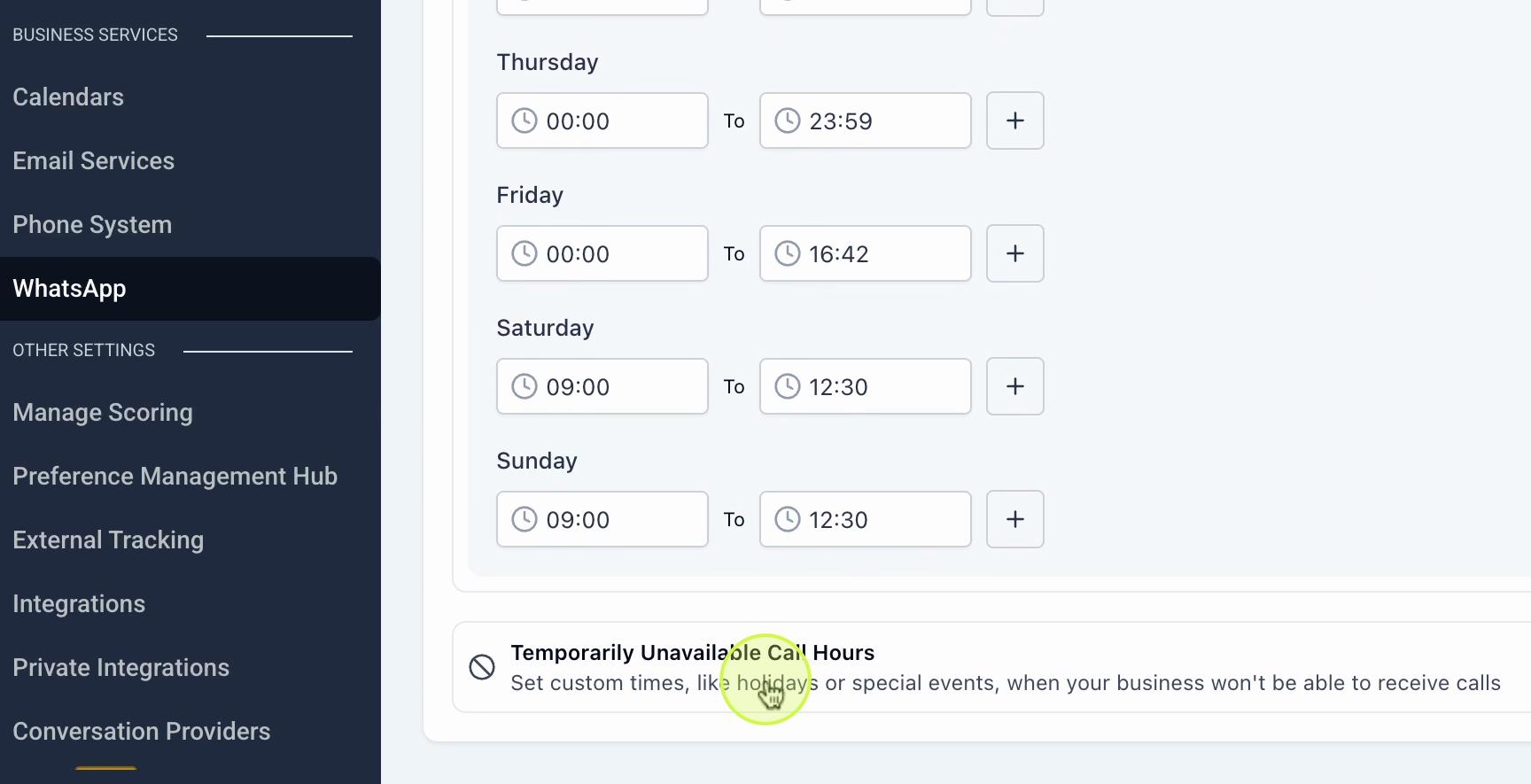
Tip: keep user availability up to date so that inbound calls are always routed to the right person and to reduce missed calls.
Setting up WhatsApp call permissions
Important: WhatsApp requires the customer's explicit approval before calling can be enabled for a contact. Always check that permission is active before starting a call.
Step 1: Go to Settings > WhatsApp Templates.
Step 2: Create a new template to request call permission from your customers.
Step 3: Under Call-to-action buttons, select WhatsApp call permissions. This adds a button to the template that customers can tap to grant you calling access.
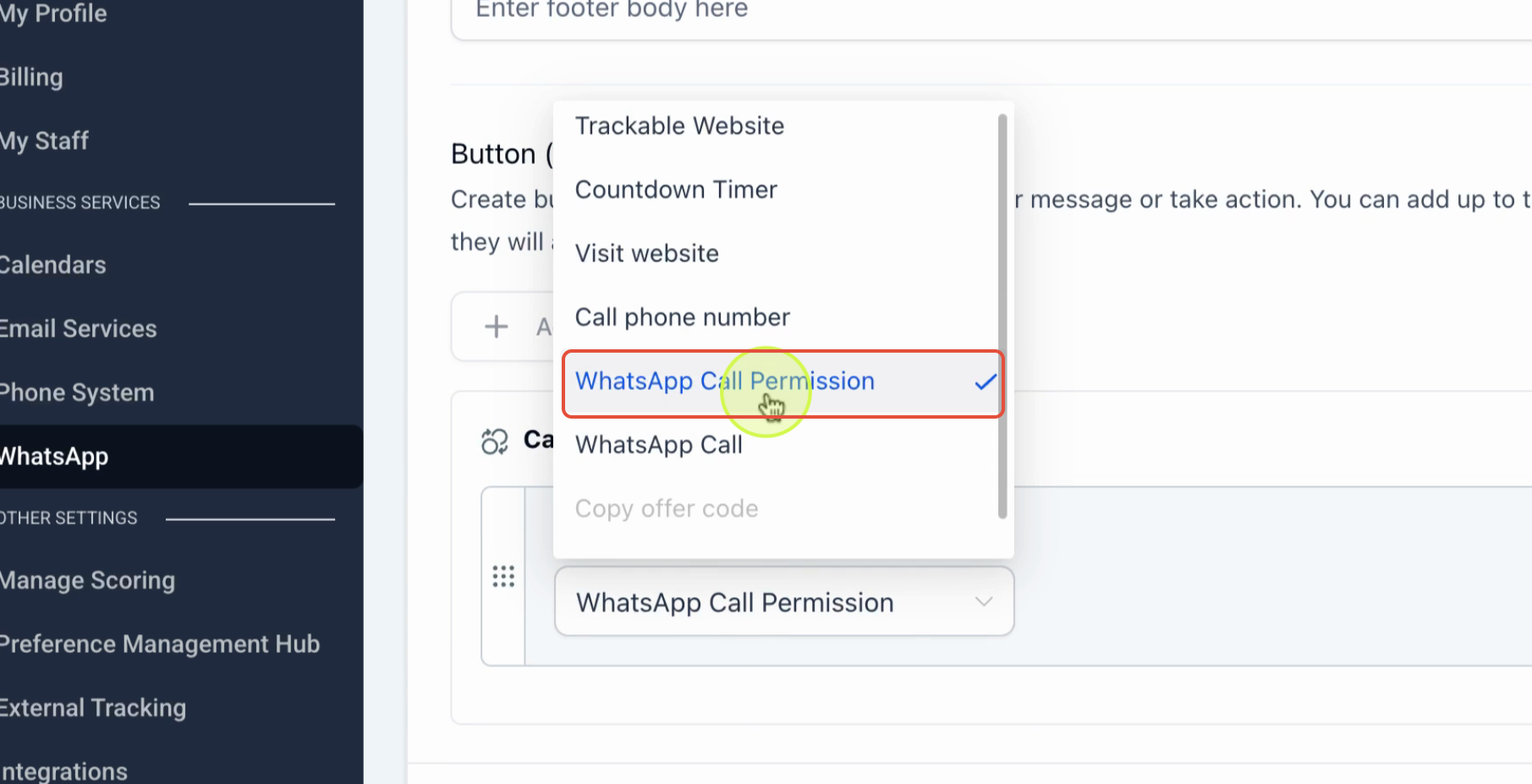
Step 4: When customers receive this message, they tap the button provided to grant permission for a temporary or unlimited duration.
Step 5: You can also include a call button directly in templates and set the permission duration to 1, 7, 15 or 30 days depending on your use case.
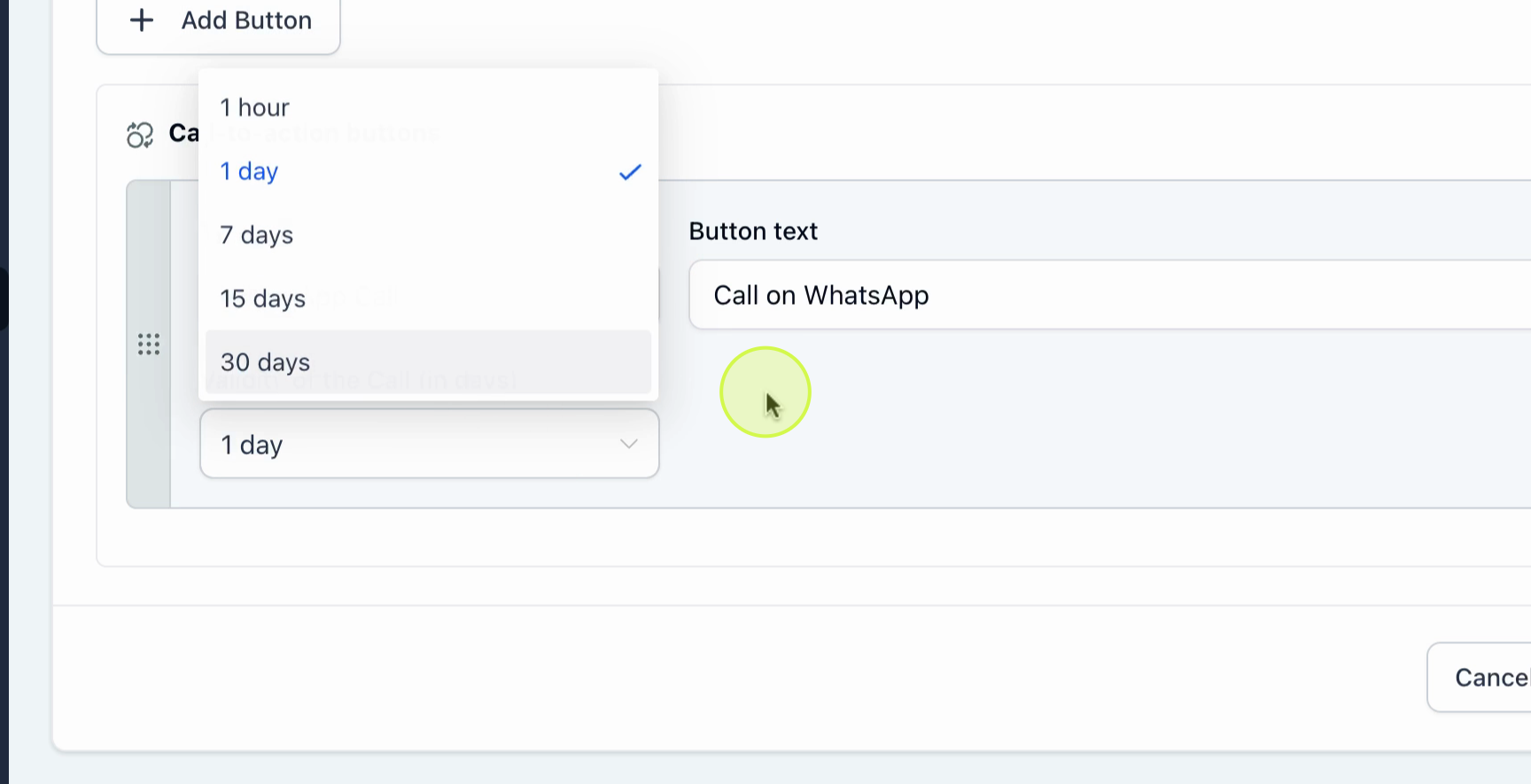
Once customers grant permission, you are ready to handle calls.
Making and receiving WhatsApp calls
Step 1: Go to Conversations > open any contact > tap WhatsApp as the messaging channel.
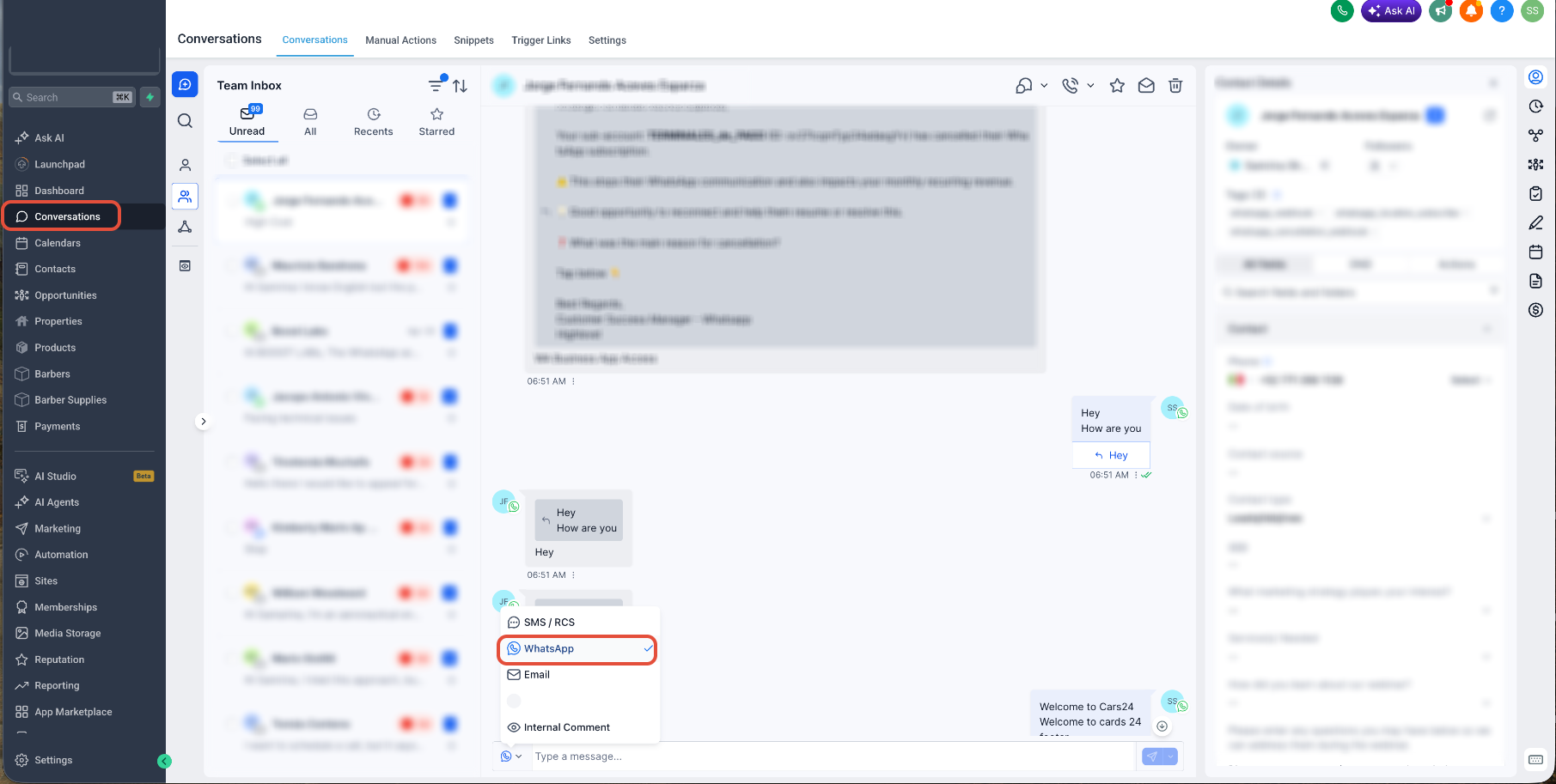
Step 2: Select the message template that requests call permission and send it to the customer.
Step 3: Once the customer grants permission, their status will update to "Call permissions active indefinitely" — or it will show the specific duration they selected.
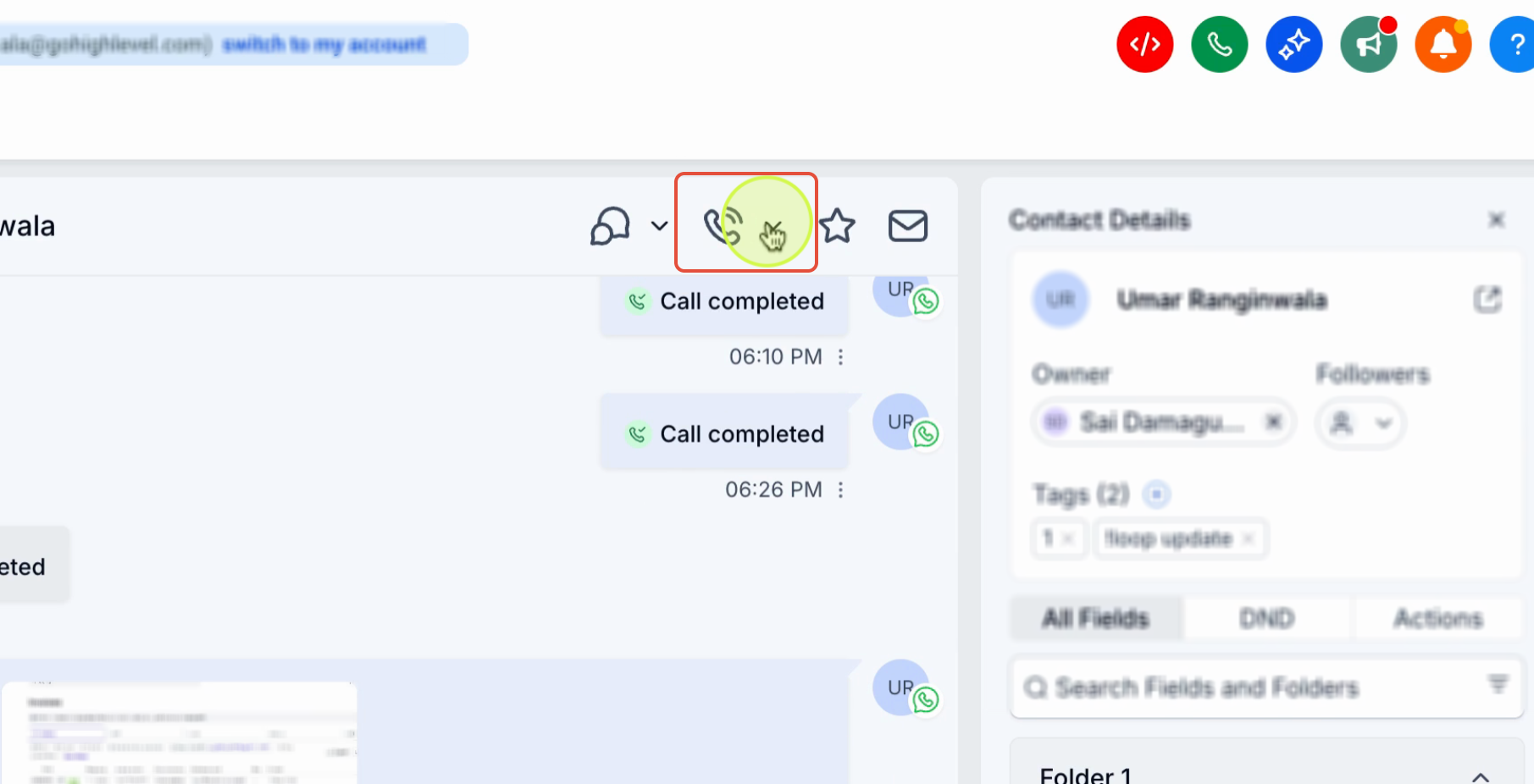
Step 4: When you make or receive a call, you will see options to end the call and add outcomes to record its result.
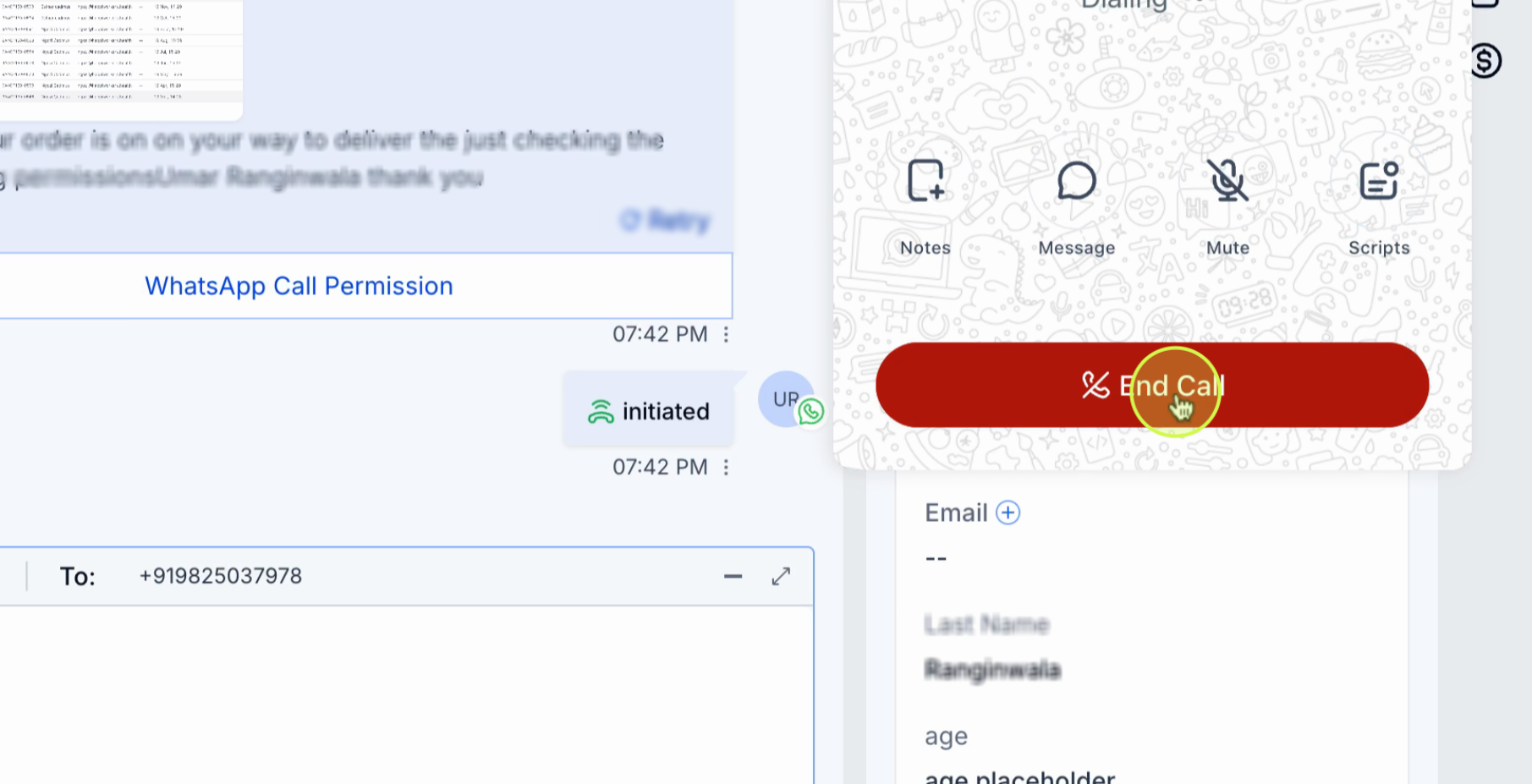
Step 5: For inbound calls, customers can call you directly by tapping the call button on your WhatsApp business profile. The call will ring for the users assigned in your call settings.
Tip: always add an outcome after every call to keep your team's records accurate and make follow-ups easier.
Configuring call settings for team users
Step 1: Go to Settings > My Staff.
Step 2: Find the assigned team user and click Edit.
Step 3: Open the Calls and voicemail tab.
Step 4: Set the Default channel for WhatsApp calls to Mobile app or Web app.
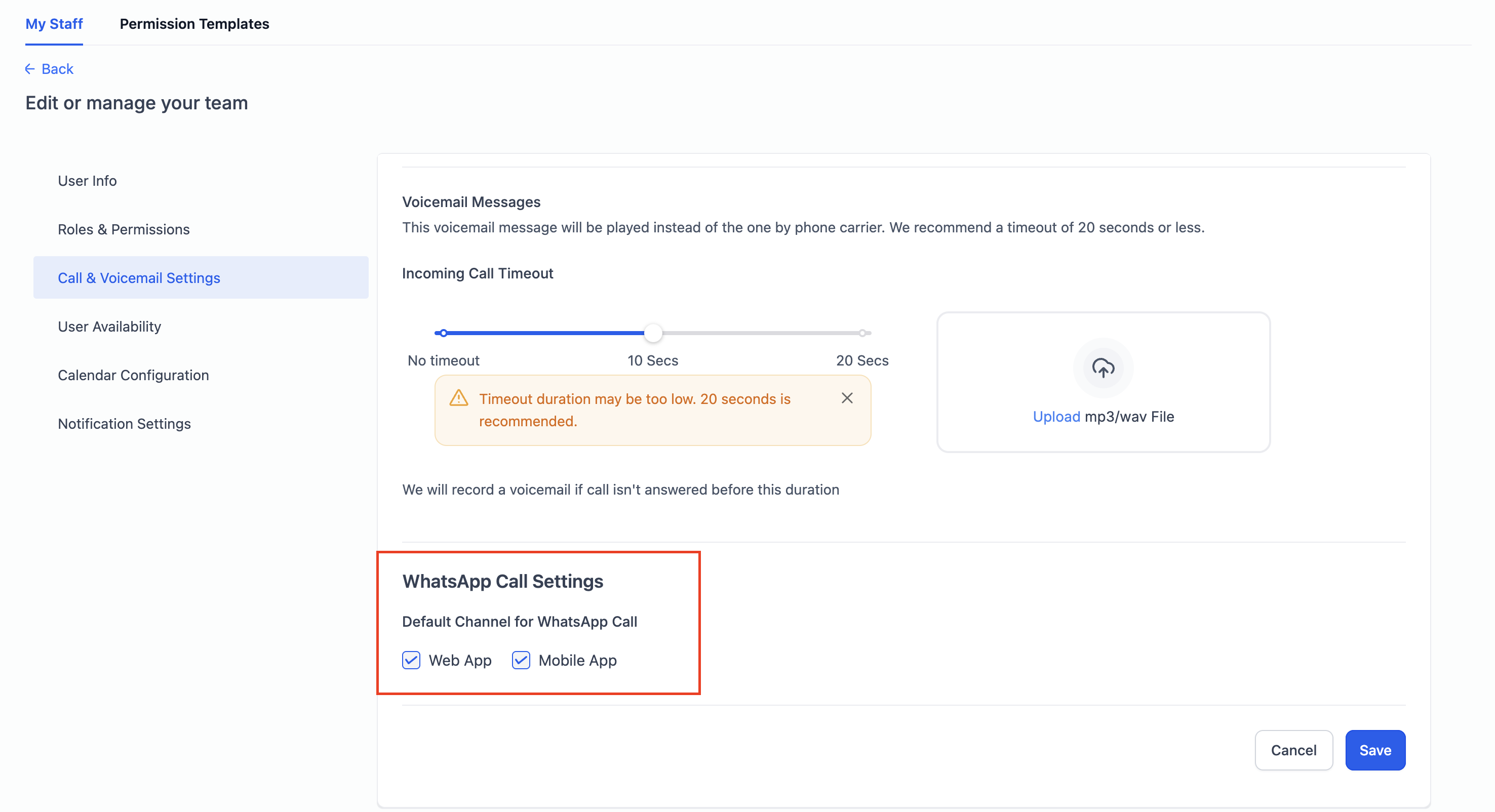
If you choose Mobile app, calls will ring on the team member's mobile device. If you choose Web app, calls will ring in the Futuria CRM browser interface.
Frequently asked questions
Can I make WhatsApp calls from a desktop browser?
Yes. When you configure a user's settings, you can set the Default channel for WhatsApp calls to Web app, which allows calls to be handled directly from the Futuria CRM browser interface.
Do I need the customer's permission before making a call?
Yes. WhatsApp requires the customer's explicit approval before your business can start an outbound call.
You must send a permission request template and wait for the customer to approve it. Inbound calls from customers do not require prior permission.
How long does call permission last?
Call permission can be granted for a temporary duration (1, 7, 15 or 30 days) or indefinitely, depending on the customer's choice. If the customer does not respond to a permission request, it expires automatically after 7 days.
How many permission requests can I send to the same customer?
You can send one request every 24 hours and a maximum of two requests in a 7-day period per contact. These limits are applied automatically by WhatsApp.
Are WhatsApp calls available in my country?
WhatsApp calls are available in most countries. They are currently not supported in the United States, Canada, Turkey, Egypt, Vietnam and Nigeria. If your business or your customer is based in one of these countries, the calling feature will not be available for the time being.
What happens if I miss an incoming WhatsApp call?
If a call goes unanswered, the customer can request a callback if you have enabled the Allow customers to request a callback for missed calls option in your call settings. The missed call will also be logged in the customer's conversation for reference.
Can several team members receive the same incoming call?
Yes. In the Route WhatsApp calls to setting, you can assign a primary user who rings first and add other team members as backup. If the primary user does not answer, the call is passed to the next assigned user.
Can a customer revoke call permission?
Yes. Customers can revoke permission at any time by opening the WhatsApp chat with your business, tapping the business profile name, going to Business call permissions and disabling call access. Once revoked, your business will no longer be able to start calls to that contact.
What is a call outcome and why should I use one?
A call outcome is a result label you add after a call, for example Resolved, Follow-up needed or No answer. Adding outcomes keeps your team's records accurate, makes it easier to track follow-ups and improves reporting in your CRM.
How long do I have to make the call after receiving permission?
Once a customer grants call permission, you must make the call within 72 hours. If the call is not made within that window, the permission expires and you will need to request it again.