


Table of contents
- What does reconnecting Google Calendar involve?
- How to reconnect a Google Calendar
- Step 1: Remove the Google Calendar
- Step 2: Reconnect Google Calendar
- Frequently asked questions
What does reconnecting Google Calendar involve?
This article walks you through reconnecting your Google Calendar with Futuria CRM in order to fix synchronisation problems and restore full calendar functionality.
IMPORTANT: a Google account must be connected by the user who owns that Google account.
If your Google account is connected but synchronisation is not working, go to Settings → Integrations → Google and check whether there is a missing-permissions warning. Use the Reconnect button to authenticate with Google again and grant the required permissions.
After reconnecting, Futuria CRM will automatically synchronise all future unsynchronised appointments that were created while the integration was disconnected. There is no need to edit appointments manually to trigger the synchronisation.
Reconnecting is recommended when:
- calendar events stop synchronising.
- the permissions on the Google account have been changed or revoked.
- a calendar has been disconnected and needs to be relinked.
- authorisation errors or synchronisation problems appear in the account.
How to reconnect a Google Calendar
Step 1: Remove the Google Calendar
You can remove a connected Google Calendar from two different sections.
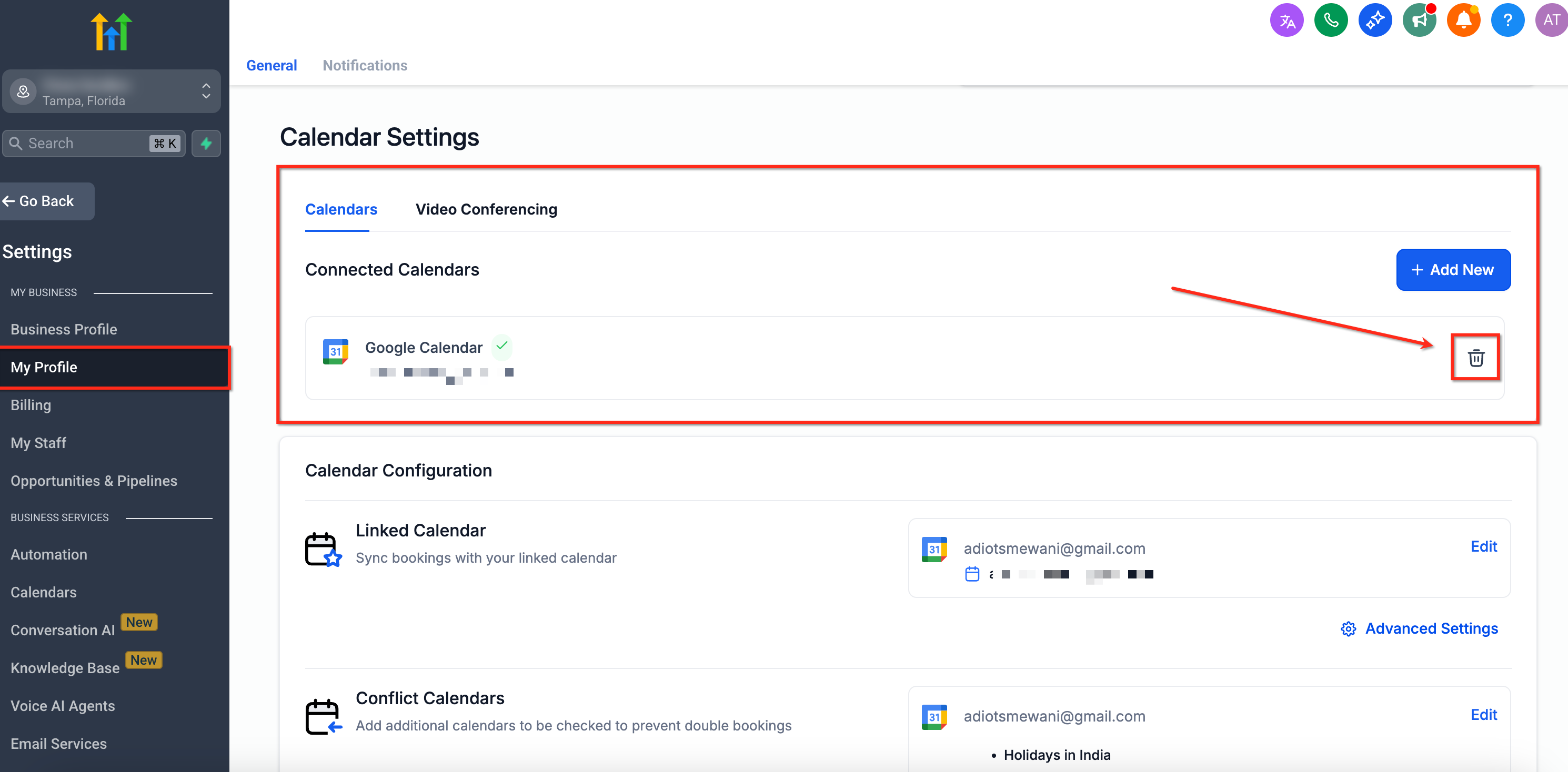
1. From the My Profile section:
Click Settings in your account. Select the My Profile option, go to Calendar settings and click the bin/delete icon next to the connected Google account.
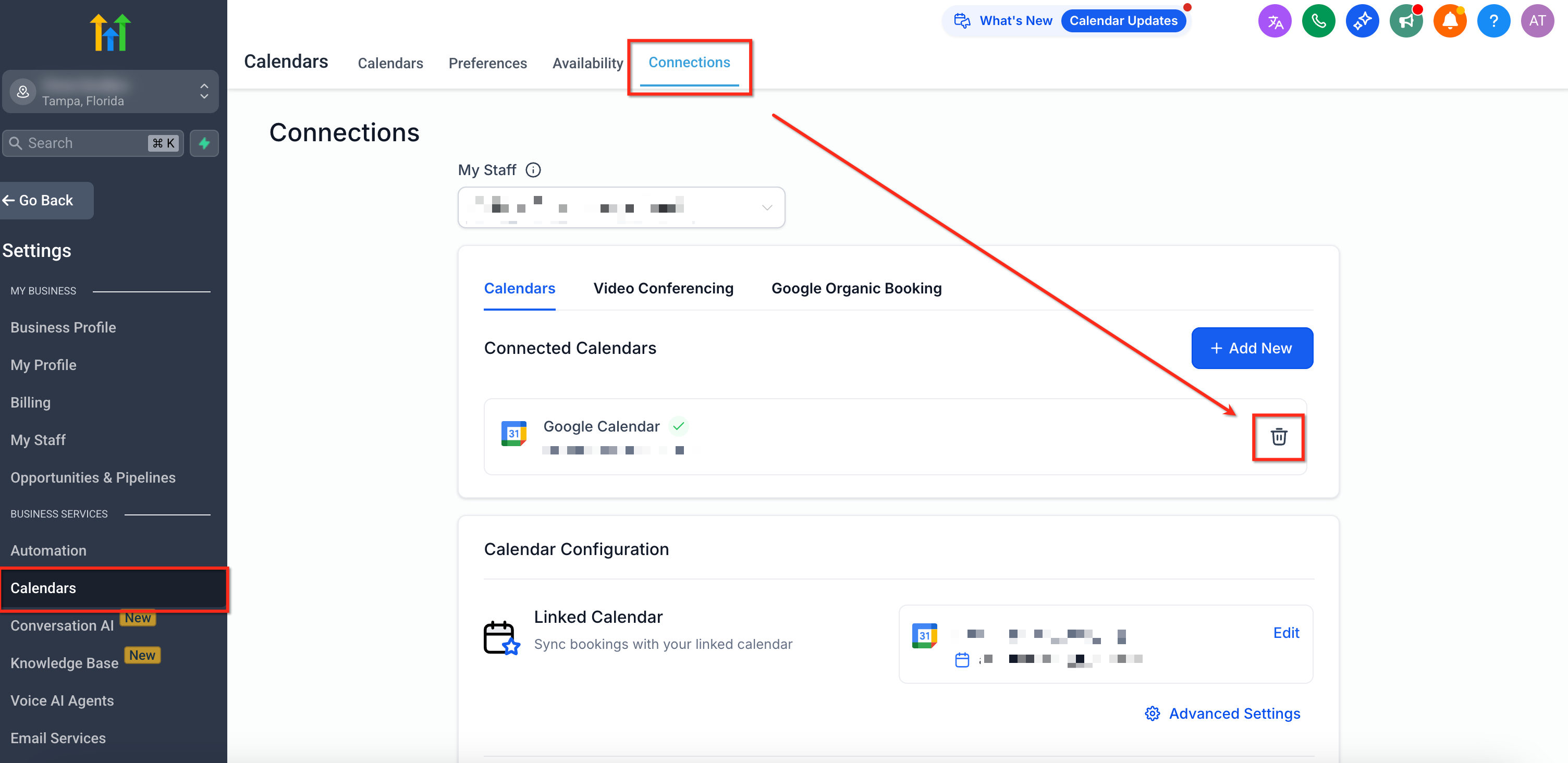
2. From the Calendar connections section:
Go to Settings and Calendars, then select the Connections tab. Under Connected calendars, click the bin/delete icon next to the connected Google account.
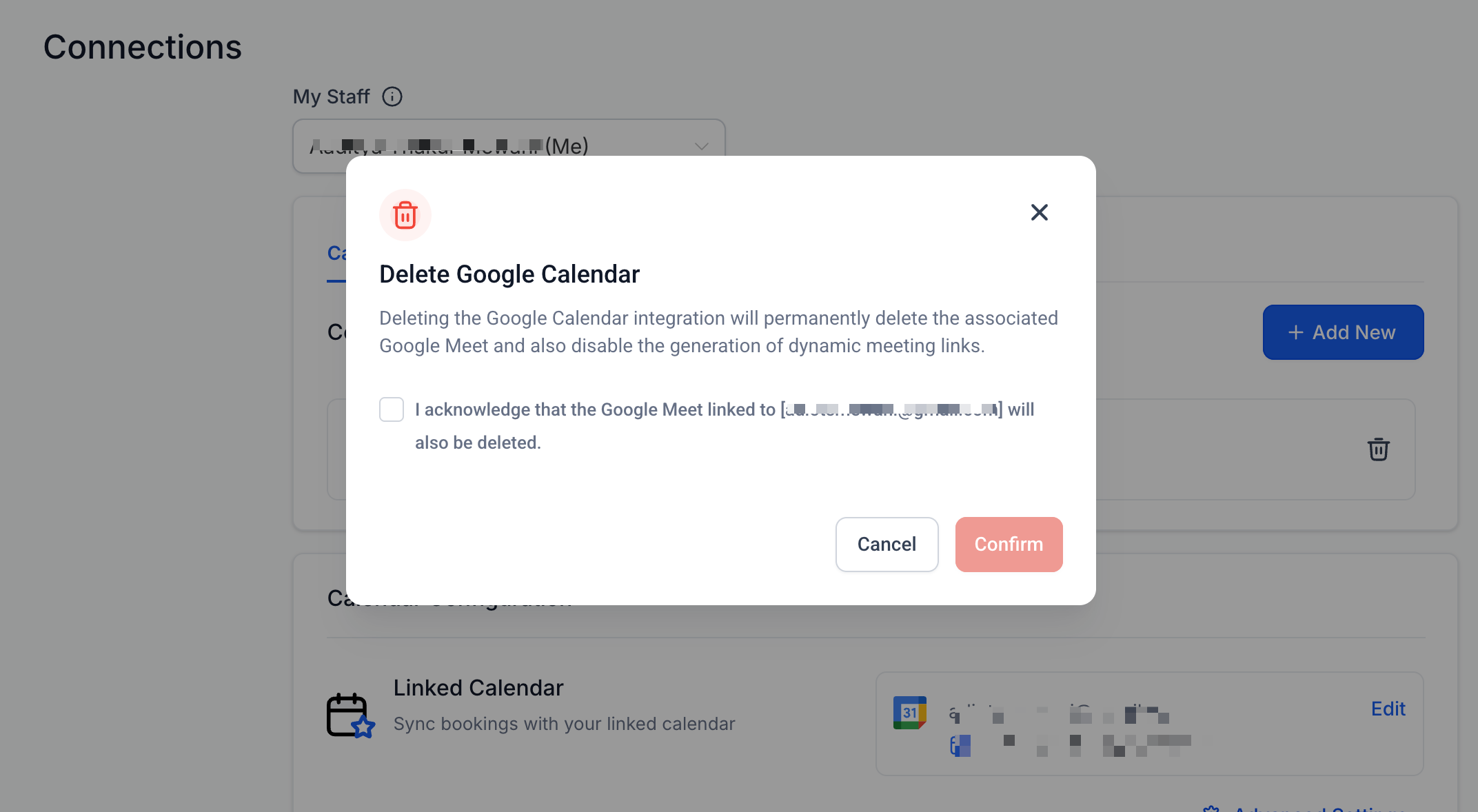
Tick the confirmation box in the pop-up and click Confirm.
Step 2: Reconnect Google Calendar
In the same way, you can relink the Google Calendar from the same two sections listed above: the My Profile section and the Calendar connections section.
Click Settings in your account and select the My Profile option. Under Calendar settings, click the + Add new button. You can also follow our guide on how to integrate Google Calendar with Futuria CRM to connect your Google account correctly.
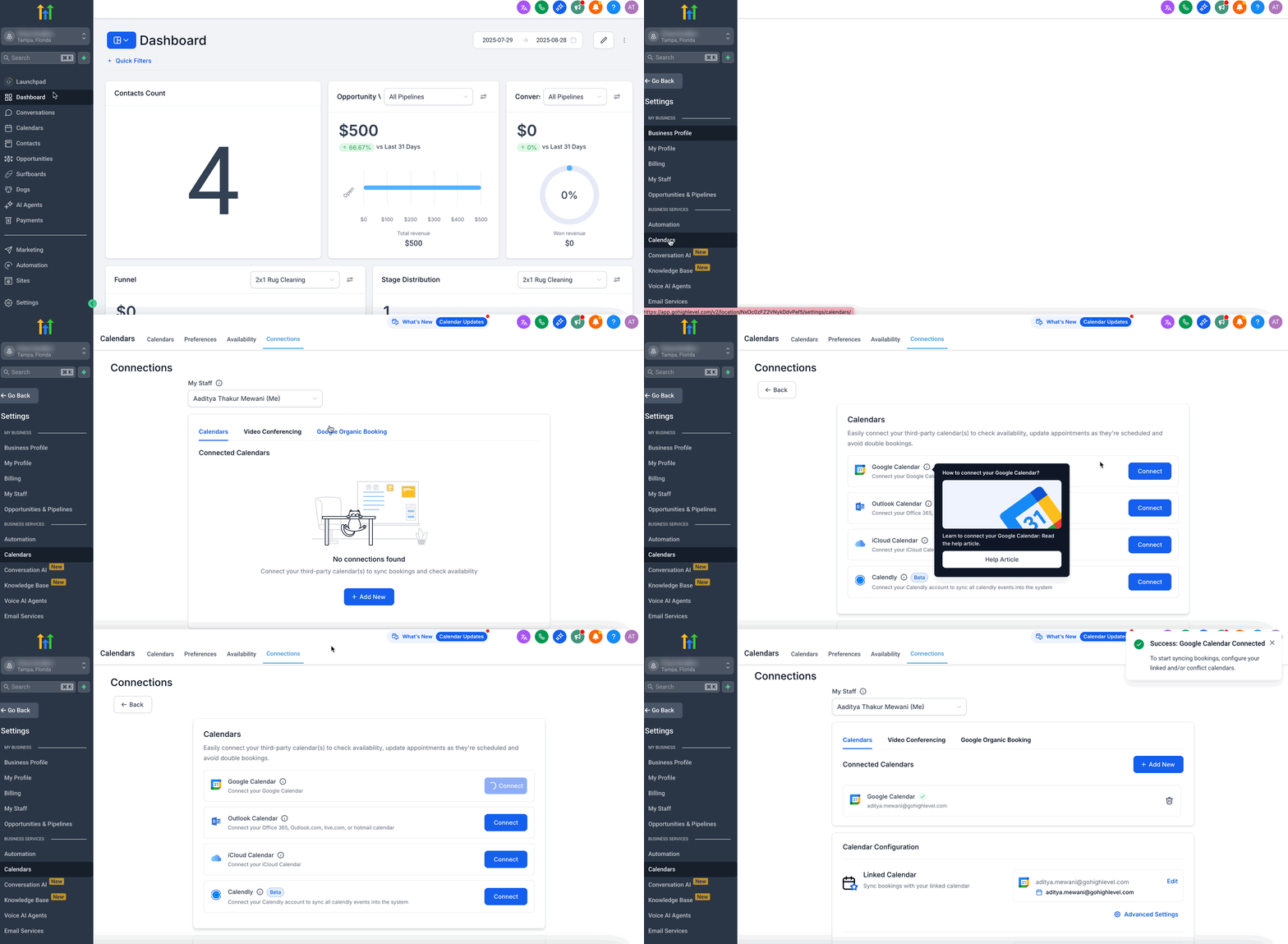
Please note: once you have completed the reconnection process, test your Google Calendar to make sure synchronisation works as expected. If you still run into problems after testing, contact customer support for further help.
Frequently asked questions
Q: Do I have to remove the old integration before relinking it?
Yes, we recommend disconnecting the current Google Calendar integration before relinking it, to avoid synchronisation conflicts.
Q: Will I lose any appointments if I disconnect the calendar?
No, disconnecting and reconnecting does not delete past or future appointments that have already been synchronised into the system.
Q: How do I know whether the calendar has been reconnected successfully?
Once relinked, you should see the calendar listed with an active synchronisation status. You can test it by creating a trial appointment and checking that it appears on both platforms.
Q: Can I reconnect using a different Google account?
Yes. Once you have disconnected the original account, you can use a different Google account when reconnecting. Just make sure it is the right one for your calendar events.
Q: Can I link several calendars to the same user?
Yes, you can add several calendars, but you can only have one primary calendar.