



Table of contents
- What does calendar availability mean?
- Weekly working hours
- How to set weekly working hours
- Date-specific hours
- How to set date-specific hours
- How date grouping works
- Frequently asked questions
What does calendar availability mean?
Set your booking hours with confidence in Futuria CRM calendars. This article shows how to use weekly working hours for your baseline schedule and date-specific hours for occasional changes, such as holidays or special events.
Calendar availability defines when a calendar can accept bookings. Weekly working hours create a pattern that repeats every week, while date-specific hours override that pattern on individual dates (for example, holidays, special events). Together, these settings control which time slots are available on your calendar's booking page.
Understanding the difference between the two can help you manage your calendar effectively and make sure it matches your actual availability.
Important: date-specific hours always take precedence over weekly working hours. In other words, if you have set specific hours for a particular date, they will override the default weekly working hours for that day.
Weekly working hours
Weekly working hours represent your regular availability on a recurring basis. This feature is useful for setting the default schedule that repeats week after week.
For example, if you are consistently available every Monday, Tuesday and Thursday from 8:00 to 22:00, you can configure these as your weekly working hours. The system will then automatically apply this schedule to those days and times every week.
How to set weekly working hours
- Go to Calendars → Calendar settings and click Edit calendar.
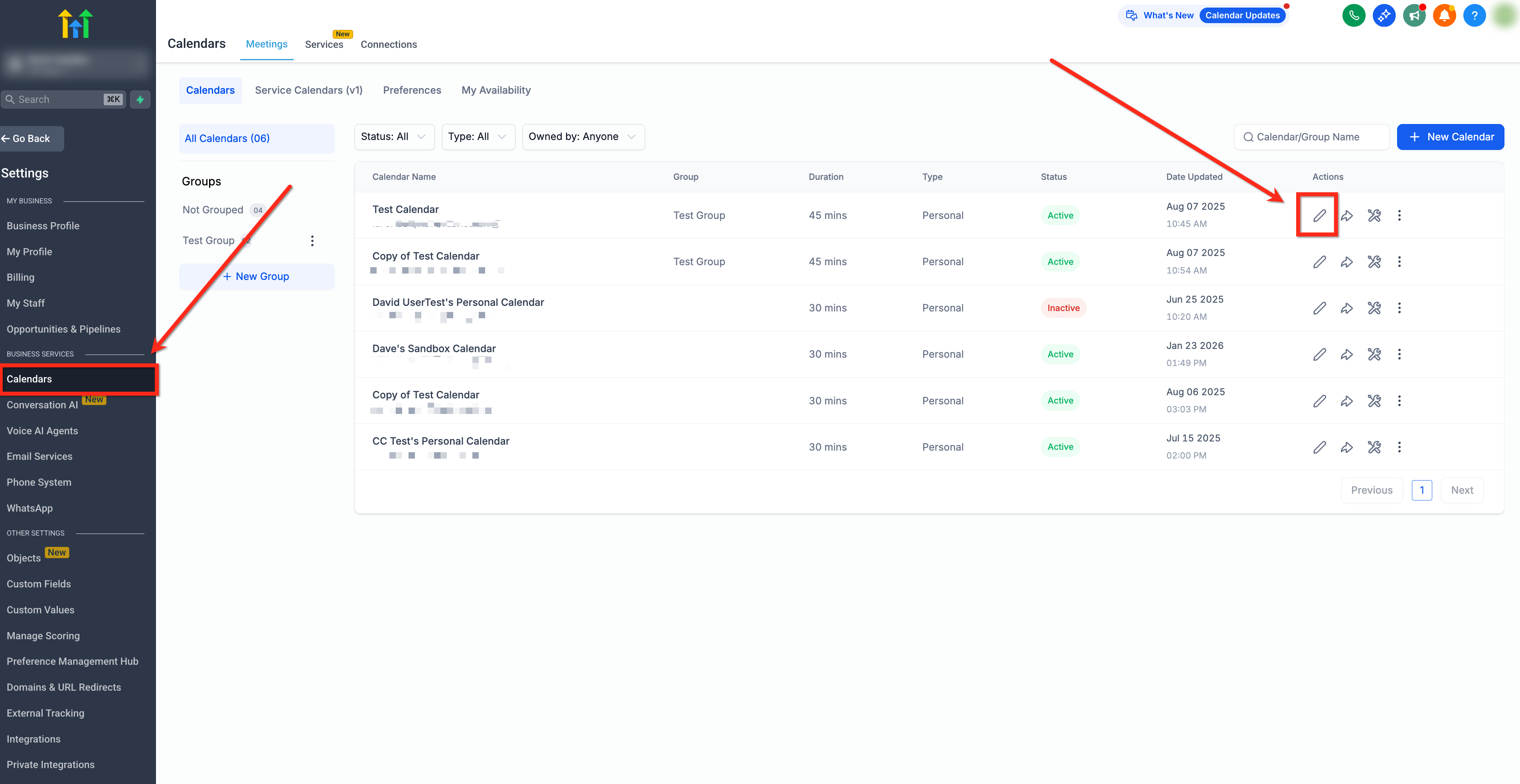
- Select Availability in the left-hand menu. Under Availability for booking, click the user's name to open the side panel.
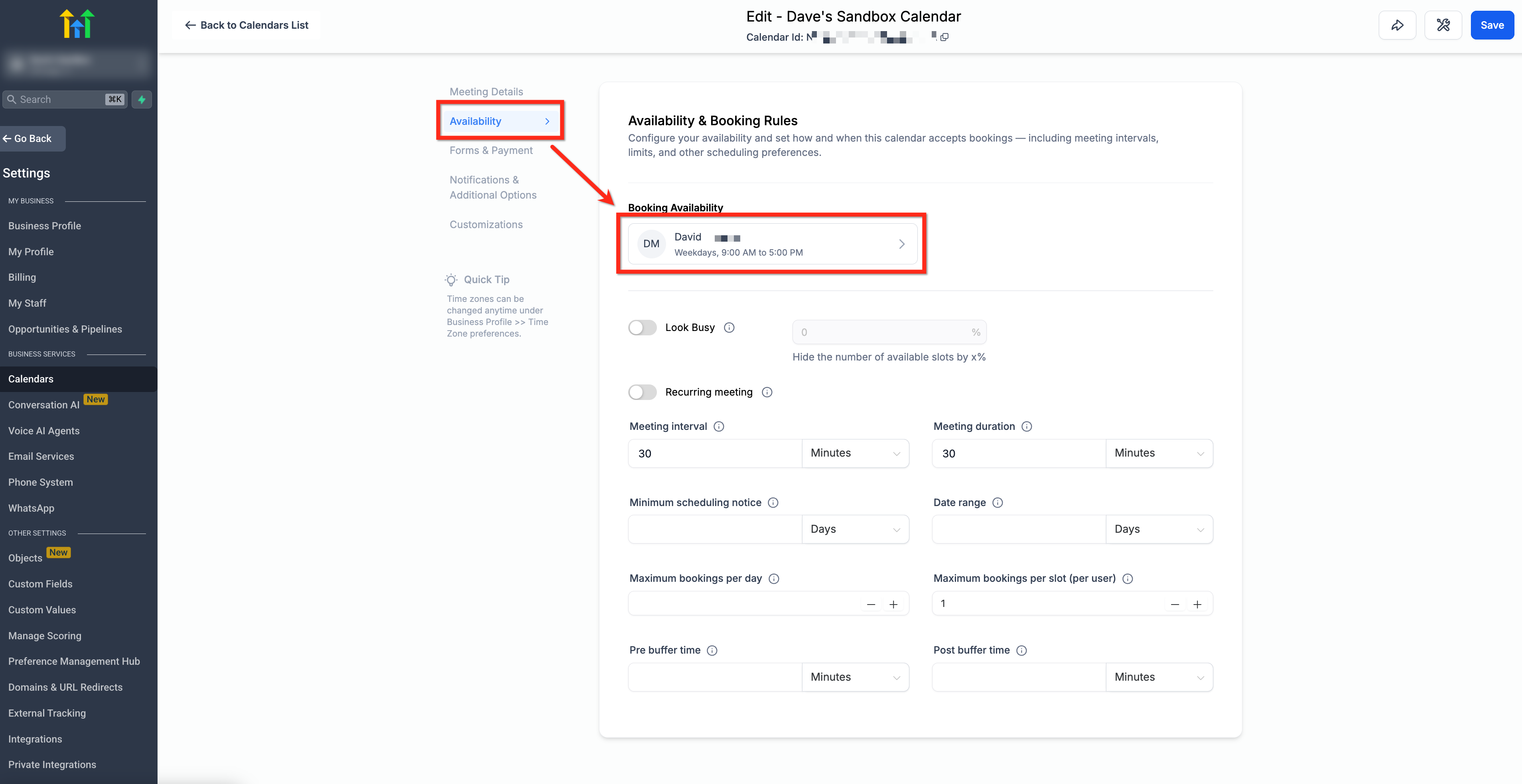
- Under Weekly working hours, click Edit and set the availability hours for each day.
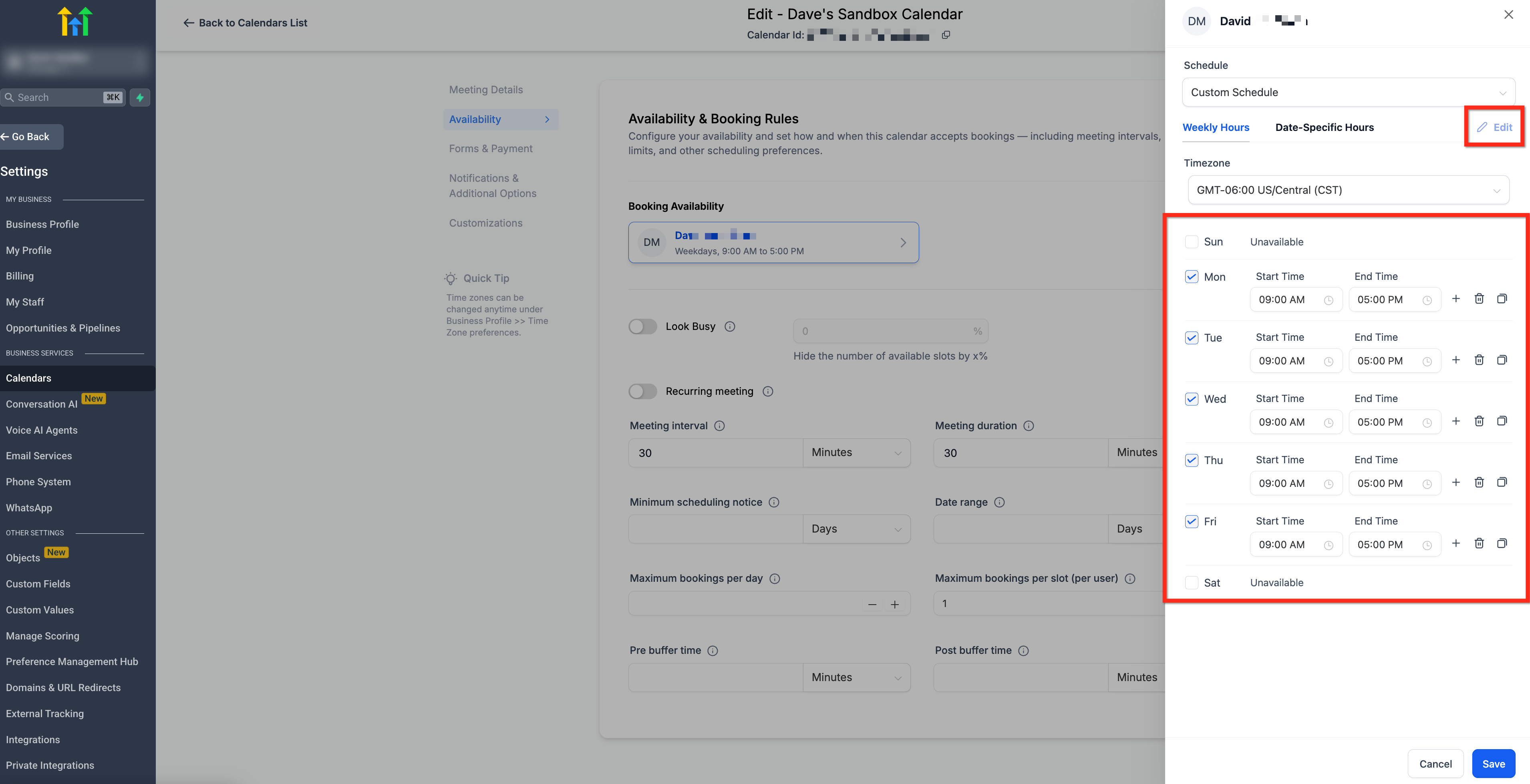
- (Optional) Click Copy to apply the settings to other days.
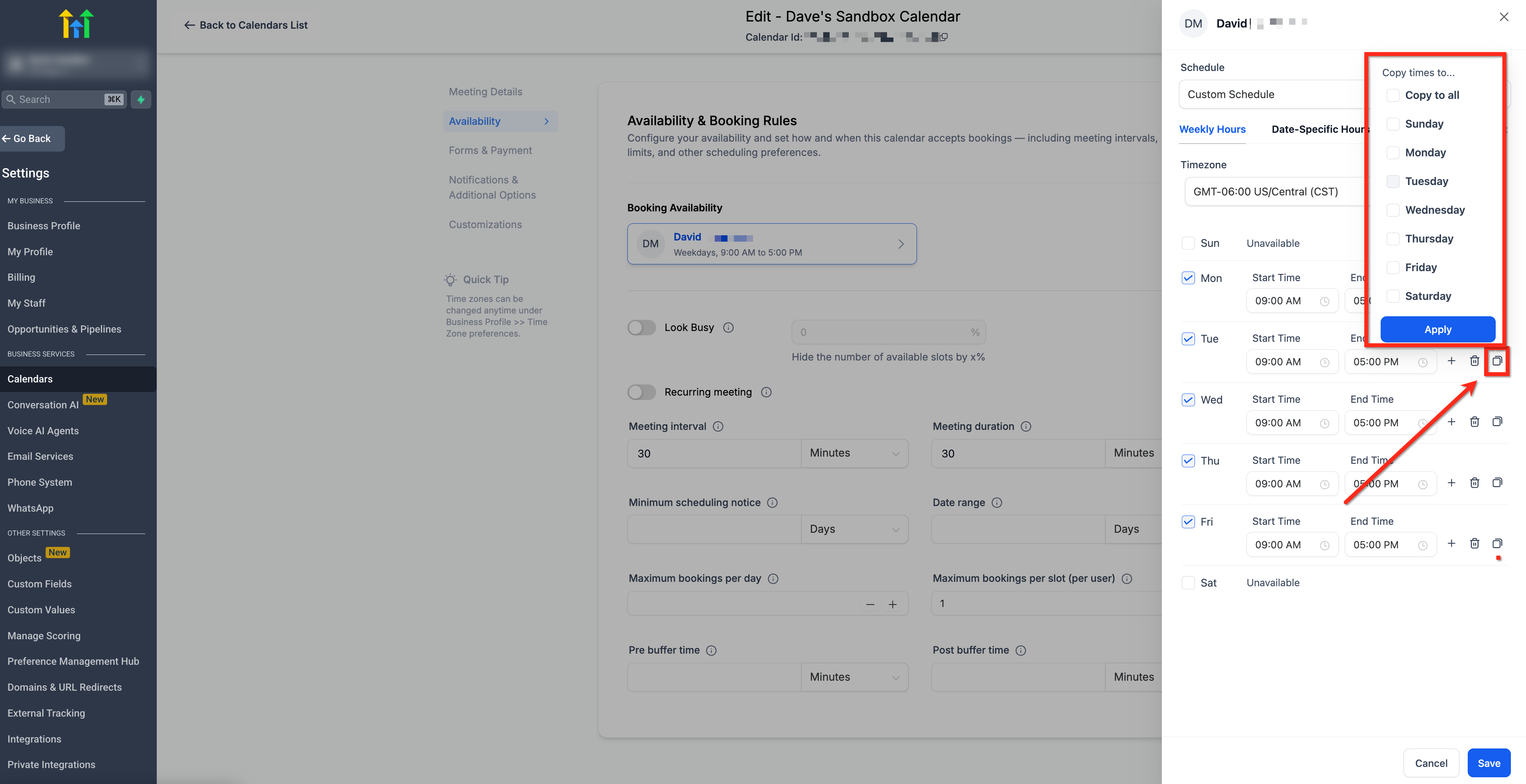
- Click the blue Save button to apply your changes.
Date-specific hours
Date-specific hours let you customise your availability or unavailability for particular dates. You can add specific dates and define hours that apply only to those dates.
This feature is especially useful for handling exceptional circumstances, holidays or personal commitments. Here are a few examples to illustrate how it is used:
- Holidays: you can mark upcoming holidays such as Easter, Christmas or other public holidays as unavailable. On those specific dates, your calendar will show that you are not available, keeping your scheduling accurate.
- Personal commitments: if you have personal commitments that differ from your regular schedule, you can easily change your availability for those specific dates. For example, if you have a doctor's appointment on 10 February from 12:00 to 15:00, you can mark yourself as unavailable during that time.
- Extended availability: for special occasions, such as a bank holiday weekend when you want to extend your working hours for a limited period, you can use date-specific hours to change your availability for those days only.
Date-specific hours override weekly working hours for that date. This means the weekly hours will not apply at all on any date where date-specific hours exist.
Example (extending a day): if your weekly working hours are 9:00–17:00, but on Tuesday (10 March) you want to accept bookings from 9:00 to 20:00, you must set date-specific hours from 9:00 to 20:00 for that date. If you only set date-specific hours from 17:00 to 20:00, the system will treat Tuesday as available only from 17:00 to 20:00, and the 9:00–17:00 slot will show as unavailable.
How to set date-specific hours
- Go to your calendar availability settings: Settings → Calendars → [Select a calendar] → Availability.
- In the Date-specific hours section, click + Add date-specific hours.
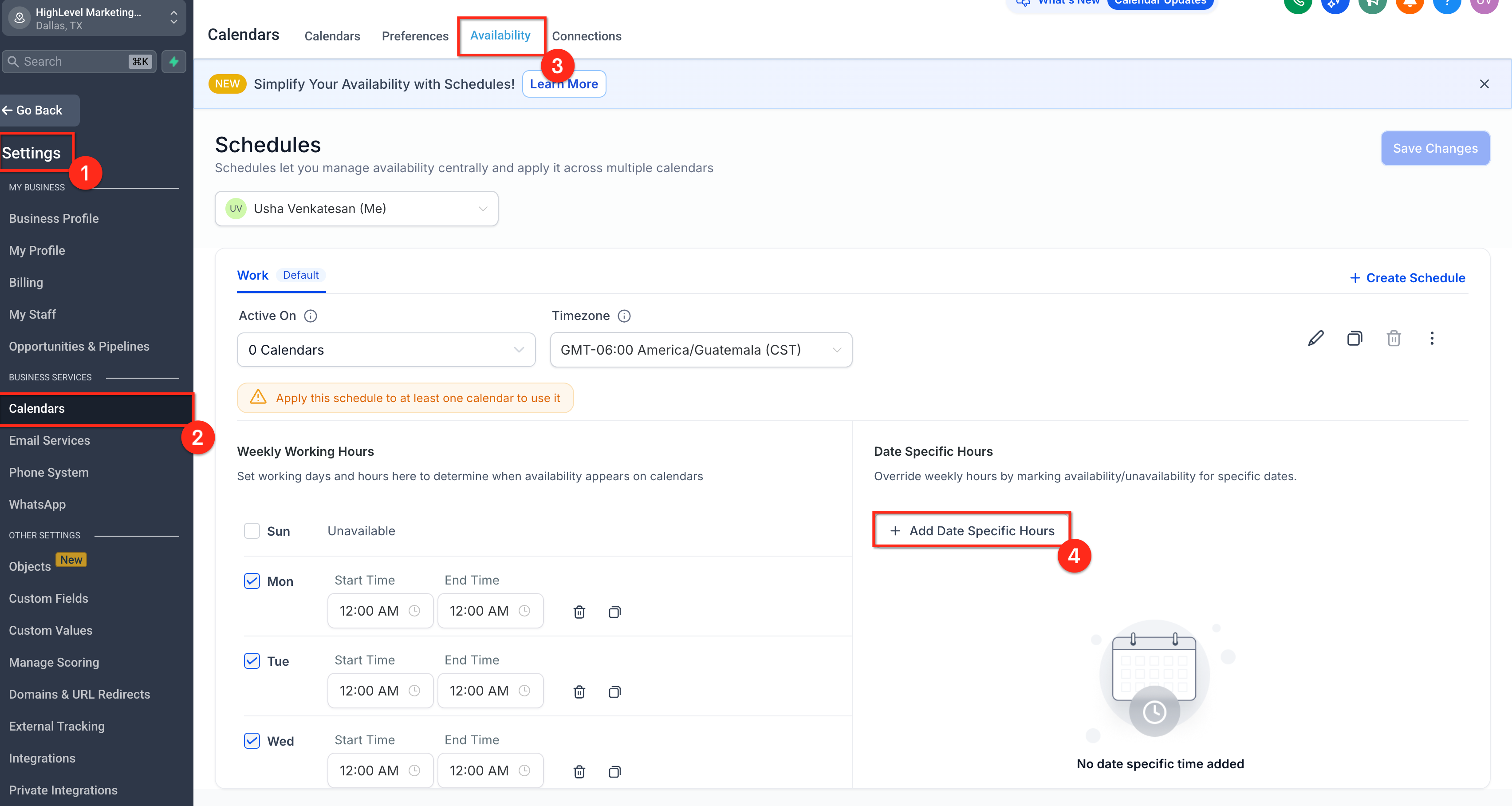
- In the date picker, select one or more dates you want to override.
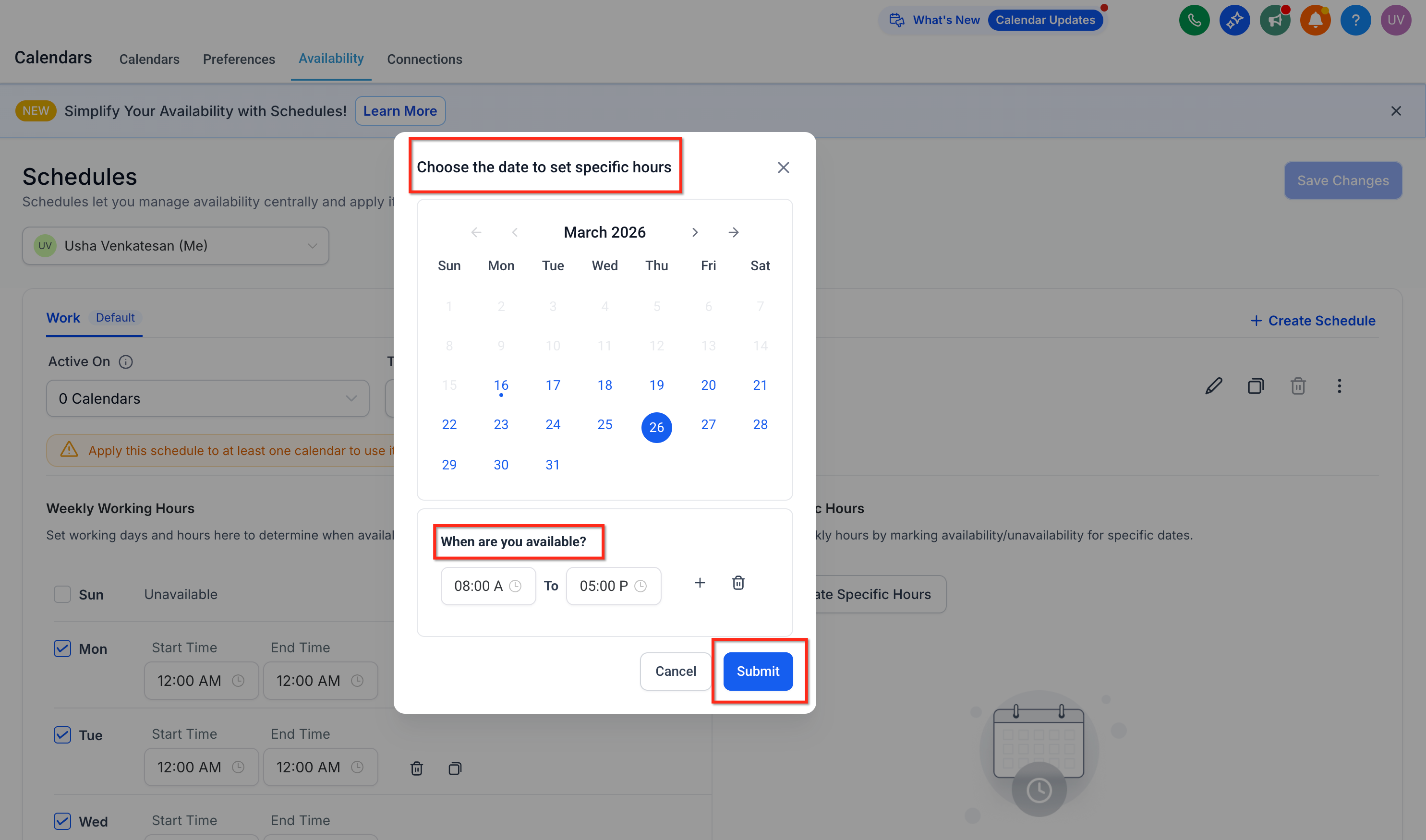
- Set the Start time and the End time.
- Save to apply the same hours to all the selected dates.
How date grouping works
When you save date-specific hours for several dates, Futuria CRM groups your selections to keep the list organised:
- Consecutive dates appear as a single grouped range.
- Non-consecutive dates appear as separate grouped ranges.
Example: if you select 2, 3, 4, 5, 8 and 9 January:
- The 2–5 January period appears as one grouped entry.
- The 8–9 January period appears as another grouped entry.
You can edit or delete each grouped entry independently later on.
Frequently asked questions
Can I set a fortnightly recurring availability schedule (every 2 weeks)?
At present, calendar settings only support weekly recurring schedules. If your availability follows a fortnightly pattern, the best approach is to use date-specific hours to define custom availability for each applicable day.
Although this requires manual set-up, it makes sure your calendar reflects your exact working pattern. We recommend creating a scheduling reminder every two weeks to update your calendar, or setting date-specific hours in bulk in advance for the coming months.
Why do my weekly working hours disappear when I add date-specific hours?
Date-specific hours take precedence and replace the weekly hours for that date. To "extend" a day, enter the full range you want to be available for (e.g.
9:00–20:00), not just the extra time (e.g. 17:00–20:00).