


Table of contents
- What is the Google Calendar integration?
- Main benefits of the Google Calendar integration
- Prerequisites for the Google Calendar integration
- Steps to connect Google Calendar
- Step 1: Go to the calendar connections
- Step 2: Authenticate with Google
- Frequently Asked Questions (FAQ)
What is the Google Calendar integration?
Integrating Google Calendar with Futuria CRM enables real-time scheduling, simplified availability management and smooth syncing across platforms. It is the ideal solution for booking calls, automating appointments and coordinating with your team, all in one place.
Main benefits of the Google Calendar integration
- Real-time appointment syncing between Google Calendar and Futuria CRM.
- Two-way syncing to keep both platforms aligned at all times.
- Avoid double bookings by using conflict calendars.
- Support for multi-user set-ups with calendar selection for each profile.
- Simplified scheduling with greater visibility and control.
- Automatic catch-up syncing: appointments created while the account was disconnected sync automatically once it is reconnected. Connecting a new calendar or changing the selected one automatically resyncs future appointments.
Prerequisites for the Google Calendar integration
- A valid Google account.
- Administrator or user access to the Futuria CRM calendar settings.
- The calendar you are connecting must not be shared with conflicting permissions.
Note: calendar integrations are tied to individual user profiles, not to global account settings. Each user must connect their own Google Calendar.
Steps to connect Google Calendar
Step 1: Go to the calendar connections
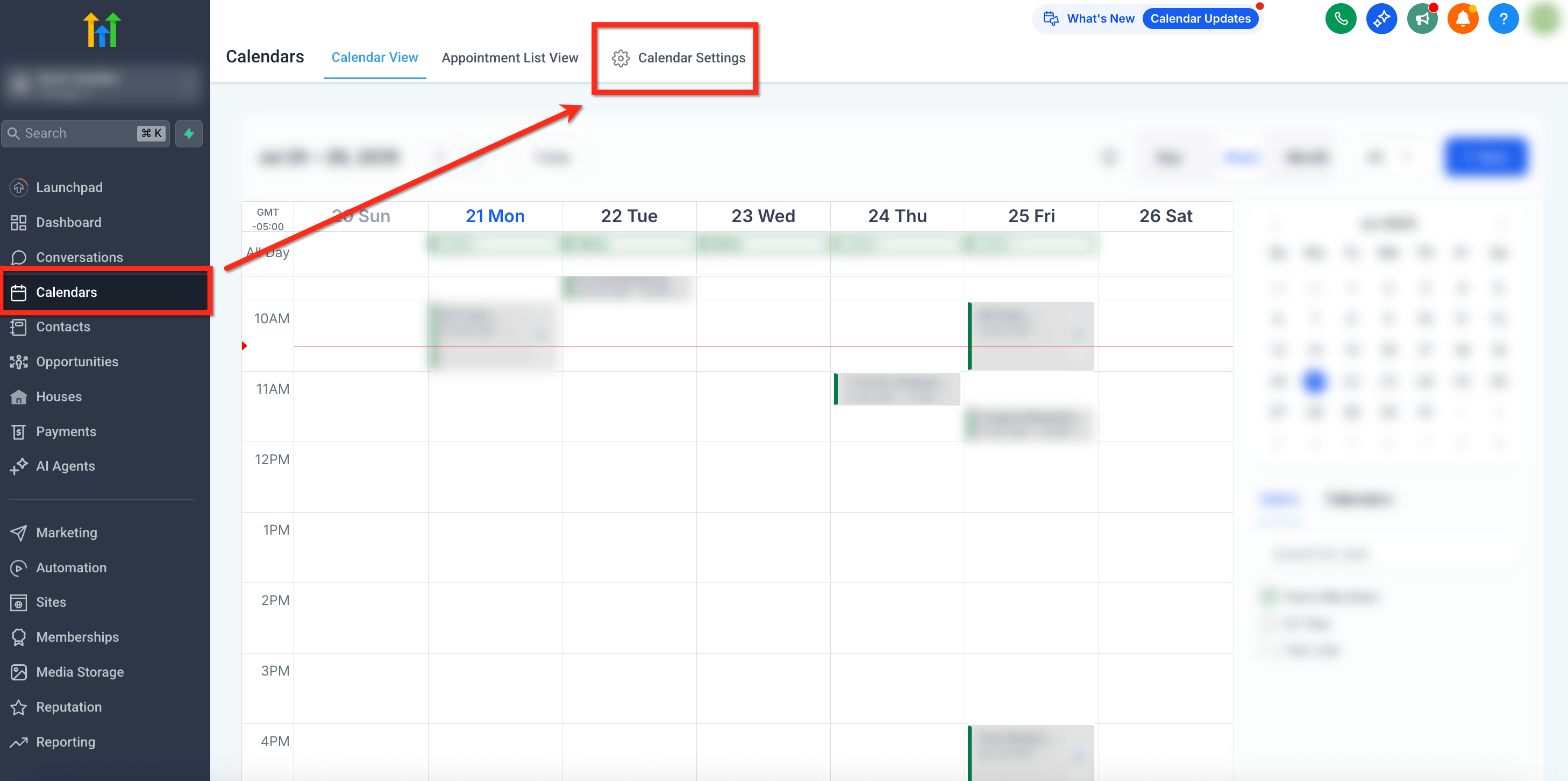
- Log in to your account, select Calendars in the left-hand navigation bar and then click Calendar settings at the top right.
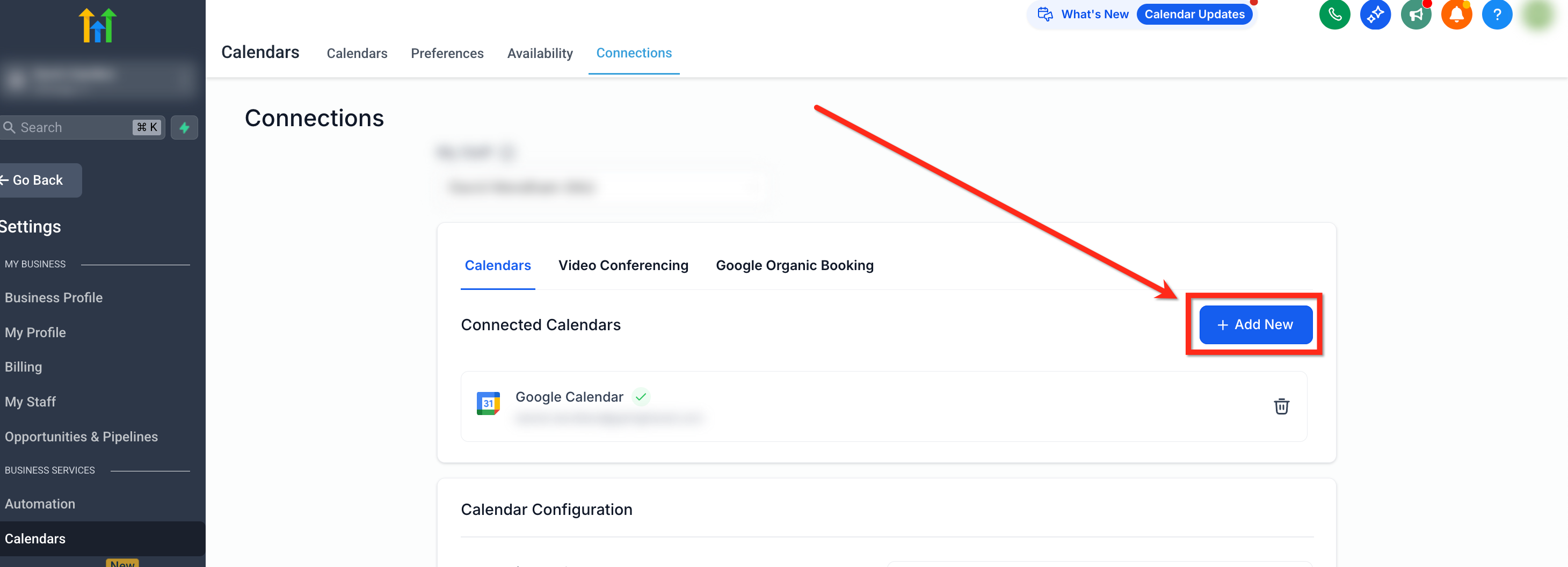
- Click the Connections tab in the top navigation bar and then the + Add new button to add a new calendar.
Step 2: Authenticate with Google
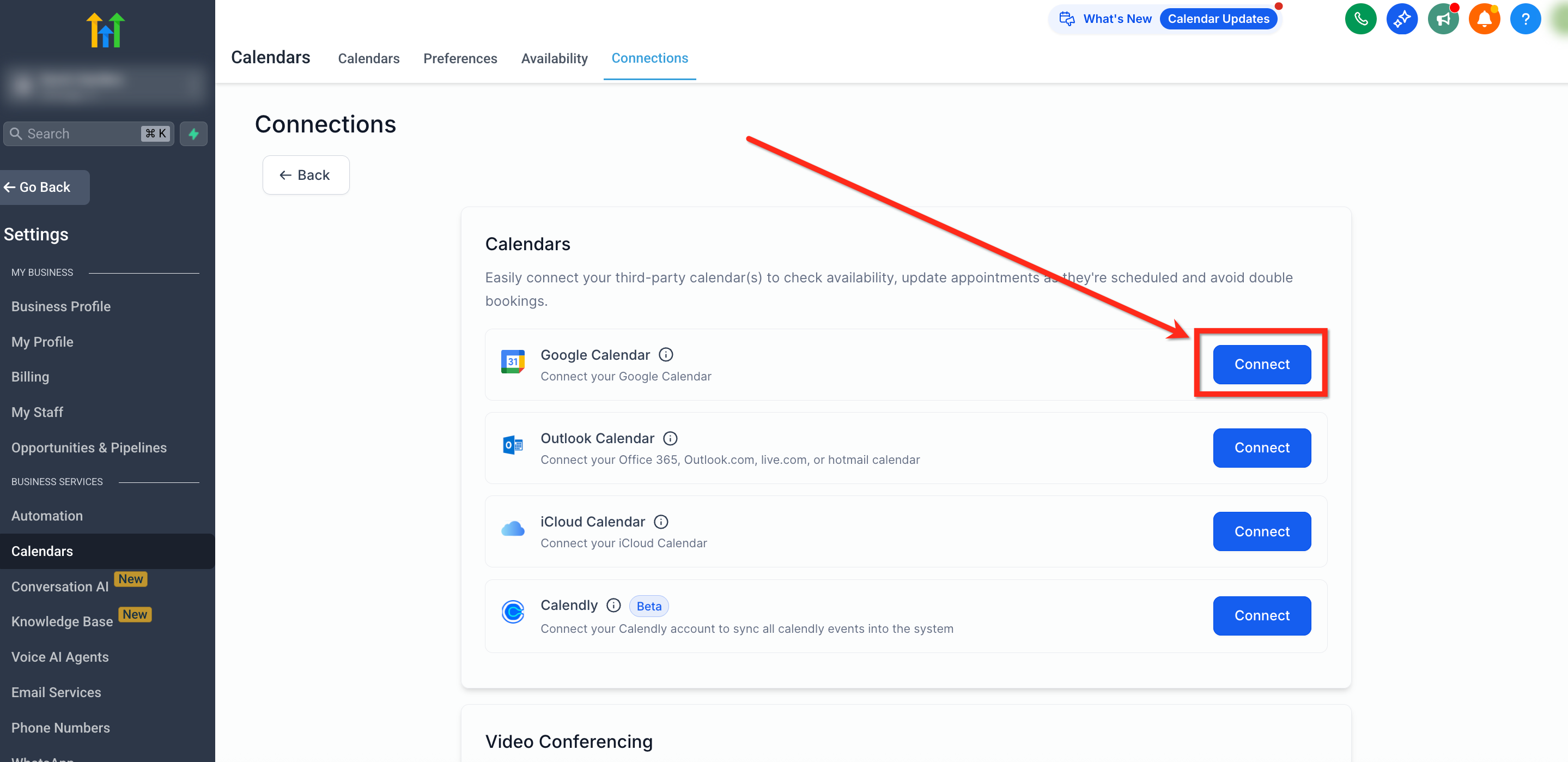
- On the Connections page, click the Connect button next to Google Calendar.
- Select the Google account you want to use.
- Accept all the permissions requested, including access to: Calendar (read/write), Profile and Email.
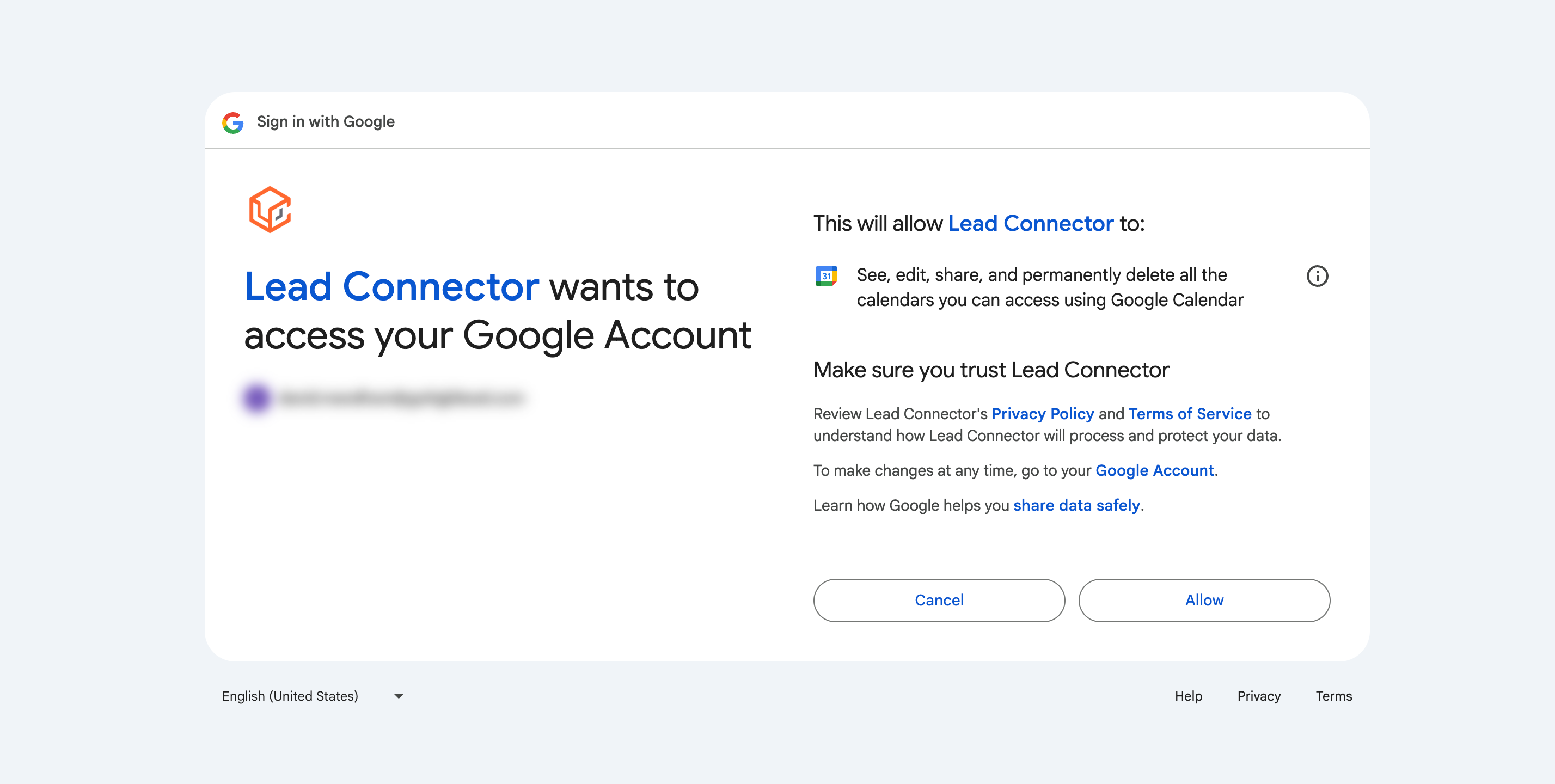
Permissions required: you must allow full calendar access. Failing to grant write ("writer") access may cause syncing problems.
Note: Google may let you grant only some permissions while connecting. If you do not grant all the permissions requested, syncing may fail. Check under Settings → Integrations → Google for a missing permissions warning and use "Reconnect" to grant them.
Frequently Asked Questions (FAQ)
Why is my calendar not syncing?
Check under Settings → Integrations → Google for a missing permissions warning and click Reconnect if the required permissions are missing.
I cannot see my Google Calendar in the list, what should I do?
Make sure you have signed in with the correct Google account. Sign out of all Google accounts and reconnect using the right one.
What can break the Google Calendar sync?
- Expiry of the authentication token
- Deletion of the calendar
- Revoking permissions after connecting
For more details, see the guide: Why the Google Calendar integration breaks and how to fix it.
What happens if a connected Google Calendar has been deleted and I see an error banner?
Use the Resolve option in the banner to open a window listing the instances of the deleted calendar and where they are connected in Futuria CRM. Click Remove deleted calendars to clean up the broken connections, then reconnect or select an active calendar if needed.
Can I use a single calendar for several users?
No, calendar integrations are user-specific. Each user must connect their own Google Calendar for personalised scheduling and syncing.
Can I sync several Google Calendars?
Yes, you can connect several Google Calendars. Set up one calendar as the Linked calendar for bookings and others as Conflict calendars to avoid double bookings.
Do I need a specific type of Google account (for example, Gmail, G Suite)?
No, both personal Gmail accounts and G Suite (Google Workspace) accounts work with this integration.