


Table of contents
- What is an order upsell in forms?
- Main benefits of order upsells
- The "Sell product" element in forms
- Configuring the upsell button
- The "Order summary" element
- Best practices for funnel integration
- How to set up order upsells in forms
- Step 1: create or edit a form
- Step 2: add the form to a V2 funnel
- Step 3: create the upsell step
- Step 4: add an order summary
- Frequently asked questions
What is an order upsell in forms?
The order upsell is a feature that lets you present an additional product offer immediately after a customer has completed a purchase through a form. The upsell uses the original payment token, allowing customers to accept the offer with a single click.
This creates a seamless buying experience and lets you increase revenue without complicating the funnel flow. Understanding how upsells work helps you optimise your sales funnels by offering relevant additional products at the exact moment buyers are most engaged.
Main benefits of order upsells
Order upsells offer several benefits that help streamline the checkout process and maximise revenue. By using captured payment tokens and removing extra steps, you can create effective upgrade paths that convert more efficiently.
- Higher average order value: offer relevant additional products at the moment customers complete their purchase.
- Frictionless checkout experience: customers do not have to re-enter payment or personal details.
- Works with different product types: it is compatible with regular-sale products and with "bump" products.
- Supports the major payment providers: it works with Stripe, Authorize.net, NMI, PayPal, Square and approved marketplace providers on V2 funnels.
- Reusable forms: native form elements let you use the same form across multiple funnels.
- Compatible with automations: every purchase, both the main one and the upsell, fires the Order submitted automation, allowing precise workflow segmentation.
The "Sell product" element in forms
The "Sell product" element is what connects your form to the product being purchased. It lets buyers complete a transaction directly from the form.
- Add a product with price, image, variants, taxes and inventory settings.
- The payment token captured in this step is reused for the upsell purchase.
- This element must be configured correctly for the upsell flow to work.
Configuring the upsell button
The upsell button is the main trigger that processes the one-click upsell purchase.
- Place a Button element in the funnel step dedicated to the upsell.
- Set Action = Product upsell.
- Select the product you want to offer as an upsell.
- When the customer clicks, the system immediately processes the charge using the payment token from the initial purchase.
The "Order summary" element
The "Order summary" element helps customers see a clear breakdown of what they have bought, including the main items and the upsell items.
- Add the "Order summary" element to the upsell confirmation page or to your final thank-you page.
- The summary includes the main product and any upsell accepted during the process.
Best practices for funnel integration
For order upsells to work correctly, they must be configured using V2 funnels and native form elements.
- Use V2 funnels only: order upsells do not work in V1 funnels or on websites.
- Use native Form elements so that payment tokens are passed to the next step.
- Keep the upsell steps on the same domain to prevent problems with third-party cookies.
- Avoid long Wait steps in "Order submitted" workflows if you are relying on upsells.
- Make sure products with inventory enabled have enough stock to avoid failed upsell attempts.
How to set up order upsells in forms
This section walks you through configuring an upsell from start to finish.
Step 1: create or edit a form
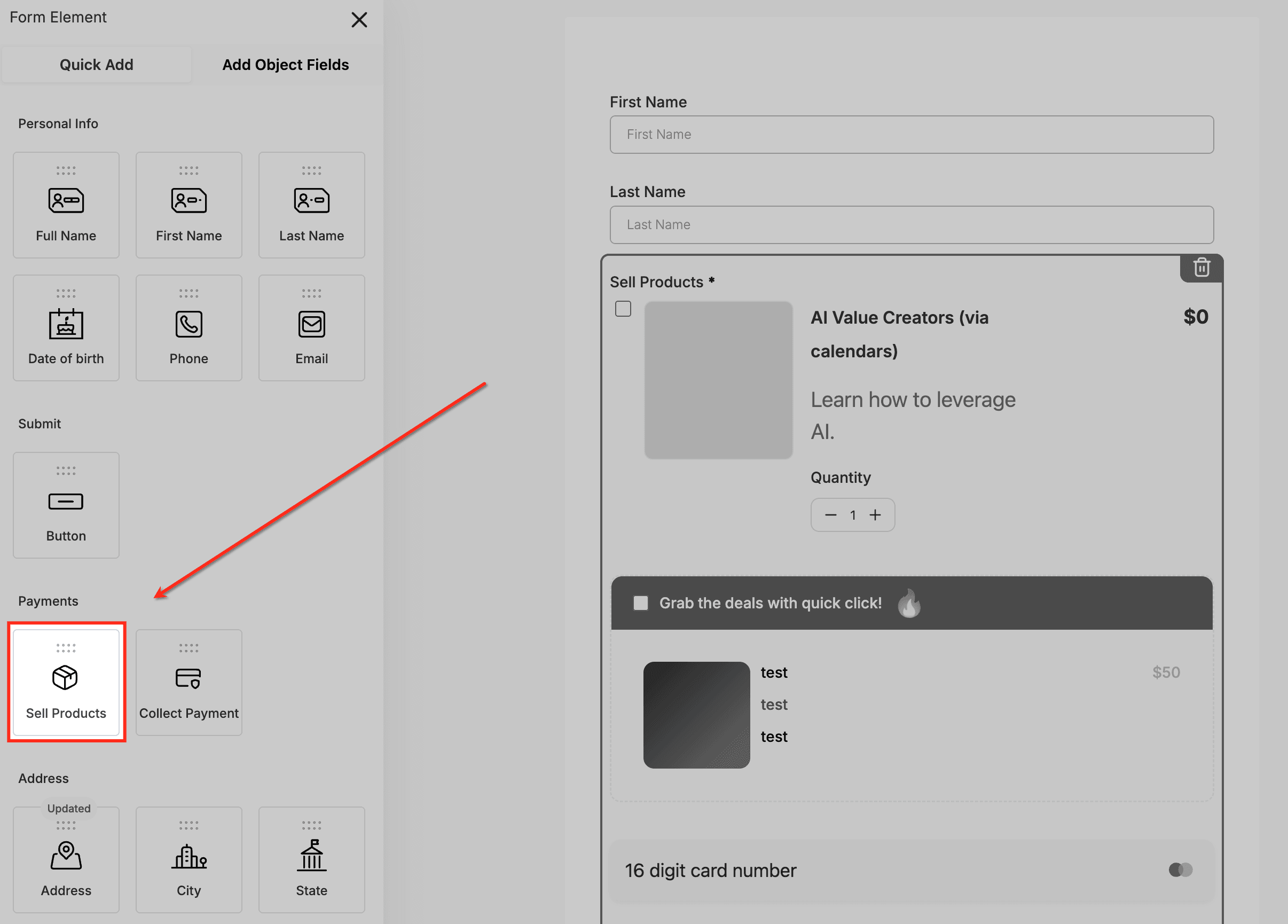
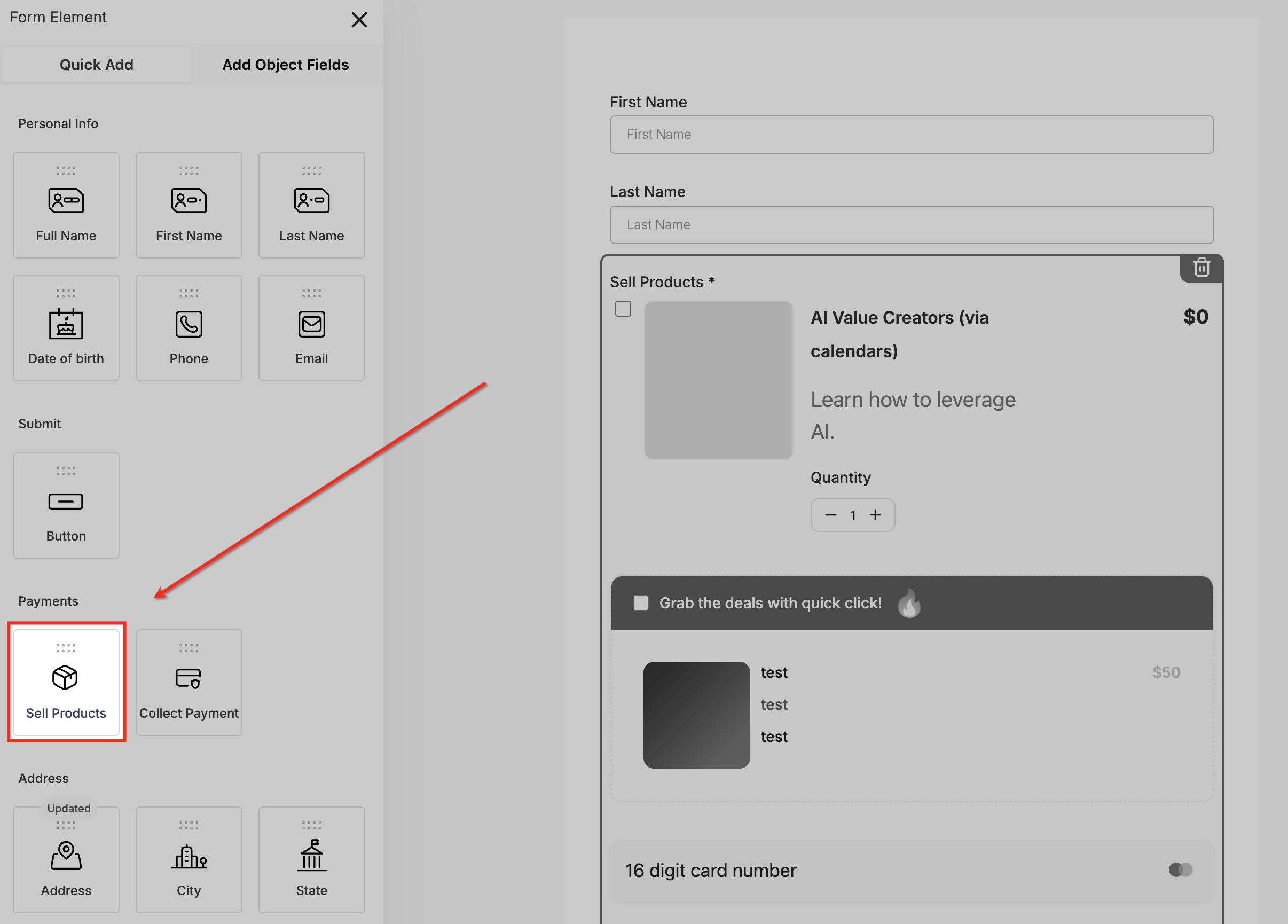
Add the "Sell products" element
The Payments section includes the "Sell products" element, which you can drag into your form to enable product-based checkout. Adding this element ensures the form can collect payment details and generate the token needed for one-click upsells.
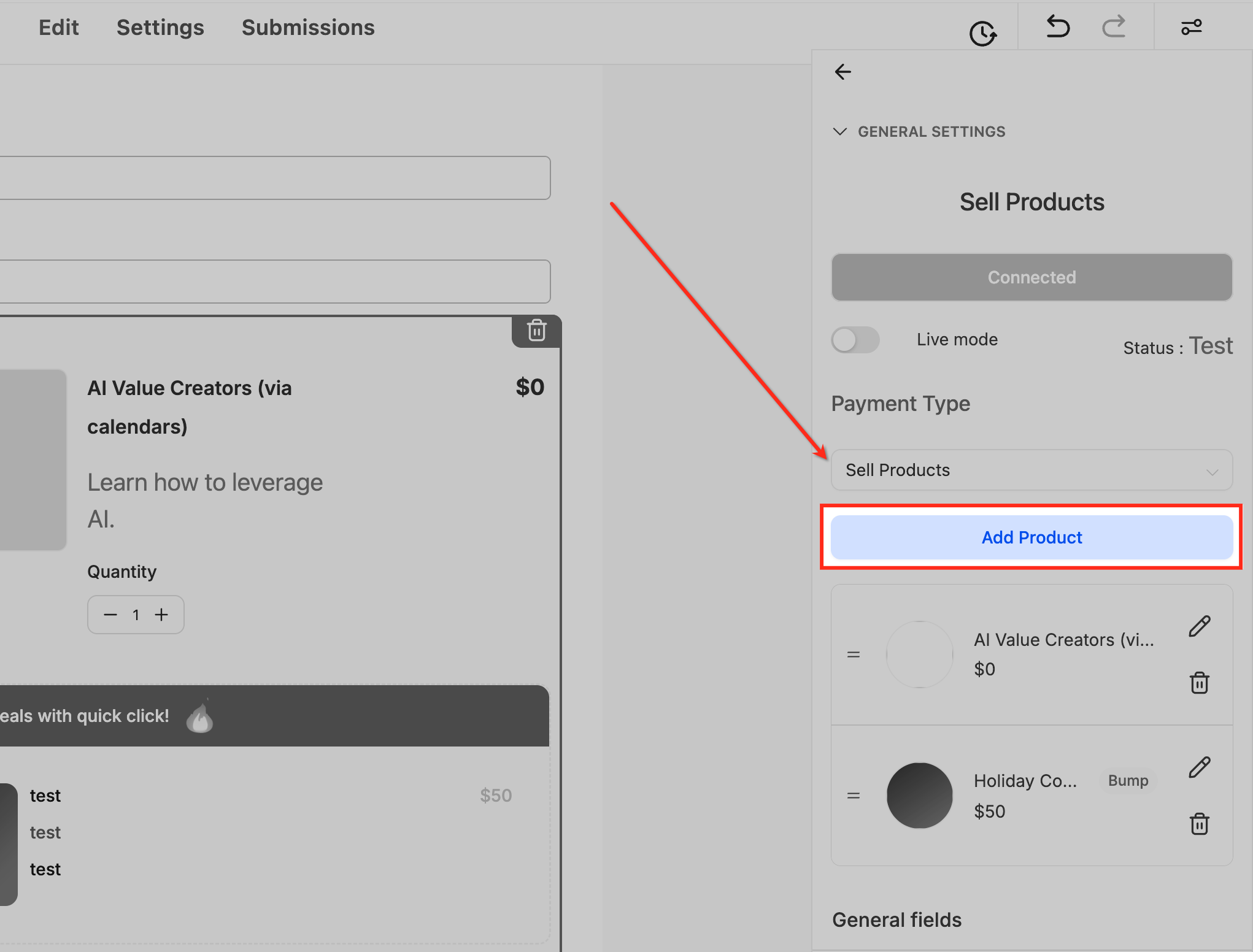
Add product
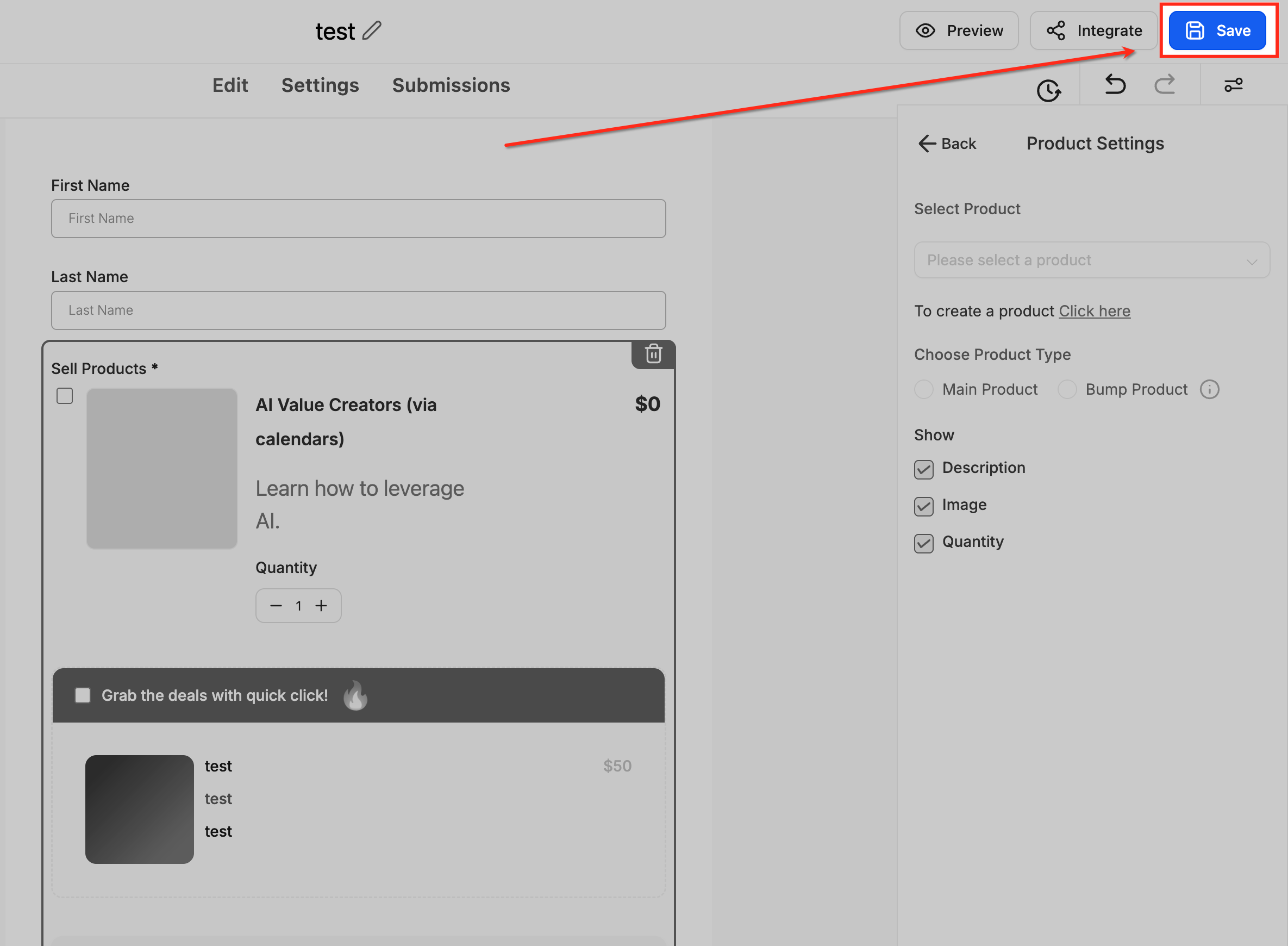
The "Sell products" settings panel lets you associate products by selecting "Add product". This option lets you define which item will be purchased when the main form is submitted.
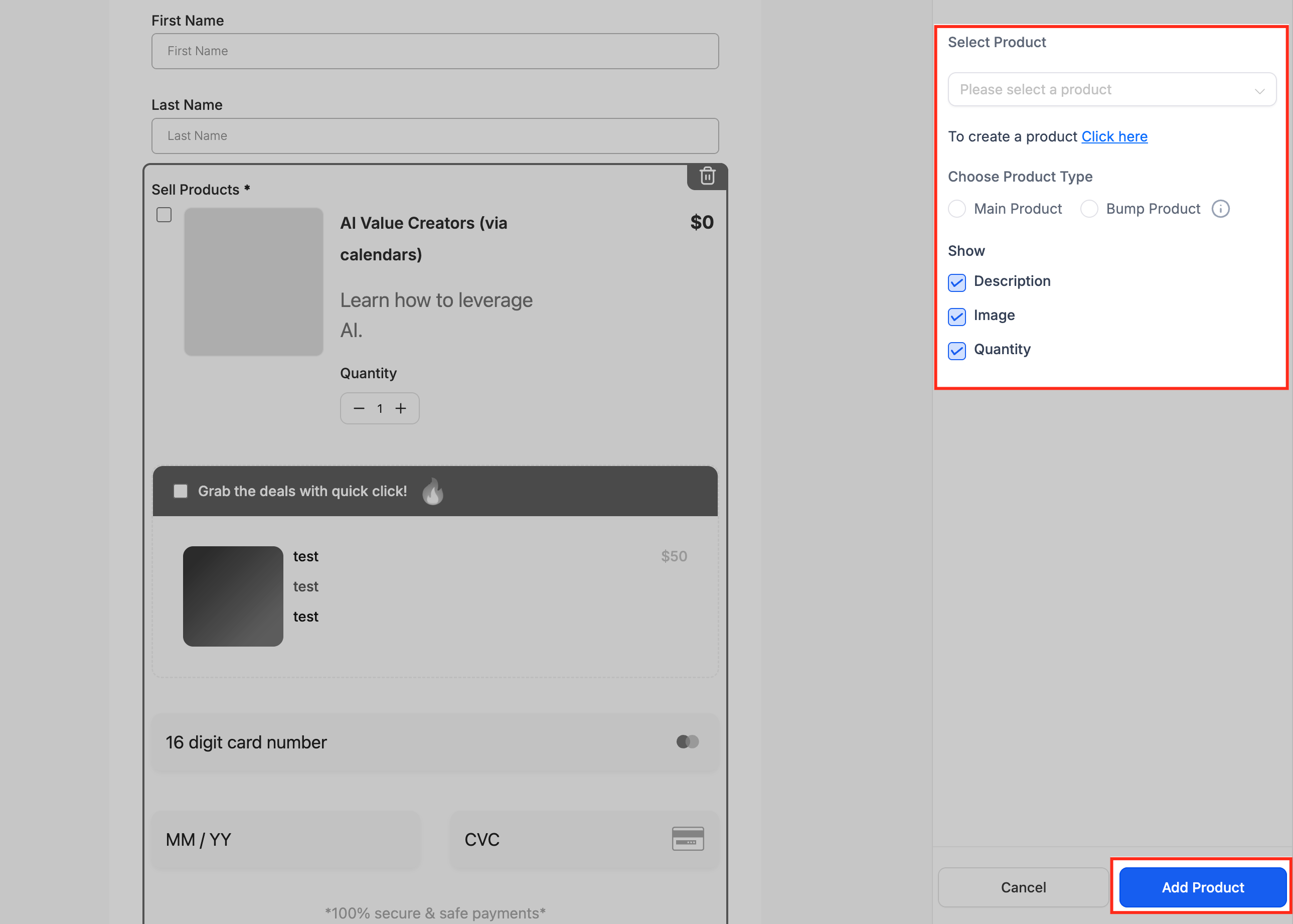
Select product
The product selection sidebar lets you choose an existing product or create a new one. You can also specify whether the item is a main product or a "bump" offer and decide which elements to display, such as description, image or quantity.
Save product
Once you have configured the product details, click "Save" to finalise the setup and apply the product to your form. This ensures the checkout can process the initial transaction correctly before moving on to the upsell flow.
Step 2: add the form to a V2 funnel
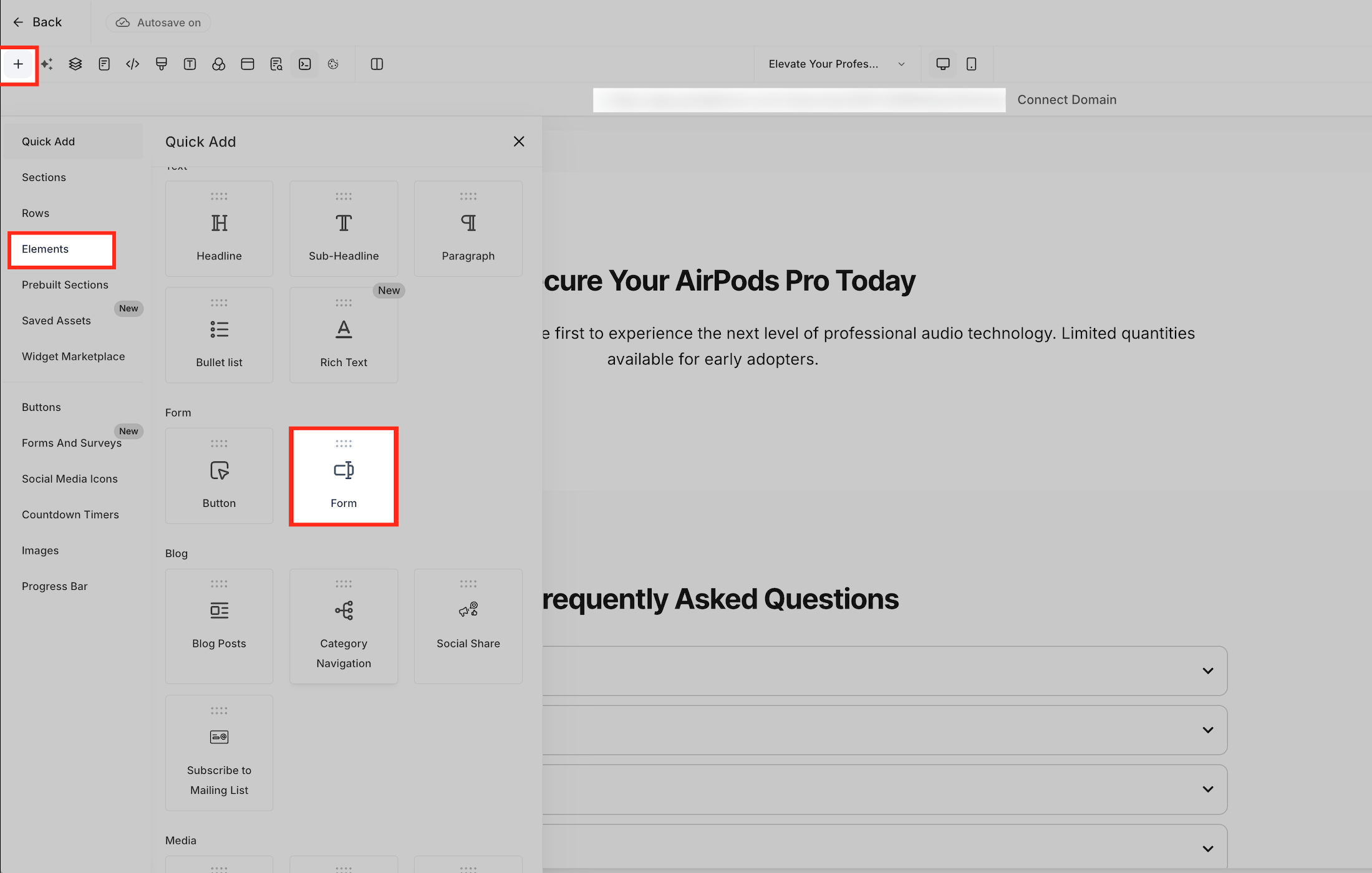
Insert a native form
The Elements panel in the funnel builder gives you access to the Form element, which can be added directly to your V2 funnel layout. Inserting your configured form here connects the main purchase step to the next stage of the upsell sequence.
Step 3: create the upsell step
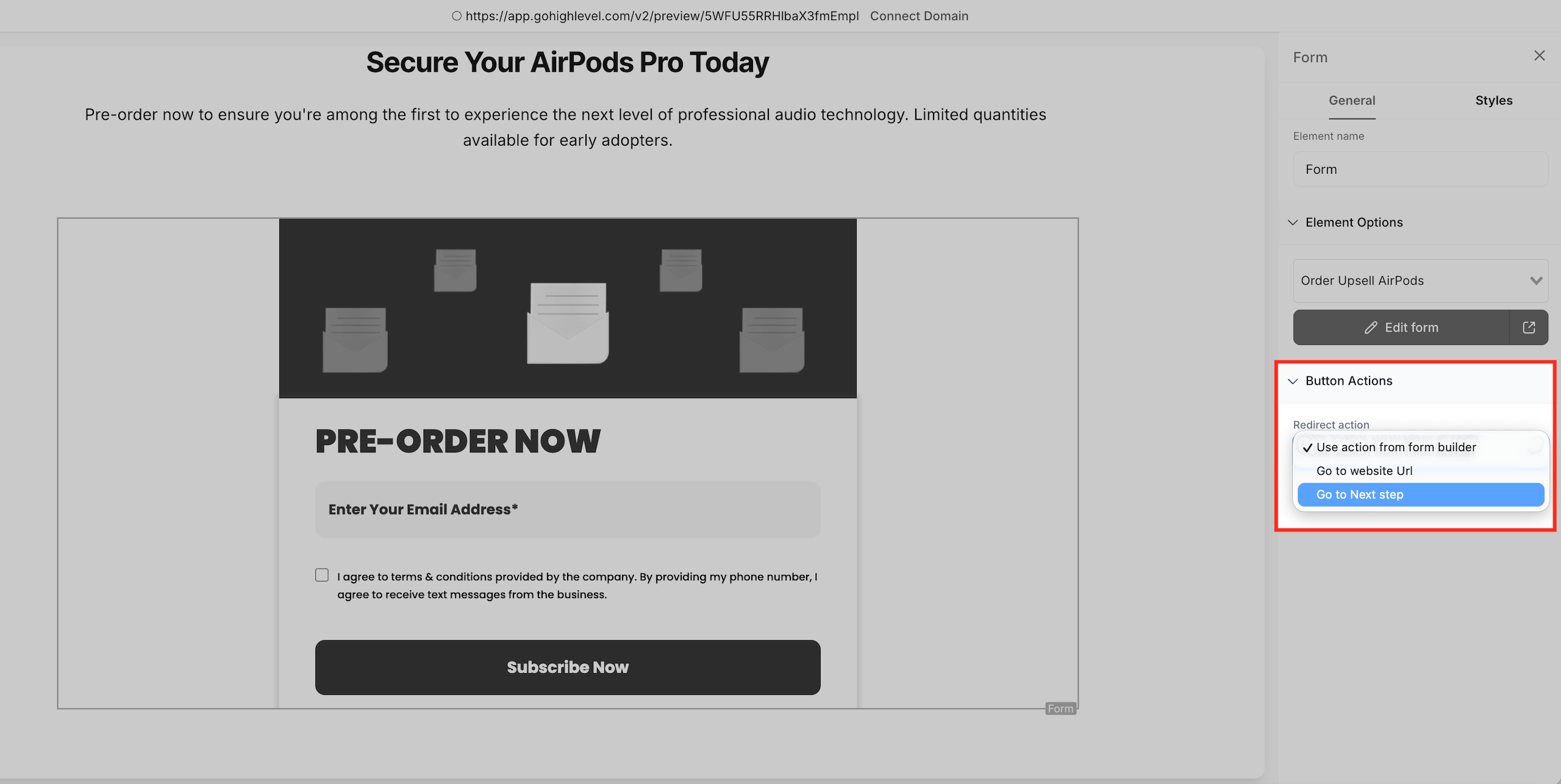
Redirect to the next step
The Form element's button action settings let you select "Go to next step" as the redirect behaviour after submission. Choosing this option takes customers straight to the upsell page once the initial purchase is complete.
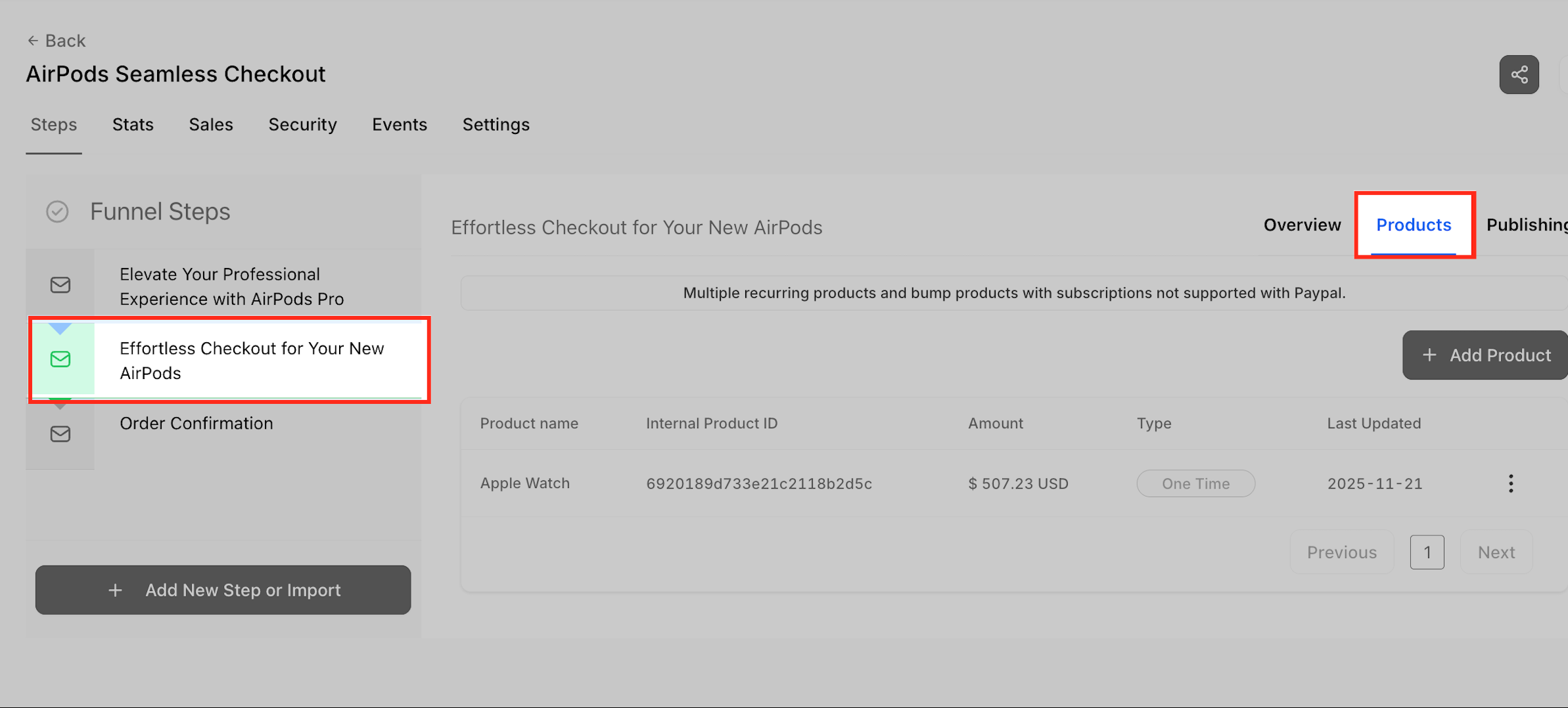
Assign the funnel products
The "Products" tab inside the funnel step shows the items linked to the main checkout. Checking the correct product here ensures the upsell logic is aligned with the initial order and is processed correctly.
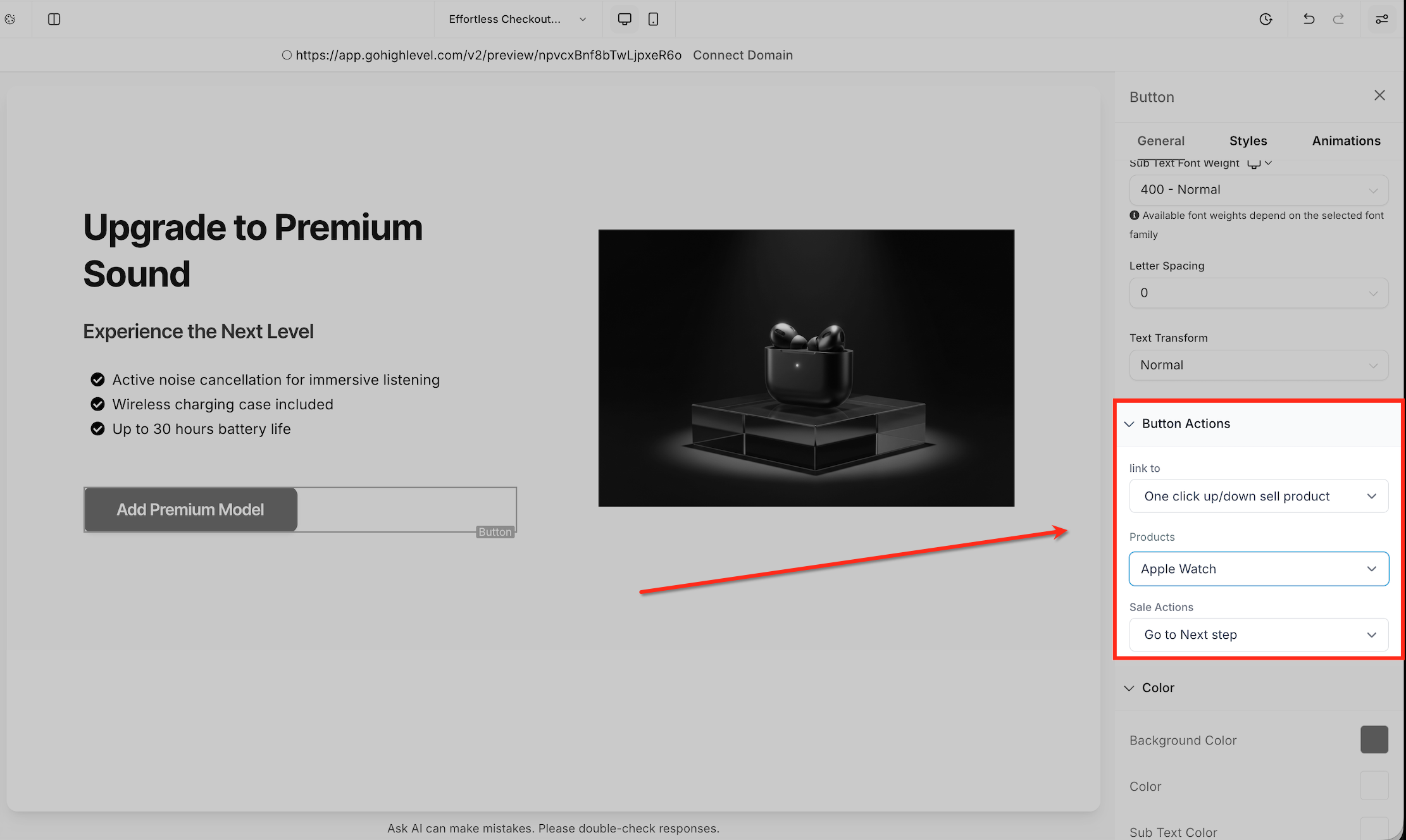
Configure the upsell button
The button settings panel offers an option to link the button to a One-click up/down sell product action. Choosing the upsell product here lets the system process the upgrade instantly using the payment token captured from the initial purchase.
Step 4: add an order summary
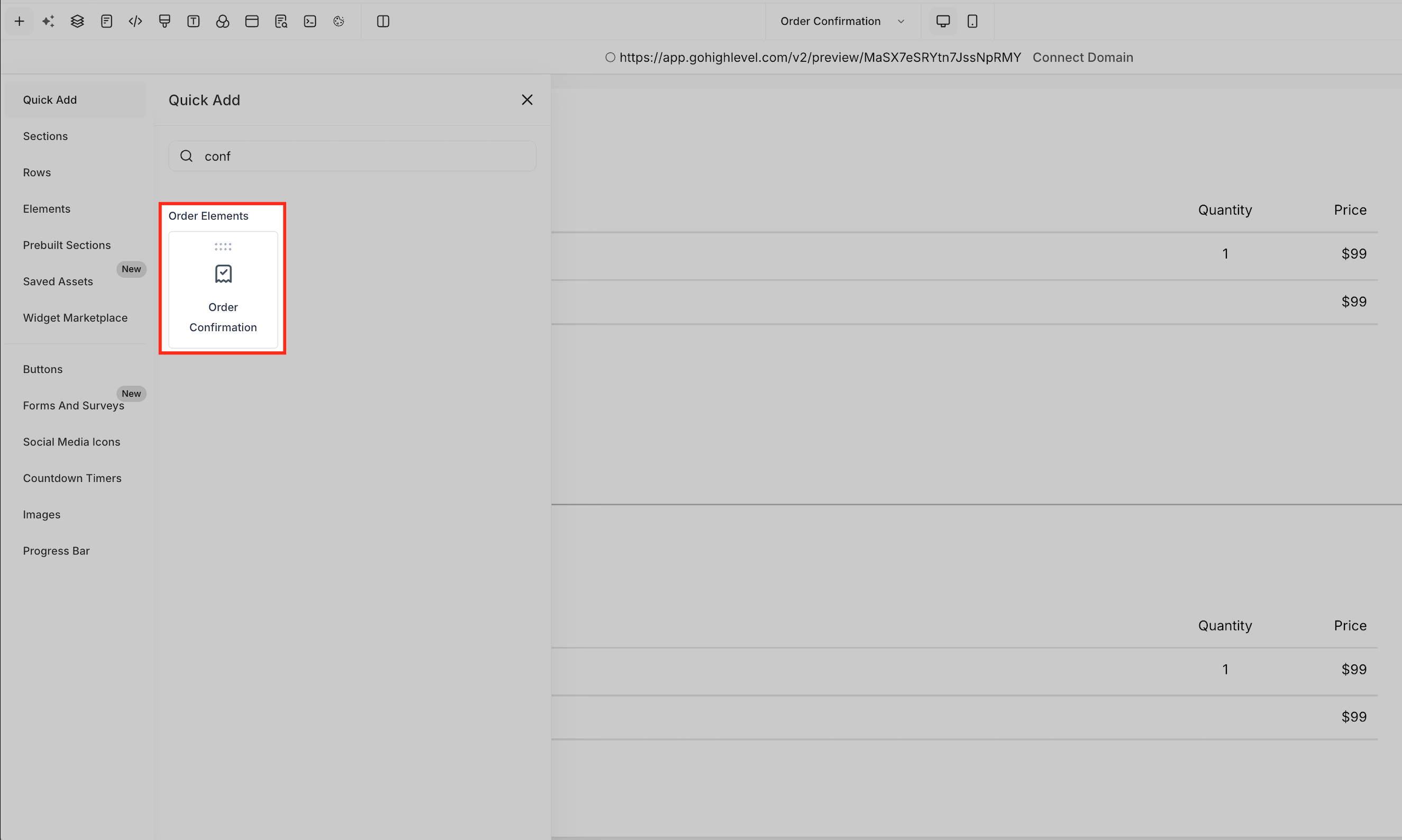
Add the order confirmation
The Order elements menu includes the "Order confirmation" component, which can be placed on the final page of the funnel. This element shows a clear summary of the purchase the customer has completed, including any upsells accepted.
Frequently asked questions
Can I add more than one upsell offer?
Yes. Each step supports one upsell product, but you can chain several funnel steps together to create multi-step upsell sequences.
Do order upsells work in V1 funnels or on websites?
No. They only work in V2 funnels using native form elements.
What is the difference between an upsell and an order bump?
Order bumps appear in the original form checkout, whereas upsells appear after the initial purchase, in the next funnel step.
Will customers see two separate charges?
They will see two charges, but both will appear in the same order record and on a single unified receipt.
Can automations fire only when the upsell is purchased?
Yes. Use the Order submitted trigger with a Product filter to target specific SKUs.
Which payment gateways are supported?
Any gateway supported by V2 funnels: Stripe, PayPal, Square, Authorize.net, NMI and approved marketplace providers.
Does inventory affect upsells?
Yes. If inventory is enabled and the product is out of stock, the upsell cannot be purchased.
Can customers change the quantity of the upsell product?
No. The upsell button always sells one unit only.