


Table of contents
- What are voice notes and attachments in live chat widgets?
- Main benefits of voice notes and attachments in live chat
- Supported message types, file types and limits
- Supported actions for visitors
- Supported image and document file types
- Supported audio behaviour
- File limits
- Uploading files and voice notes on the visitor side
- Uploading files from the website
- Recording and sending a voice note
- How to configure voice notes and attachments in live chat widgets
- Reviewing attachments and voice notes in Conversations
- Using Conversation AI with images and voice notes
- Troubleshooting voice notes and attachments
- Frequently asked questions
What are voice notes and attachments in live chat widgets?
Voice notes and attachments let website visitors send more than plain text through the Futuria CRM live chat widget. Visitors can upload supported files, send audio attachments or record voice notes directly inside the widget.
These messages appear in the Conversations section, where your team can review them, preview them, play them, download them or reply, depending on the file type.
Live chat routes website messages straight into Conversations, keeping visitor messages, uploaded files and voice notes in the same inbox your team already uses to handle live conversations.
Main benefits of voice notes and attachments in live chat
- Faster communication for visitors: visitors can upload files, send audio or record voice notes instead of typing long explanations.
- Better context for agents: screenshots, PDFs, images and voice notes help agents understand the problem before they reply.
- Attachment-only messages: visitors can send files or audio without having to add any text.
- Audio preview before sending: visitors can listen back to a recorded voice note before sending it.
- Built-in audio playback: audio messages are displayed as playable audio cards with controls for play, pause, scrubbing, mute, restart and playback speed.
- Improved AI workflows: Conversation AI can process supported images and voice notes when the correct AI reply settings are enabled.
- Clearer widget controls: account users can choose whether the attachment and microphone icons should appear in the live chat widget.
Supported message types, file types and limits
The rules on supported files help protect the visitor experience and prevent unsupported or oversized files from being sent through the widget. Use the formats below to make sure visitors can share files successfully and agents can open them in Conversations.
Supported actions for visitors
Visitors can:
- Record and send voice notes from the live chat widget.
- Upload supported audio files.
- Upload supported image and document files.
- Send files, audio or voice notes without adding any text.
- Preview the audio before sending.
- Monitor upload progress while files are being attached.
Supported image and document file types
.jpg.jpeg.png.heic.pdf
JPG and PNG files can show built-in previews, while HEIC and PDF files may appear as downloadable file names rather than previews.
Supported audio behaviour
Voice notes and audio attachments are displayed as playable audio cards in the widget and in Conversations. The built-in player includes:
- Play/Pause
- Waveform
- Scrubbing controls
- Mute/Unmute
- Playback speed 1×, 1.5× and 2×
- Restart audio
Conversation AI audio replies support voice notes and audio files as input. The existing Conversation AI audio documentation lists the supported uploaded audio formats as OGG, MP3, audio-only MP4, AAC, M4A and MPEG.
File limits
- Maximum number of files per message: up to 5 files.
- Size limit per file: up to 25 MB.
- Unsupported file types, oversized files and duplicate file selections may be blocked automatically.
Uploading files and voice notes on the visitor side
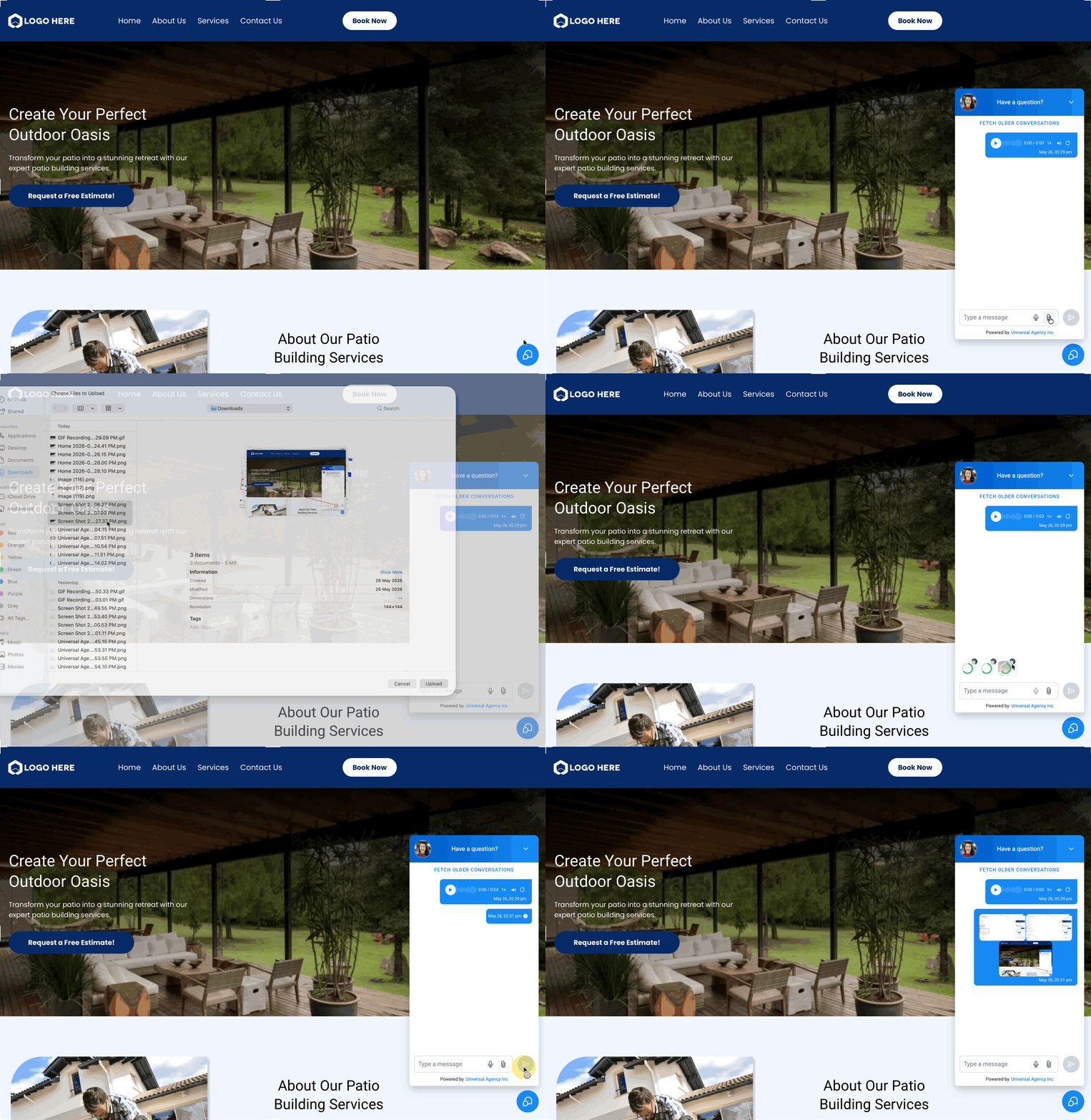
The upload flow on the visitor side is designed to be simple on both desktop and mobile. Visitors can use the attachment icon to upload files, drag files into the widget on desktop, or use the microphone icon to record a voice note.
Uploading files from the website
- Open the live chat widget on the website.
- Click the attachment icon or drag supported files into the chat composer.
- Select the file or files to attach.
- Wait for the upload progress indicator to finish.
- Send the message.
Visitors can send attachment-only messages, so a text message is no longer required when sending supported files or audio.
Recording and sending a voice note
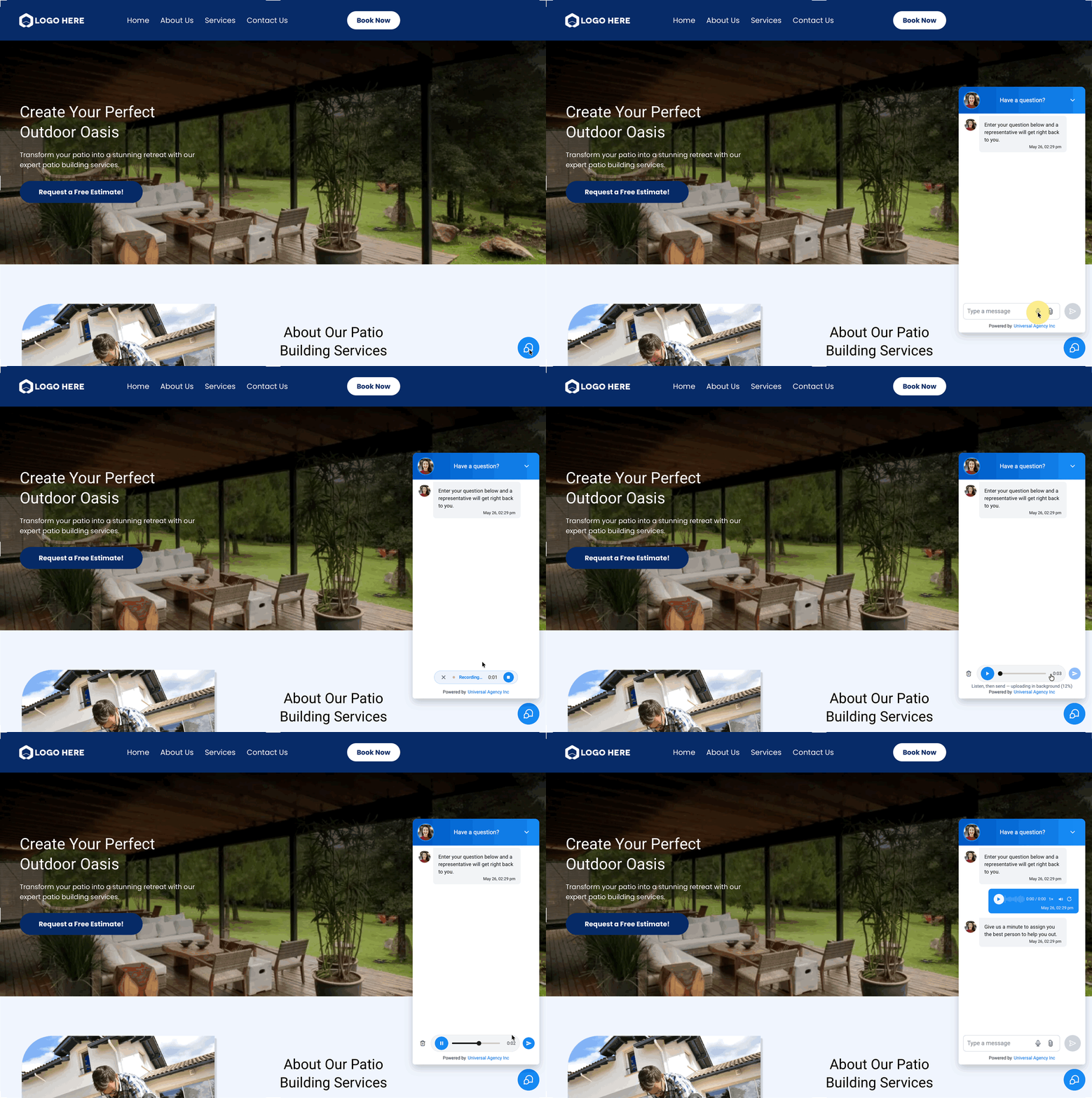
- Open the live chat widget. Click or tap the microphone icon.
- Allow microphone access when the browser asks for permission.
- Record the voice note.
- Listen to the audio preview before sending.
- Send the voice note.
If microphone permission is denied, the widget shows a warning message telling visitors how to fix the problem.
How to configure voice notes and attachments in live chat widgets
Correct configuration ensures that visitors can send the right message types and that your team can review them in Conversations. Since live chat must be installed and embedded on your website before messages can be routed into Conversations, start by confirming that the widget is active, correctly configured and available to visitors.
- Go to Sites → Chat widgets. Create or open a live chat widget.
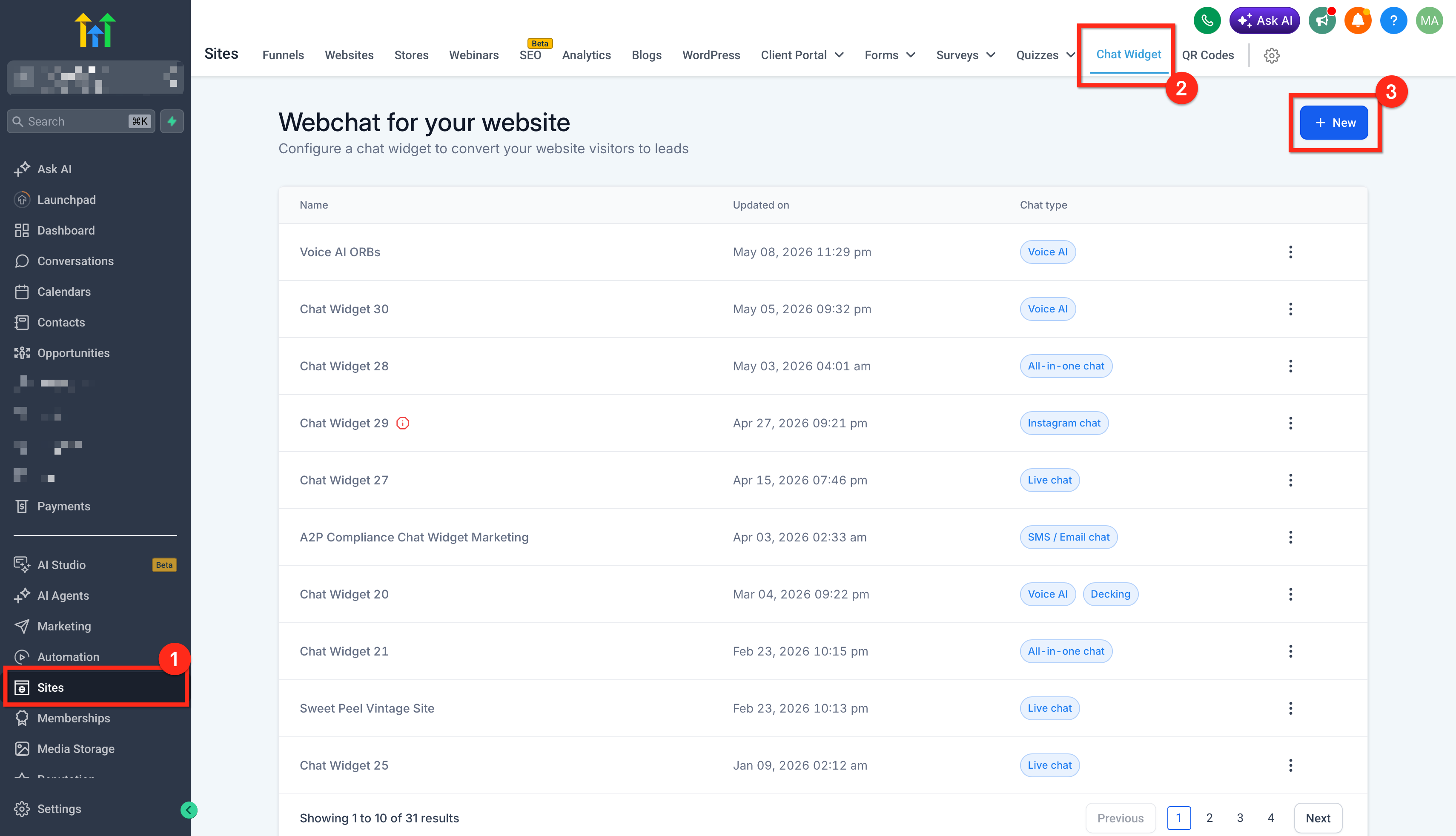
- Go to Chat window → Additional options.
Make sure Allow voice notes to be sent is enabled if you want visitors to be able to send voice notes.
Make sure Allow attachments to be sent is enabled if you want visitors to be able to upload files.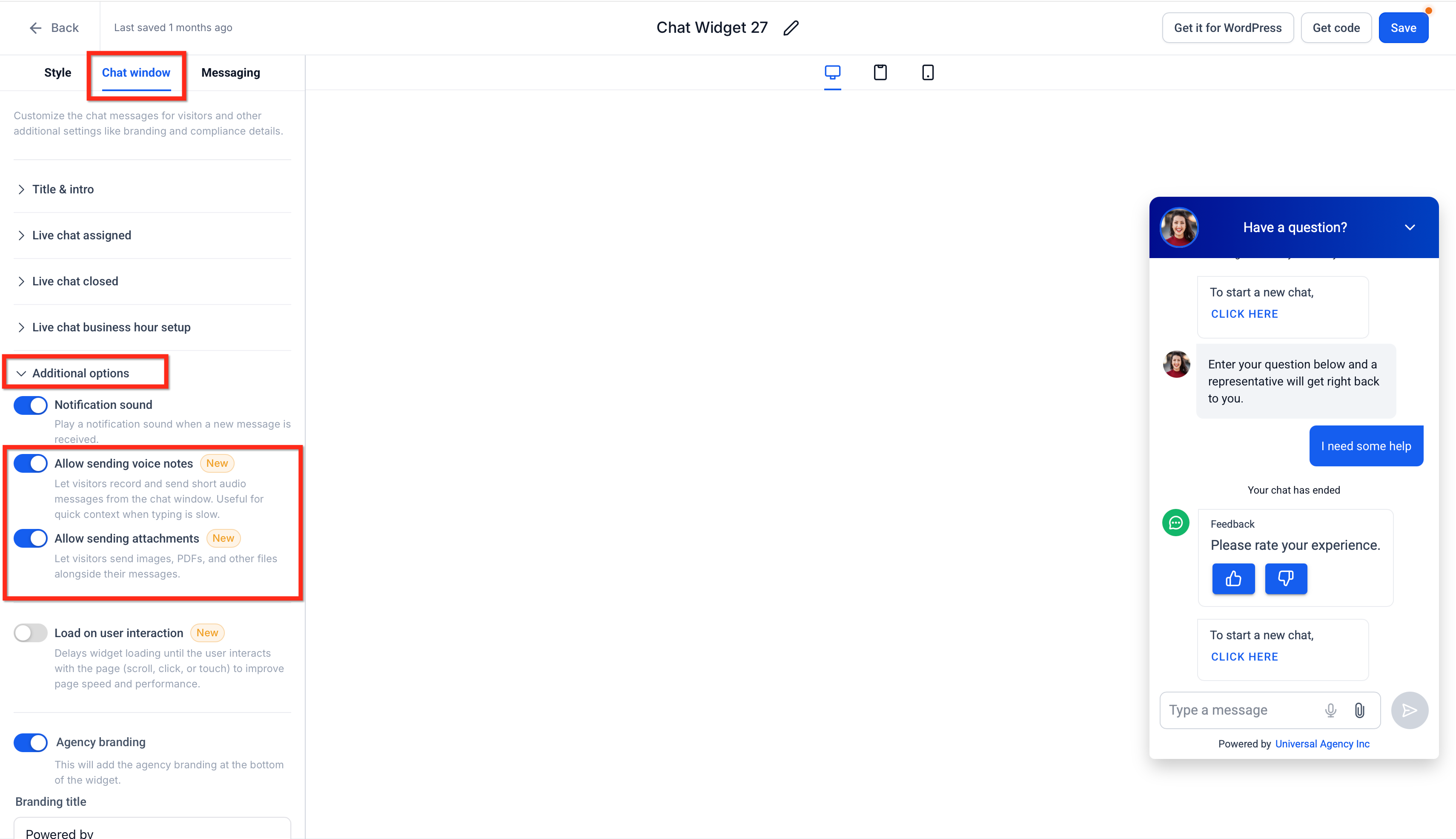
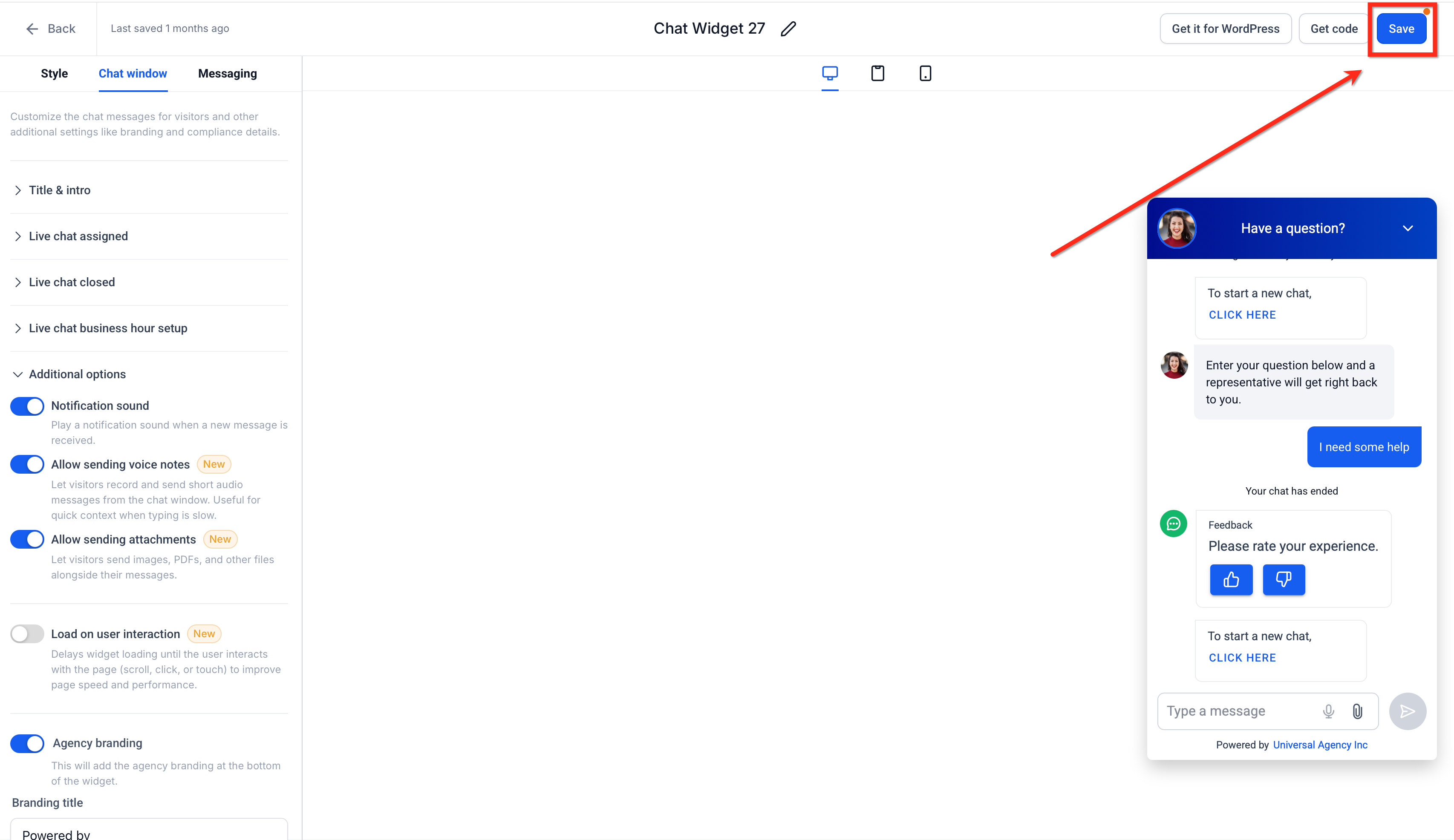
- Save the widget.
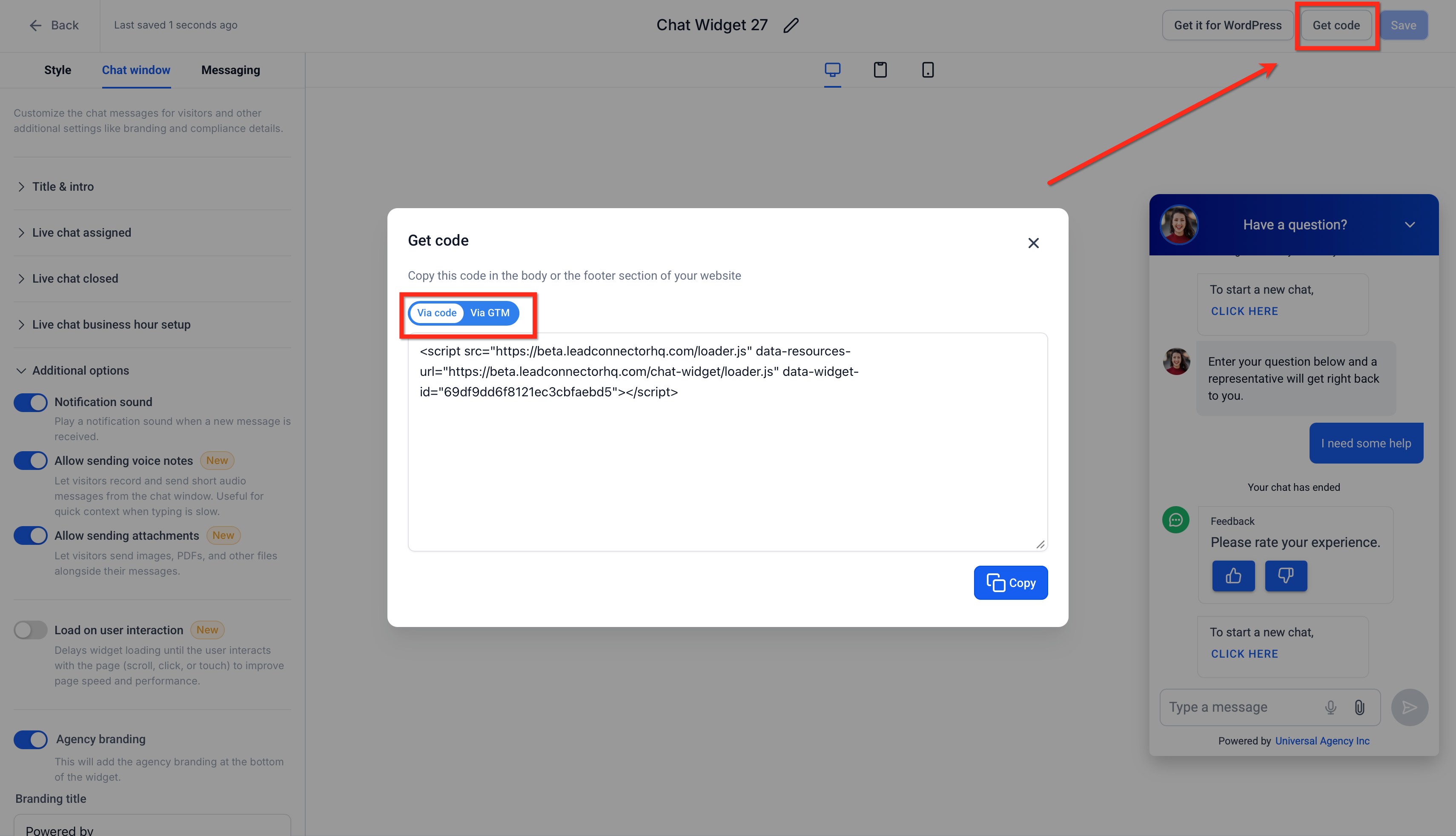
- Embed the widget on your website by copying the embed code and adding it to your site, or by enabling the widget through the website or funnel settings if the page is built in Futuria CRM.
- Open the website as a visitor and test the widget.
- Send a file, an attachment-only message and a voice note.
- Confirm that each message appears correctly in Conversations.
Reviewing attachments and voice notes in Conversations
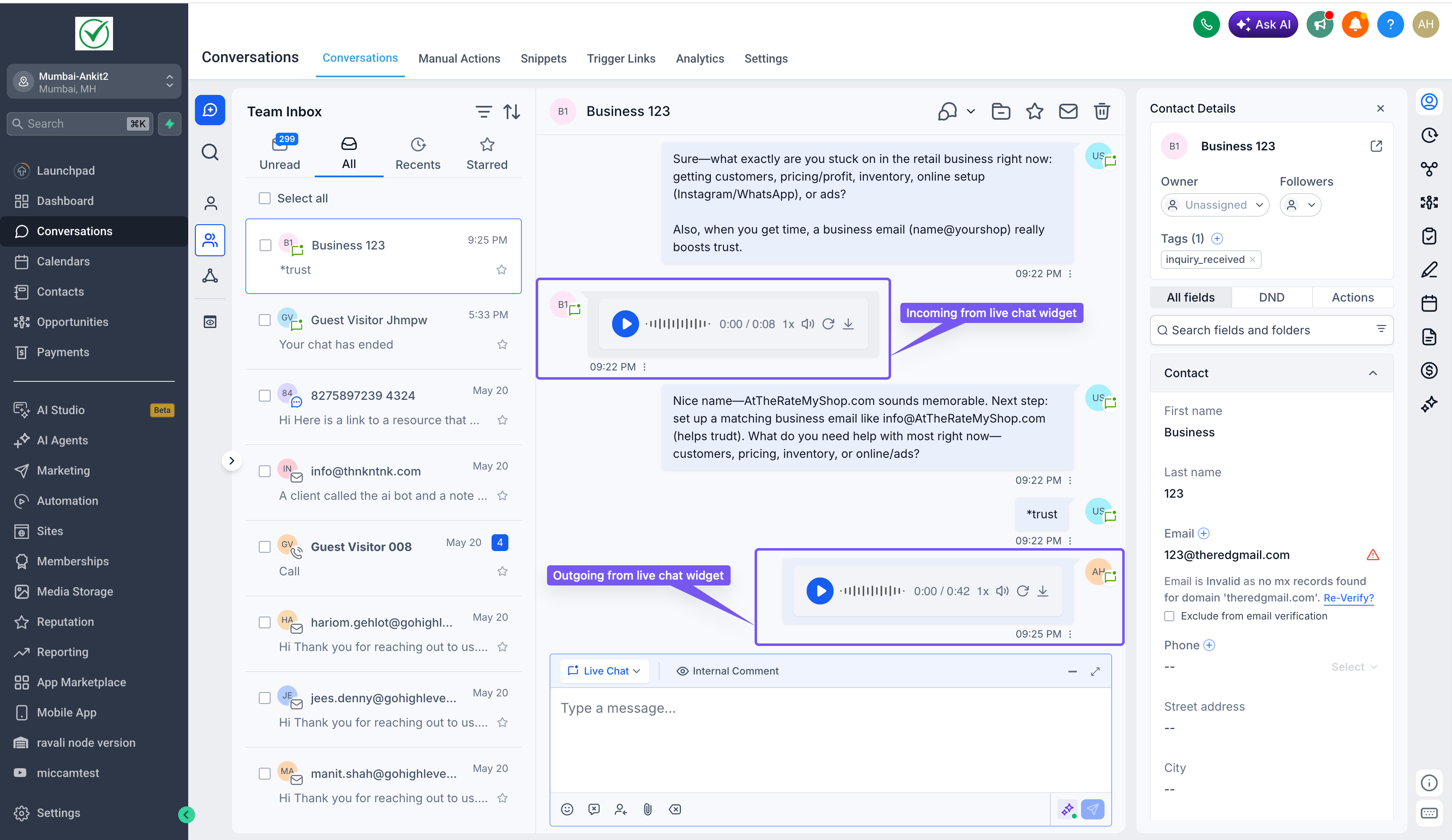
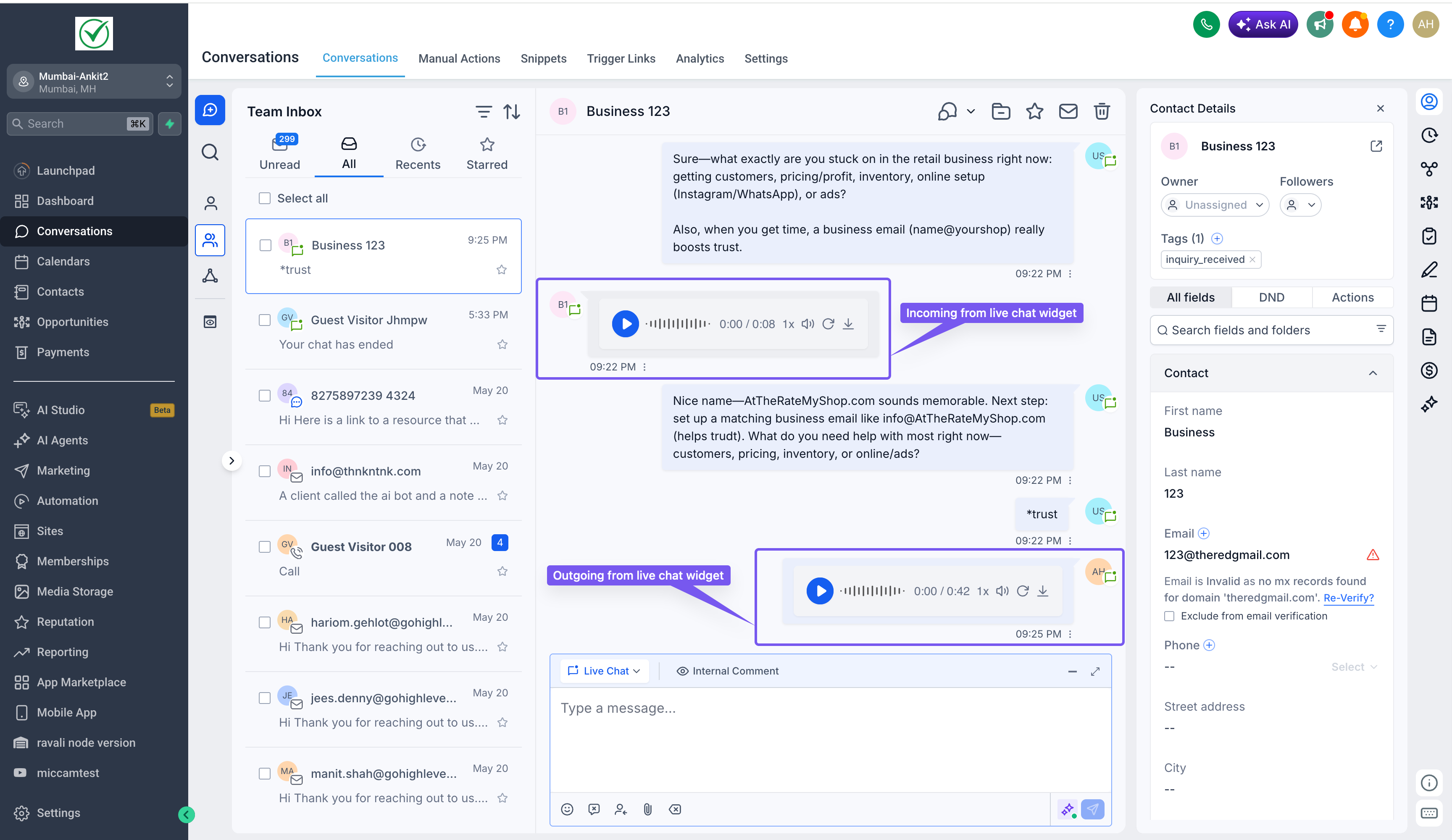
The Conversations section gives agents a central place to review visitor messages, files and voice notes. Because live chat messages are routed into Conversations, agents can handle the visitor's context without switching tools.
Agents can review incoming files and voice notes from the conversation thread:
- JPG and PNG files can show built-in previews.
- HEIC and PDF files may appear as downloadable file names.
- Audio messages are displayed as playable audio cards instead of raw links.
- Agents can preview, play, download or reply, depending on the file type.
- Files can be saved to the Media Library or added to the contact's Documents tab, when available from the message options.
Using Conversation AI with images and voice notes
Conversation AI can reply to richer visitor messages when the image and voice note reply settings are enabled for the AI Agent. Depending on your workflow, you can allow the bot to reply to images, voice notes or both. This helps the bot use the visual or audio context of the visitor's message instead of relying on typed text alone.
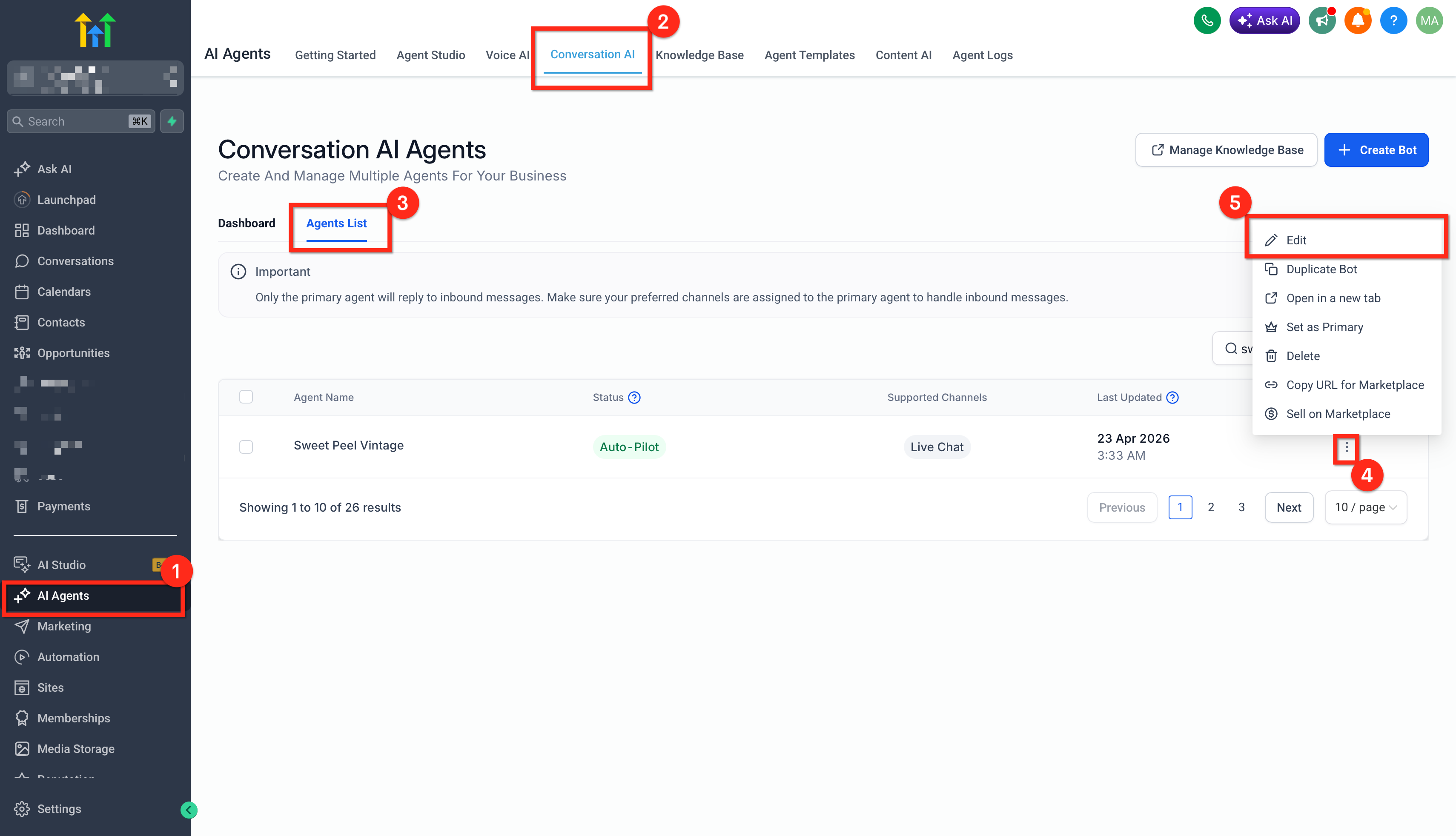
To enable Conversation AI replies for images, voice notes or both:
- Go to AI Agents → Conversation AI → Agent list.
- Click the three dots next to the bot you want to configure. Select Edit.
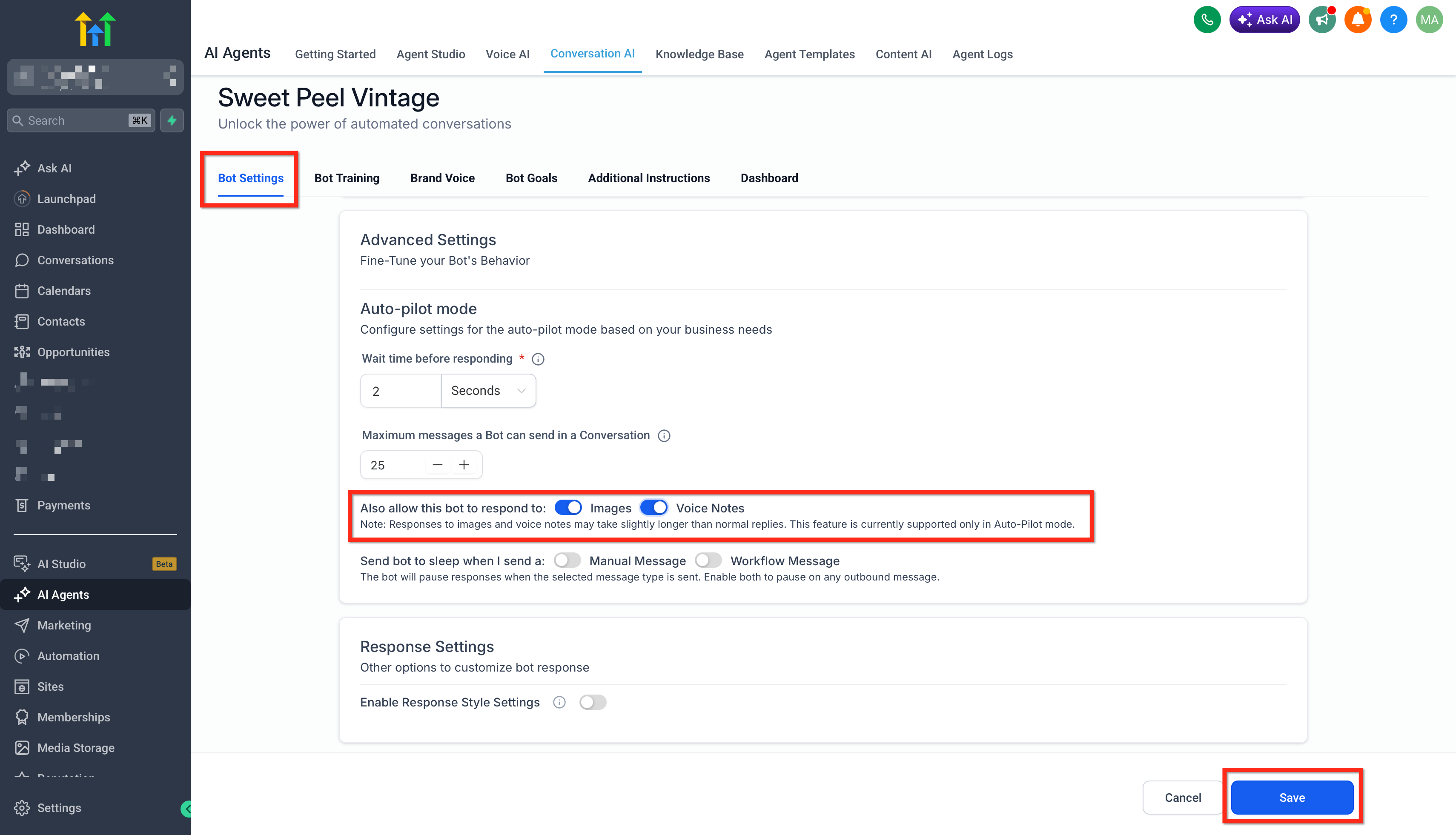
- Enable one or both options under Bot settings → Also allow this bot to reply to:
- Images
- Voice notes
- Save your changes.
When Images is enabled, Conversation AI can analyse the supported images shared by the customer and reply with contextual messages. The image types currently supported include JPG, JPEG and PNG. HEIC files can be uploaded as live chat attachments, but HEIC support for AI image replies may be limited.
When Voice notes is enabled, Conversation AI can process supported audio by transcribing the voice note, passing the transcript to the bot and generating a contextual reply. If Conversation AI voice note handling is enabled, the bot can process and reply to voice notes automatically. If it is disabled, the configured fallback message is shown.
Note: PDFs are not supported for Conversation AI image replies.
Troubleshooting voice notes and attachments
Troubleshooting upload and recording problems helps visitors complete the conversation without abandoning the chat. Most problems are caused by unsupported file types, large files, duplicate attachments, browser permissions or slow network connections.
- The file is too large: compress the file or choose a smaller version.
- The file type is not supported: convert the file to a supported format before uploading it.
- A duplicate file warning appears: remove the duplicate and attach a different file.
- The upload is slow: wait for the progress indicator to finish or try again on a more stable connection.
- Drag and drop does not work: drag the file from your computer's file explorer or use the attachment icon.
- Microphone permission is denied: allow microphone access in the browser settings and try recording again.
- The AI does not reply to an image or a voice note: confirm that the correct AI Agent setting is enabled for Images or Voice notes.
Frequently asked questions
Can visitors send attachments without typing a message?
Yes. Visitors can send attachment-only messages from the live chat widget.
Can visitors record voice notes inside the live chat widget?
Yes. When the Allow voice notes to be sent option is enabled, visitors can record, preview and send voice notes directly from the widget.
Can I turn off file uploads but keep voice notes active?
Yes. The attachment and voice note options are controlled separately, so you can enable or disable each one according to the experience you want to offer visitors.
Can visitors send PDFs?
Yes. PDFs are supported as live chat attachments, but they may appear as downloadable file names rather than built-in previews.
Can Conversation AI read PDFs sent via live chat?
No. Conversation AI image replies are for supported image formats. PDFs are not currently supported for AI image replies.
Can Conversation AI reply to voice notes?
Yes, when voice note replies are enabled for the bot. Futuria CRM transcribes the audio and passes the transcript to the bot so that it can reply.
Will the bot reply with an audio message?
No. Conversation AI typically replies using standard channel messages, usually text, to guarantee compatibility.
Why are HEIC files not previewed?
HEIC files can be uploaded as live chat attachments, but they may not be previewed depending on browser support. Download the file and open it locally if the preview is not available.