


Table of contents
- What does configuring a purchased domain mean?
- Where to find the settings for purchased domains
- Domain configuration
- Configuration - DNS records
- Configuration - Connect domain
- Frequently asked questions
What does configuring a purchased domain mean?
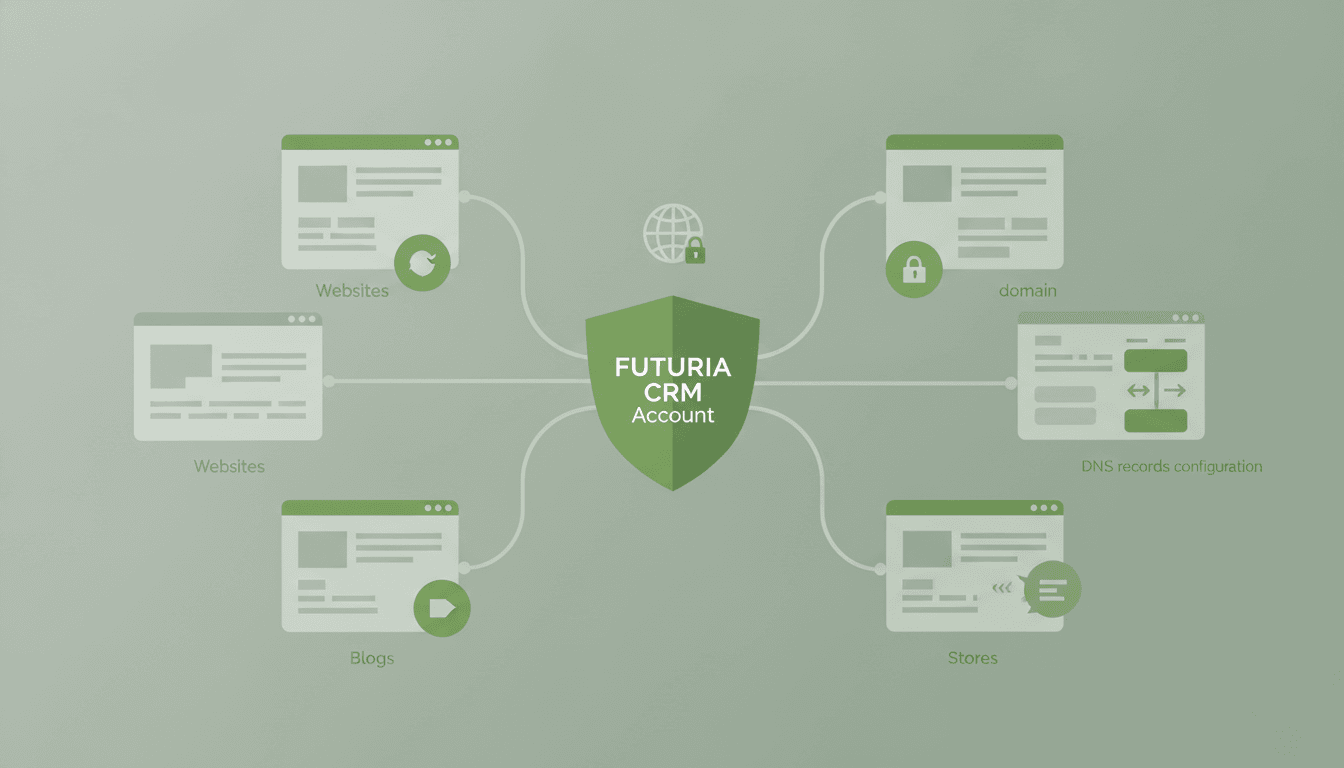
Every domain has configuration settings (DNS). When the domain is purchased through Futuria CRM, the platform also acts as the domain registrar. This lets you configure the domain without ever leaving Futuria CRM.
You can add, edit and remove the related DNS records (for example, CNAME) directly from your account.
If your account has been deleted and you need to request the release or transfer of a domain purchased through Futuria CRM, contact Futuria CRM support to start the domain release request.
Where to find the settings for purchased domains
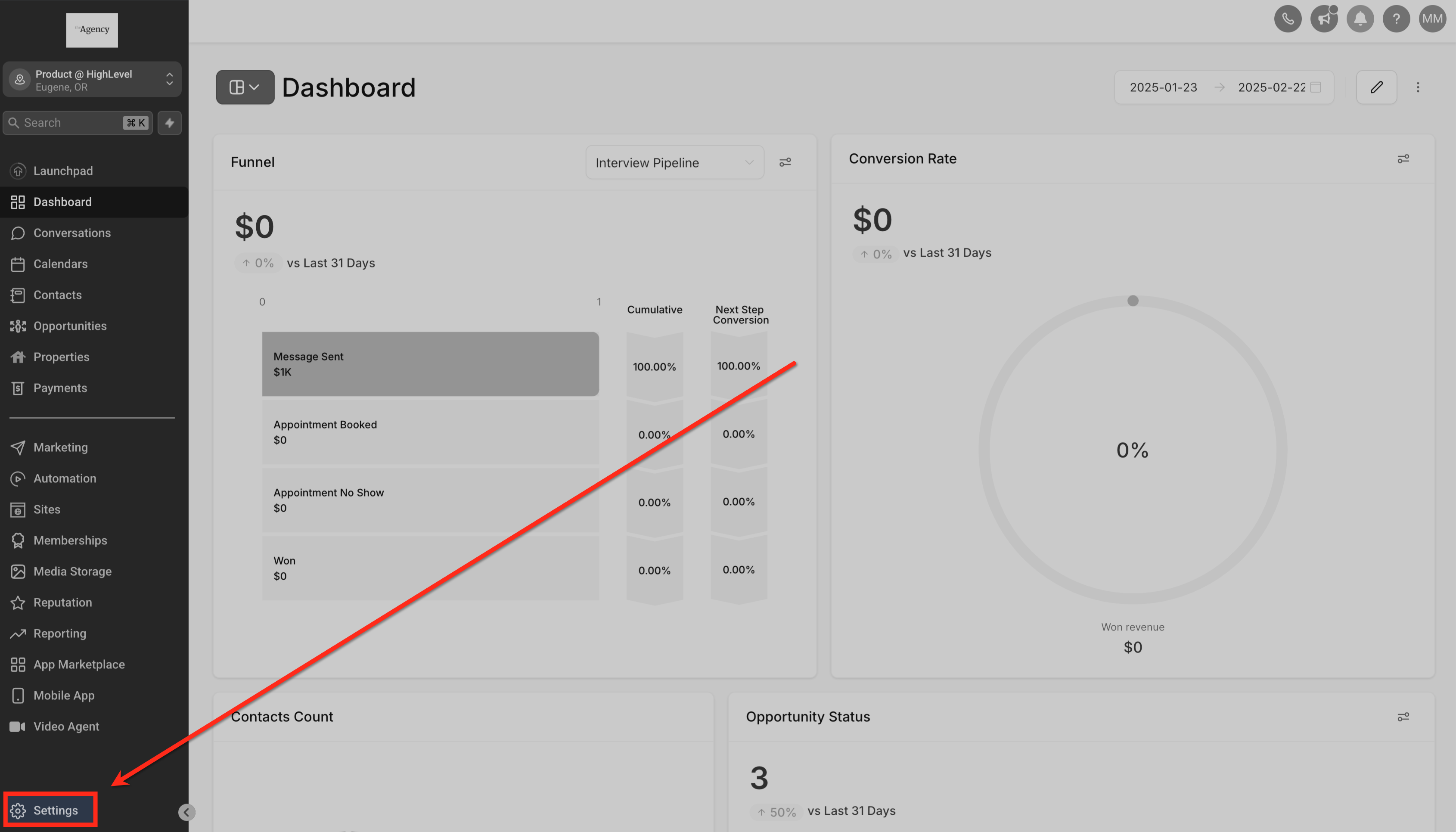
Go to Account > Settings > Domains > Purchased domains.
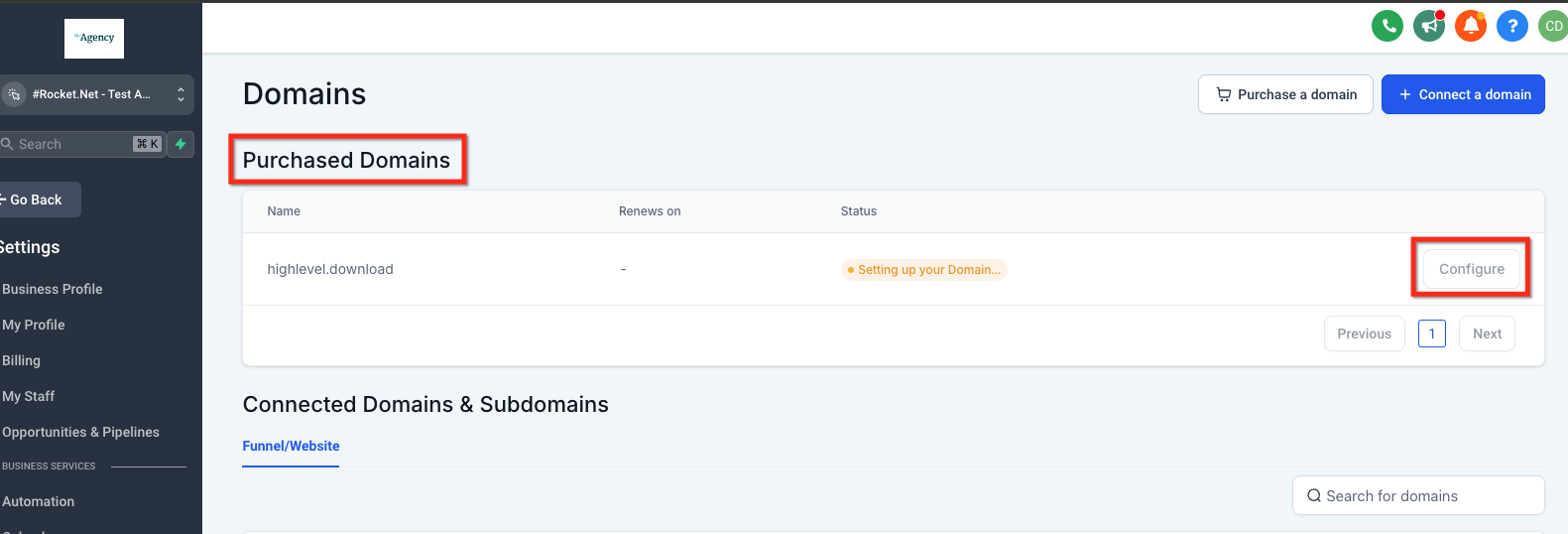
Here you will see the list of all the domains you have bought through the platform.
Domain configuration
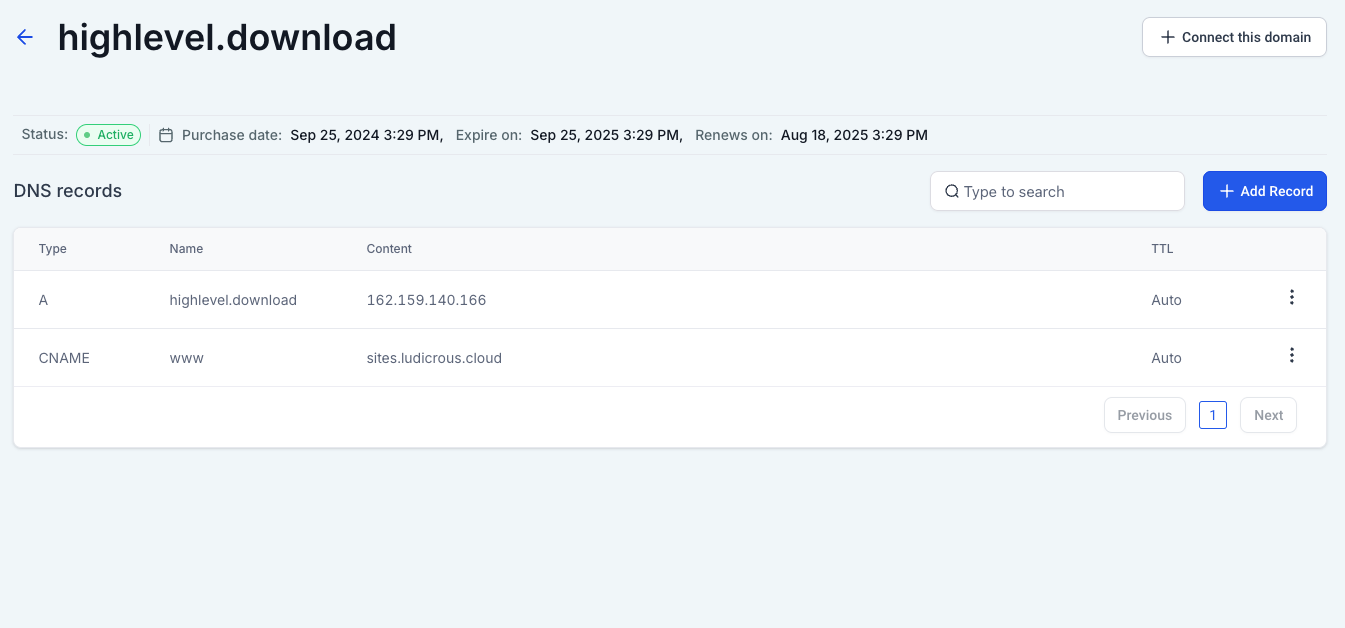
Click Configure next to the purchased domain to open its settings. You can manage the domain in two ways:
- Add record (or edit an existing record).
- Connect domain to an item in the Sites section (for example, a website, a store, and so on).
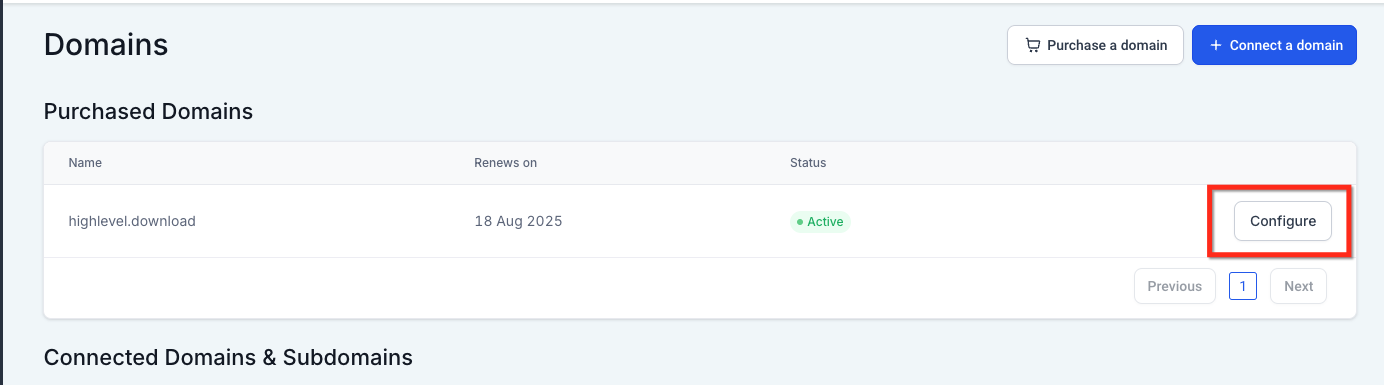
Both options let you manage how your domain interacts with your online resources.
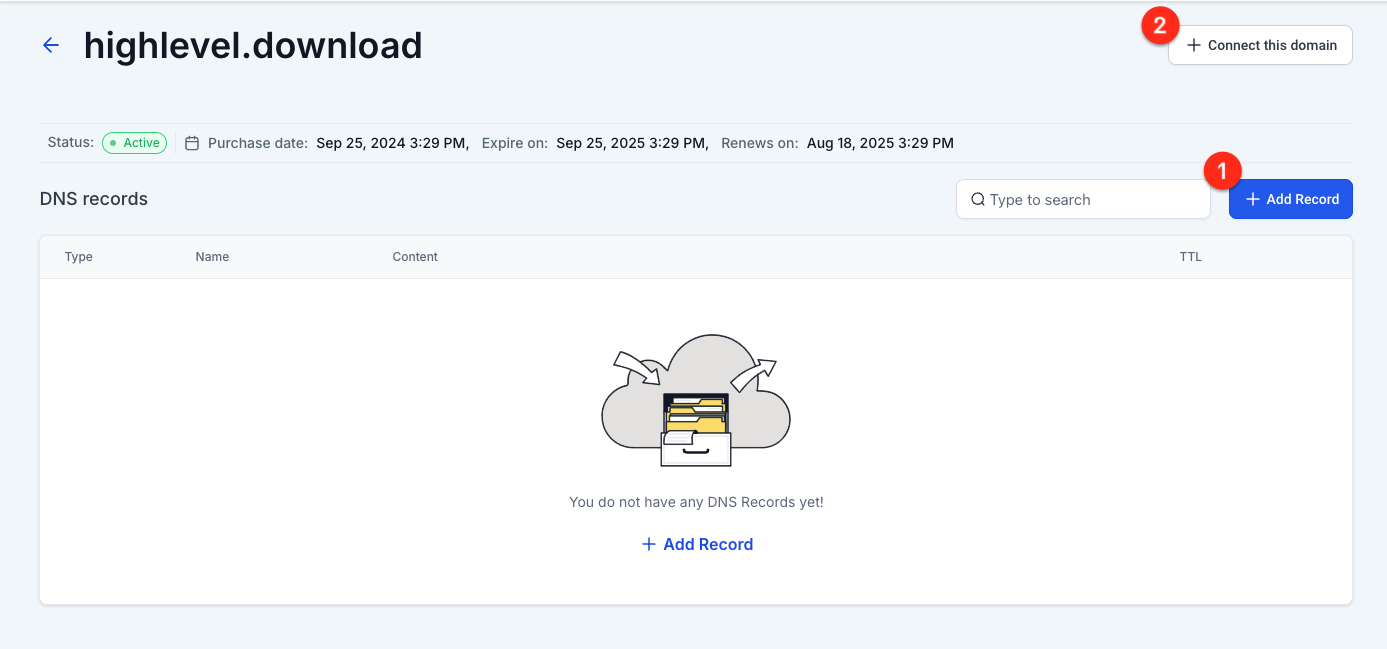
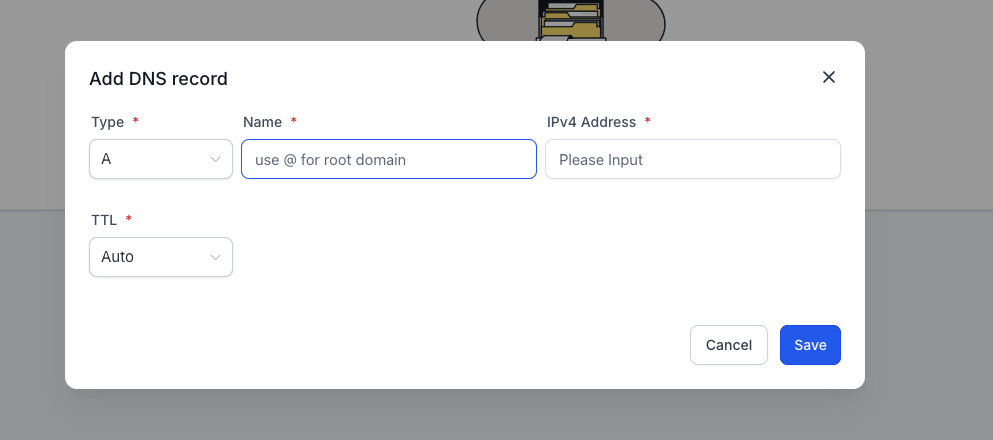
Configuration - DNS records
You can add and edit the following types of DNS record:
- A
- CNAME
- AAAA
- MX
- TXT
You should have only one A record when you point a main domain. Multiple A records for the same domain (e.g. yourdomain.com) can cause DNS resolution conflicts, especially when the system tries to insert the required A record automatically.
Configuration - Connect domain
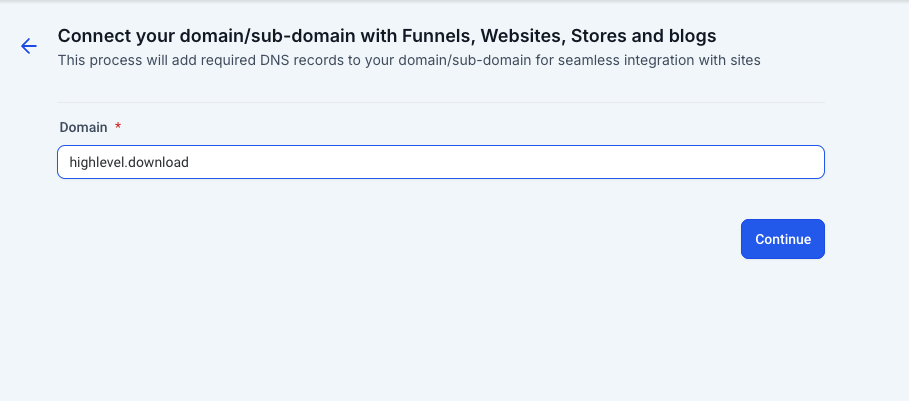
Click Connect this domain to link it to one of the items you have created in the Sites section, such as funnels, websites, stores or blogs. The guided procedure will help you complete the operation in a few steps.
- Click Continue to start the procedure.
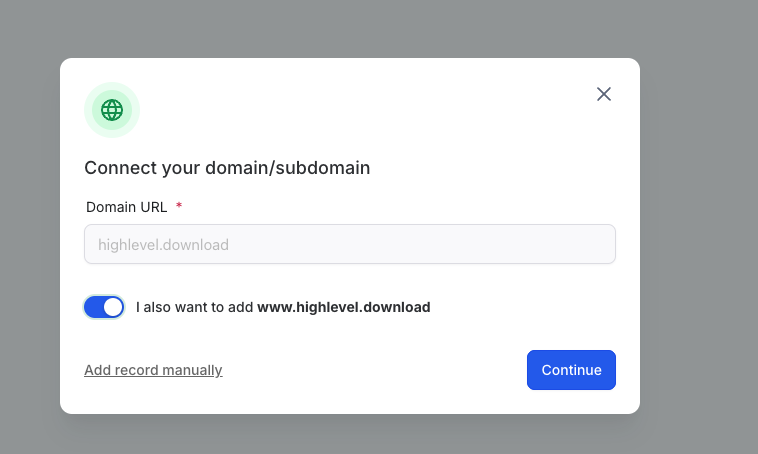
- Confirm again by clicking Continue.
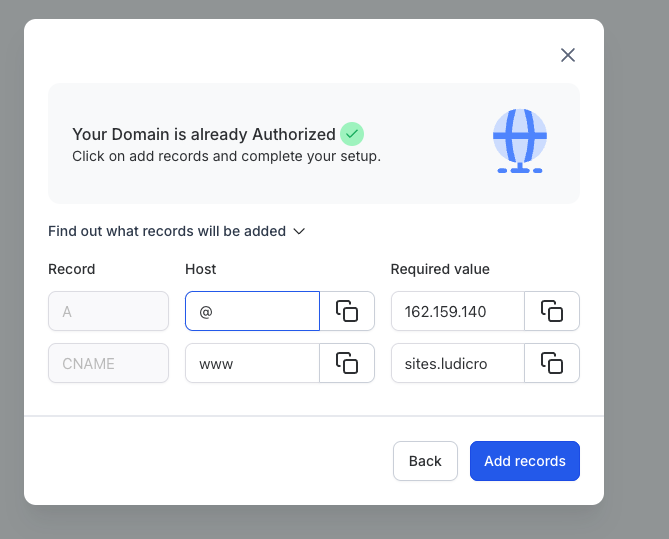
- The system will ask you to add the necessary records. Click Add record.
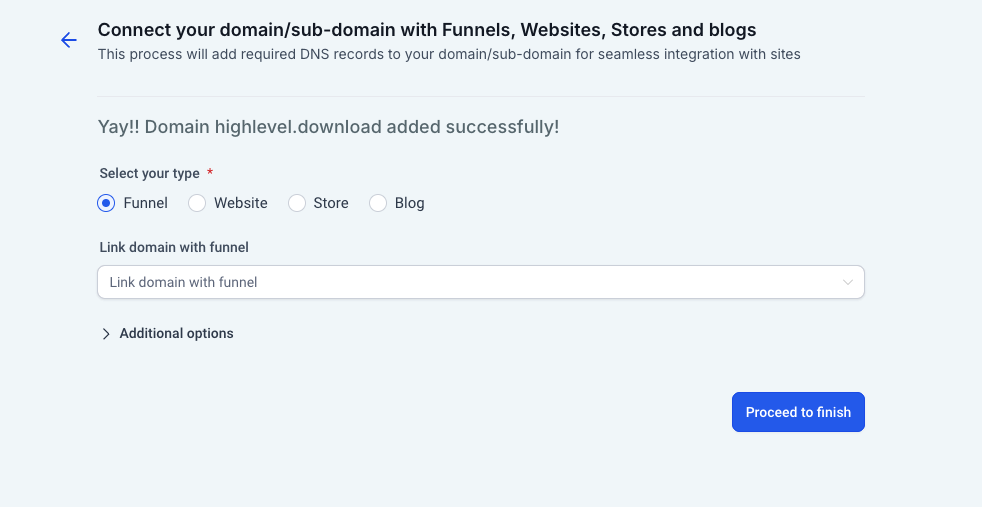
- Select the correct site type (website, blog, and so on) you want to connect the domain to and click Proceed to finish.
- You are done. Your domain is now connected correctly.
Frequently asked questions
Can I use a purchased domain for several sites at the same time, such as a website and a funnel?
No, a single main domain can be connected to only one type of site at a time (for example, website, funnel, blog or store). If you want to use the same domain for several purposes, the best solution is to create and connect subdomains (such as store.yourdomain.com or blog.yourdomain.com) for each type of content.
Which DNS records can I manage for a domain purchased in Futuria CRM?
When you buy a domain through Futuria CRM, you get full access to its DNS management directly from the platform. You can add, edit or delete A, CNAME, AAAA, MX and TXT records, with no need for an external registrar or third-party DNS tools.
Do I need to verify the domain after buying it through Futuria CRM?
No, domains purchased directly through Futuria CRM are verified automatically and are ready for configuration straight away. You can start managing the DNS settings and connecting the domain to your funnels, websites, stores or blogs immediately.