


Table of contents
- New: the Estimates feature
- How to use the feature
- Opening estimates
- Creating an estimate
- Accepting or declining the estimate
- Converting an estimate into an invoice
- Tracking
- Other options
- Why did we build this feature?
New: the Estimates feature
We are pleased to announce the launch of our new Estimates feature. This addition lets you create estimates and share them with customers before you send the final invoice.
Customers can simply accept or decline the estimate. You can then convert the estimate directly into an invoice and send it with ease.
How to use the feature
Opening estimates
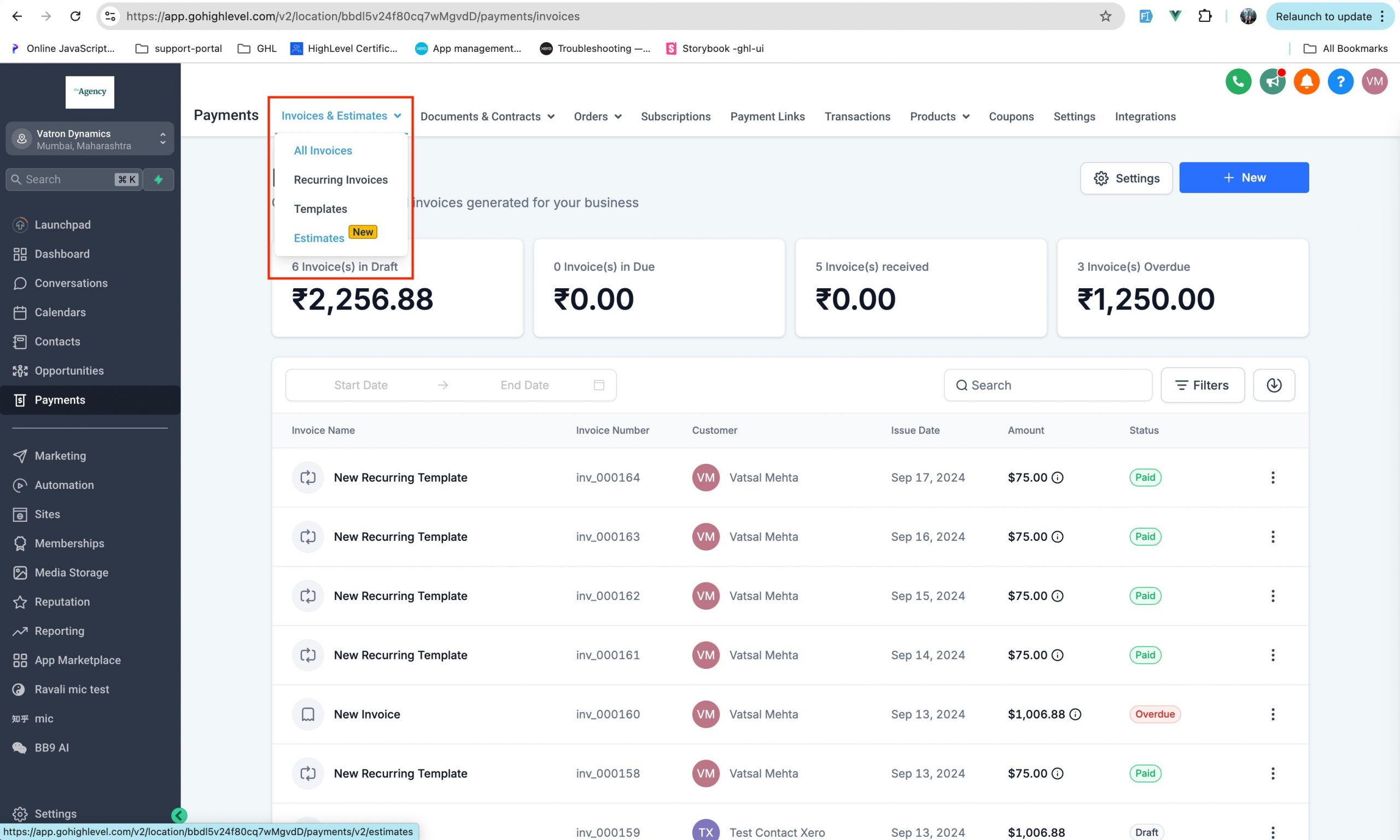
Go to your account and select Payments in the menu. Click Invoices and estimates, then select Estimates.
Creating an estimate
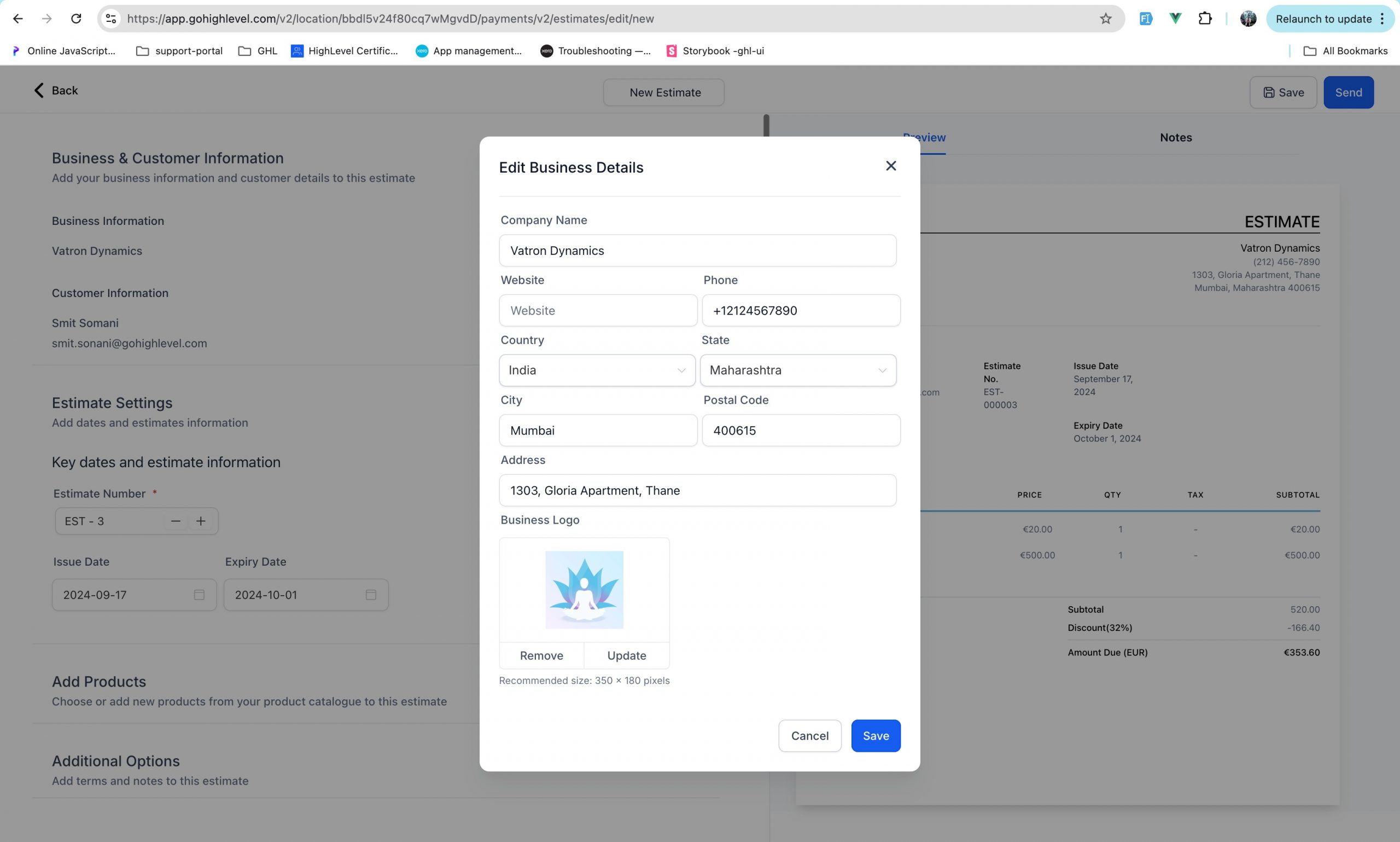
To create an estimate, click the New button and enter the required details, such as your company information, the customer details, the estimate number and the expiry date.
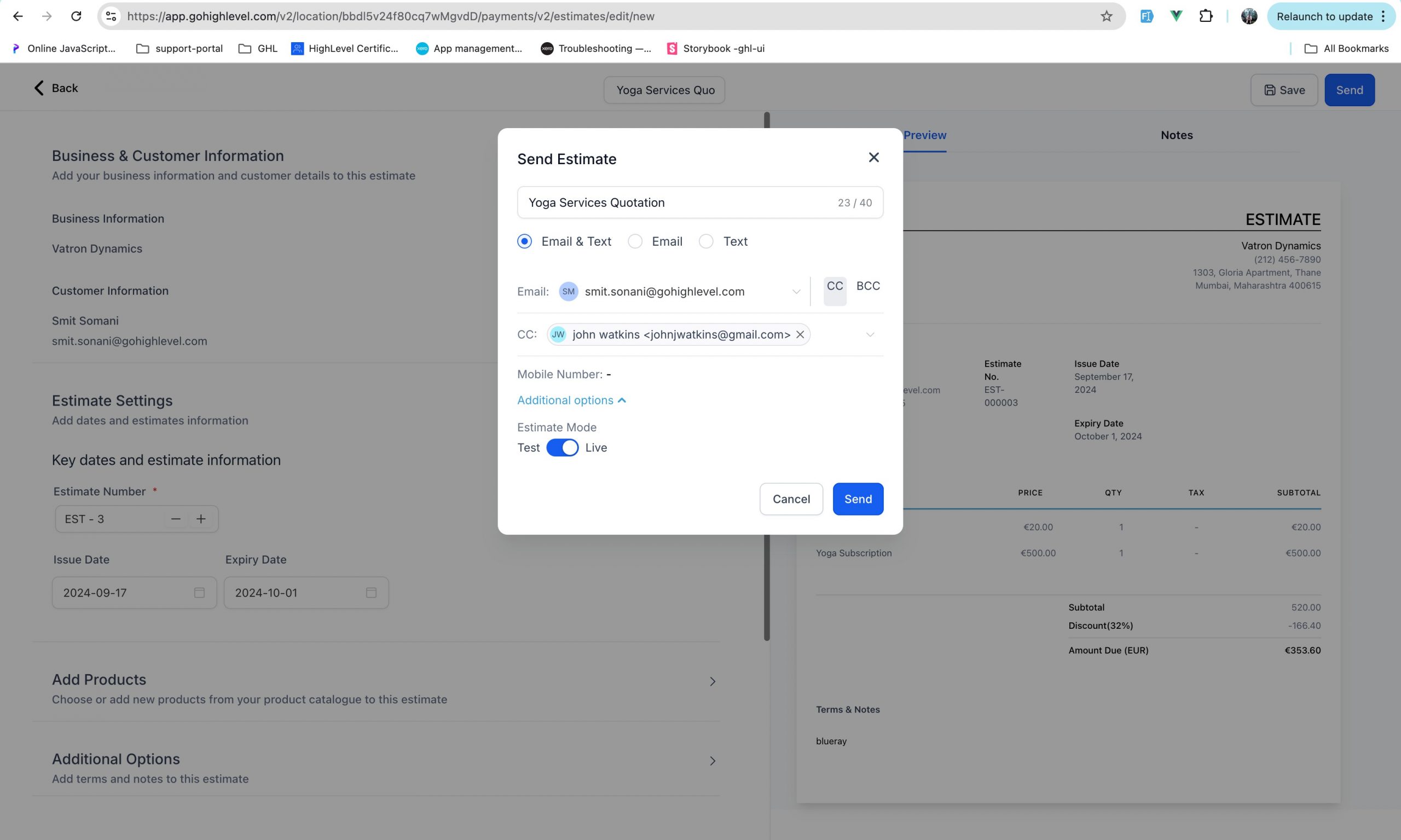
Add the products to the estimate and click Send. You will be able to review the document and send it directly to your customer by email or SMS.
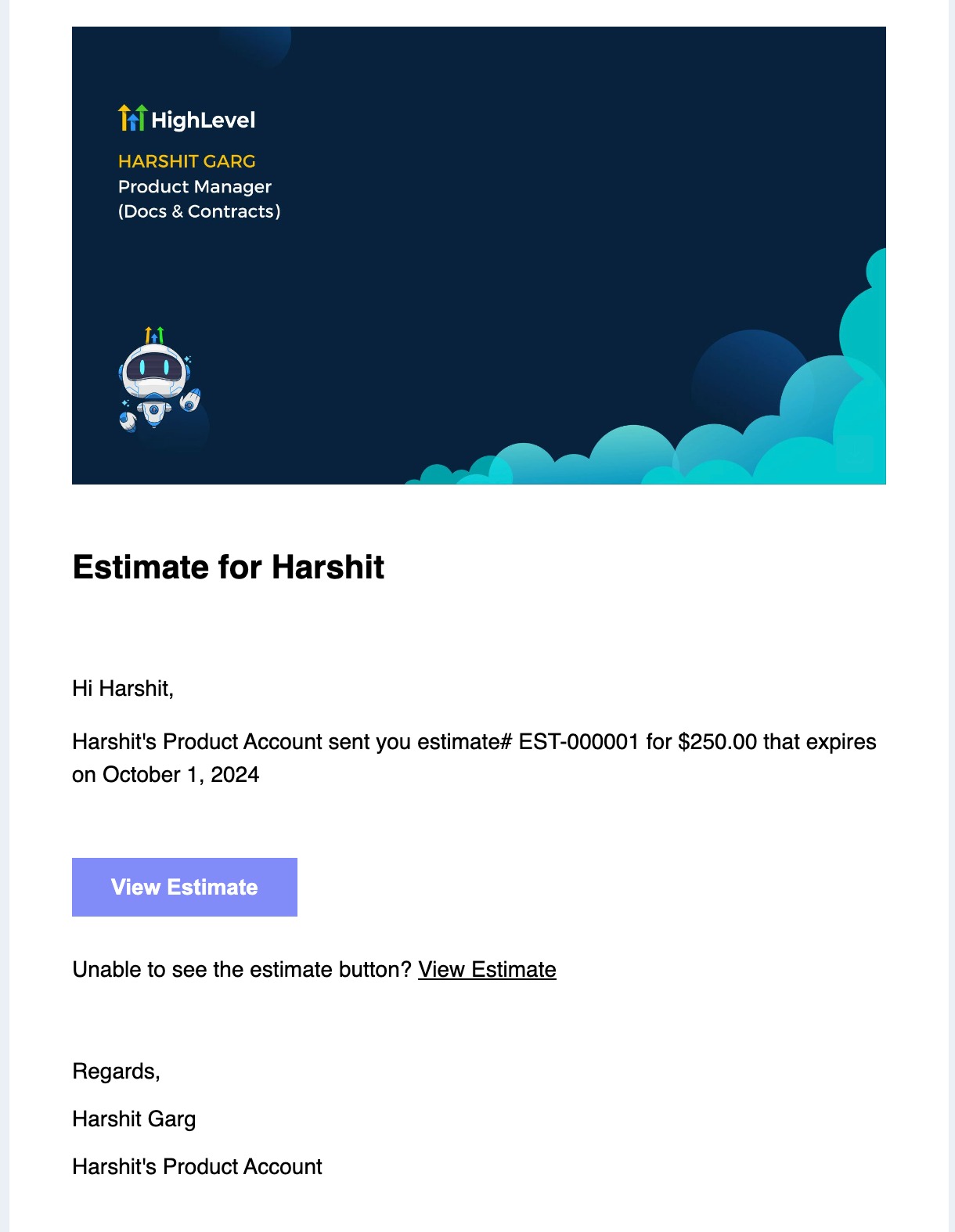
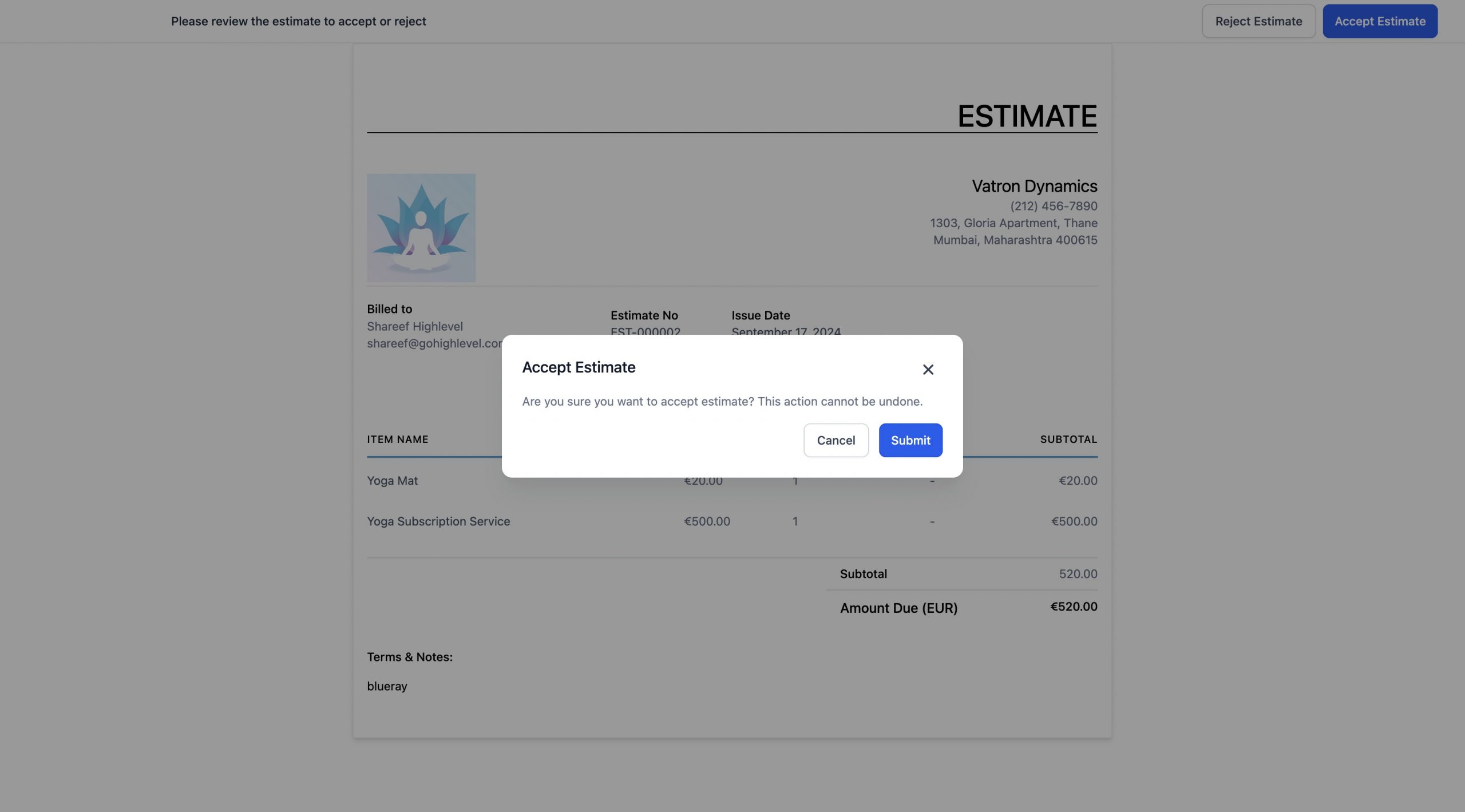
Accepting or declining the estimate
Customers who receive the estimate can click Accept to approve it; the status of the estimate will be updated automatically.
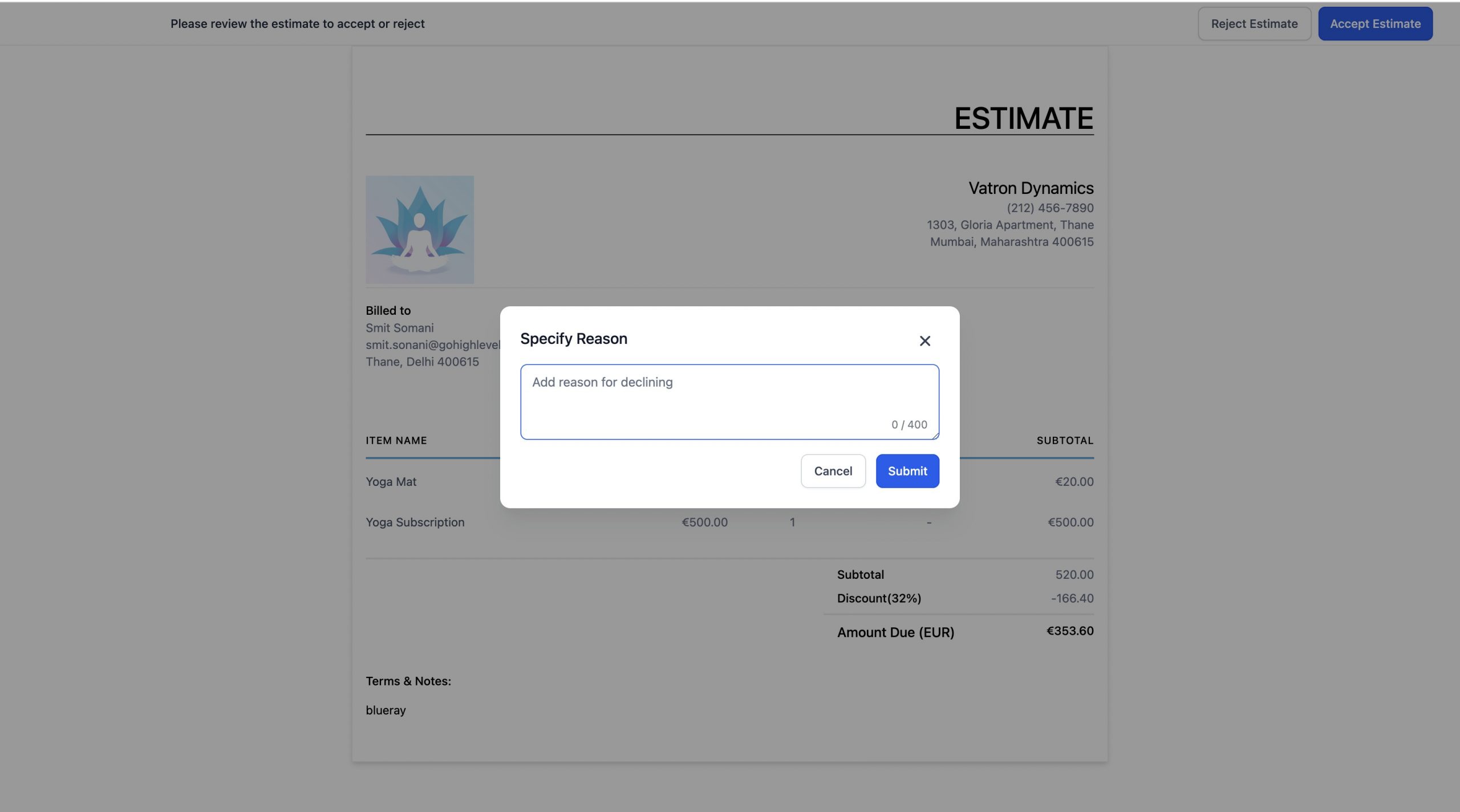
Alternatively, they can click Decline and add notes to explain why. Here too, the status of the estimate will be updated.
You can also mark an estimate manually as accepted or declined, for example if you have received confirmation from the customer over the phone.
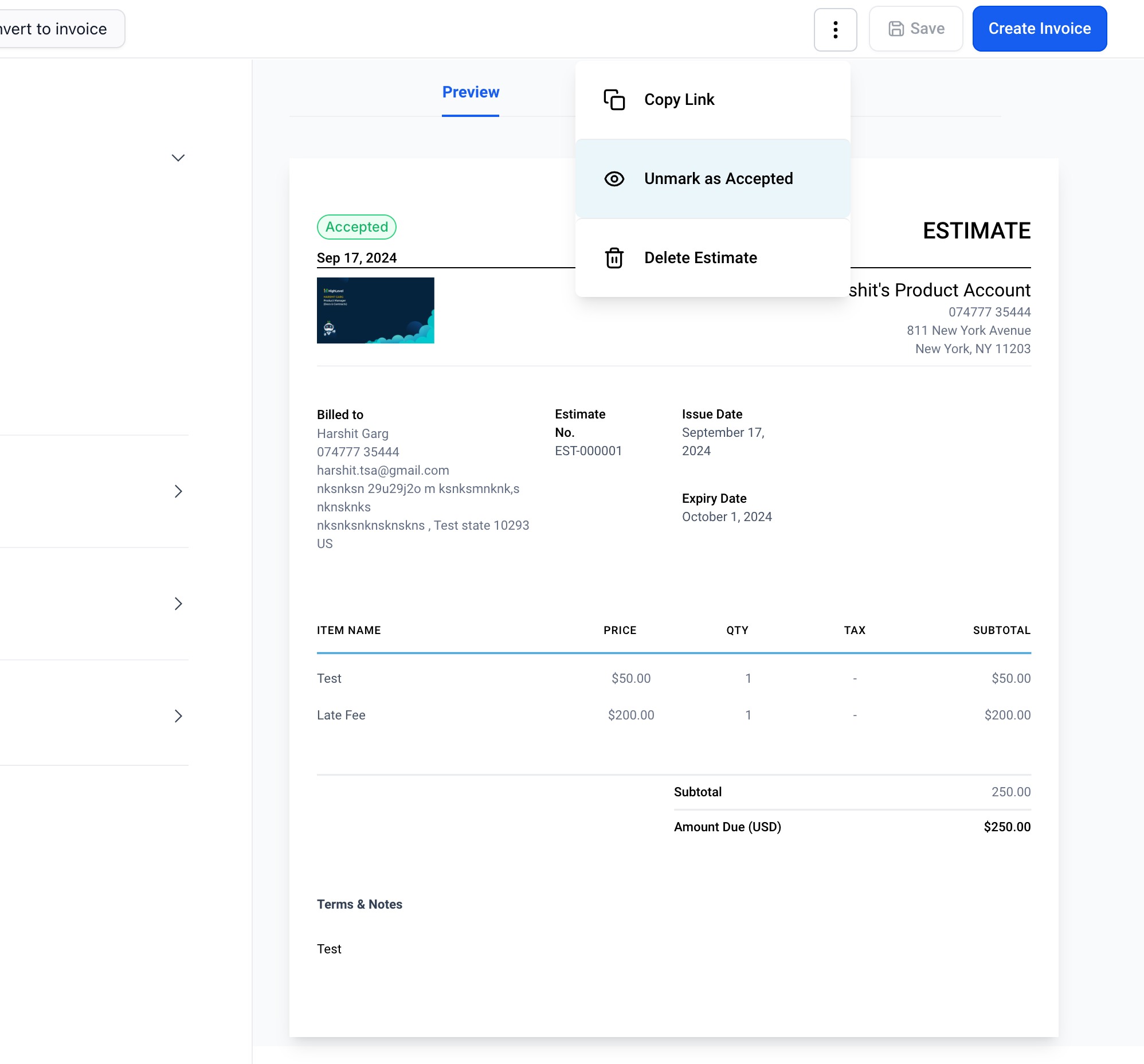
Converting an estimate into an invoice
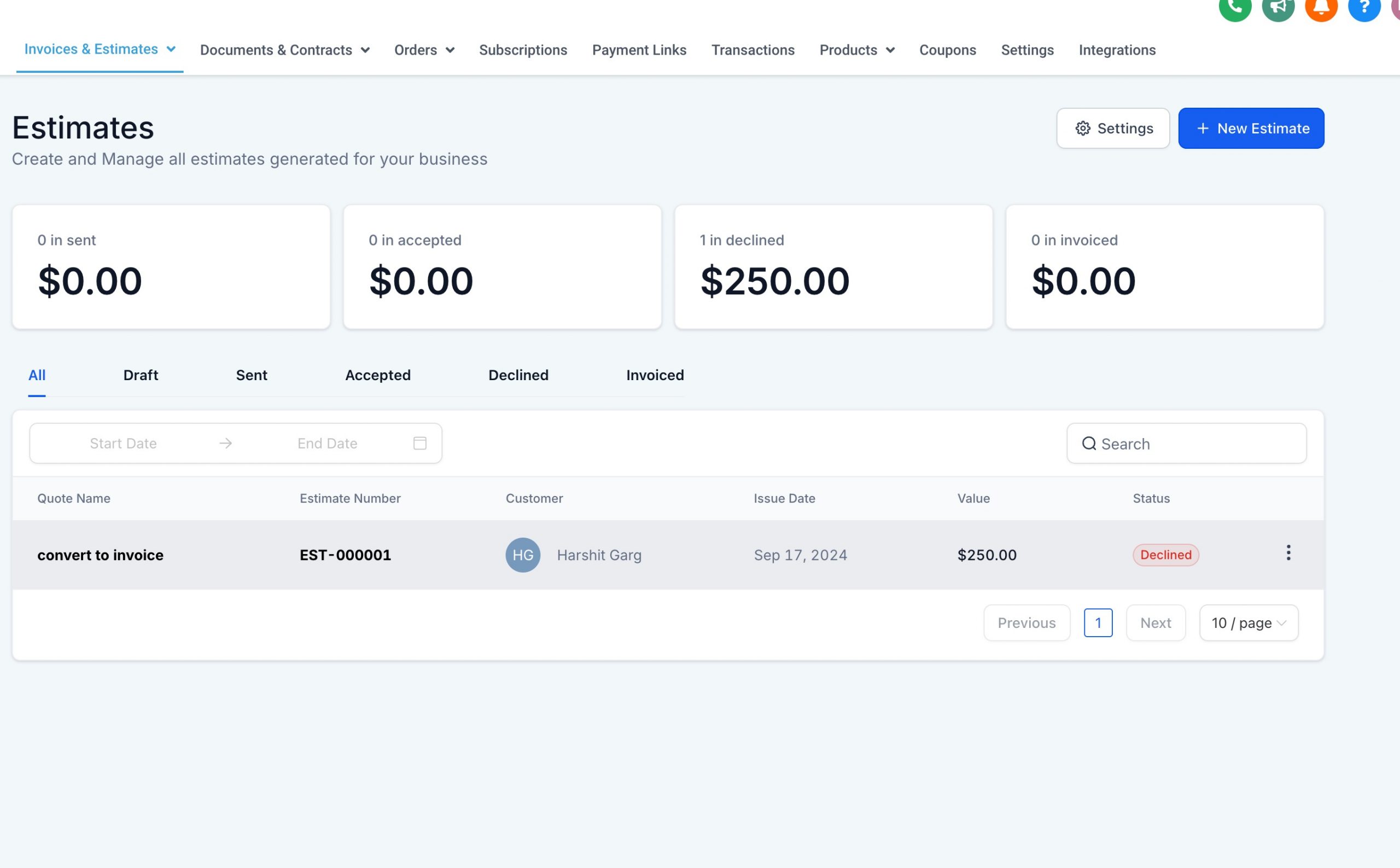
First, click a sent estimate in the main list.
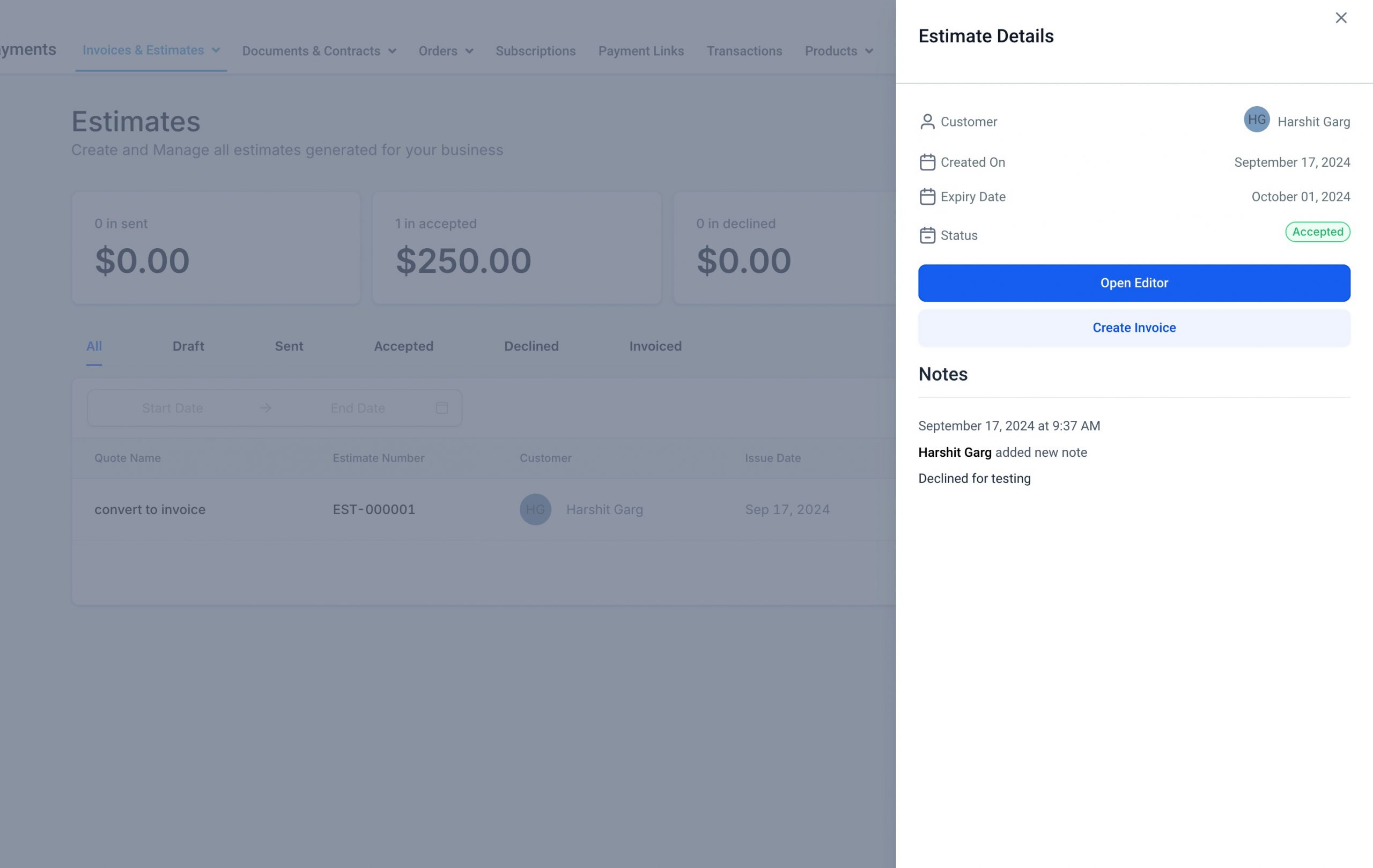
Once the customer approves the estimate, you can easily convert it into an invoice. Select Create an invoice from the dashboard, or open the accepted estimate and click the matching button.
Tracking
Keep track of all your estimates across the different stages: Draft, Sent, Accepted, Declined, Invoiced. You can monitor the value of the estimates in progress through the summary cards at the top of the dashboard.
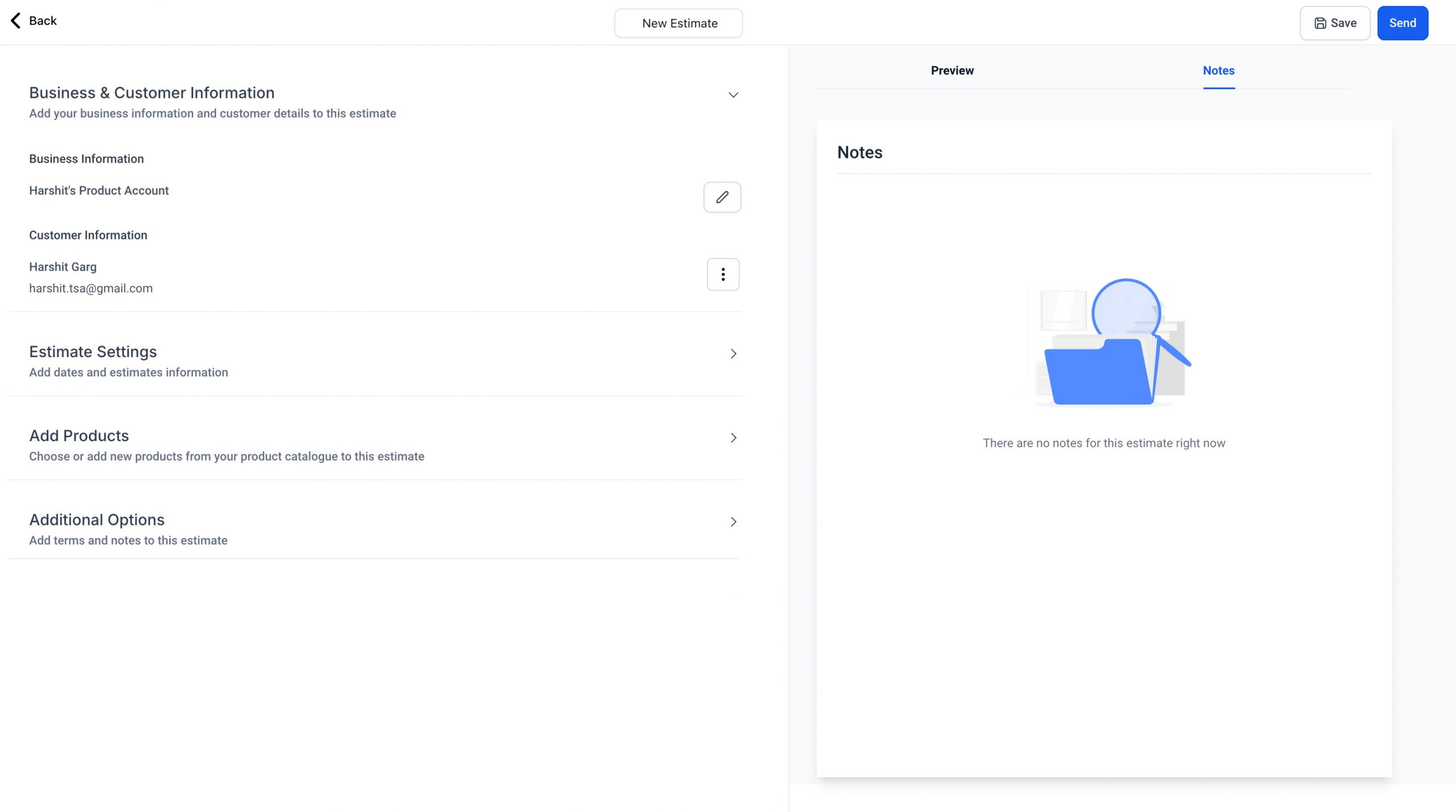
Check the notes added by customers, which are visible both in the dashboard and inside the estimate itself.
Other options
Customisation: customise the estimate by adding your company logo and your terms and conditions, and by changing the general settings.
Why did we build this feature?
The Estimates feature was built to complete the payments suite and meet every need of your business. You can now manage the whole process:
- Create an estimate
- Get a document signed
- Send an invoice