


Table of contents
- What are Gift Cards?
- Key benefits of Gift Cards
- Prerequisites for using Gift Cards
- How to create a Gift Card product
- Editing, archiving and deactivating Gift Cards
- How to sell Gift Cards
- Selling Gift Cards through the dedicated checkout
- The customer experience when using the dedicated checkout
- How to send Gift Cards (without payment)
- How to track Gift Card orders
- The Gift Card dashboard
- The Gift Card order detail page
- How customers redeem Gift Cards
- Redemption rules
- Frequently Asked Questions (FAQ)
What are Gift Cards?
Gift Cards are an effective way to engage customers, increase sales and build their loyalty, all within your own payments ecosystem. With fully customisable Gift Card products, you can design and sell beautiful branded digital cards that reflect your company’s identity.
You have complete control over how your Gift Cards look and work: from choosing the artwork and the face values, through to setting expiry dates and terms of use.
Whether it is a customer buying a gift for someone special or you rewarding loyal customers with complimentary credit, Gift Cards make every transaction more personal. They can be sold through a dedicated checkout, embedded in your website, shared with a QR code or sent directly to contacts with a personalised message.
With Gift Cards you can:
- Create Gift Card products with your branding, face values, expiry dates and more.
- Sell Gift Cards from a dedicated checkout, embedded on your site or via a QR code.
- Send Gift Cards directly to contacts without asking for payment, ideal for promotions or for handling complaints.
- Track every card issued from the Gift Card Orders page, monitoring status, balance and details.
- Let customers redeem Gift Cards easily on the supported checkouts, with the balance shown automatically and an additional payment requested where needed.
Key benefits of Gift Cards
- Flexible selling options: dedicated checkout, embed, QR code or adding them to your existing checkouts.
- Scheduled delivery: choose immediate delivery or schedule it for a future date.
- Operational visibility: track orders, codes, amounts and status in the Gift Card Orders section.
- Brand consistency: use colour gradients or upload custom artwork to align the cards with your brand.
- Built-in gifting feature: the "For me" or "For someone else" options make buying for a third party simple, with scheduled delivery.
- Frictionless redemption: recipients can use their Gift Card on the supported checkouts via a code or a link.
Prerequisites for using Gift Cards
- Access to Payments → Gift Cards in your account.
- At least one Gift Card product created.
- Active checkouts (forms, funnels, payment links, invoices, store, calendars and so on) to support redemption.
- (Optional) Artwork and terms and conditions for the branding of your Gift Card.
How to create a Gift Card product
Step 1: Go to the Gift Cards section
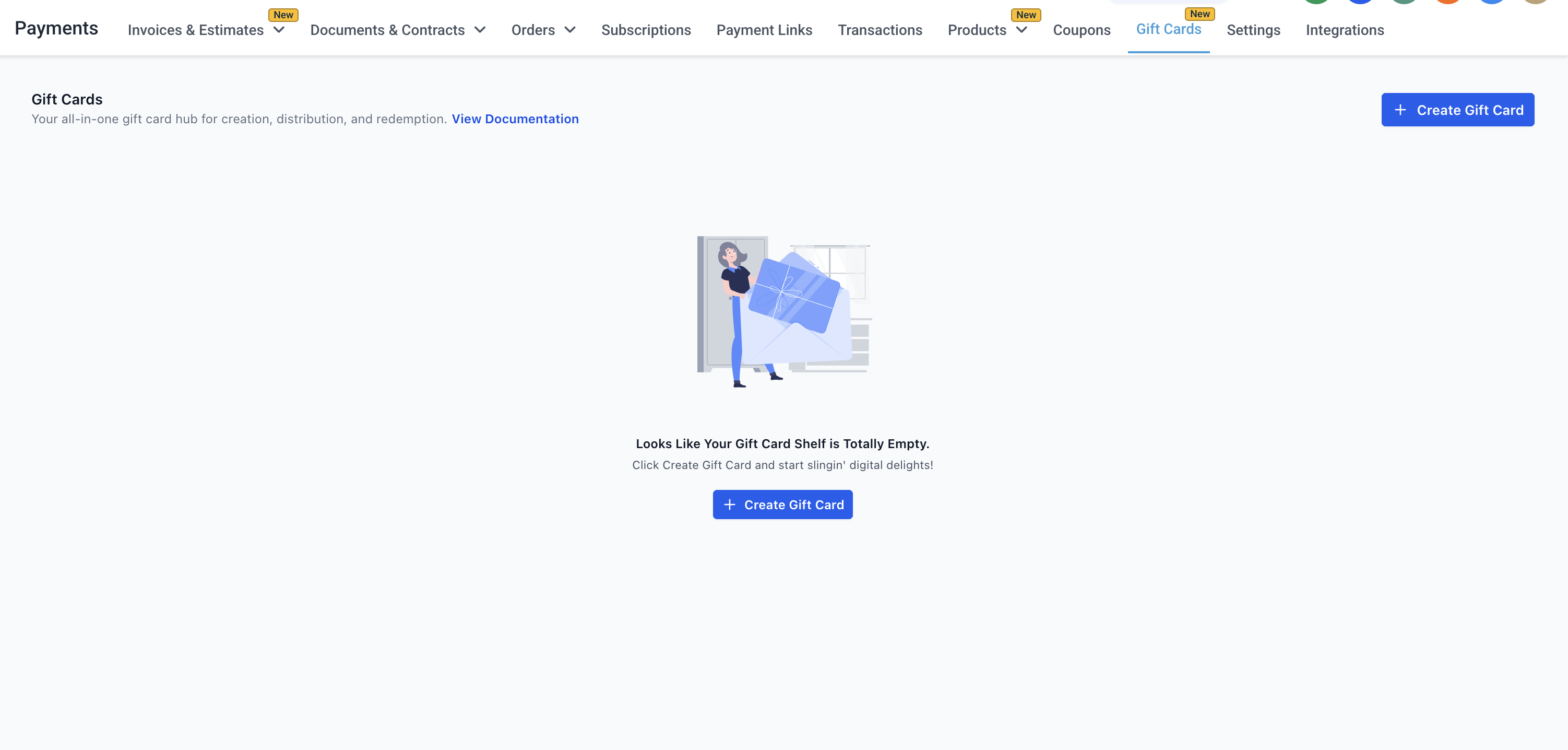
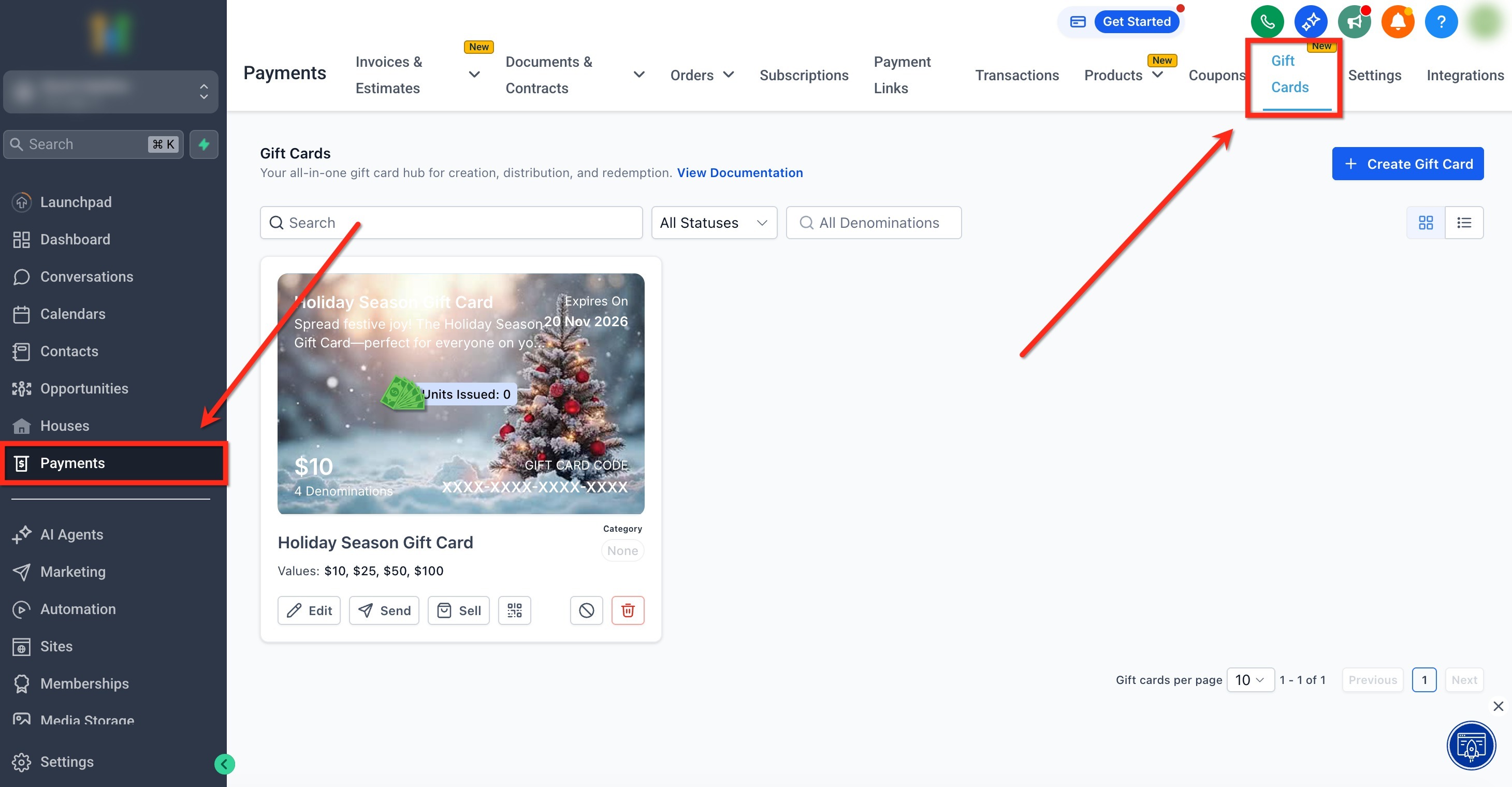
In the left-hand menu, click the Payments tab. Then, in the top bar, click Gift Cards to open the dedicated dashboard.
Step 2: Create a Gift Card
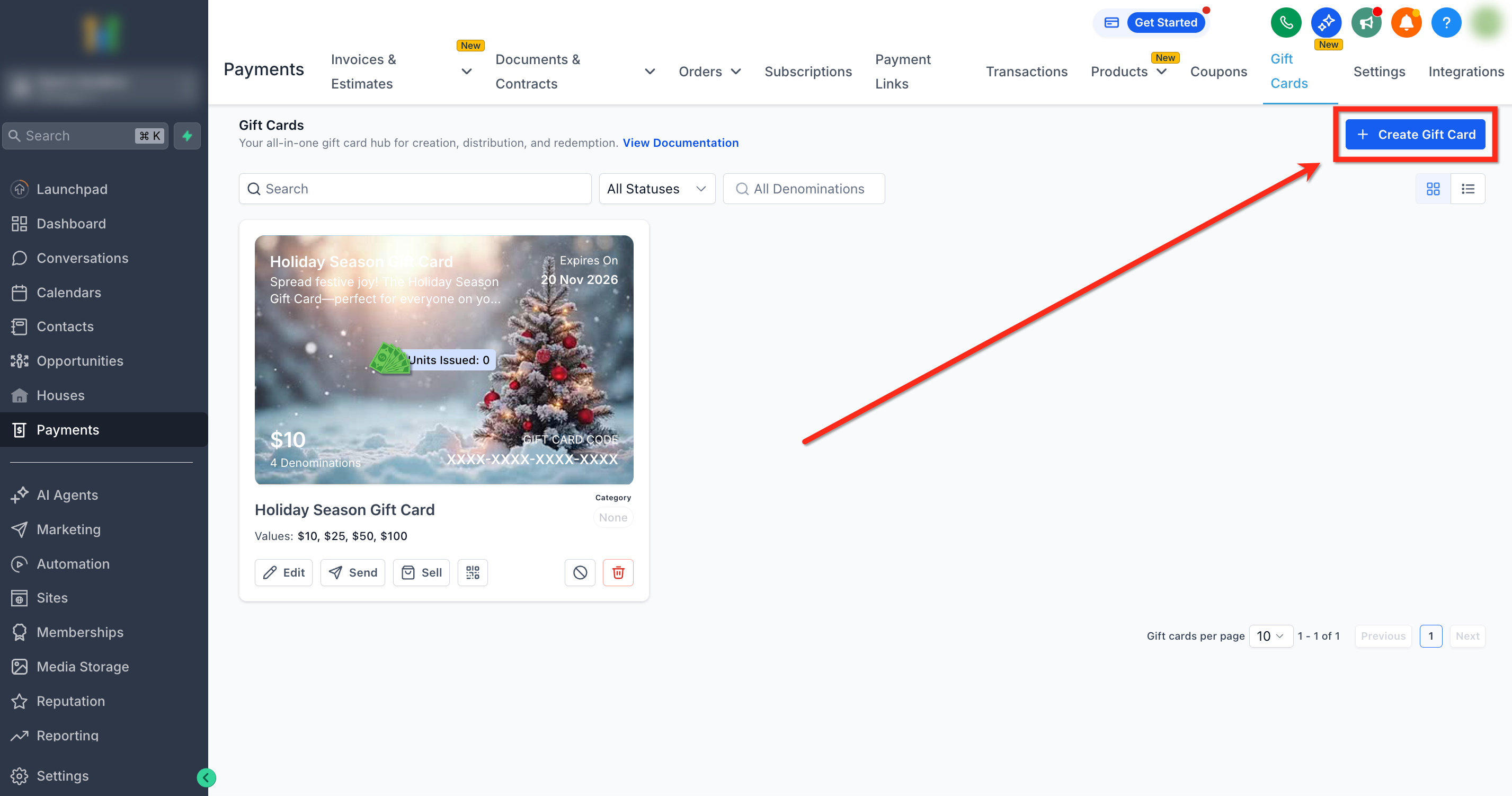
Click the blue + Create Gift Card button. If this is your first time, you will only see the option to create a card. The Orders, Sell/Send and other options will appear once you have created your first Gift Card product.
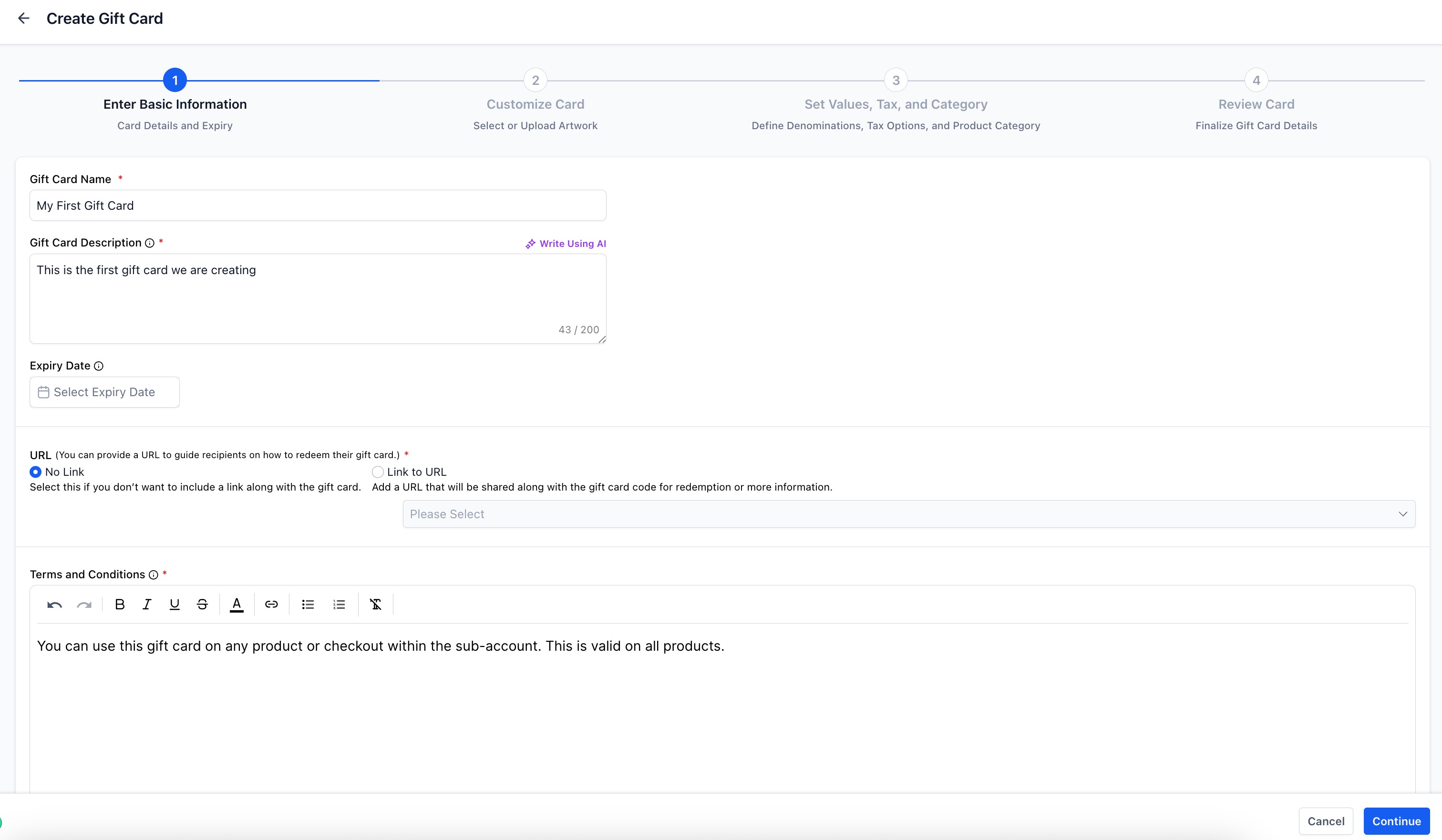
Step 3: Add the details
Fill in the basic information. The main attributes include:
- Name and description
- Terms and conditions
- Expiry date for the Gift Card product (it applies to every order of this card)
- URL with the redemption instructions
Step 4: Customise the Gift Card
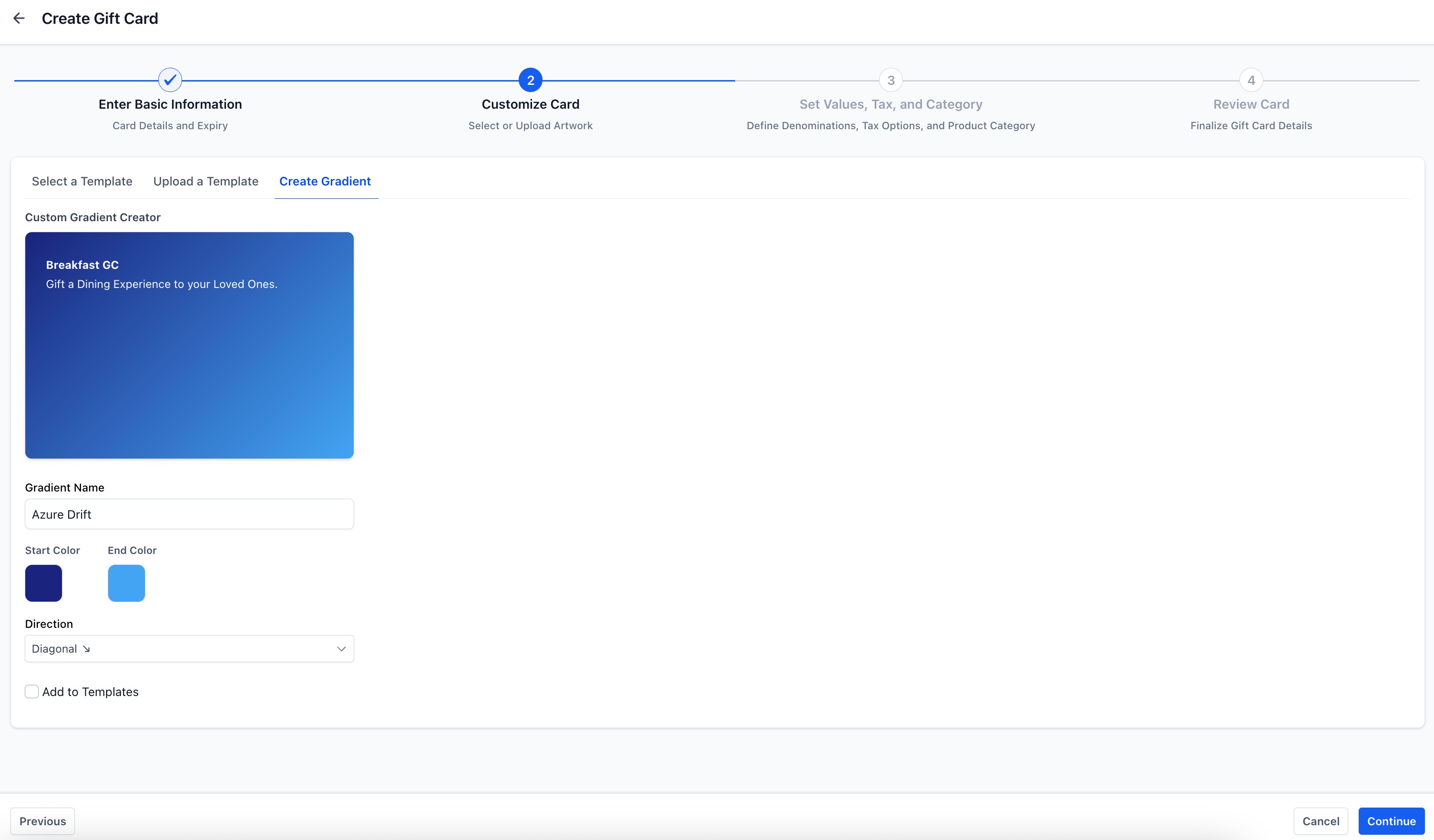
Choose how the card looks so it matches your brand. You have two options:
- Create a gradient: choose your brand colours and a style/direction for the gradient.
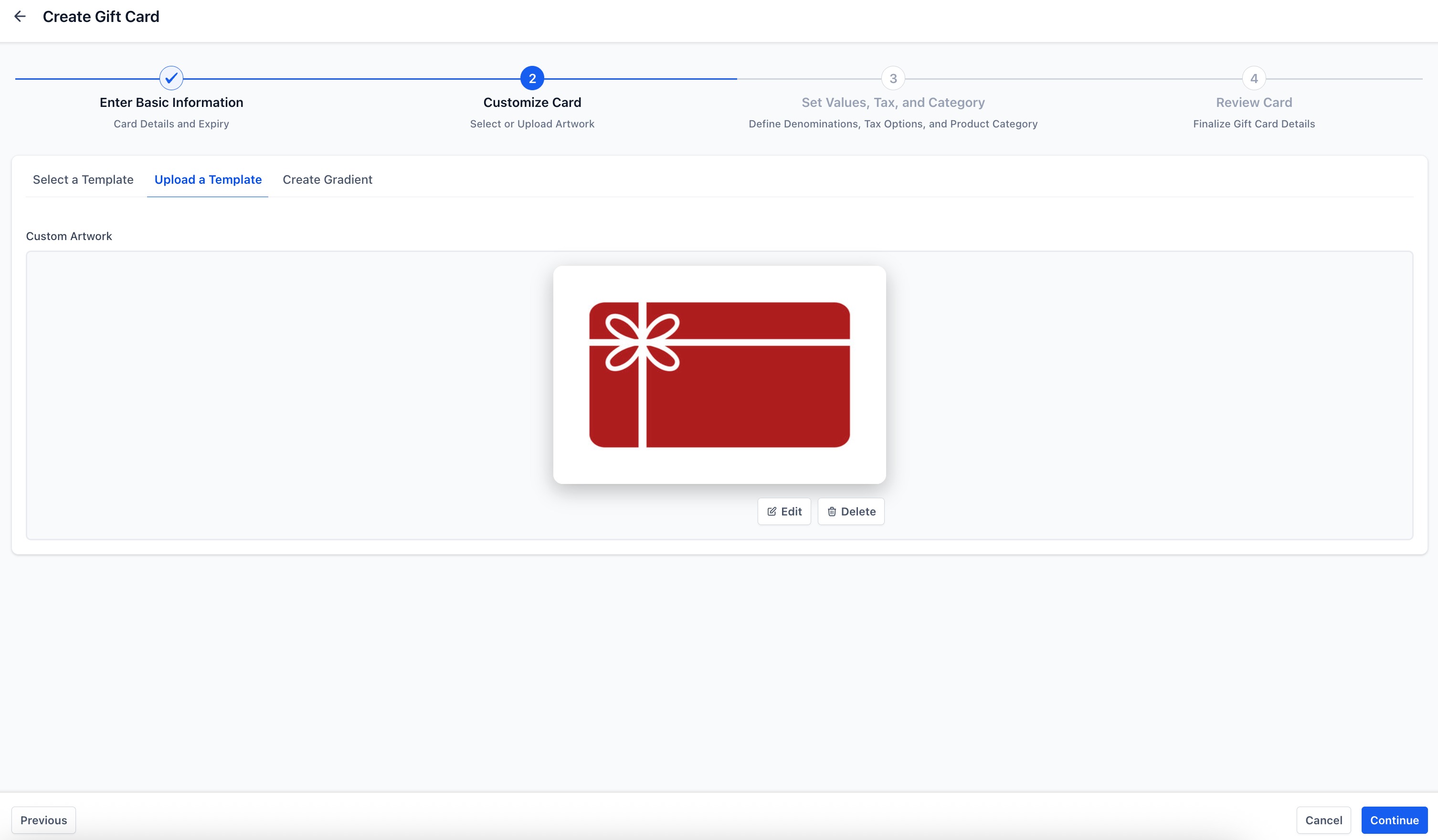
- Upload custom artwork: upload a high-resolution image (for example PNG or JPG) that matches your branding.
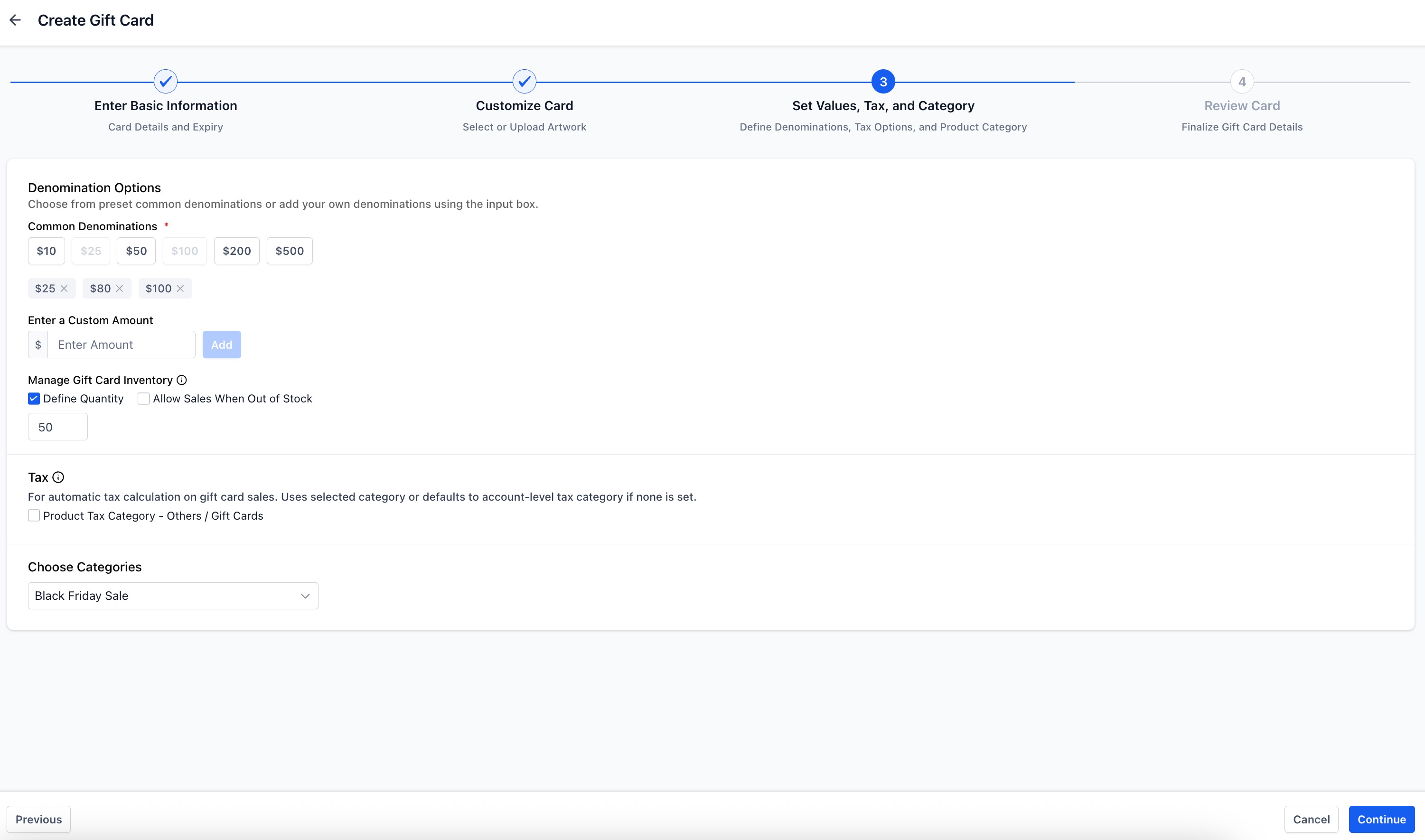
Step 5: Set the values, tax and category
- Add one or more face values (for example 25€, 50€, 100€).
- Set the quantity (inventory).
- (Optional) Enable automatic tax.
- (Optional) Assign a category to help you filter and report on your promotions.
Tip: it is not currently possible to define separate inventory for each face value. Once defined, the inventory applies individually to each value (for example, if the quantity is 100 with 2 values, each value will have 100 units available, for a total of 200 gift cards).
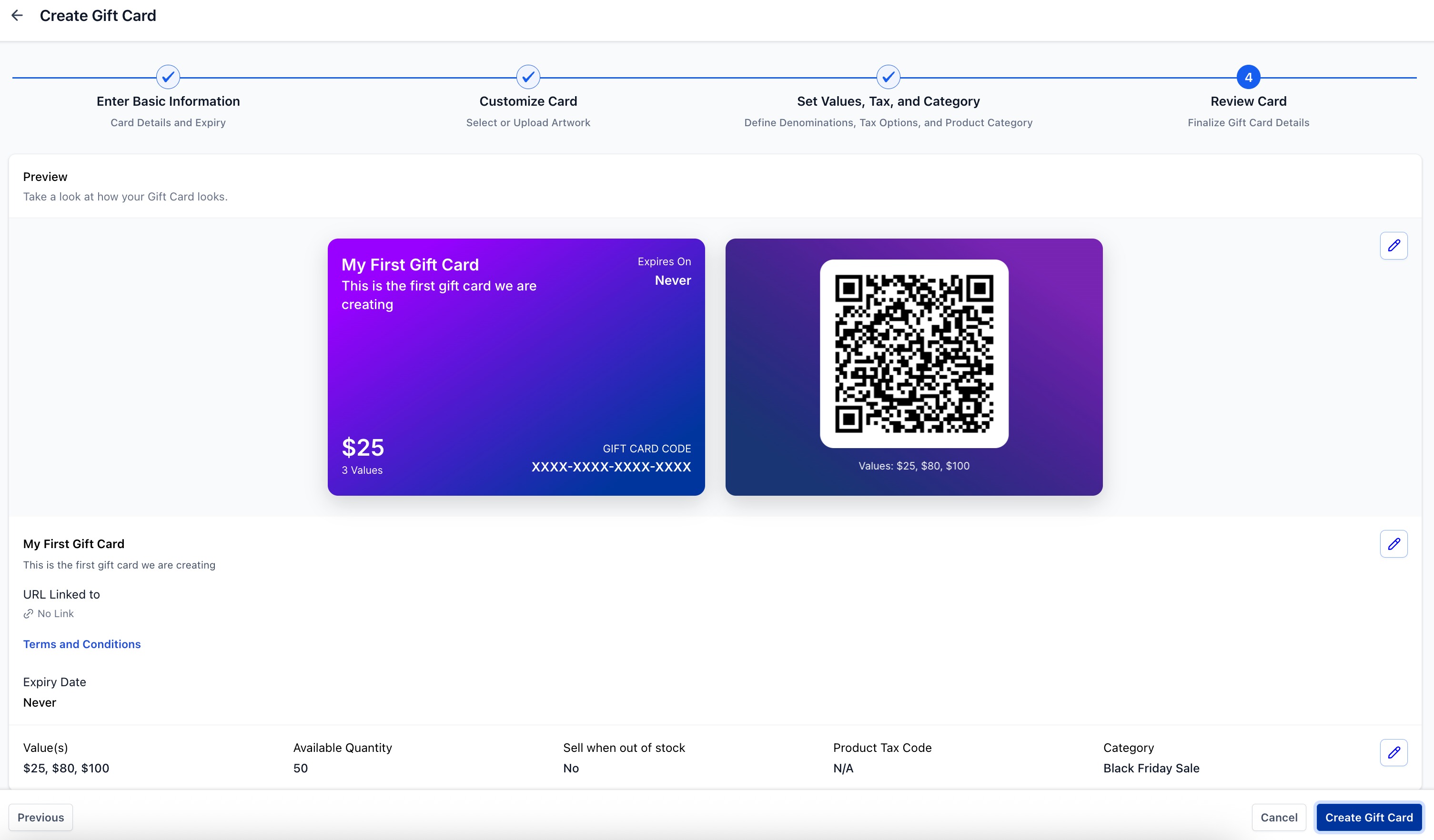
Step 6: Review and save
Check the summary and the preview. When everything is correct, click Create Gift Card to finish.
Editing, archiving and deactivating Gift Cards
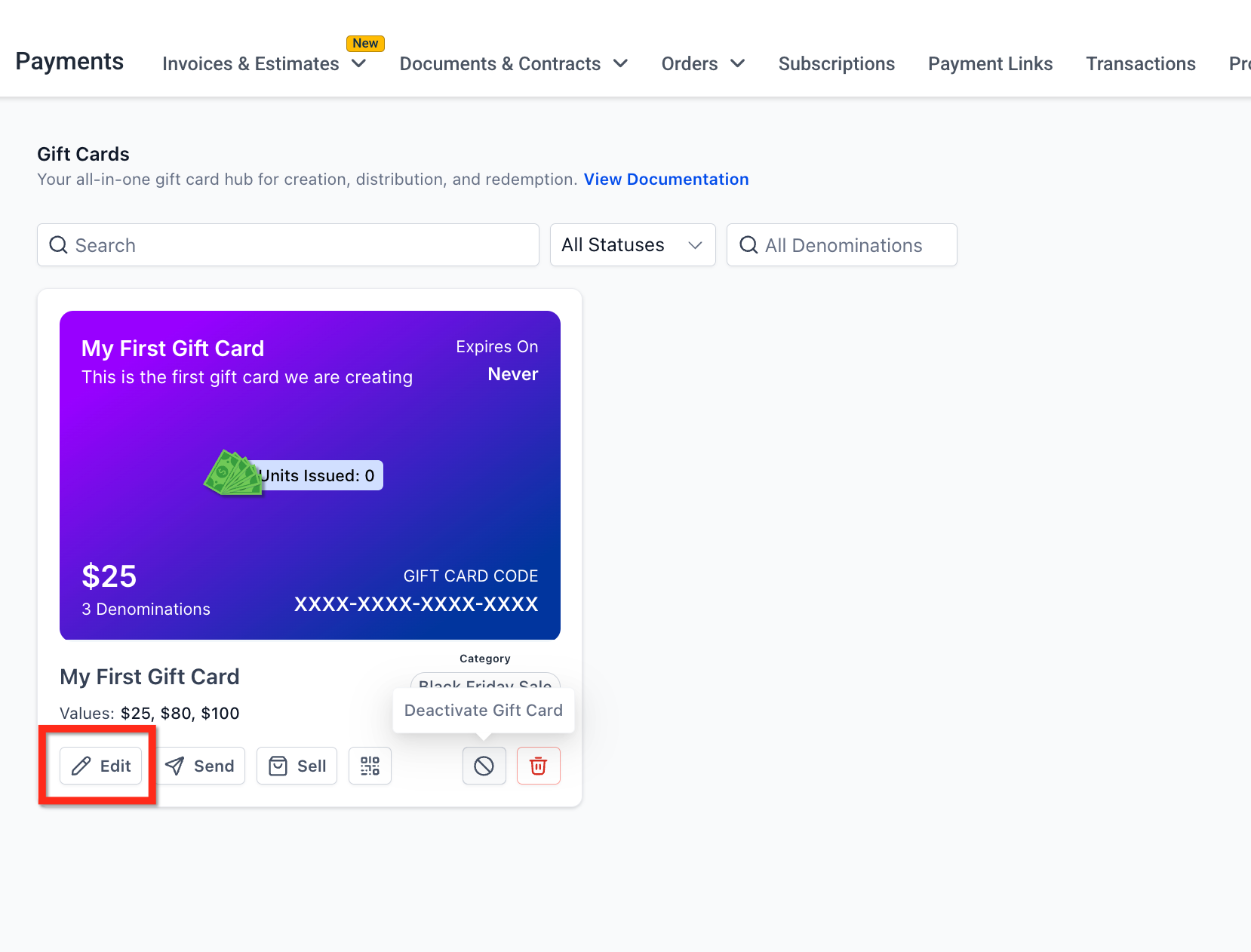
You can edit, archive or deactivate a Gift Card product at any time.
- Edit: update the face value, the quantity (inventory), the terms, the expiry date, the category or the tax behaviour. Changes apply to future issues.
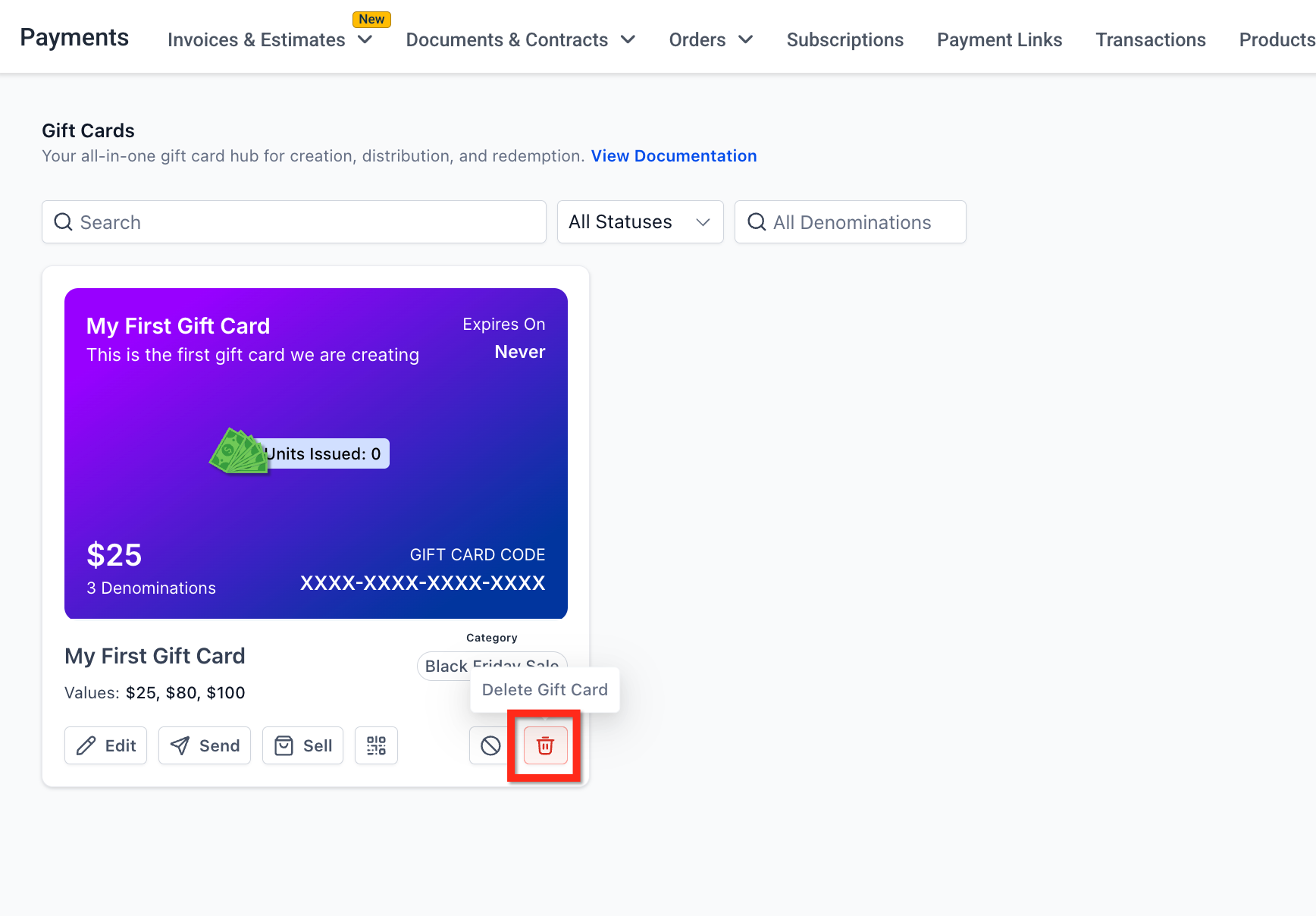
- Delete: archive the Gift Card products you no longer use.
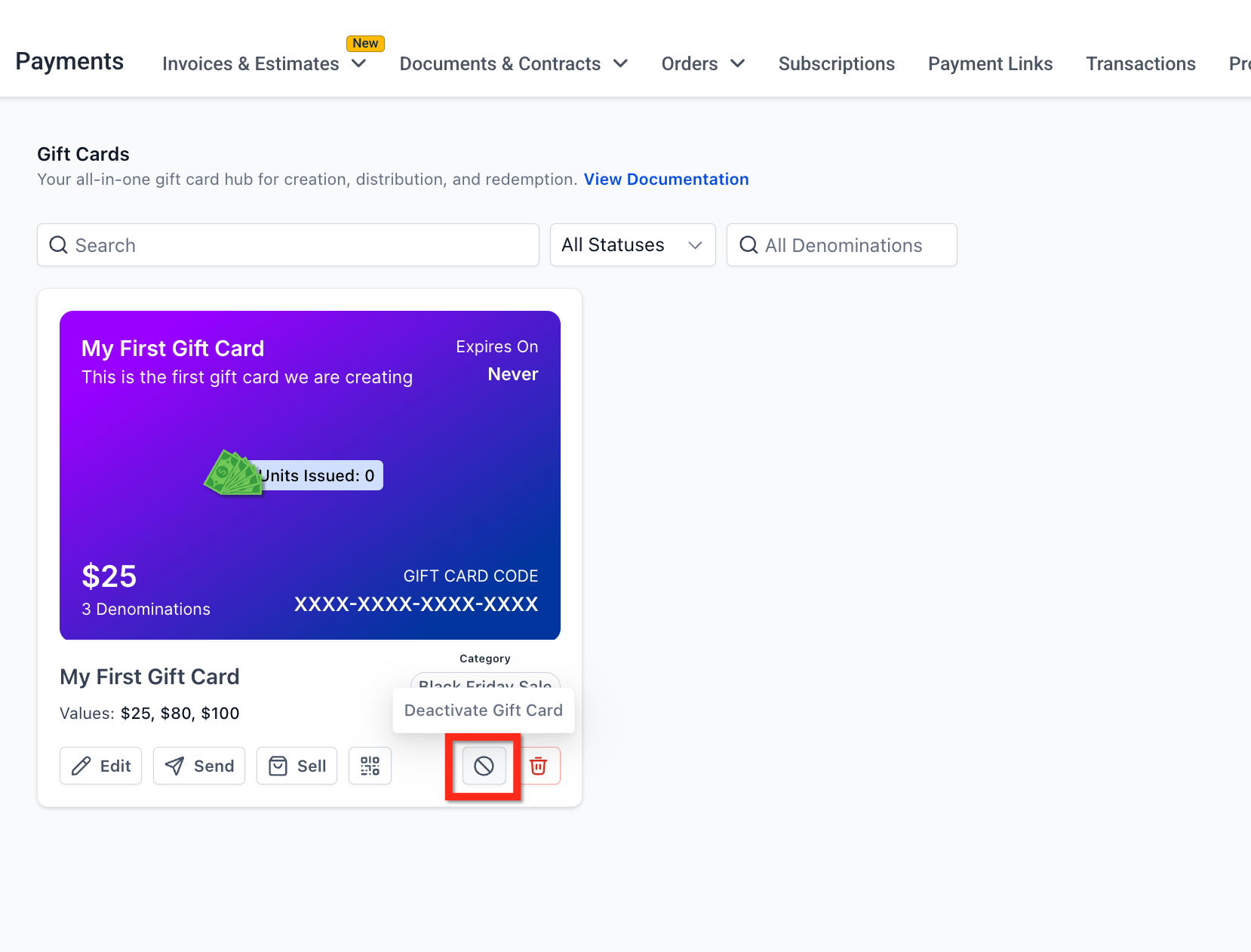
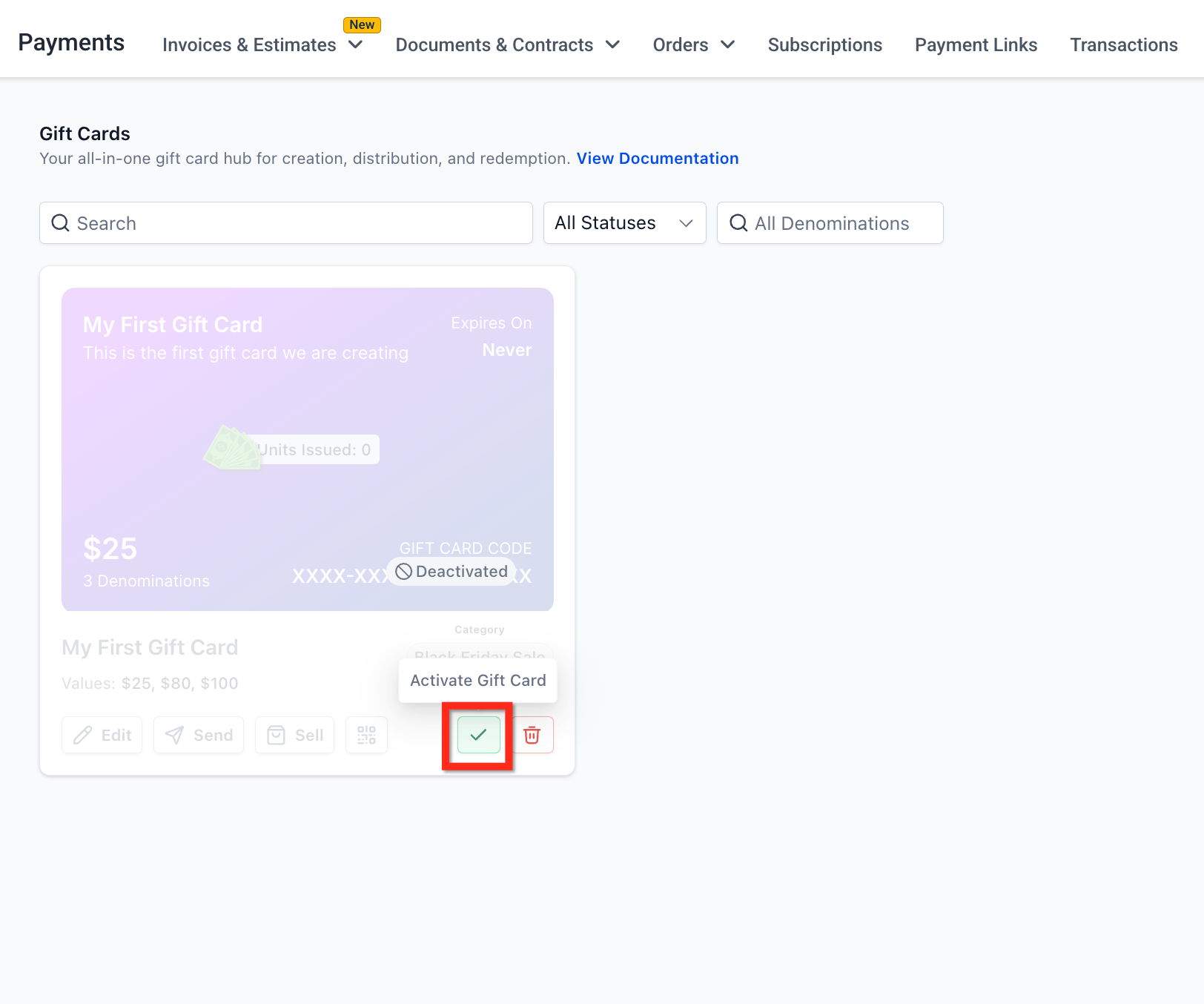
- Deactivate: when a product is deactivated, the Sell and Send actions are disabled and the dedicated checkout link or the Store (where the gift card was added as a product) stop working immediately. On any other checkout, the gift card will continue to be sold unless it is removed manually.
- Activate: re-enable sales and sending for the Gift Card product. If you removed the product from existing checkouts, you will need to add it again wherever it is needed.
How to sell Gift Cards
You can sell a gift card through its dedicated checkout or by adding it to your existing sales flows (funnels, forms, store, websites, payment links, invoices and calendars). This lets you sell gift cards wherever your customers already buy.
When a customer completes a purchase, Futuria CRM creates a Gift Card Order and delivers the card according to the option chosen at checkout (immediate or scheduled).
Selling Gift Cards through the dedicated checkout
Follow these steps to sell Gift Cards through the dedicated checkout:
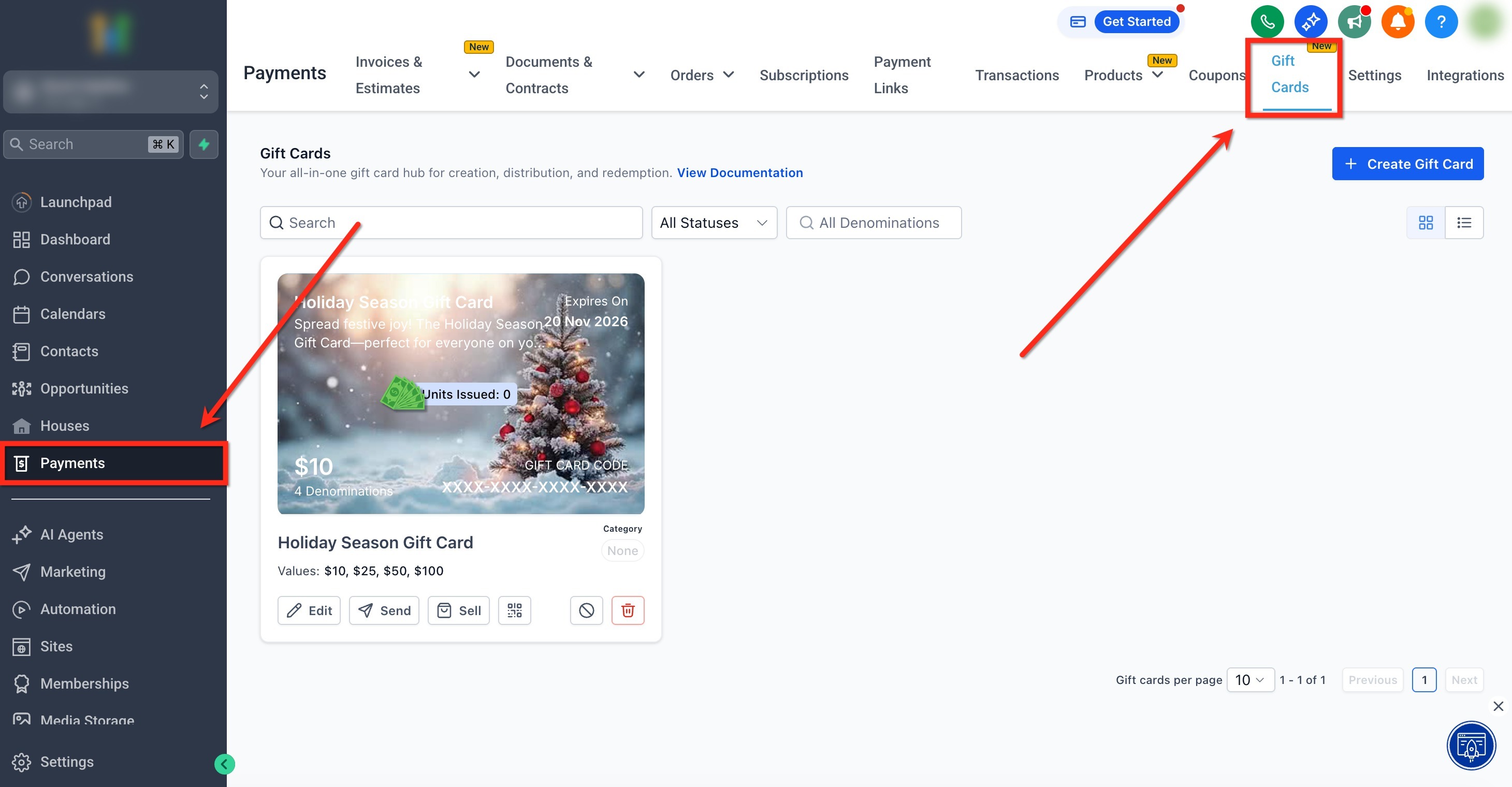
Step 1: Go to the Gift Cards section
In the left-hand menu, click the Payments tab. Then, in the top bar, click Gift Cards to open the dedicated dashboard.
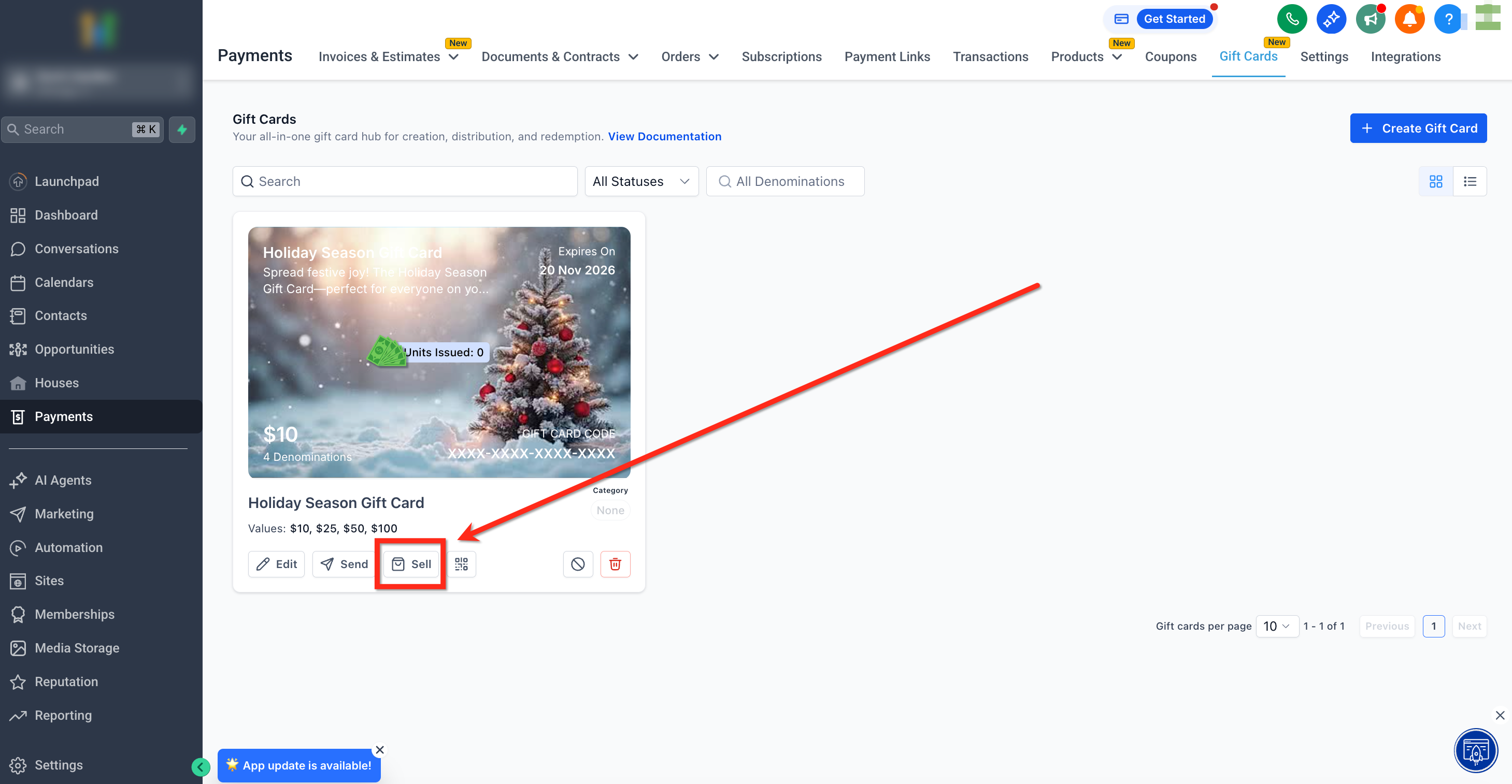
Step 2: Choose a Gift Card
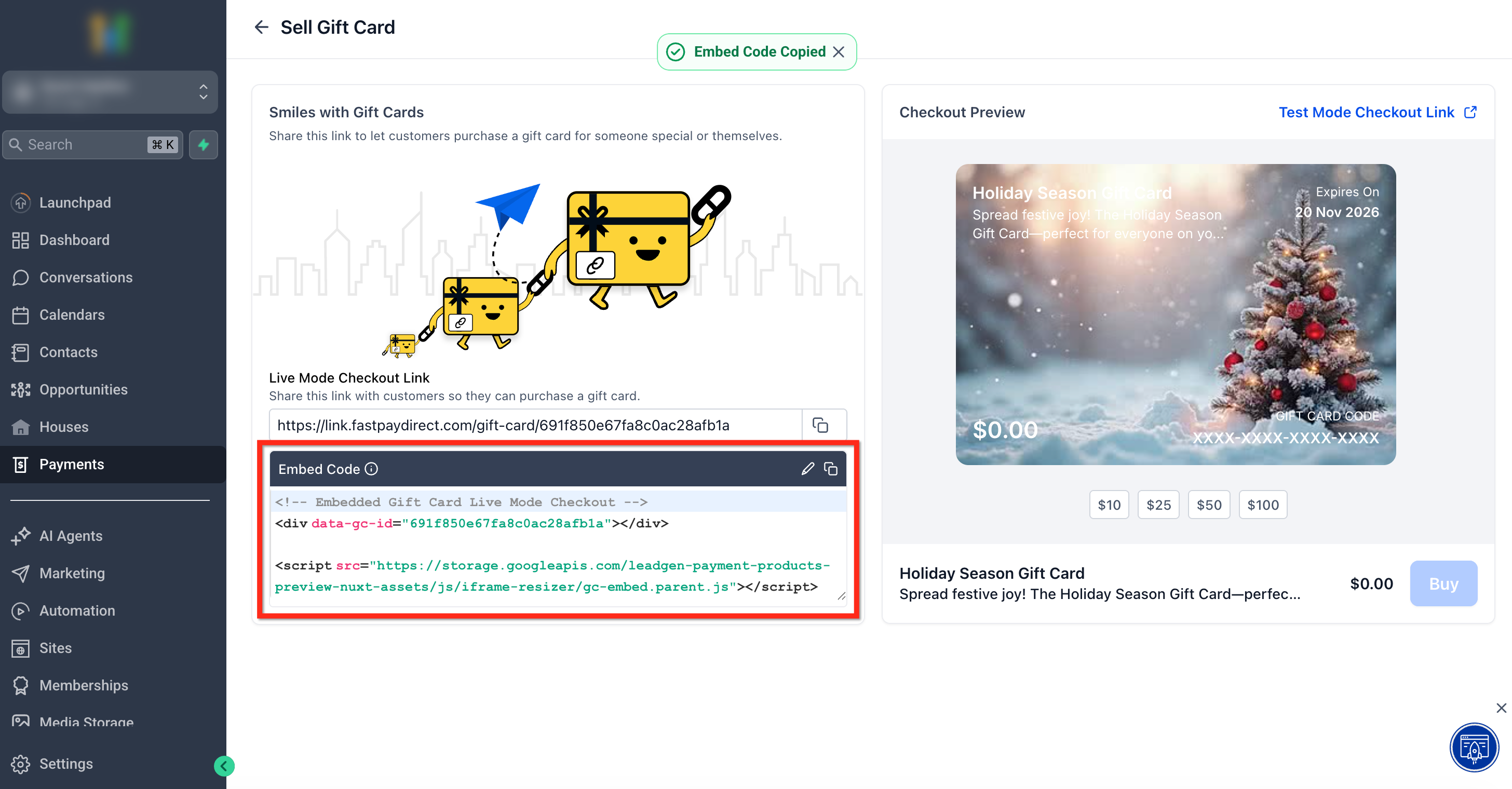
Find the card whose dedicated checkout link you want to open. On the Gift Card tile, click Sell.
Step 3: Share the dedicated checkout
There are several ways to share the dedicated checkout:
- Copy the checkout link: click the Copy icon to copy the checkout link in live mode. Share this link with your customers so they can buy the gift card.
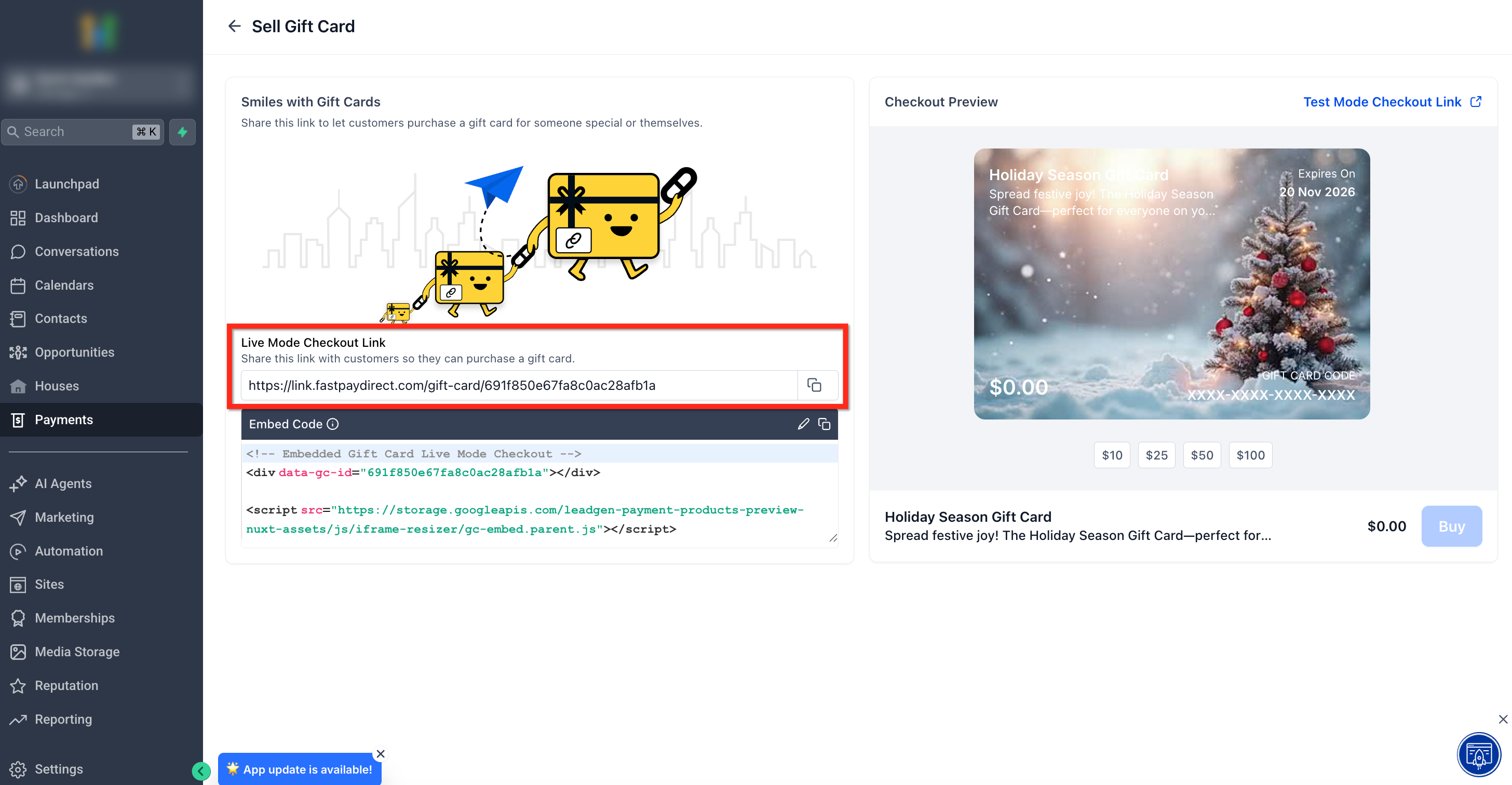
- Copy the embed code: click the Copy button to copy the embed code. Use this code to integrate the gift card checkout directly on any external web page.
The customer experience when using the dedicated checkout
This summary describes the flow buyers will follow to purchase a gift card using the dedicated checkout.
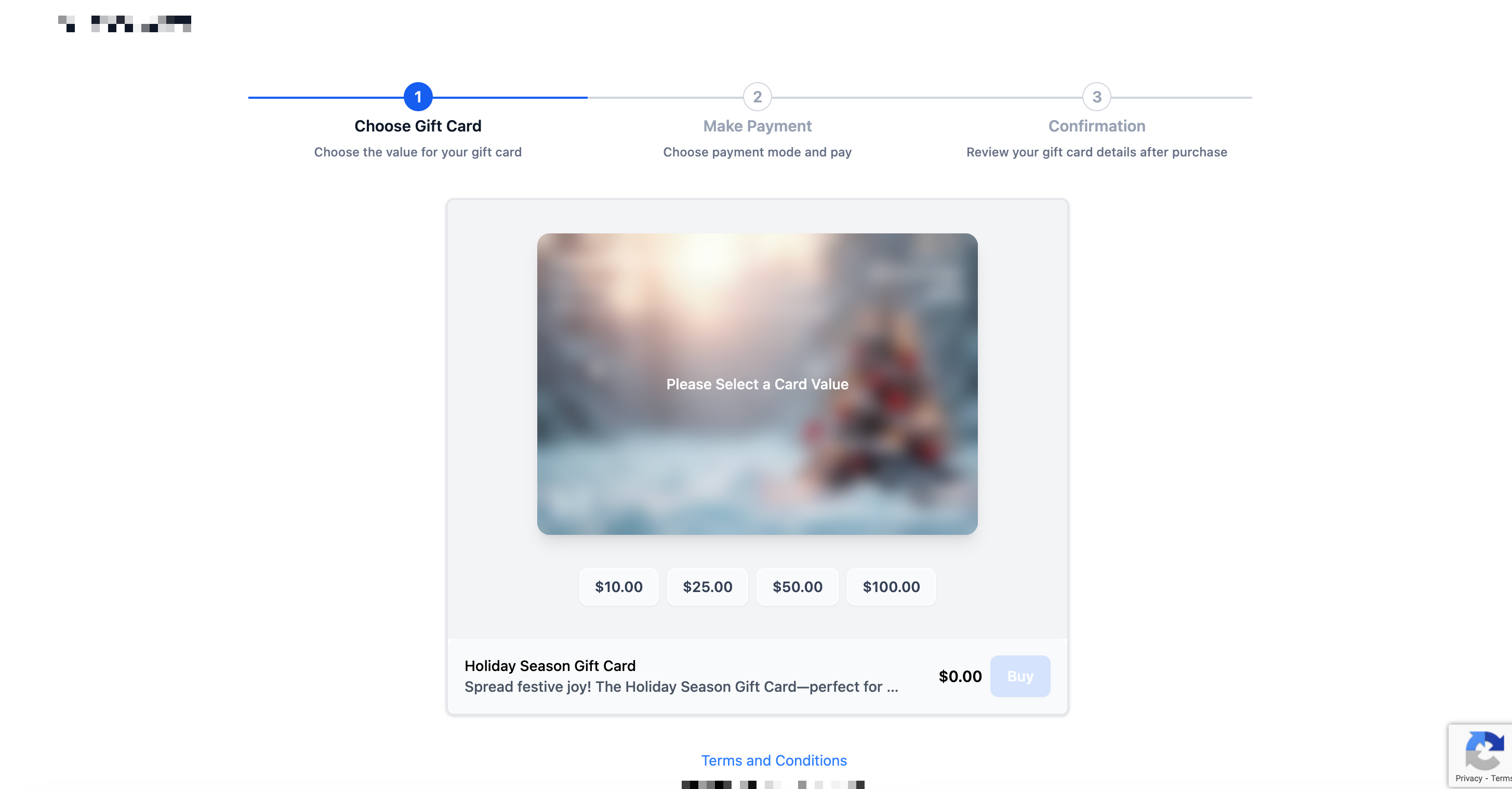
Step 1: Select a face value
The buyer selects one of the available values (for example 10€, 25€, 50€, 100€).
Step 2: Select who the Gift Card is for
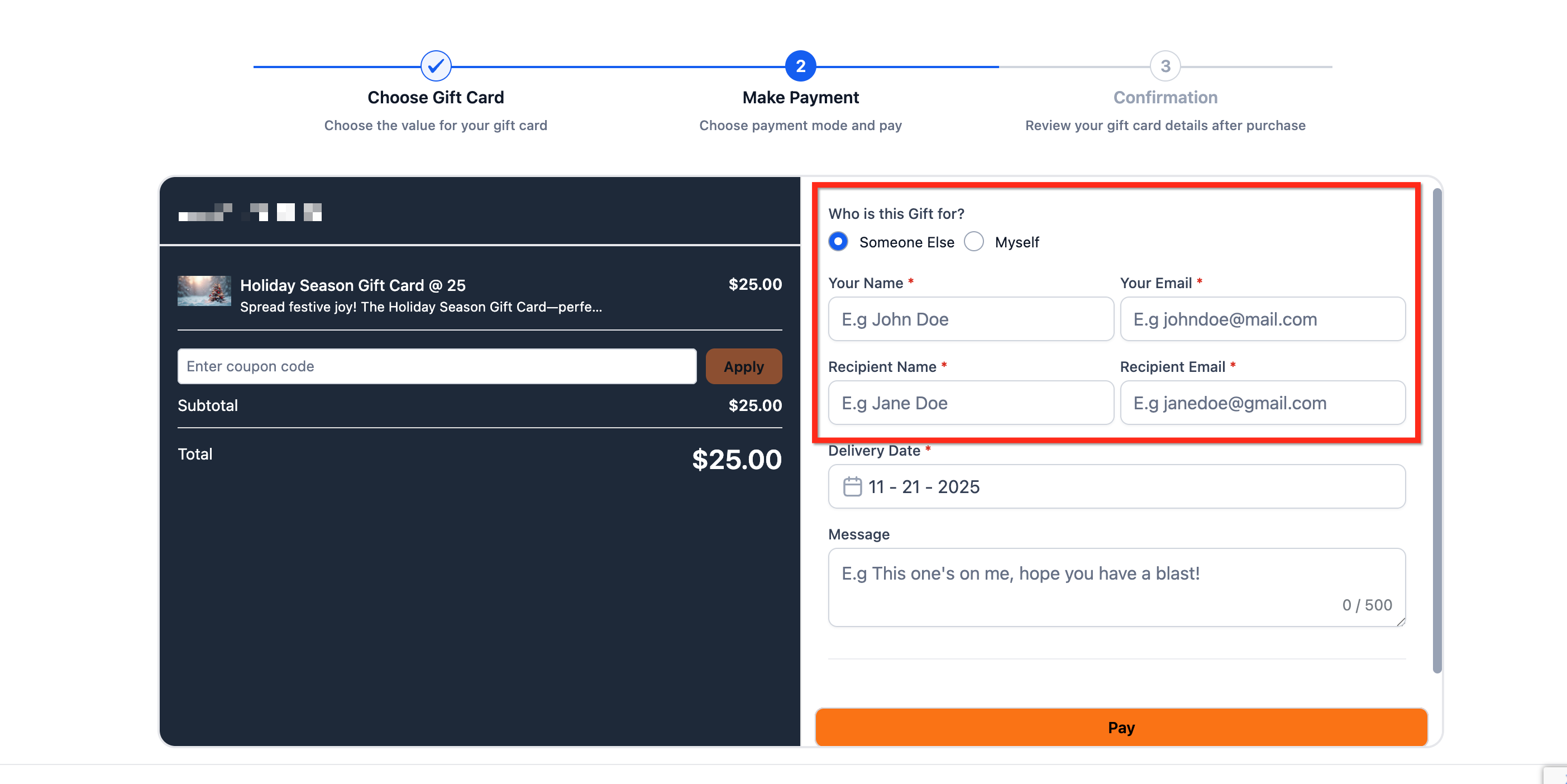
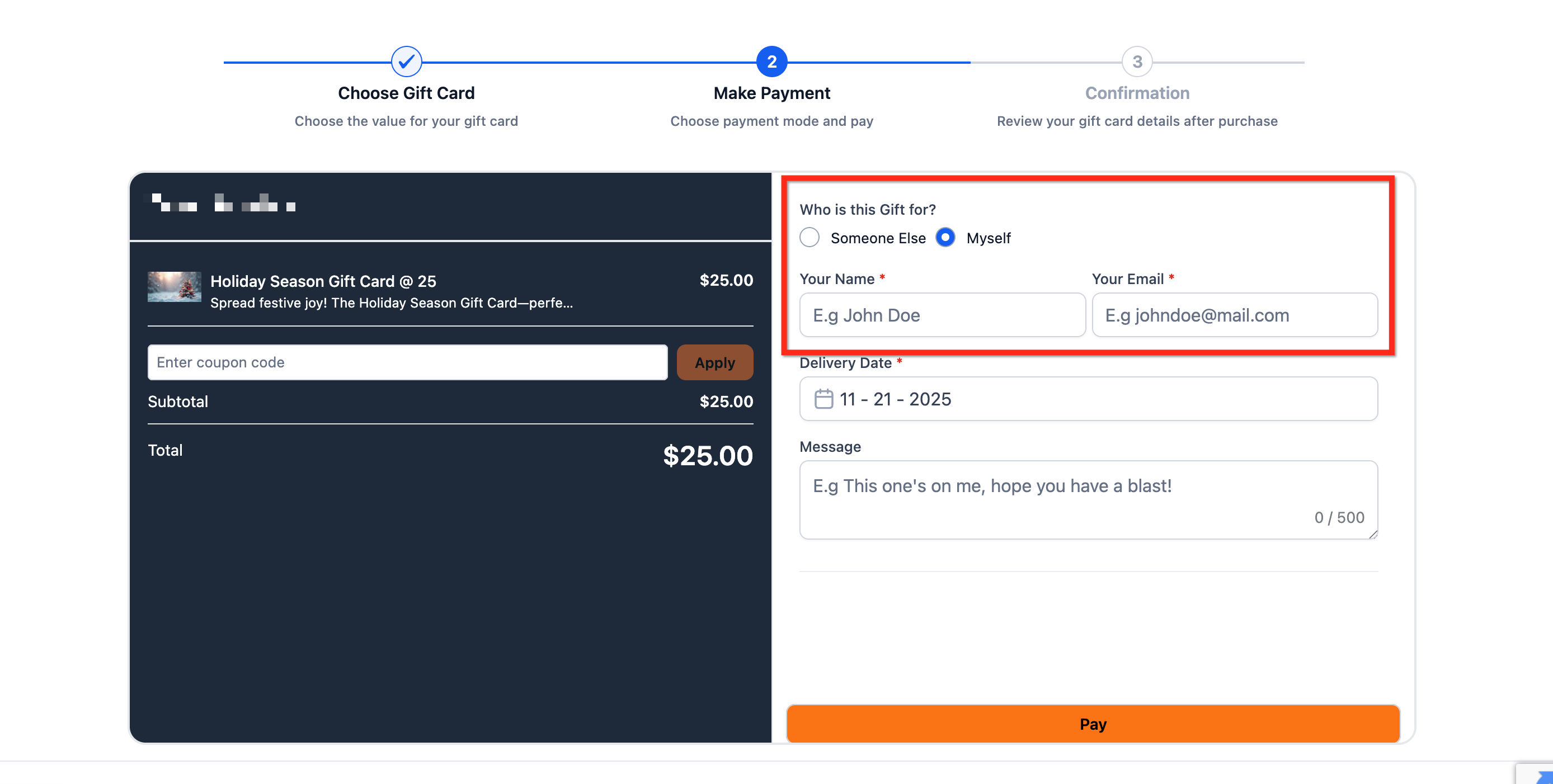
The buyer chooses whether the gift card is for themselves or for someone else.
- If the gift is for someone else: the checkout collects the recipient’s name and email, as well as the sender’s name and email.
- If the gift is for themselves: the checkout collects the buyer’s name and email.
Step 3: Add the delivery date
Choose Deliver now (immediately) or Schedule for later and select a date (and a time, if shown). Add an optional message for the recipient.
Gift Cards in live mode can be redeemed on live checkouts; those in test mode on test checkouts. The reverse is not possible.
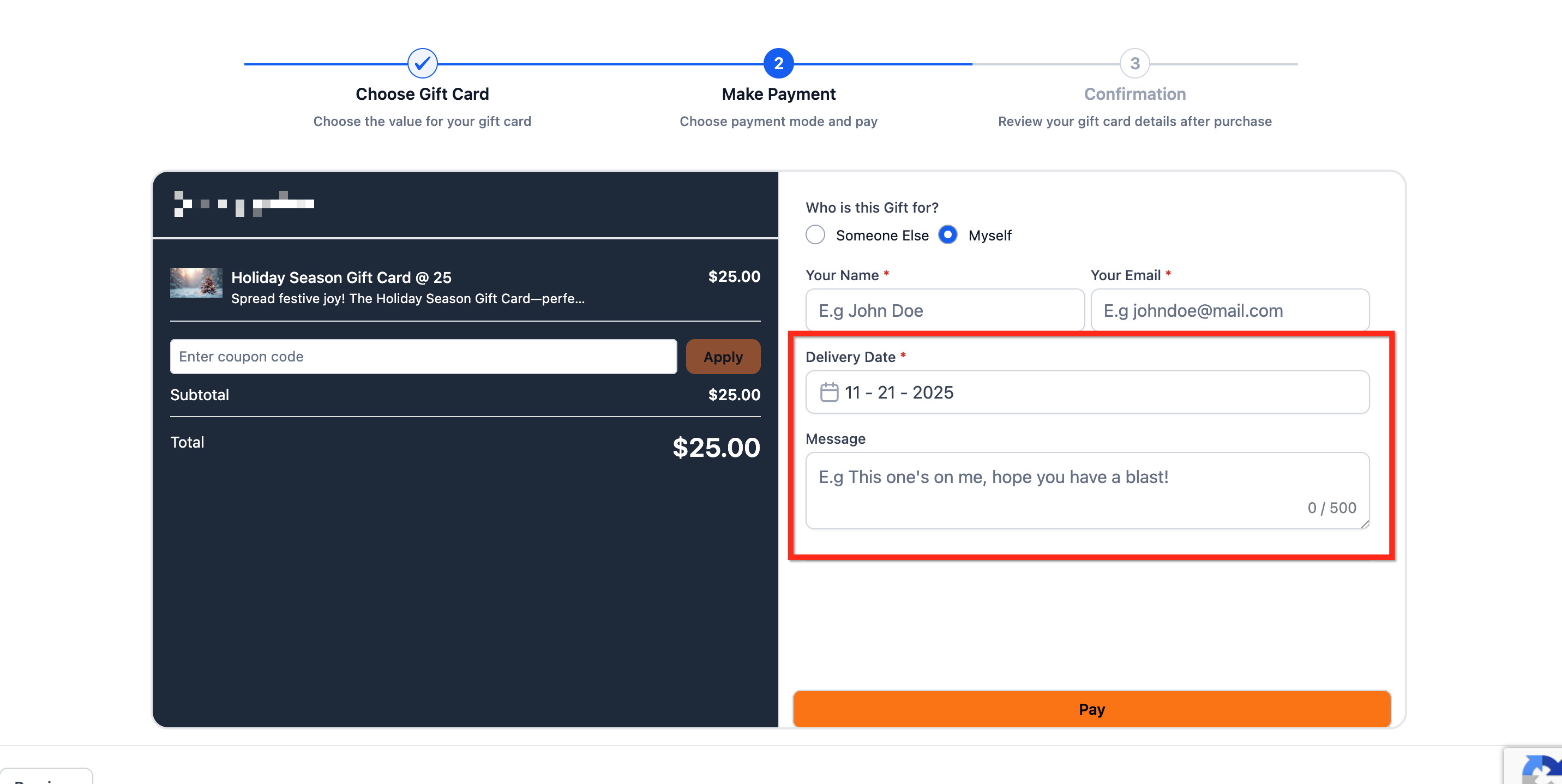
Step 4: Complete the payment and confirm
The buyer selects an available payment method and clicks Pay.
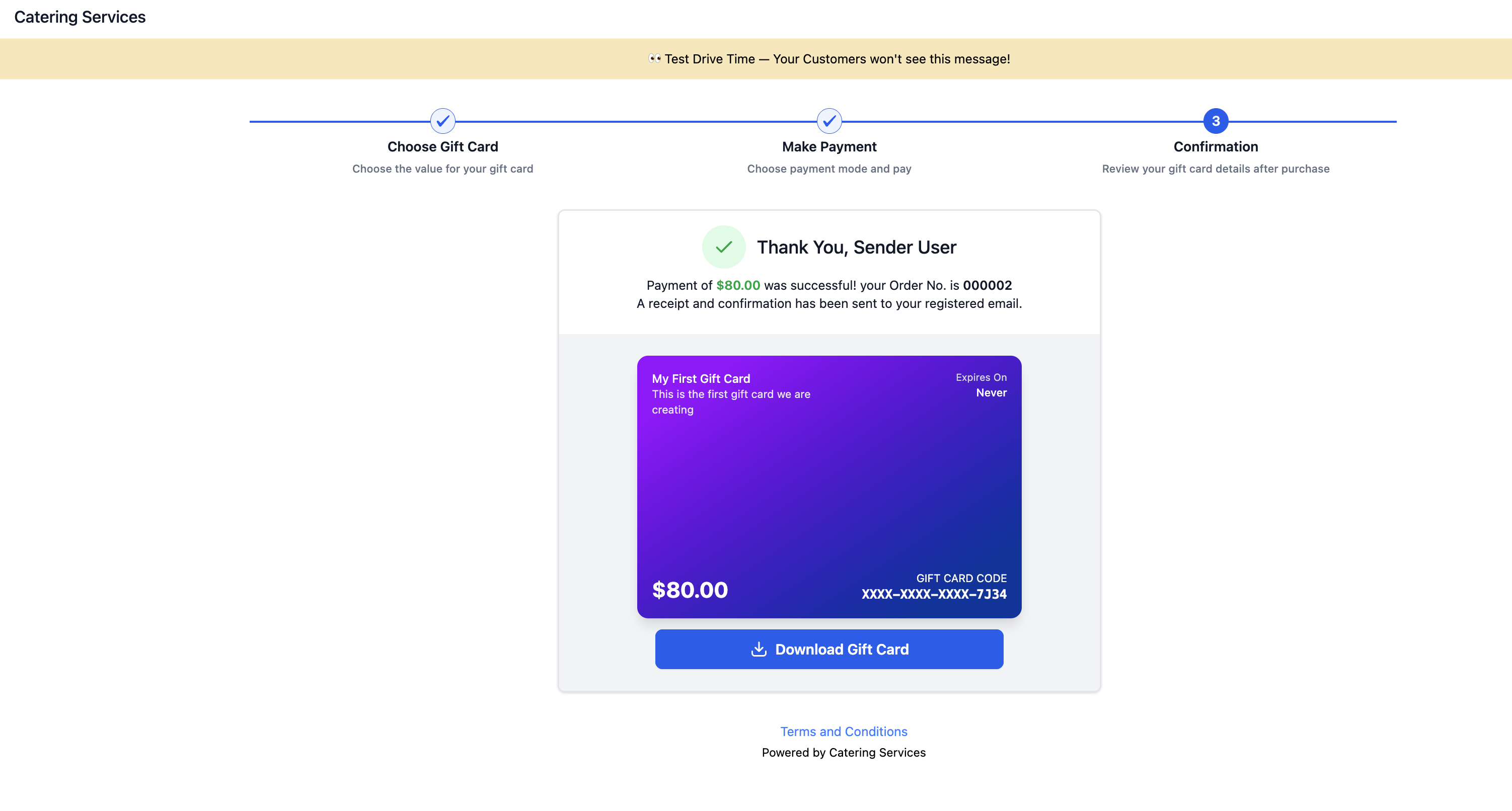
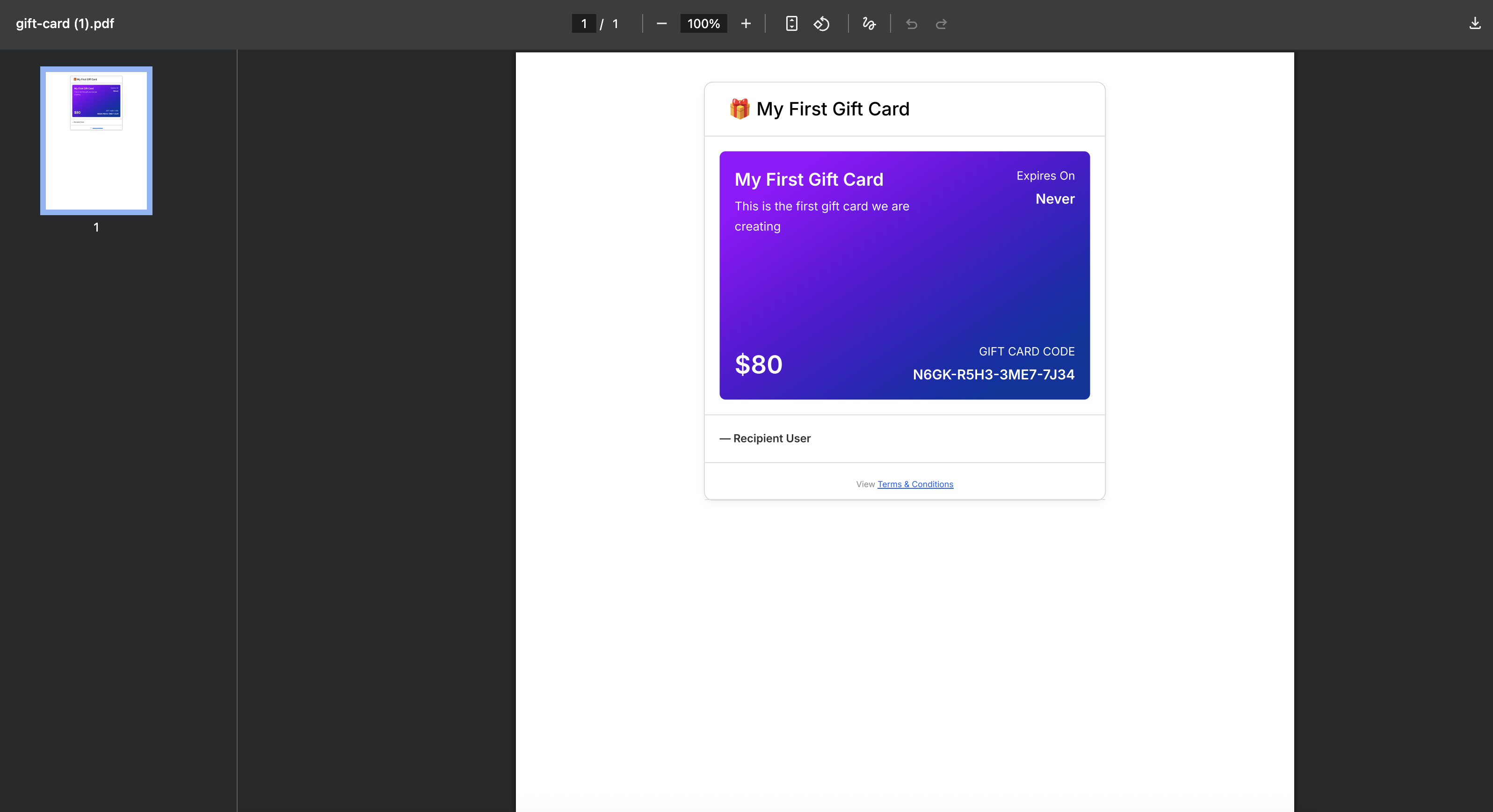
Once the payment is confirmed, the buyer can download the gift card from this screen. If the purchase is for someone else, the recipient will receive the gift card by email at the chosen time (immediately or on a scheduled date).
How to send Gift Cards (without payment)
Sending Gift Cards is a powerful feature that allows businesses to issue gift cards directly to any customer, without requiring a purchase or a payment.
Sending a gift card creates a one-off prepaid credit and delivers it to a chosen recipient by email, SMS, PDF or QR code. It is ideal for complimentary gifts, loyalty gestures, VIP perks and internal testing. Redemption happens on the Futuria CRM supported checkouts where gift cards are accepted.
Step 1: Go to the Gift Cards section
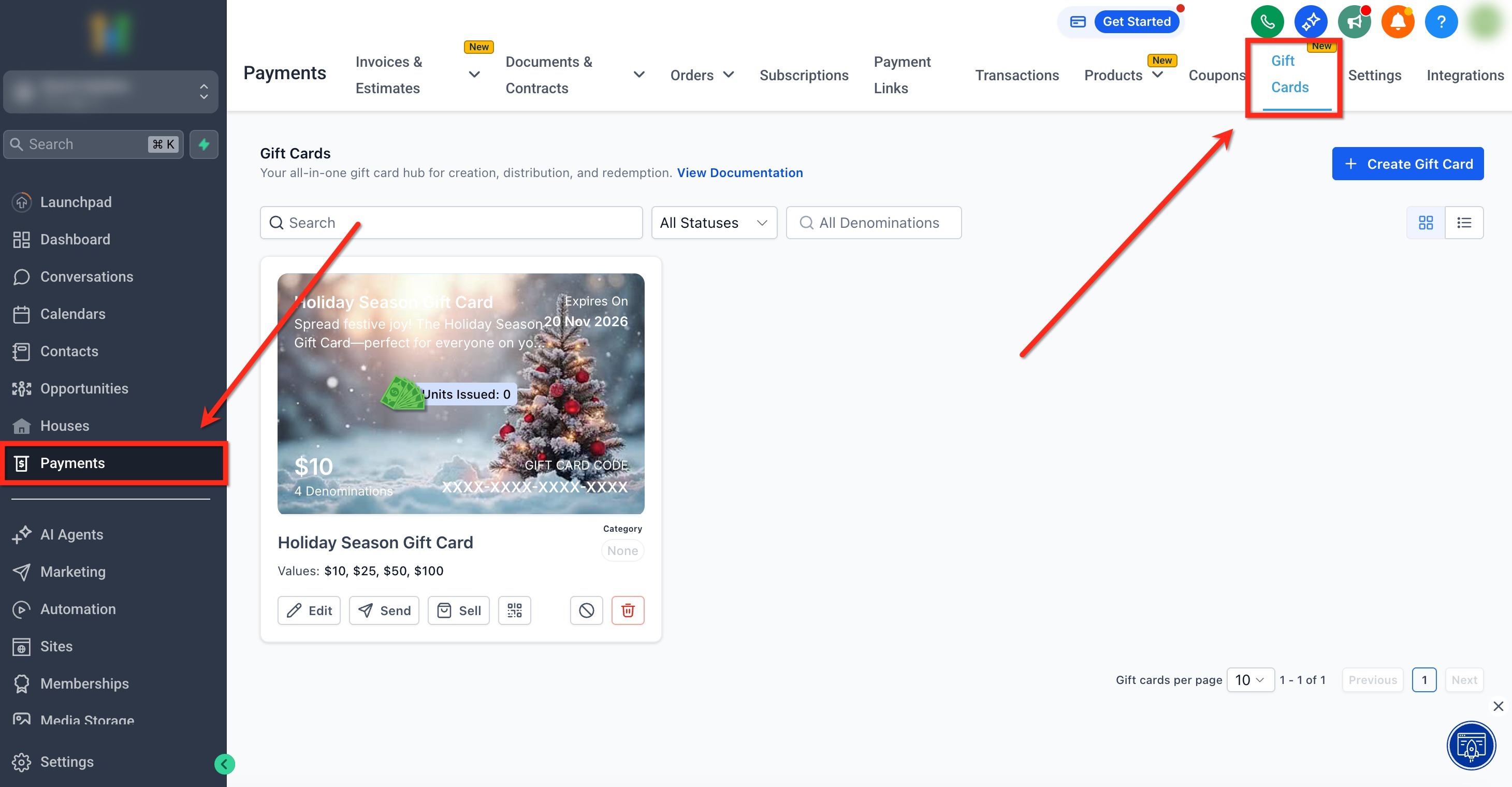
In the left-hand menu, click the Payments tab. Then, in the top bar, click Gift Cards to open the dedicated dashboard.
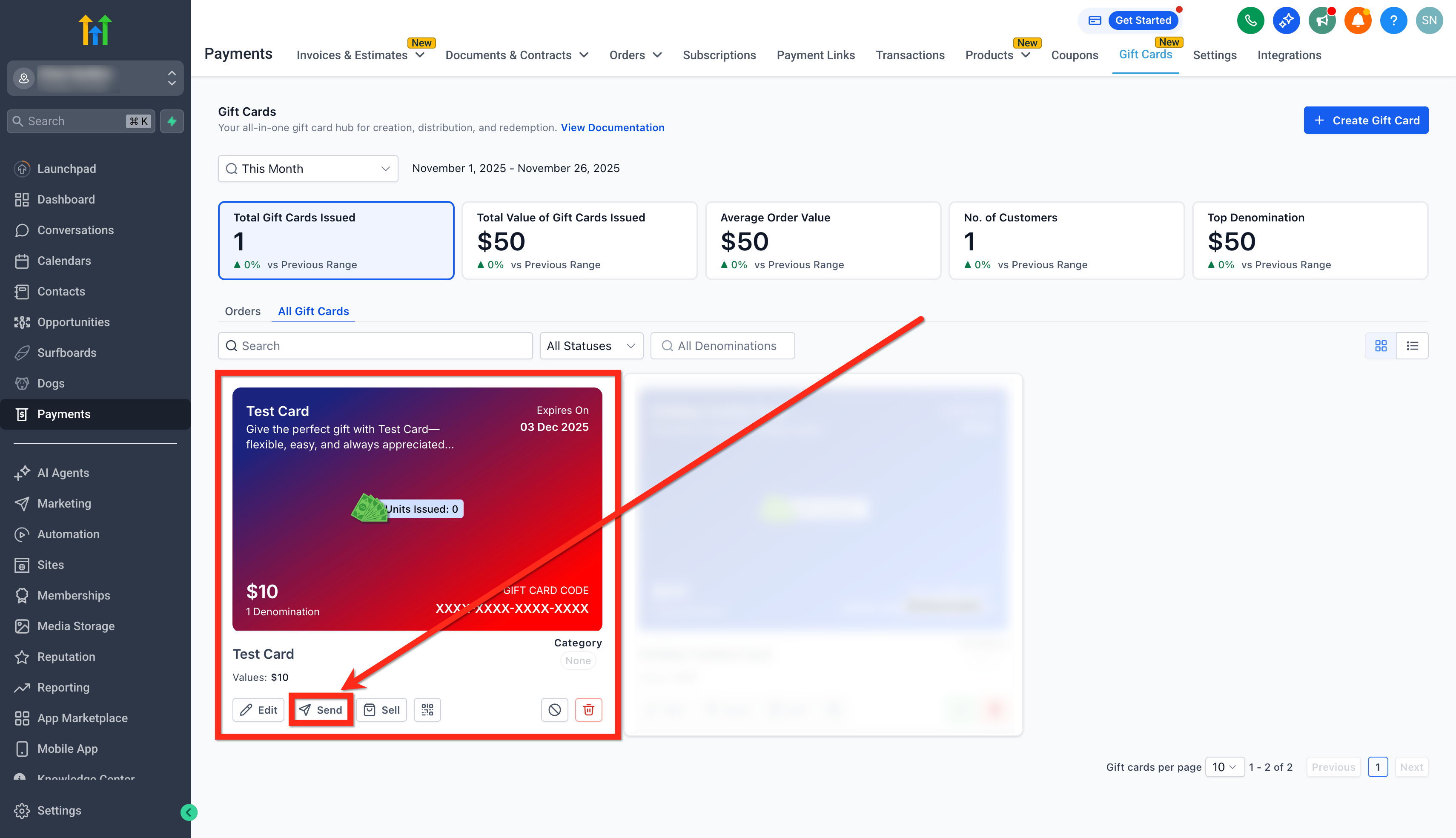
Step 2: Choose a Gift Card
On the Gift Card you want to send, click the Send button. You will now enter the sending flow.
Step 3: Choose a contact
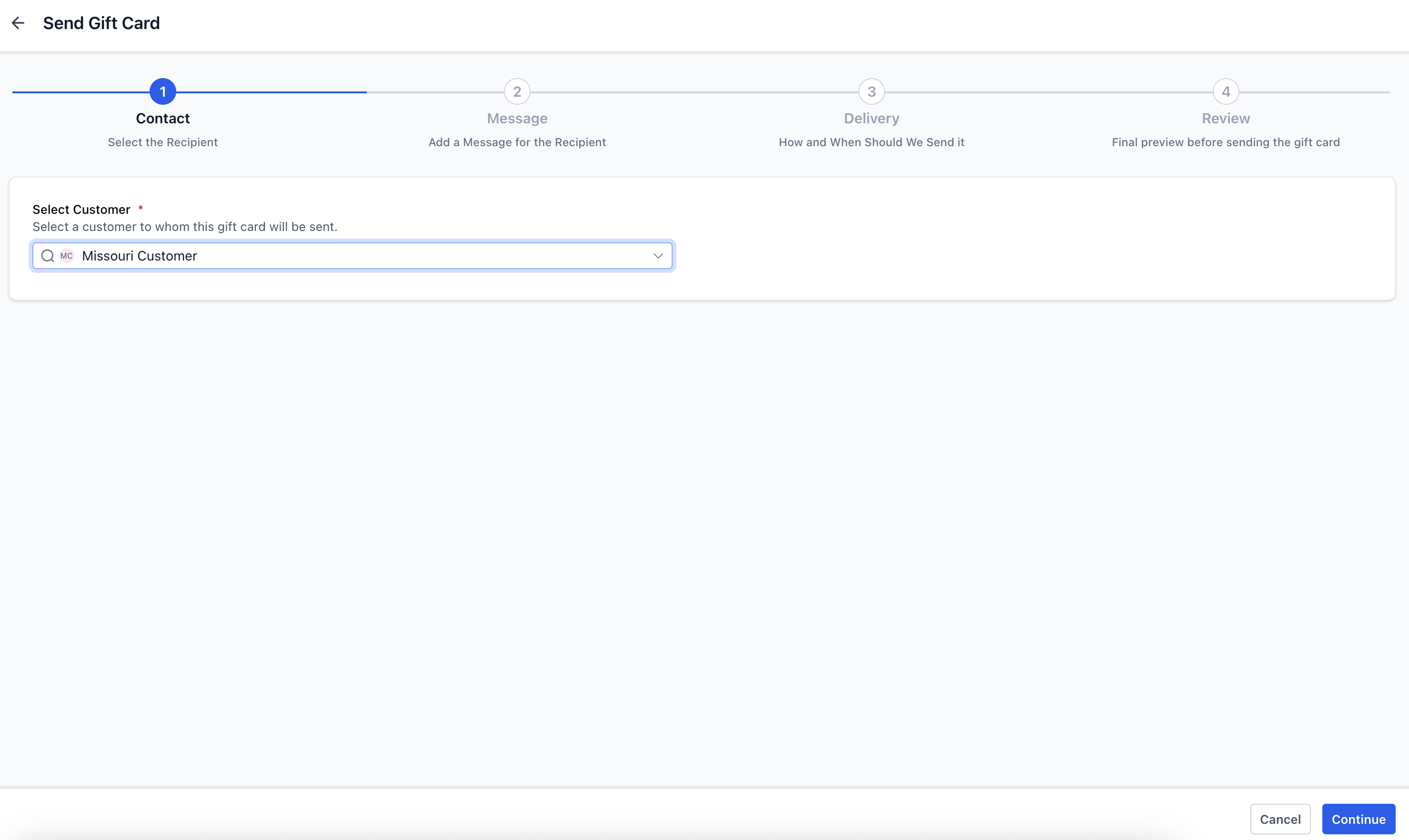
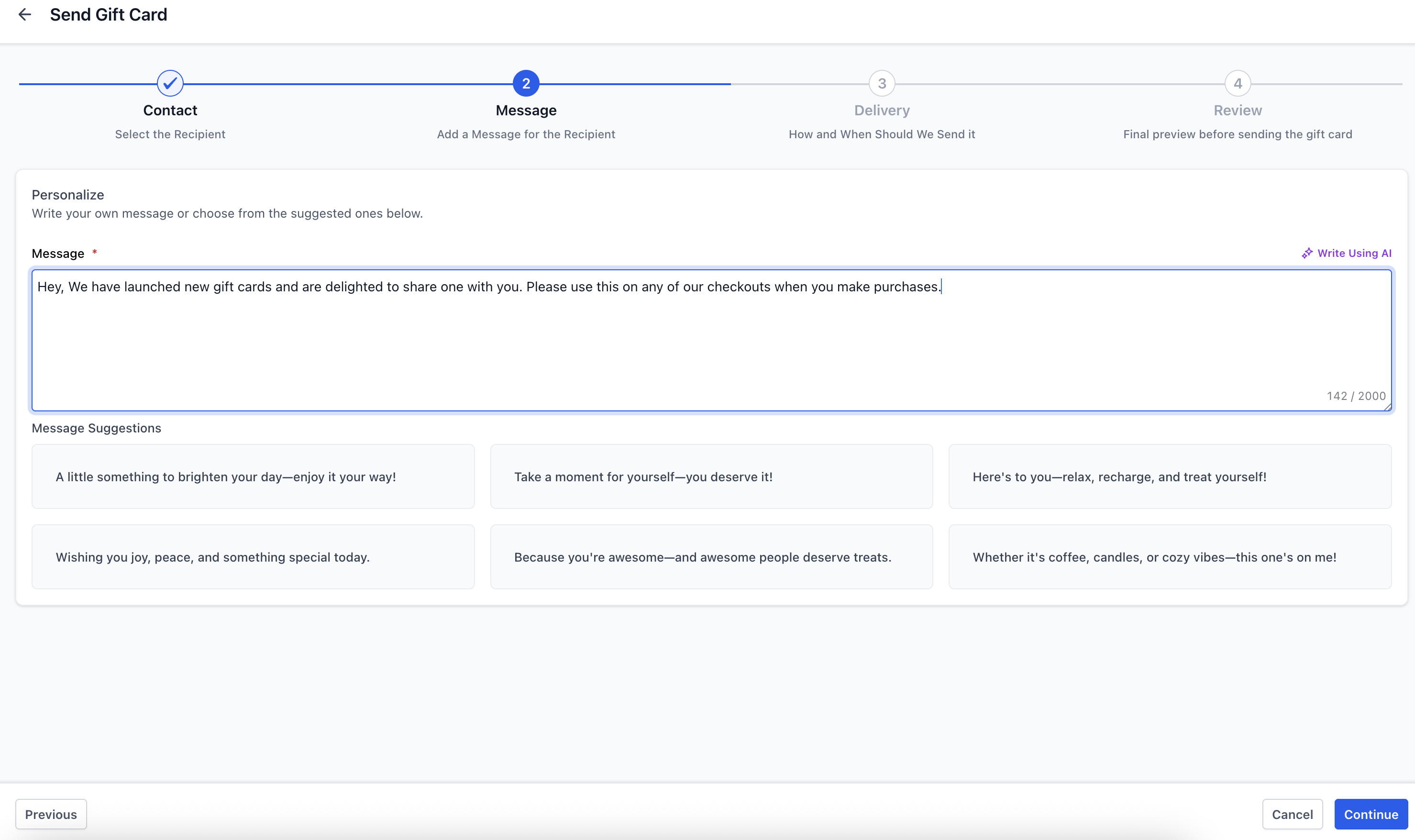
Select an existing customer/contact from your list or Add a contact, then click Continue. Add a personalised message and then click Continue. You can also use the 'Write with AI' feature to draft the message.
Step 4: Select the face value and the delivery method
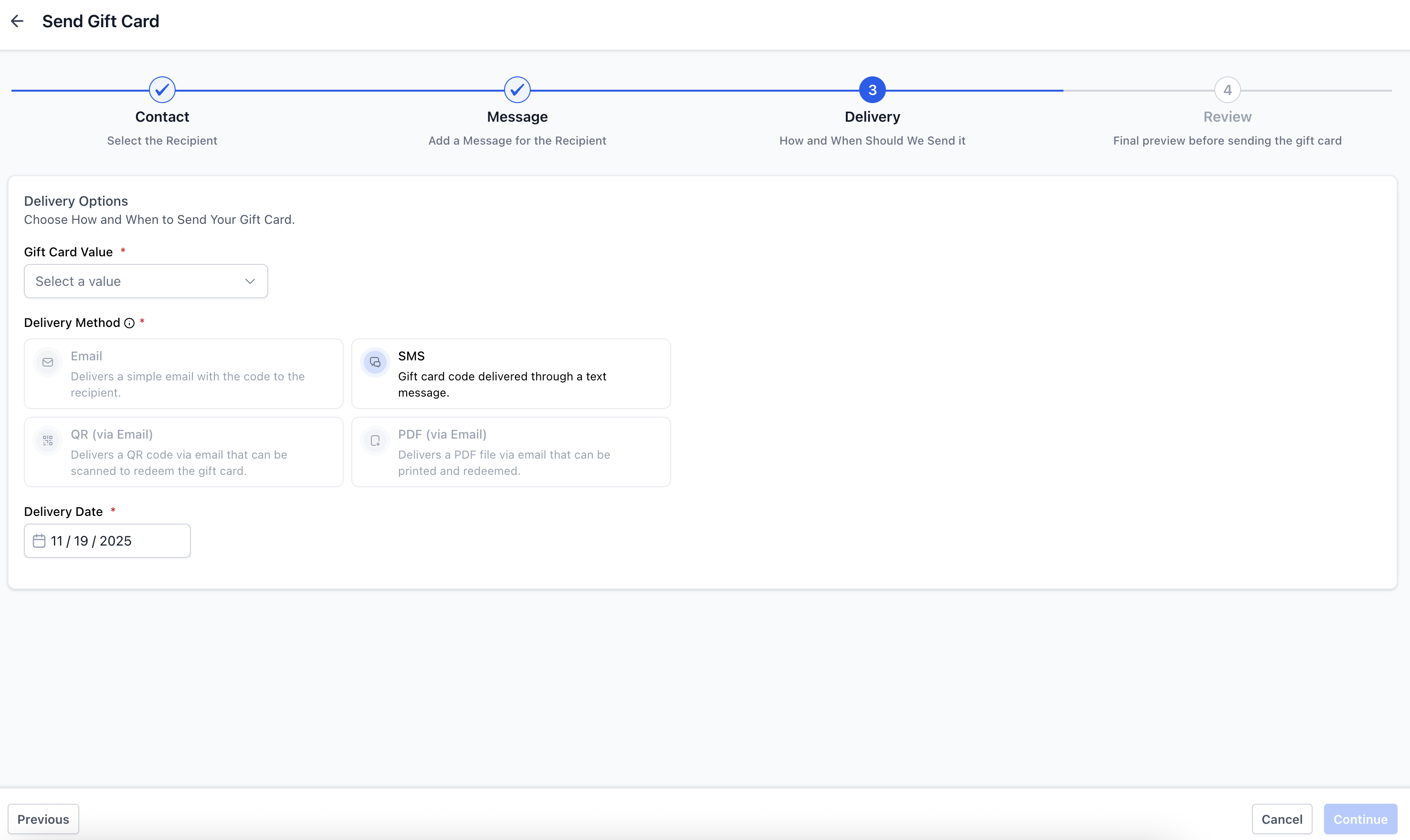
Choose one of the preset values for the product, then select the delivery method: Email, SMS, QR via Email or PDF via Email. While selecting the method, you can also schedule the sending date (optional).
Note: only the methods supported by the customer information available (email/phone) will be enabled.
Step 5: Review and send
Before confirming, check the preview of the automatically generated email or SMS. This includes:
- Gift Card amount
- Personalised message
- Expiry date
- Redemption instructions
- Artwork
Finally, click Send Gift Card.
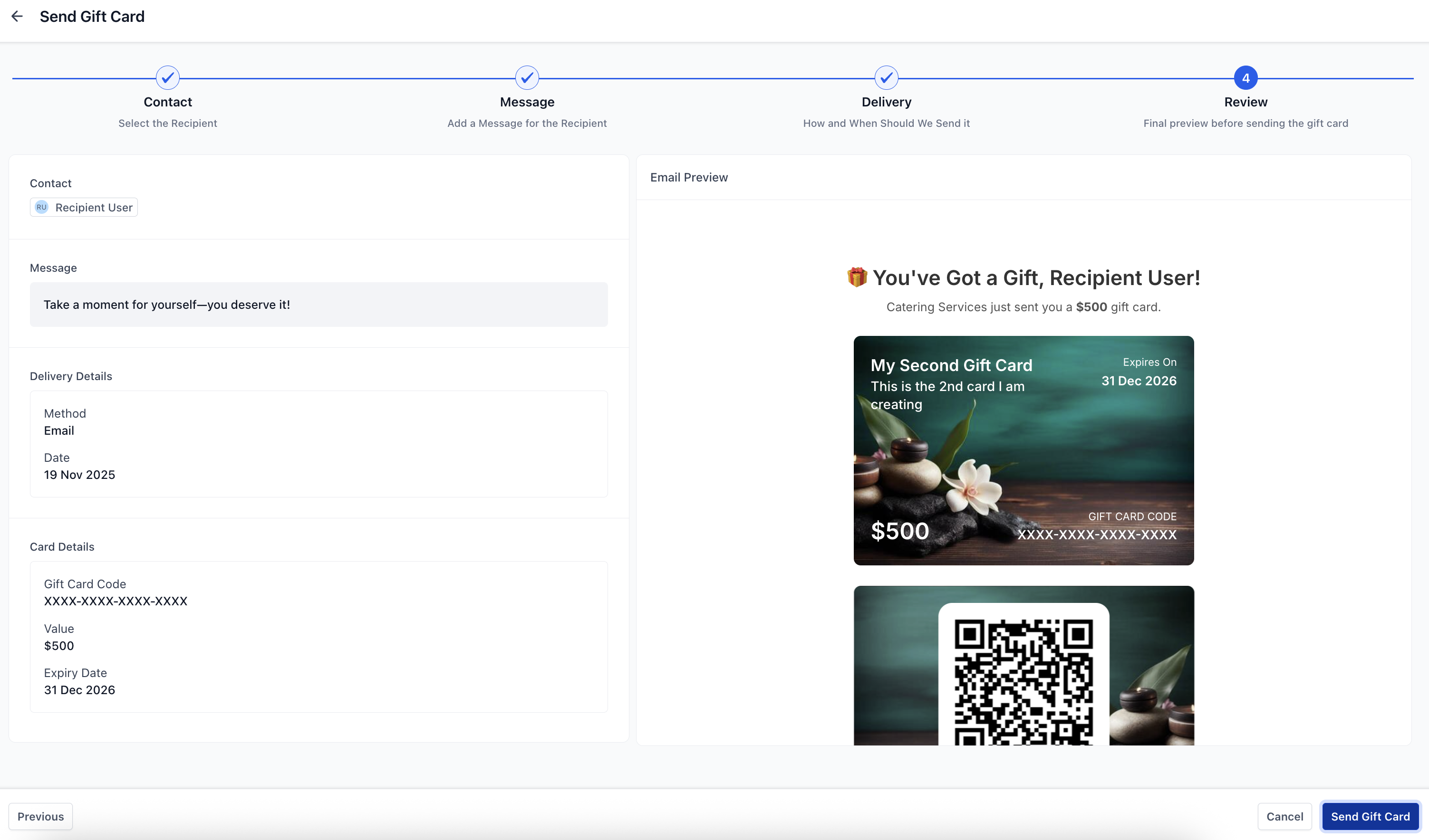
Result: a complimentary Gift Card is issued for the contact, ideal for loyalty campaigns, refunds or special promotions. It will appear under Gift Card Orders but not on the general Payments → Orders page (because no payment was taken).
How to track Gift Card orders
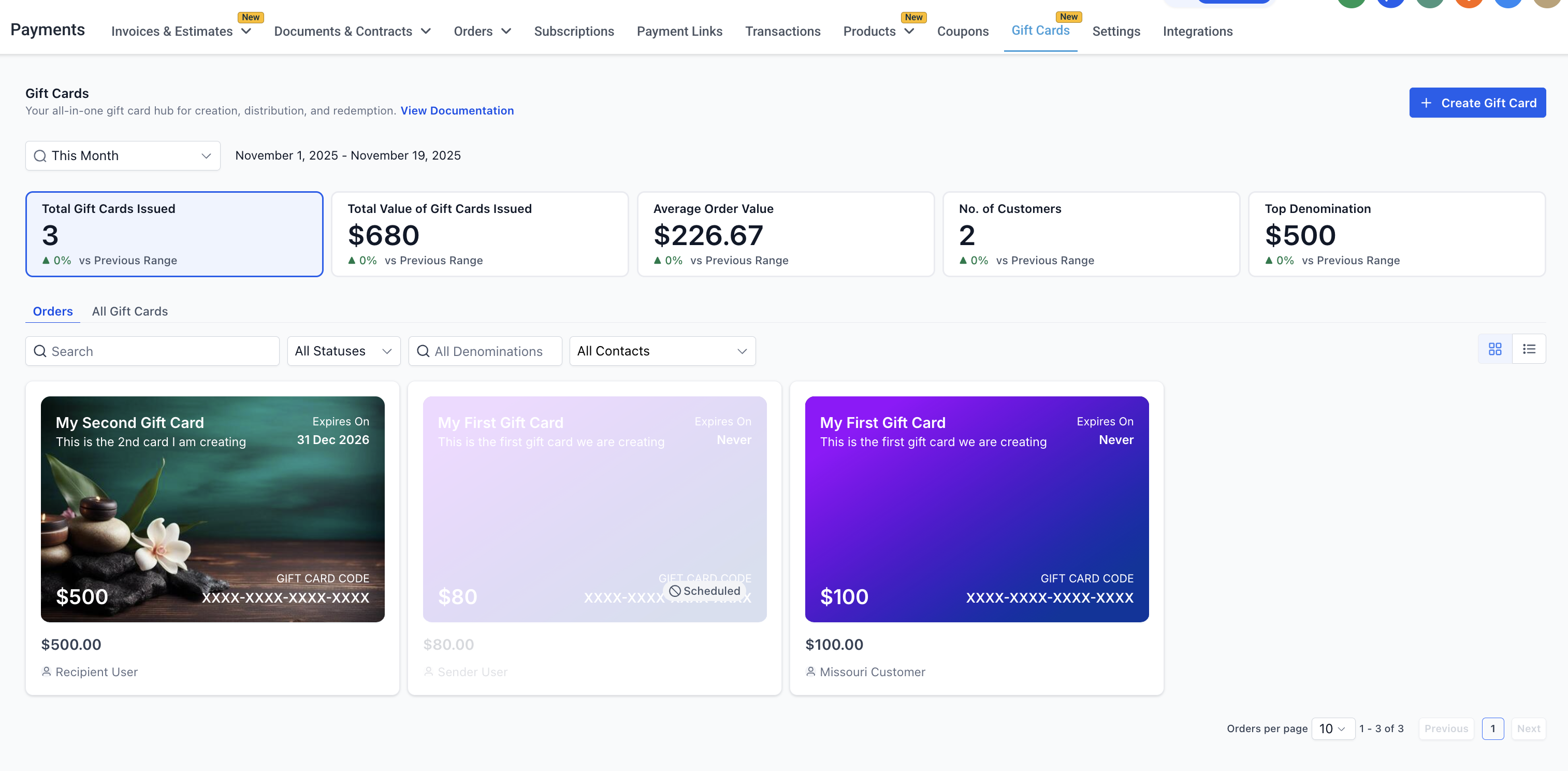
Every Gift Card issued (sold or sent) is listed under Payments → Gift Cards → Gift Card Orders.
The gift card orders page lists all the cards sold or sent along with their status, balance, filters and contact details. Every card on this page is clickable and opens a detail page for that order.
Tip: the general Payments → Orders page only shows paid orders. Gift Cards sent directly without payment do not appear there. Use the Gift Card Orders page as the central hub for every card issued or purchased.
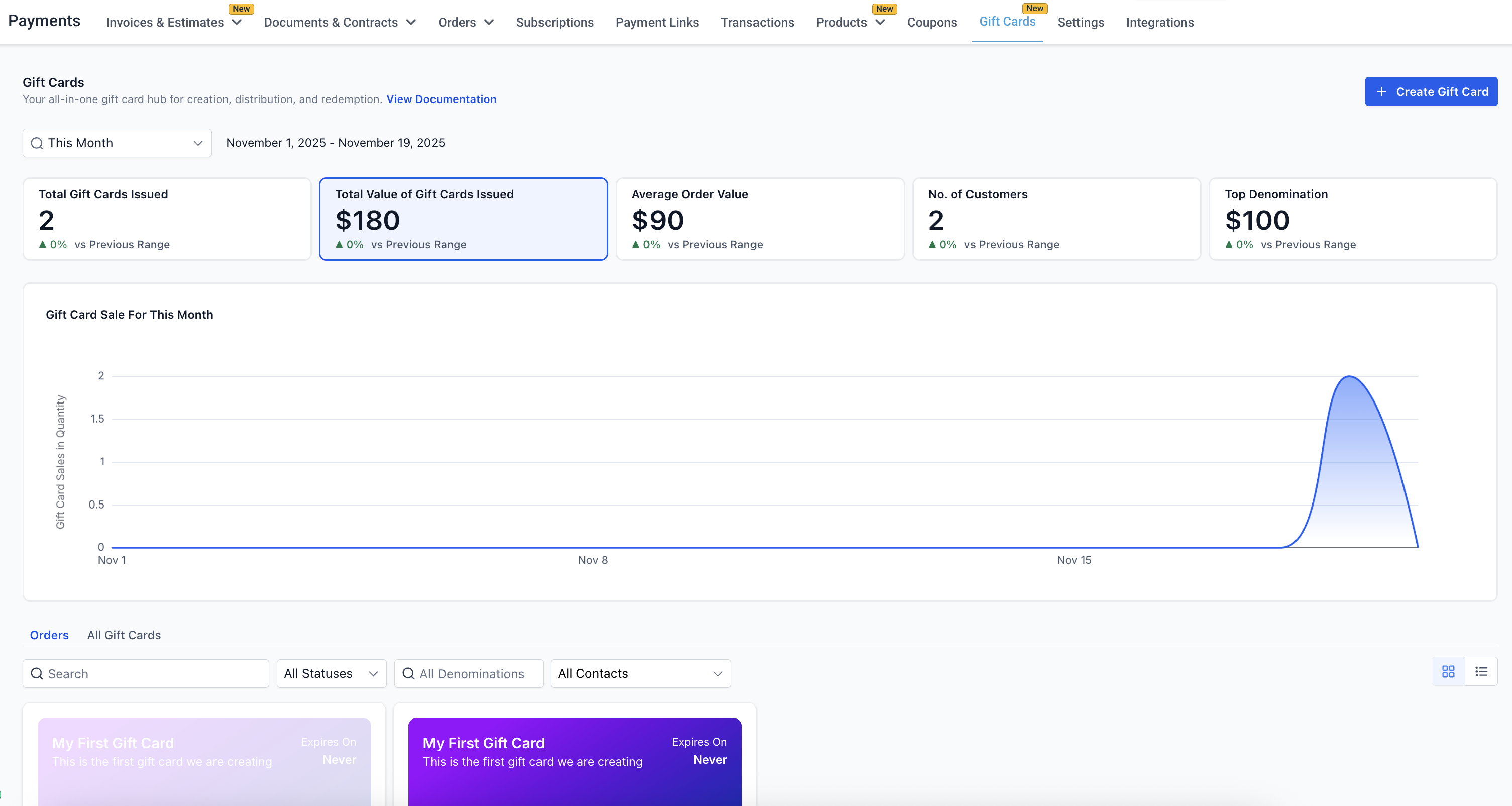
The Gift Card dashboard
The Gift Card dashboard gives you a quick overview of overall performance. You can see high-level metrics such as:
- Total Gift Cards issued (sold + sent)
- Total value of the Gift Cards issued in the selected period
- Average Gift Card order value in the selected period
- Number of unique customers who bought or received gift cards in the selected period
- Most popular face values issued, including a Top 5 ranking
This information helps you understand customer behaviour, track gift card adoption and plan better inventory or promotional strategies.
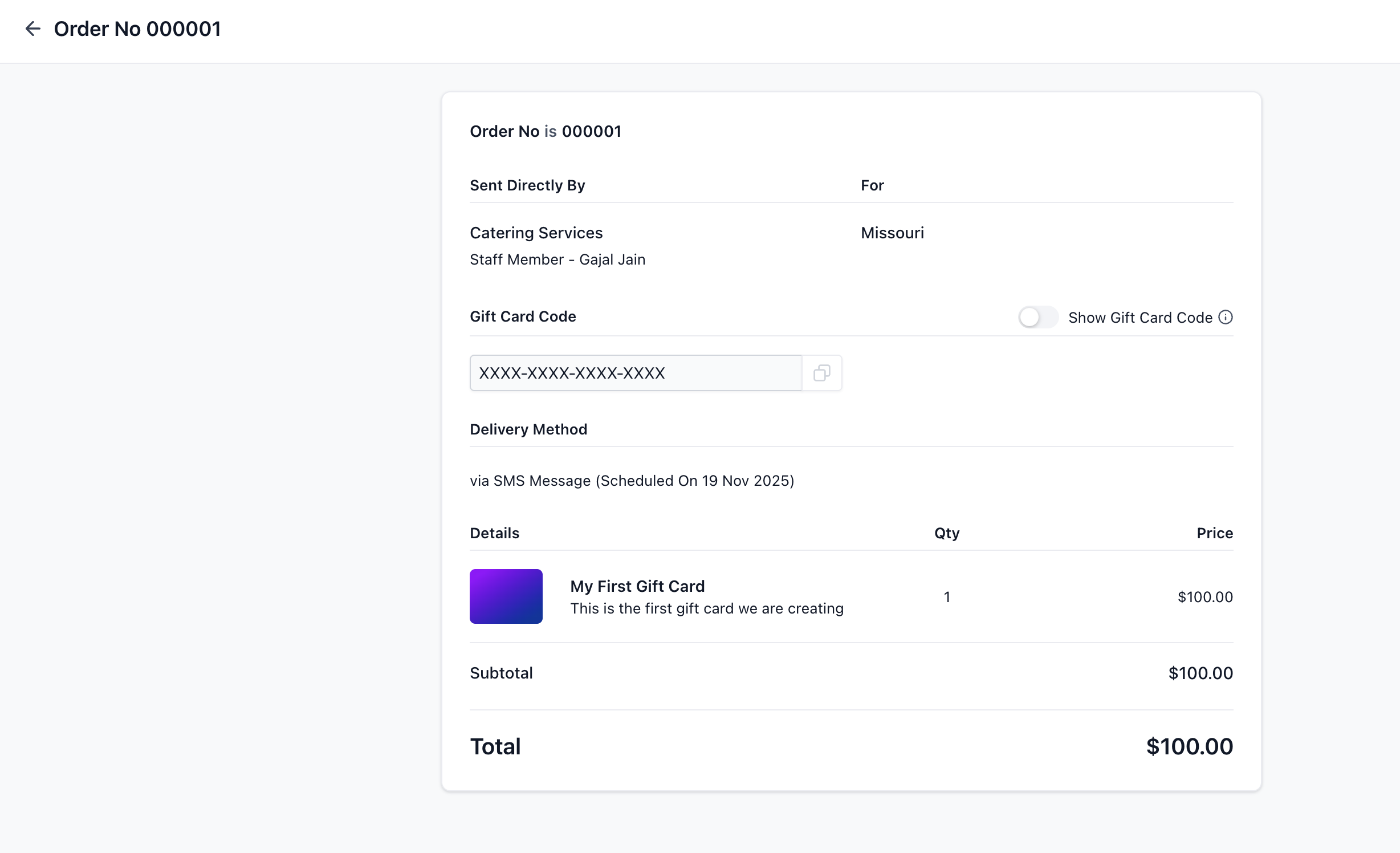
The Gift Card order detail page
The order detail page acts as the single source of truth for every Gift Card in the account. For each order, businesses can see:
- Buyer information
- Recipient information
- Face value
- Expiry date (the same as the gift card product)
- Remaining balance
- Status (Scheduled, Active, Inactive)
- Hidden Gift Card number (visible on the detail page)
- Delivery method and schedule
- Transaction reference (for paid cards)
How customers redeem Gift Cards
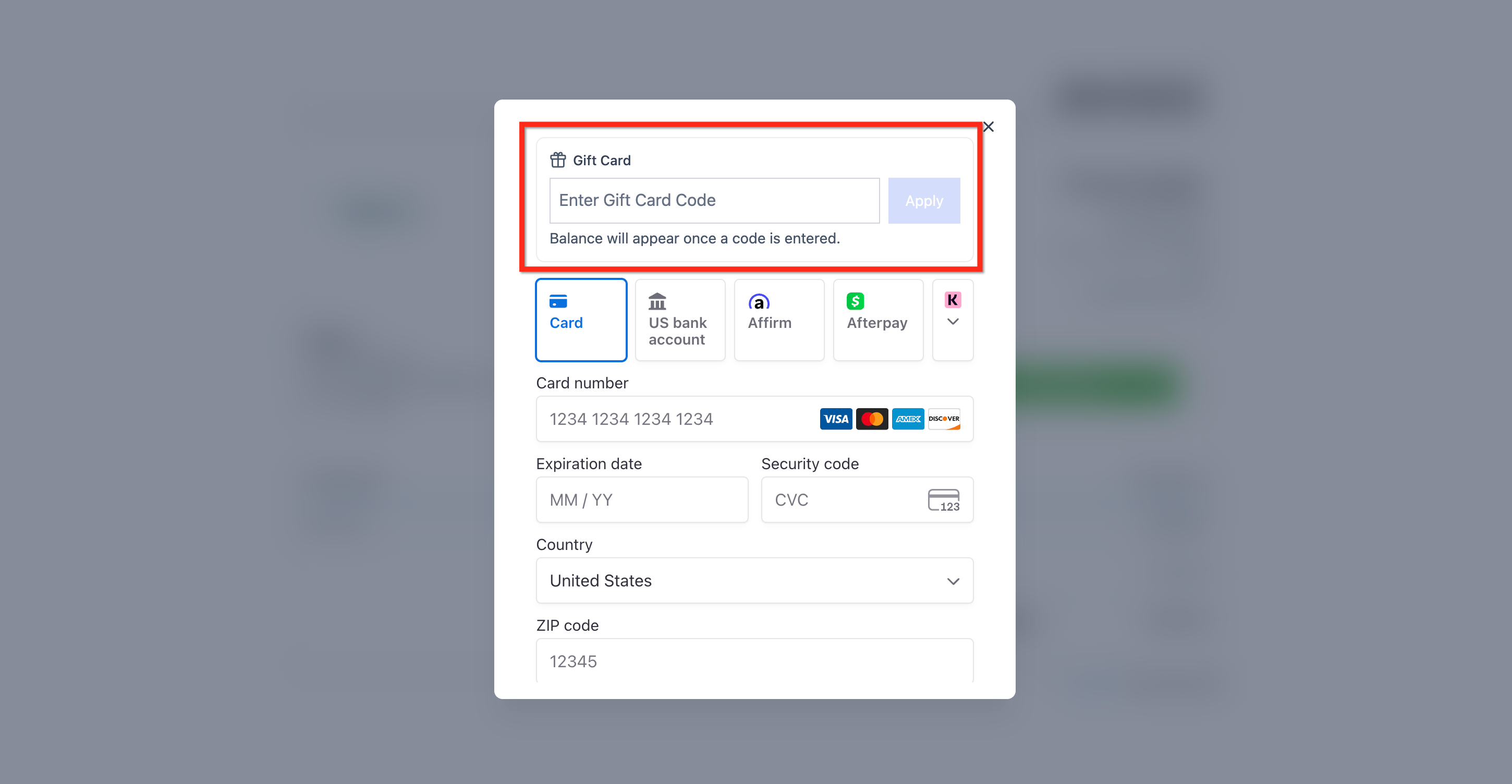
- The customer goes to any supported checkout (forms, funnels, payment links, invoices, store, calendars, Services V2 during booking only, and so on).
- They enter their Gift Card Code in the relevant field.
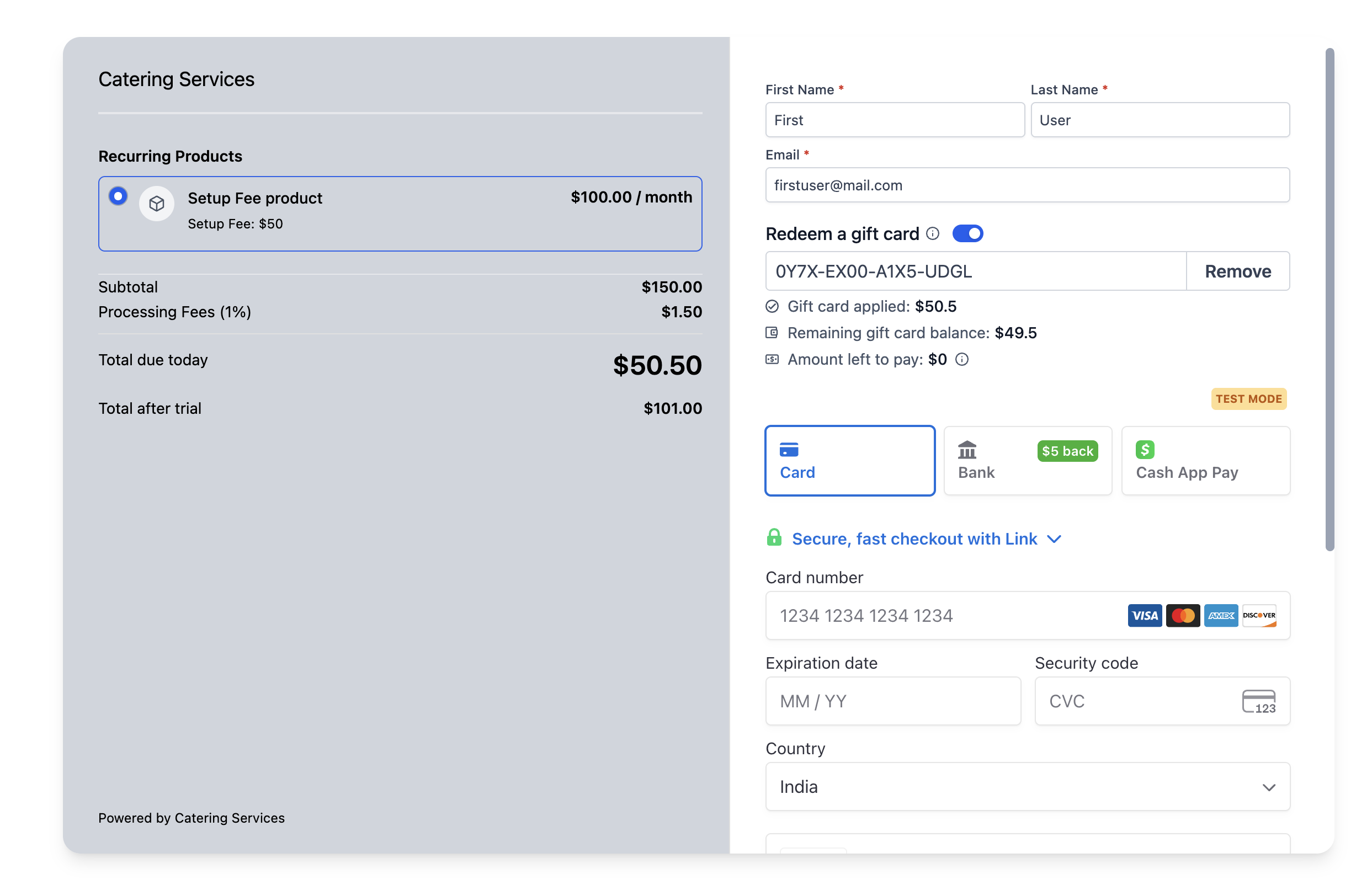
- The gift card is applied and the system shows:
- Gift card applied: the amount used from the card
- Remaining gift card balance: the amount left on the card after redemption
- Amount due: the remaining amount not covered by the gift card (only visible if an additional payment is required)
Note: gift cards are not yet supported on subscriptions, donation forms and rentals, and they will not be supported on Services V1 in future.
Gift Card redemption is fully supported with Stripe, NMI, Authorize.net and Square. However, there is limited support for providers such as PayPal, Adyen and custom payment gateways. In those cases, gift cards can only be redeemed if the balance covers the entire order total and the order contains no recurring or subscription products.
Redemption rules
- If the balance is ≥ the order total for one-off products: no additional payment is needed.
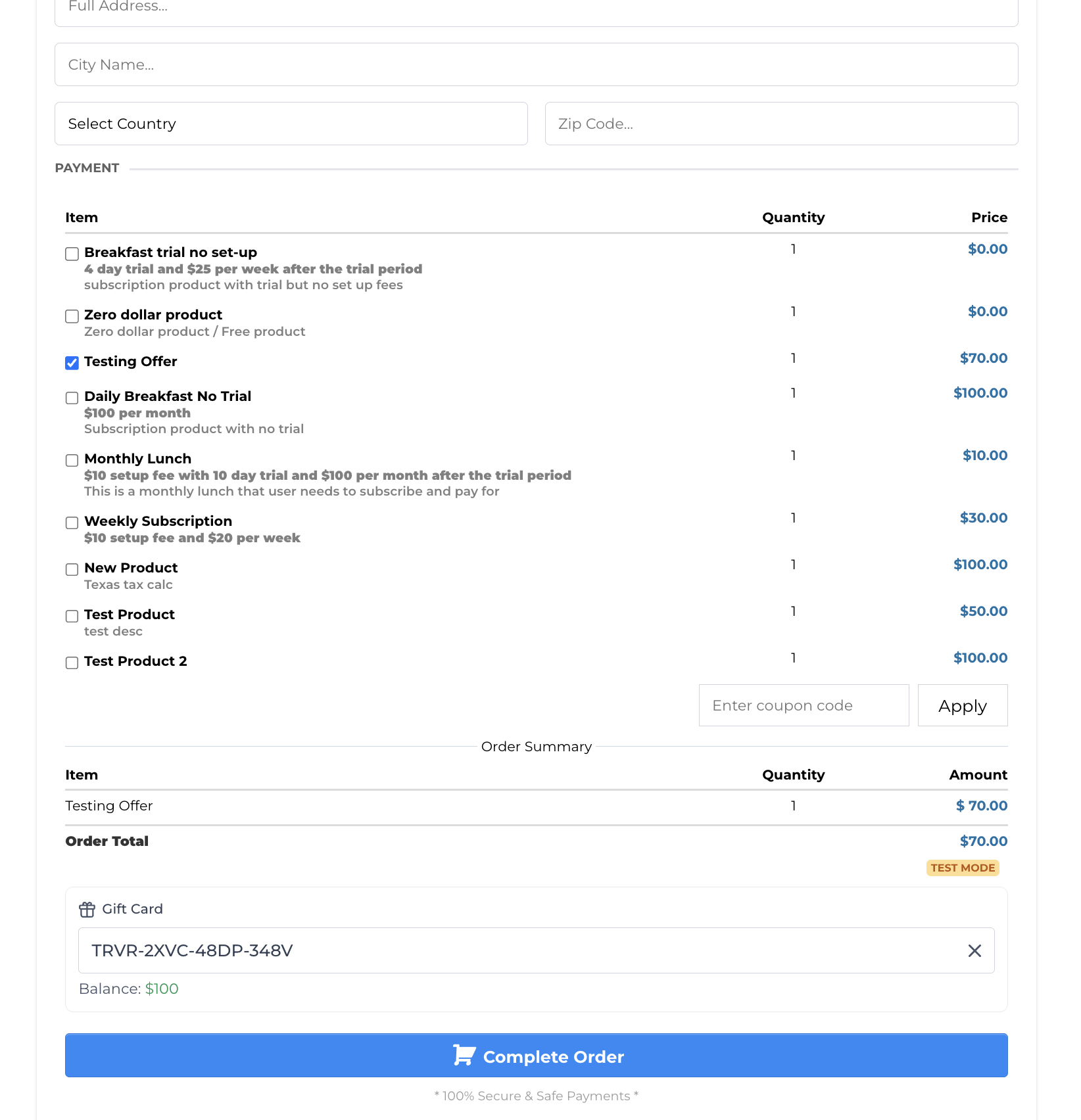
- If the balance is < the order total or the order includes subscriptions: the checkout asks for an additional payment method to cover the difference.
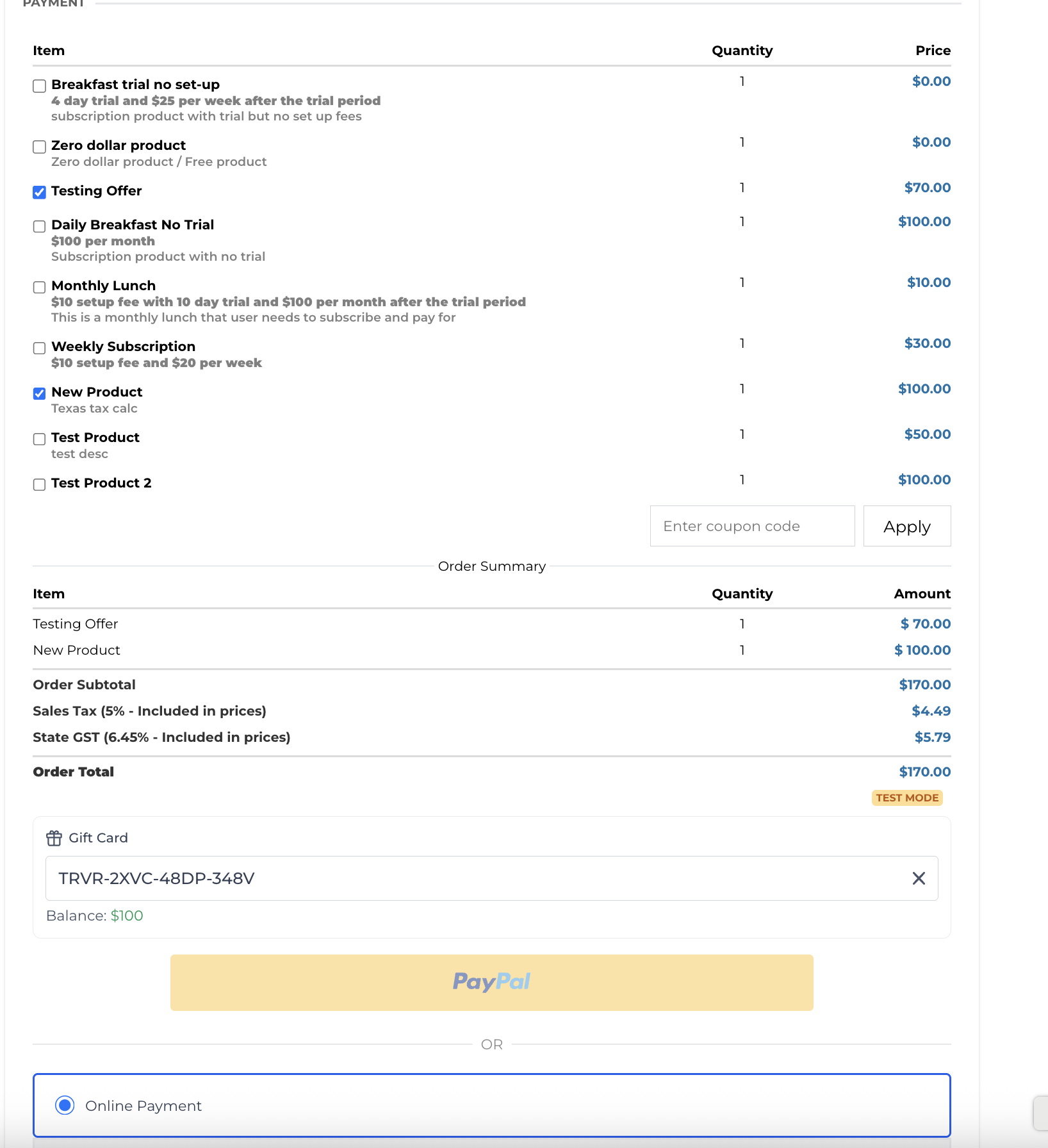
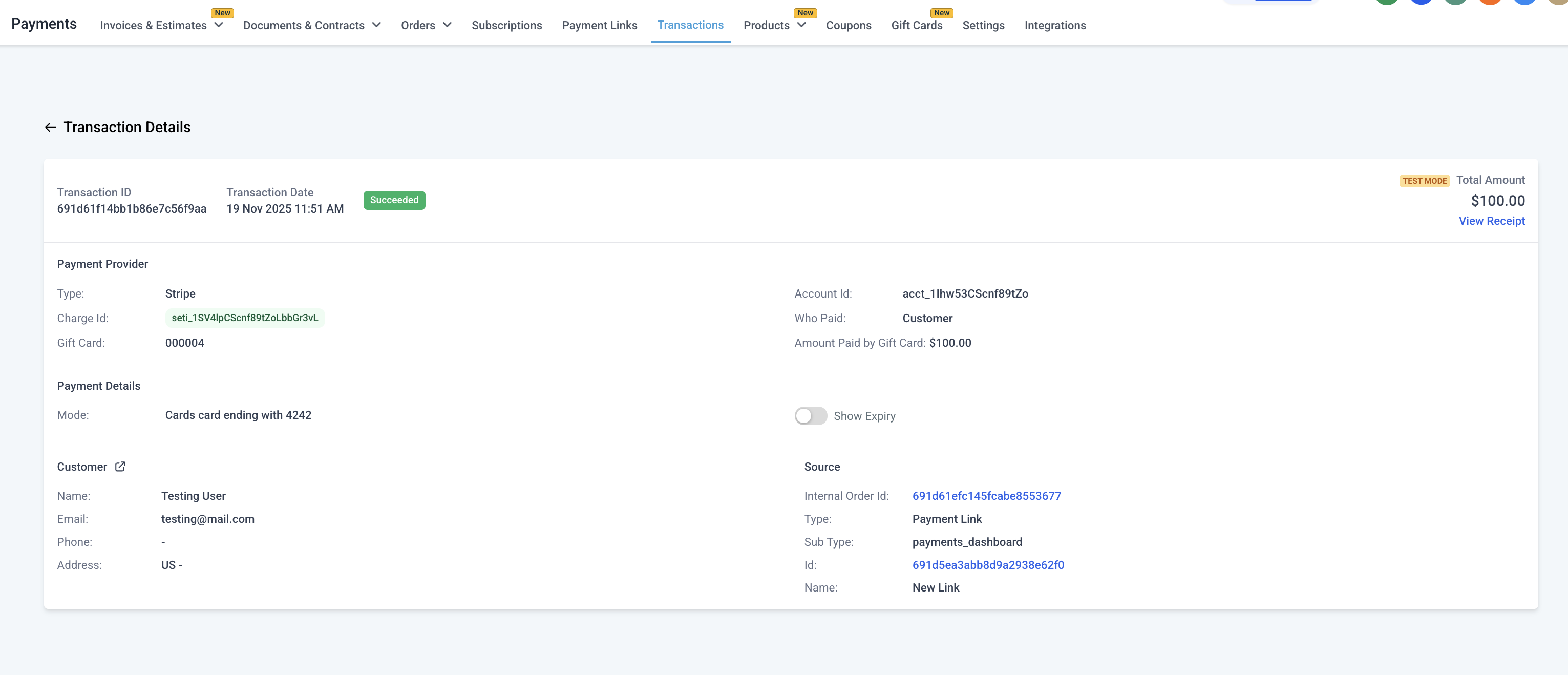
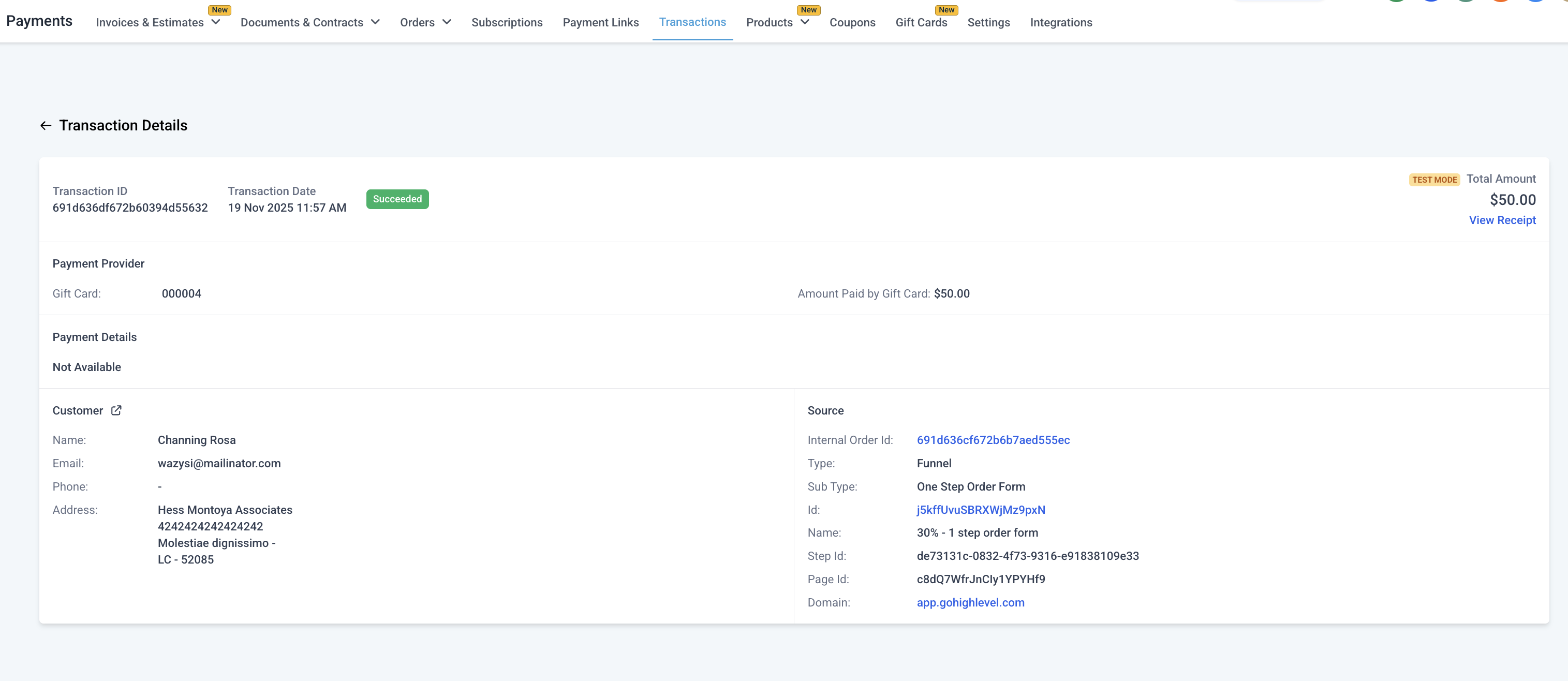
- The transaction details now show a separate line for "Gift Card balance used".
Frequently Asked Questions (FAQ)
What is the difference between Gift Card Orders and the general Orders page?
The Gift Card Orders section (under Payments → Gift Cards) tracks every card issued or purchased. The general Orders page only records paid transactions.
Which payment gateways can I redeem my gift cards on?
Gift Card redemption is fully supported with Stripe, NMI, Authorize.net and Square. There is limited support for providers such as PayPal, Adyen and custom gateways. In those cases, gift cards can only be redeemed if the balance covers the entire order total and the order contains no recurring products.
Can I set different expiry dates for each order?
Not yet. All orders of a Gift Card product share the product’s expiry date. Validity at individual order level is planned for a future release.
How does inventory work with several face values?
Inventory applies to each face value. For example, three values with an inventory of 50 each amount to a total of 150 cards available.
Can I limit where Gift Cards can be redeemed?
At present, Gift Cards can be redeemed on all products, except for buying other gift cards. More granular controls (at product or variant level) are in development.
Can customers check their balance without starting a checkout?
Not yet. For now, entering the card number at any supported checkout displays the balance. A dedicated balance-checking link will be available shortly.
Can I buy gift cards using other gift cards?
Not yet. At the moment it is not possible to add a gift card product to a checkout and pay using another gift card. The ability for businesses to choose whether to allow this will be introduced soon.
When do users see the redemption option on an account’s checkouts?
The redemption option is only available once a gift card order has been placed, whatever the status of the order, after a gift card product has been created. There is currently no way to switch off gift card redemption, but this feature is in development.
Which checkouts support the gift card redemption option?
The supported checkouts are: Forms (with a product on sale), Funnels, Payment Links, Invoices, Store, Calendars and Services V2. Gift cards are not yet supported on Subscriptions, Donation Forms and Rentals, and they will not be supported on Services V1 in future.