


Table of contents
Creating an invoice
Managing sales and billing does not have to be a tedious job. Think of invoices as a business card for your company: they represent your professionalism and set clear expectations with customers.
Let’s look together at how easy it is to customise and send invoices straight from your dashboard.
Ready to send your first invoice? Excellent! Here is the simplest way to create one:
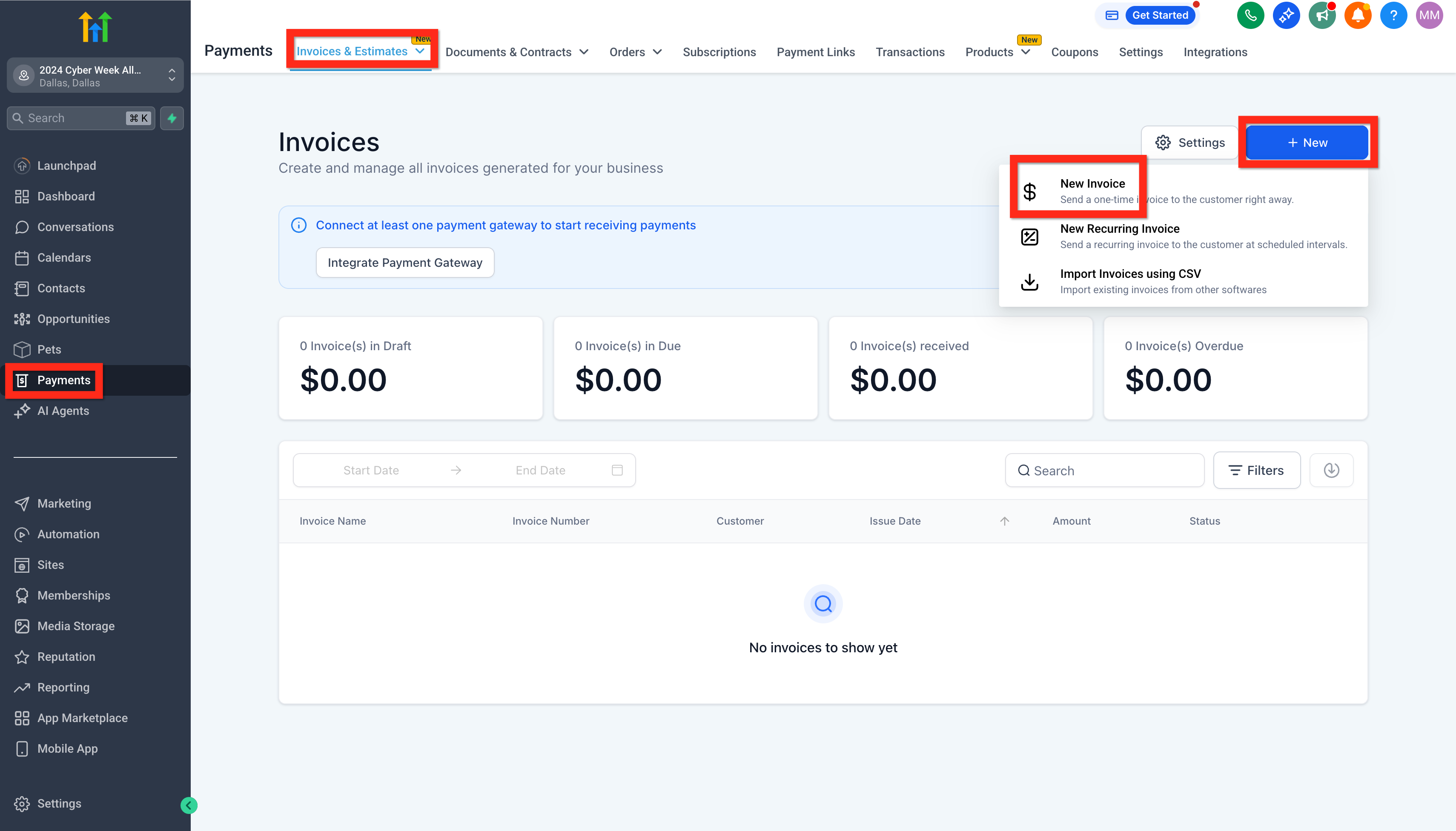
- Go to Payments > Invoices and Estimates.
- Click New > New Invoice.
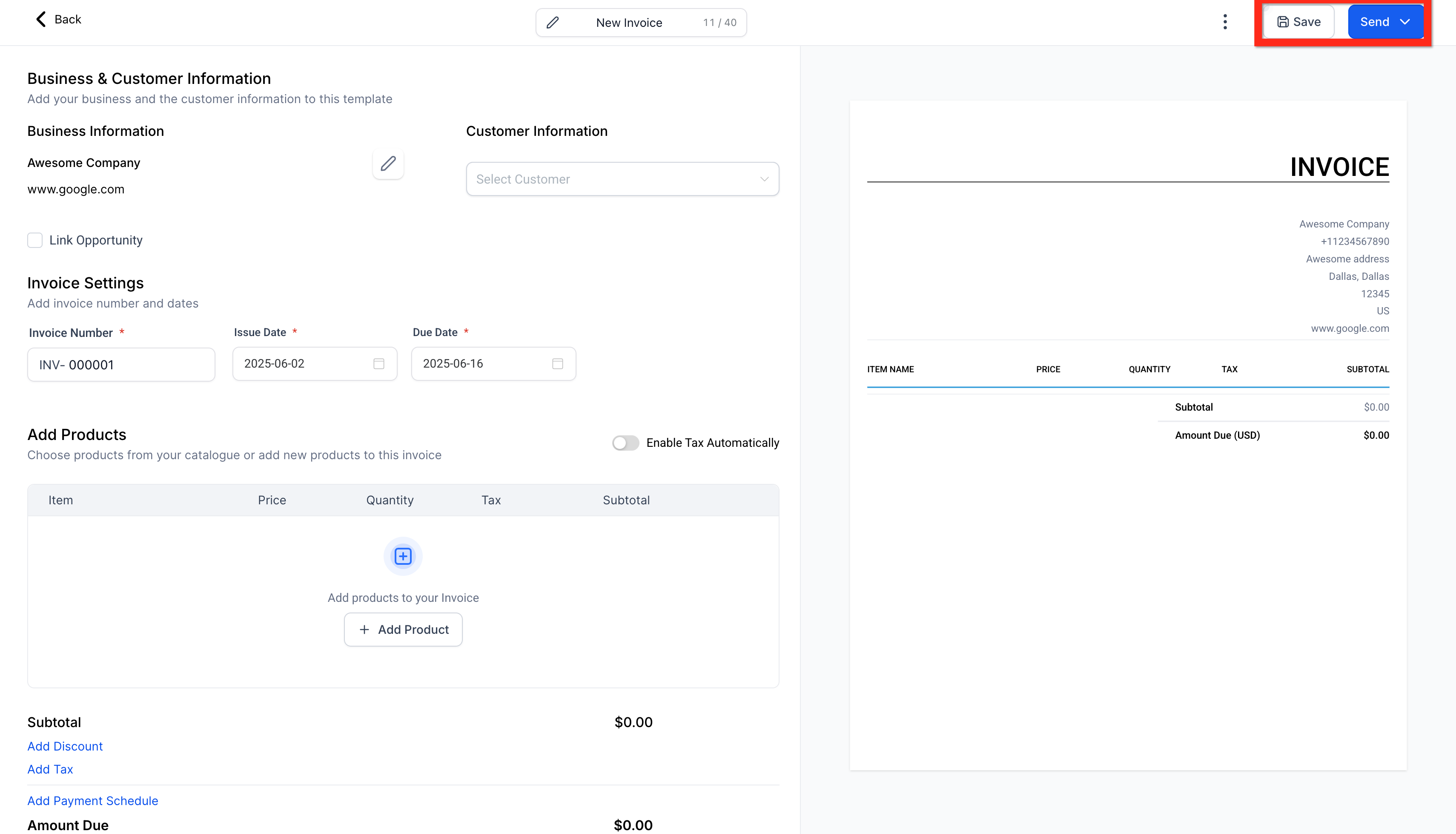
- Set up the invoice with all the details you need (products, prices, customer information).
- Click Save.
- Finally, click Send.
Next steps:
- Consider adding payment plans to make things easier for your customers.
- Set up recurring invoices for ongoing services.
Further reading:
- How to create invoices in Futuria CRM
- How do I add payment plans to my invoices?
- How to create recurring invoices
- How to create invoices in Futuria CRM (mobile app)
Editing the general invoice settings
Customising your invoices helps your brand stand out and keeps everything clear. Here is how to make your invoices unique:
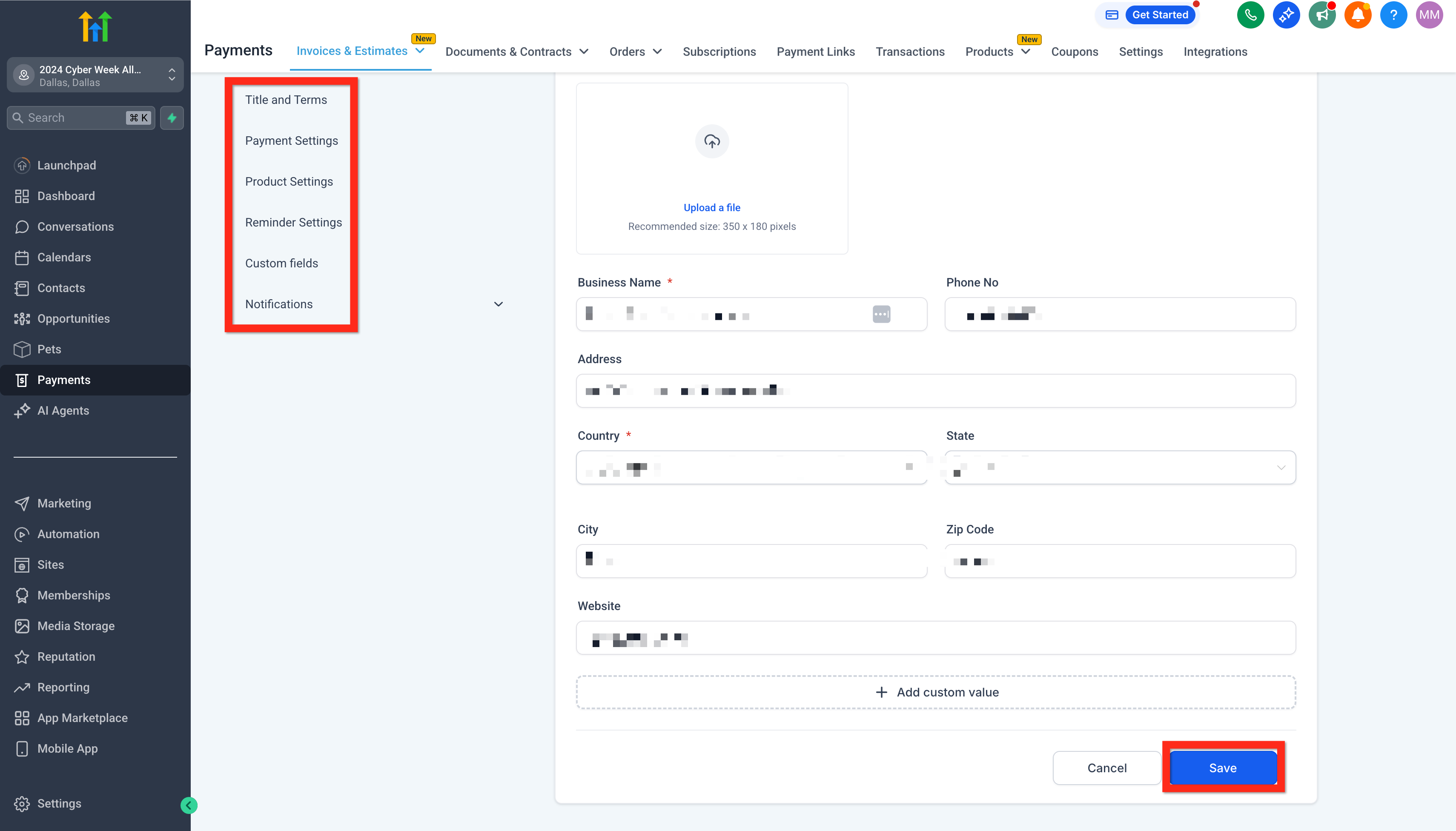
- Go to Payments > Invoices and Estimates.
- Click the Settings (cog) icon.
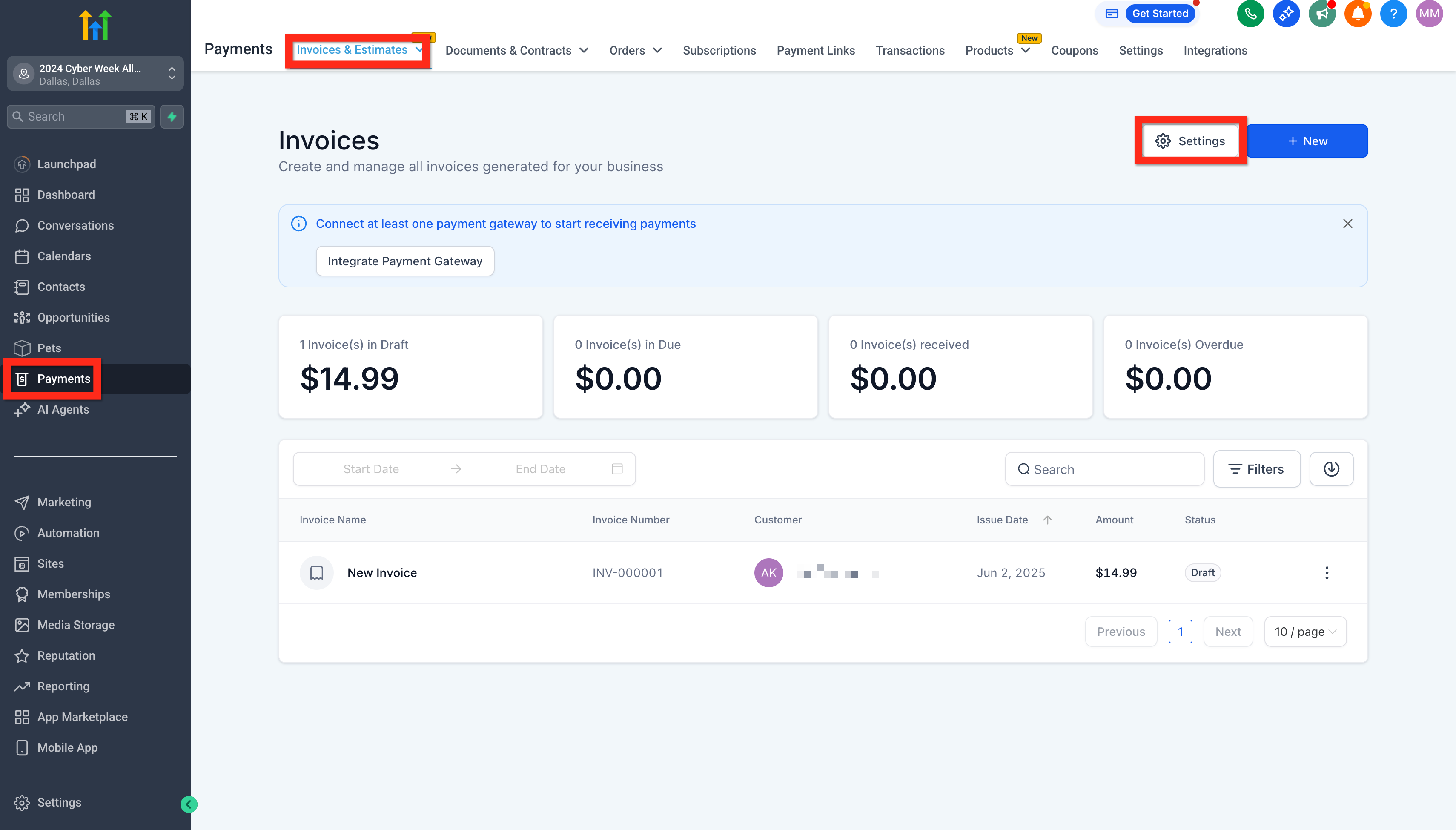
- Edit the general settings (add your logo, your company information, your default payment terms).
- When you are happy with them, click Save.
Next steps:
- Set up recurring invoices to simplify periodic billing.
- Adjust the payment due dates to handle part payments more effectively.
Further reading:
- How to edit recurring invoices
- Editing payment plans and partly paid invoices
- How to use invoices in the mobile app
Managing invoices
Keeping track of your invoices helps you stay organised and secure prompt payment. Here is how to manage existing invoices quickly:
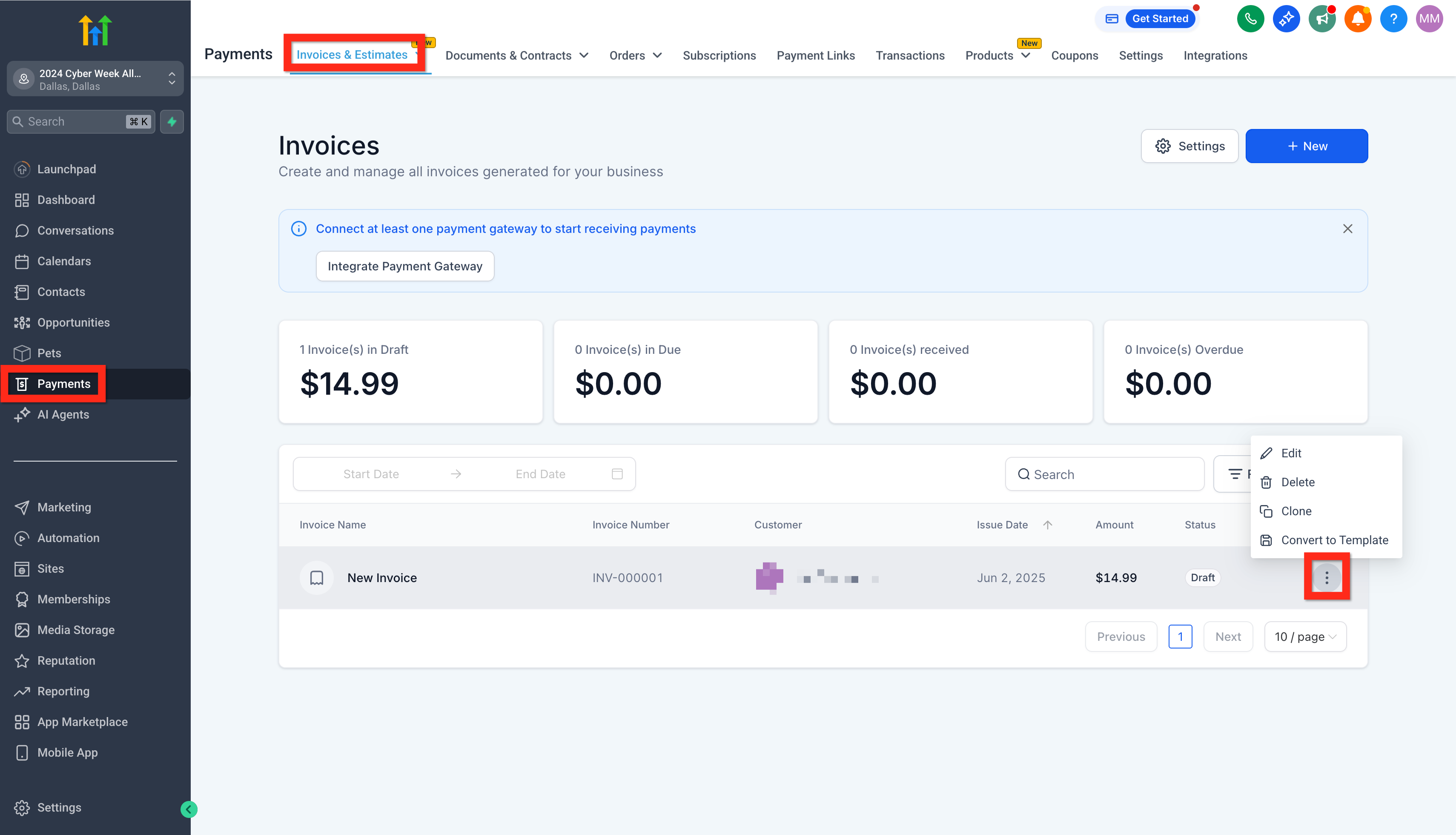
- Go to Payments > Invoices and Estimates.
- Find the invoice you are interested in within the list.
- Check its status (for example Draft, Sent, Paid).
Next steps:
- Contact customers directly from the invoice view for reminders or other messages.
- Create new estimates or invoices based on previous ones.
Happy invoicing!
Frequently Asked Questions
Why does my logo not appear on old invoices, while it is visible on the new ones?
The logo is not visible because the original image file has been deleted from your Media Library.
Invoices load the logo from its original location. If you delete that file, the link breaks for every existing invoice.
How to fix it:
- For new invoices: The system is working correctly and uses the logo that is currently set.
- For unpaid invoices: Upload a new logo to your Media Library and make sure the Company Details are updated with this new image. The logo will reappear.
- For invoices that have already been paid: The logo cannot be restored because paid documents cannot be edited. You will need to add the logo to the PDF manually if you need to send a receipt again.
Reference: Business Profile Settings - General Information
I cannot enter the text for the Terms and Conditions or the notes in the invoice editor; I only see the formatting toolbar. How can I fix this?
This issue is a local browser error that occurs when the text editor does not load correctly, usually because of a conflict with out-of-date data (cache and cookies) stored in the browser.
To fix the problem:
- Clear your web browser’s cache and cookies completely.
- Close all the tabs, then log back in to your Futuria CRM account.
- The text editor should now load correctly, letting you enter your terms and conditions.
My invoice shows as "Sent", but the customer never received it. What is the problem and how can I fix it?
Problems with sending emails often come from browser-related errors rather than system faults. In particular, out-of-date cache and cookie data can cause errors, leading to a false indication that an email has been sent.
To fix it:
- Clear your browser’s cache and cookies.
- Log out and then log back in to your account.
- Try sending the invoice again.
If the problem persists, contact support, as it may point to a more significant issue with your email sending domain.