


Table of contents
- Integrating Facebook and Instagram
- How Facebook and Instagram messages create contacts
- Linking Instagram to Facebook
Integrating Facebook and Instagram
Feeling overwhelmed by having to switch between platforms to reply to your customers' messages? Let's make things simpler. By connecting Facebook and Instagram Messenger directly to your CRM, you will have all your conversations in one place.
You will be able to streamline replies, engage with customers faster and create a smoother communication experience for everyone.
First, let's get Facebook and Instagram working together inside your CRM. This integration will radically change how quickly and effectively you communicate with customers.
- Go to Settings > Integrations.
- Click Connect under the Facebook and Instagram section.
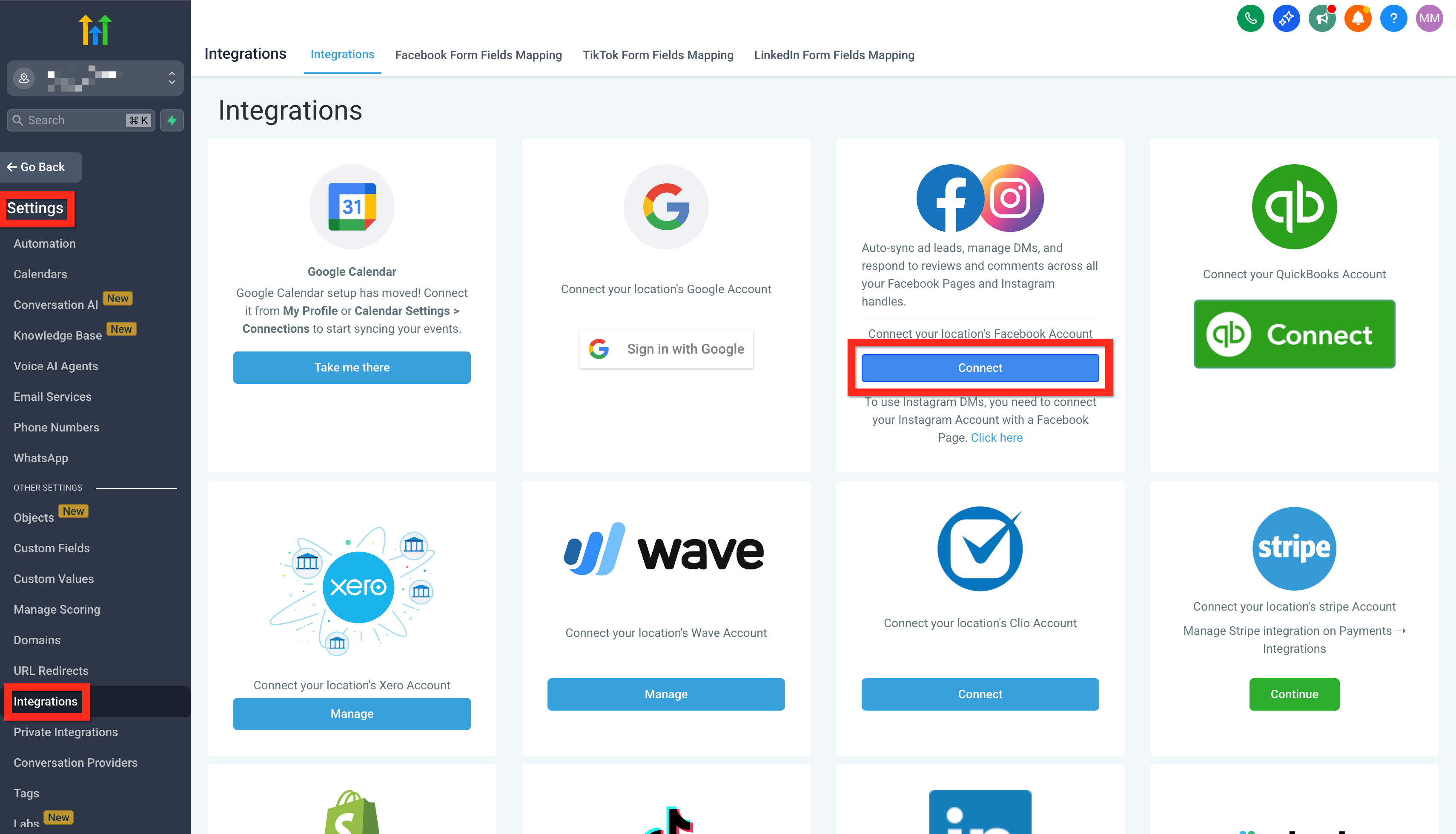
- Log in to Facebook and choose your Facebook page (make sure it is the one linked to Instagram).
- Click Connect Facebook and Instagram.
- Finally, press Sync leads.
How Facebook and Instagram messages create contacts
When someone messages your business on Facebook or Instagram for the first time, Futuria CRM creates or updates a contact based on your Contact deduplication preferences.
- If the person later shares an email or phone number that matches an existing contact and the Allow duplicate contacts option is turned off, Futuria CRM will automatically merge the Messenger contact into the existing record, so you keep a single complete profile.
- If the Allow duplicate contacts option is turned on, automatic merging will not run and separate contact records may exist for the same person.
Linking Instagram to Facebook
Now let's make sure Instagram and Facebook are fully linked, so that your messages flow smoothly into a single inbox. Trust us, this step will save you a great deal of time!
- Go to your Facebook account and open your page.
- Click Account > Settings.
- Use the search bar to find Linked accounts.
- Select Instagram and click Connect.
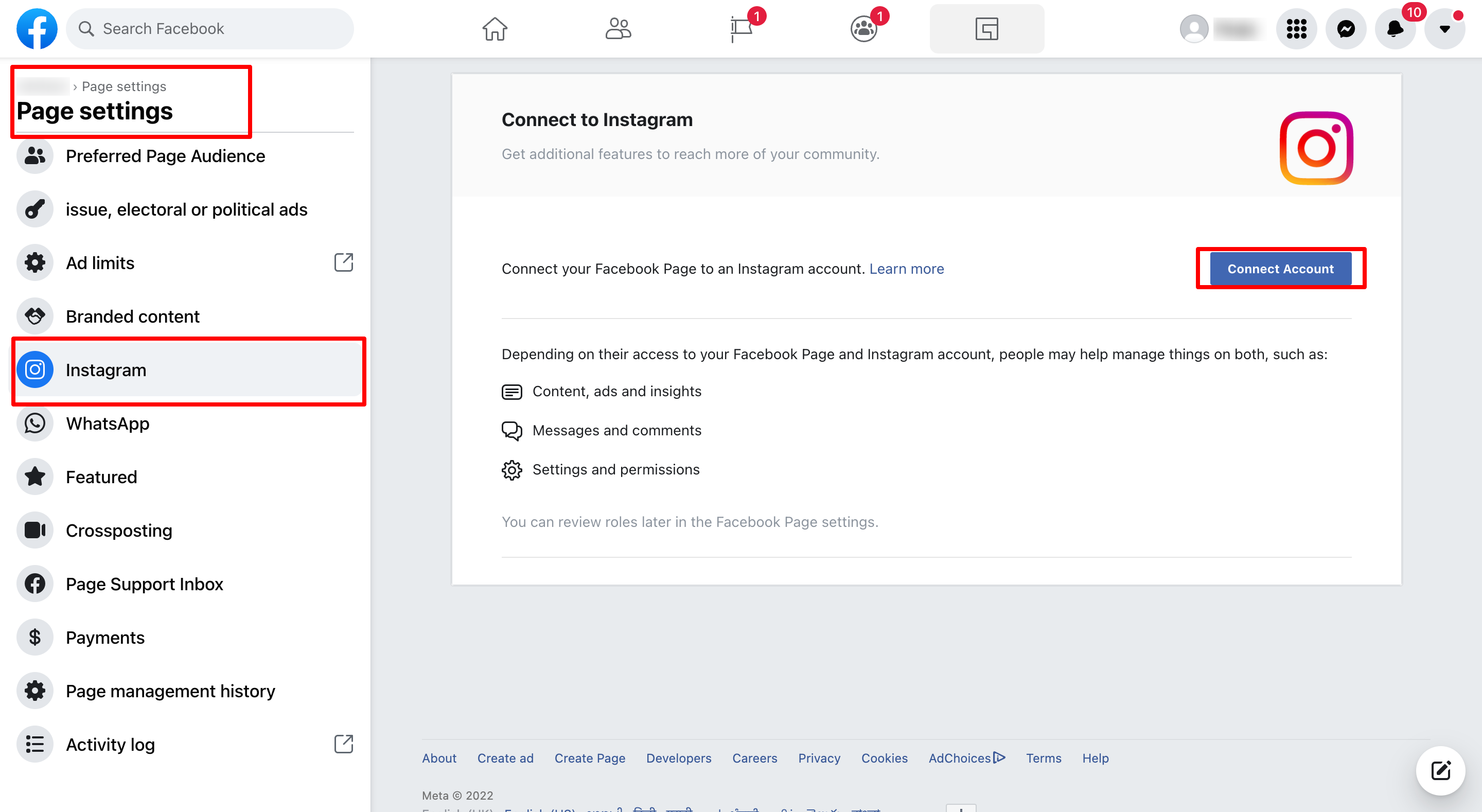
- Keep the toggle on to enable Instagram messages to appear in your inbox.
- Authenticate your Instagram login credentials.
Great work! You have now set everything up to manage your social interactions effortlessly. As a next step, consider testing the integration by sending a test message to confirm that everything works correctly.