


Table of contents
- Getting started: how to set up the Social Planner
- Explore the Social Planner
- Connect your social accounts (required in order to publish)
- Creating posts using templates
- Creating custom posts
- Adding media, previews and thumbnails
- Connecting more social accounts
Getting started: how to set up the Social Planner
Want to make managing your social media simpler? Excellent!
With the Futuria CRM Social Planner, you can easily schedule and manage your posts, keeping your brand consistently present on the most popular platforms such as Facebook, Instagram and others. Let’s get started!
Explore the Social Planner
You can start exploring the Social Planner even if you have not connected any social accounts yet. This lets you preview the main workflows and prepare your content before connecting the channels for publishing.
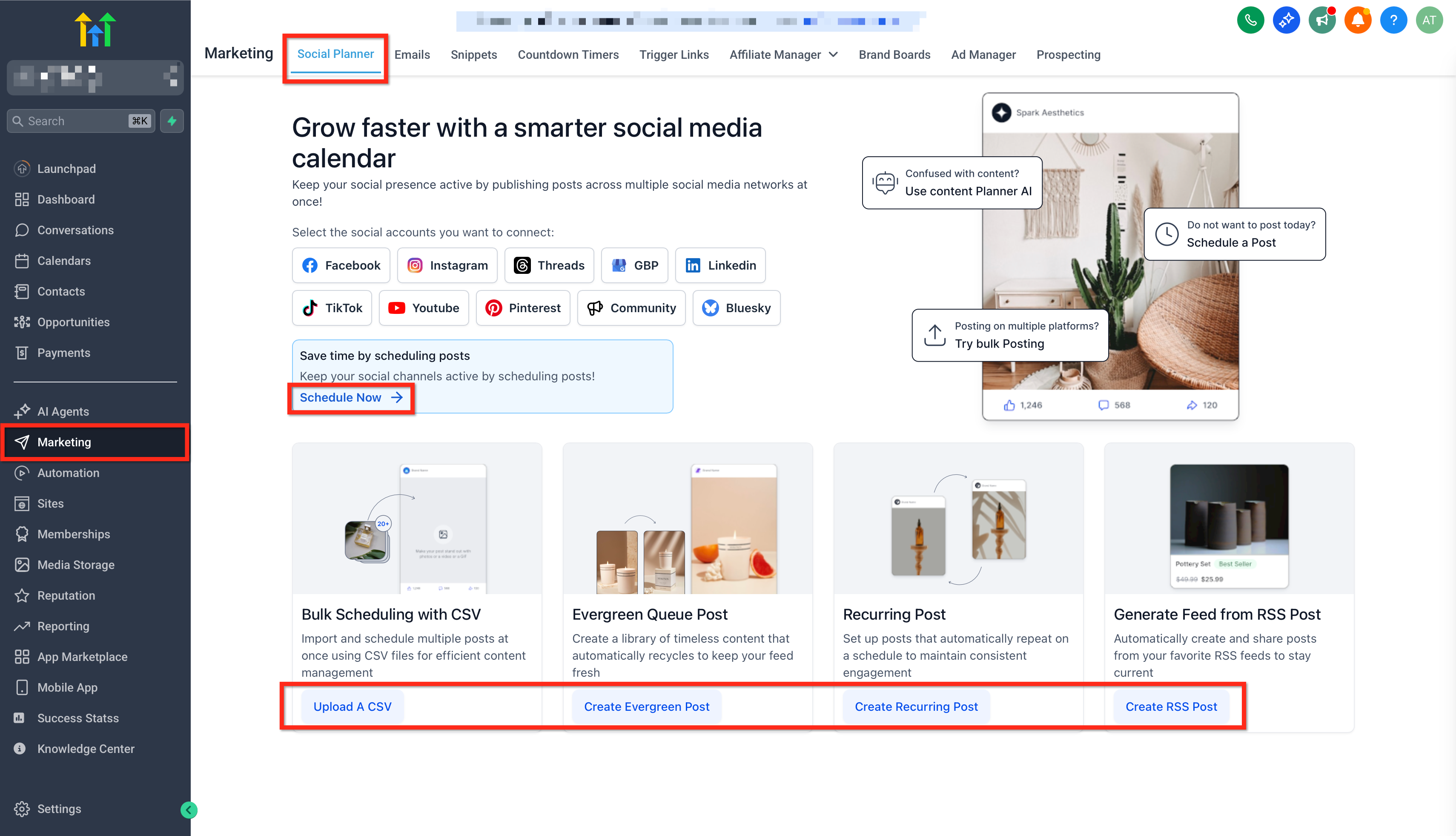
From Marketing > Social Planner, you can access these features even without any connected account:
Schedule a post
Click Schedule now to open the post editor and the scheduling flow. You can draft the content, review the scheduling options and see how publishing across several channels works.
Bulk scheduling with CSV
Click Upload a CSV to start the bulk upload. You can import posts in bulk, validate your file and review the list of posts before scheduling them.
Evergreen posts in the queue
Click Create Evergreen Post to explore evergreen content planning. This helps you organise reusable posts and build a queue for continuous publishing.
Recurring post
Click Create Recurring Post to set up content that repeats. This helps you plan posts that are automatically republished on a schedule for steady engagement.
Generate a feed from RSS posts
Click Create RSS Post to add an RSS feed and configure the automation. This helps you turn new RSS items into social posts to keep your channels active.
Connect your social accounts (required in order to publish)
Let’s connect your accounts so you can start publishing with ease. Here is how:
- Choose the social account you want to connect by clicking the corresponding button. We will use Facebook as an example.
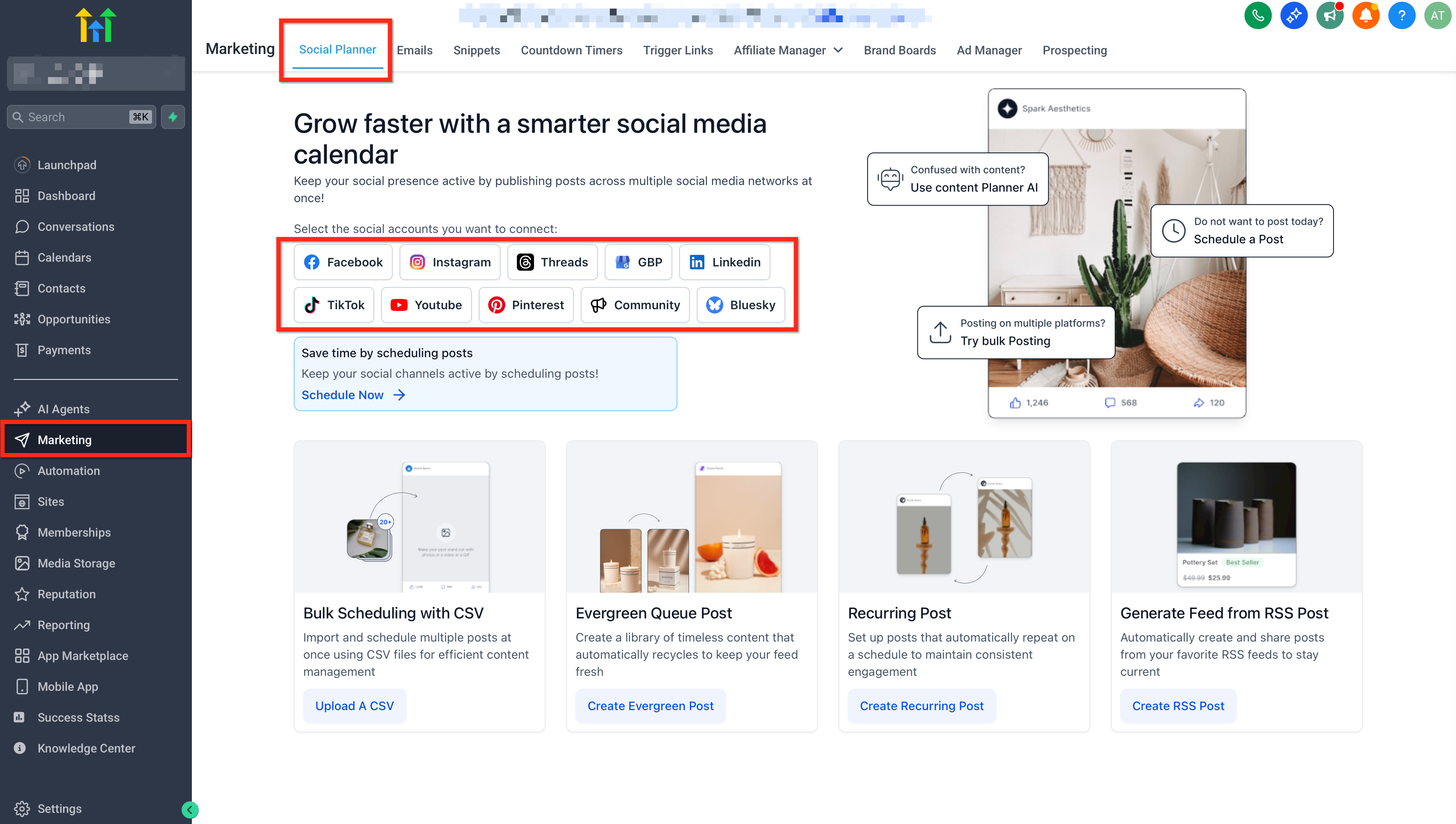
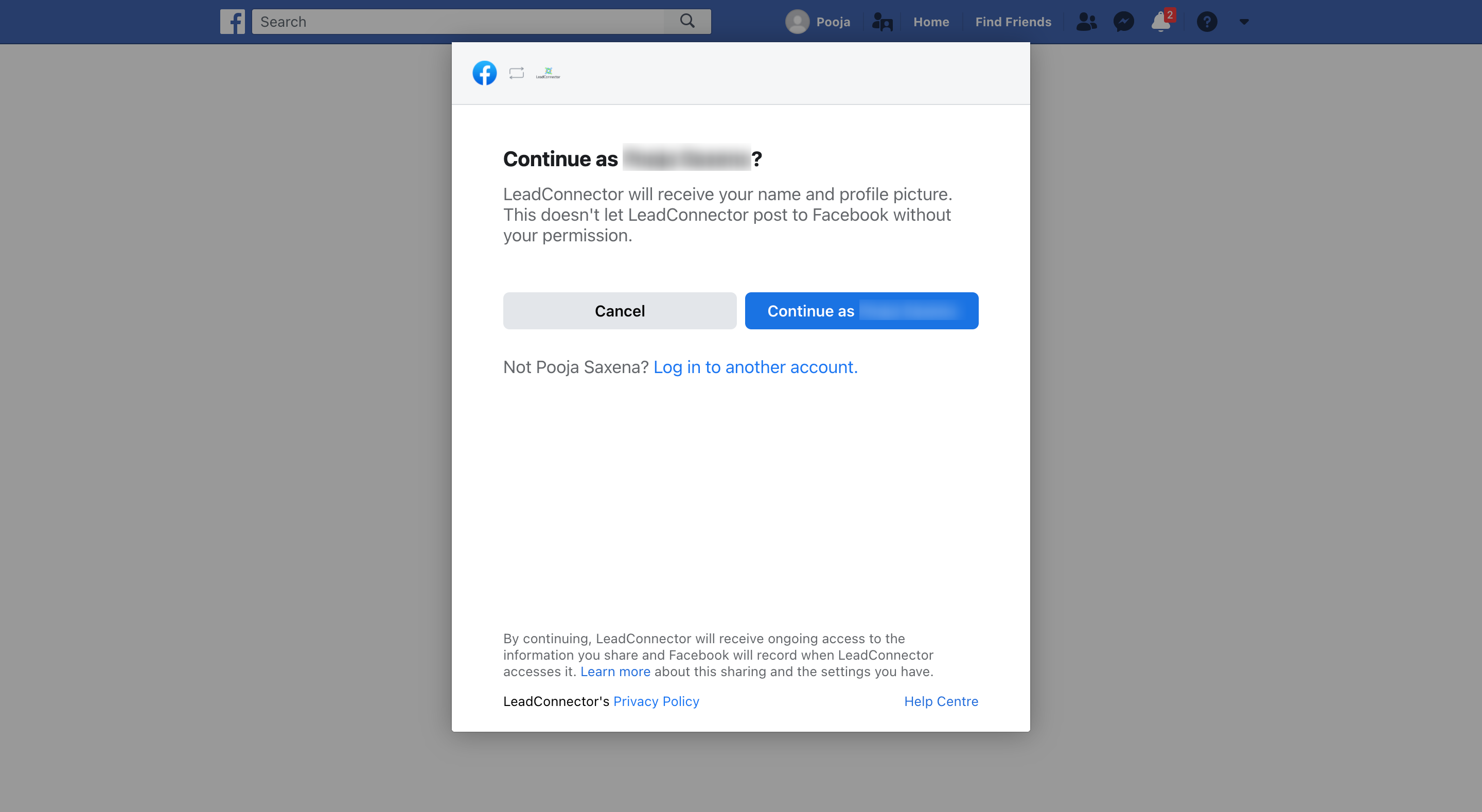
- Log in to your Facebook account.
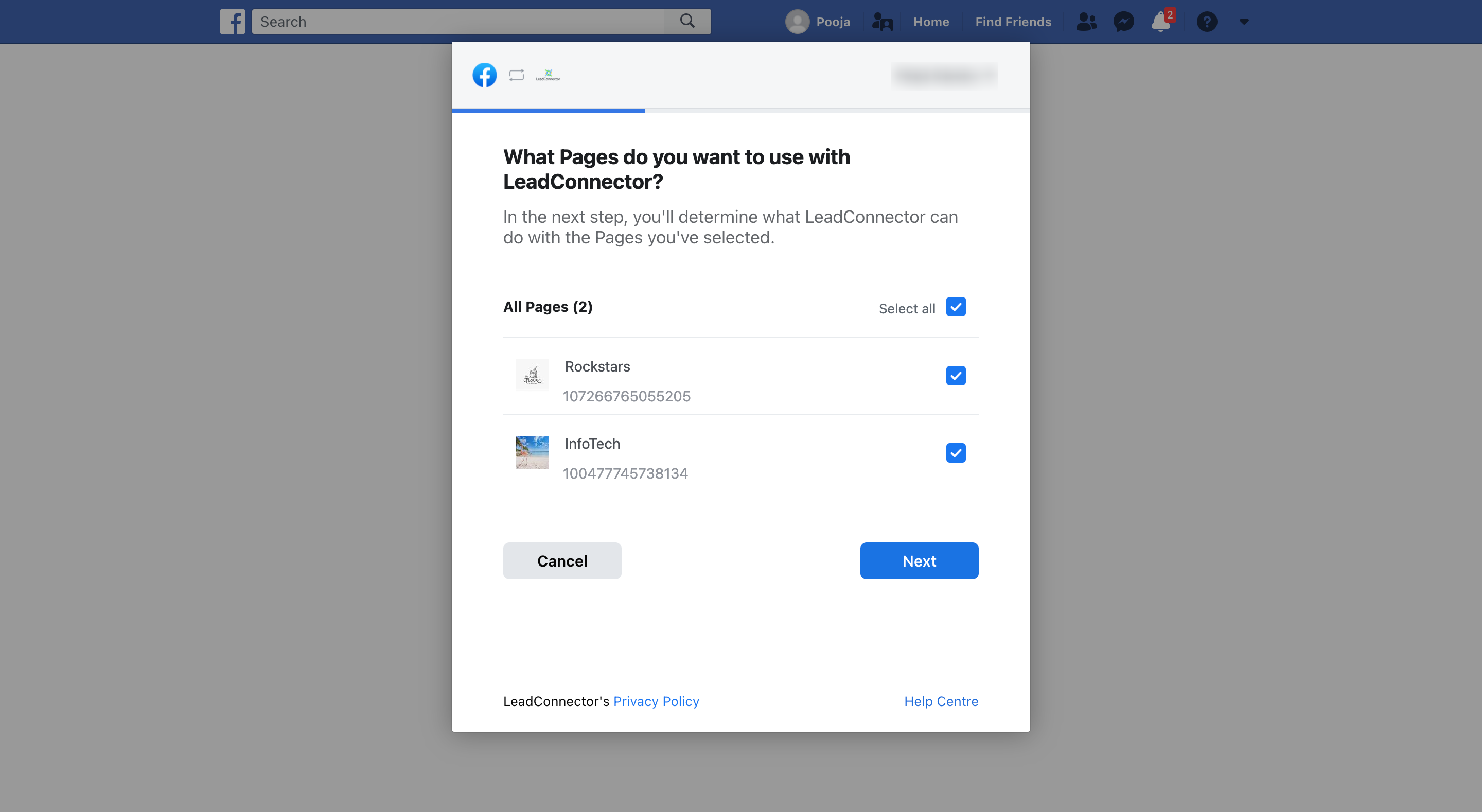
- Choose at least one Facebook page you want to manage.
- Check the connection.
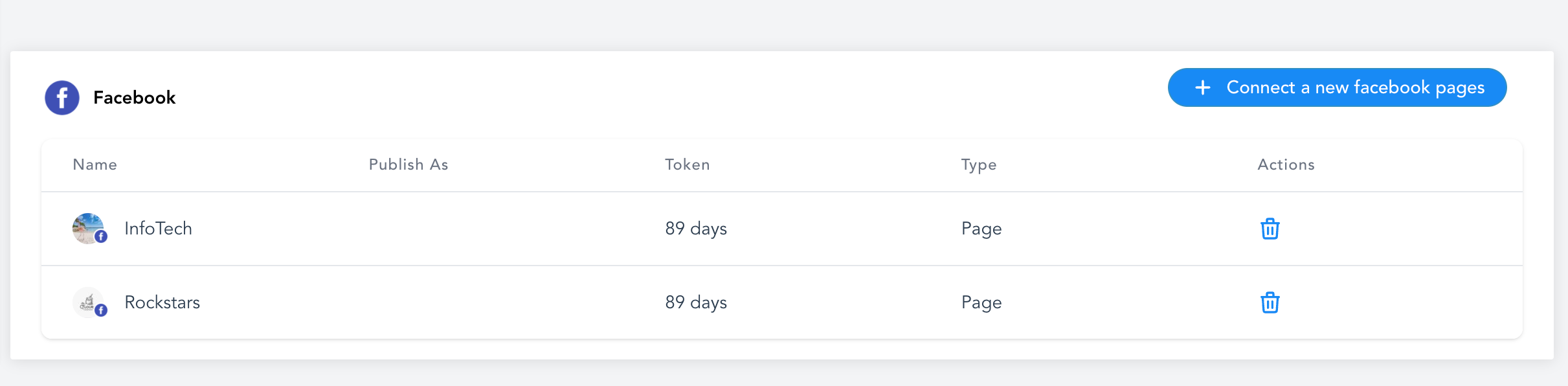
Now that your account is connected, let’s create some engaging posts!
Creating posts using templates
Templates make your life easier. Quickly customise ready-made designs to create high-impact posts. Here is how:
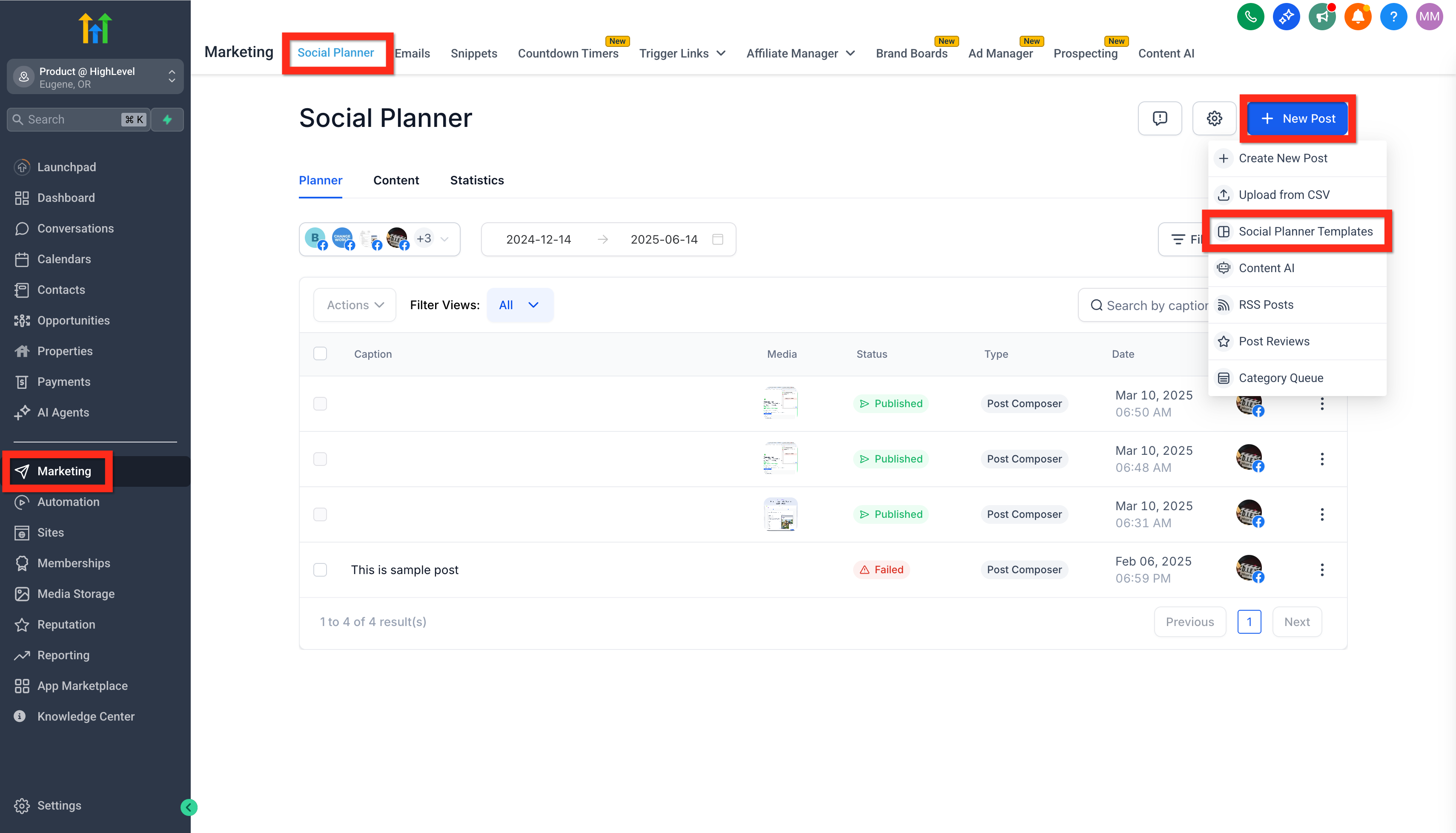
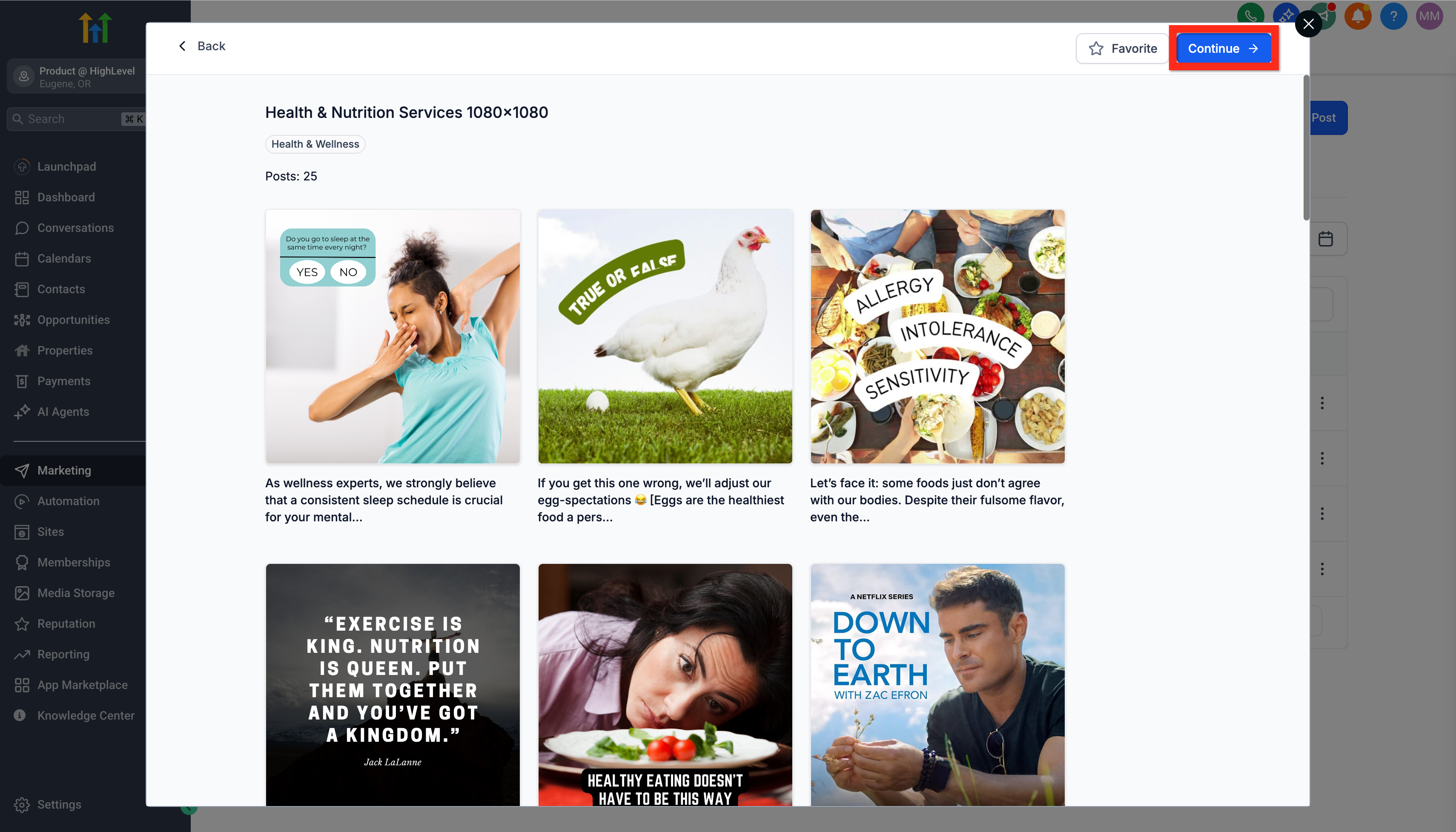
- Go to Marketing > Social Planner > New Post > Social Planner Templates.
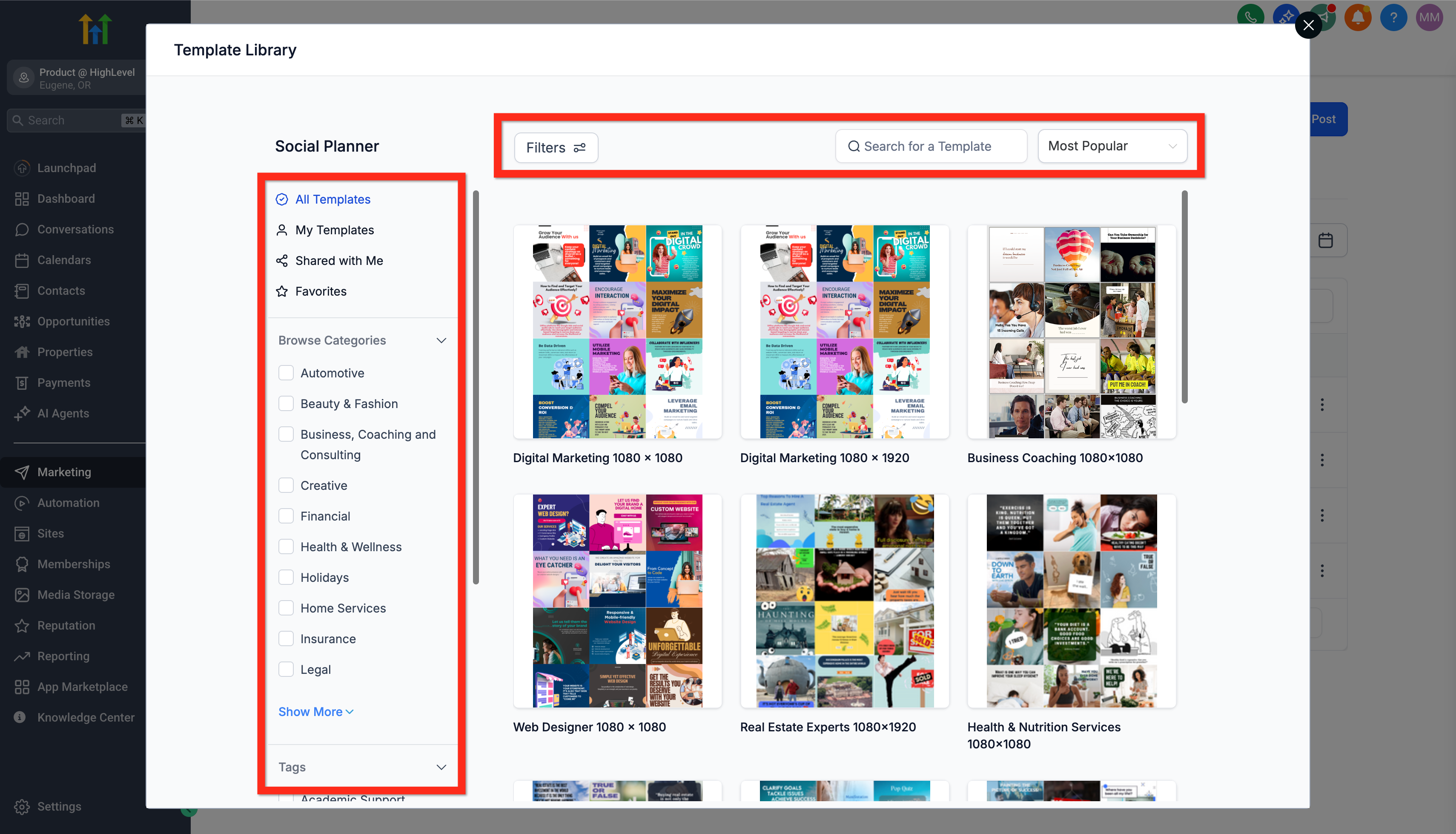
- Search, browse and filter the available templates.
- Preview a template you like, then click Continue.
- Schedule the selected template by clicking Select Social (the plus icon on the right).
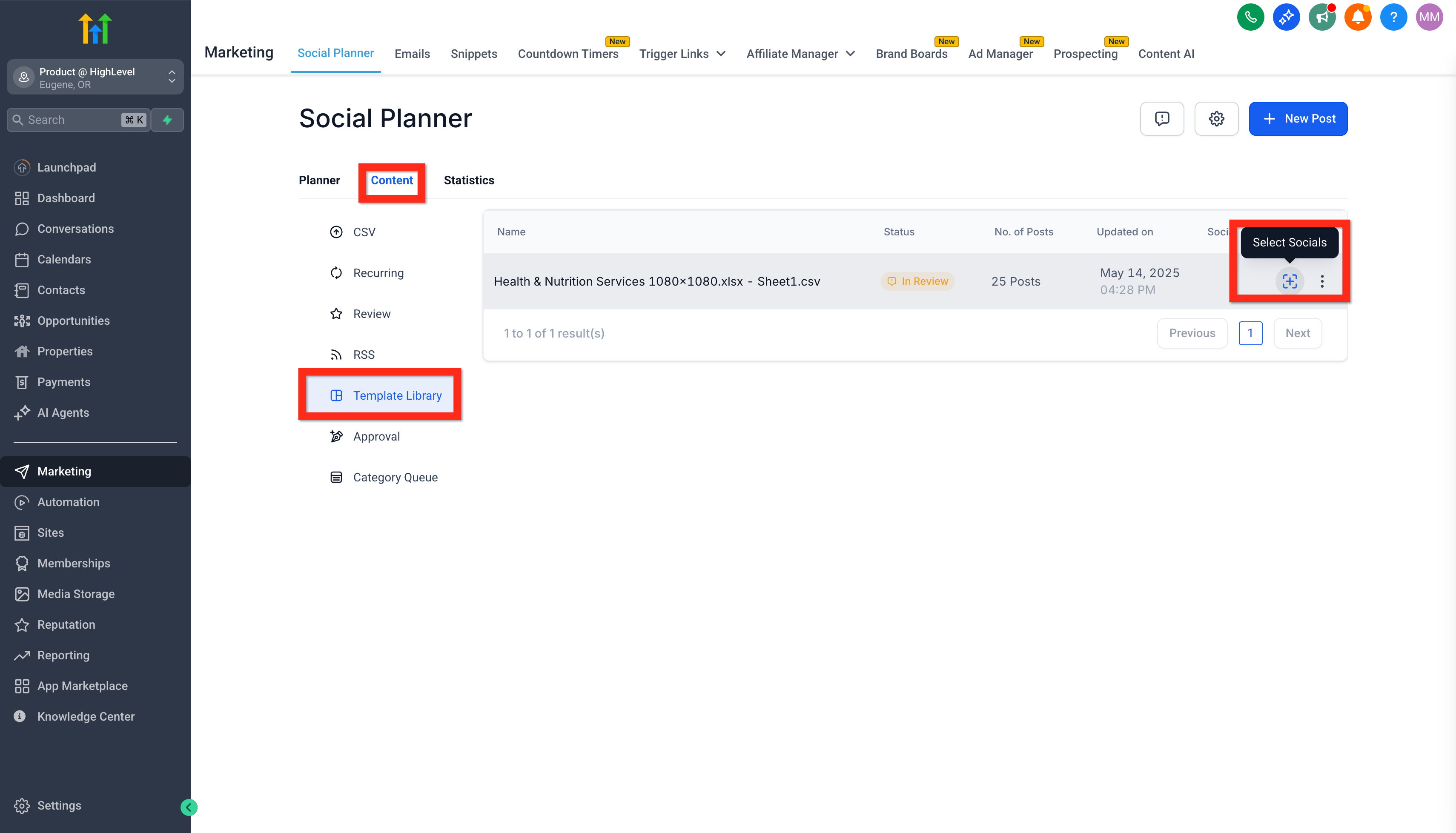
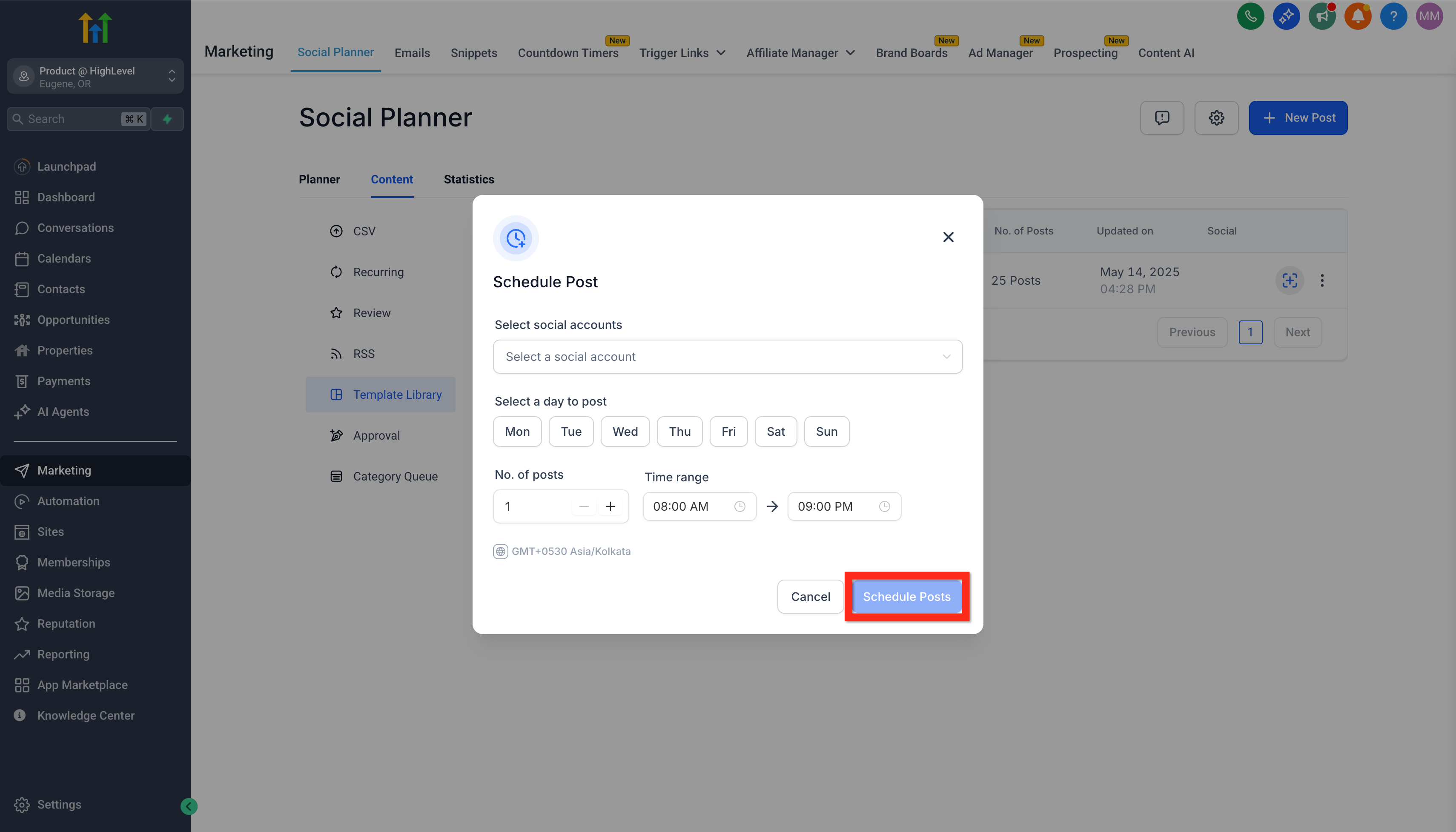
- Fill in the required details in the scheduling window, including your Facebook account and the time.
- Click Schedule Post.
Your post is scheduled and ready to go live! Now, why not try creating a custom post of your own?
Creating custom posts
Feeling creative? Create your own custom posts in a few clicks. It could not be simpler:
- In Marketing > Social Planner, click New Post > Create New Post.
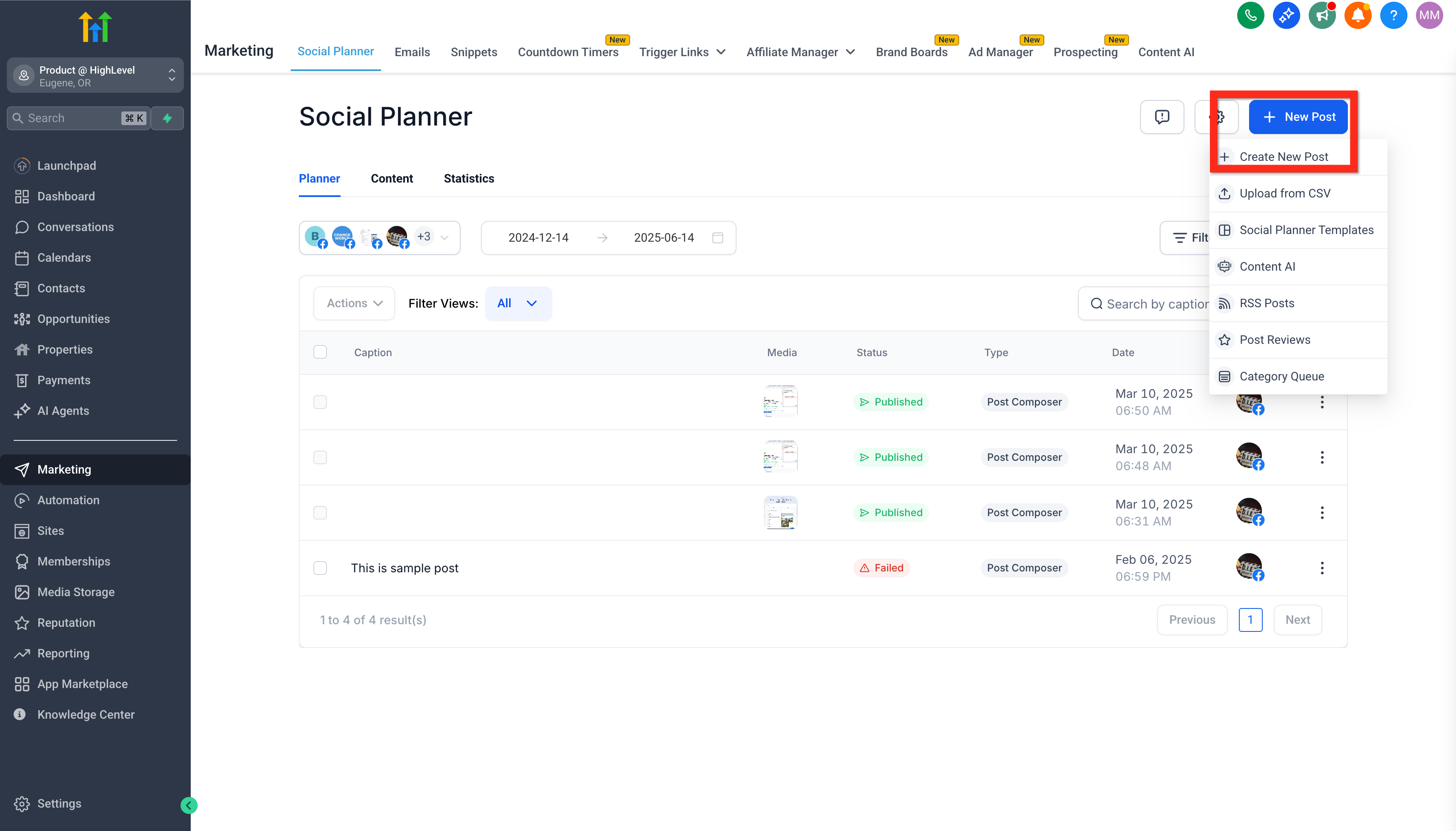
- Enter the post details, selecting your social account, the content and more.
- Choose whether to save for later, publish now, schedule for later, send for approval or schedule as recurring.
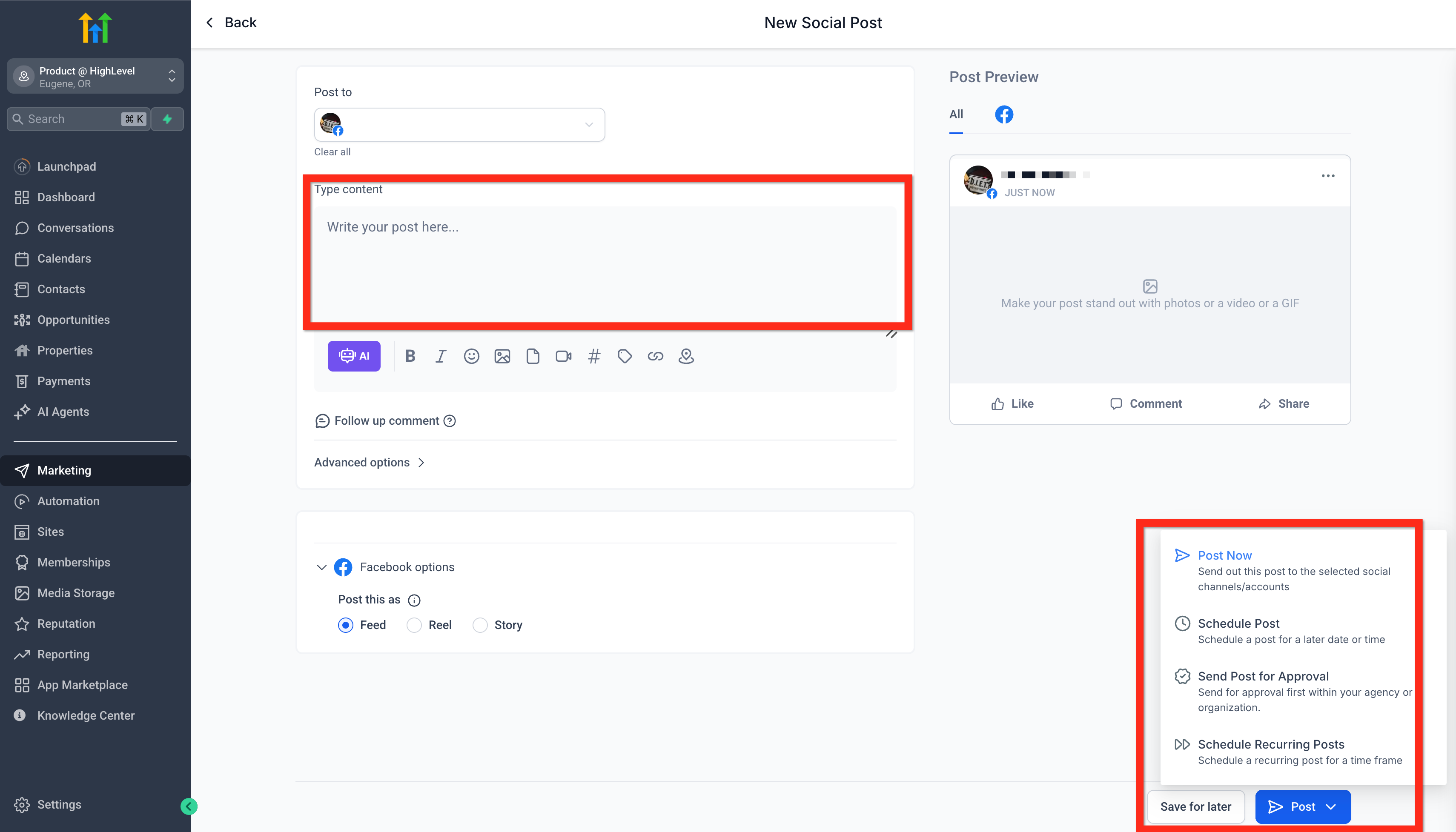
Brilliant! Your content is ready. Now, to improve your experience even further, you can connect more social accounts.
Adding media, previews and thumbnails
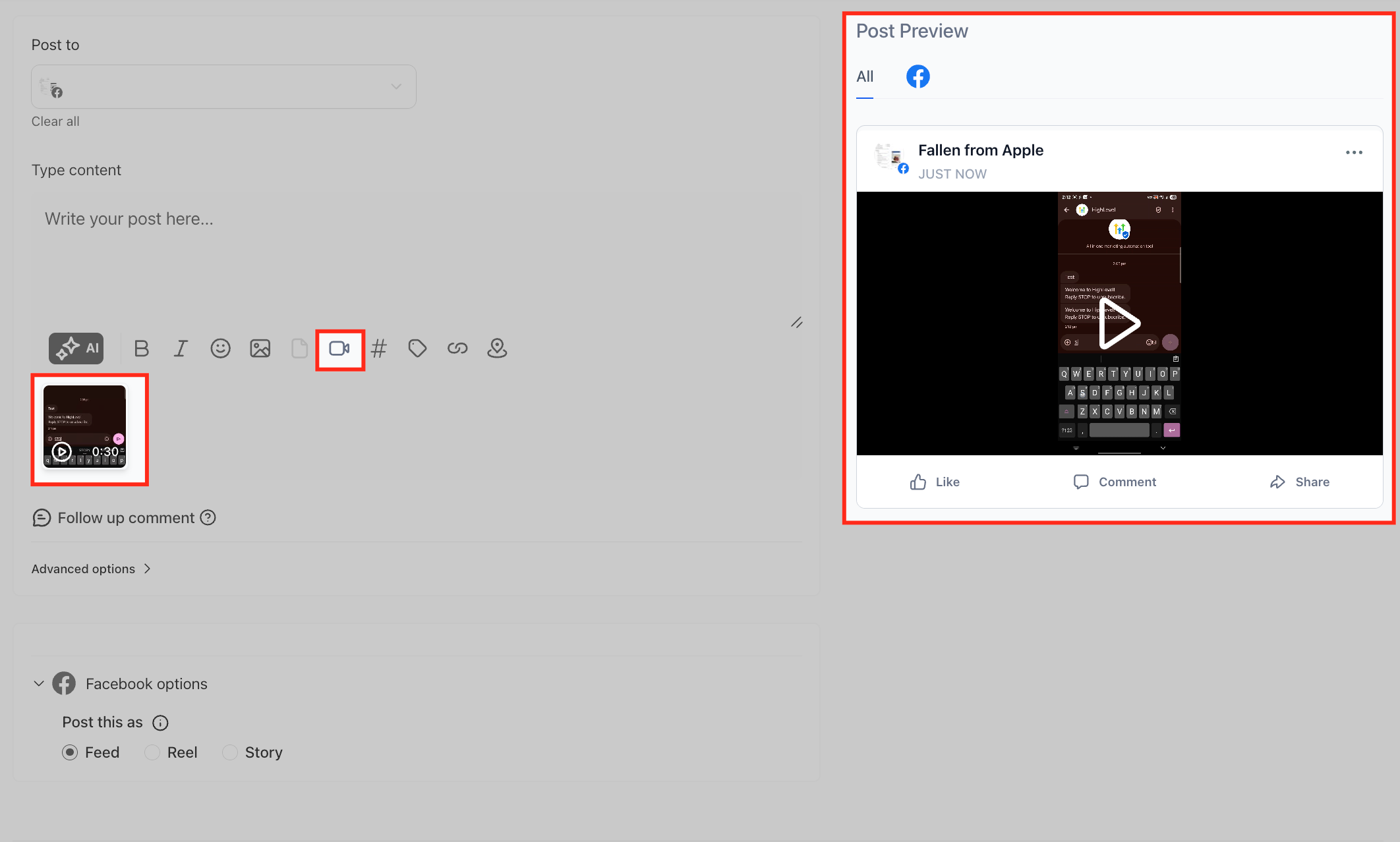
You can add images or videos from the media library using the video and image icons in the panel. When you add a video, you can preview it in the editor on the left.
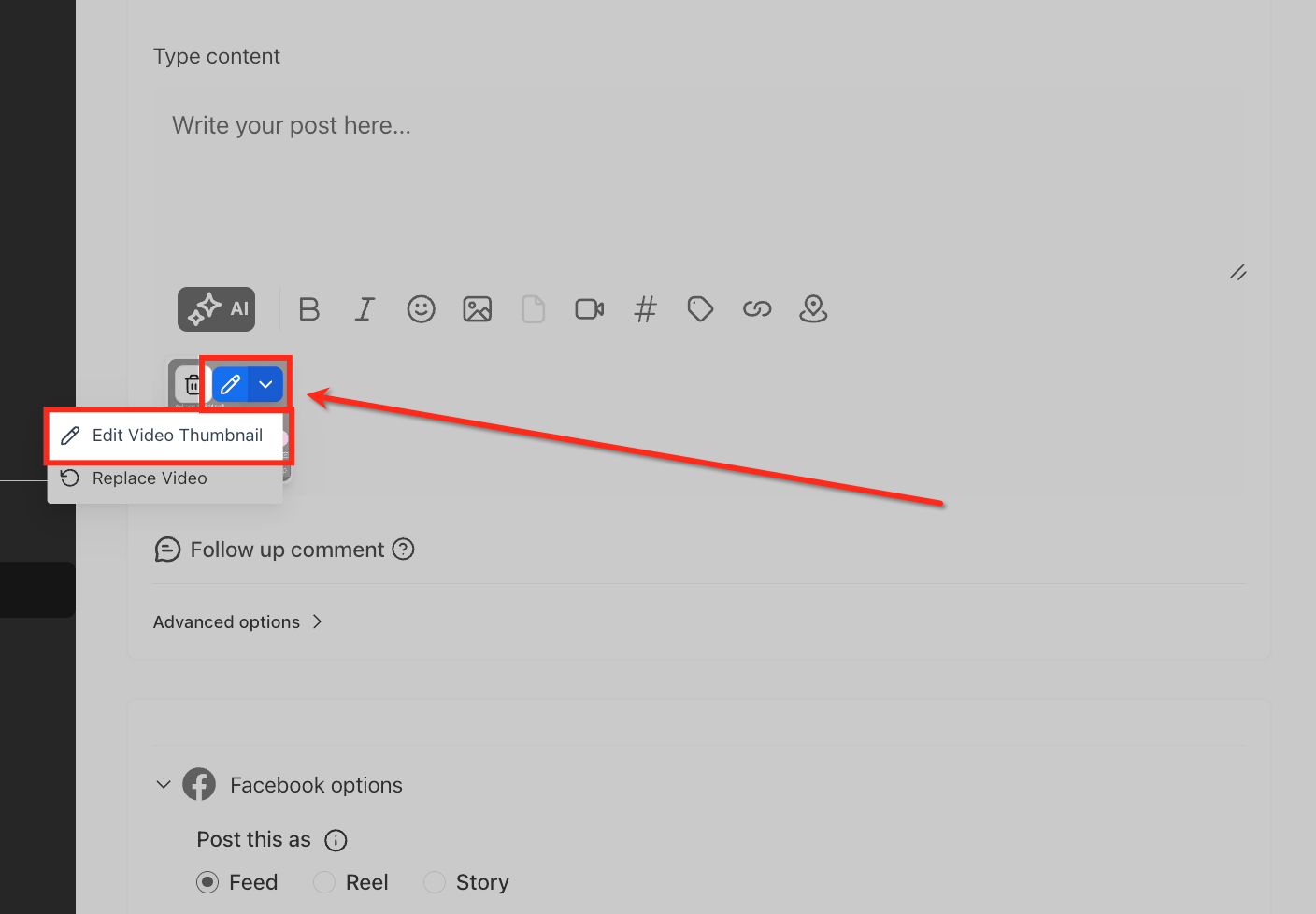
Tip: you can replace or edit a media file while keeping it in the same position in the post sequence. This helps you swap files without altering the layout.
To change the thumbnail of a video, click the pencil icon on the video thumbnail (hover over the media to make the edit option appear).
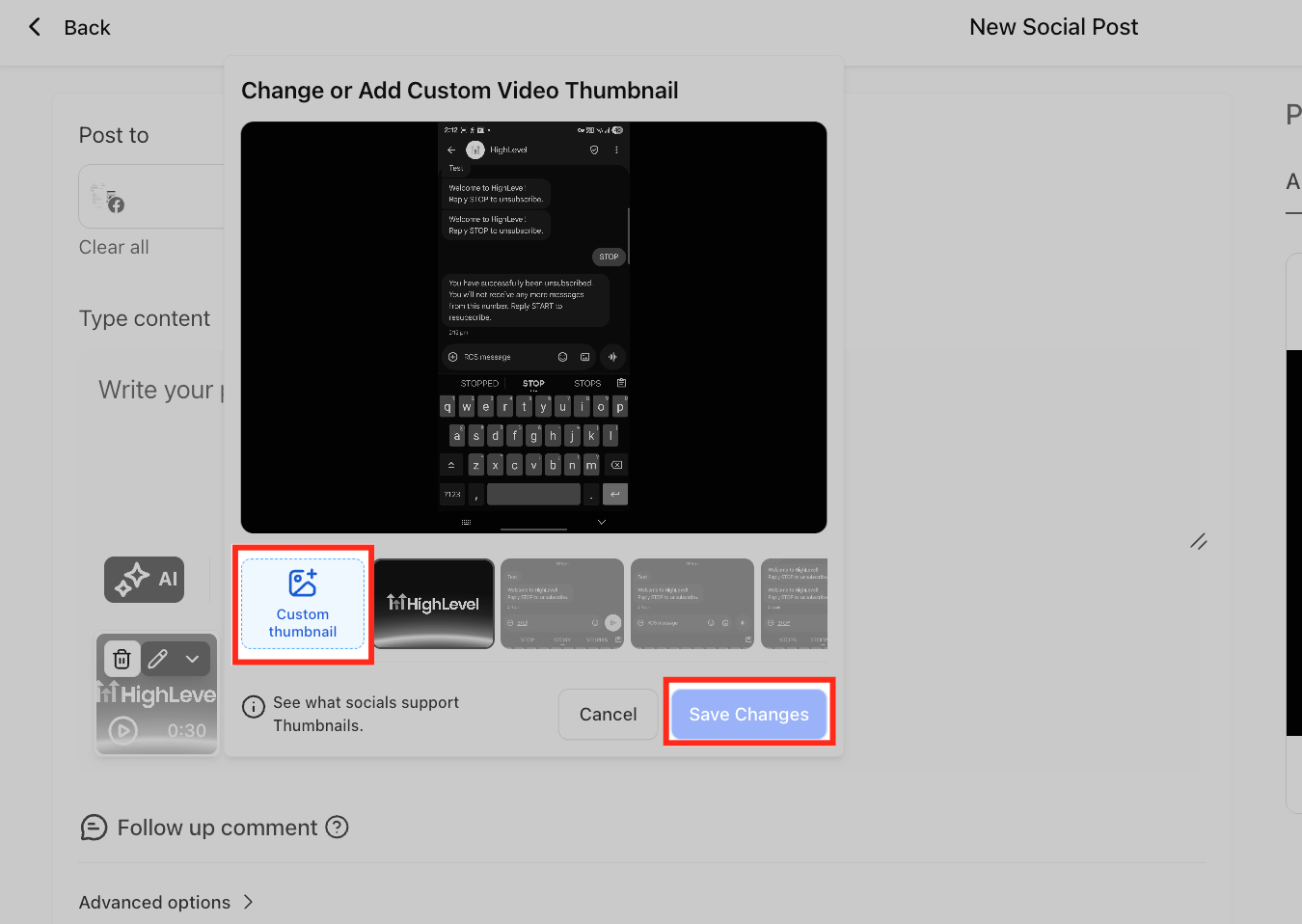
Click the custom thumbnail tab to upload an image.
Custom video thumbnails are currently supported for:
- Facebook Pages
- Instagram Business accounts
- LinkedIn profiles and Pages
- YouTube videos and Shorts
Connecting more social accounts
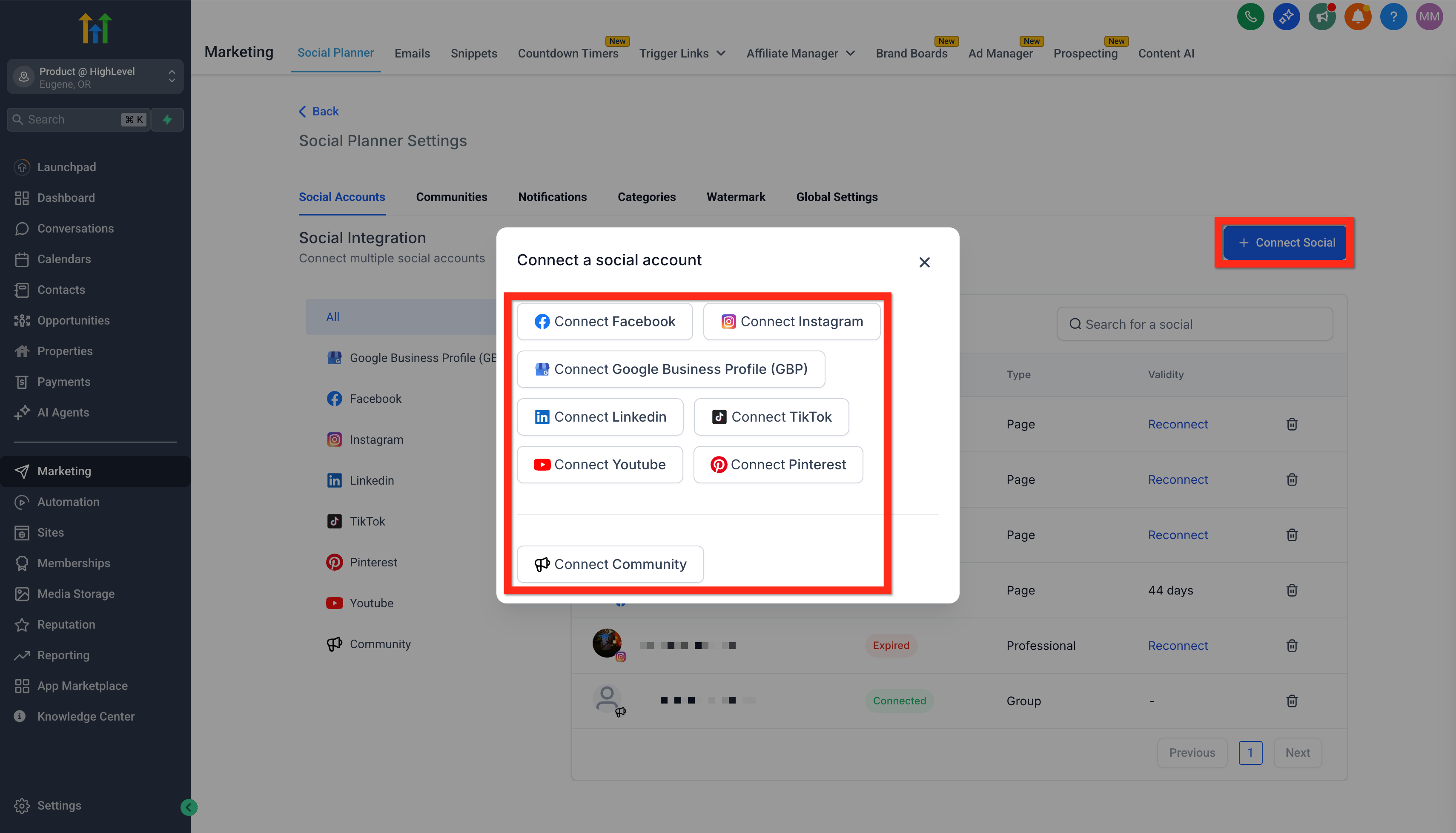
Want to expand your social presence? Easily add more social media accounts and manage them all from one place:
- Click Settings (the cog icon).
- Select the other social accounts you want to connect.
- Click Connect Social and follow the instructions.
That’s it! You are now managing several platforms effortlessly. Happy publishing!