


Table of contents
- Facebook-linked Instagram integration versus direct integration
- What's new
- What is the direct Instagram integration in the Social Planner?
- Key benefits of the direct Instagram integration
- Before you start
- Method 1: Integration via Facebook (Classic)
- Steps:
- Method 2: Direct Instagram integration (Recommended)
- Steps:
- Feature comparison table
- Link your Instagram Business profile to your Facebook account
- Frequently Asked Questions (FAQ)
Facebook-linked Instagram integration versus direct integration
Connect and schedule Instagram posts easily, straight from the Futuria CRM Social Planner, with no Facebook page required. This update simplifies Instagram management, supports Creator accounts and streamlines your social media workflow.
What's new
-
Direct Instagram integration: connect and schedule Instagram posts directly, with no need for a Facebook page.
-
Creator account support: publish Stories automatically from Creator accounts.
-
Simplified workflow: manage posts, Stories and Reels from Futuria CRM without additional Facebook permissions.
What is the direct Instagram integration in the Social Planner?
The direct Instagram integration is a new Futuria CRM Social Planner feature that lets you connect your Instagram Business or Creator accounts and schedule content without linking a Facebook page. This removes a major obstacle, streamlines the process and gives you a single dashboard for managing Instagram.
With this improvement, you can:
-
Publish Stories automatically (including from Creator accounts)
-
Schedule Posts, Stories and Reels
-
View engagement metrics directly in the Social Planner
Key benefits of the direct Instagram integration
-
No Facebook page required: skip the Facebook connection step and grant Instagram permissions only.
-
Supports Creator and Business accounts: full scheduling of Stories and posts for both account types.
-
Simplified workflow: a single interface for all your Instagram content, with no extra apps or dashboards.
-
Quick set-up: guided connection in a matter of minutes.
-
Access to statistics: engagement data (likes, comments) is visible; views for images/videos are excluded by the Instagram API.
-
Content flexibility: schedule Posts, Stories and Reels in line with Instagram's guidelines.
-
Time saved: fewer steps and fewer permissions let you focus on creating content.
Before you start
The key distinction between the available options is:
- Direct Instagram integration (new): does NOT require you to connect a Facebook page during set-up in the Social Planner. Authentication happens with Instagram only. This lets you skip the traditional "connect Facebook page, then connect Instagram Business page" flow. However, Instagram/Facebook (not Futuria CRM) still requires the underlying profile to be a Business profile linked to a Facebook page, or a Creator profile (which does not require a Facebook page).
- Integration via Facebook: requires you to explicitly connect a Facebook page inside the Social Planner. This option is only necessary if you want the legacy Facebook permissions or view-count analytics.
1) Check that your Instagram profile is a Business or Creator profile.

- If you do not have an Instagram Business or Creator profile, see the guide Convert an Instagram personal profile into a Business or Creator profile.

2) Check that you have an Admin or Editor role for the Facebook page if it is a Classic-type page, or Facebook access with full or partial control over a New-type page. See the Facebook help article: How can I see what my role is on a Facebook page?

- If the page is an asset in Facebook Business Manager, you also need management access to the page in the Business Manager account. See the Facebook help article Add people to your Business Manager.
Method 1: Integration via Facebook (Classic)
IMPORTANT: this method is necessary if you need legacy features that still rely on Facebook permissions.
This method connects your Instagram account via Facebook, allowing:
-
Advanced metrics (including video/image views)
-
Access to Meta Business features
Steps:
- Log in to Facebook, then click your profile photo in the top right.
- Click "See all profiles", then select the page you want to switch to.
- Click your page's profile photo in the top right on Facebook.
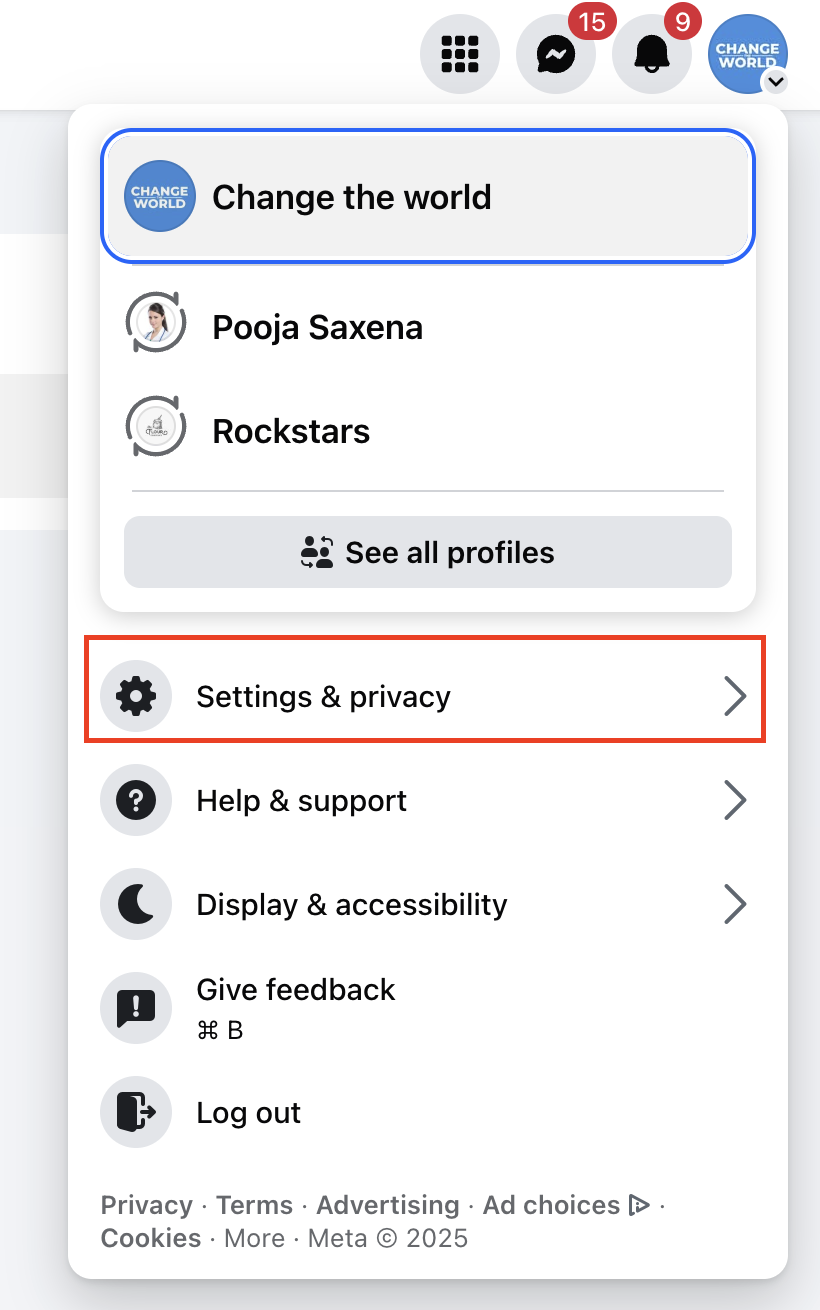
- Click "Settings and privacy".
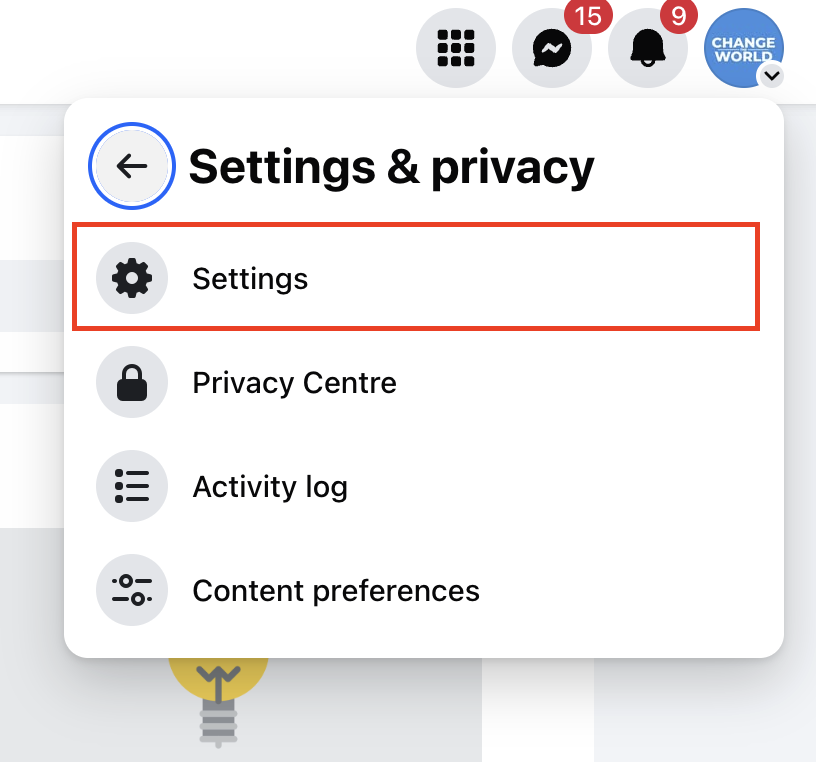
- Then click "Settings".
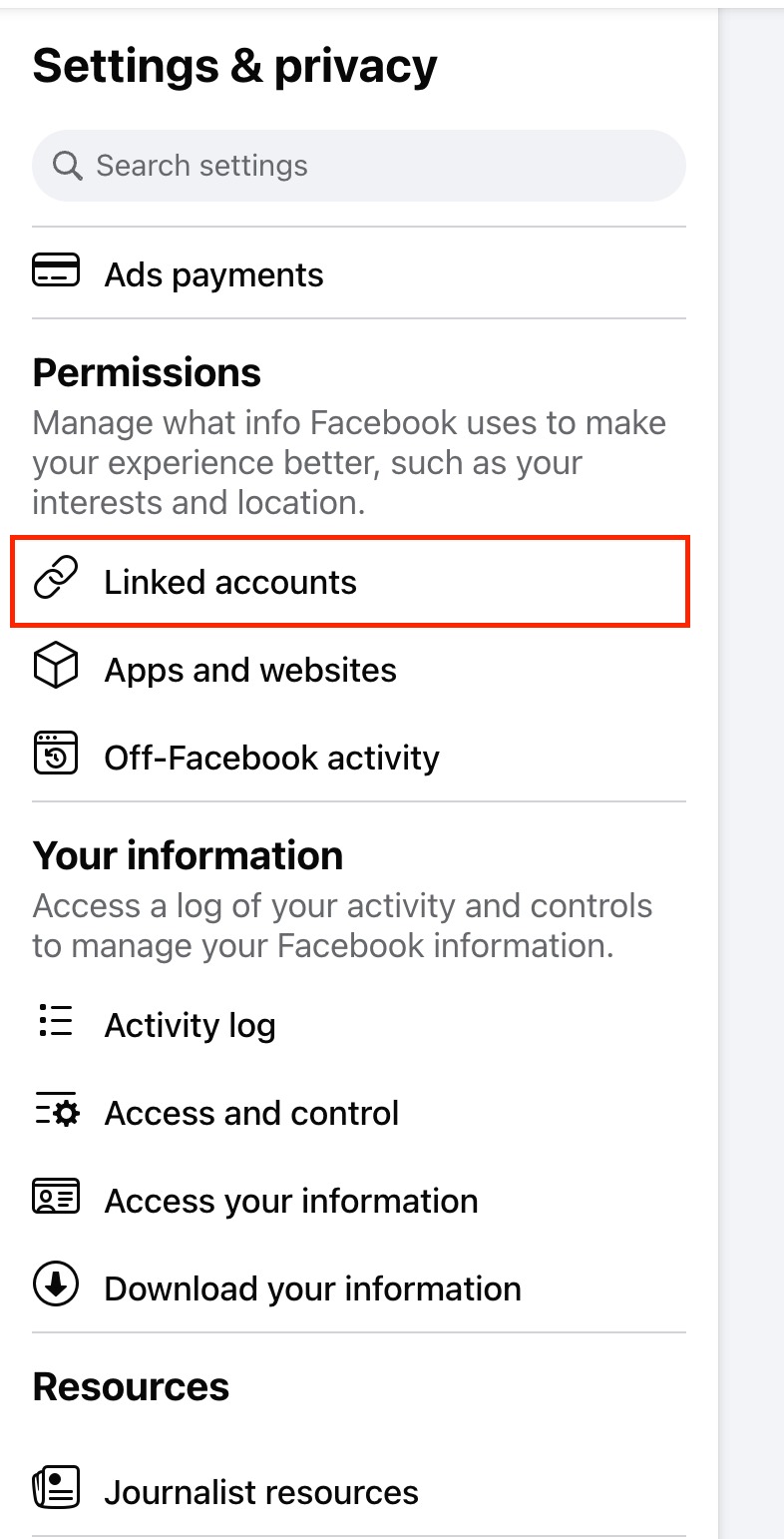
- Under "Permissions", click "Linked accounts".
- Next to Instagram, click "View".

- Click "Connect account", then follow the steps to link your Facebook page and your Instagram account.
- Your Instagram Business profile is now linked to your Facebook account.
- Go to Marketing > Social Planner.
- Click the settings icon (cog) next to "New post".
- Select Add social.
- Choose Instagram.
- Select Instagram with Facebook.
- Follow the instructions to connect your Facebook page and your Instagram account.
Note: for full details, see the official Meta set-up guide.
Method 2: Direct Instagram integration (Recommended)
Ideal for quick set-up and Stories scheduling, this method does not require Facebook.
Steps:
- Go to Marketing > Social Planner.
- Click Settings (cog icon) next to New post.
- Select Add social.
- Choose Instagram.
- Choose Direct Instagram integration.
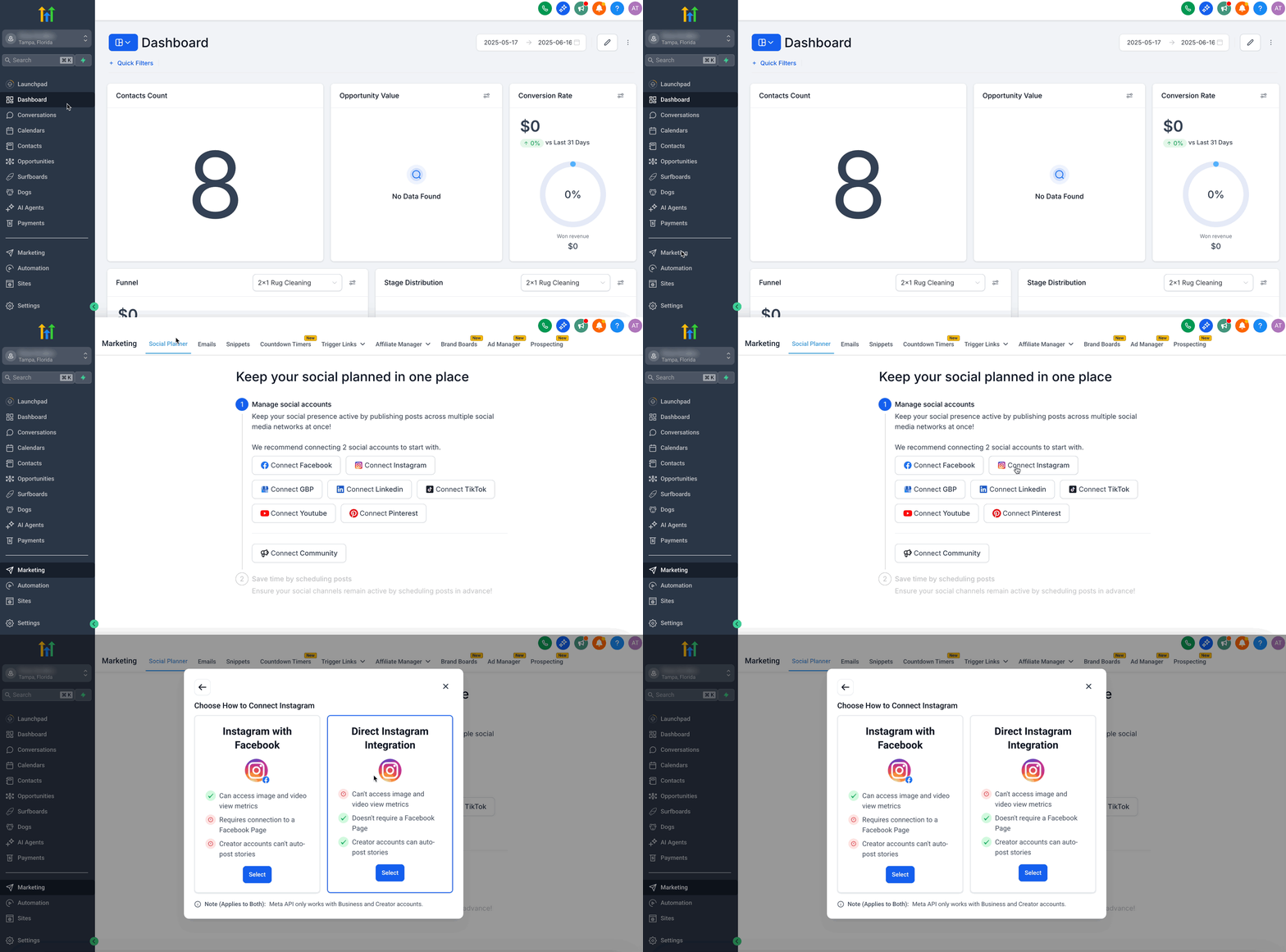
- In the pop-up, select Direct Instagram integration.
- Grant the permissions and select your Instagram Business or Creator account.
Feature comparison table
| Feature | Linked to Facebook | Direct integration (New) |
|---|---|---|
| Requires a Facebook page | Yes | No |
| Supports Creator accounts | Limited | Yes |
| Automatic Stories publishing | No | Yes |
| Reels scheduling | Yes | Yes |
| Engagement metrics display | Yes | Yes (views excluded) |
| Set-up complexity | Higher (multiple logins) | Lower (single login) |
To publish successfully to an Instagram Business profile, including direct publishing, your Instagram Business profile must be linked to a Facebook page or be a Creator profile. You do not need to post to the Facebook page when using Instagram, but the permissions to manage your Instagram profile are granted to Futuria CRM through Facebook. This is a Facebook requirement (Facebook owns Instagram).
Link your Instagram Business profile to your Facebook account
Reference document - https://www.facebook.com/business/help/connect-instagram-to-page
- Log in to Facebook, then click your profile photo in the top right.
- Click "See all profiles", then select the page you want to switch to.
- Click your page's profile photo in the top right on Facebook.
- Click "Settings and privacy".
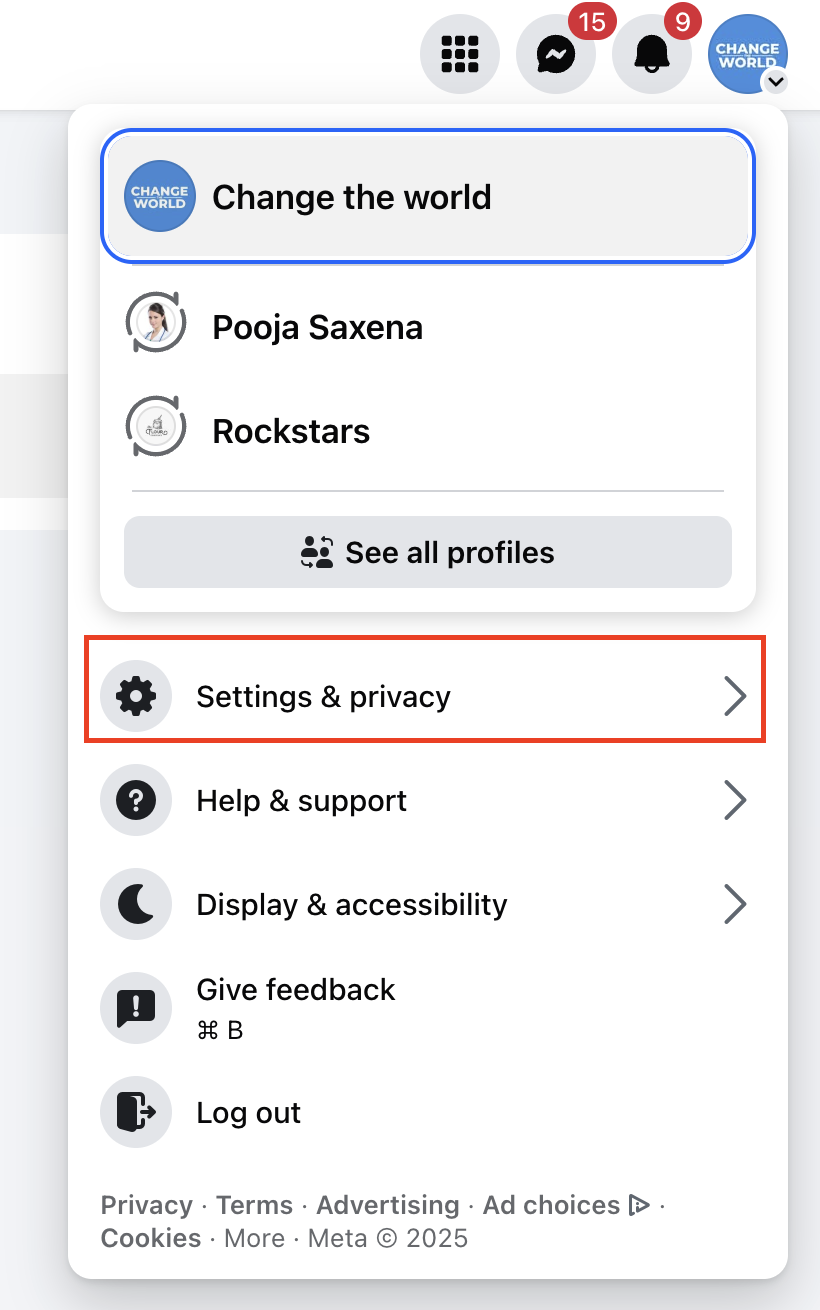
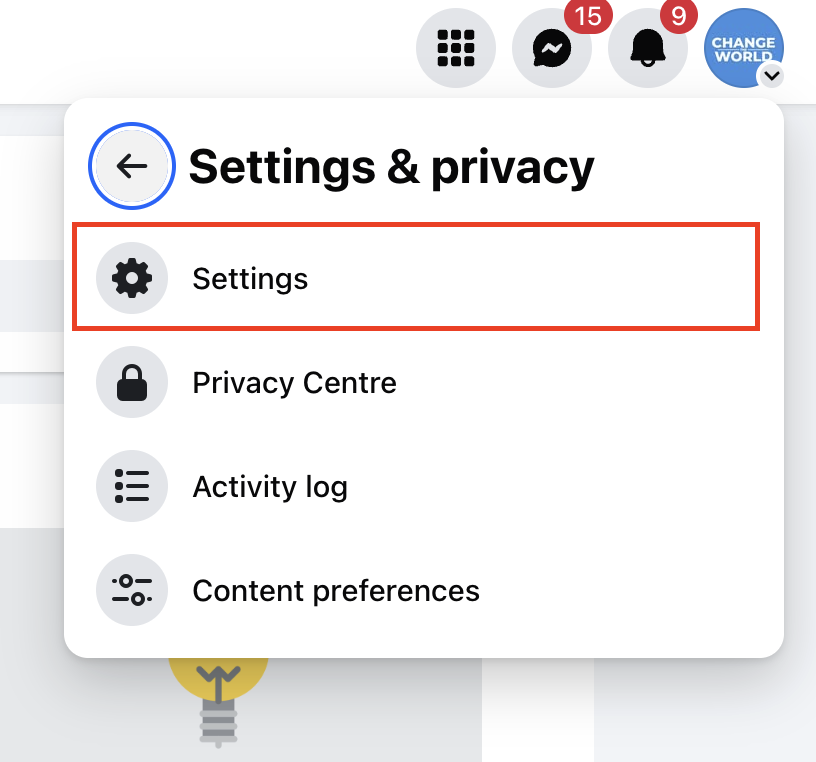
- Then click "Settings".
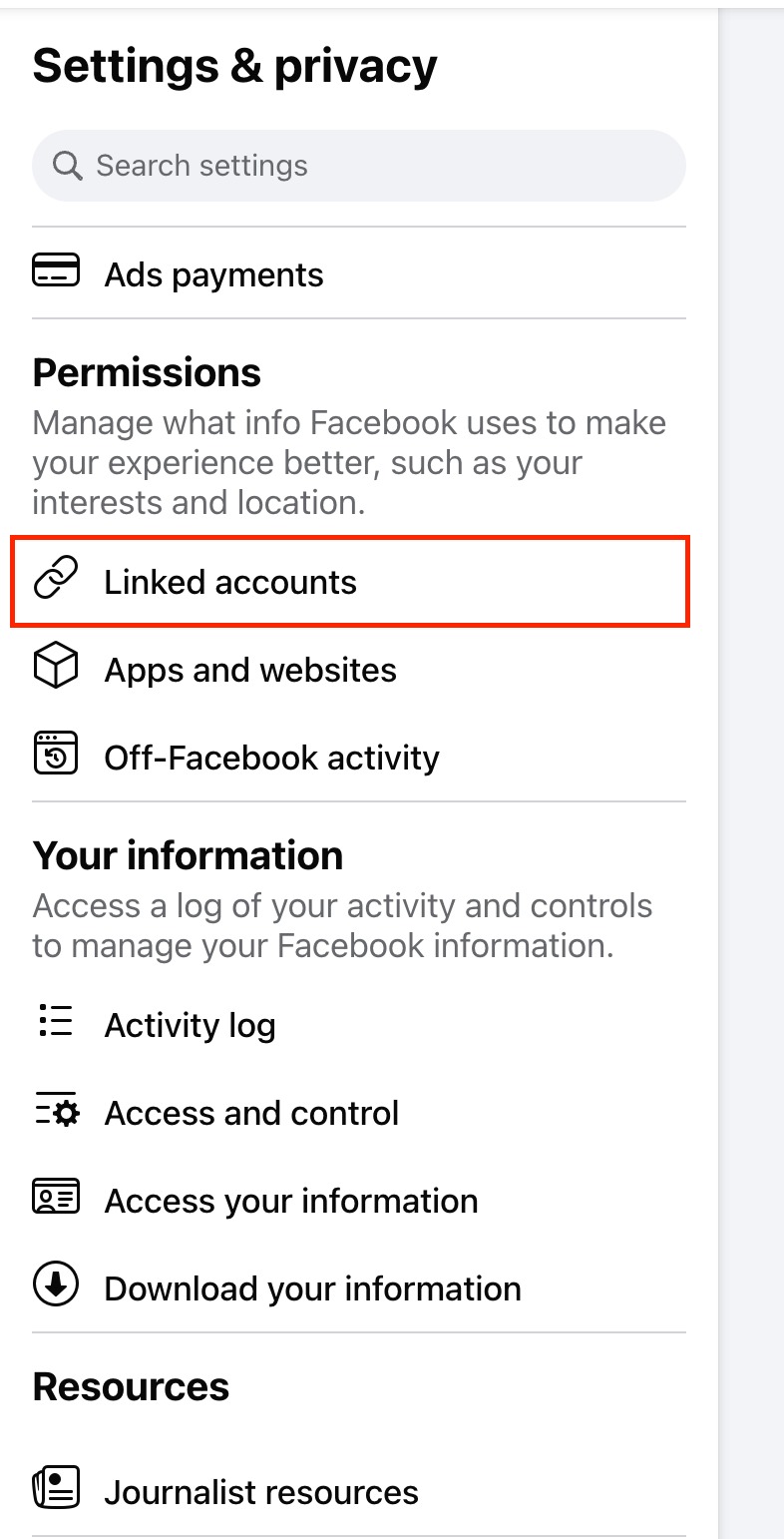
- Under "Permissions", click "Linked accounts".
- Next to Instagram, click "View".

- Click "Connect account", then follow the steps to link your Facebook page and your Instagram account.
- Your Instagram Business profile is now linked to your Facebook account.
Note: the native Instagram app and its Graph API do not allow clickable links in post captions. This restriction is intended to keep users on the platform, reduce spam and encourage engagement with ads. As a result, any link included in a post caption will appear as plain text once published on Instagram.
Frequently Asked Questions (FAQ)
Can I use the direct Instagram integration with a personal account?
No, only Business and Creator accounts are supported.
Do I need to disconnect my Facebook page first?
No, you choose the integration type during set-up. Simply select "Direct integration".
Which post types can I schedule?
Posts, Stories and Reels (in line with Instagram's guidelines).
Are all analytics available?
Engagement metrics are; view counts for images/videos are not available.
Can I publish Stories automatically from a Creator account?
Yes, automatic Stories publishing is supported for Creator accounts.
What if my posts are not published?
Make sure the content meets Instagram's specifications and that the account is connected correctly.
Is there a limit to the number of connected accounts?
You can connect several accounts, up to the limits set by your Futuria CRM plan.
Where can I find the latest Instagram specifications?
See our content guidelines article for the most up-to-date information.