


Table of contents
- Overview and setup of dedicated email sending domains
- What is a dedicated sending domain?
- Setting up dedicated sending domains
- Step 1: go to Email Services
- Step 2: add the domain information
- Step 3: verify the DNS records
- Set up Google Postmaster Tools for your dedicated domain
- Email address rewriting with a shared domain
- Troubleshooting dedicated sending domains
- Frequently asked questions
Overview and setup of dedicated email sending domains
Email marketing is an excellent way to reach customers and increase sales. A dedicated sending domain gives you control over what appears to come from your company, helping you avoid spam filters and other problems.
Don’t let your email marketing efforts go unnoticed. Get started with a dedicated sending domain today to improve your deliverability.
What is a dedicated sending domain?
A dedicated sending domain lets you send emails that appear to come directly from your brand, which can help you maintain a better reputation with email providers. Any account can create a dedicated sending domain quickly and easily.
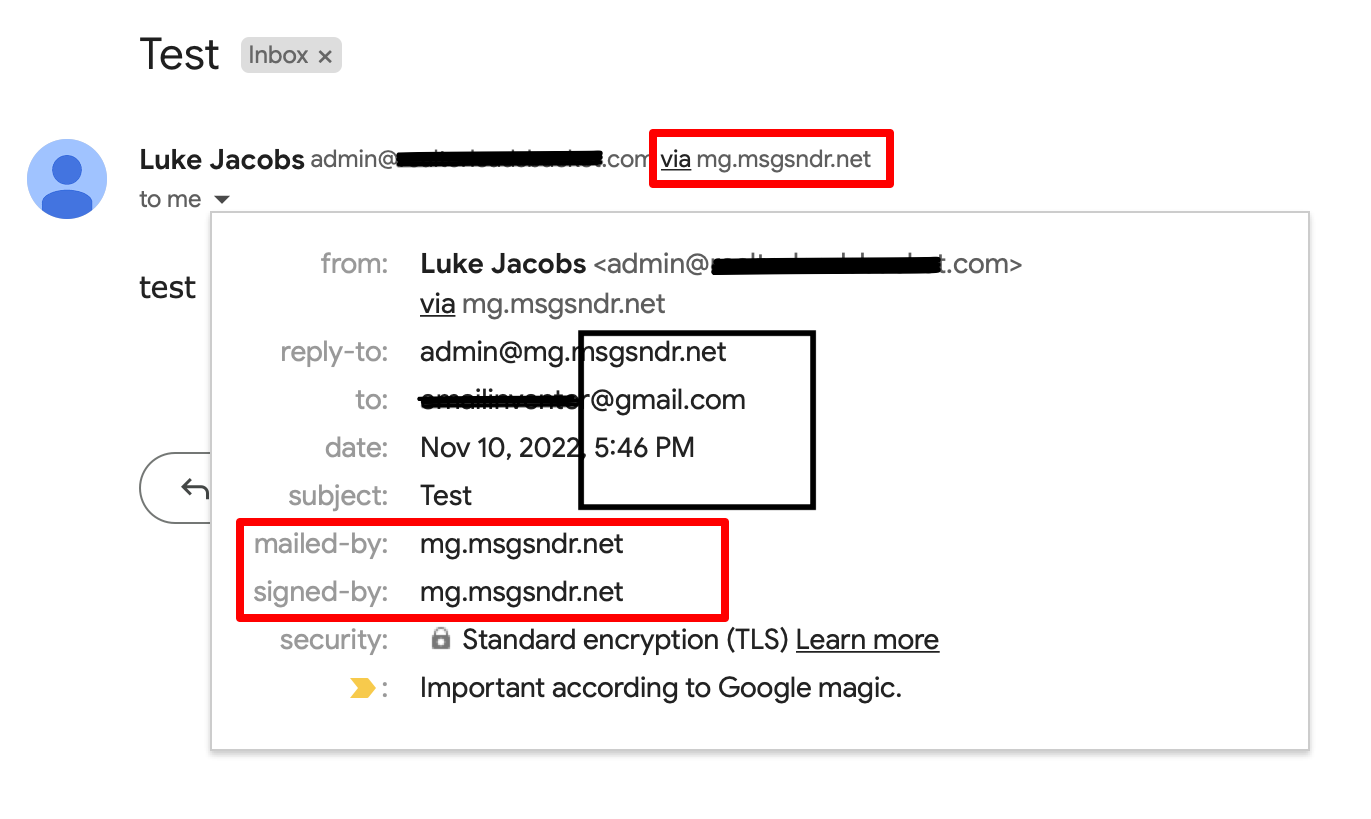
By default, all emails sent from our platform will show the name of our sending servers in the “sent on behalf of” or “sent via” headers:
Setting up dedicated sending domains
You can create several sending domains in your account and use different domains for different actions, such as sending one-to-one emails, workflow emails, marketing campaigns and payment and invoicing emails.
Step 1: go to Email Services
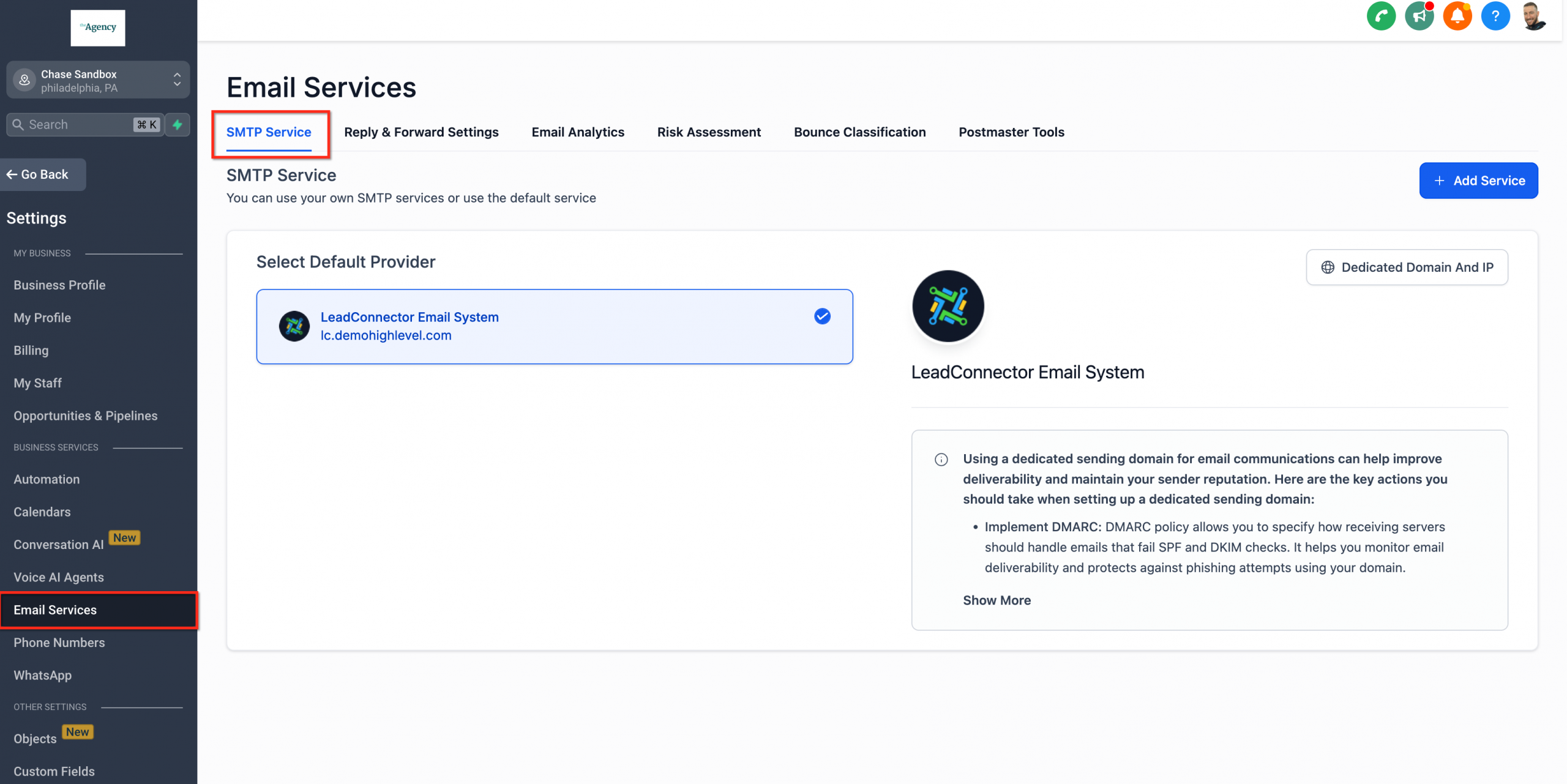
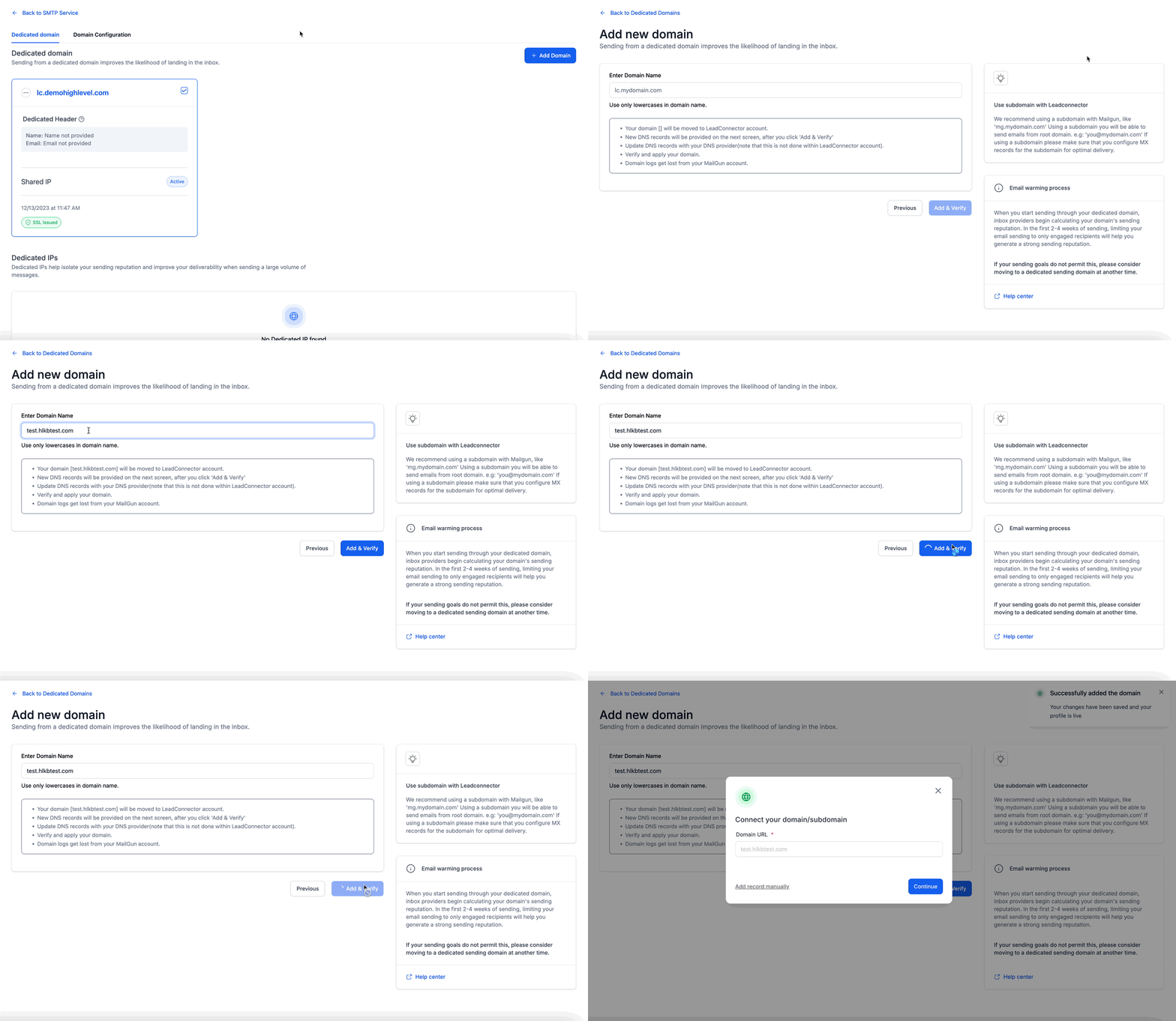
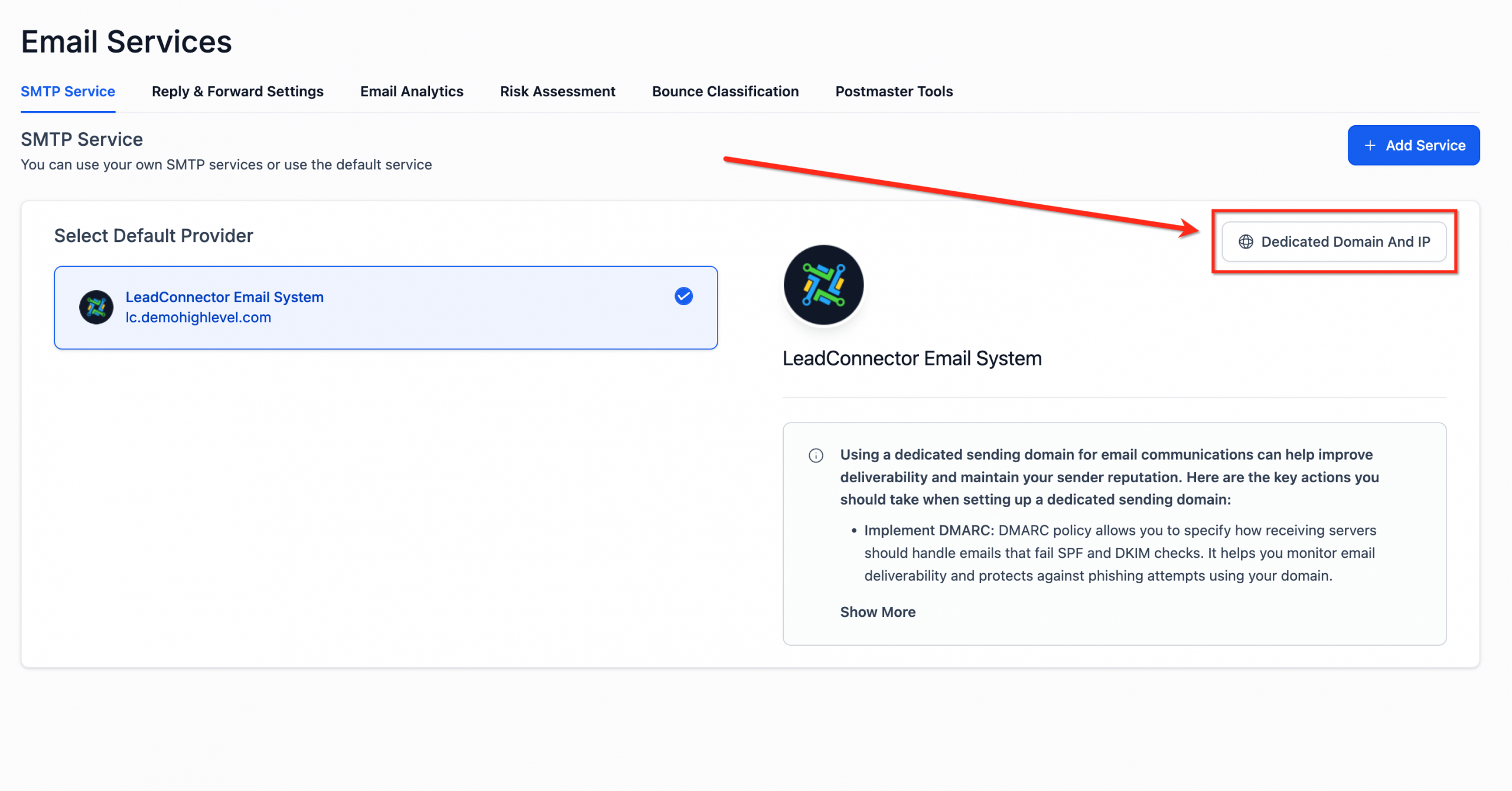
- Go to Settings > Email Services.
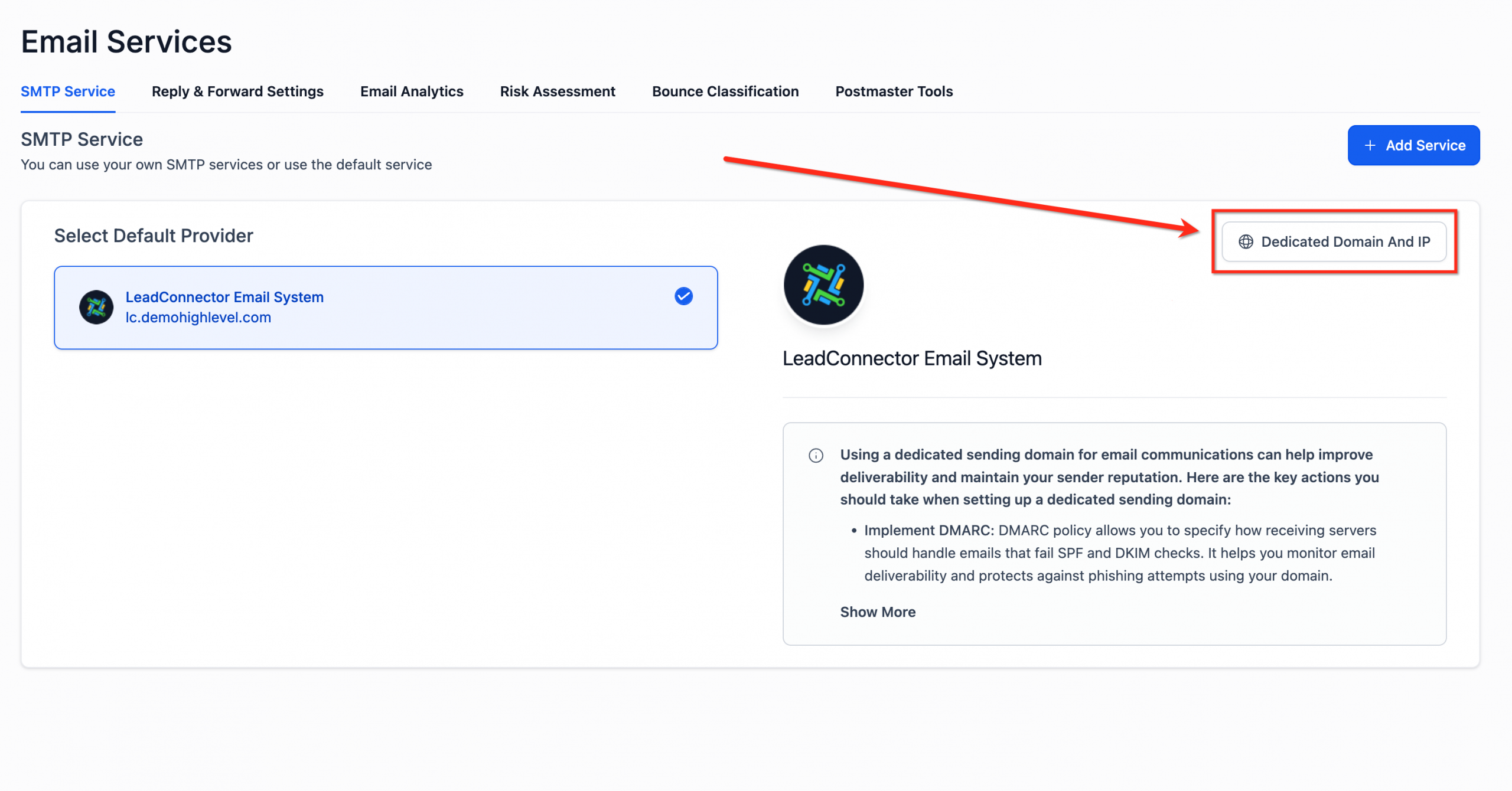
- Click the “Dedicated domain and IP” button.
Step 2: add the domain information
- Click the “Add domain” button to start setting up your sending domain.
- Enter the subdomain you want to use for your dedicated sending domain.
Step 3: verify the DNS records
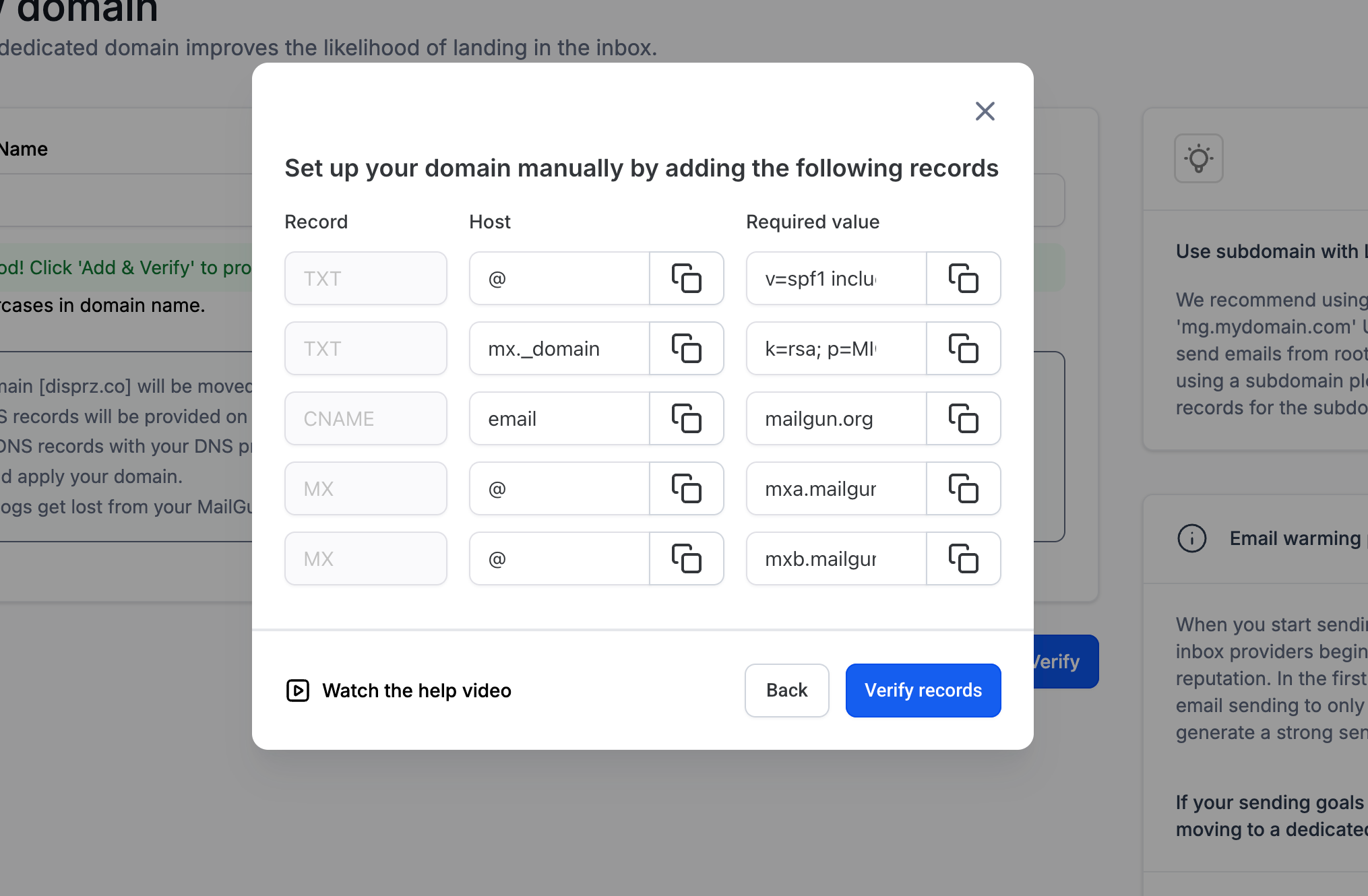
Once you have added your subdomain, you will need to verify your DNS records. You will have the option to let Futuria CRM configure your DNS records automatically or to enter them manually.
If Futuria CRM is unable to configure your DNS records automatically, you will need to add them manually.
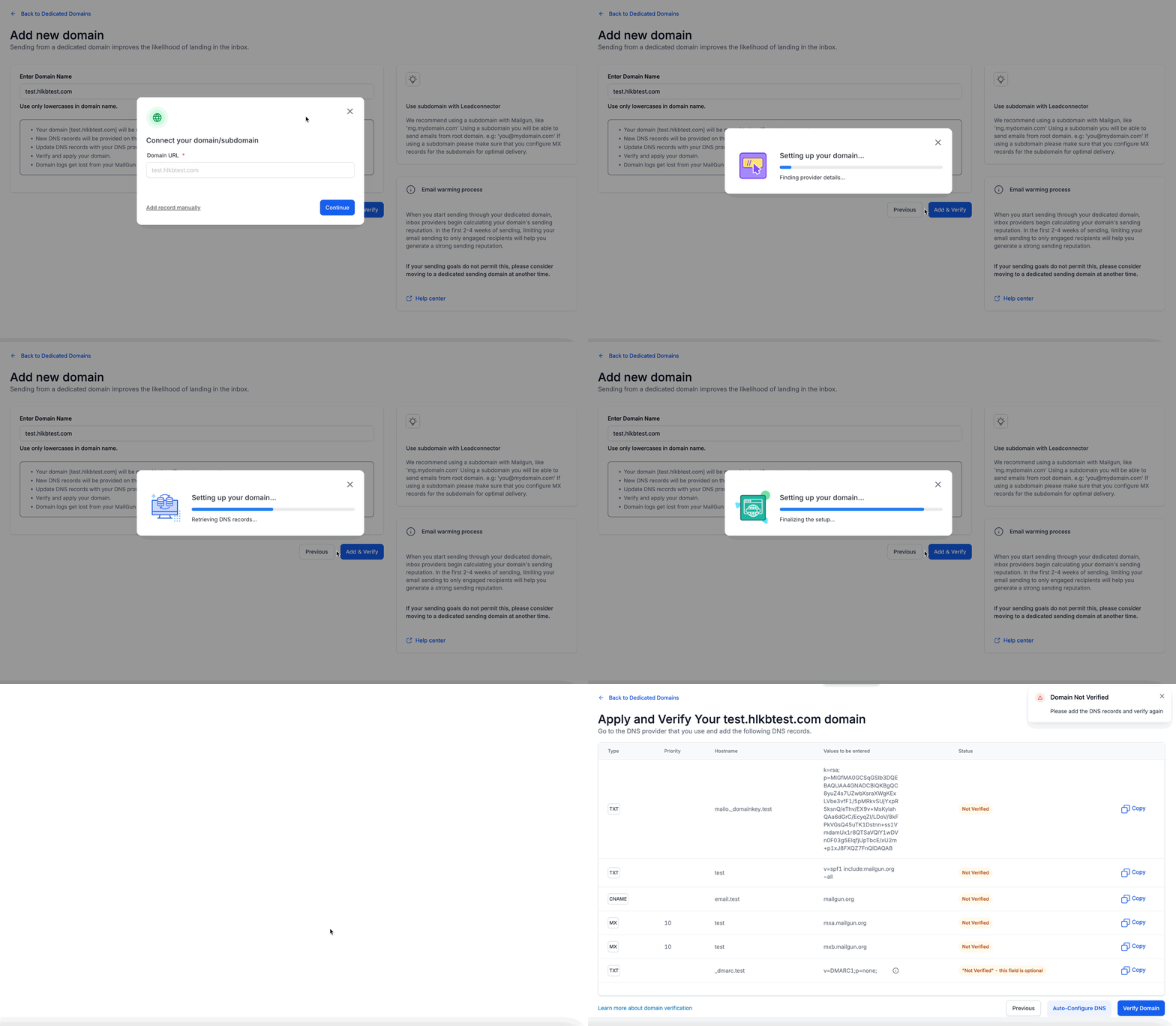
Adding the DNS records manually
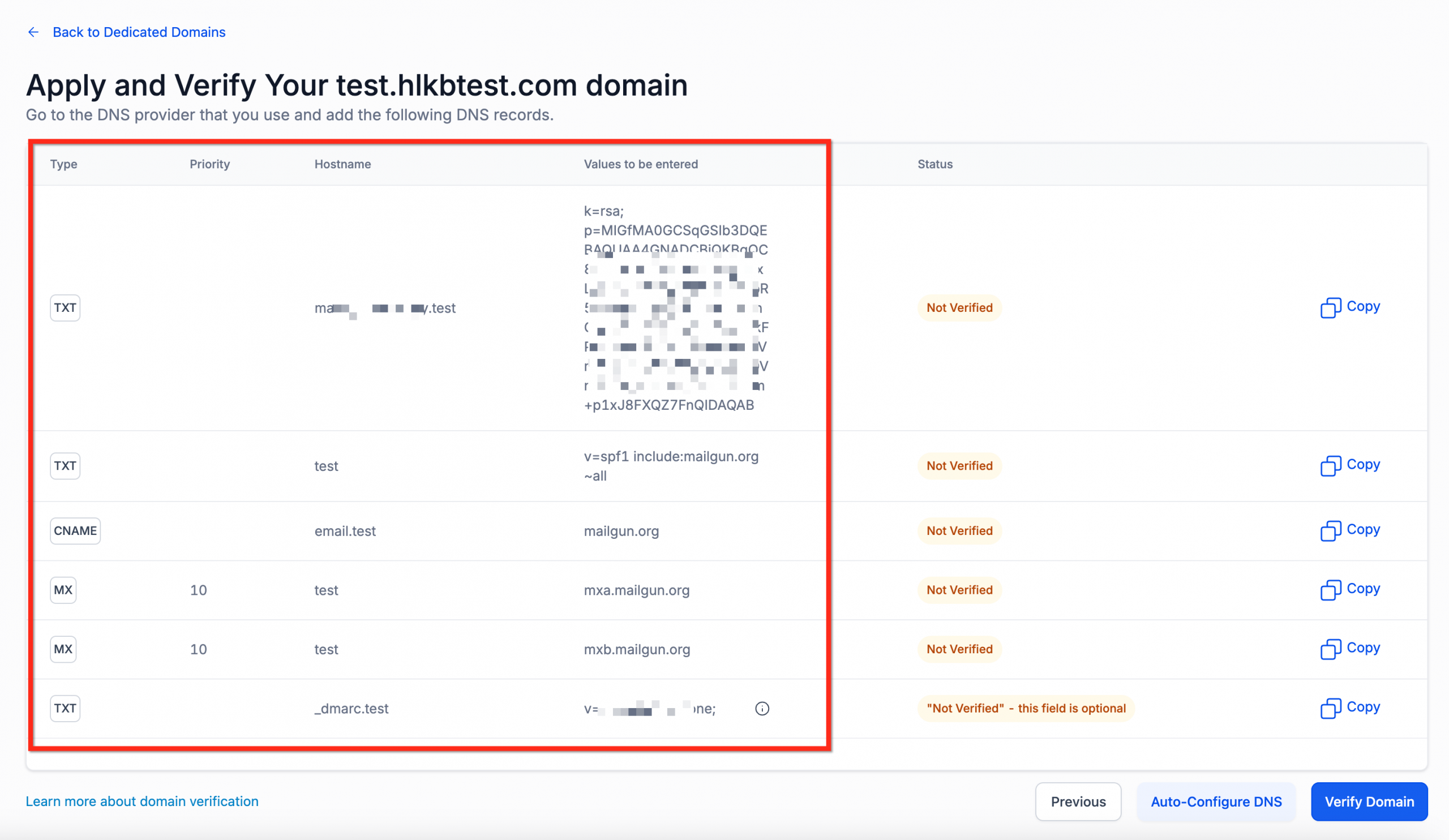
To add your DNS records manually, you will need to create them in the dashboard of the hosting provider where you manage your domains. Futuria CRM will give you specific information, like the details you can see in the screenshot below, which you will use to create your DNS records.
Click one of the links below for the instructions of some common DNS providers:
| - GoDaddy - Google Domains - Hostgator - Hover - Namecheap - Squarespace |
- AWS - Cloudflare - Bluehost - Hostinger - InMotion - Hostwinds |
|---|
Dedicated sending domains for calendar emails (your Futuria CRM account)
You can assign dedicated sending domains specifically for calendar emails, to protect the deliverability of appointment-related communications.
- Select Settings → Email Service → SMTP Service → go to step 2.
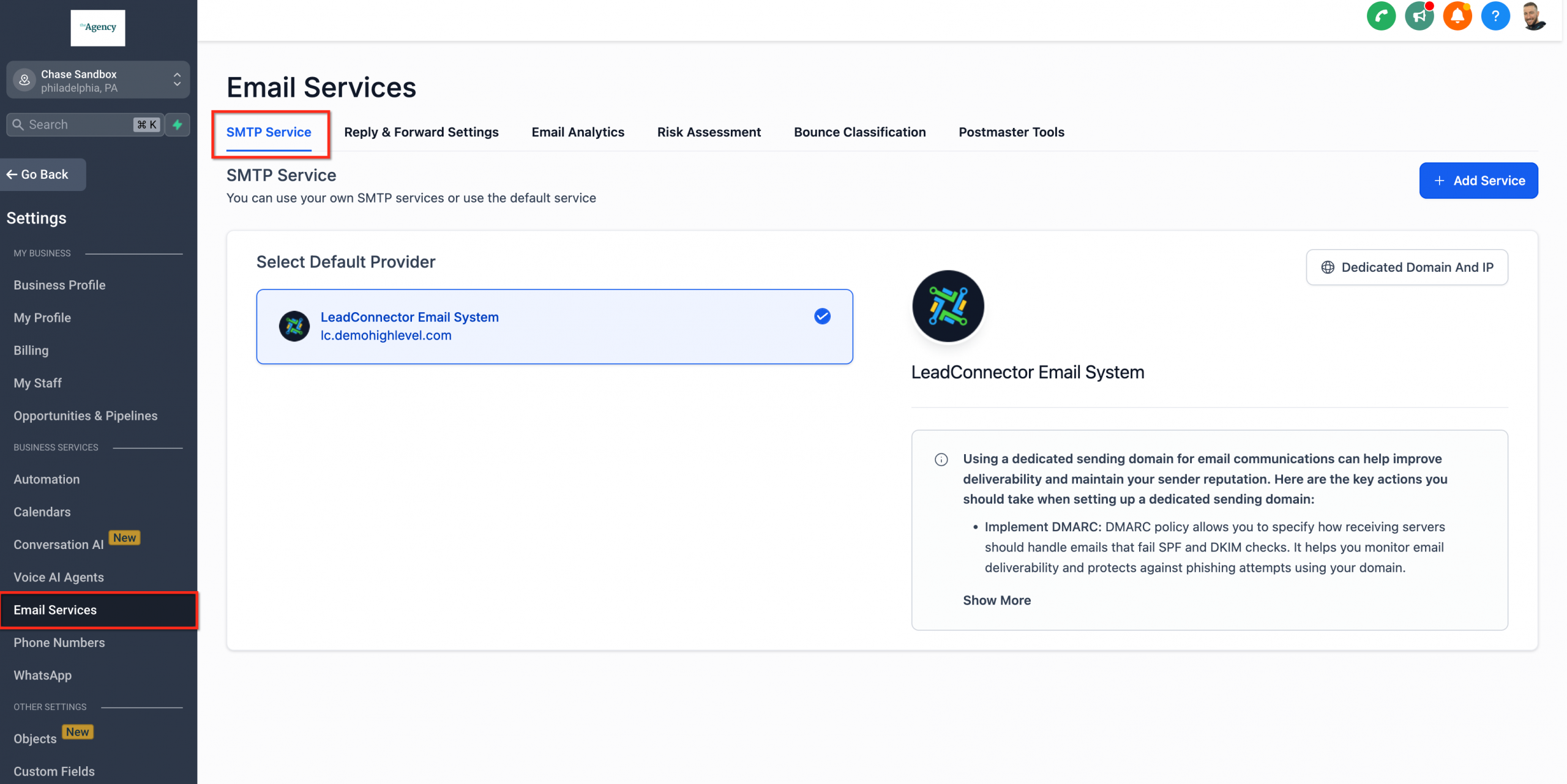
- Select Dedicated domain and IP → go to step 3.
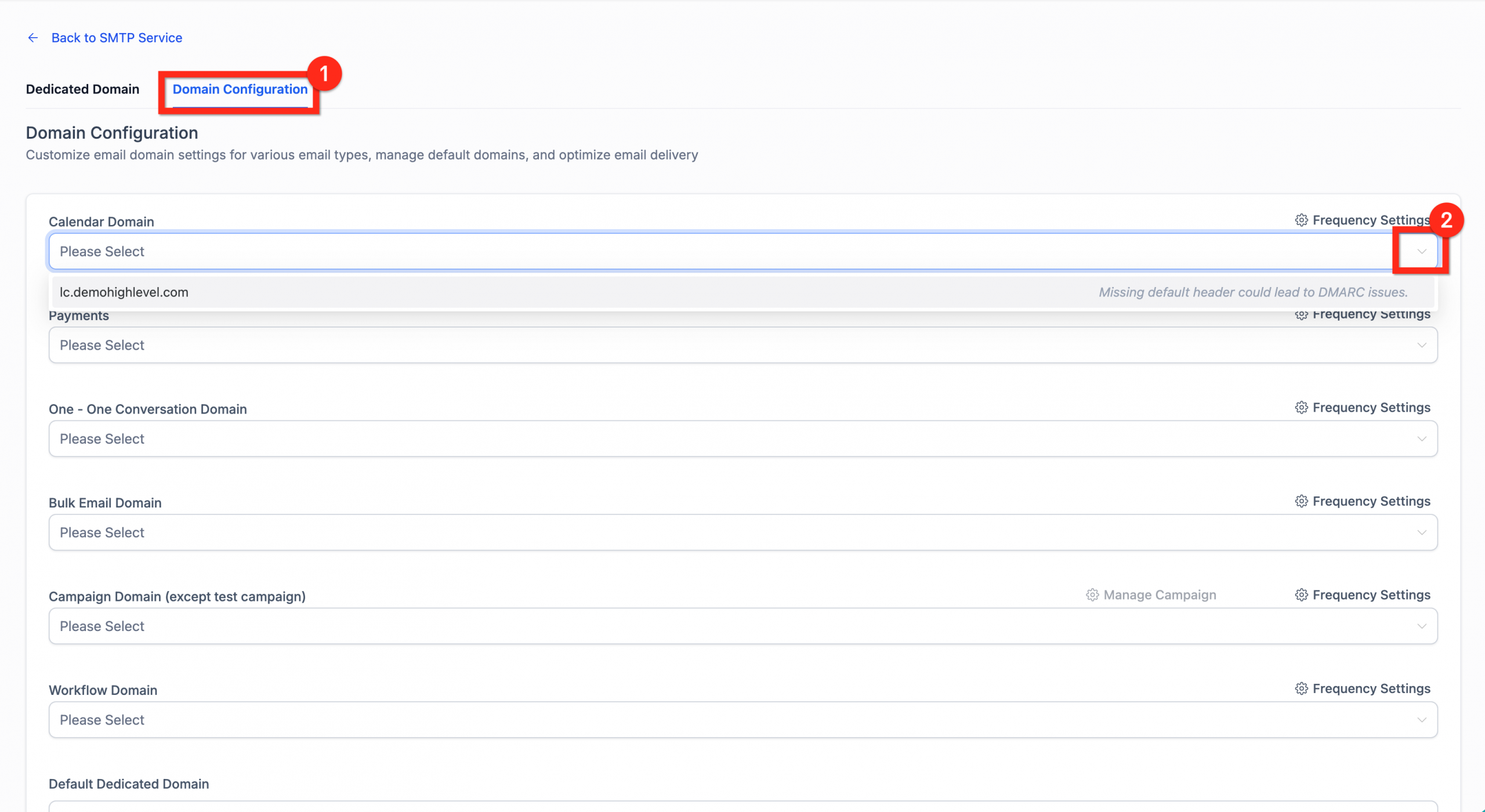
- Select Domain configuration:
- In the Calendar category, open the drop-down menu and add your domains, up to a maximum of 5.
- Once you have selected the calendar domain, set the percentage-based distribution across your calendar domains (applicable when you have several domains).
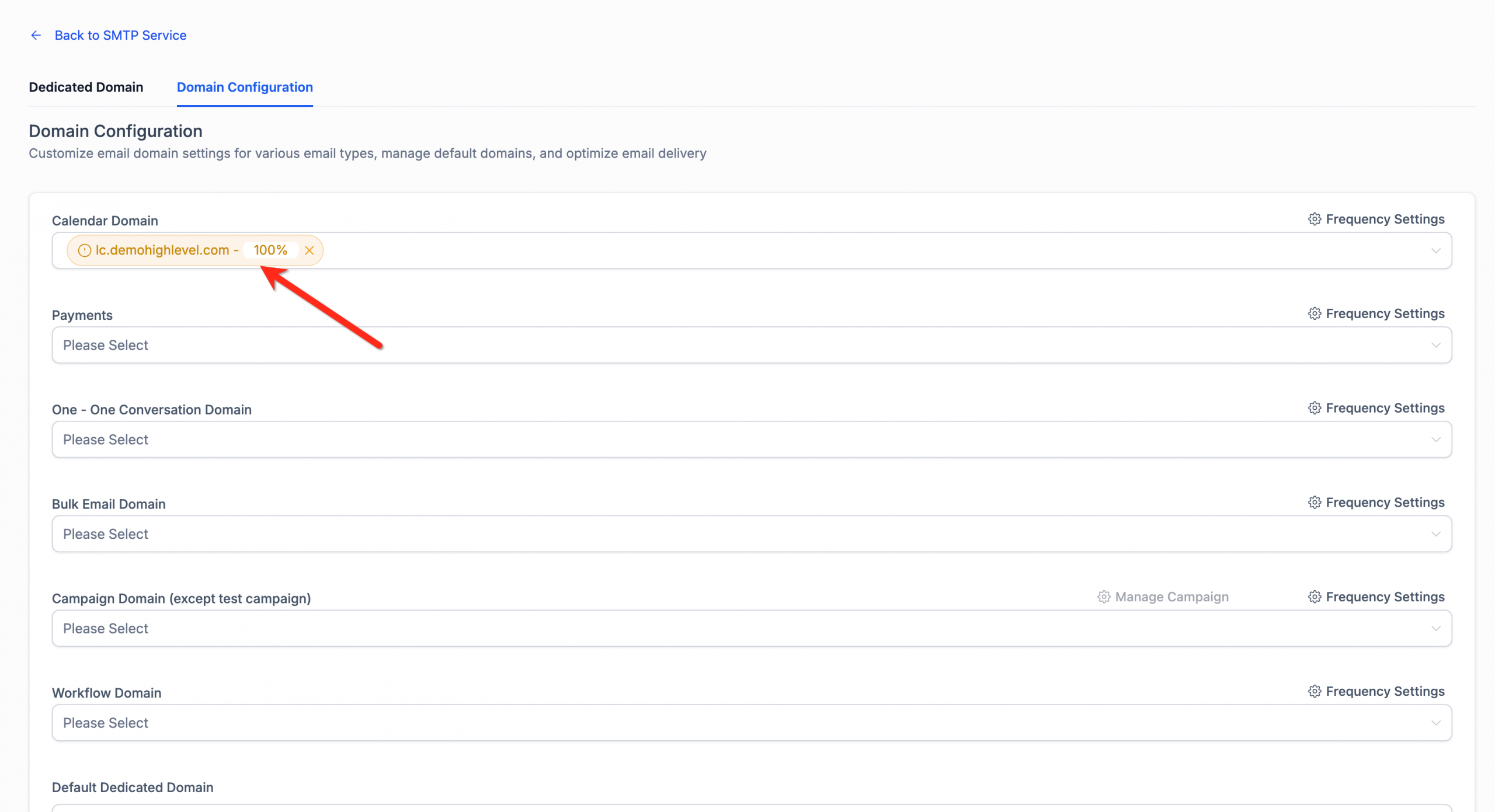
Only the domains created within your Futuria CRM account are available for selection.
This feature is available to Futuria CRM email service users.
Set up Google Postmaster Tools for your dedicated domain
Google Postmaster Tools (GPT) helps you monitor the Gmail-specific deliverability of your dedicated sending domain in Futuria CRM. By verifying your domain in GPT, you can track domain/IP reputation, spam rate, authentication alignment and delivery errors, so you can diagnose delivery problems and improve performance over time.
Step-by-step procedure
- Sign in to Google Postmaster Tools with a Google account.
- Add the domain (e.g.
yourbrand.comormail.yourbrand.com).
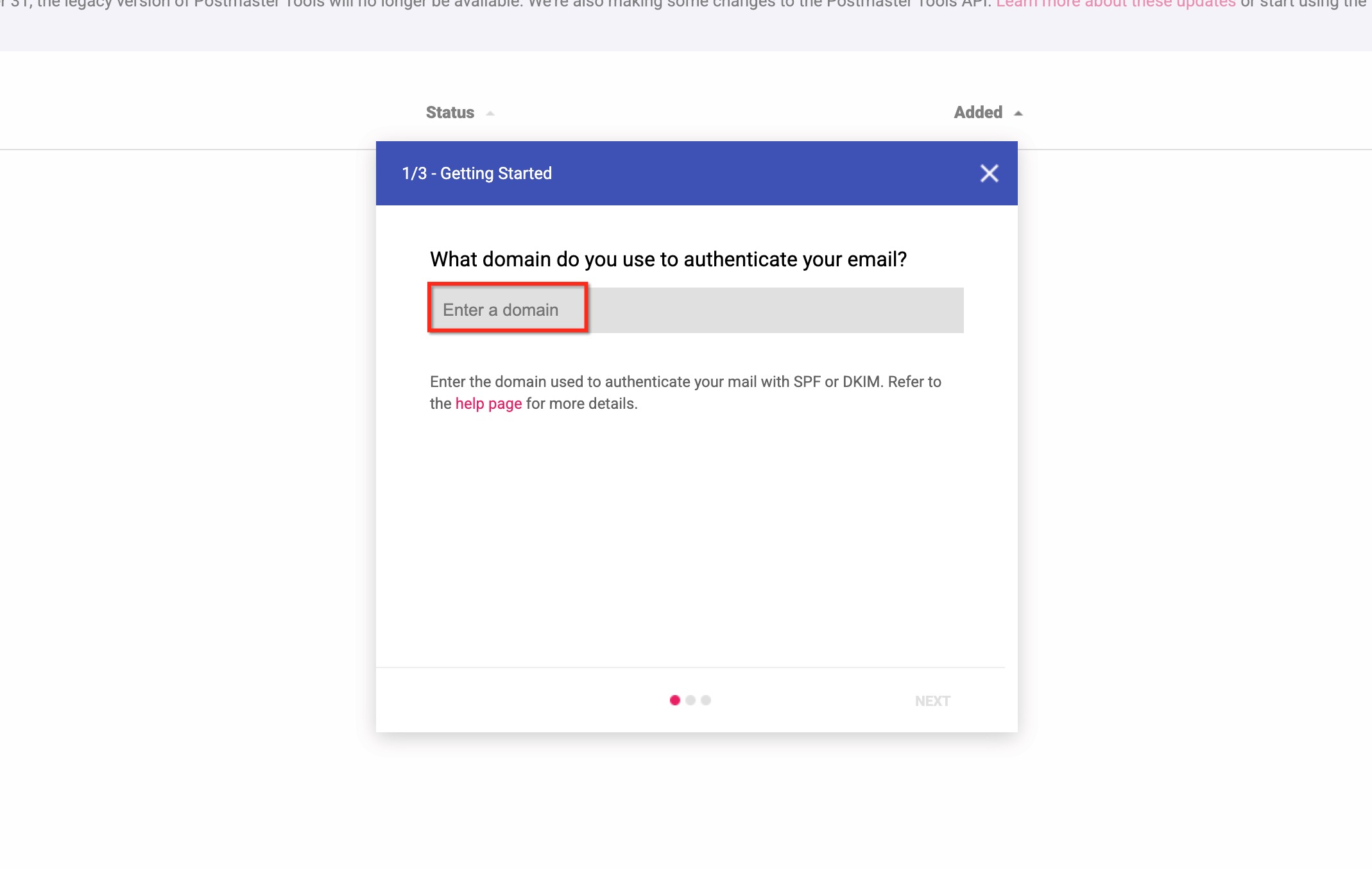
- Choose Verify and copy the TXT record value provided by Google.
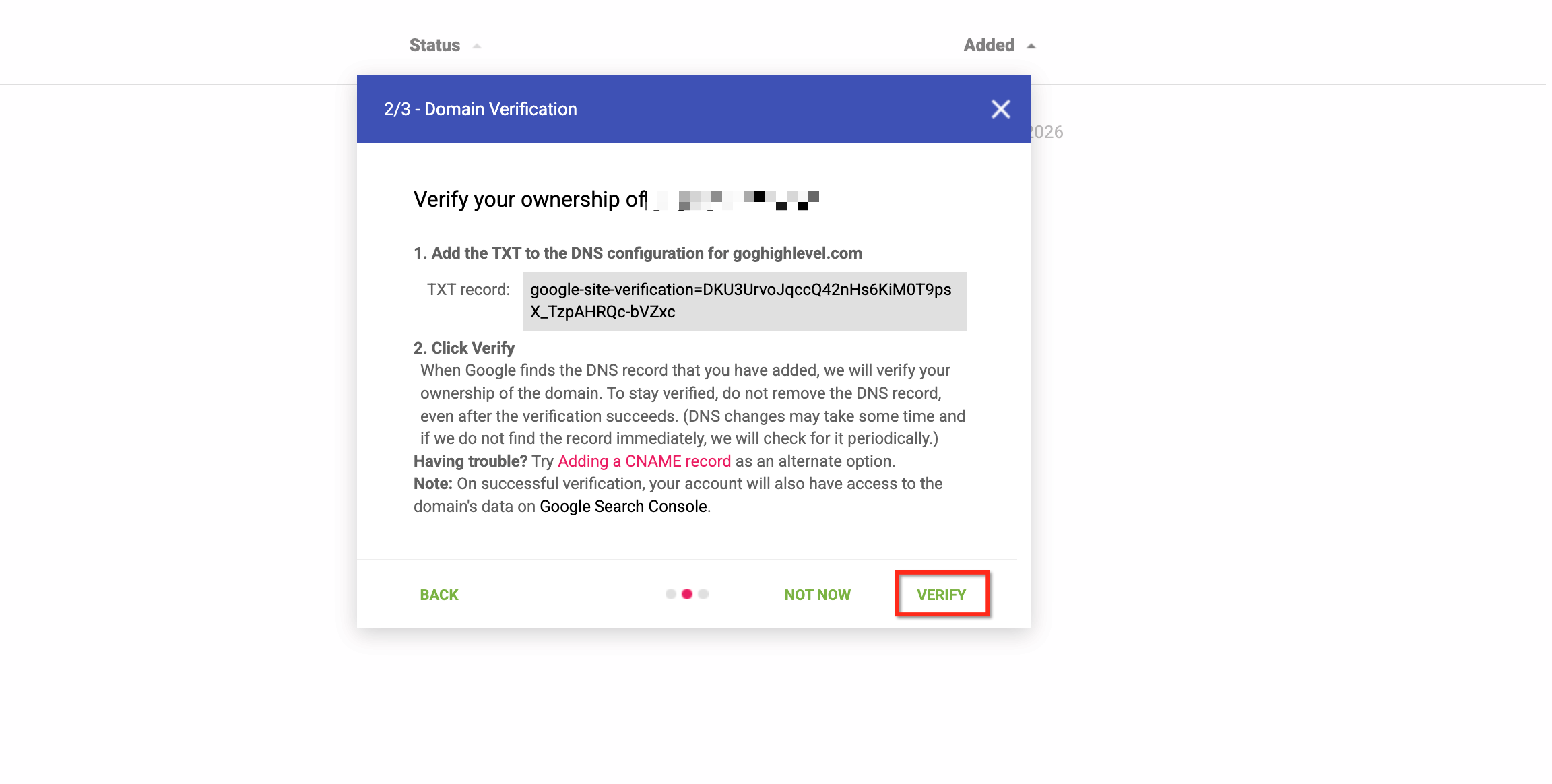
- In your DNS host, add the TXT record exactly as shown, then save/apply.
- Go back to GPT and complete the verification (Google may take some time to detect the record).
- Send emails from Futuria CRM using your verified dedicated domain.
- Once Google has received a sufficient volume of emails, check the Domain reputation, IP reputation, Spam rate, Authentication and Delivery errors dashboards.
Email address rewriting with a shared domain
When you use a shared domain (owned by Futuria CRM), Futuria CRM automatically rewrites your email addresses, which may affect your branding and the way your emails look.
How it works:
Your “From” addresses are formatted automatically so they work with the shared domain infrastructure.
Example:
- Your “From” address:
supporto@latuaazienda.com - Your shared domain:
mg.msgsndr.com - Actual sending address:
supporto+latuaazienda.com@mg.msgsndr.com
To avoid email address rewriting and keep your brand identity:
Set up a dedicated sending domain by following the instructions in this article. With a dedicated domain, your emails will be sent exactly as configured, with no address rewriting.
Troubleshooting dedicated sending domains
While setting up your dedicated sending domains, you may run into some issues that can be resolved without contacting the Futuria CRM support team. Below are some common problems.
- Error message: ‘The domain already points to a mail server!’
This error means that your email domain already has DNS records connected to another service. You will need to disconnect the domain before you can connect it to your Futuria CRM account.
Any MX or SPF record, even if they are Futuria CRM records, will cause the system to reject the domain, so they will need to be removed. You can look up the MX and SPF records of the domain using various online tools, such as MXToolBox.
Frequently asked questions
How do I choose a sending domain name for my account?
It is best to use a unique subdomain that is not used for any other purpose. A subdomain is a secondary part of your main domain. For example, if your dedicated sending domain is ciao@mg.iltuobrand.com, your subdomain would be the “mg” portion.
How do I set up a dedicated IP address?
Setting up a dedicated IP address is a completely different process.
What do I do if some of my domain’s DNS records are still not verified?
You will need to force the verification process manually. If, after doing so, the DNS records are still not verified, you may need to resolve the issue by contacting your hosting provider.
How do I generate an SSL certificate for dedicated sending domains?
When your domain is verified, the SSL certificate should be generated automatically.
If the domain shows as verified but there is no SSL certificate, you may need to verify it again by repeating the whole process. If that does not work, contact your hosting provider to see whether there is a problem with your domain or whether they can help you generate the SSL certificate.
What if my domain has a wildcard DNS record?
If your domain has a wildcard record (e.g. *.yourdomain.com), you will see a “pre-existing record” error when you try to set up a subdomain such as mail.yourdomain.com. This happens because wildcard records act as a “catch-all”, so any subdomain already “exists” by default.
To resolve this, you can temporarily remove the wildcard record and add it back once the dedicated domain has been verified. Alternatively, you can add the DNS records manually for each subdomain to override the wildcard.
Will my recipients see the rewritten email address?
Yes, recipients will see the rewritten sending address (e.g. supporto@latuaazienda.com) in their email client.
How can I stop my email addresses from being rewritten?
Set up a dedicated sending domain. With a dedicated domain, your emails will be sent with your exact “From” address, with no rewriting.
Does this affect my reply-to address?
The rewriting only affects the sending address. Your reply-to address stays exactly as you configured it.