



Table of contents
- Why will email links not open?
- How email link redirection works
- How to fix broken links in emails
- Step 1: identify your tracking domain
- Step 2: check your CNAME record
- Step 3: check the CNAME record configuration
- Step 4: make sure HTTPS is enabled
- Step 5: test your links
- Step 6: contact support if the problem persists
- Troubleshooting common problems
Why will email links not open?
If the links in your emails will not open, the problem is usually caused by an incorrect configuration of your tracking domain or your DNS. This guide explains why it happens and how to fix it.
Email links usually stop working because the tracking domain is not set up correctly or is not resolved by the DNS.
When you send an email, the links are rewritten to pass through a tracking domain before redirecting users to the destination page. If that domain has a DNS or SSL certificate problem, the redirect breaks and the link does not open.
To fix it, make sure your tracking domain is set up correctly. That means the CNAME record must be correct, the domain must resolve in DNS and the HTTPS/SSL protocol must be active. Once these settings are sorted, the redirect will work again and your links will open normally.
Note: link tracking (redirecting through a dedicated domain) is used by most email providers to monitor clicks and guarantee correct routing. However, the email tracking features (such as open and click reports) inside Futuria CRM are only available when using the Futuria CRM Email service.
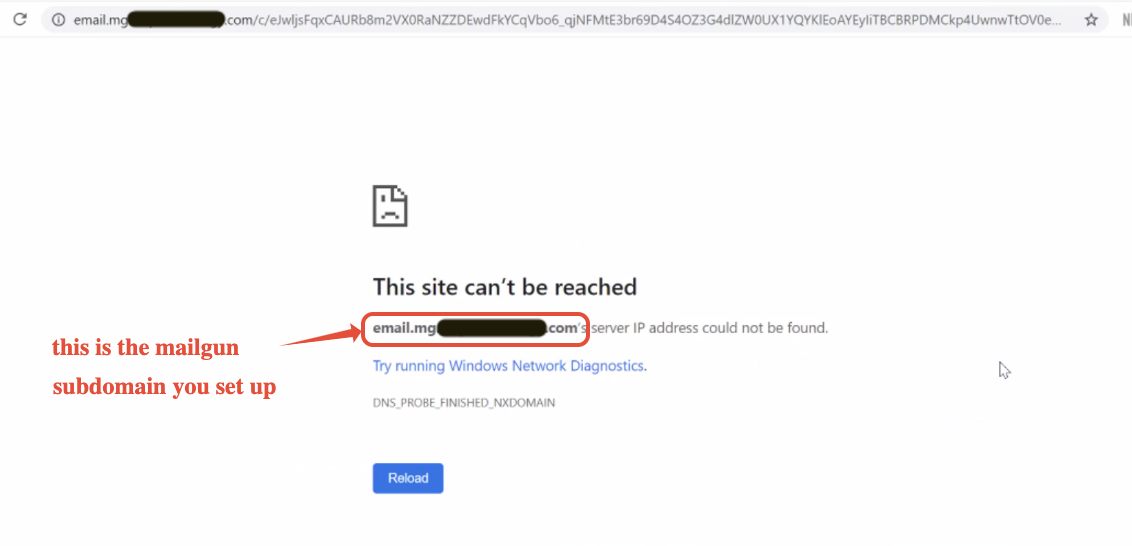
How email link redirection works
Understanding what happens "behind the scenes" when a user clicks a link makes it easier to diagnose why something has gone wrong.
- Your original link is replaced with a tracking link.
- The tracking link passes through a subdomain (for example, email.yourdomain.com).
- That subdomain relies on a CNAME record in your DNS settings.
- If the DNS or the SSL certificate is misconfigured, the redirect fails and the link may not open.
How to fix broken links in emails
Step 1: identify your tracking domain
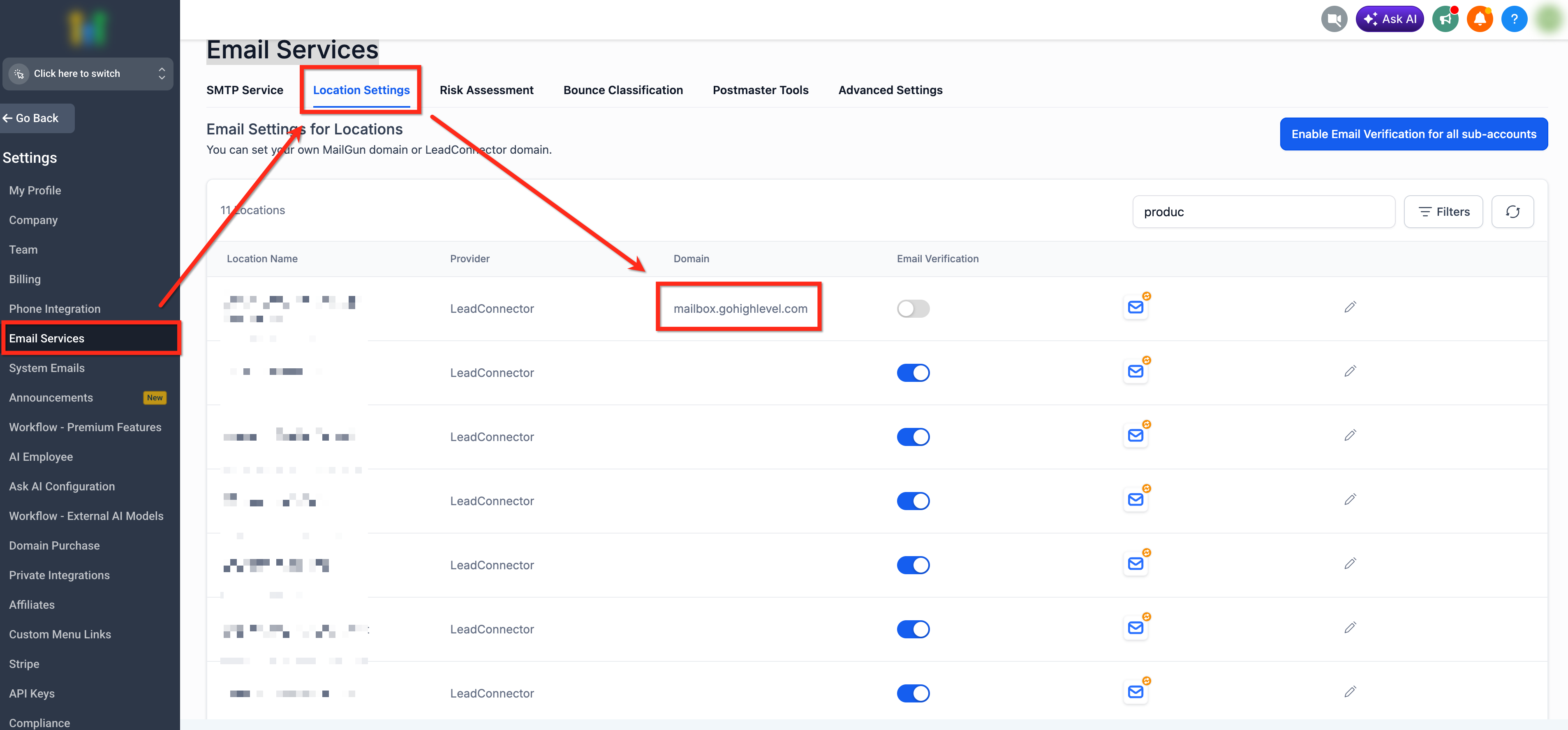
- From your account control panel, go to Settings > Email services.
- Find the domain used for email tracking (for example, email.yourdomain.com) for the account you are troubleshooting.
Step 2: check your CNAME record
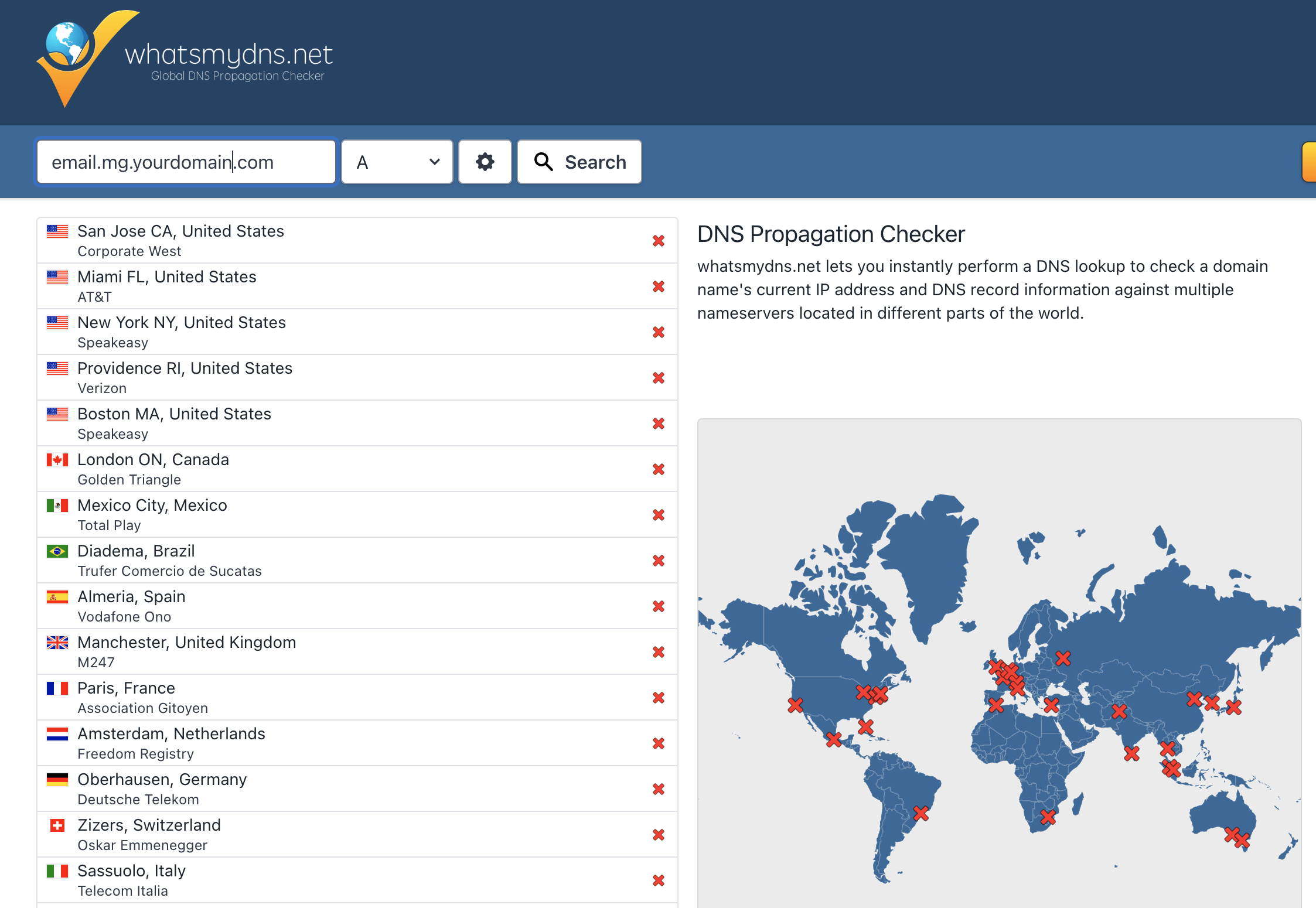
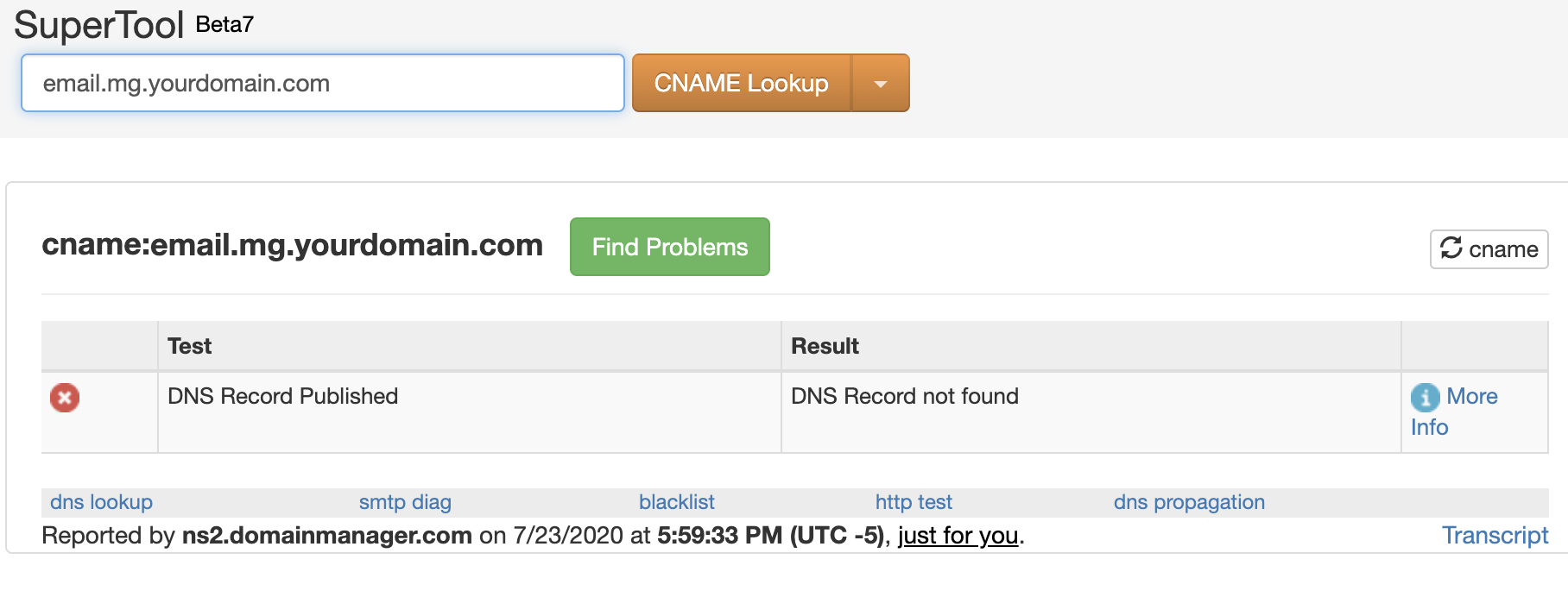
Go to MXToolbox or Whatsmydns to look up the CNAME record. Enter your tracking domain as described below.
- Copy the tracking domain you found in step 1 (for example, mg.yourdomain.com).
- Add "email." at the beginning → email.mg.yourdomain.com.
For example:
If you have set up mg.companyname.com, you need to look up the CNAME record for email.mg.companyname.com.
If you have set up replies.companyname.com, you need to look up the CNAME record for email.replies.companyname.com.
The result should return a valid CNAME record. If you see "DNS record not found", it means your CNAME is missing or incorrect.
Step 3: check the CNAME record configuration
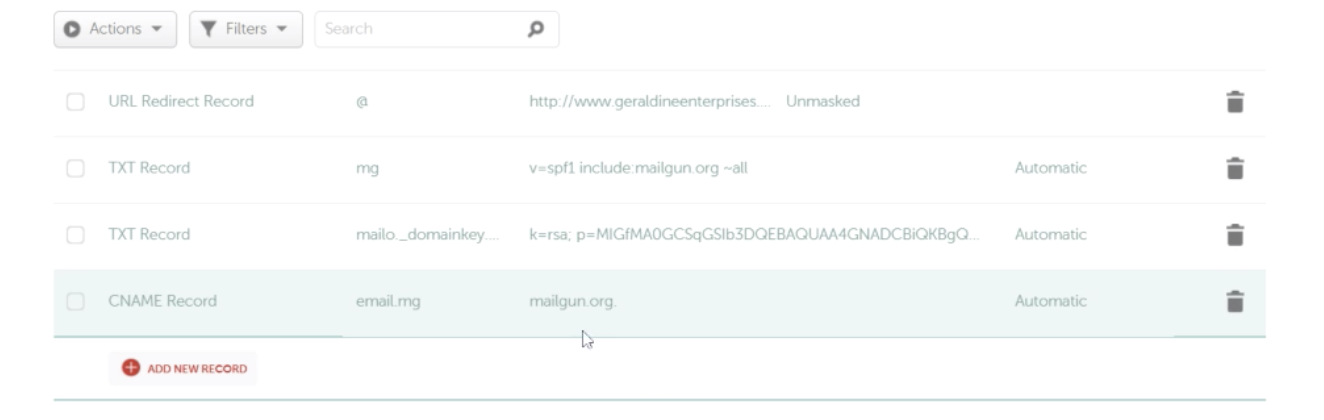
Log in to your DNS provider and find the CNAME record for your tracking domain. Make sure that:
- The host is only the subdomain (for example, email.mg, not the full domain).
- The value points to your provider's tracking domain.
Step 4: make sure HTTPS is enabled
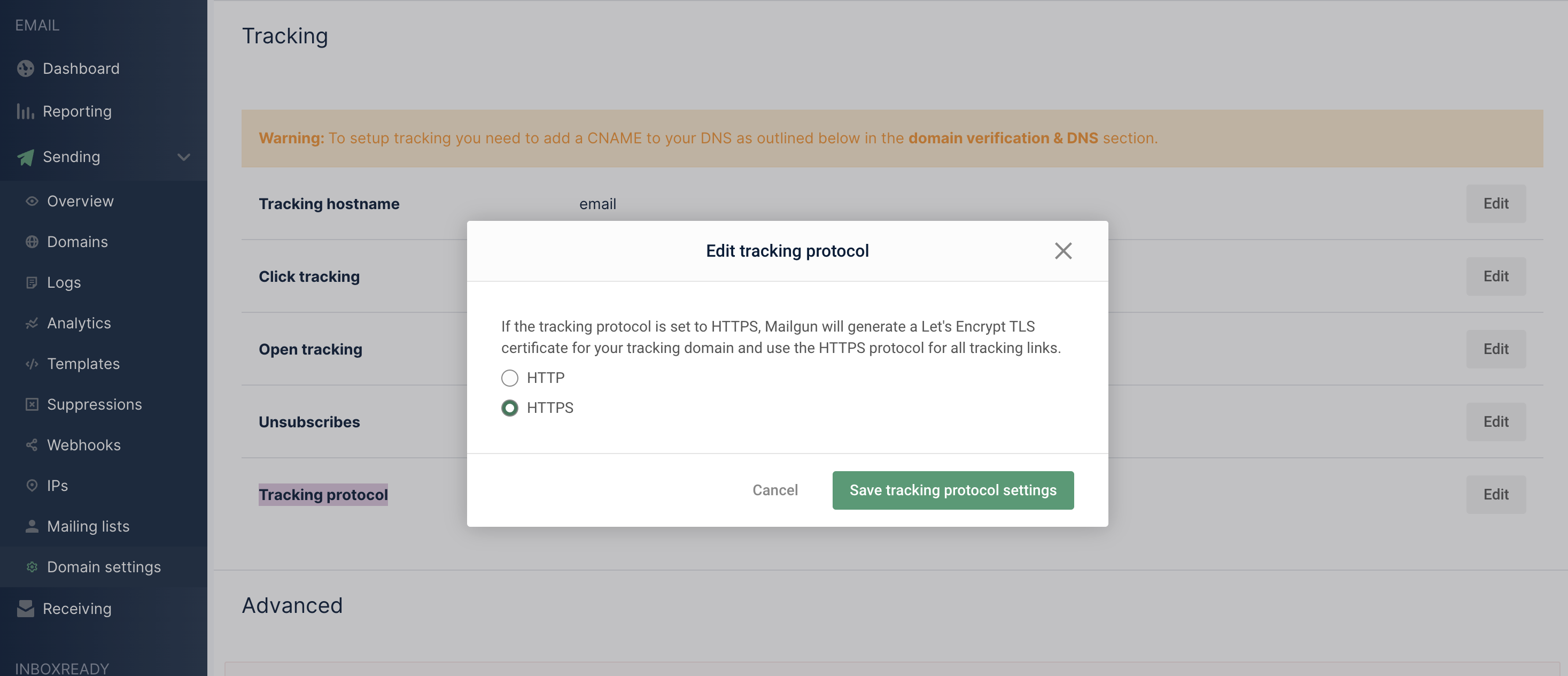
Tracking domains must support the HTTPS protocol. Go to your provider's settings and make sure the tracking protocol is set to HTTPS. If you have just updated the setting, allow the time needed for the SSL certificate to be provisioned.
Click here for more information on how to enable HTTPS tracking links.
Step 5: test your links
Send a test email from Futuria CRM. Click the link and confirm that it redirects correctly to the final URL.
Step 6: contact support if the problem persists
If the links still will not open, contact your domain/DNS provider (for example, GoDaddy, Cloudflare, Google Domains).
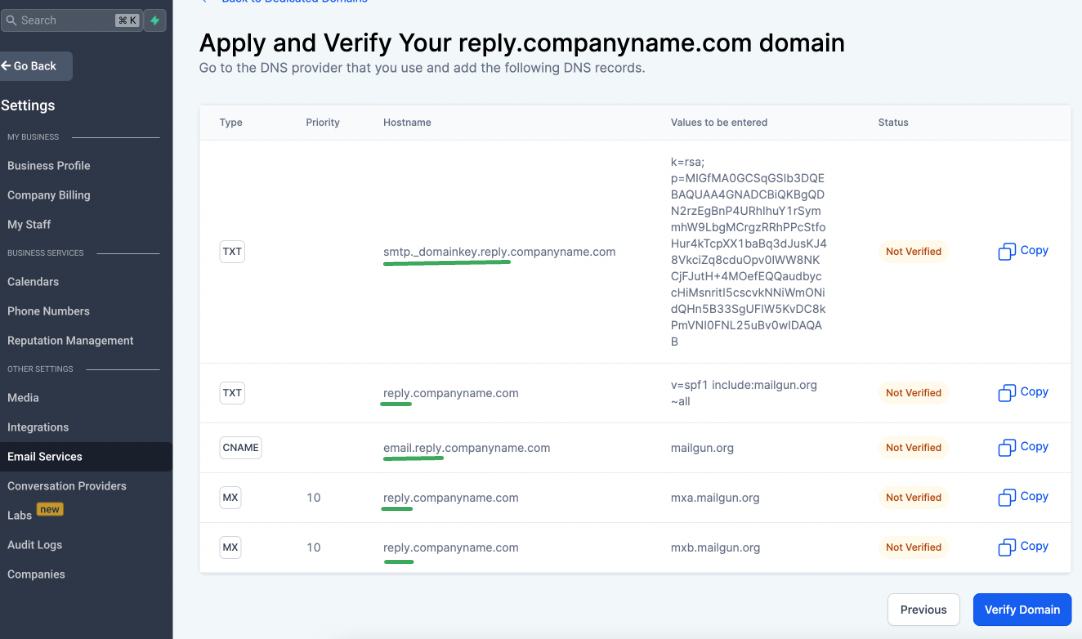
- Ask them to verify that your CNAME record for the tracking domain is set up correctly and resolves.
- Share screenshots of your DNS records as shown below for a faster resolution.
If your DNS provider confirms that everything is correct but the problem persists, contact Futuria CRM Customer Support.
Troubleshooting common problems
Even after following the setup steps, some issues can stop links from working. Checking these common mistakes can help you identify quickly what has gone wrong.
- CNAME record not found: if MXToolbox shows "DNS record not found", the tracking domain CNAME is missing. Add it again in your DNS provider.
- Incorrect CNAME value: the CNAME must point to your email provider's tracking host. If it points elsewhere, links will not redirect correctly.
- Using the full domain in the Host field: with most DNS providers (such as GoDaddy or Namecheap), you must enter only the subdomain (for example, email or email.mg), not the full domain such as email.yourdomain.com.
- Cloudflare proxy enabled: if you use Cloudflare, the record must be set to "DNS only" (no proxy).
- HTTPS not enabled: some providers require HTTPS tracking to be enabled in their settings. If HTTP is used or SSL is not active, links may not open.
- DNS not fully propagated: after making changes, it can take up to 24-48 hours for DNS updates to apply globally.