


Table of contents
- What is an email sequence?
- When should you use email sequences?
- How do you create an email sequence?
- How do you pause an email sequence?
- FAQ
What is an email sequence?
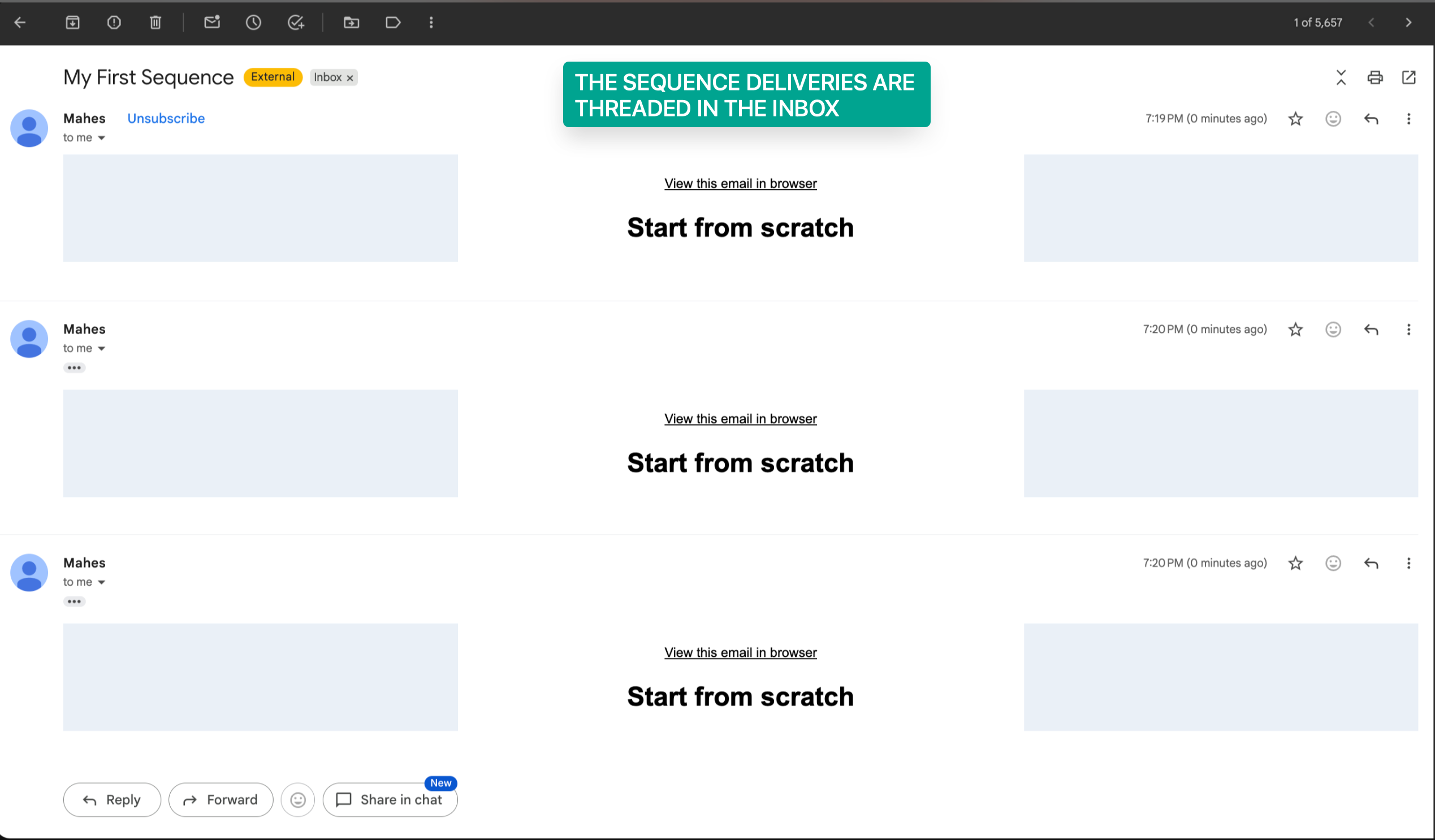
An email sequence is a series of automated emails sent in a specific order, forming a single threaded conversation with your contact.
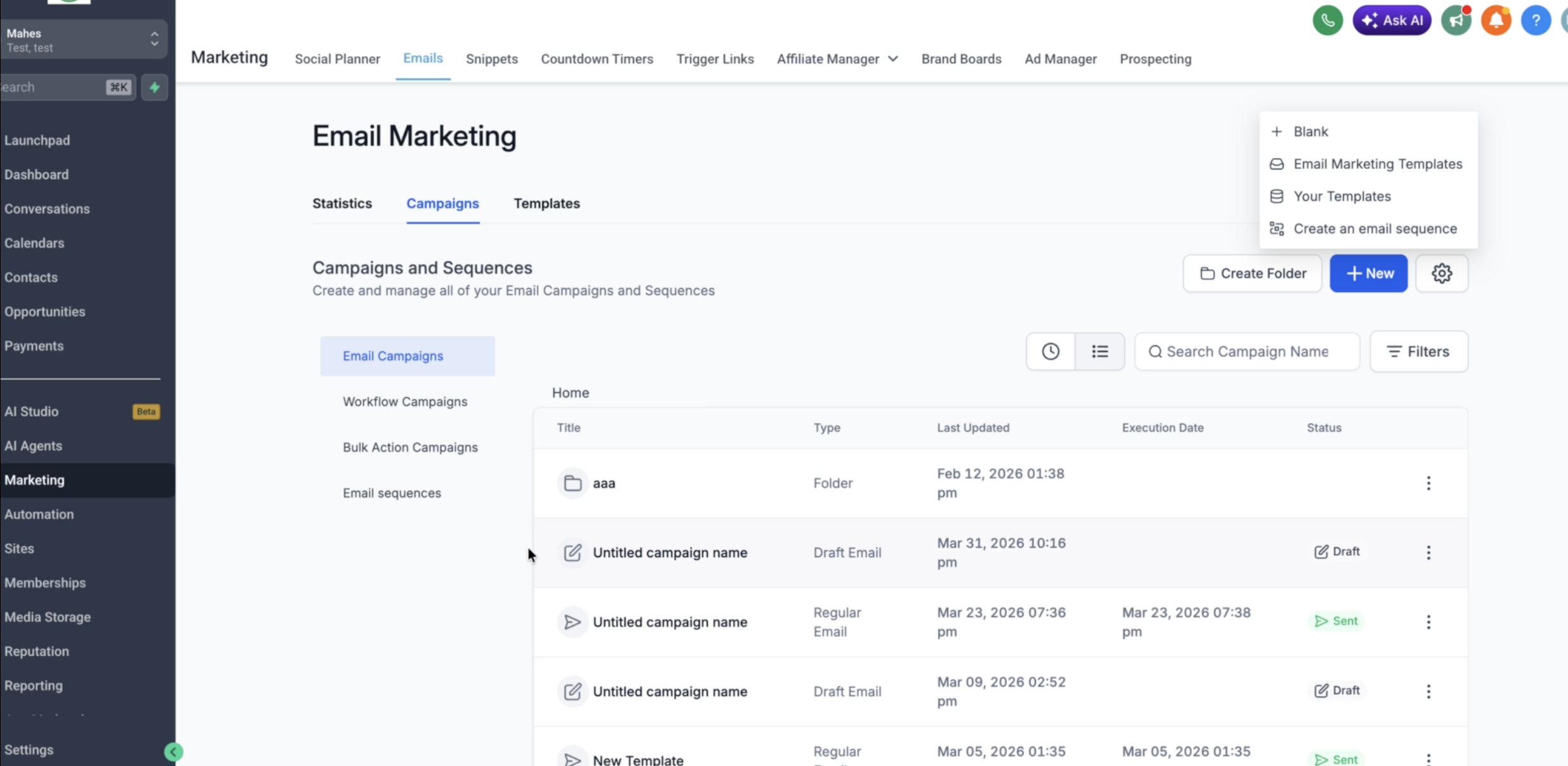
Each sequence can include:
- Multiple email steps
- Time delays between emails
- Conditions (for example, send only if the email is opened)
- Automatic stop when a contact replies
This lets you build personalised, behaviour-based communication without having to follow up manually.
When should you use email sequences?
Email sequences are ideal for:
- Follow-ups: automatically send reminders to leads who have not replied.
- Welcome series: greet new users or customers.
- Reminders: send scheduled reminders for events, demos or actions to be taken.
- Nurture campaigns: gradually engage and educate your audience.
Use sequences when you want to keep consistent, timely communication without manual effort.
How do you create an email sequence?
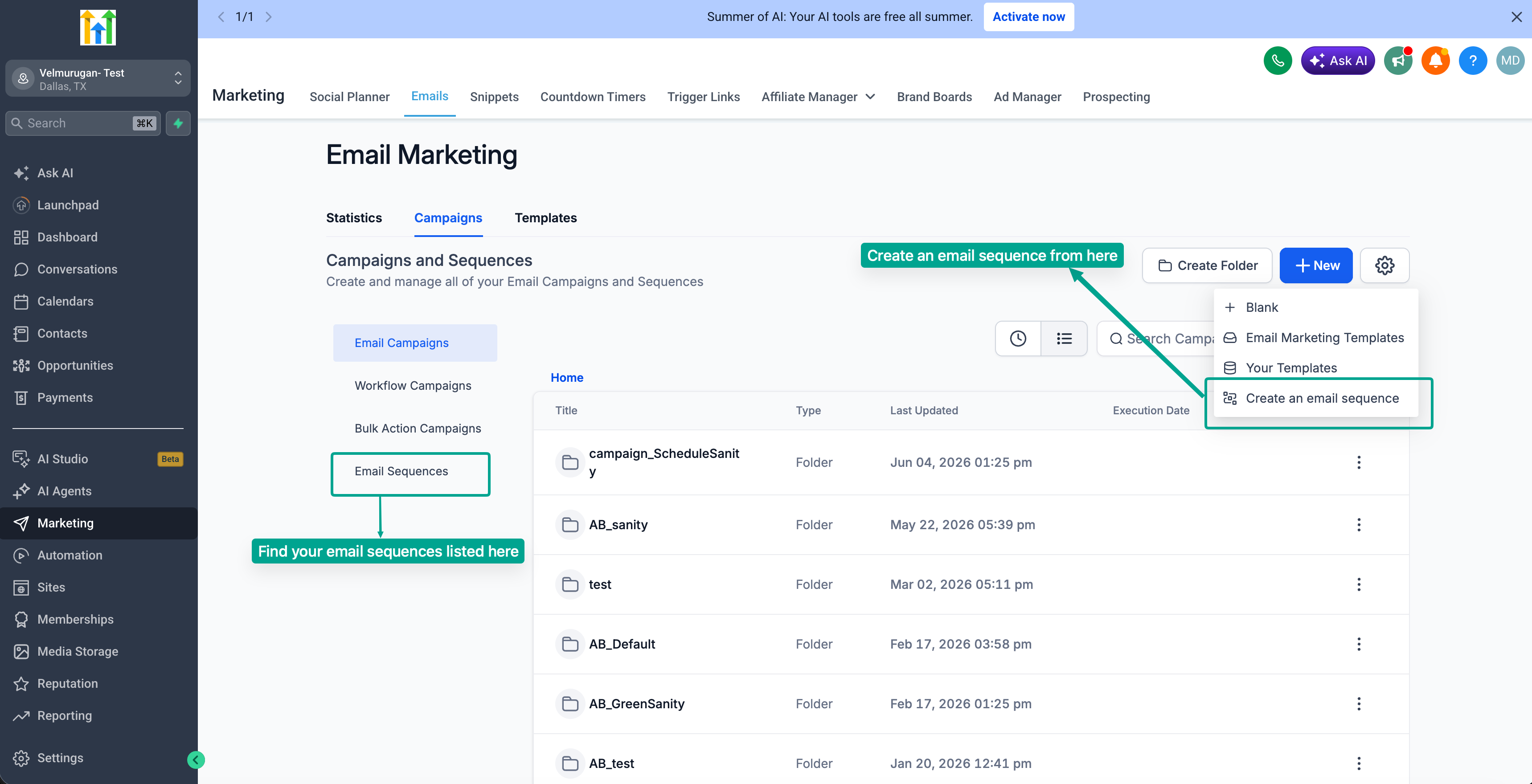
1. Go to the Sequences section
- Go to Marketing → Email → Campaigns.
2. Create a new sequence
- Click Create New Sequence.
3. Set the trigger
- Choose when the sequence should start: immediately or at a scheduled time.
- Depending on the type of sequence, configure the "Stop on reply" option.
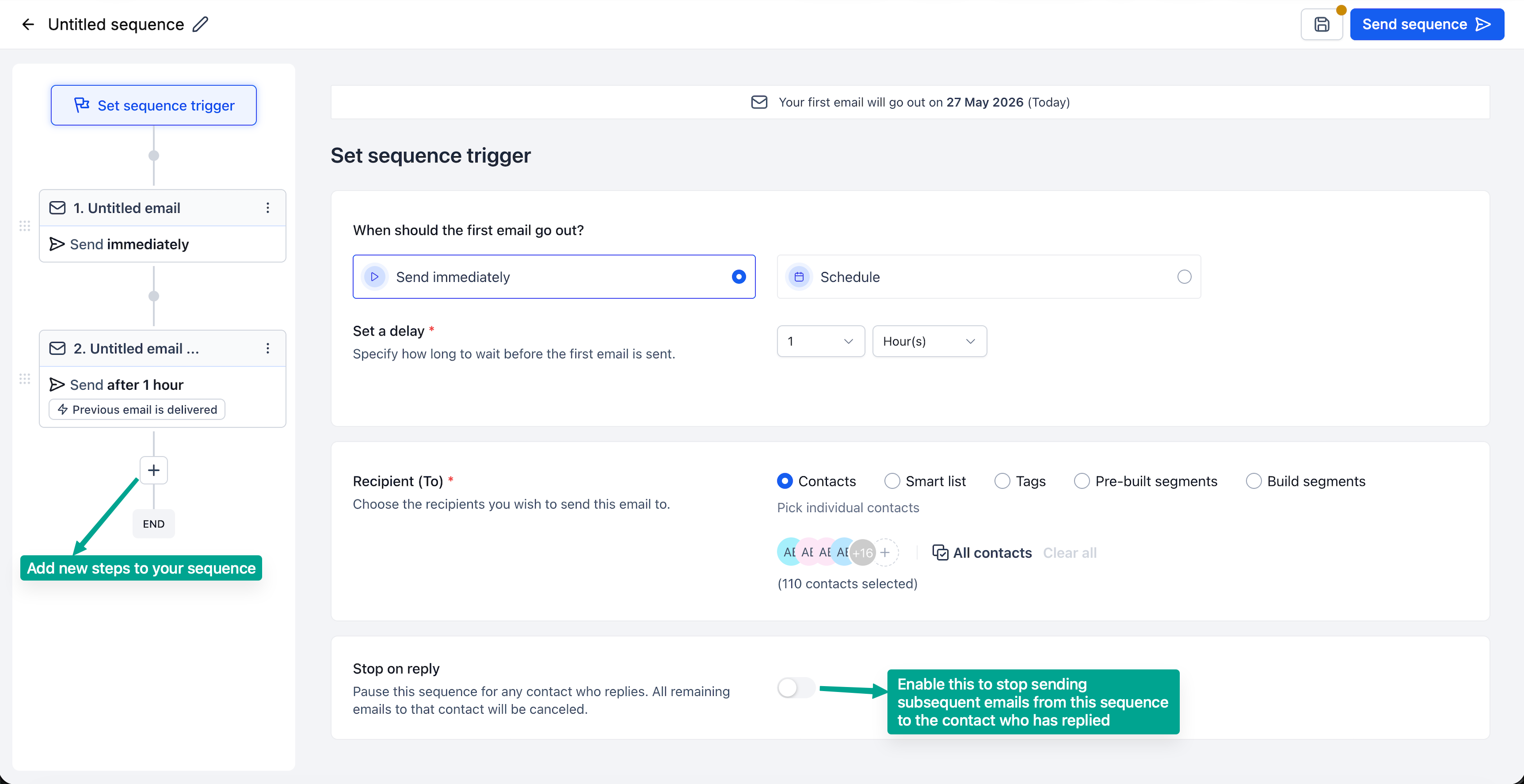
4. Select your audience
- Choose between: lists, segments or individual contacts.
- Enable "Stop on reply" if needed.
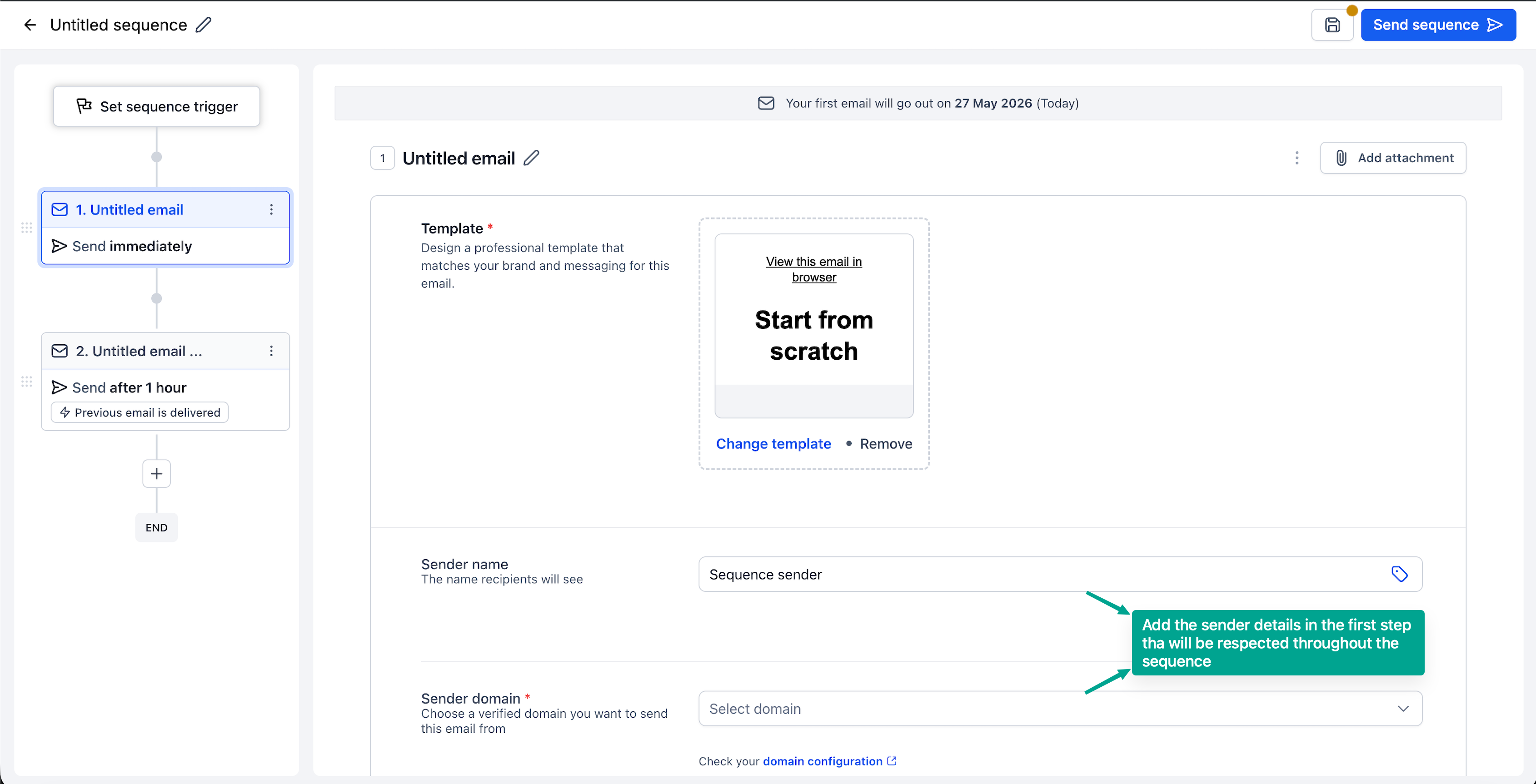
5. Add the email steps
- Add multiple steps to your sequence.
- Define the delays between each step.
6. Configure each step
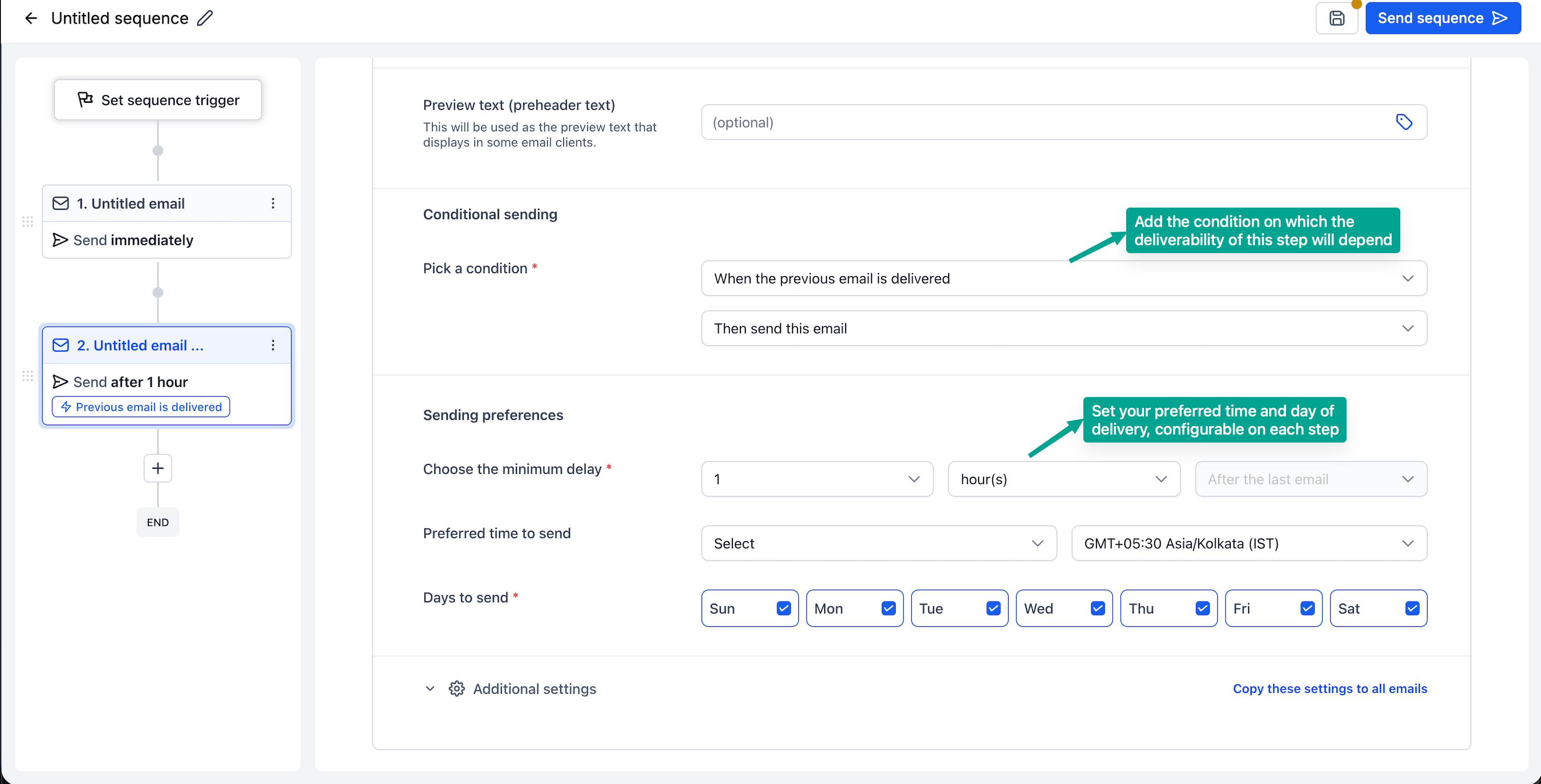
For each email:
- Select or design a template (or use plain text).
- Set the conditions (for example, send only if the previous email was opened/delivered).
- Enable tracking as required.
7. Review and launch
- Check the flow of your sequence carefully.
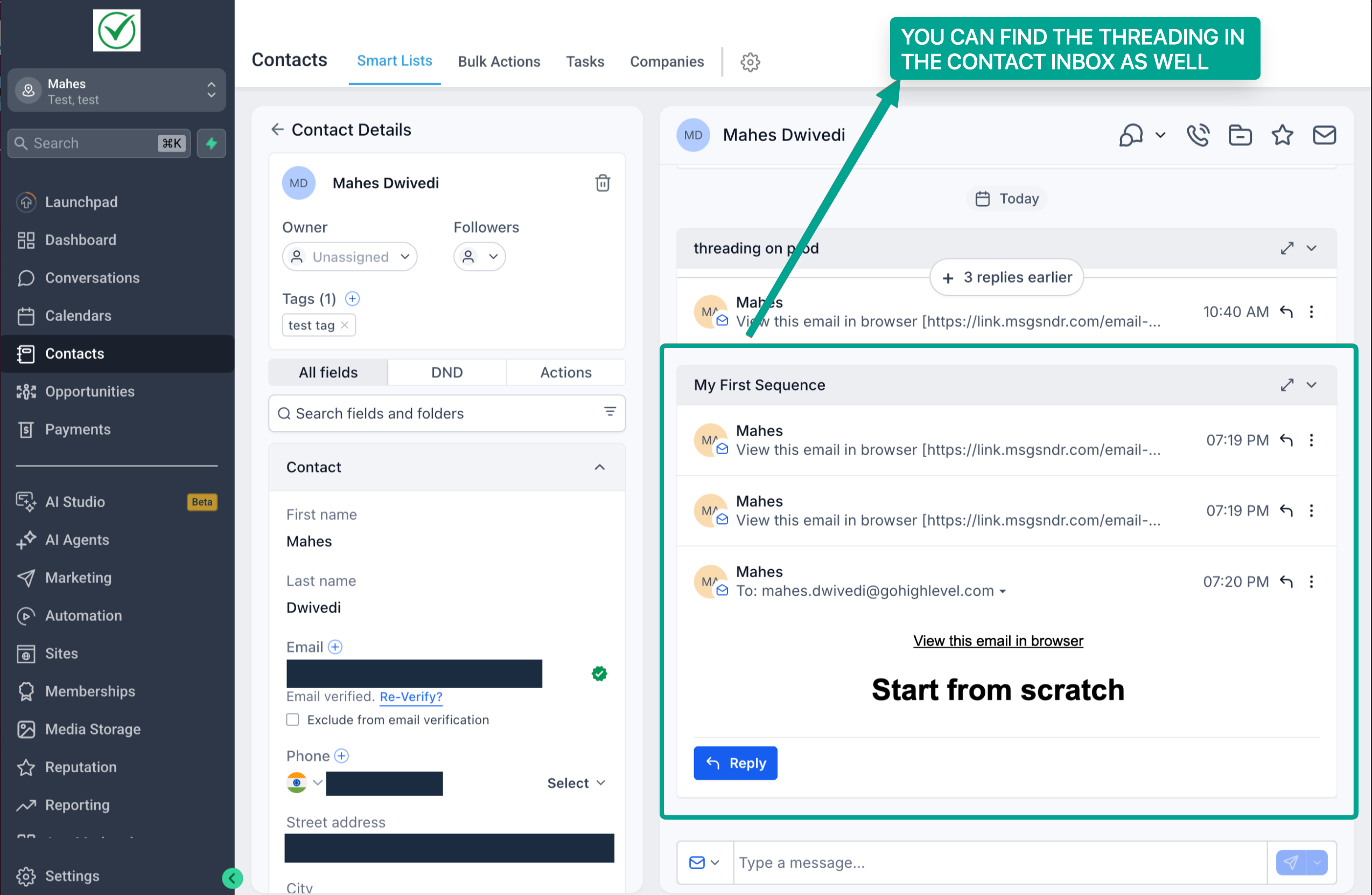
- Activate the sequence. All the emails will appear as a threaded conversation in our conversations section too.
8. View the statistics
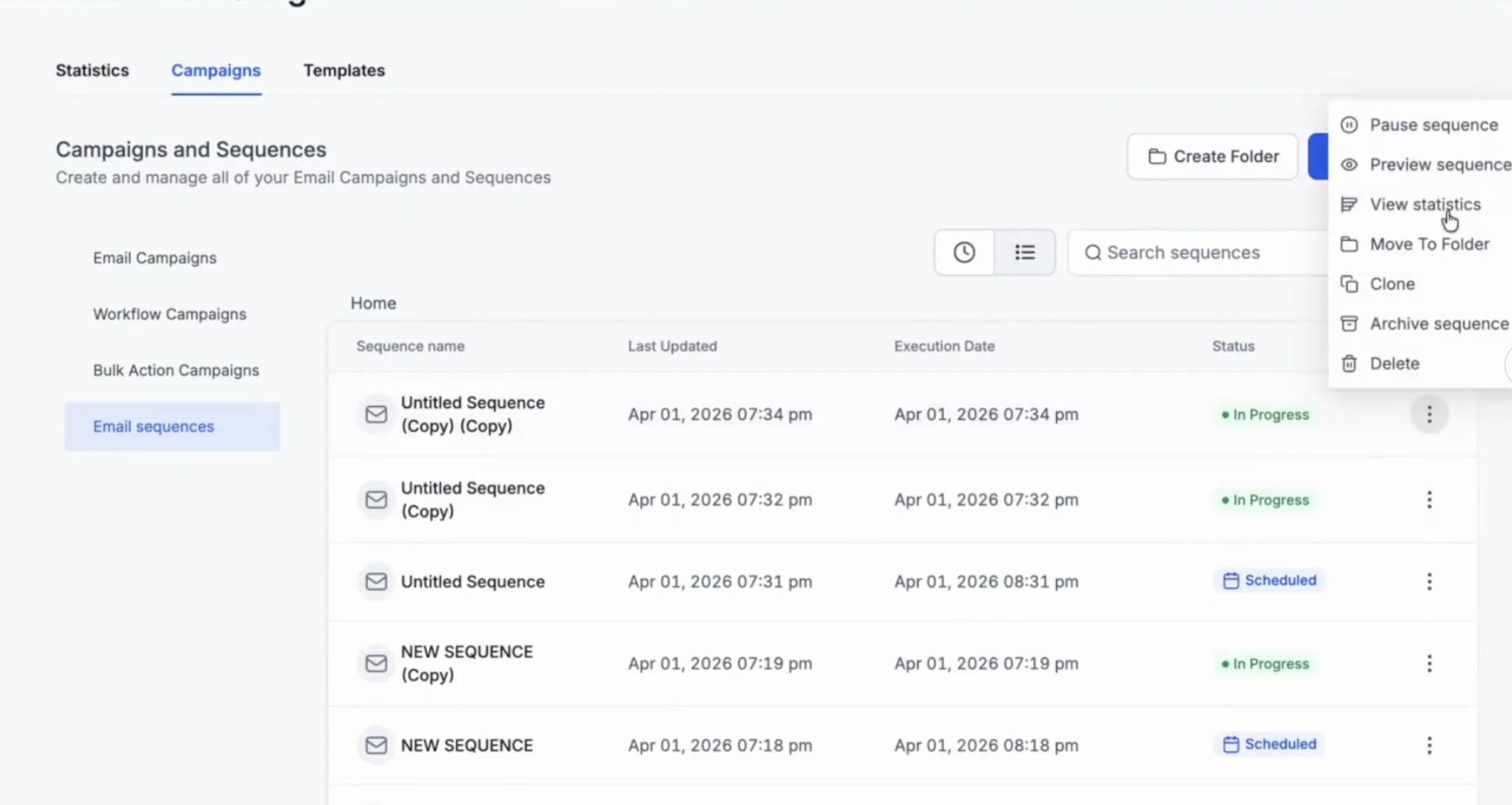
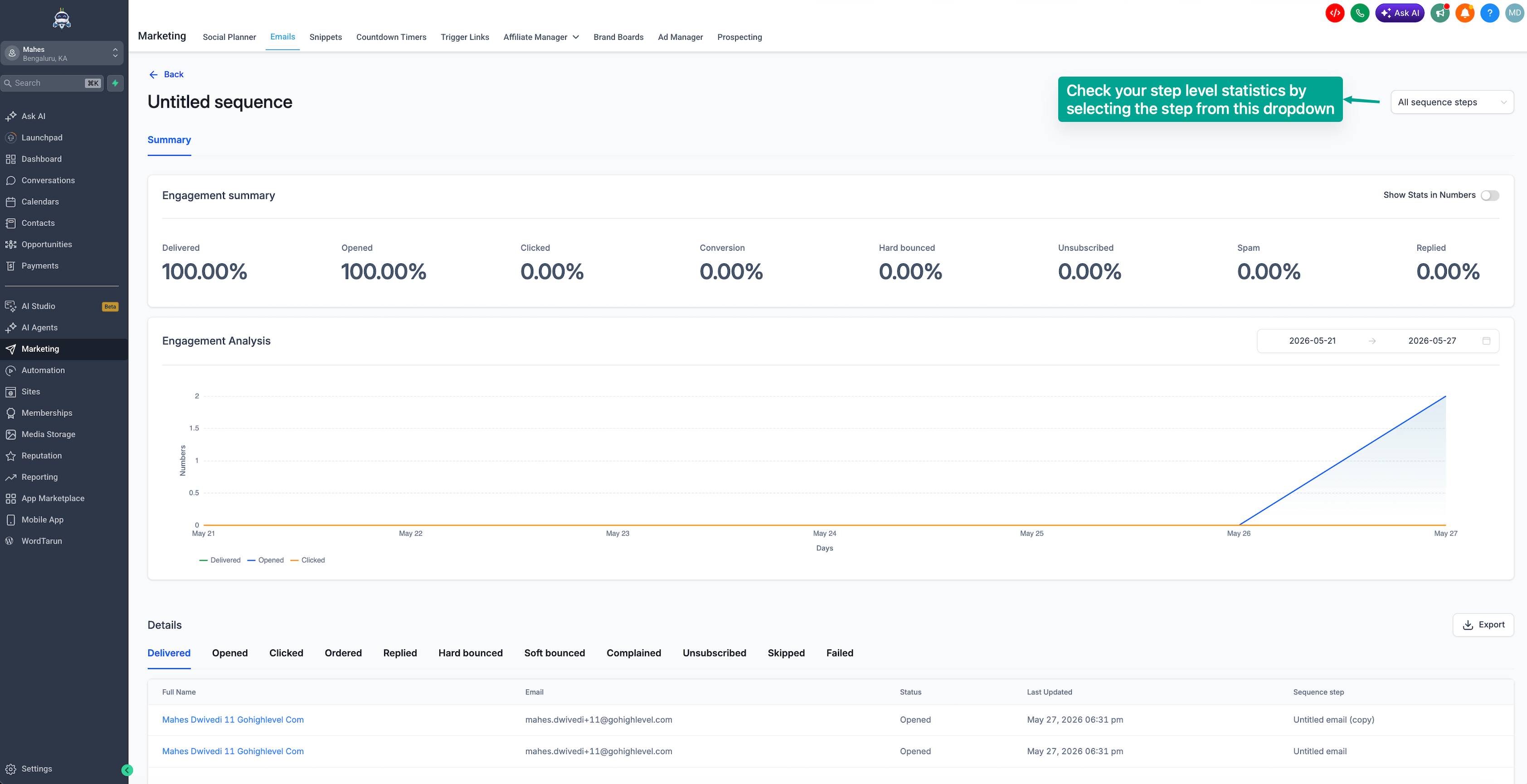
In the list view, click the three dots to access all the statistics, both at individual email step level and at the overall email action level.
To review the statistics for all your sequences, you can also check the statistics dashboard in email marketing.
How do you pause an email sequence?
Users can move a published sequence back to draft status. However, contacts who become eligible for the next step while the sequence is paused or in draft will be skipped.
For example, if Email 2 is set to be sent only after Email 1 is opened, and a contact opens Email 1 while the sequence is paused, that contact will not receive Email 2 and will be skipped.
Please note: once Step 1 has run, or the first email of Step 1 has been sent, users cannot pause the sequence to edit the trigger or Step 1.
FAQ
What happens if a contact replies?
If the Stop on reply option is enabled, the sequence will stop automatically for that contact.
Can I send both designed template emails and plain-text emails?
Yes, sequences support both designed templates and plain-text emails.
Can I control who receives each email?
Yes, you can apply conditions to each step (for example, based on open or delivery status).
How can I monitor performance?
You can view performance metrics at sequence level and at individual step level. Access the statistics from the three-dot menu → Statistics.
Will the emails appear as separate messages?
No, the emails are sent as part of a single threaded conversation, which helps preserve context.