



Table of contents
- What does managing and merging duplicate contacts mean?
- Key benefits of managing and merging duplicate contacts
- Good practice
- How to merge contacts manually from the contact list
- How to merge contacts using the Manage duplicates tool
- Step 1: Open the duplicate management tool
- Step 2: Find the duplicates
- Step 3: View the duplicate records
- Step 4: Review and resolve conflicts
- Step 5: Reject duplicates
- Step 6: Select the records to merge
- Contact deduplication preferences
- Troubleshooting
- Frequently asked questions
What does managing and merging duplicate contacts mean?
Managing and merging duplicate contacts helps you keep a single, accurate profile for every person in your CRM. When duplicate records exist, you can combine them into one primary record, reviewing key details such as email, phone, company name, tags, conversations and other contact data.
A primary record is the contact profile that remains after the merge. Some information from the duplicate records can be kept or combined, while conflicting fields may default to the values of the primary record you selected, unless a different value is chosen during the review.
Key benefits of managing and merging duplicate contacts
- Cleaner CRM data: keep a single, accurate profile for each contact instead of several duplicate records.
- Better communication history: combine relevant conversations, notes, tasks, opportunities and tags into one contact record.
- More accurate reporting: reduce the duplicate records that can distort contact counts, campaign results and sales pipeline visibility.
- Faster contact management: use search or the duplicate management tool to find and review possible duplicate records quickly.
- Better visibility for the team: helps users work on the same contact profile instead of splitting updates across several duplicates.
Good practice
- Run periodic duplicate scans to keep your CRM clean.
- Always check for conflicts between fields before you go ahead with a merge.
- Only use the Reject option when you are certain a record is not a duplicate.
- Encourage your team to standardise data entry to prevent future duplicates.
How to merge contacts manually from the contact list
Merging manually is useful when you already know which contact records are duplicates. You can search for the records, select them in the contacts table and merge them into a single profile.
- Go to Contacts > Smart Lists.

- Use the Search contacts box to find possible duplicate contacts.
- Search by any available contact details, such as:
- Name
- Company name
- Tag
- Phone
- You can also search manually from the smart list.

- Select the contacts you want to merge.
- Click More in the action bar at the top.
- Select Merge.

- In the Merge contacts window, choose the contact that should remain as the primary record.
- Check the fields with differing values.

- Review every field and select the values you want to keep, such as the primary email, phone number, company name and more.
- Click Merge contacts.

How to merge contacts using the Manage duplicates tool
Note: only administrators can use this feature. It works with both the classic and the new contact list view.
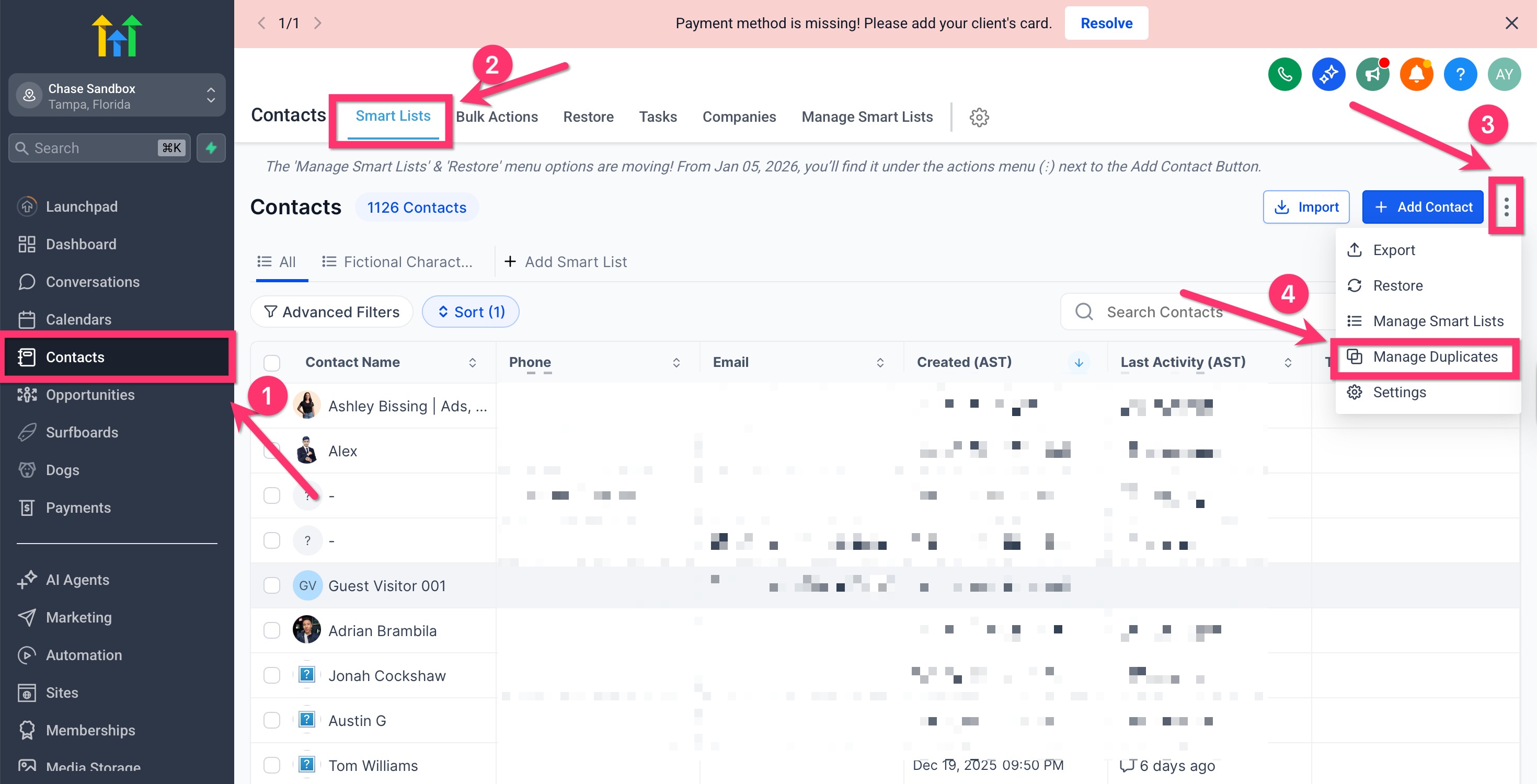
Step 1: Open the duplicate management tool
- Click Contacts in your account.
- Click the three-dot (⋮) menu.
- Click the Manage duplicates option.
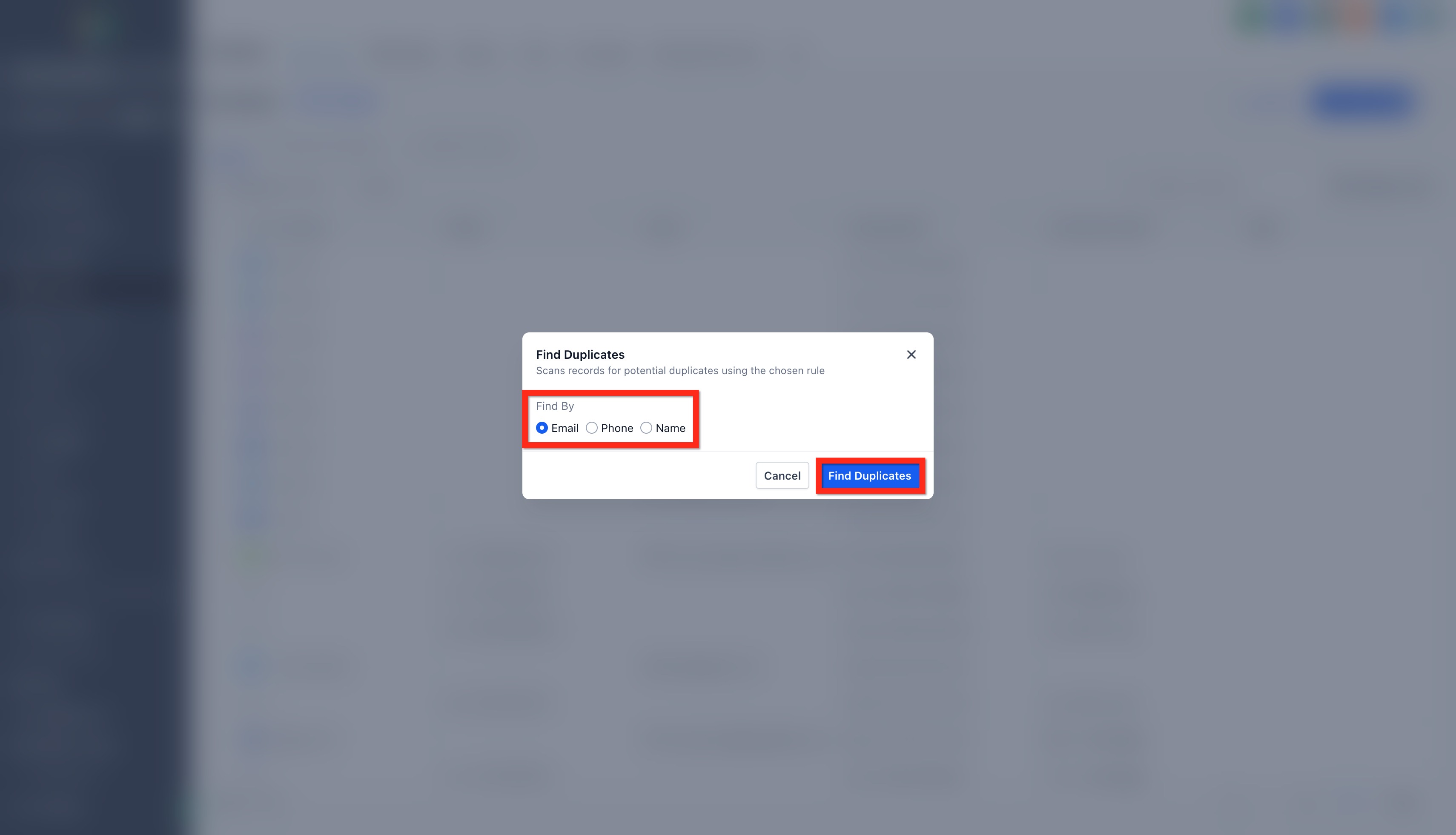
Step 2: Find the duplicates
- Choose a search criterion under Find by:
- Email (recommended default)
- Phone
- Name
- Click Find duplicates.
- The system will start scanning your contact database and will show the duplicates that match the selected field.
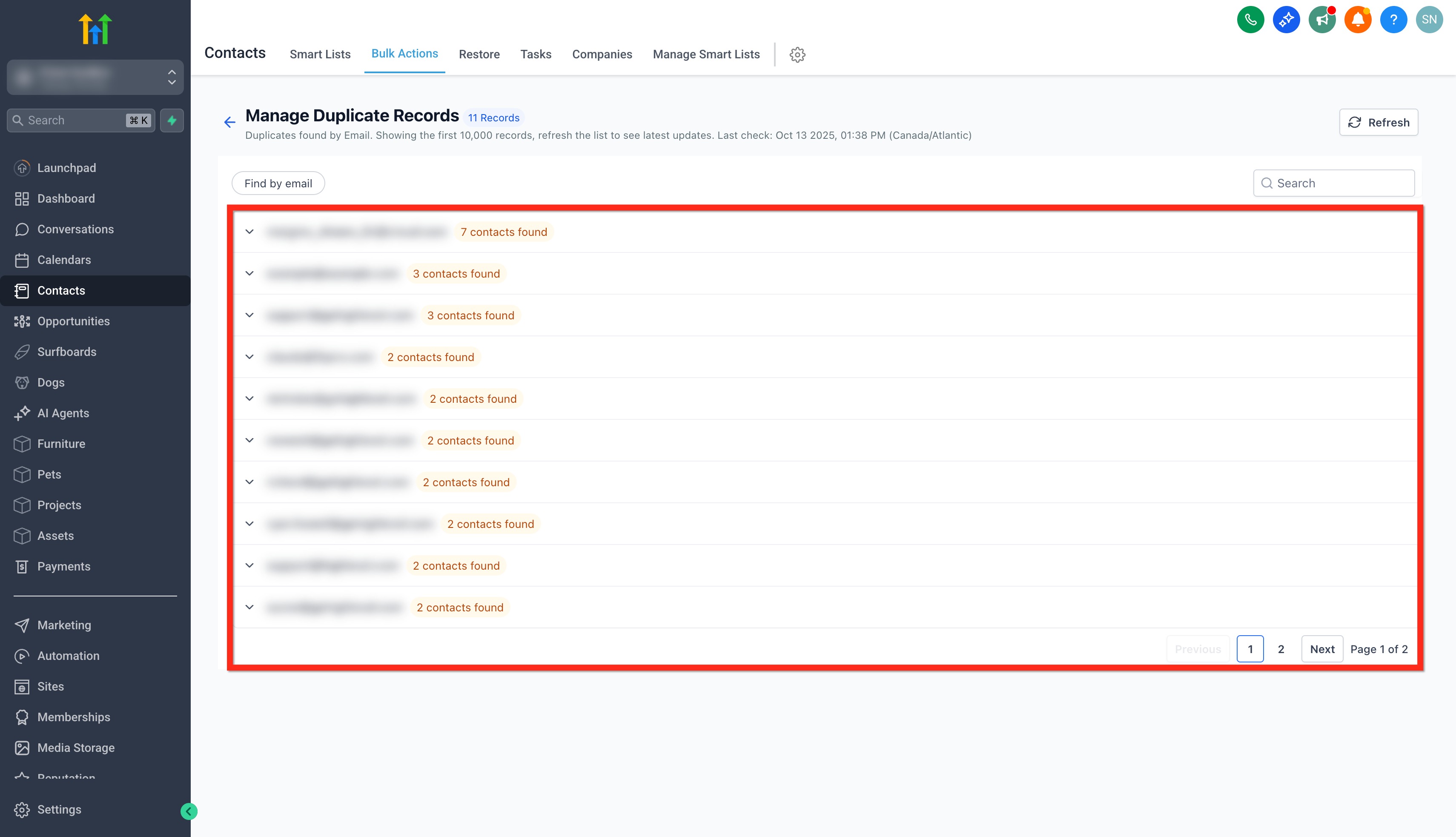
Step 3: View the duplicate records
- Once duplicates have been found, you will see a list of potential duplicate groups.
- Click the downward arrow next to a group to expand it.
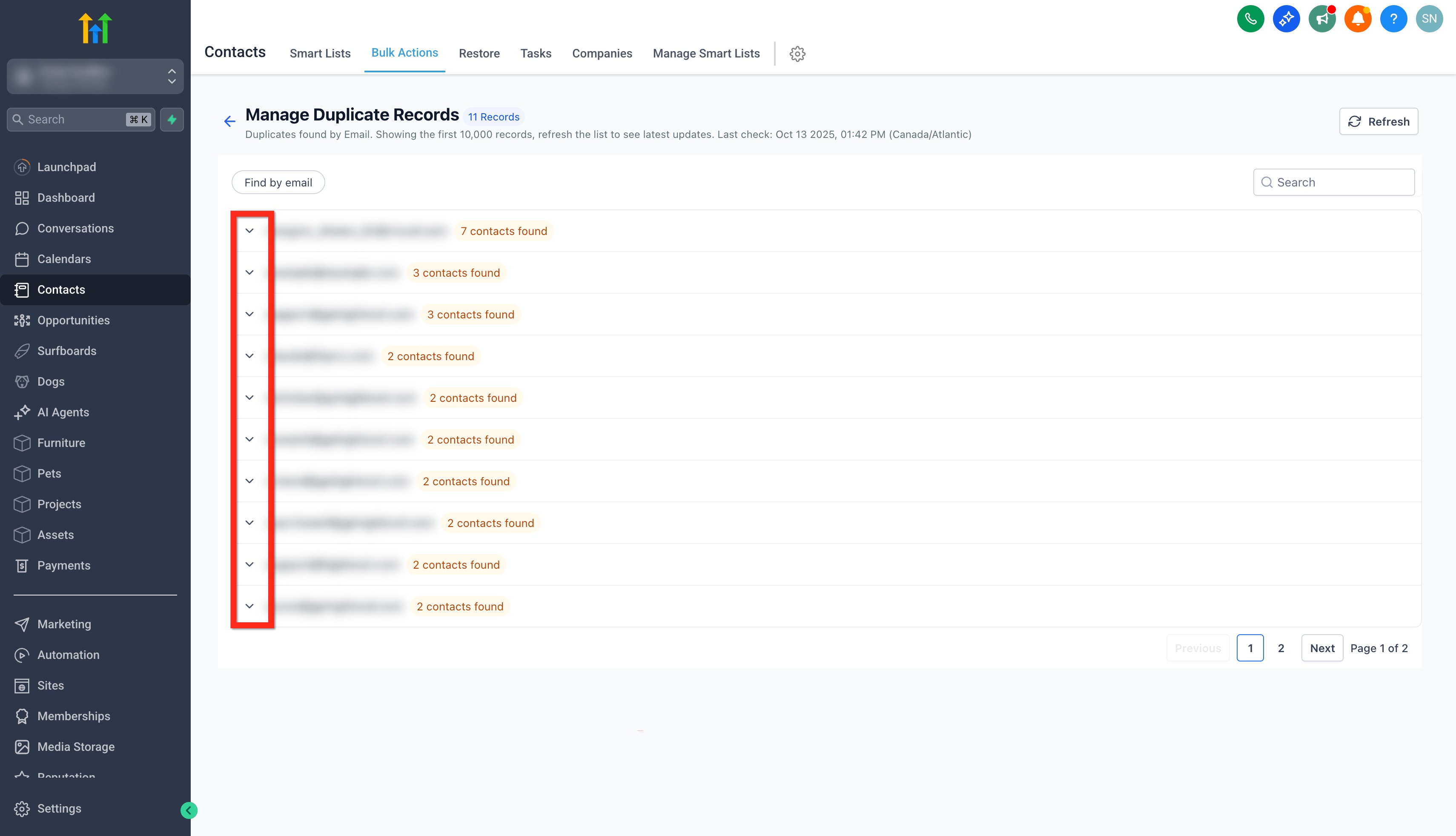
- You can expand a group to see all the contacts detected.
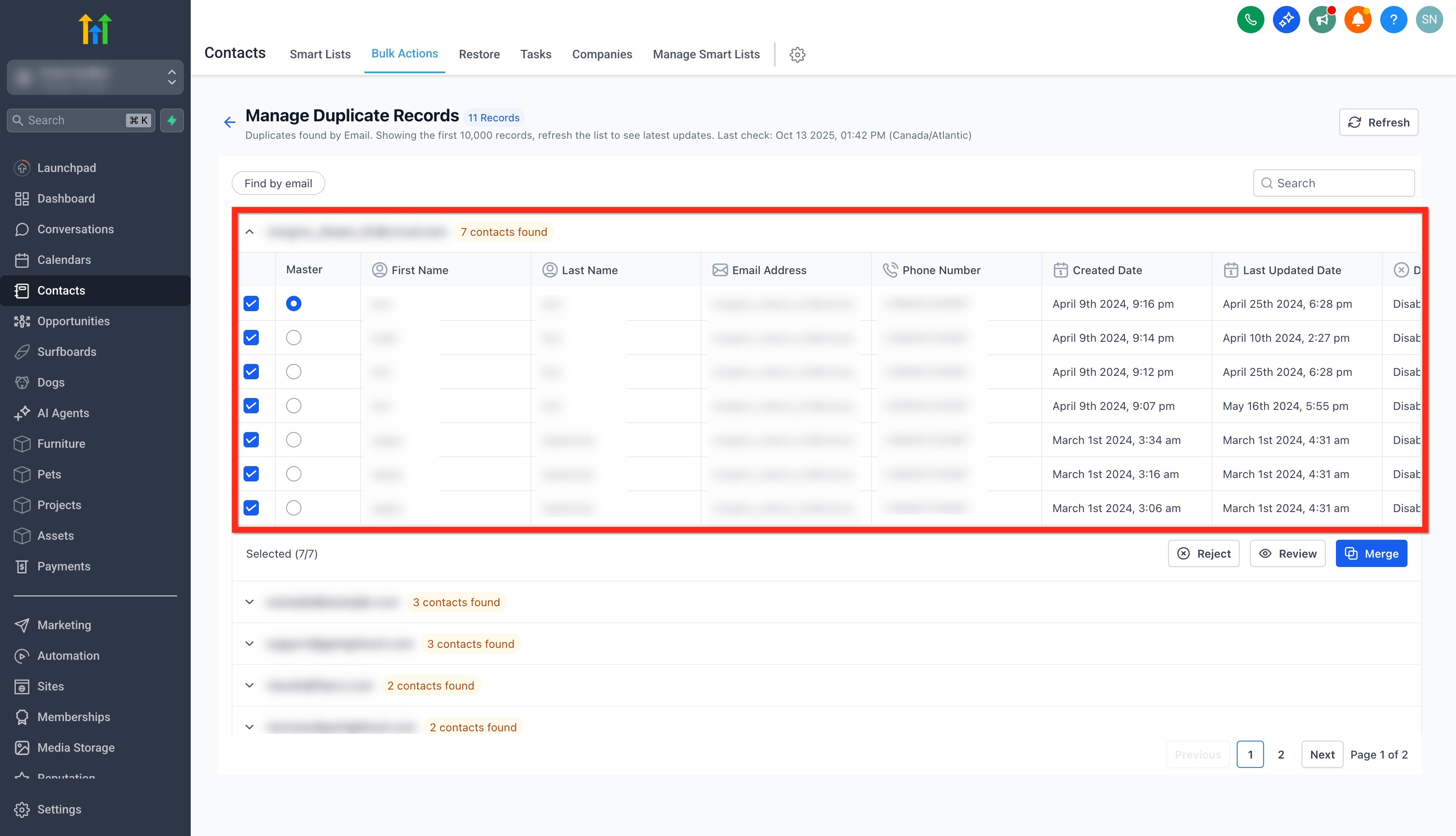
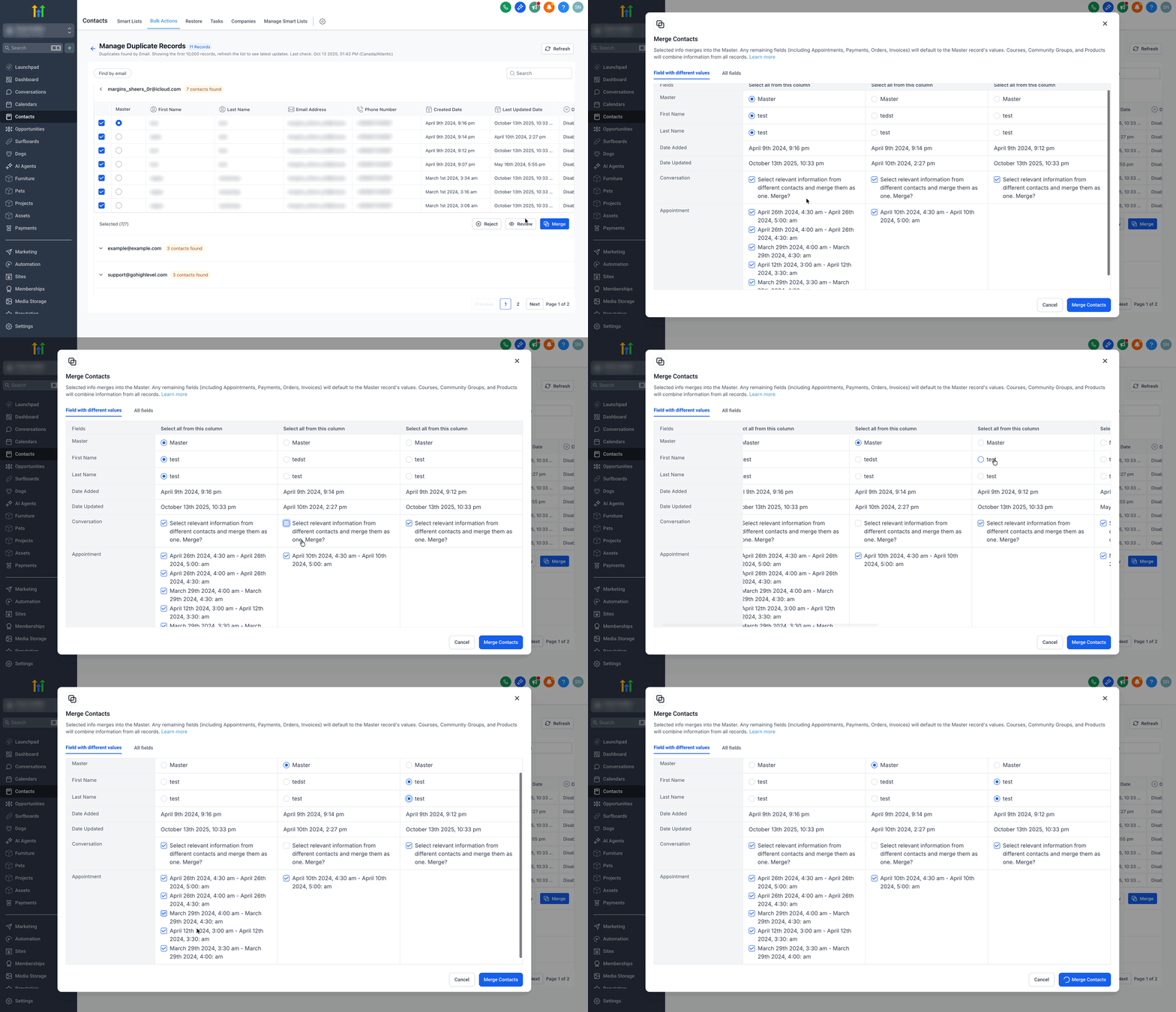
Step 4: Review and resolve conflicts
- You can also choose to review the changes in more detail by clicking Review.
- Conflicting fields (such as phone number, tags, country and so on) are displayed side by side.
- You can:
- Select which value to keep for each field.
- Combine multiple tags or additional details.
- Choose the primary email or phone number.
- Make sure no duplicate opportunities are created.
- Once you have reviewed everything, click Merge contacts to proceed.
Step 5: Reject duplicates
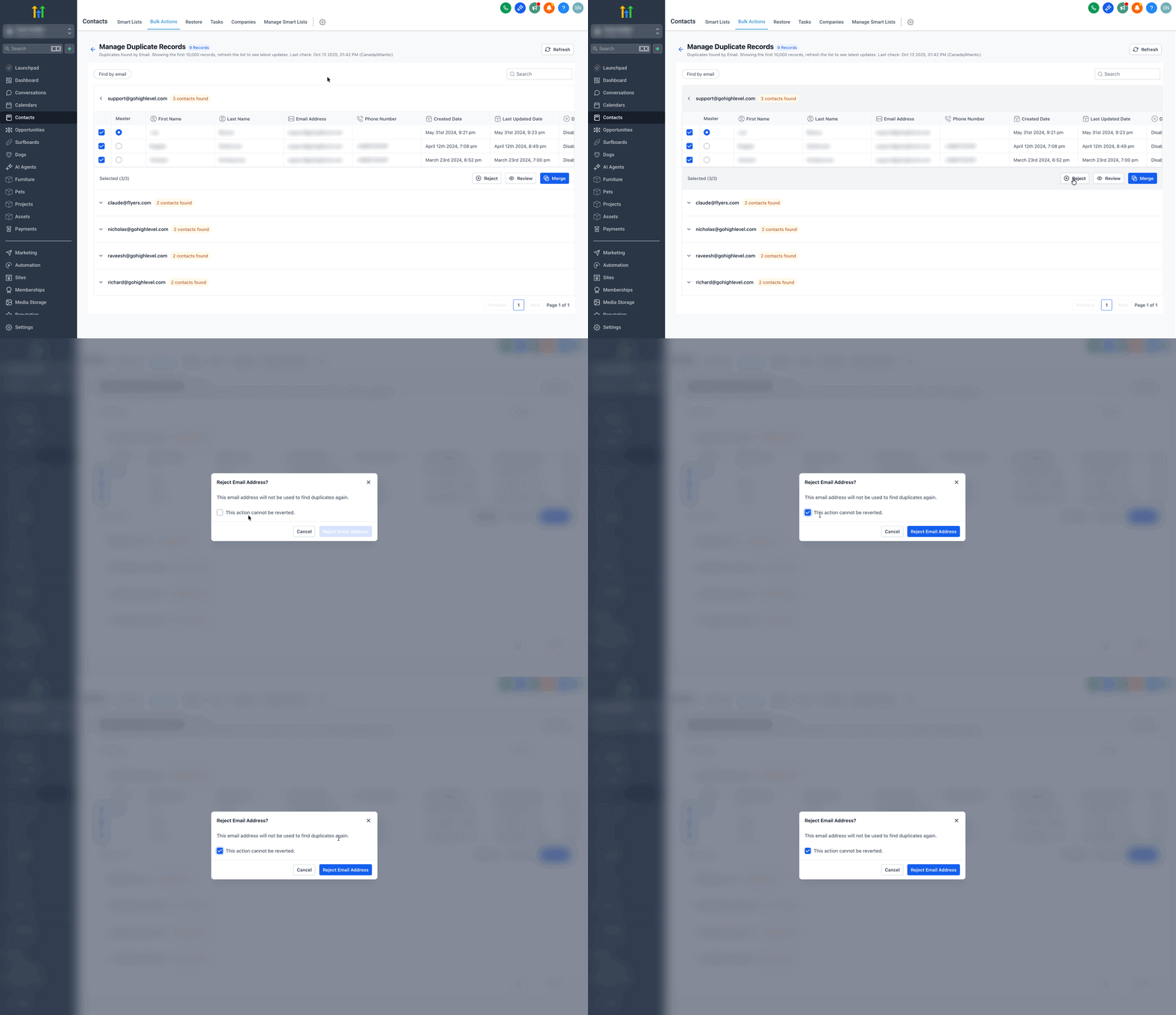
If you believe some duplicates should not be merged:
- Click Reject.
- Confirm the rejection in the pop-up:
- "This email address will no longer be used to find duplicates."
- This action cannot be undone.
Note: rejected emails, phone numbers or names will be excluded from future duplicate scans.
Step 6: Select the records to merge
Note: once merged, the process cannot be undone. Check carefully before you confirm.
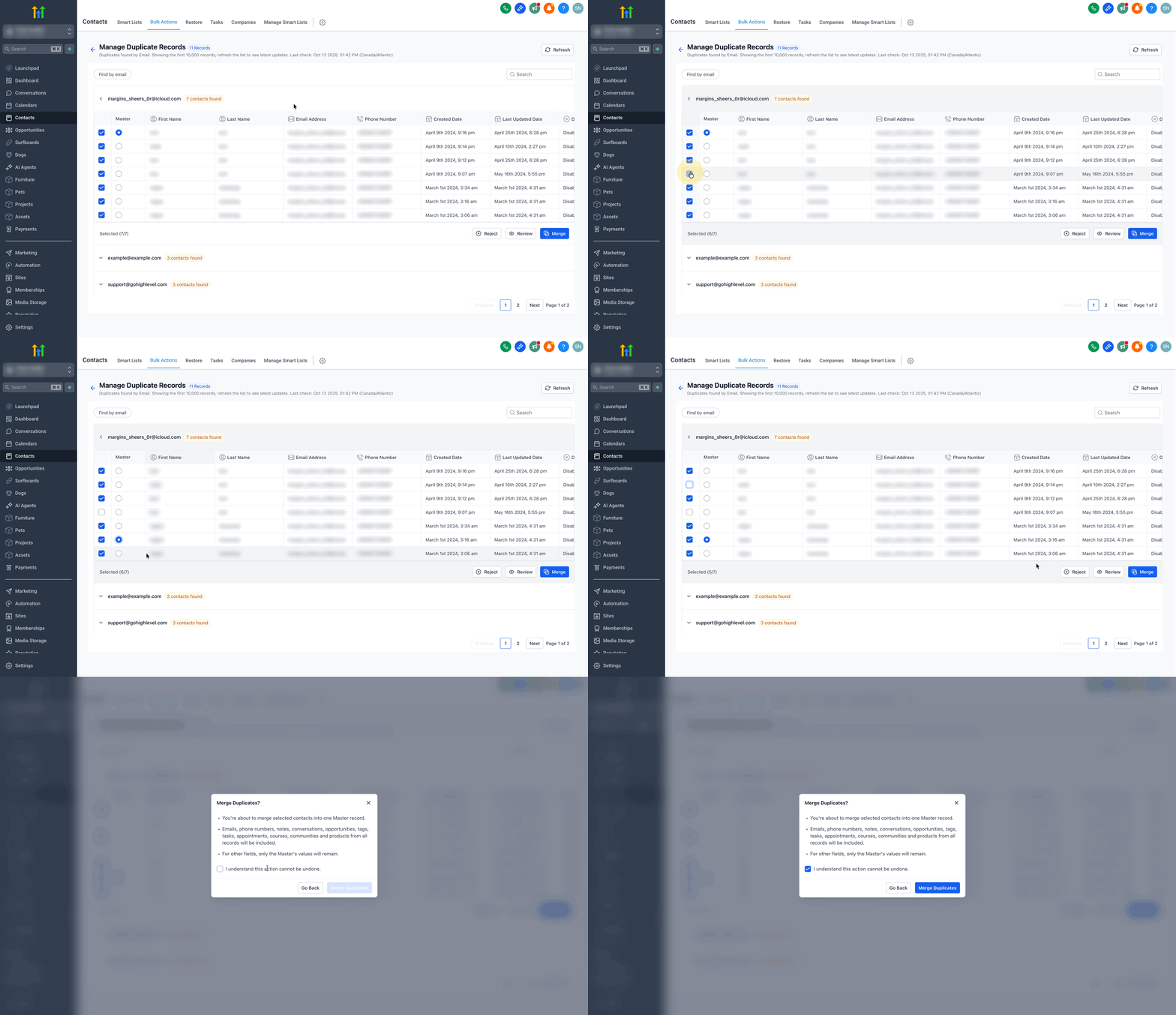
- Select up to 10 records to merge at the same time.
- The tool will warn you when the limit has been reached (Limit reached 10/10).
- Choose one record as the primary: this record will keep key details such as name, primary email and primary phone number.
- All related data (tasks, opportunities, notes, products and so on) from the other records will be combined into this primary record.
- Click Merge. Before merging, a confirmation dialogue will appear in which you will see:
- A reminder that this action cannot be undone.
- A note that emails, phone numbers, notes, opportunities and tasks from all the selected records will be merged into one.
- An option to confirm your understanding by ticking the acceptance box.
- Click Merge duplicates to finalise.
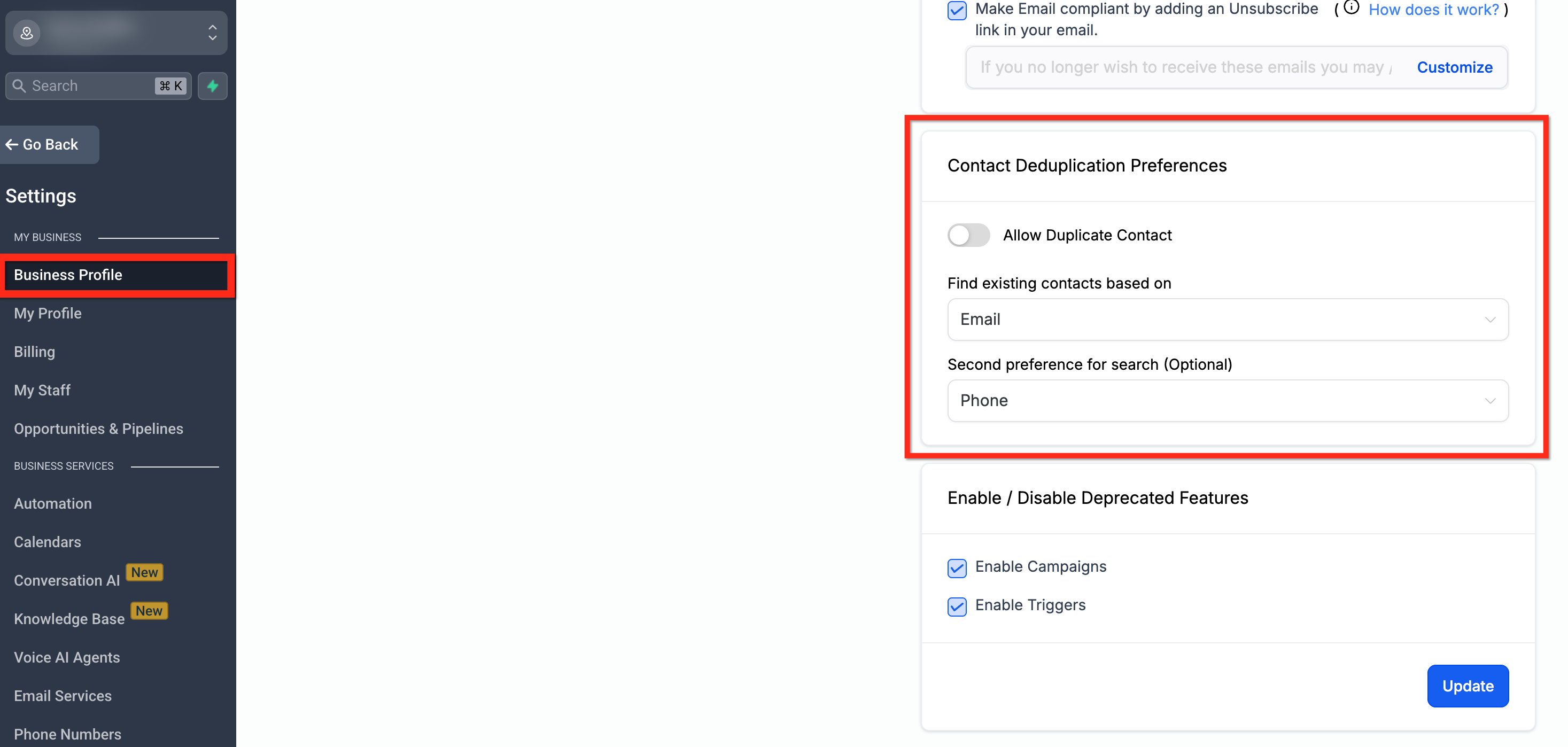
Contact deduplication preferences
Avoiding duplicate contacts at source can save you a great deal of time and confusion later on. The contact deduplication settings give you control over how the system handles new entries, letting you prevent duplicates before they happen.
- Go to Settings > Business profile > Contact preferences.
- Enable or disable Allow duplicate contacts.
- Choose the primary and secondary deduplication fields (Email or Phone).
Troubleshooting
| Problem | Possible cause | Solution |
|---|---|---|
| "No duplicates found" | Limited scan criteria | Try switching to another criterion (Phone or Name). |
| "Limit reached (10/10)" | Too many records selected | Merge the first 10, then come back to merge the next group. |
| "Merge button disabled" | Confirmation not ticked | Tick the "I understand that this action cannot be undone" box. |
| Merge option missing | Non-Administrator role | Contact your Administrator to request access. |
Frequently asked questions
Can I undo a contact merge?
No. Contact merges cannot be undone. Review the selected contacts, the primary record and the field values carefully before you confirm.
How many contacts can I merge at once?
You can merge up to 10 contacts at a time.
What is the difference between merging manually and the Manage duplicates tool?
Merging manually is used when you already know which contacts need to be merged. The Manage duplicates tool helps you find possible duplicate records by email, phone or name.
Why can't I see the Merge contacts button?
The Merge contacts option appears when you select 2 or more valid contacts, up to a maximum of 10. Make sure you have permission to manage contacts, that the selected contacts are in the same account and that they are visible in the current list view.
What causes duplicate contacts in Futuria CRM?
Duplicates can be created through manual entry, CSV file imports, forms, calendar submissions or third-party tools such as Zapier.
Which contact should I choose as the primary record?
Choose the contact with the most accurate, up-to-date information. The primary record remains after the merge and should hold the details you trust most.
What happens to field data during a merge?
The primary record you selected keeps its details. Unique information from the other selected records can be added or combined, while conflicting fields use either the value you selected or the value from the primary record.
Will custom fields be affected during a merge?
Custom field values from another contact are only added when the corresponding field is empty in the primary record. Existing custom field values in the primary record are not overwritten.
What happens to notes, conversations, tags, appointments, payments, orders, invoices, courses, community groups and products after the merge?
The selected information is merged into the primary contact. All remaining fields, including appointments, payments, orders and invoices, default to the values of the primary record. Courses, community groups and products combine the information from all the selected records.
What happens when I reject a duplicate suggestion?
The rejected suggestion will no longer appear for that duplicate matching rule. This action cannot be undone.
How can I prevent duplicates from form or calendar submissions?
Check your contact deduplication preferences and make sure the Allow duplicate contacts option is switched off when you do not want duplicate contacts created from matching submissions.
What happens to a contact's workflows when I merge duplicates?
If a duplicate contact is deleted during the merge, Futuria CRM transfers the workflow execution to the primary contact so the automation can continue. If the primary contact is already enrolled in the same workflow, Futuria CRM stops the extra execution and keeps the one already running.
Can I merge duplicate contacts automatically?
Yes. Use the "Merge contact" workflow action when you want duplicate contacts to be merged inside a workflow.