


Table of contents
- What are category queues in Social Planner?
- Key benefits of category queues
- Public API for category queues
- How to use category queues in Social Planner
- How to edit a category queue
- 1. Edit category queue
- 2. Queue preferences
- 3. View the queue calendar
- 4. Reschedule the whole queue
- 5. Add posts to the queue from the post composer
- Important points
- Frequently asked questions
What are category queues in Social Planner?
Want to automate and easily reuse your evergreen content? The Category queue feature in Futuria CRM simplifies your content strategy by letting you group posts by category and schedule them for cyclical, recurring publishing.
This article explains how category queues work, how to set them up and the best practices for maximising the visibility of your content across every platform.
A category queue is an effective way to plan your evergreen content, reusing the published and future posts associated with a given category. This way, you can schedule not just a single post but an entire category of content. The system will publish all the posts in sequence until the end, then start the cycle again.
Key benefits of category queues
- Automatic scheduling of evergreen content: set your content to be published cyclically within a category, guaranteeing a constant presence without having to reschedule each post manually.
- Reuse of published and future content: easily reuse posts you have already published and automatically include future content associated with the same category.
- Priority control for new content: choose to prioritise the most recent content so it appears first in the queue, keeping your feed fresh and relevant.
- Custom scheduling per category: define specific days and times for each queue, making sure posts go out when your audience is most active.
- Future-proof content planning: enable future publishing to integrate new content seamlessly into your ongoing publishing strategy.
Public API for category queues
If you want to create or manage category queues programmatically (for custom workflows, integrations or automations), you can use the public API for category queues.
You will find the API references in the public documentation, in the Social Planner > Category Queue section. For authentication, you can use your account API key or an OAuth token, depending on the type of integration.
The most common supported actions include:
- Retrieving the available categories and the queue status.
- Creating, listing, updating and retrieving category queues.
- Adding, updating, resetting and deleting items from the queue.
- Viewing the scheduled posts in calendar format.
- Deleting the current active post and scheduling the next one.
How to use category queues in Social Planner
Note: to create a new category queue, the user should have a list of posts that are already published and associated with a specific category.
- Sign in to your account.
- Go to Marketing > Social Planner.

- Click the + New post button > Category queue.

- Select a category: choose the category you want in order to create the queue.
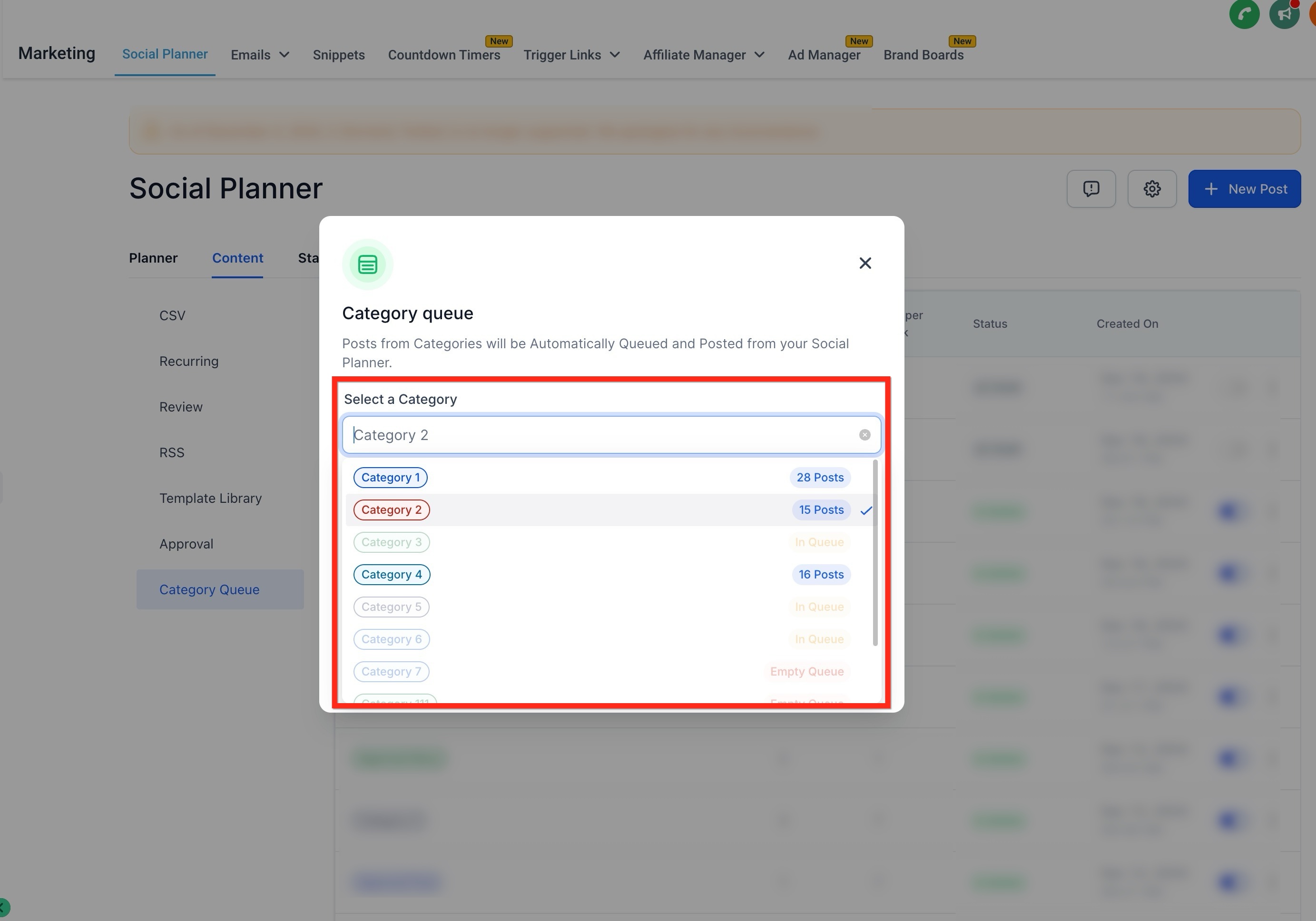
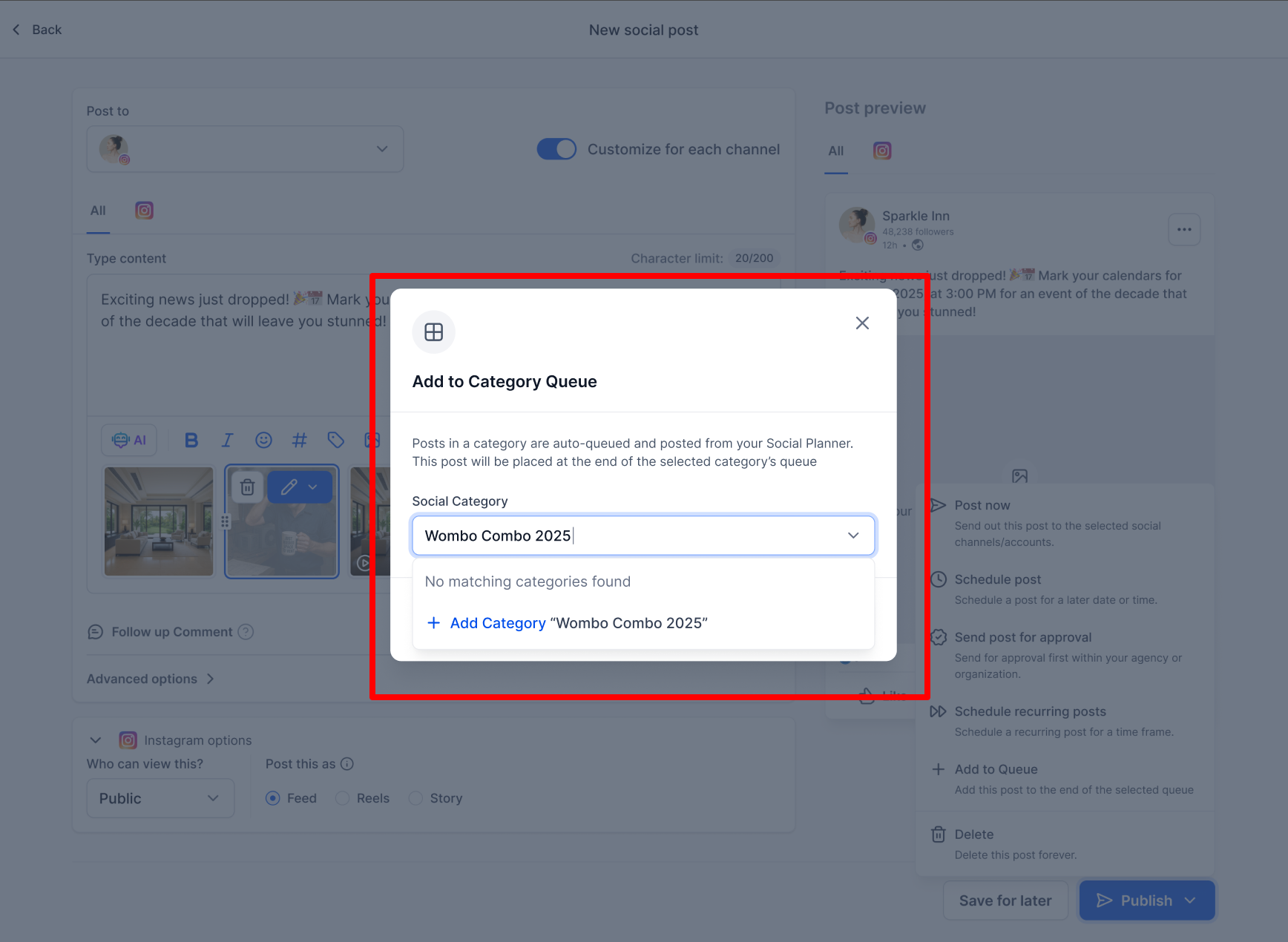
- Or create a new one by typing the category name.
- Future publishing: adds any future content published or added to the queue.
- Prioritise content: adds new content at the top of the queue so it is published first.
- Click Continue.

- Set the publishing schedule: select your preferred days and times for your posts.
- Click Queue the posts.

- Review and edit the media or the post content as needed.
- There is a New post option, which lets users add a new post anywhere in the queue.
- You can also add multiple content variations to alternate text and media formats, making each post unique.

- Fix any errors flagged by the warning or error messages.
- Click the Queue the post button to schedule the content if there are no errors.

- You can also Save (Save as draft), Delete or Reset the queue.

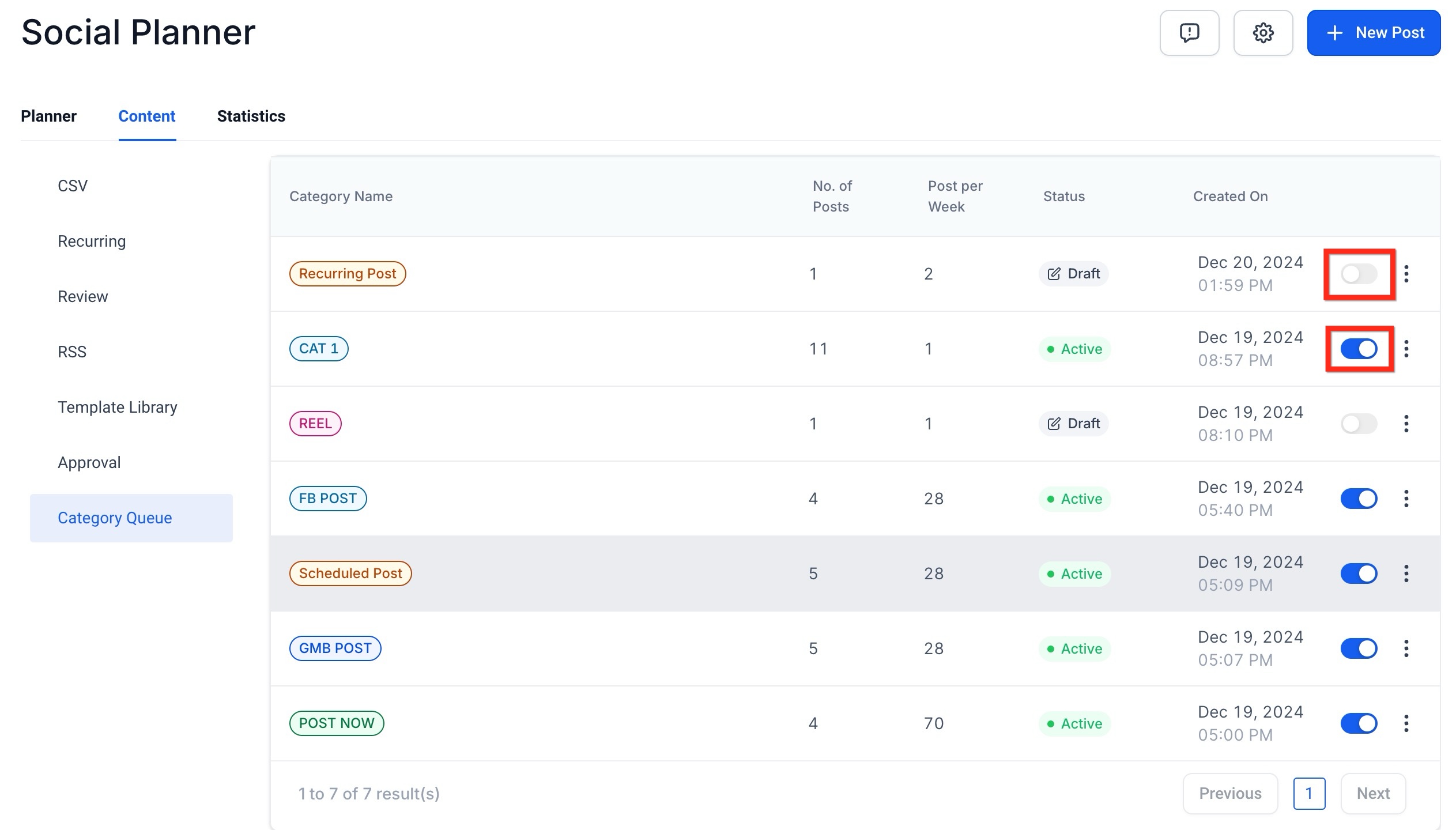
- You can pause or resume category queues at any time from the Content tab, by switching the toggle on or off.
How to edit a category queue
You can now edit, reorder, reschedule and control how new posts are added to a queue, without having to rebuild it from scratch.
Click an existing category queue and go to the 3 dots to see the editing options:
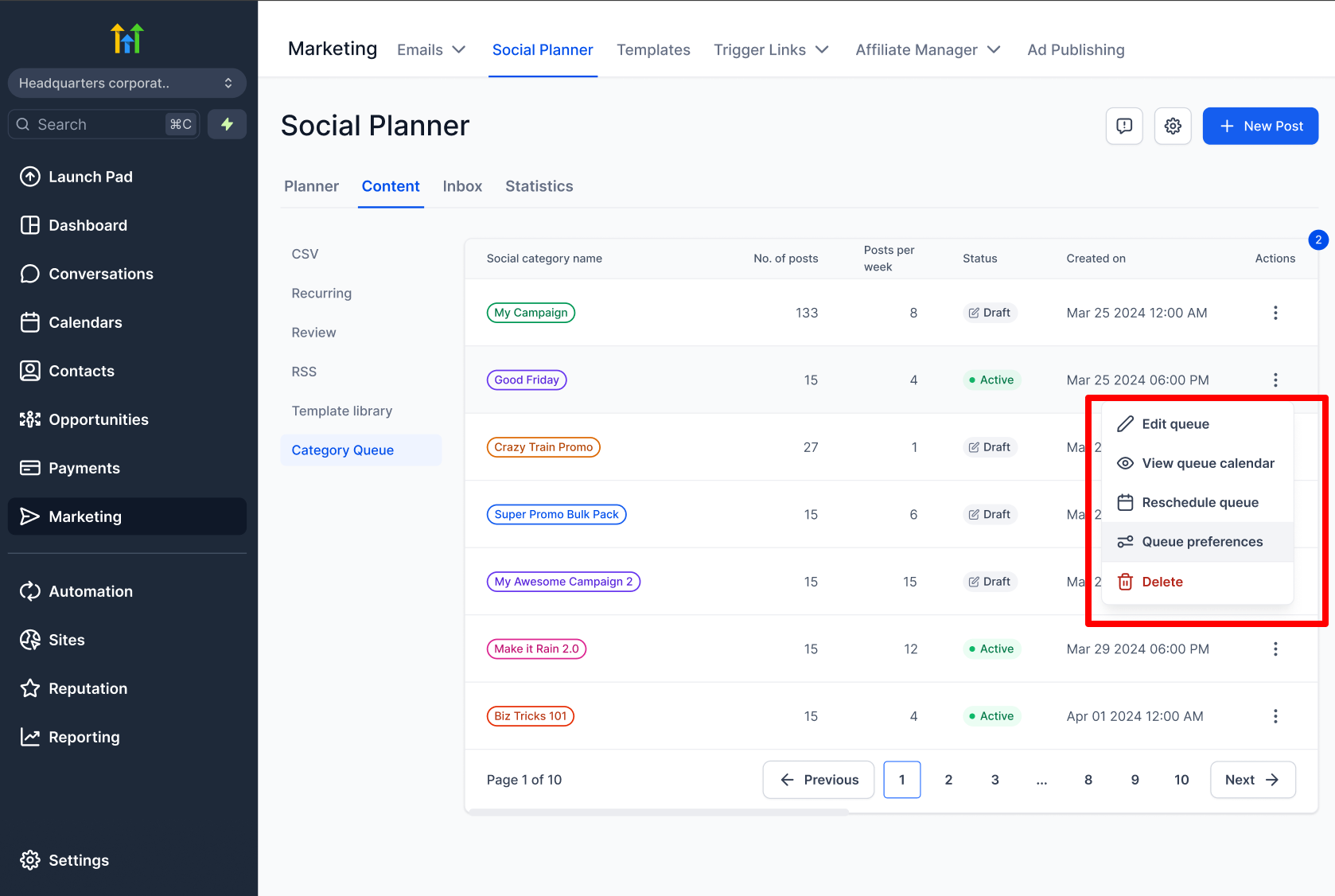
1. Edit category queue
You can update the details of an existing queue without deleting or recreating it. You can edit:
- Post details, caption, media and so on.
- Publishing frequency (daily/weekly/etc.).
- Queue time slots.
- Post order (drag and drop to reorganise).
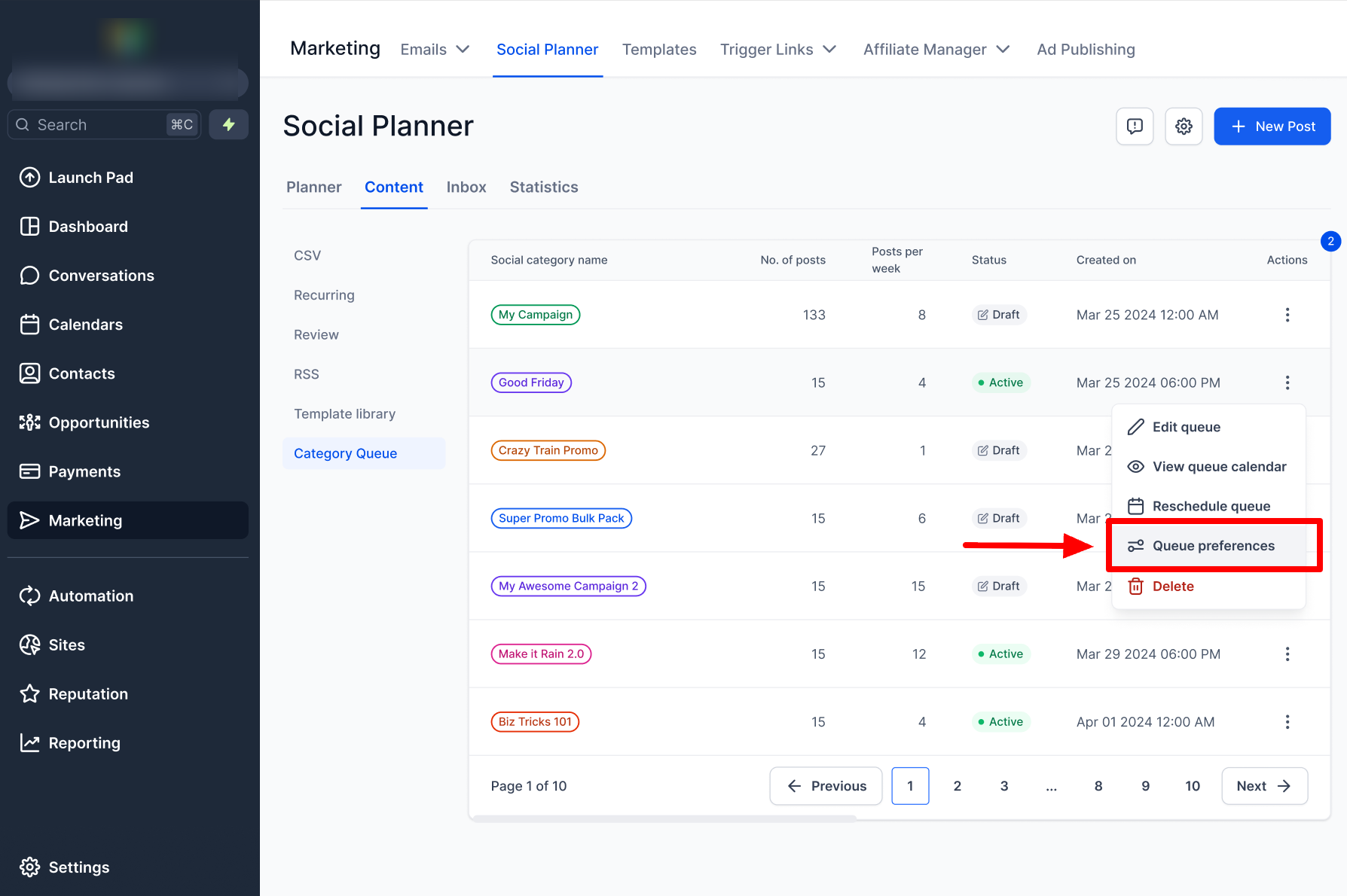
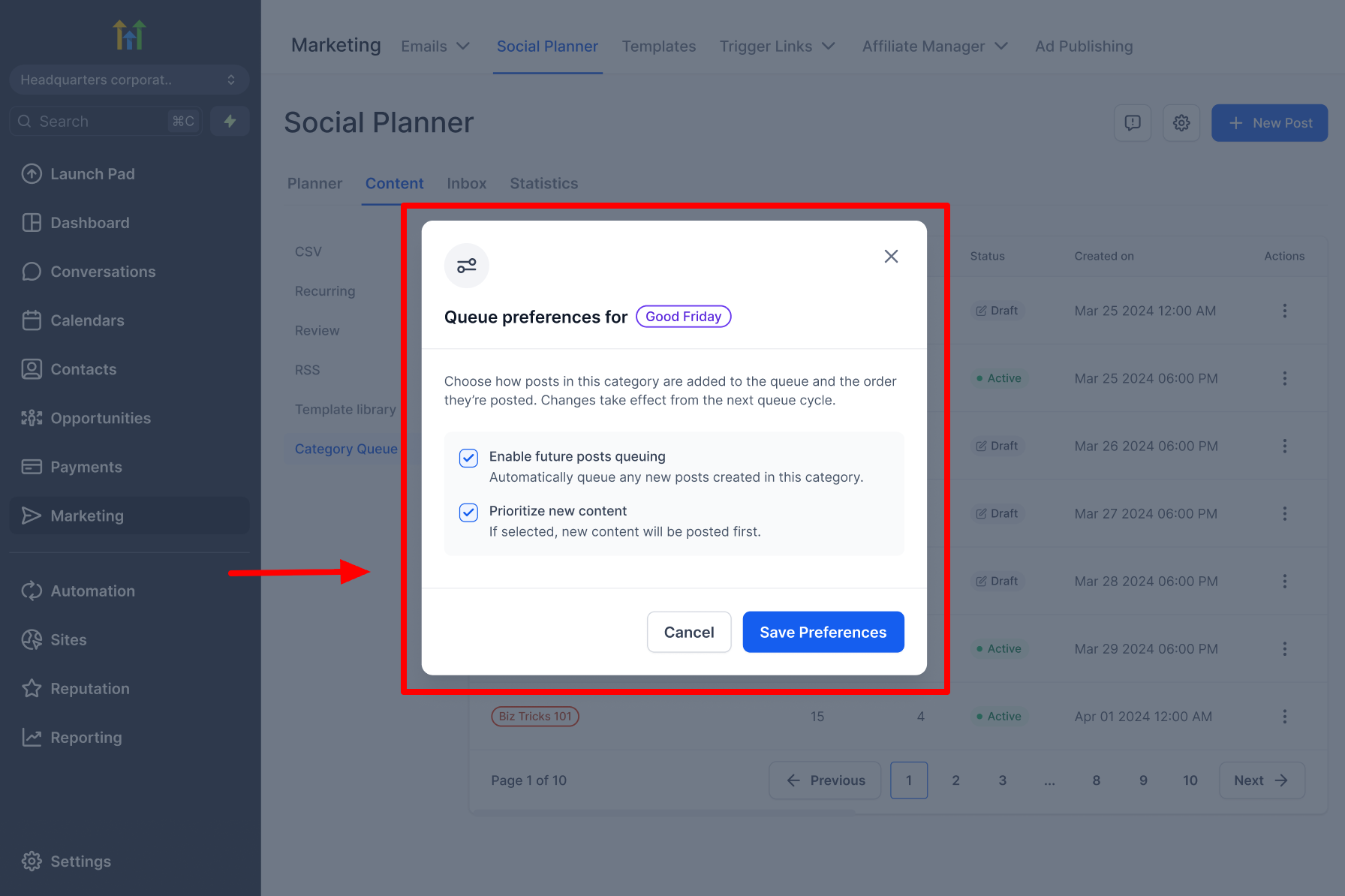
2. Queue preferences
When you add a new post to the queue, you can control where it should appear:
- Prioritise new content: if ticked, the post is added at the top of the queue; if unticked, it is added at the end.
- Enable future queue: allows every post with the associated category to enter the category queue automatically.
3. View the queue calendar
You can now see the whole queue visually on a calendar, with weekly and monthly views. You can use the calendar to see how posts are spread out and spot days with too little or too much content.
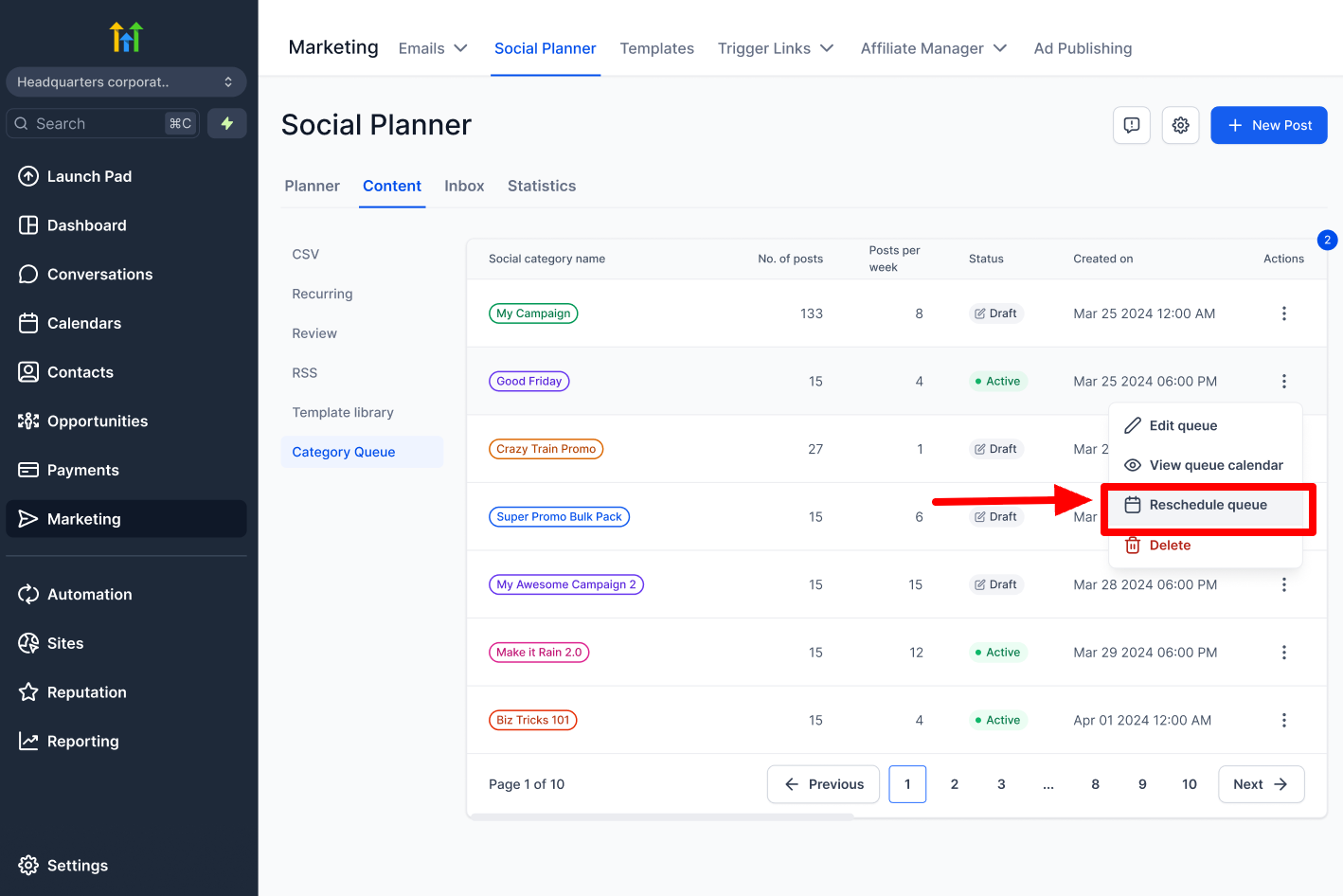
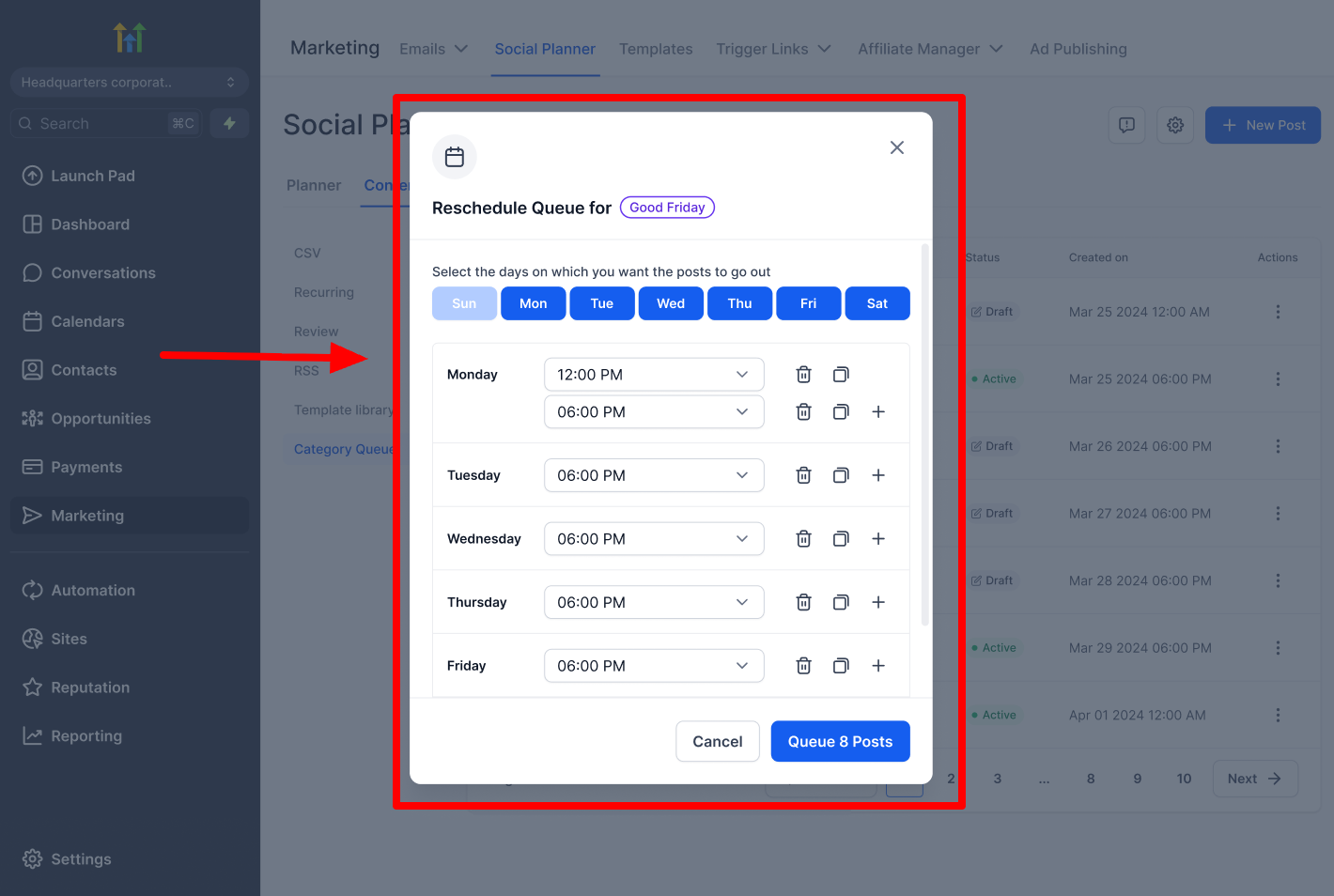
4. Reschedule the whole queue
Need to move your campaign dates? You can now shift the entire queue to start from a new date using a simple date picker. Smart rescheduling is based on the existing frequency rules and asks for confirmation before it is applied.
For example, if your campaign is pushed back by a week, you simply choose a new start date and all the posts adjust automatically.
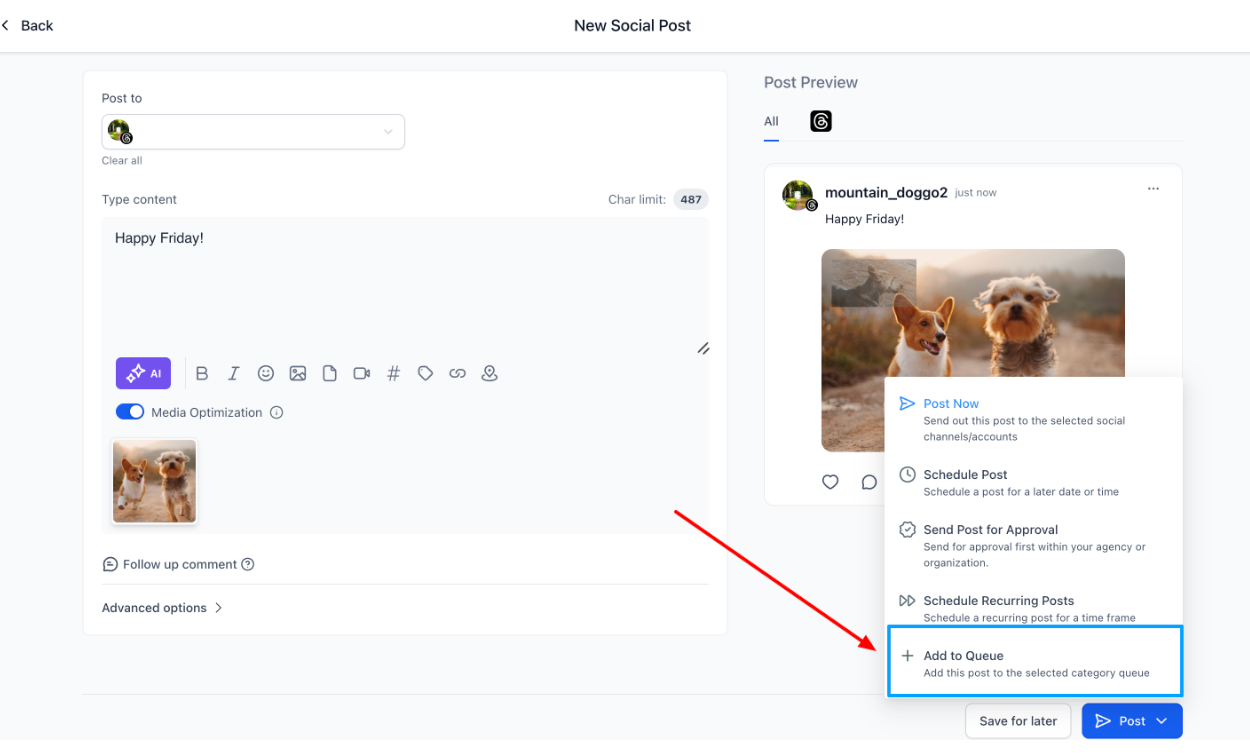
5. Add posts to the queue from the post composer
While you are creating a post, you can add it straight to a category queue.
- By selecting an existing category, the post goes into that queue.
- By creating a new category, a new queue is created automatically.
Note: rescheduling a single post is not supported. Rescheduling or shuffling from the category queue calendar is not supported.
Important points
- Category queues can be created for content that is already published and associated with a category, or you can create new posts and new categories.
- Insights are not real time. Posts that have just been published, scheduled, left as drafts or not yet synced may not have up-to-date engagement data.
- Category queues can be paused or resumed at any time.
- They can be deleted if you no longer want that content to be published.
- The content of previously published posts can be edited while you are creating the category queue.
- You can also add a new post halfway through the queue.
- You can edit an existing category queue from the 3-dot menu (for example, publishing frequency, time slots and post order).
- You can reschedule the entire queue so it starts from a new date.
- You can confirm the status of the category and the queue directly in Settings. Go to Marketing > Social Planner > Settings. Open Categories and check the status column to see whether a queue is active or inactive.
Frequently asked questions
How can I manage future posts in the category queue?
All previous and future posts associated with the 'category' will be added to the queue automatically. If you want new posts to be added at the top of the queue, tick the 'Enable future publishing' and 'Prioritise content' options.
Can I edit the category queue to update the scheduled date and time?
To change a queue's schedule, use 'Edit category queue' to update the frequency and the time slots. Use 'Reschedule the whole queue' to move the entire sequence to a new start date. Rescheduling a single post is not supported.
How do I add new posts to the queue?
Go to Queue → New post, write your content, add media and, optionally, create variations to alternate versions. Choose its position by moving the post to the point you want in the queue.
Can I add multiple variations?
Yes. Variations are alternated to keep your content fresh and unique.
What media can I use?
Add images or videos alongside the text to create richer posts.
Can I change the order later on?
Yes, open your queue to edit the sequence of the posts.