


Table of contents
- What is the GBP post scheduling tool?
- Key benefits of the GBP post scheduling tool
- Using the AI assistant for content and images
- How to view the GBP post scheduling tool
- Open GBP optimisation
- View scheduled posts
- Preview of published posts
- Edit a scheduled post
- Connecting Google Business profiles in the Social Planner
- Open the Social Planner
- Connect the GBP profile
- Select the GBP listing
- Creating a new GBP post
- Create a new post
- Select the GBP profile
- Compose the GBP post
- Schedule or publish
- Frequently asked questions
What is the GBP post scheduling tool?
The GBP post scheduling tool is a feature built on the Social Planner, available in the GBP optimisation area. It lets you create, generate with AI, schedule and bulk-publish Google posts (Updates, Offers, Events) for one or more business listings, all without ever leaving Futuria CRM.
By automating your publishing frequency and centralising management, you keep every Google profile up to date, relevant and engaging.
Key benefits of the GBP post scheduling tool
The Futuria CRM scheduling tool helps you to:
- Save time with "set and forget" publishing.
- Maintain brand consistency by publishing to several GBP profiles at once.
- Beat writer's block: AI creates copy and images for posts on demand.
- Improve local SEO; frequent, high-quality posts signal relevance to Google.
- Monitor performance and make changes in real time from a single dashboard.
Using the AI assistant for content and images
The AI assistant analyses your industry and your area, then generates keyword-rich copy (up to 1,500 characters) and royalty-free images sized perfectly for Google (minimum 250 × 250 px, ≤5 MB). You can edit the suggestions or accept them with one click for a polished post every time.
How to view the GBP post scheduling tool
Open GBP optimisation
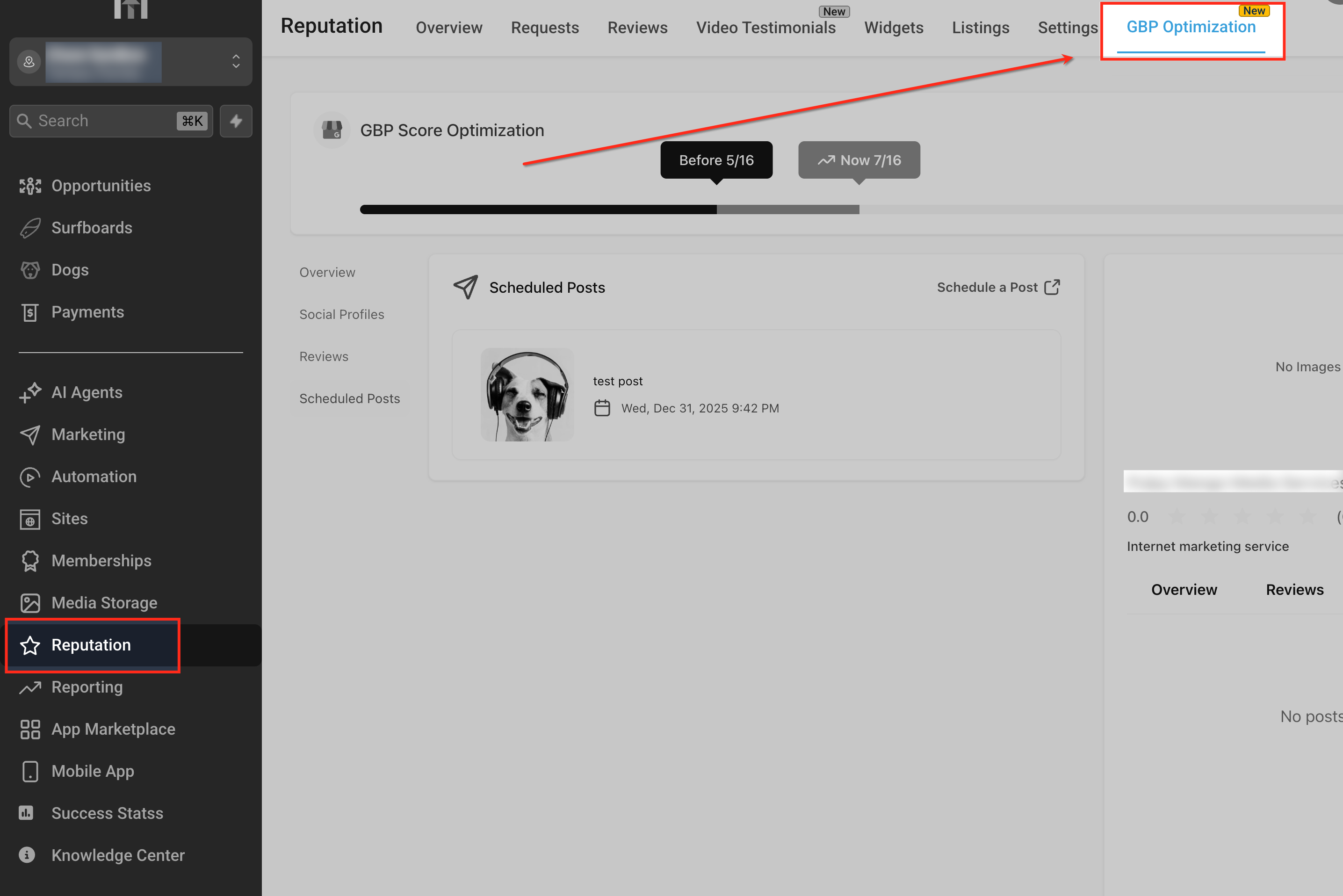
From the left-hand menu, click Reputation, then select GBP optimisation at the top to see all the tools related to Google Business Profile, including scheduled posts.
View scheduled posts
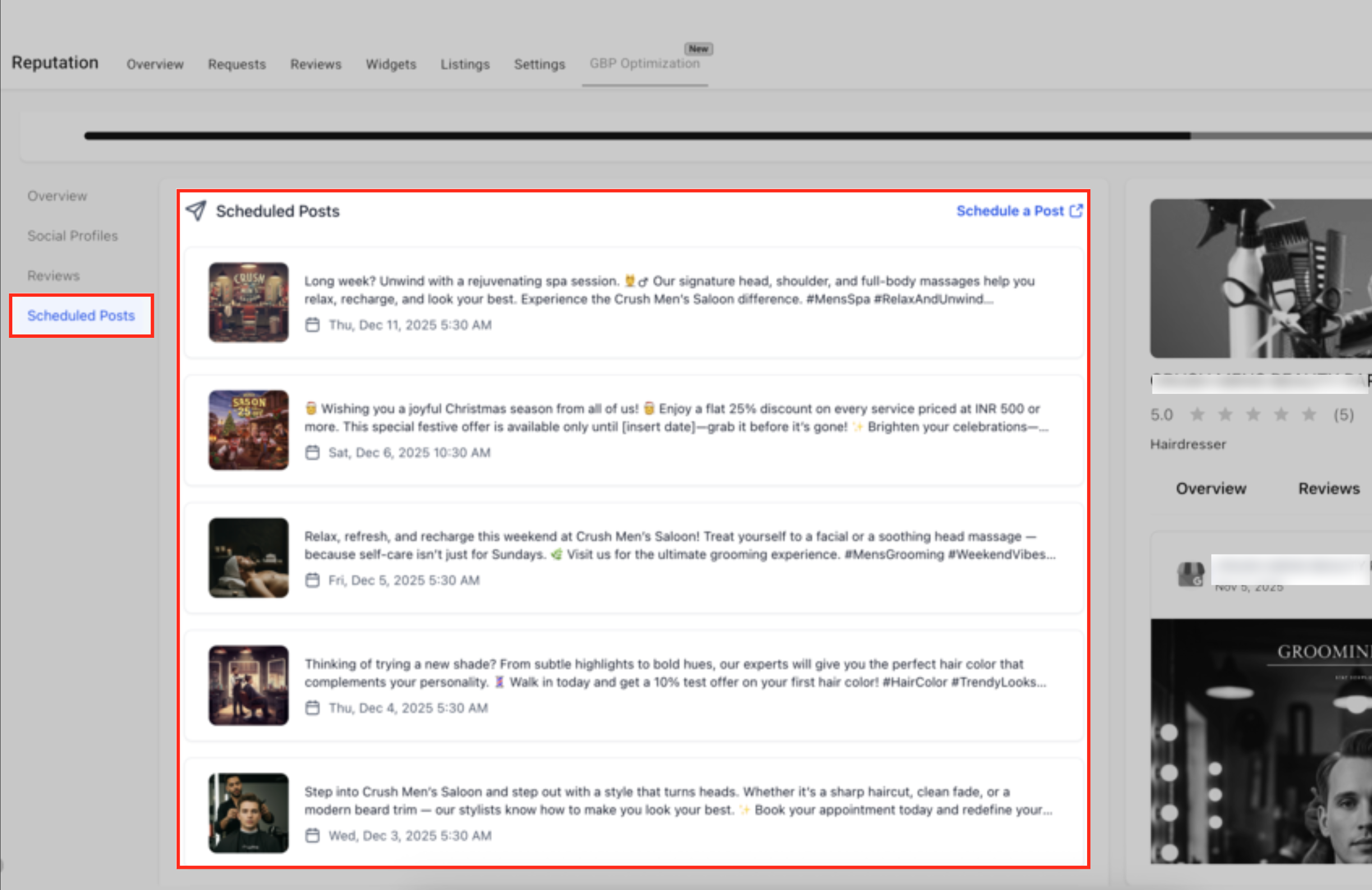
This view shows all the Google Business Profile posts scheduled for the selected account. The Scheduled posts tab on the left lets you quickly review the content, the images and the publication dates of your posts, or click Schedule a post to create a new one.
Preview of published posts
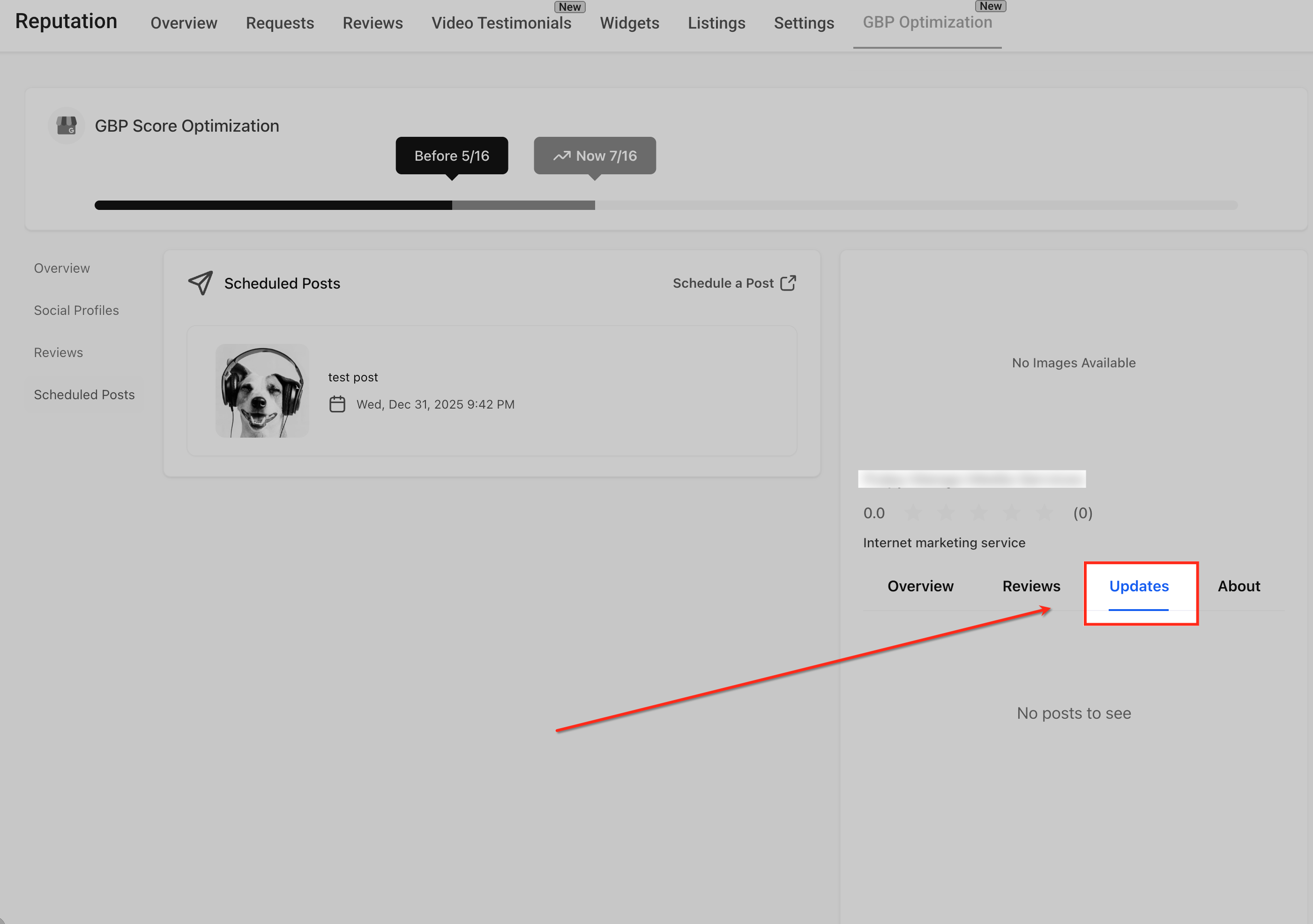
The Updates panel on the right shows how scheduled or published posts appear directly on the Google Business profile. This preview helps you confirm that posts are syncing correctly and lets you check what customers will see once the content is live.
Edit a scheduled post
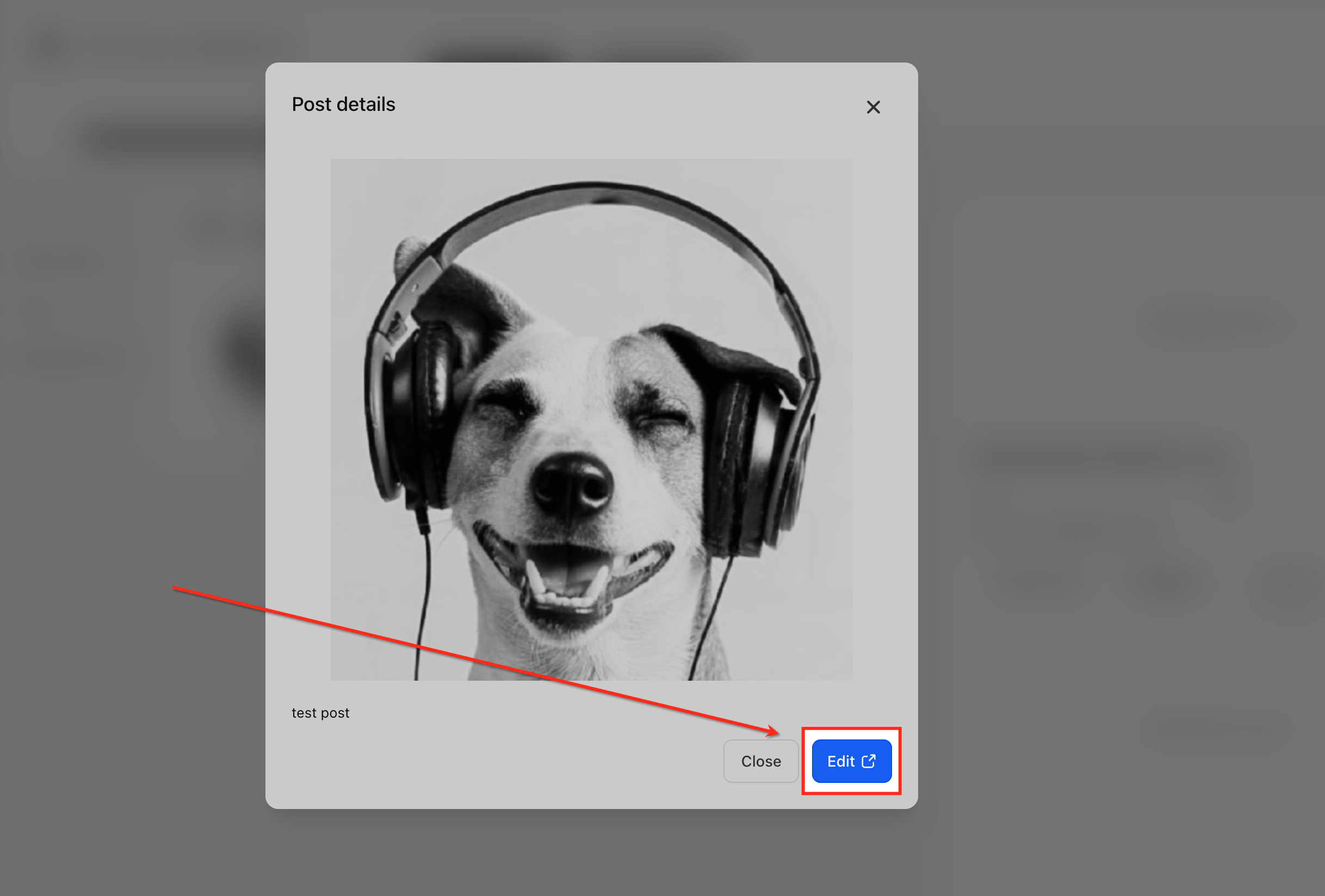
Selecting a scheduled post opens its details, letting you review the content and the image before publication. Clicking Edit launches the post editor in the Social Planner, where you can update the copy, replace images, change the schedule or make other changes before saving.
Connecting Google Business profiles in the Social Planner
Before you can schedule posts, you need to connect each GBP profile. Once connected, you can reuse it across the Reputation, Listings and Social Planner sections, keeping authorisation tokens in sync and removing duplicate logins.
Open the Social Planner
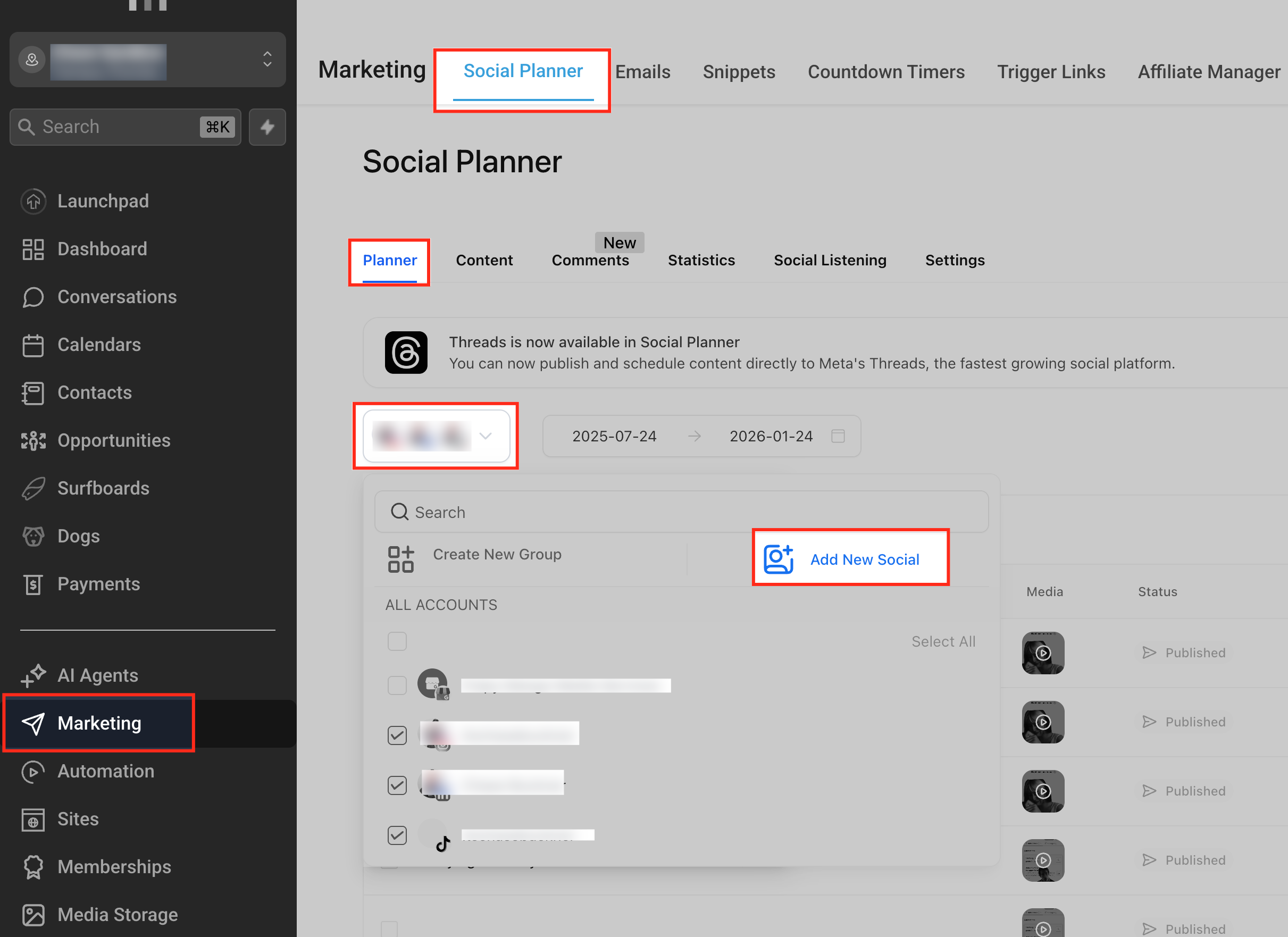
Go to Marketing in the left-hand menu, then select Social Planner and make sure the Planner tab is active at the top. From there, use the drop-down menu to choose the right account and click Add new social to start connecting a Google Business profile.
Connect the GBP profile
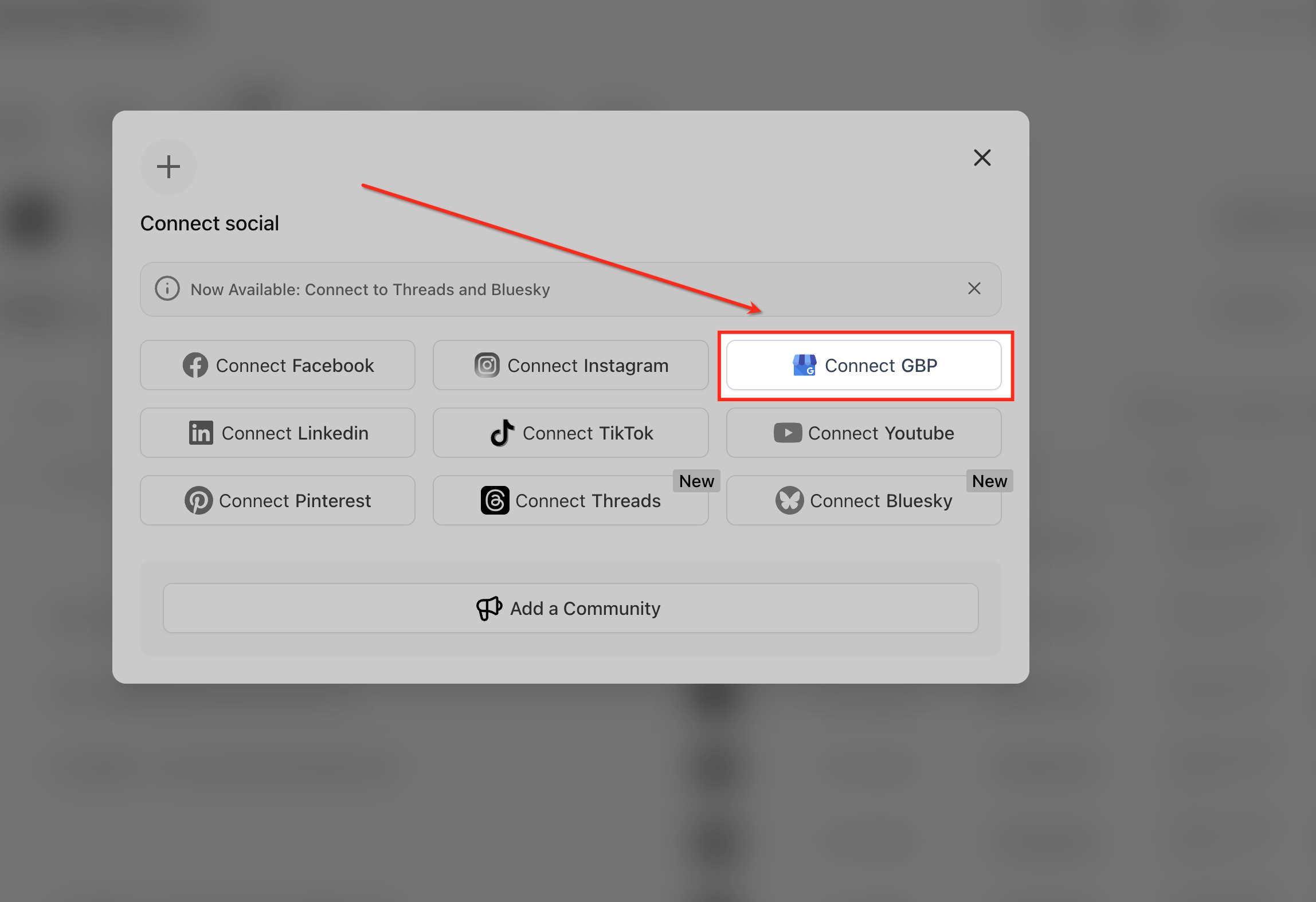
Select Connect GBP from the list of available social platforms to start connecting a Google Business profile. This option launches Google's authorisation process, allowing Futuria CRM to securely access and manage posts for the selected business listing.
Select the GBP listing
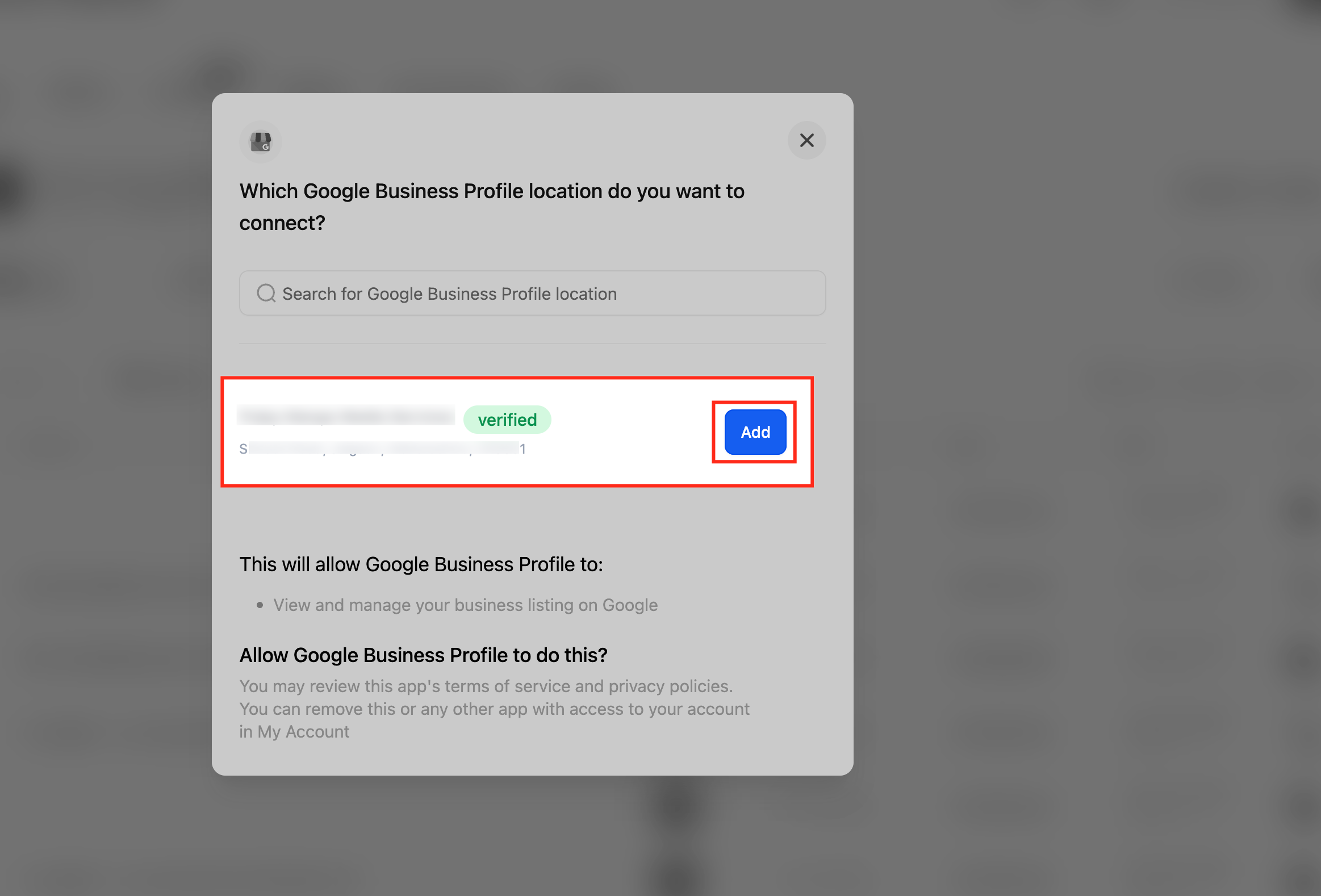
After clicking Connect GBP, you will be asked to choose the Google account you want to use. Futuria CRM will automatically retrieve all the Google Business profiles linked to that account. Select the right listing from the list and click Add to connect it, enabling Futuria CRM to manage and schedule posts for that business.
Creating a new GBP post
GBP supports three formats: Updates for general news, Offers for time-limited promotions and Events for occasions with start and end dates. Choosing the right type makes sure Google shows your content in the most effective position on the profile.
Create a new post
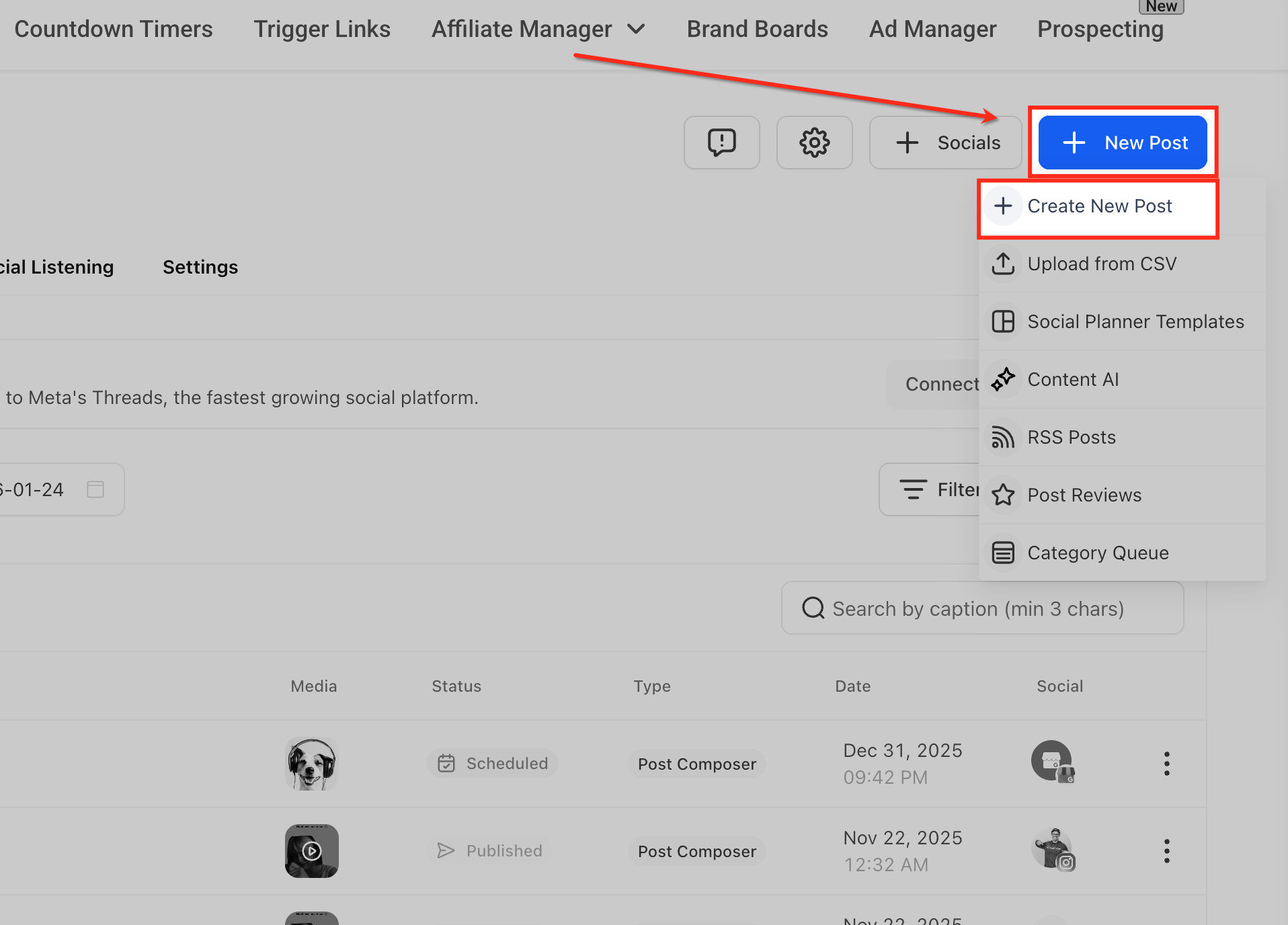
Click New post in the top right corner and select Create new post to open the editor in the Social Planner. This is the starting point for building a Google Business Profile post, where you add content, select profiles and set the scheduling options.
Select the GBP profile
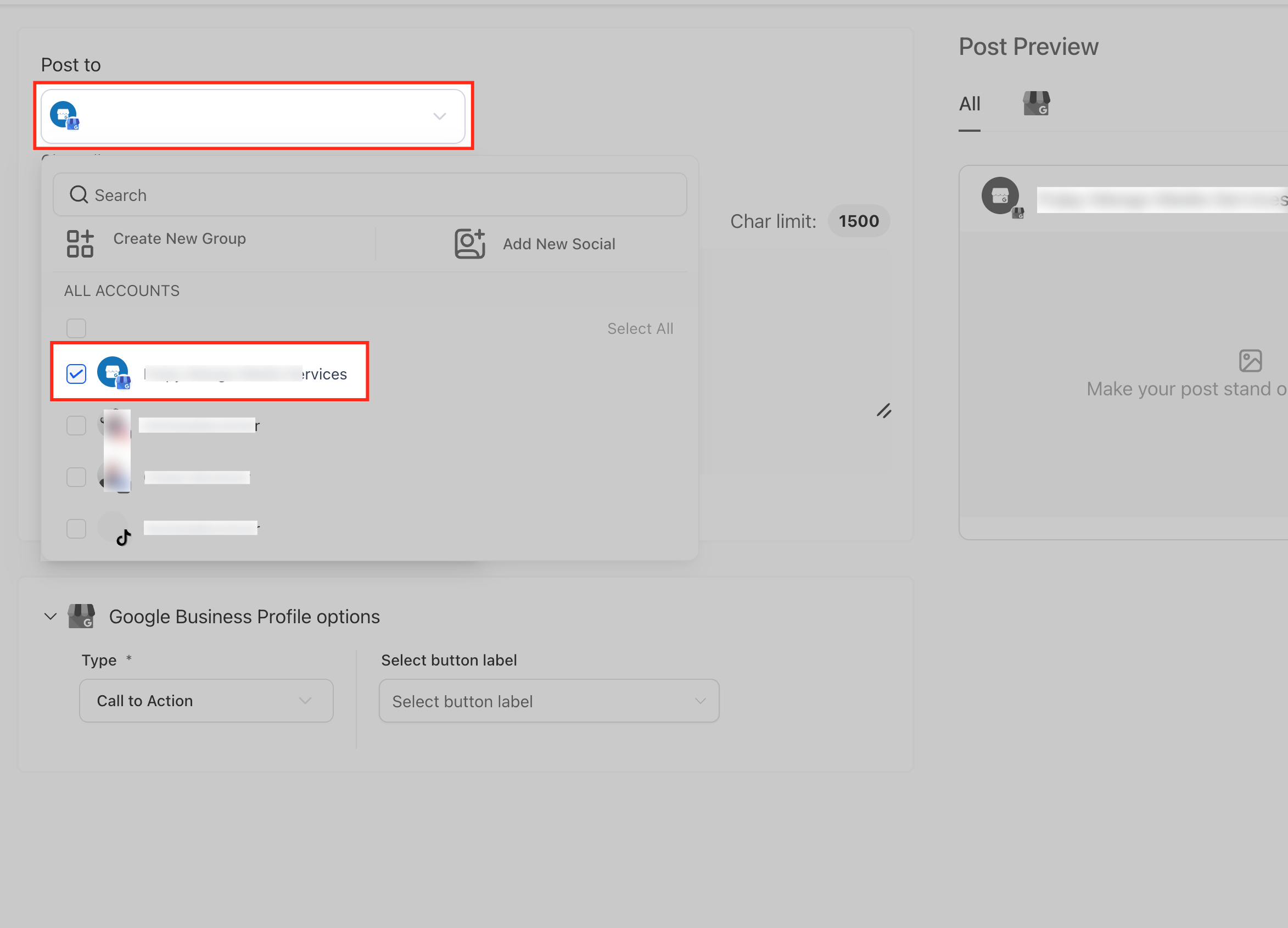
Use the Publish to drop-down menu to see all your connected social profiles and select the Google Business Profile listing where the post should be published. Once selected, the GBP profile appears ticked in the list, confirming that the post will be created and scheduled specifically for that listing.
Compose the GBP post
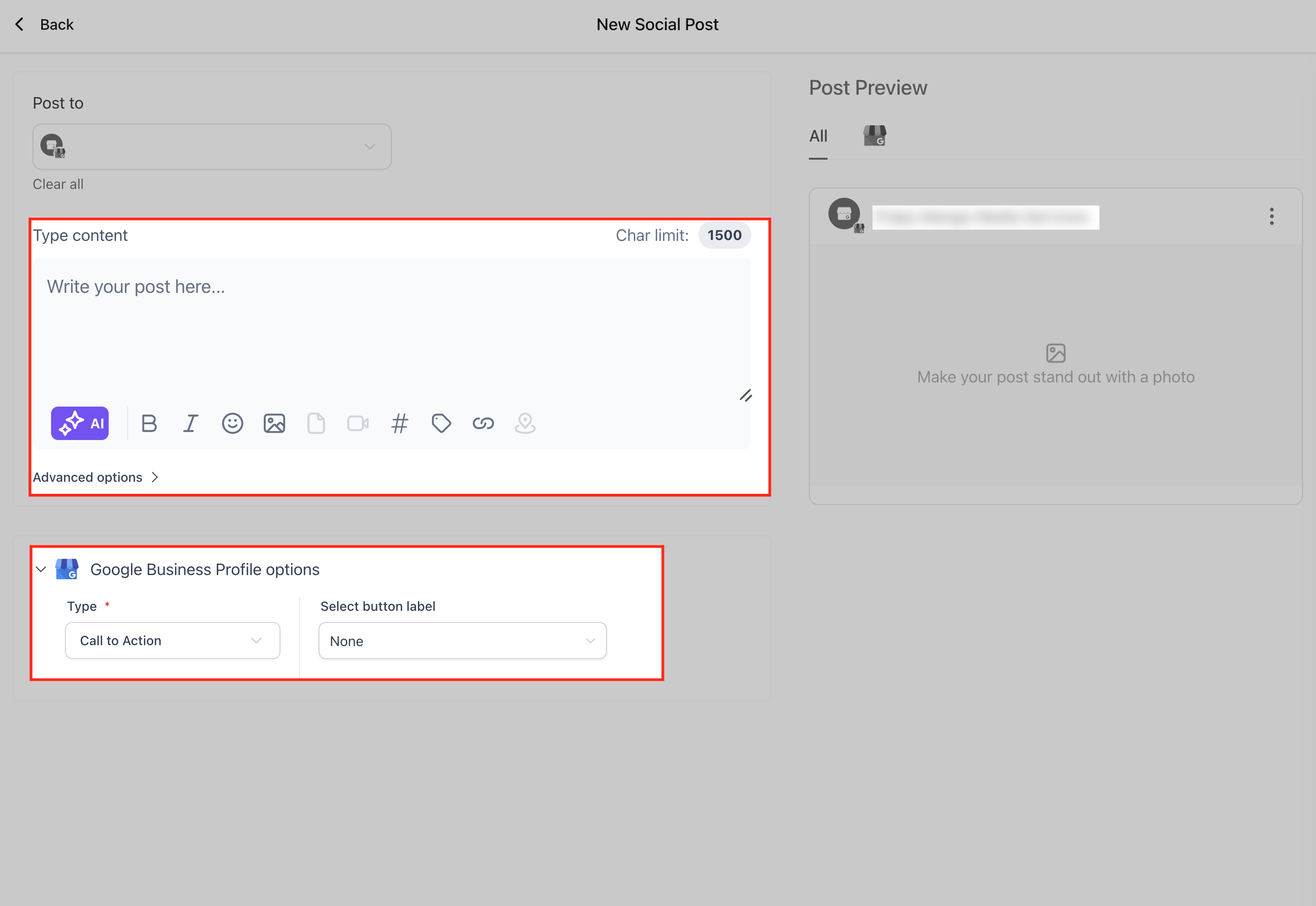
Enter your message in the text editor, keeping the 1,500-character limit in mind, and use the formatting tools to improve readability, such as bold, emoji, hashtags and links. You can also click AI to generate optimised copy, add an image to make the post more engaging, and use the Google Business Profile options below to choose the post type (Update, Offer or Event) and optionally add a call-to-action button.
Schedule or publish
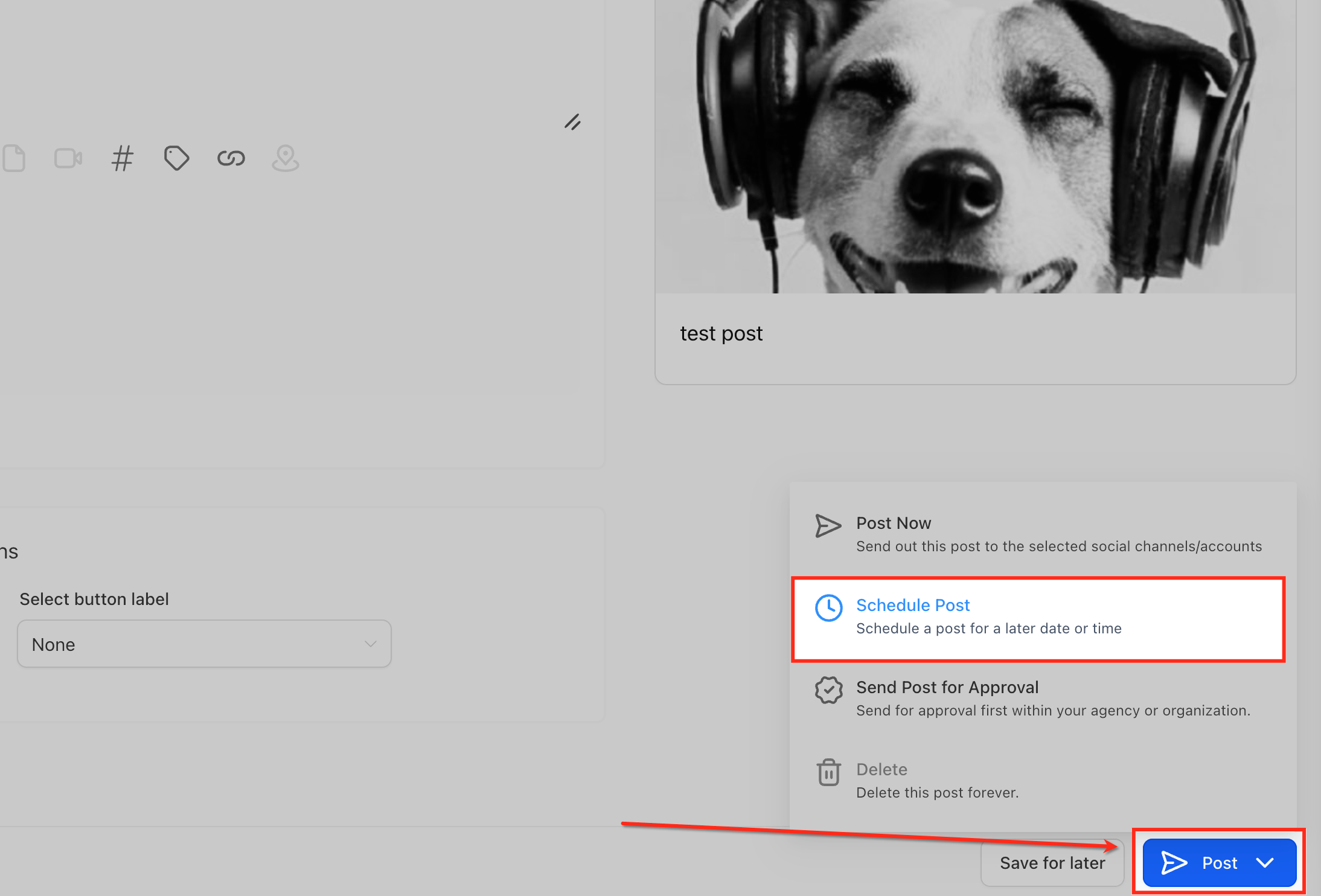
After clicking Publish, choose how to handle the GBP post based on your workflow and your timings. Select Schedule post to publish it on a specific date and time, Publish now for immediate publication, or Send post for approval if the post needs a review before going live. Confirm your selection to complete the process.
Once scheduled, the post is automatically added to the Scheduled posts tab under Reputation → GBP optimisation. From there, you can review upcoming posts, edit them, reschedule them, duplicate them or delete them before they go out, giving you full visibility and control over all your planned GBP content.
Frequently asked questions
How many characters can a GBP post include?
Up to 1,500 characters per post.
Can I schedule video posts on GBP?
At present Google only allows images (JPEG/PNG ≤5 MB); videos are not supported through the API.
Does bulk publishing breach Google's duplication policies?
Identical content across several listings is allowed, but we recommend making small, area-specific tweaks to avoid coming across as spam and to maximise local relevance.
What happens if the token of a connected GBP profile expires?
Publishing the post will fail. Futuria CRM will flag the profile as "Action required"; you will need to reconnect it and reschedule the post to publish it.
Do changes sync with Google instantly?
Yes. Updating a scheduled post before it goes out overwrites the draft; editing it after publication sends an immediate update to Google within seconds.
Does the AI assistant cost extra?
AI credits follow your account's overall AI usage. There is no separate charge for GBP posts.
Are publishing limits shared across profiles?
Yes, Google's limit of 100 posts every 24 hours applies per user token.