


Table of contents
- What is a custom object widget?
- Key benefits of custom object widgets
- Metrics and chart types
- Permissions and sharing
- How to set up custom object widgets
- 1) Adding a custom object widget to a dashboard
- 2) Adding a custom object widget to a custom report
- Frequently asked questions
What is a custom object widget?
Custom object widgets let you add charts that reference the custom objects you create in your account settings. Because every business tracks unique data, these widgets turn non-standard records (for example, "Pets", "Properties", "Cases") into totals and averages that you can filter, customise and reuse across different dashboards.
Key benefits of custom object widgets
Custom object widgets are designed to surface the KPIs that matter most to your business, even when your data sits outside the standard CRM objects.
Tailored analysis: build metrics for the unique records you track (for example, Average pet age).
Centralised reporting: combine contact, opportunity and custom object metrics on the same dashboard.
Flexible charts: switch between numeric, line, bar, horizontal bar, doughnut or table charts to suit the story you are telling.
Reusable filters: apply dashboard-level quick filters or widget-level filters without changing the widget's original view.
Secure sharing: respects the dashboard's existing permission levels, so only authorised users can view or edit the widgets.
Metrics and chart types
Understanding what you can measure and how you can display it helps you choose the right chart for the question you are asking.
Metrics available for custom object widgets: Count, Sum, Average.
Supported chart types: Numeric, Table, Bar, Horizontal bar, Line, Doughnut.
A recommended chart type is pre-selected when you add a widget, and you can change it at any time from the chart selector.
Tables can display several fields as columns; charts can use eligible fields for grouping, where supported.
Permissions and sharing
Manage who can view, filter or edit the widgets using the same permission levels that control your dashboards.
The VIEW/EDIT/FULL/NO ACCESS dashboard roles continue to apply to custom object widgets.
Editors can change the chart type, metrics, filters and theme; viewers can interact with the quick filters.
Use the three-dot menu on a widget to Duplicate it or configure it further without affecting the original.
How to set up custom object widgets
Setting things up is quick once your custom object exists. Correct configuration ensures your fields are available for metrics, groupings and filters, so your widgets answer the right questions straight away.
Before adding any widget, make sure your custom object has been created. For detailed instructions, see our guide on Creating and editing custom objects.
1) Adding a custom object widget to a dashboard
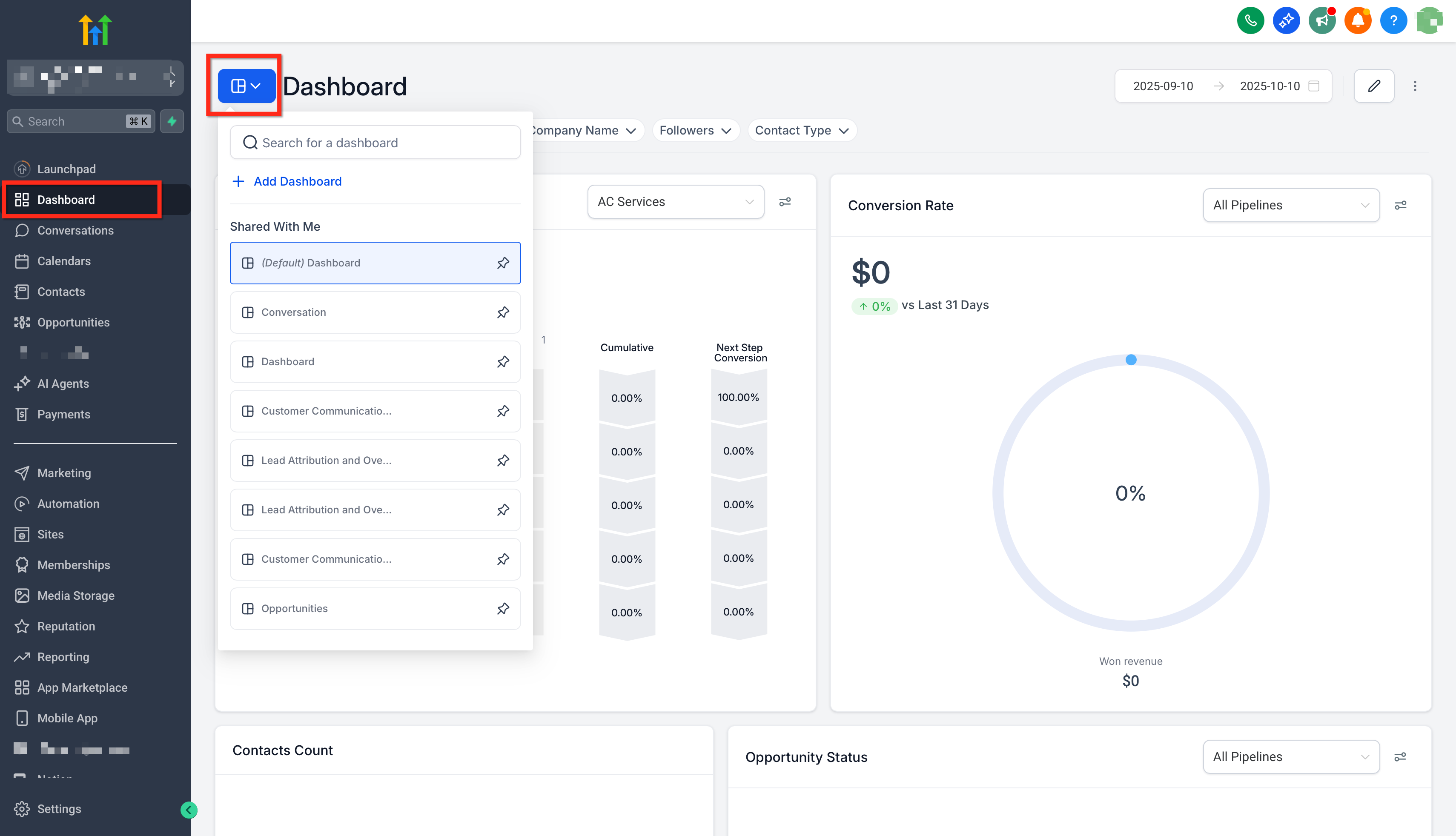
In your account, go to the Dashboard and click the blue button in the top left-hand corner to open the dashboard you want.
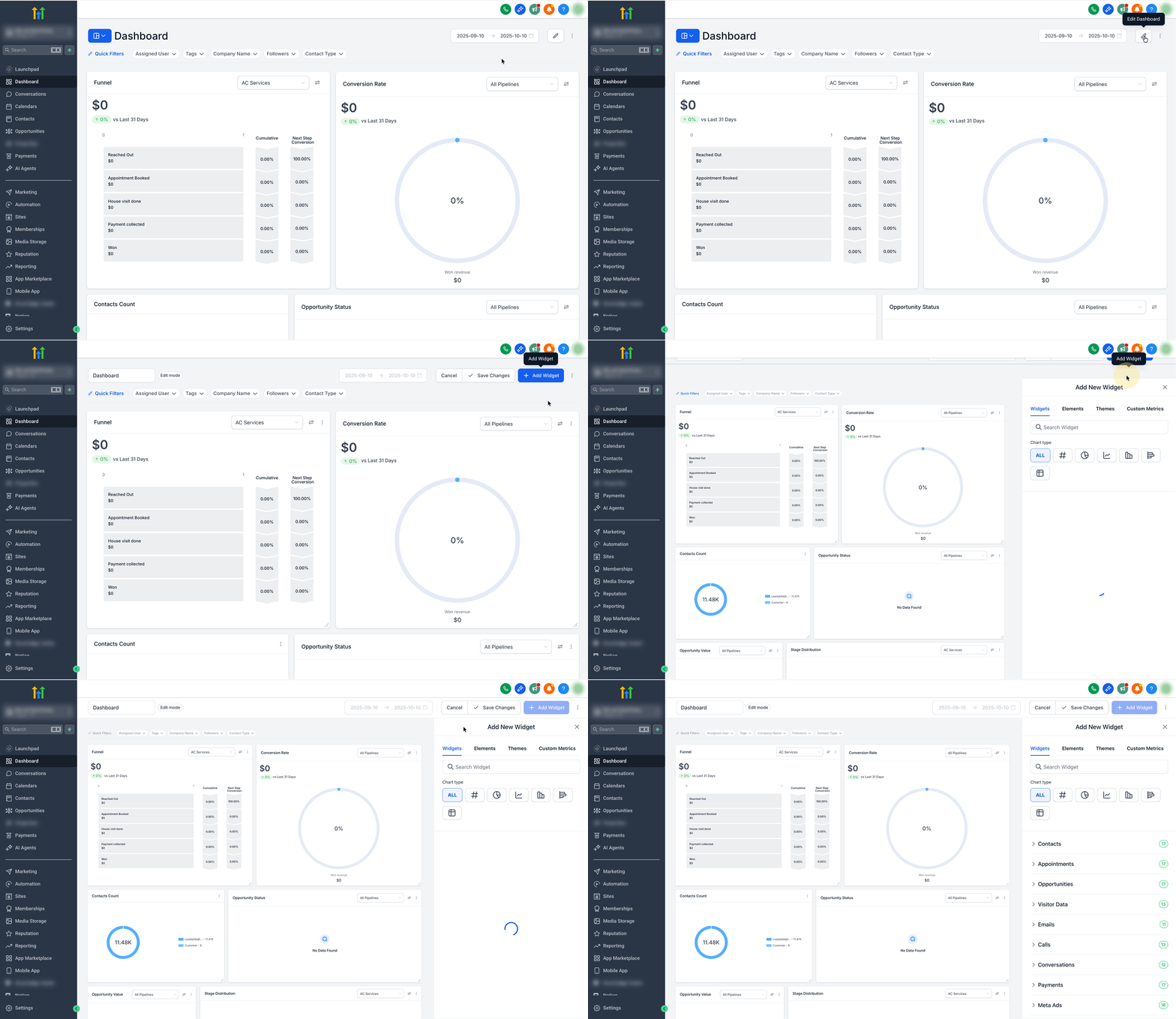
Click Edit (pencil icon) → Add widget.
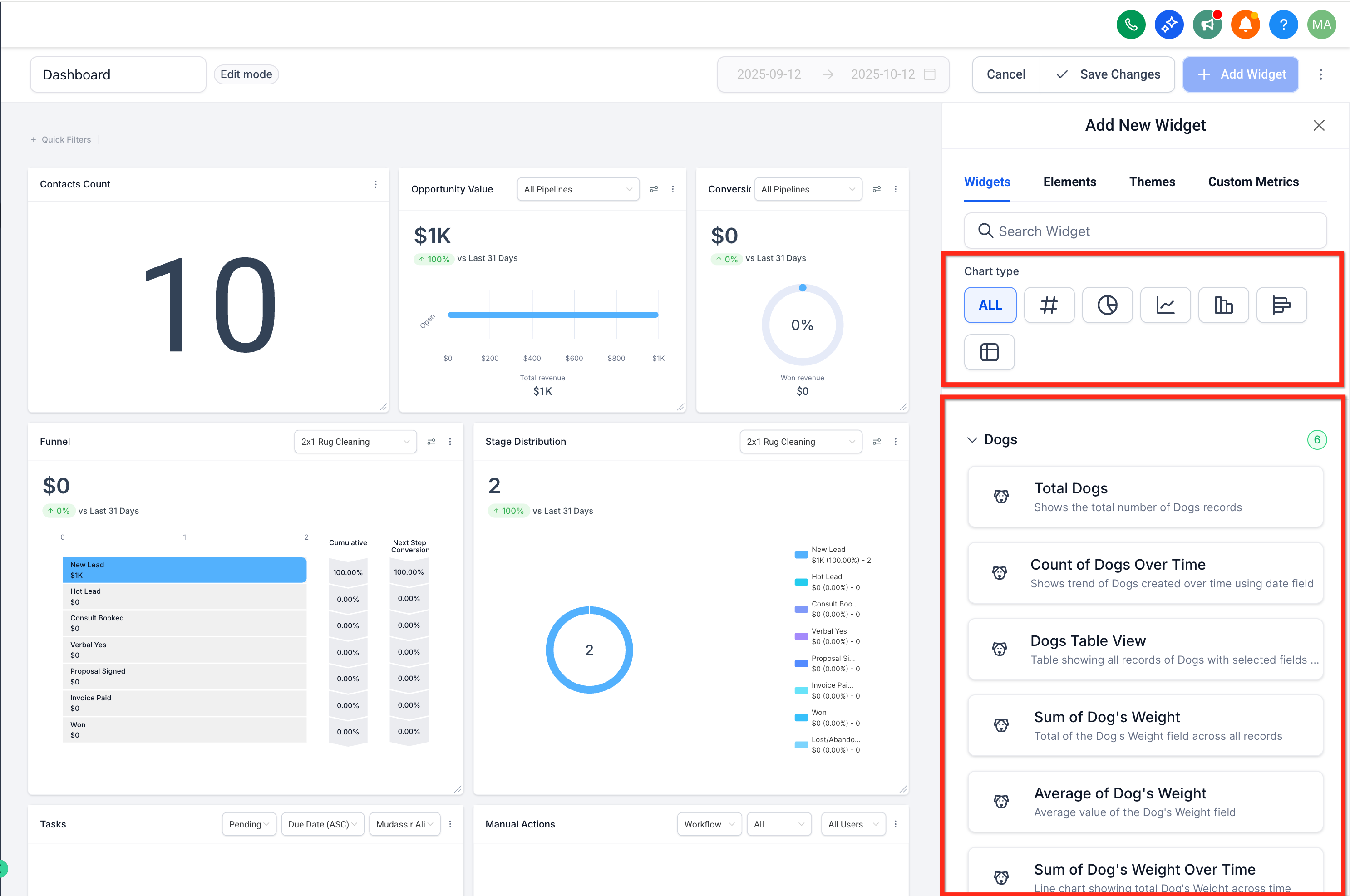
Choose the chart type you prefer (Numeric, Doughnut, Line, Bar or Table), then scroll to the Custom objects category (Example: Dogs) and select the metric you want.
Apply filters (campaign, metric, date range) or change the theme/colours.
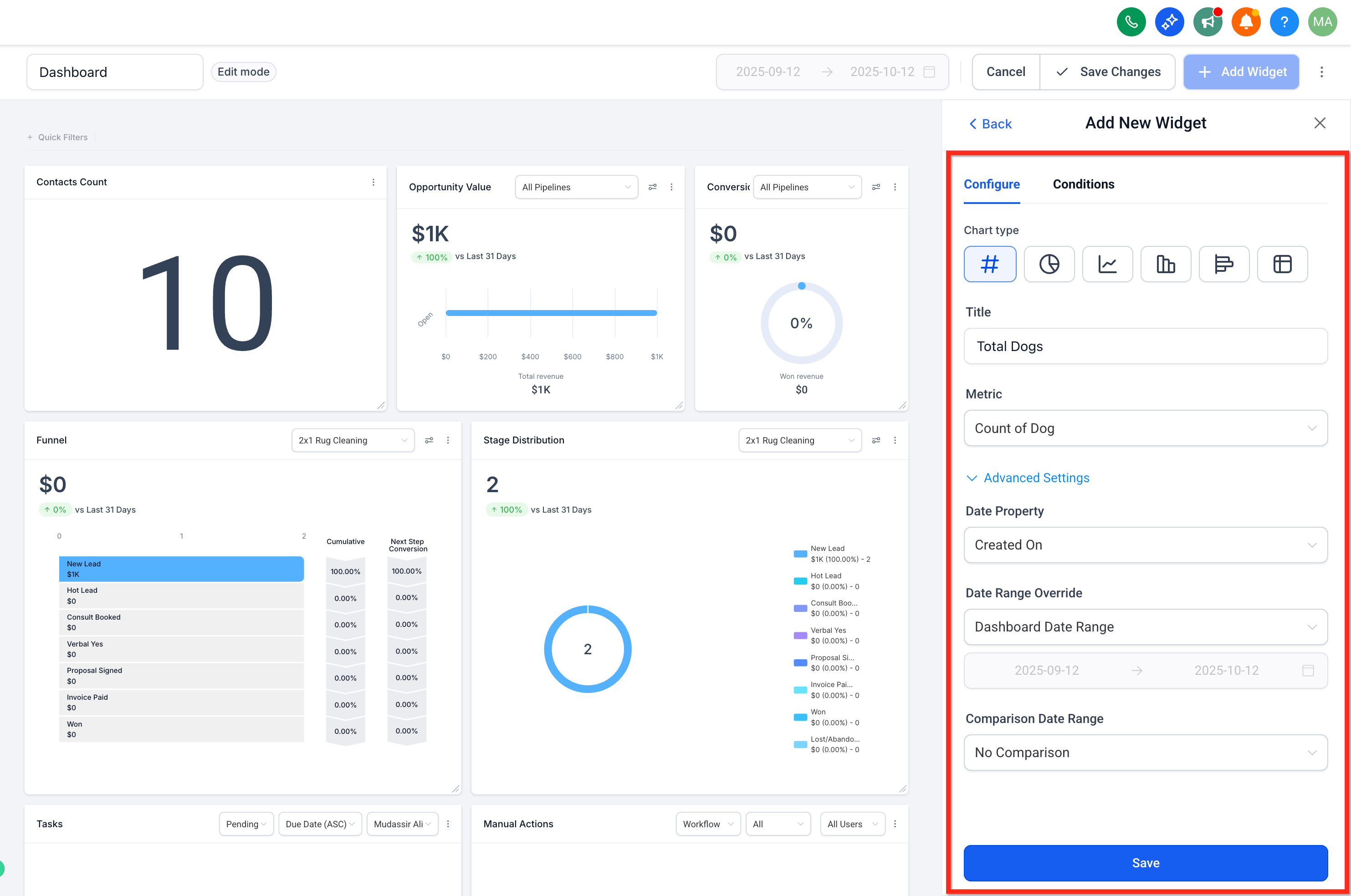
Click Save. The widget will start displaying data.
2) Adding a custom object widget to a custom report
In your account, go to Reports → Custom reports and open an existing report or click Create report.
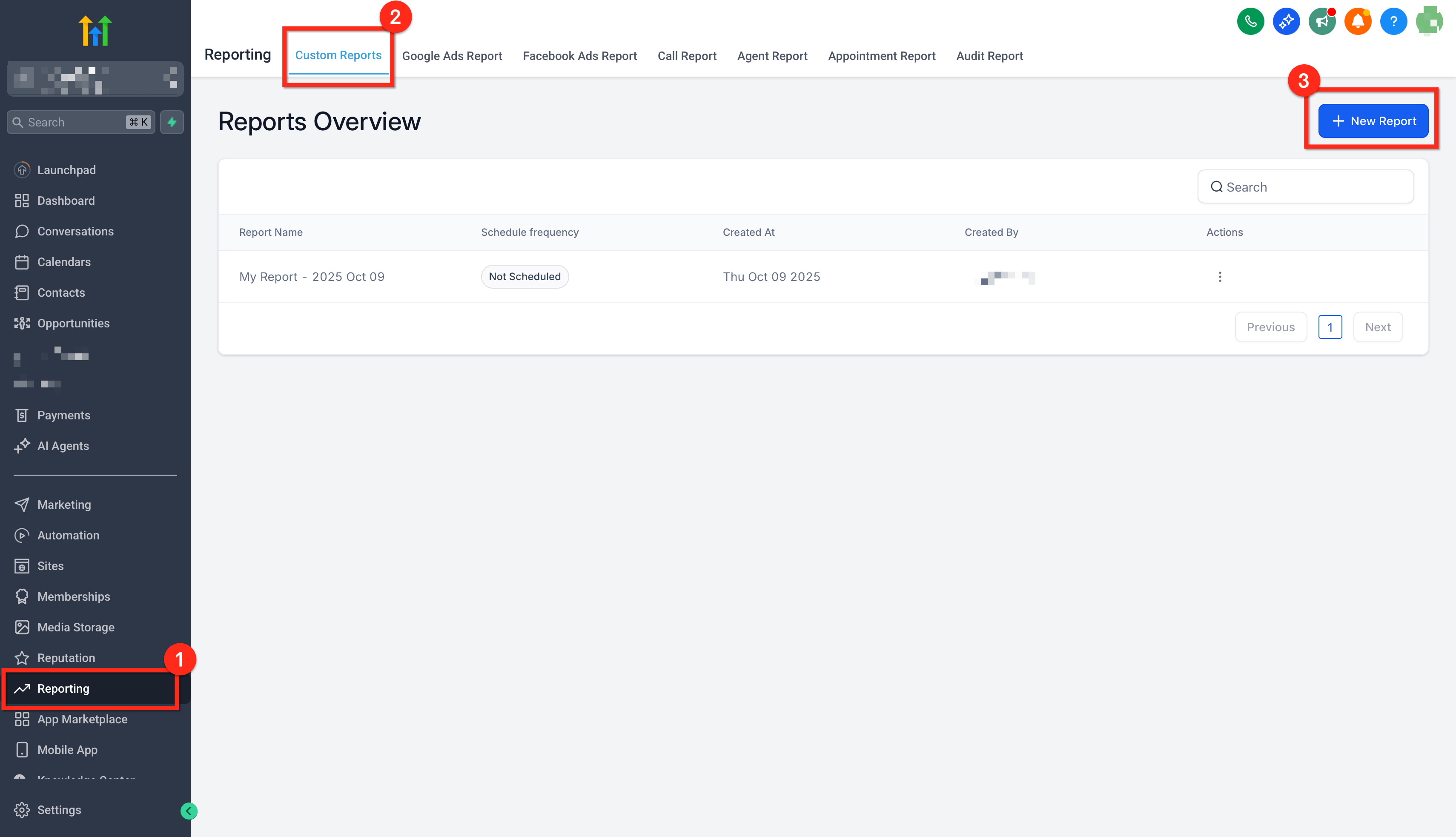
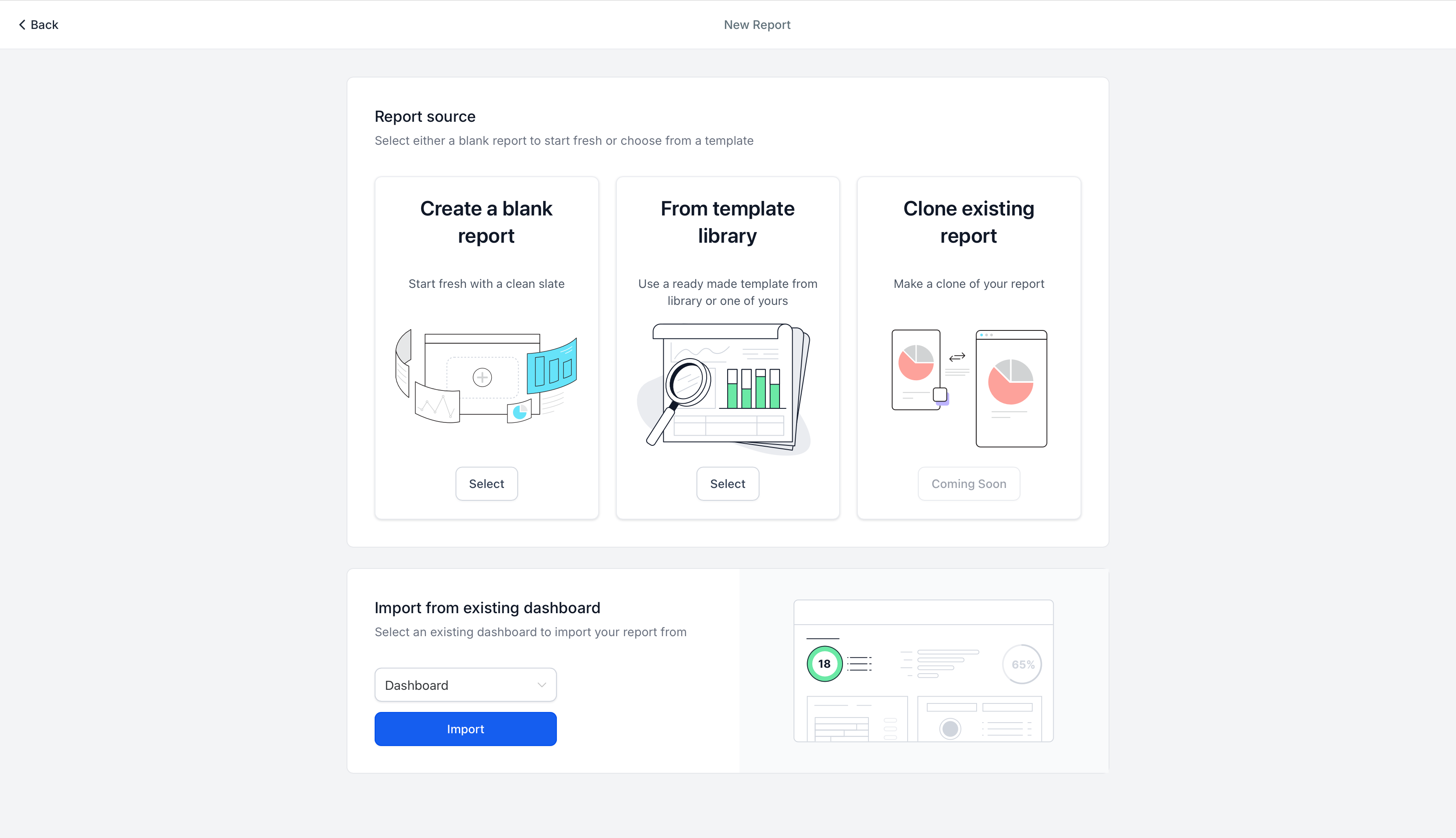
Choose whether to start from a blank workspace, use a template or import the layout of an existing dashboard.
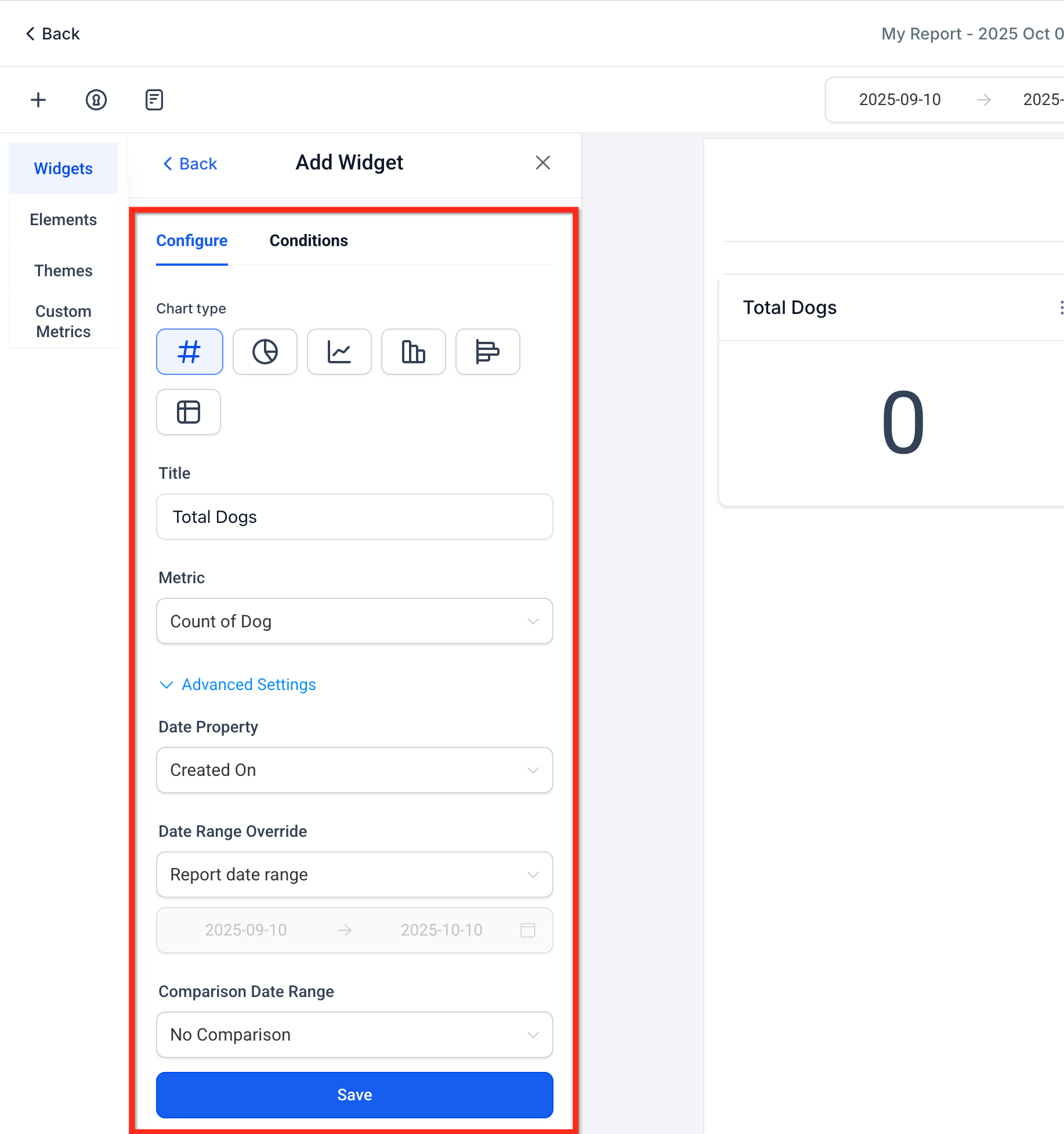
Click Add widget/element (top left). In the widget list, find the Custom objects widgets (Example: Dogs) and drag the ones you want into the layout.
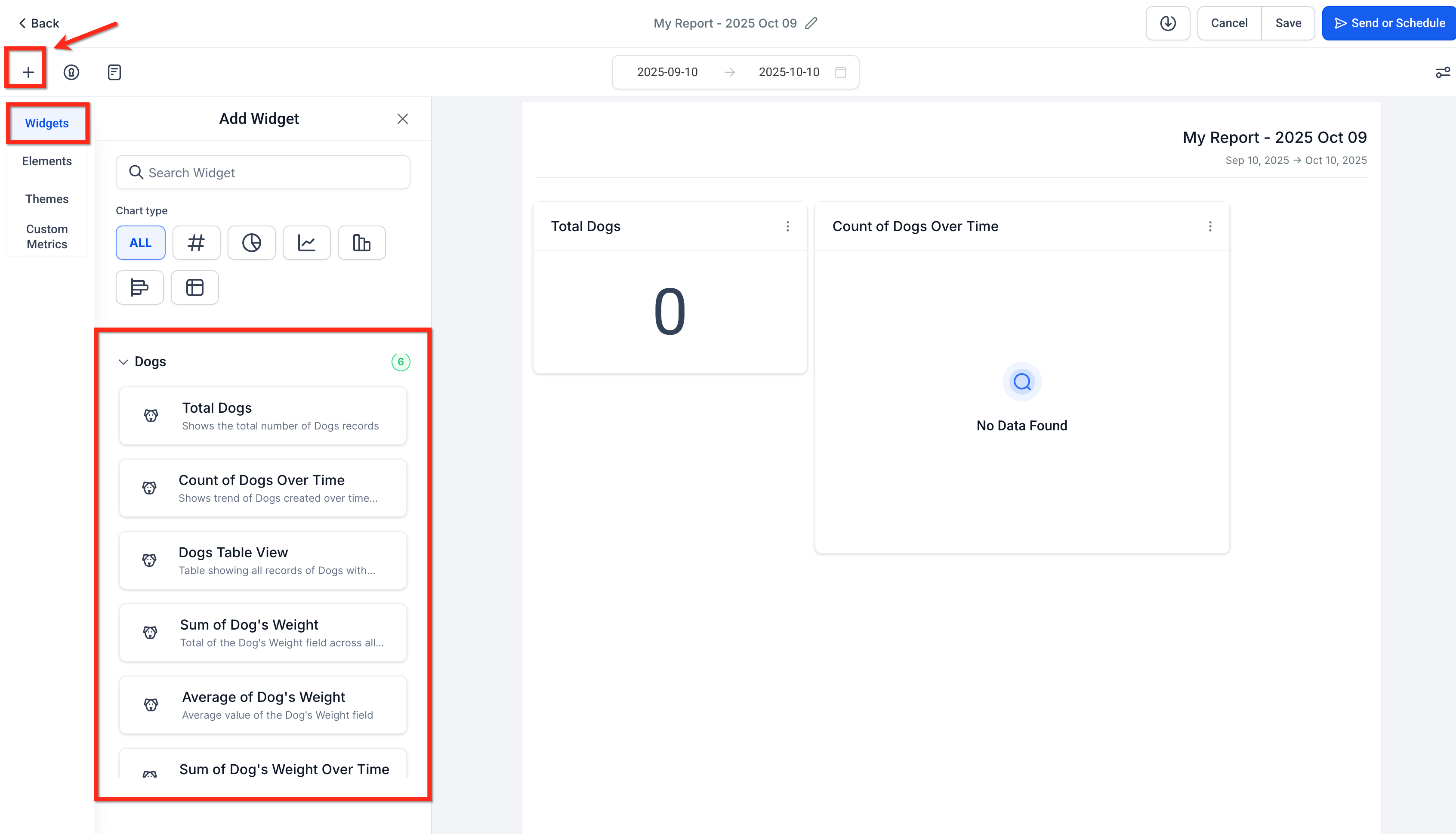
Configure each widget: chart type, filters and theme to suit your needs, then click Save.
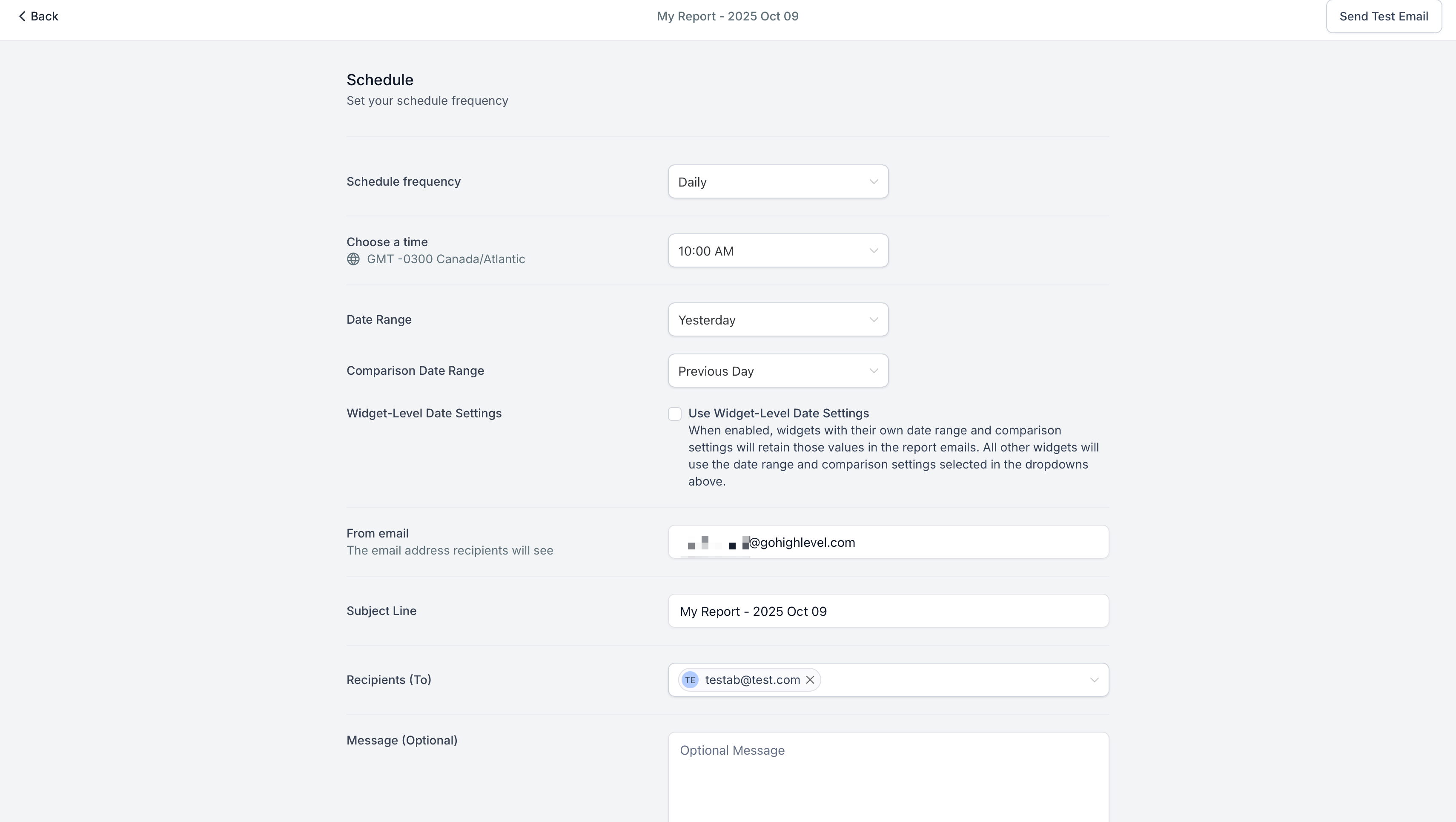
Click Send or Schedule to set up an email schedule and receive the report automatically.
Frequently asked questions
How many custom objects can I create?
Up to ten custom objects per account. Every object can be used in the widgets.
Which plans support custom objects and dashboards?
Custom objects, dashboards and custom reports are now available on all plans.
Can I duplicate a custom object widget?
Yes. Use the three-dot menu → Duplicate to copy the configuration and edit it as needed.
Can I group by a multi-select field from my custom object?
When a chart or table supports grouping and your object includes eligible selection fields, you can group by those fields. Availability varies by chart type.
Why does my widget show "No data"?
Check that your custom object has records, that you have selected an eligible metric/field, that the date range (if used) includes your data, and that the filters or quick filters are not excluding everything.